Convert statements with the Agent API
Last reviewed 16 November 2026 · 6 steps
Send a bank statement PDF to the Agent API, poll for the result and download the CSV.
Developers
Steps
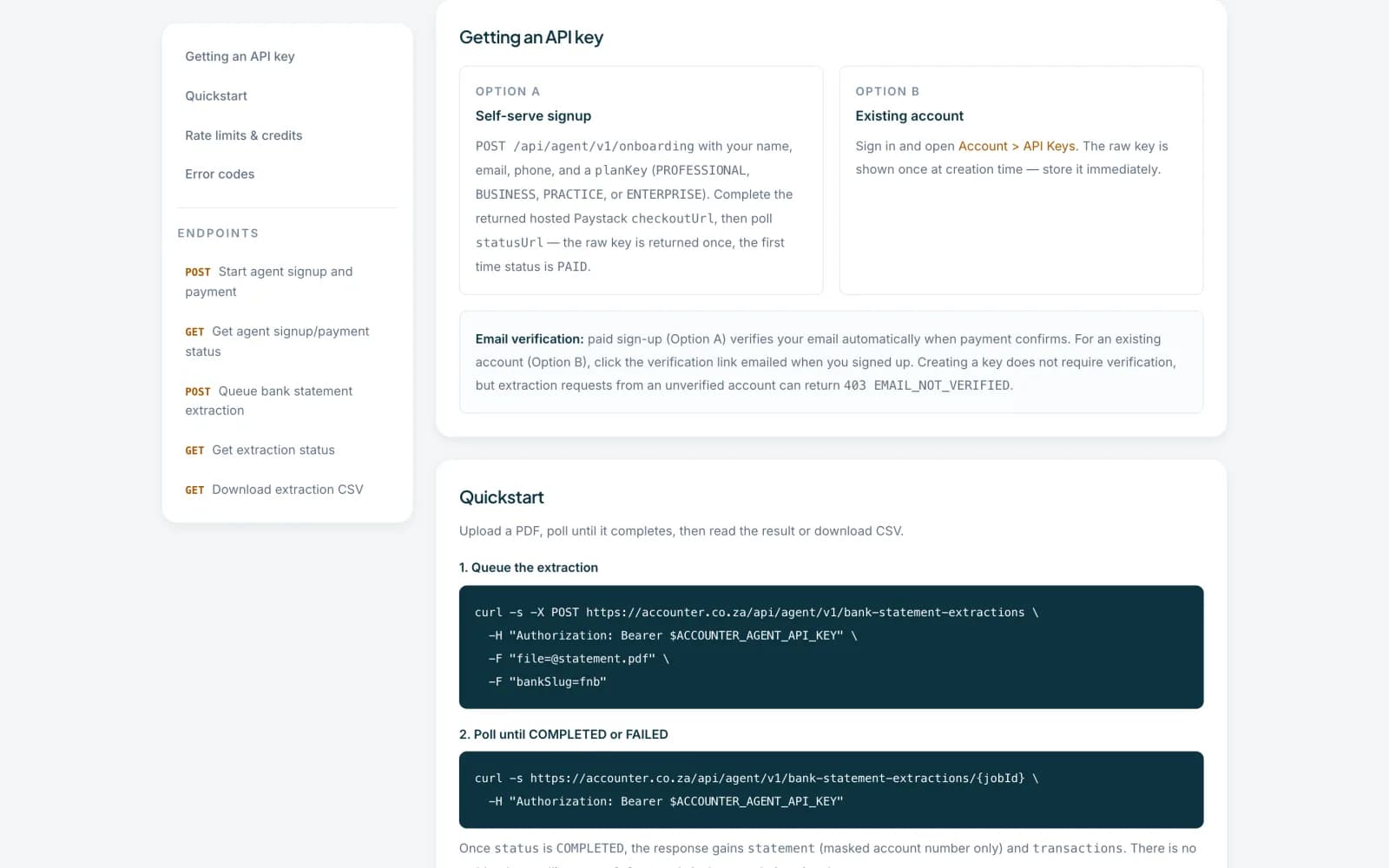
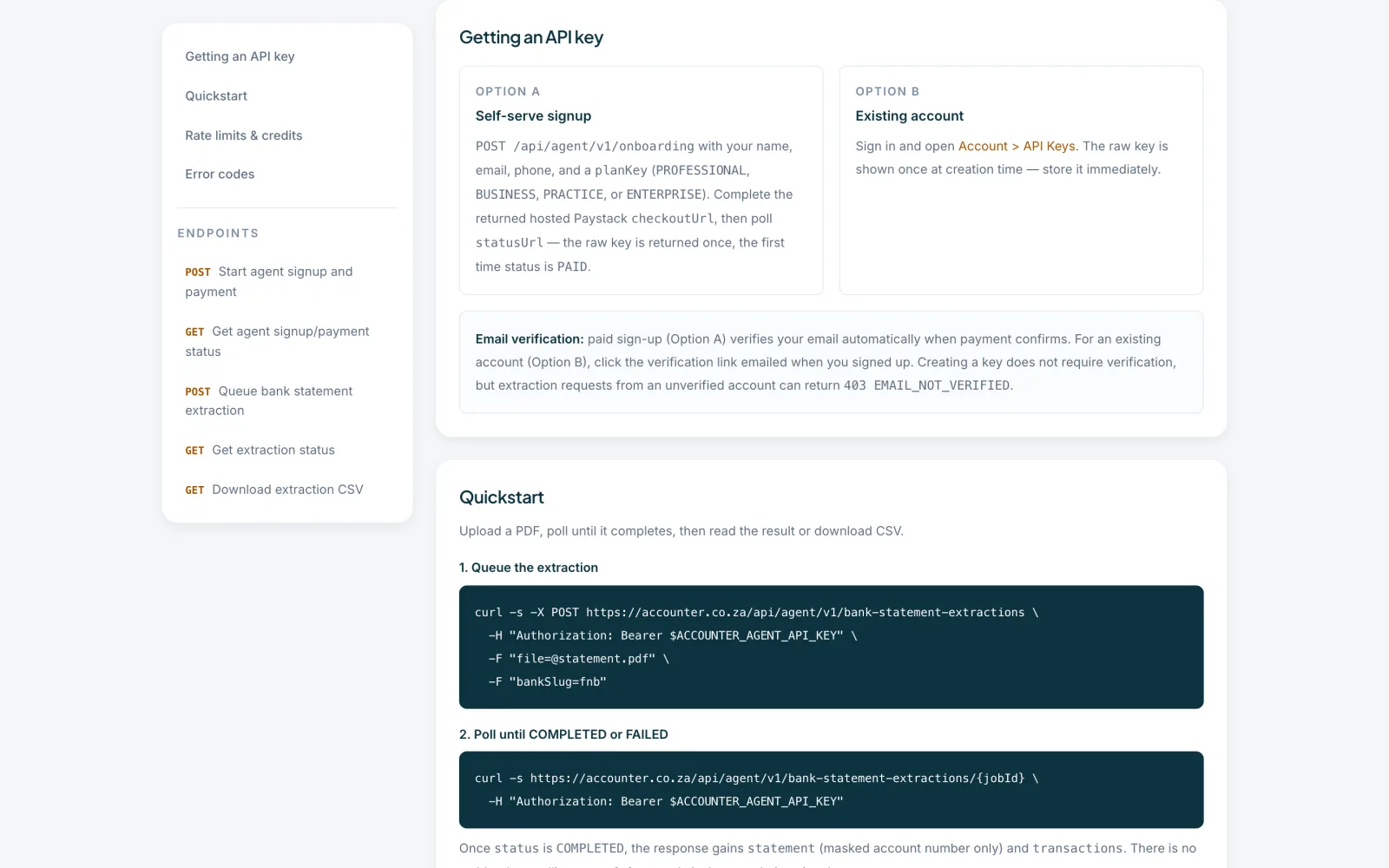
Get an API key
Create a key under API keys, as the guide on API keys explains, or use the self-serve sign-up in the API docs, which takes payment for a plan and then returns your key once. Uploads need an active paid plan and a verified email address.
 Open full size screenshot for step 1
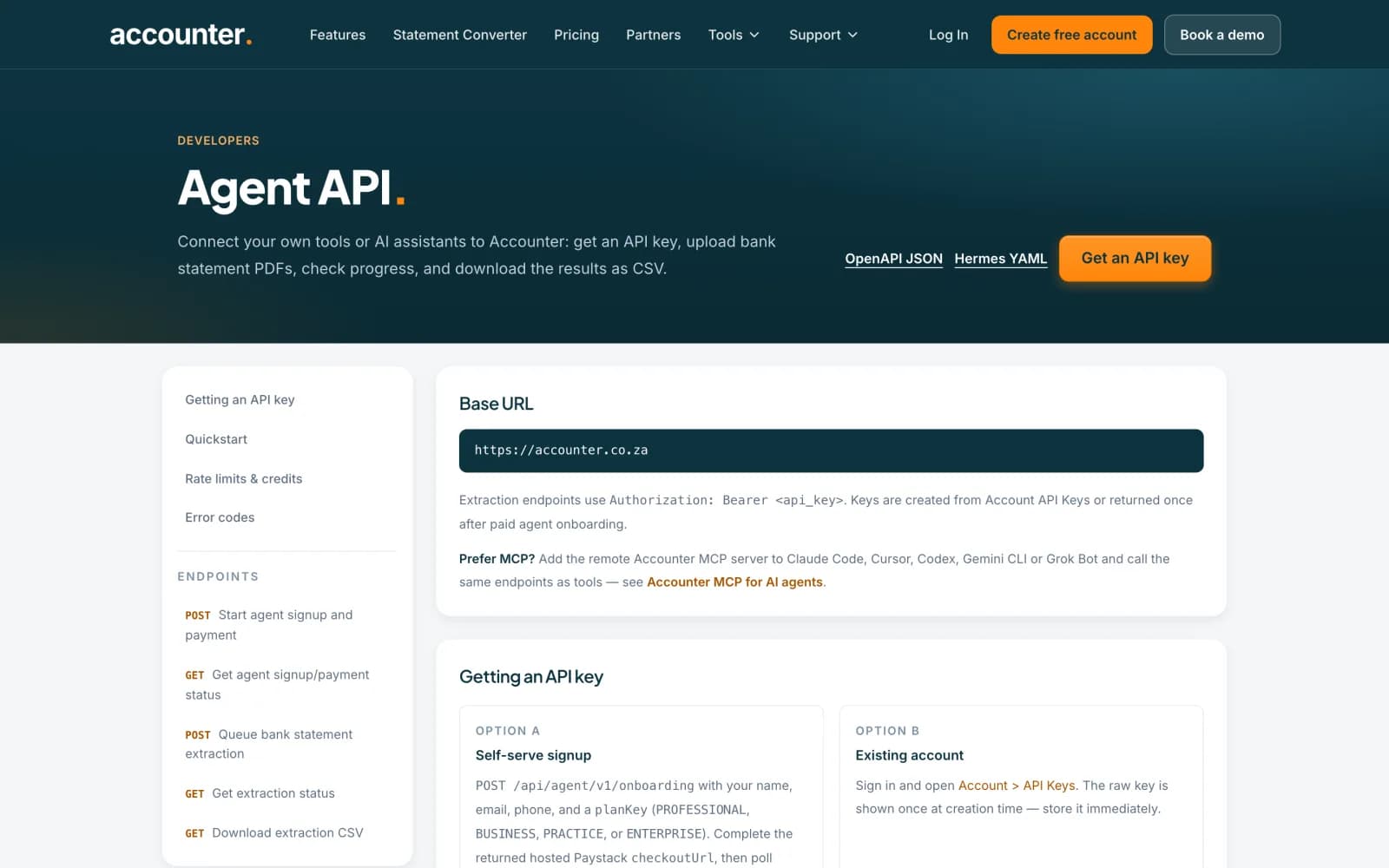
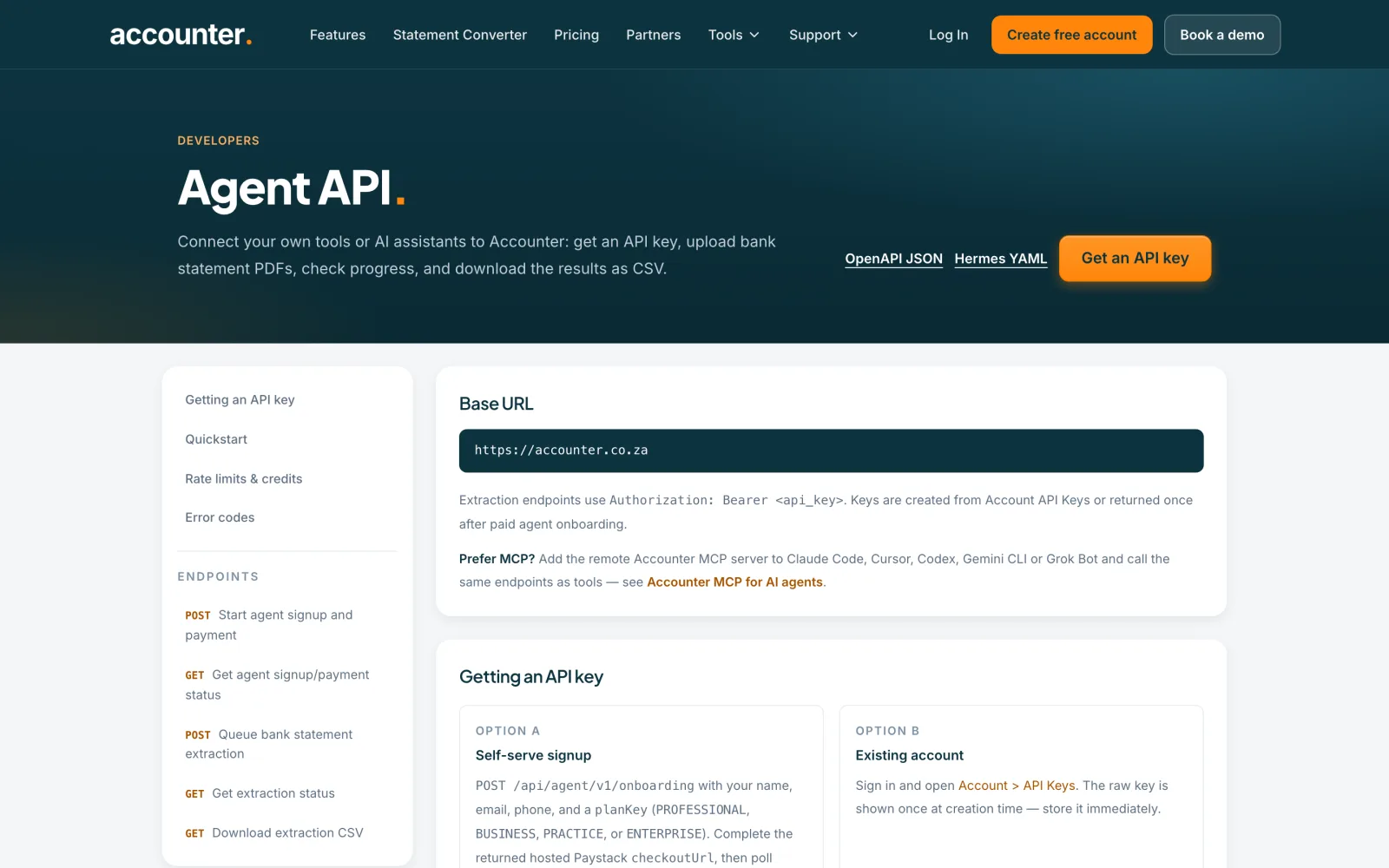
Send your key with every request
The base address is https://accounter.co.za. Send an Authorization header on every request, for example Authorization: Bearer acct_agent_live_xxxxxxxx, using your real key in its place. The API docs are at accounter.co.za/api-docs/agent.
 Open full size screenshot for step 2
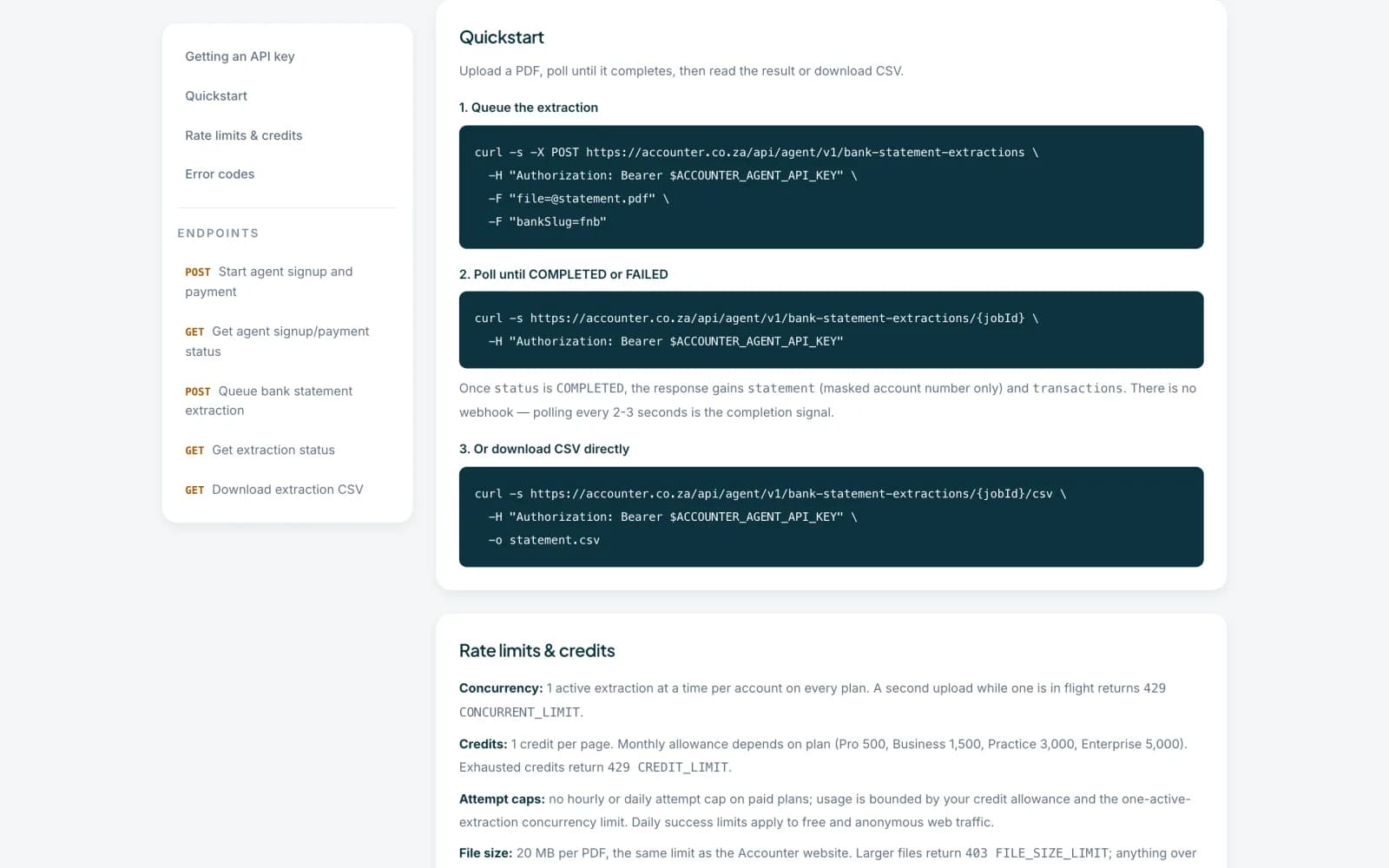
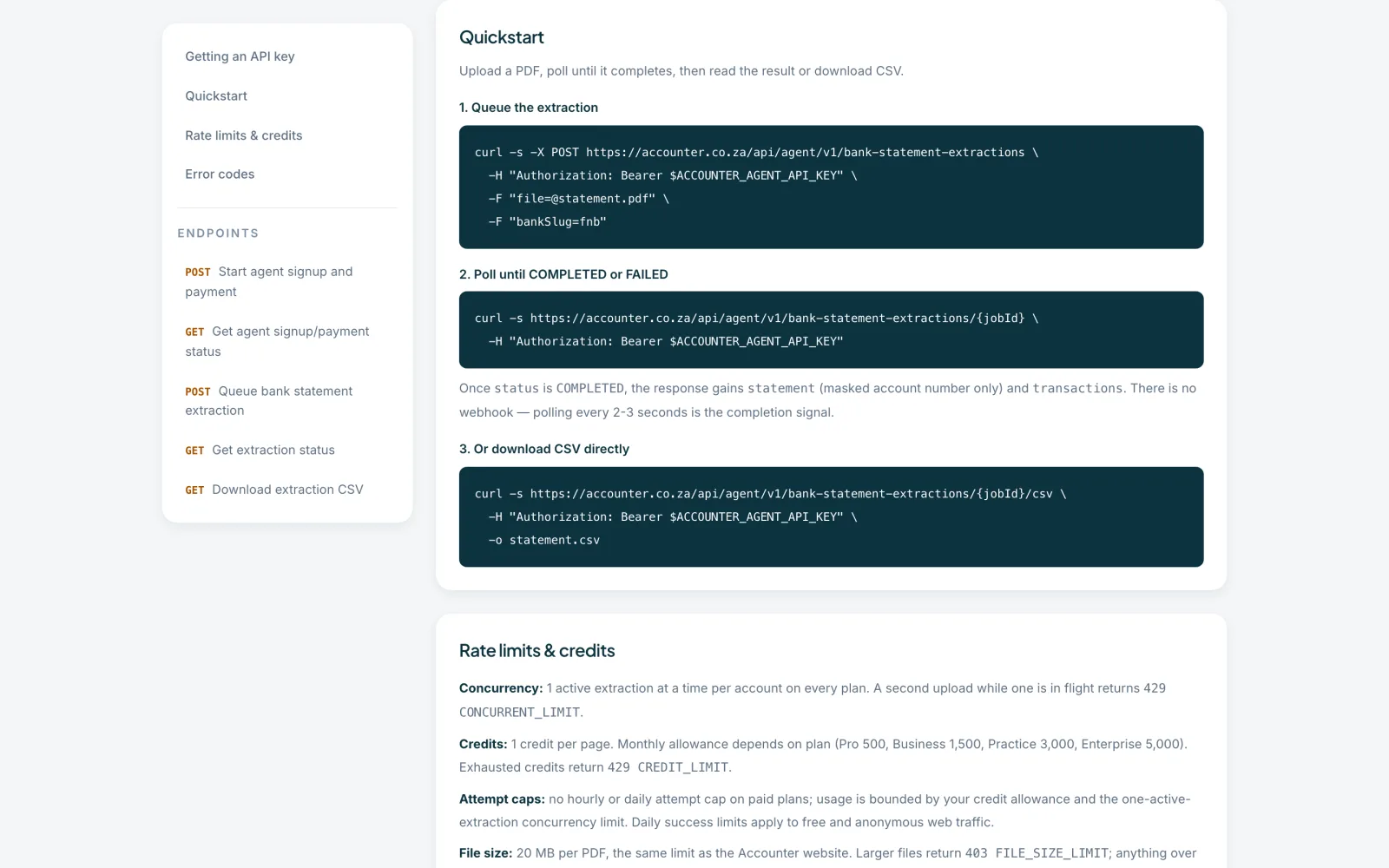
Upload the PDF
Send POST https://accounter.co.za/api/agent/v1/bank-statement-extractions as multipart form data with a file field holding the PDF. You can add bankSlug, such as fnb, and pdfPassword for a locked PDF. For example: curl -s -X POST https://accounter.co.za/api/agent/v1/bank-statement-extractions -H "Authorization: Bearer acct_agent_live_xxxxxxxx" -F "[email protected]" -F "bankSlug=fnb". The reply is 202 with a jobId.
 Open full size screenshot for step 3
Poll until it finishes
Send GET https://accounter.co.za/api/agent/v1/bank-statement-extractions/{jobId} with the same header. Check every 2 to 3 seconds until status is COMPLETED or FAILED. There are no webhooks. A completed job also returns the statement summary and the transactions.
Download the CSV
Send GET https://accounter.co.za/api/agent/v1/bank-statement-extractions/{jobId}/csv to get the CSV. If the job is not finished you get 409 EXTRACTION_NOT_COMPLETE, so keep polling.
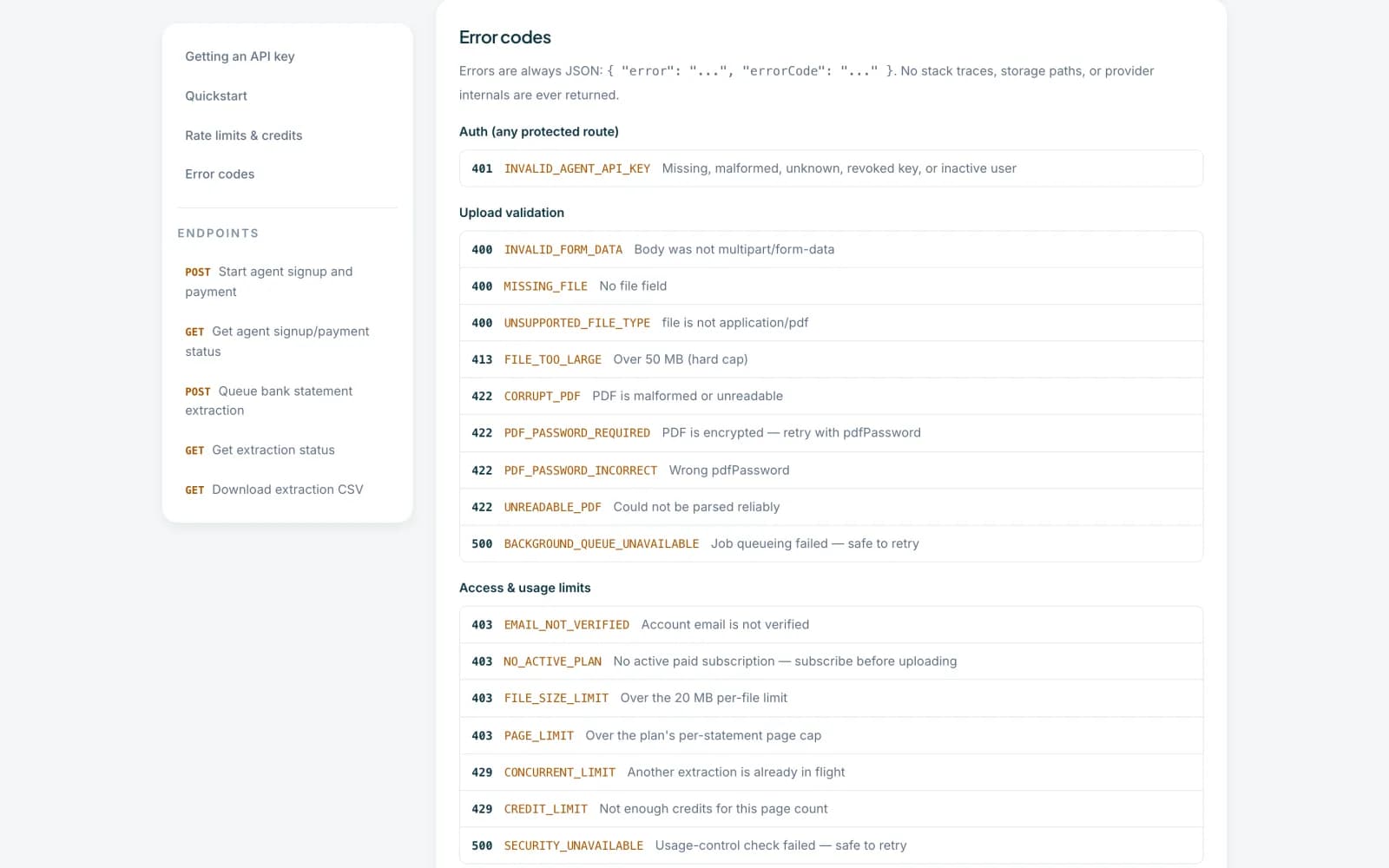
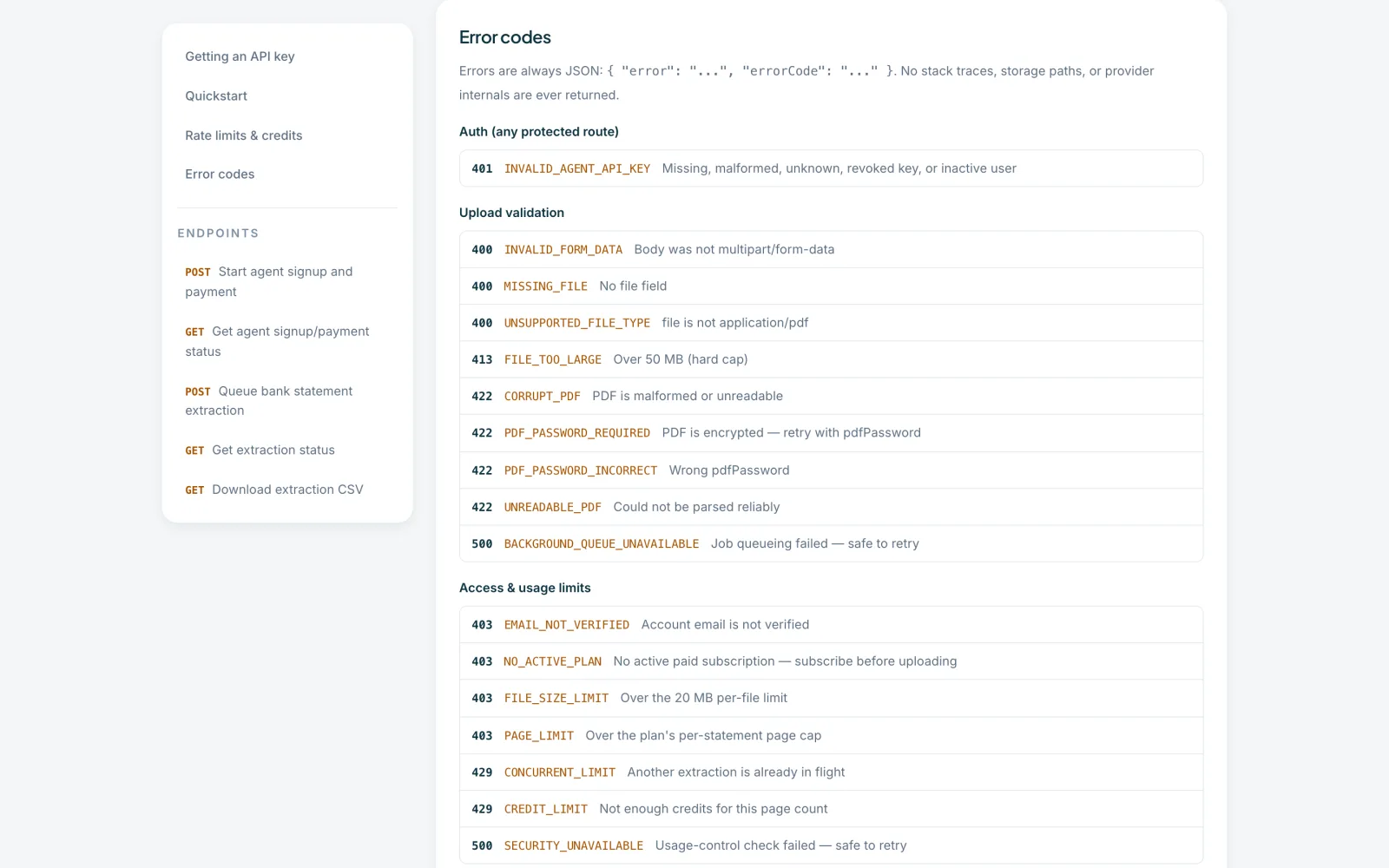
Handle errors
Errors are JSON with an error message and an errorCode. Common codes are 401 INVALID_AGENT_API_KEY, 403 NO_ACTIVE_PLAN, 403 EMAIL_NOT_VERIFIED, 422 PDF_PASSWORD_REQUIRED, 429 CONCURRENT_LIMIT and 429 CREDIT_LIMIT. The full list is in the API docs.
 Open full size screenshot for step 6
Tips
- Each account runs 1 extraction at a time. A second upload while one is running returns 429 CONCURRENT_LIMIT.
- Each page uses 1 credit. If you run out, you get 429 CREDIT_LIMIT.
- PDFs can be up to 20 MB, as on the website. Larger files return 403 FILE_SIZE_LIMIT, and anything over 50 MB is refused earlier with 413 FILE_TOO_LARGE.
- Never paste a real key into code you share or commit. Use an environment variable such as ACCOUNTER_AGENT_API_KEY.
If something goes wrong
- You get 401 INVALID_AGENT_API_KEY.
- The header is missing or malformed, or the key is unknown or revoked. It must be Authorization: Bearer followed by the key.
- You get 403 NO_ACTIVE_PLAN.
- The Agent API needs an active paid plan, even though a key can be created without one.
- You get 422 PDF_PASSWORD_REQUIRED.
- Send the PDF’s password in the pdfPassword field and try again.
- You get 429 CONCURRENT_LIMIT.
- Wait for the running extraction to finish, then upload the next.