Create and manage API keys
Last reviewed 16 November 2026 · 5 steps
Create an API key for your own software or AI tools, copy it once, and revoke it if it is ever exposed.
Developers
Steps
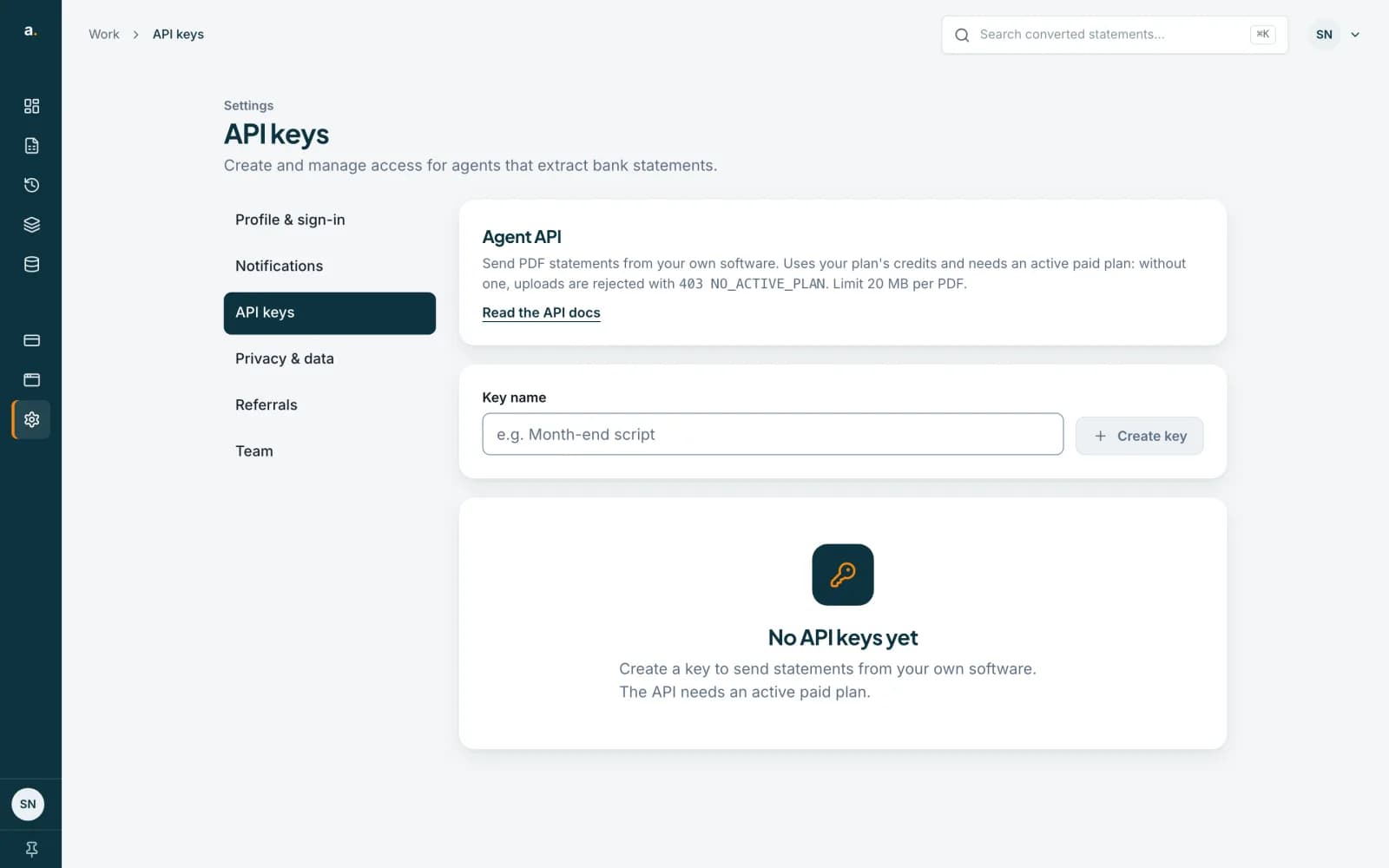
Open API keys
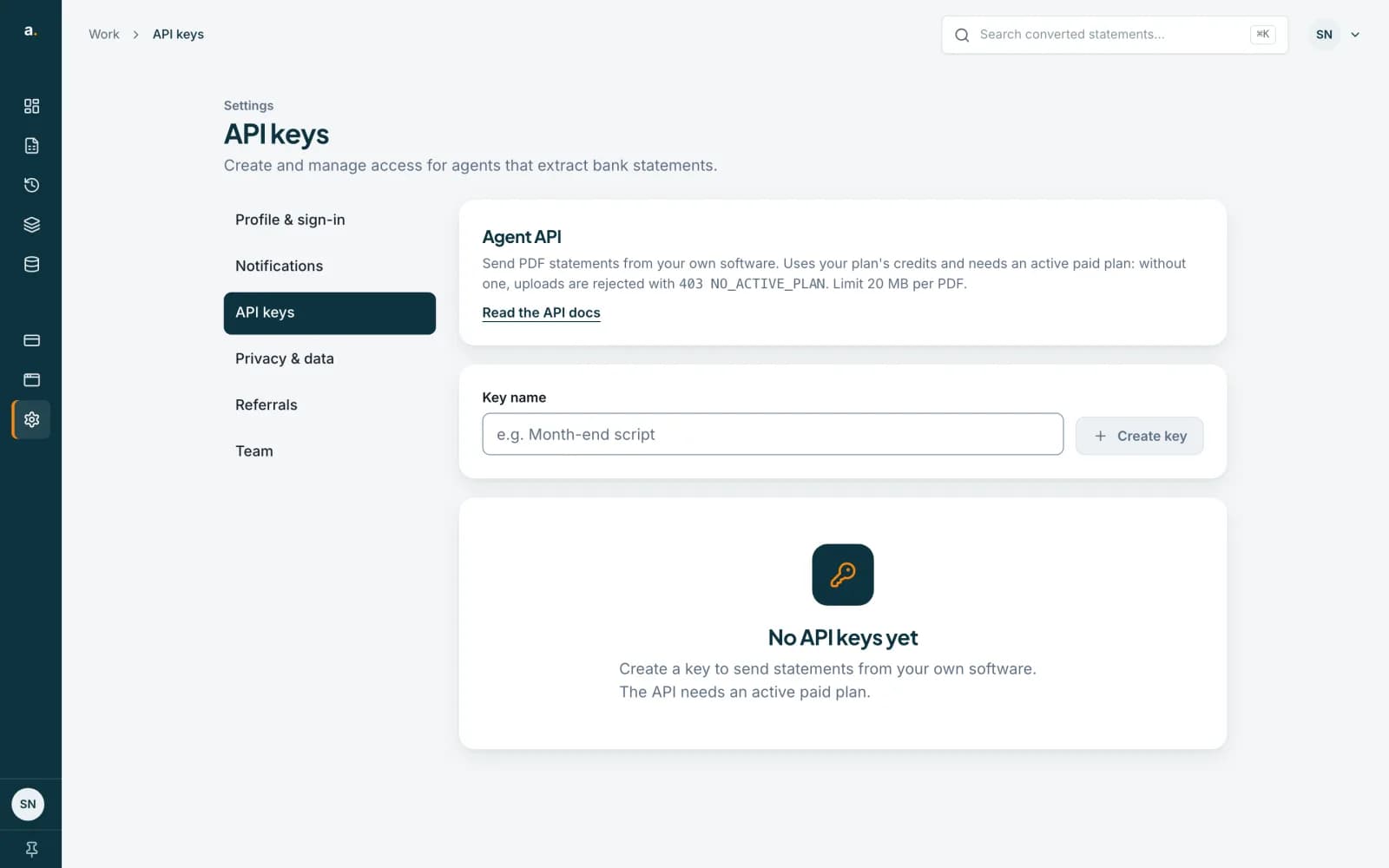
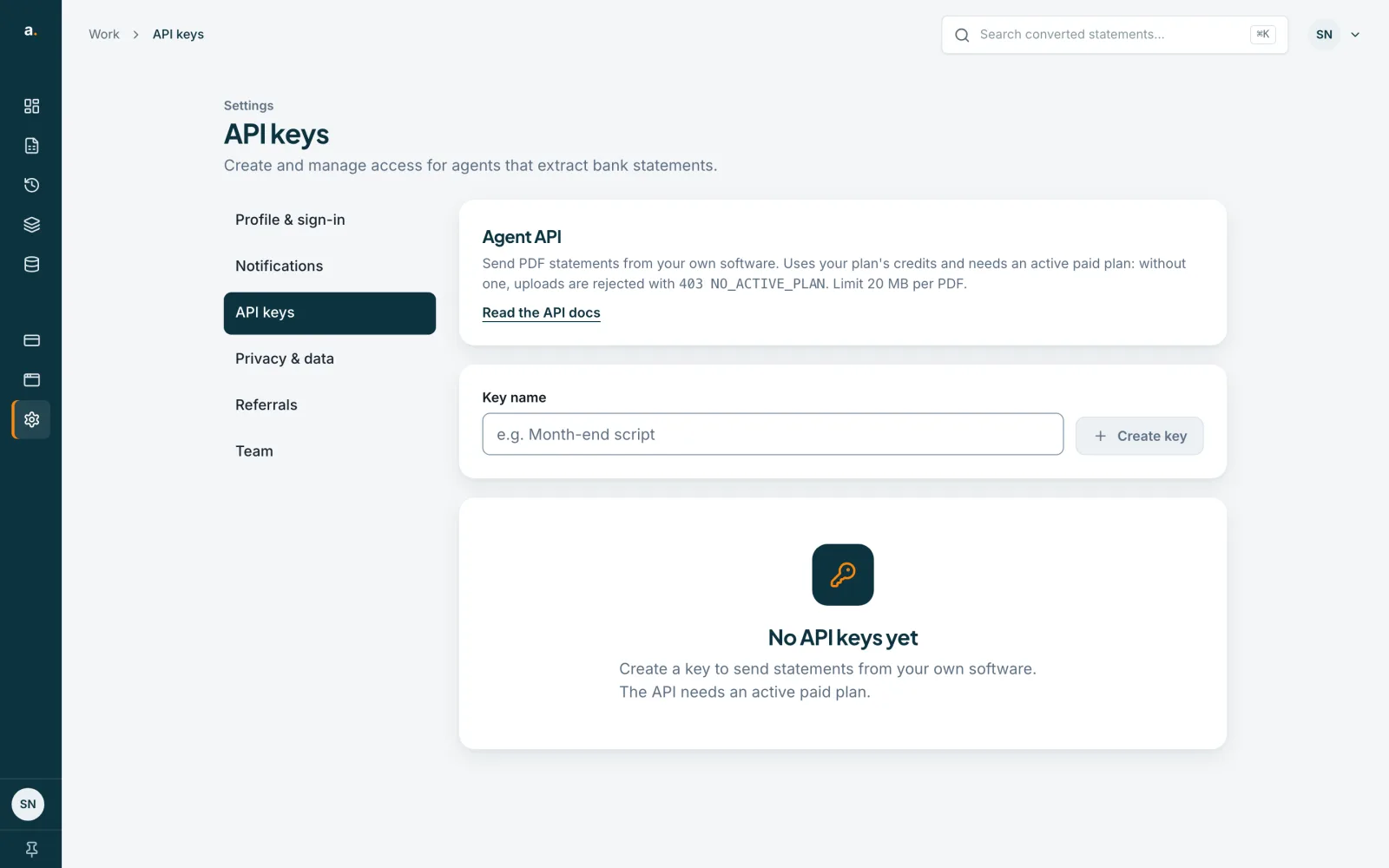
Open Settings in the left menu, then choose API keys. Only the owner and admins of a team, and people on a personal account, can see it. Other team members see API keys are managed by your organisation. The page says the API needs an active paid plan, and links to the API docs.
 Open full size screenshot for step 1
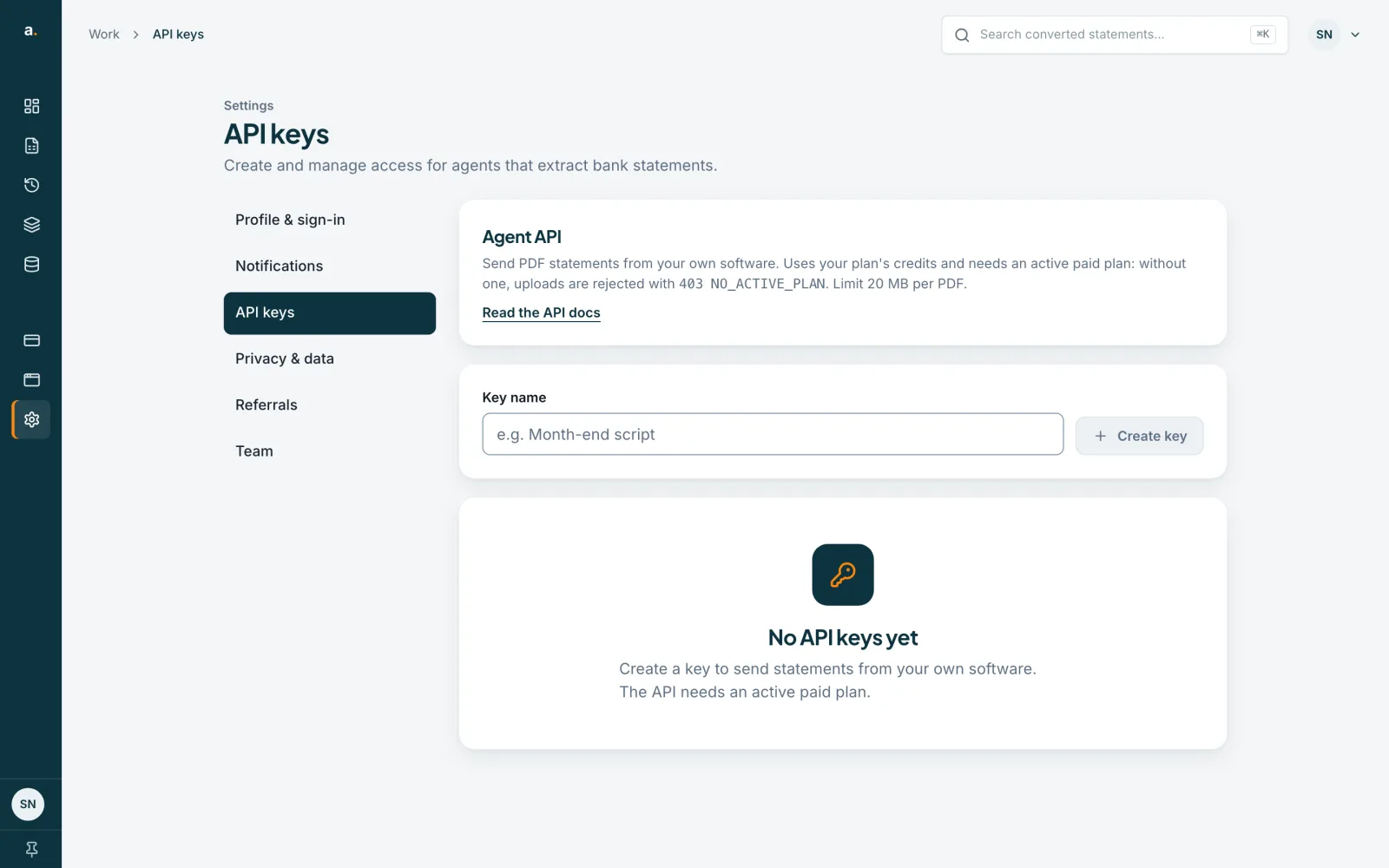
Name the key
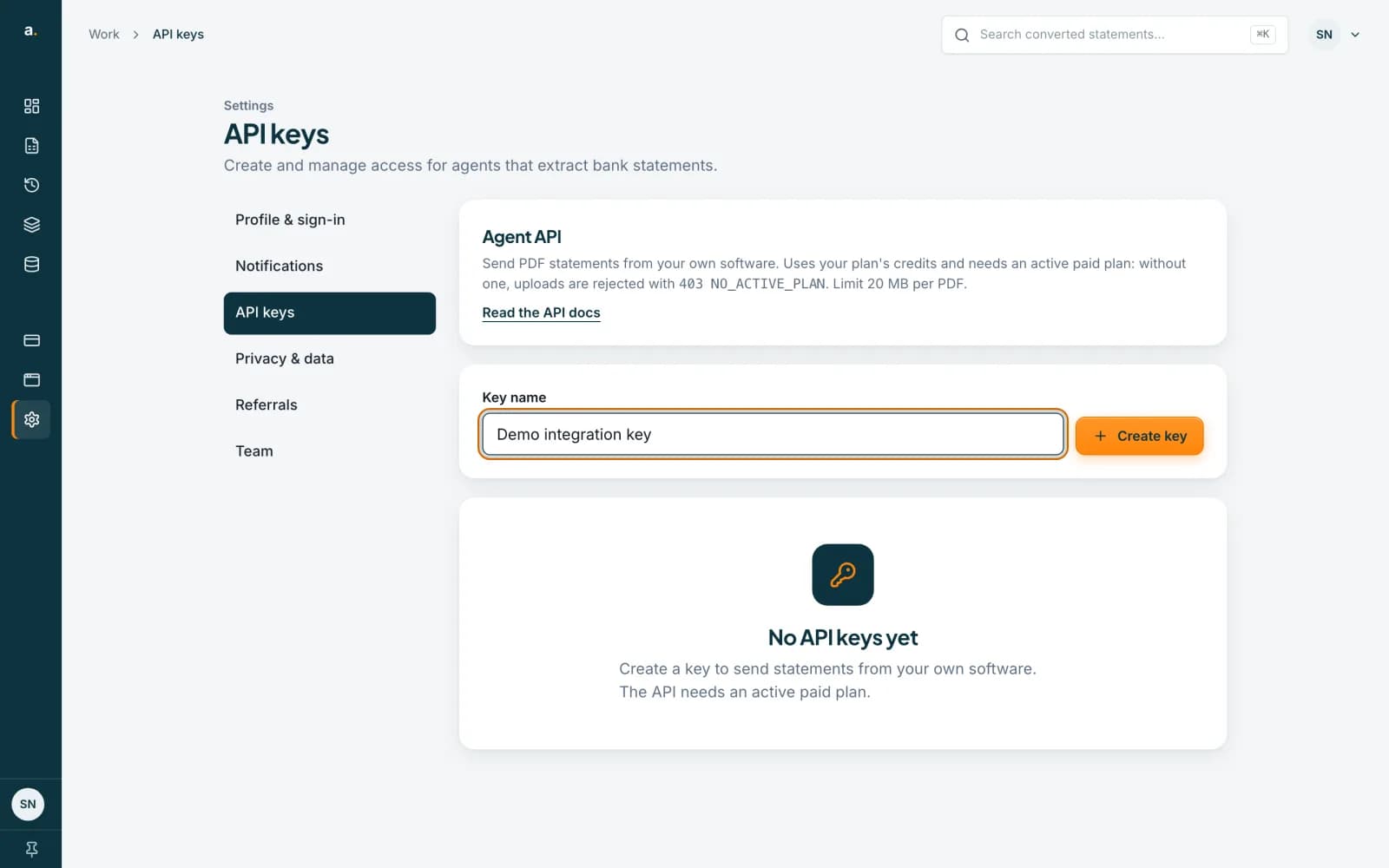
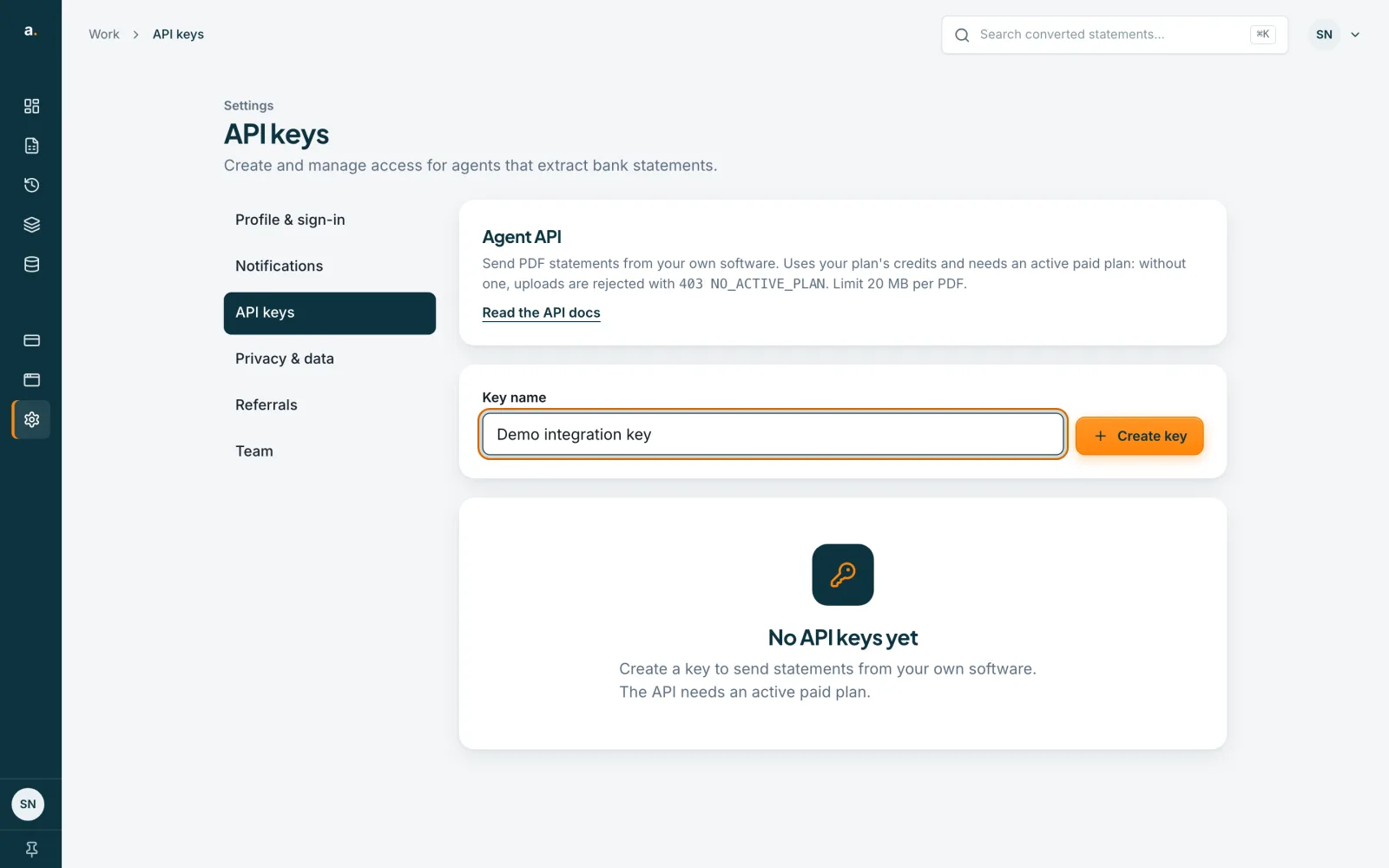
Type a name in Key name that tells you where the key will be used, for example Accounting integration. The box starts with Agent integration.
 Open full size screenshot for step 2
Create the key and copy it
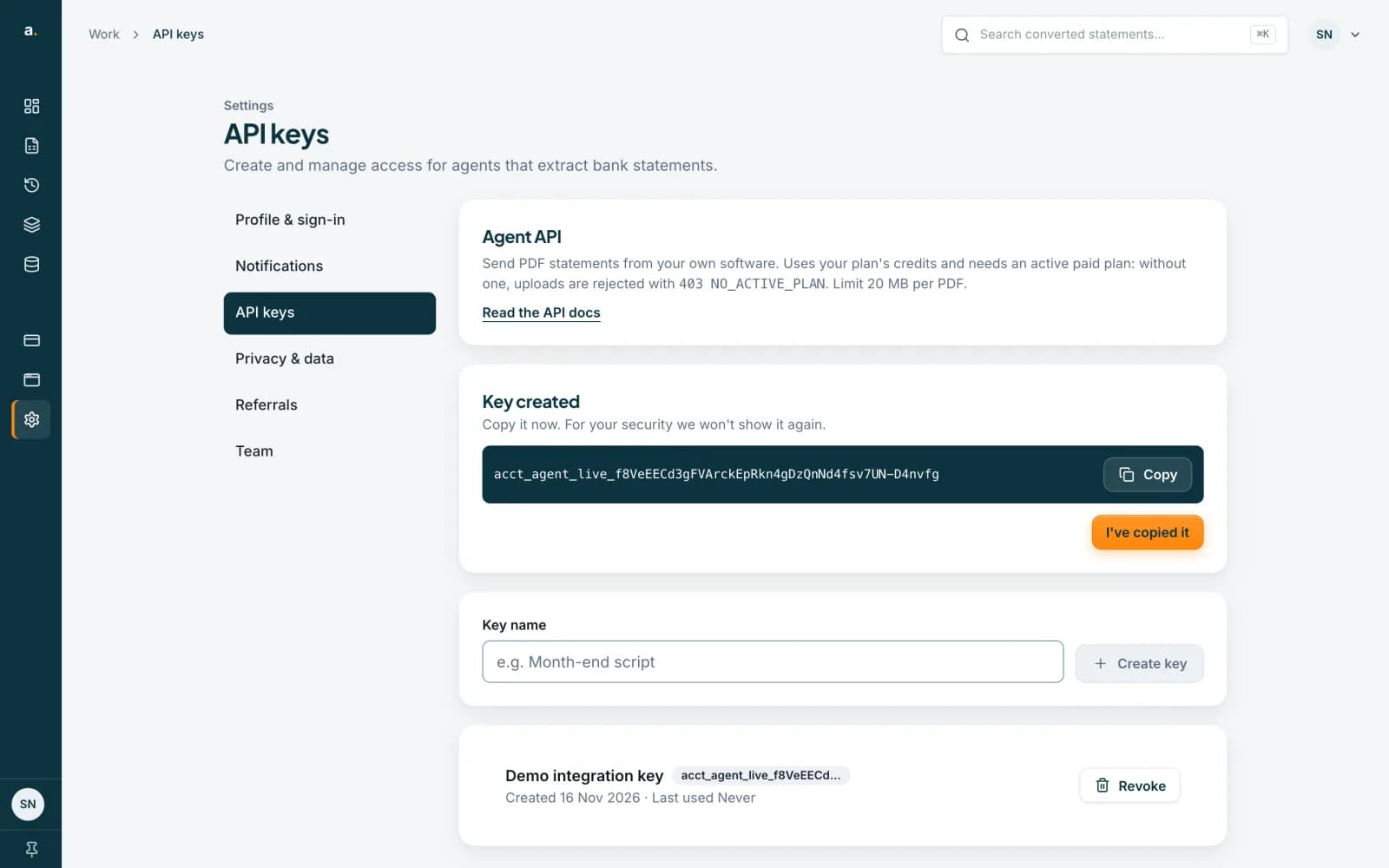
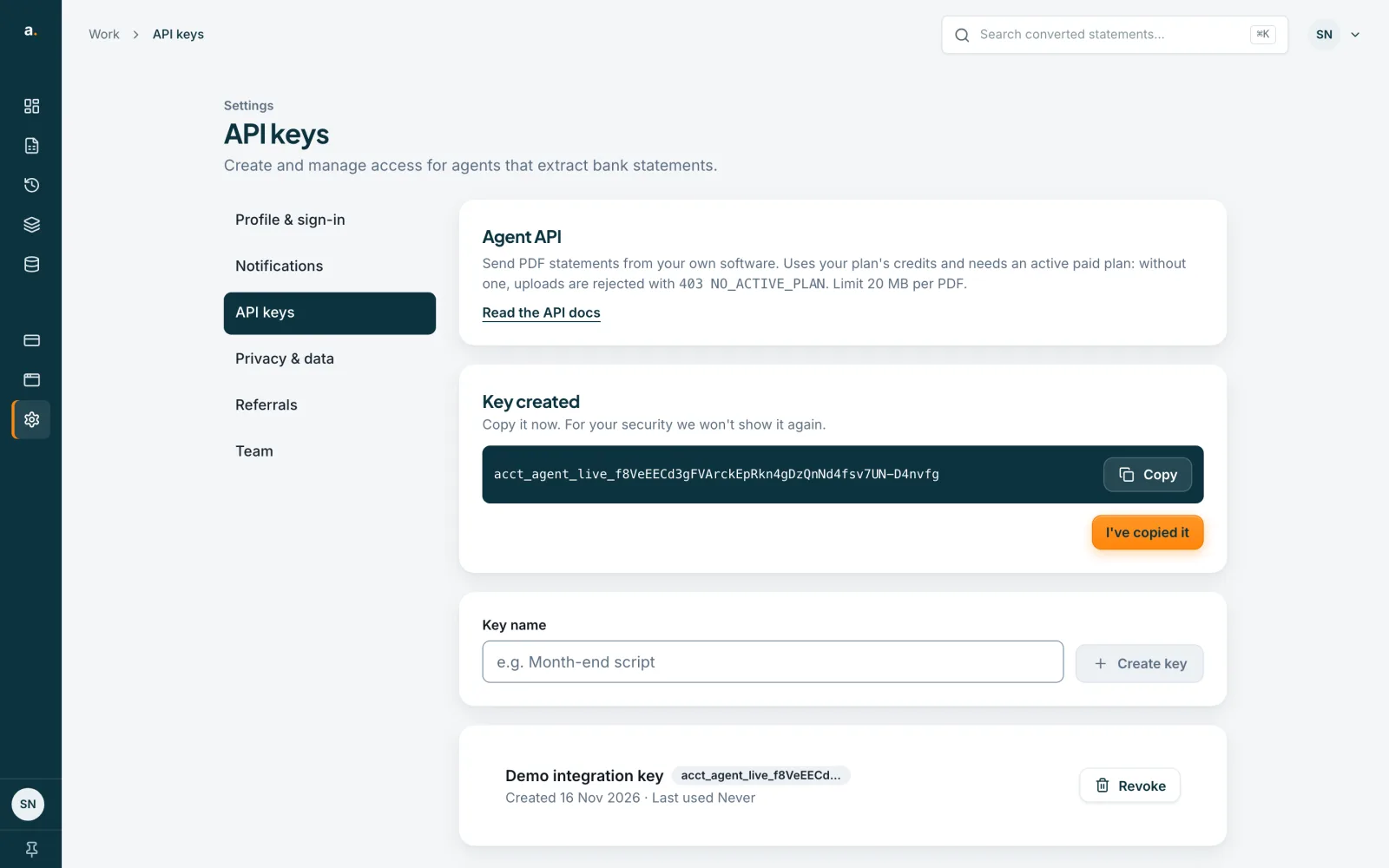
Press Create key. The page shows Key created, with Copy it now. For your security we won’t show it again. Press Copy, store the key somewhere safe, and then press I’ve copied it. The key starts with acct_agent_live_.
 Open full size screenshot for step 3
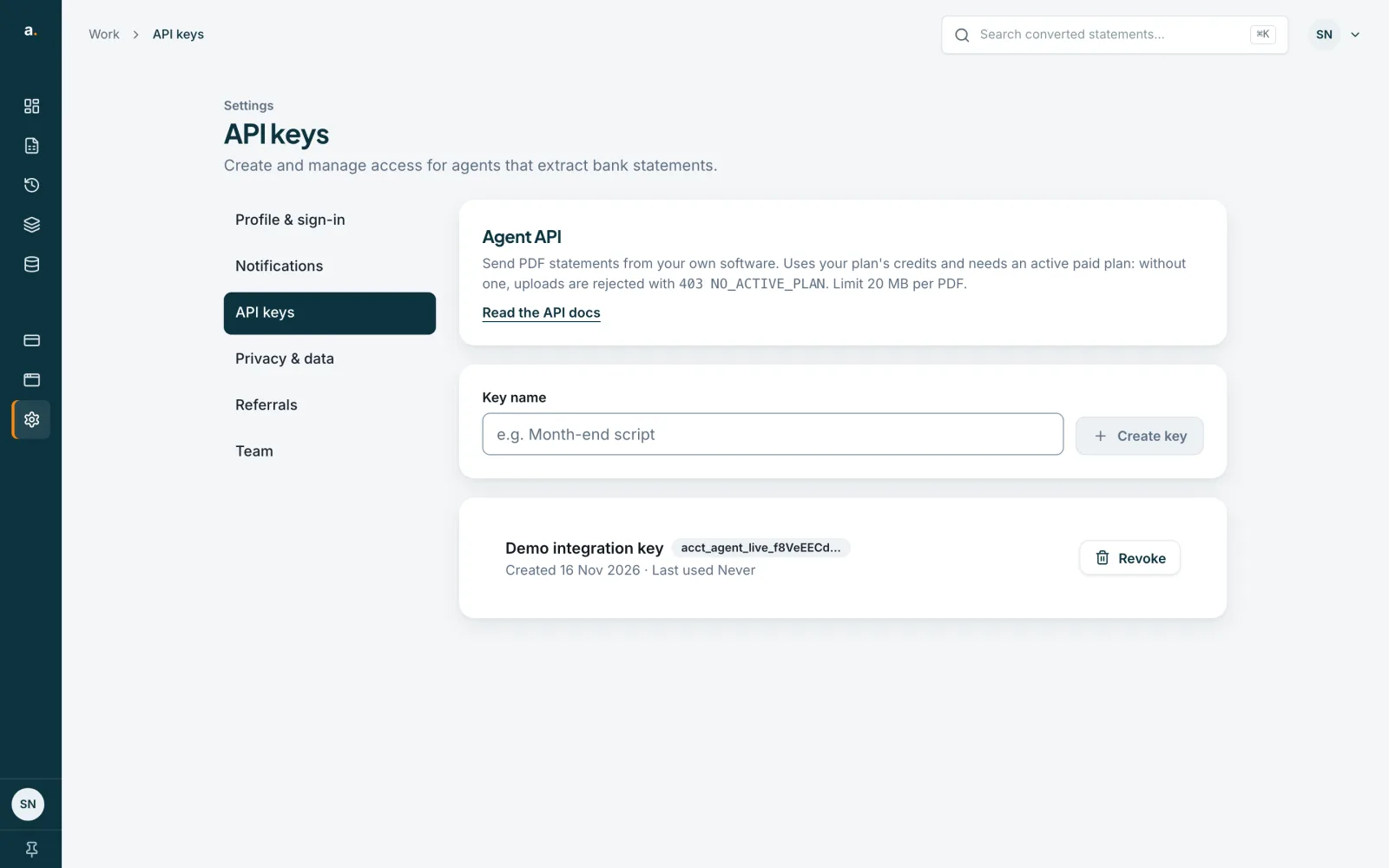
Check the key in the list
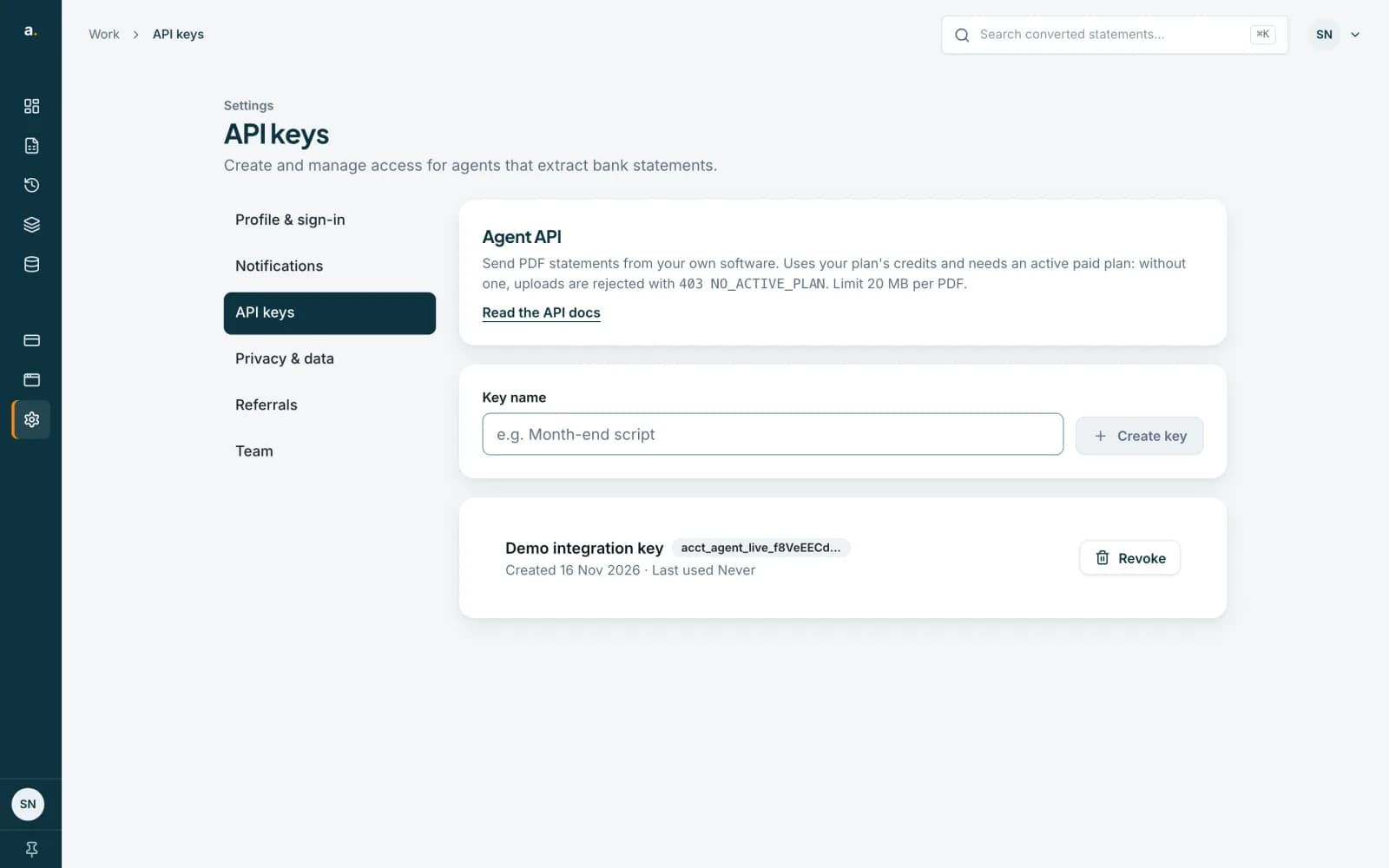
The key now appears in your list with its name, the start of the key, Created and the date, and Last used. Only the start of the key is shown. The full key cannot be shown again.
 Open full size screenshot for step 4
Revoke a key you no longer need
Press Revoke next to the key. It disappears from the list and stops working straight away. Create a new key to replace it.
 Open full size screenshot for step 5
Tips
- Treat a key like a password. Keep it in an environment variable or a secret store, never in a public repository or in a chat.
- A key can be created without a paid plan, but uploads then return 403 NO_ACTIVE_PLAN until you have one.
- Requests use your plan’s credits, one per page.
- Revoke a key and create a new one if you think it has been seen by someone else.
If something goes wrong
- I lost the key.
- It cannot be shown again. Revoke it and create a new one.
- I cannot see API keys.
- Only owners, admins and people on a personal account can manage keys. Ask your organisation owner or admin.
- Requests fail with 401 INVALID_AGENT_API_KEY.
- The key is missing, wrong or revoked. Check the Authorization header and the key.
- Requests fail with 403 NO_ACTIVE_PLAN.
- The API needs an active paid plan. See the guide on plans.