Read the balance check
Last reviewed 15 November 2026 · 5 steps
See whether a converted statement adds up, find the row that does not, and read what the Balance checks panel suggests.
Free account
Steps
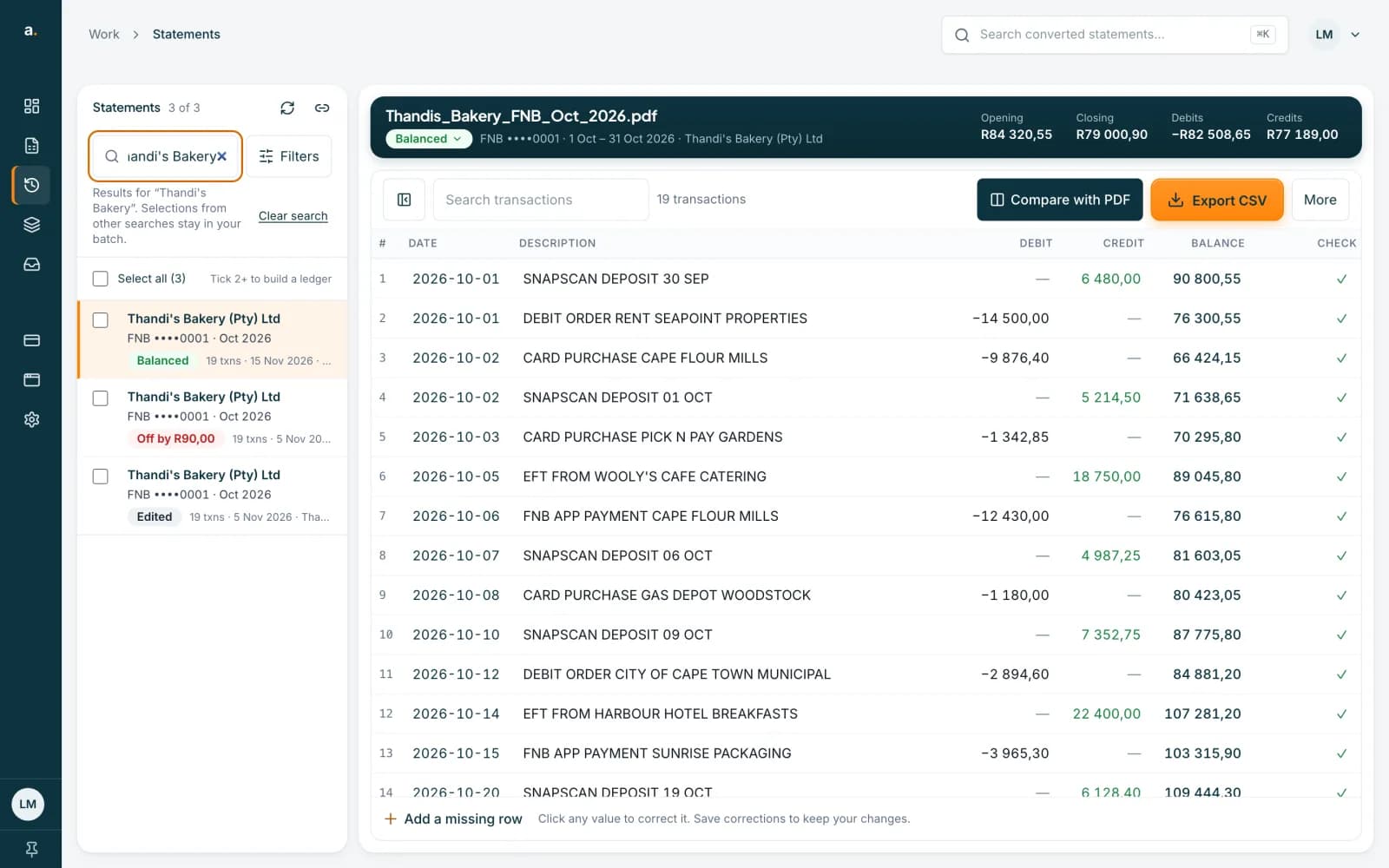
Look at the badge in the statement header
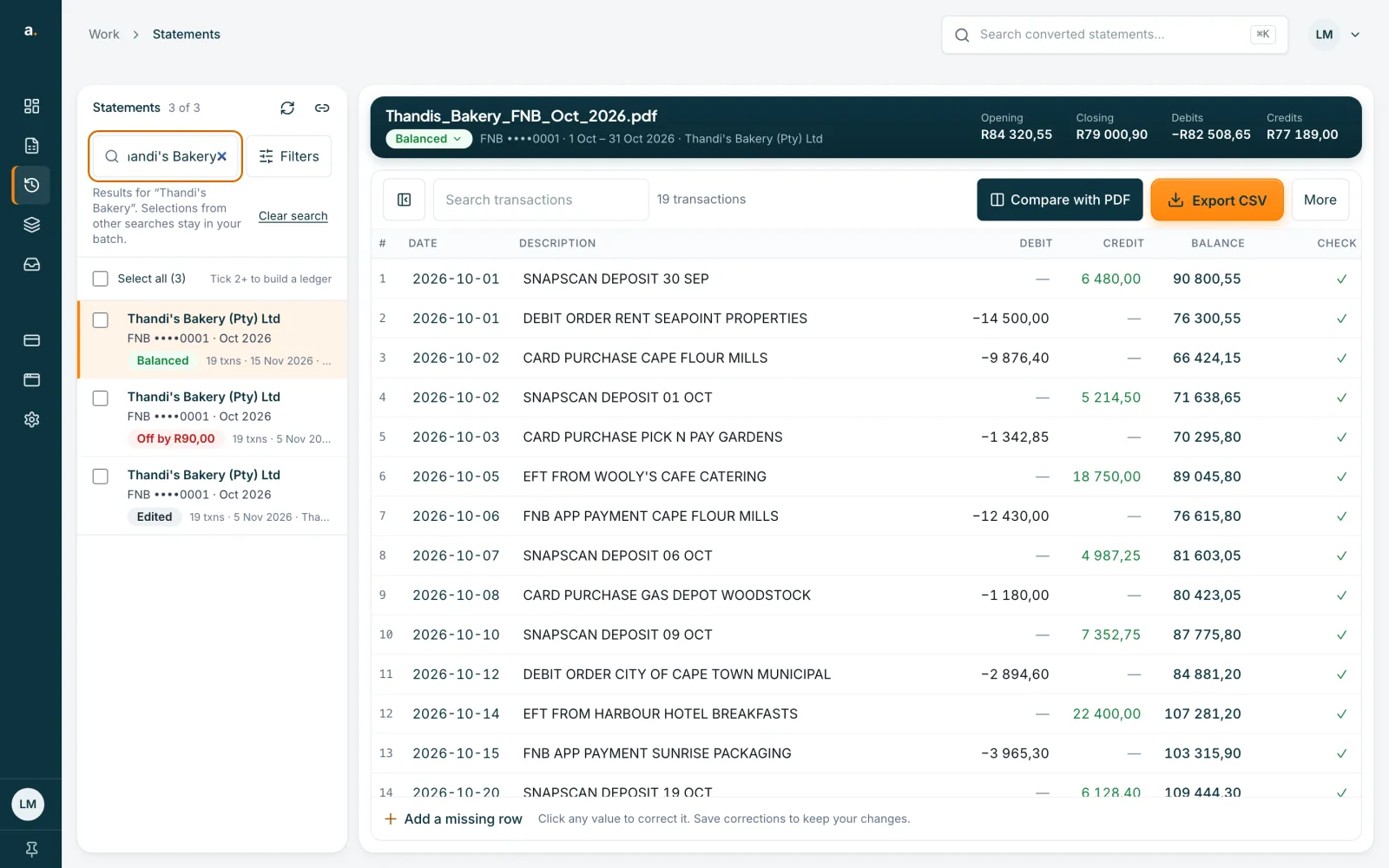
Open a converted statement from Statements. The badge beside the file name tells you the result. A green Balanced badge means the rows add up to the statement's opening and closing balances, and a tick appears in the CHECK column on each row whose running balance chains from the row above.
 Open full size screenshot for step 1
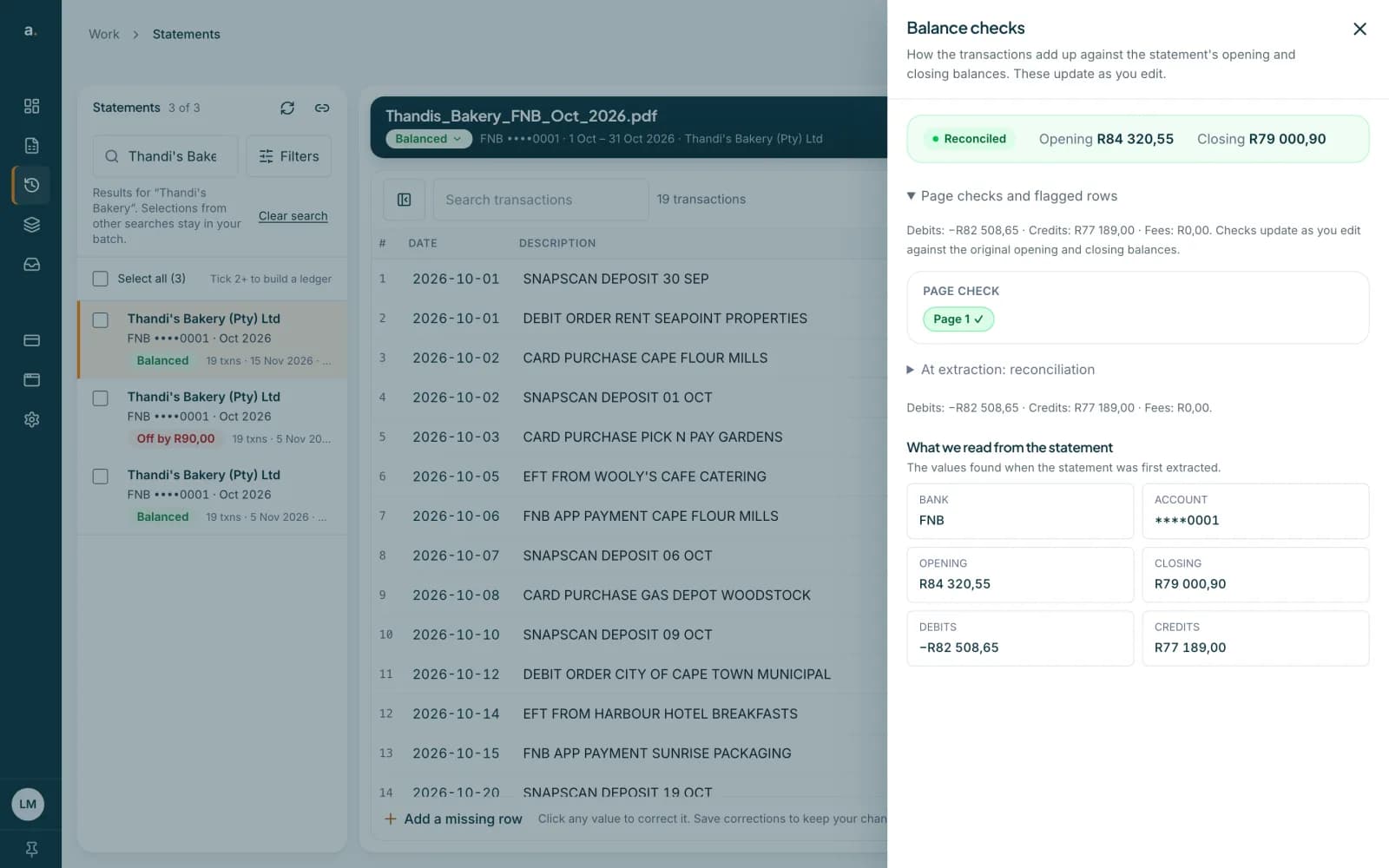
Open the Balance checks panel
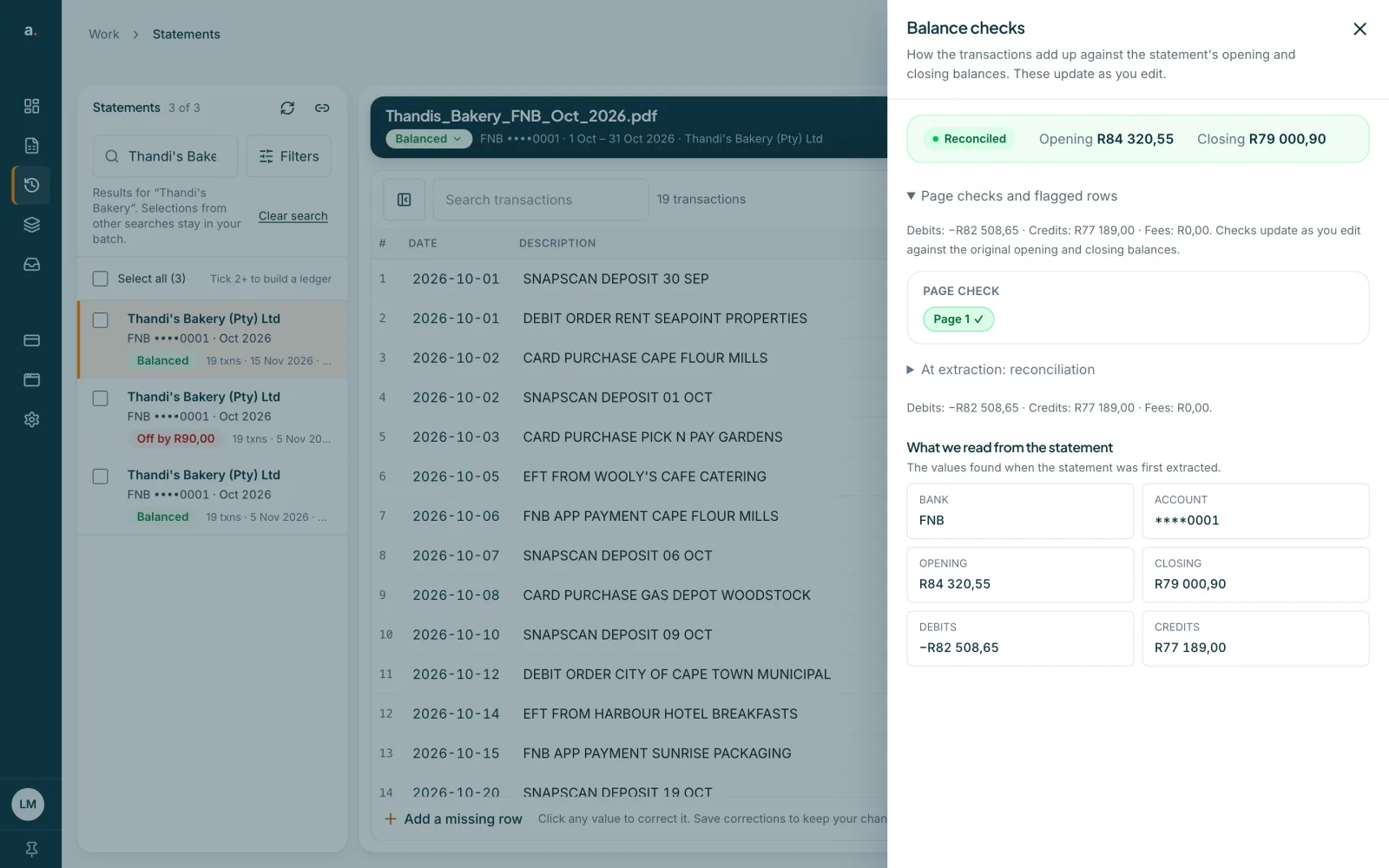
Click the badge, or choose More and then Balance checks. The panel explains how the transactions add up against the opening and closing balances, and it updates as you edit.
 Open full size screenshot for step 2
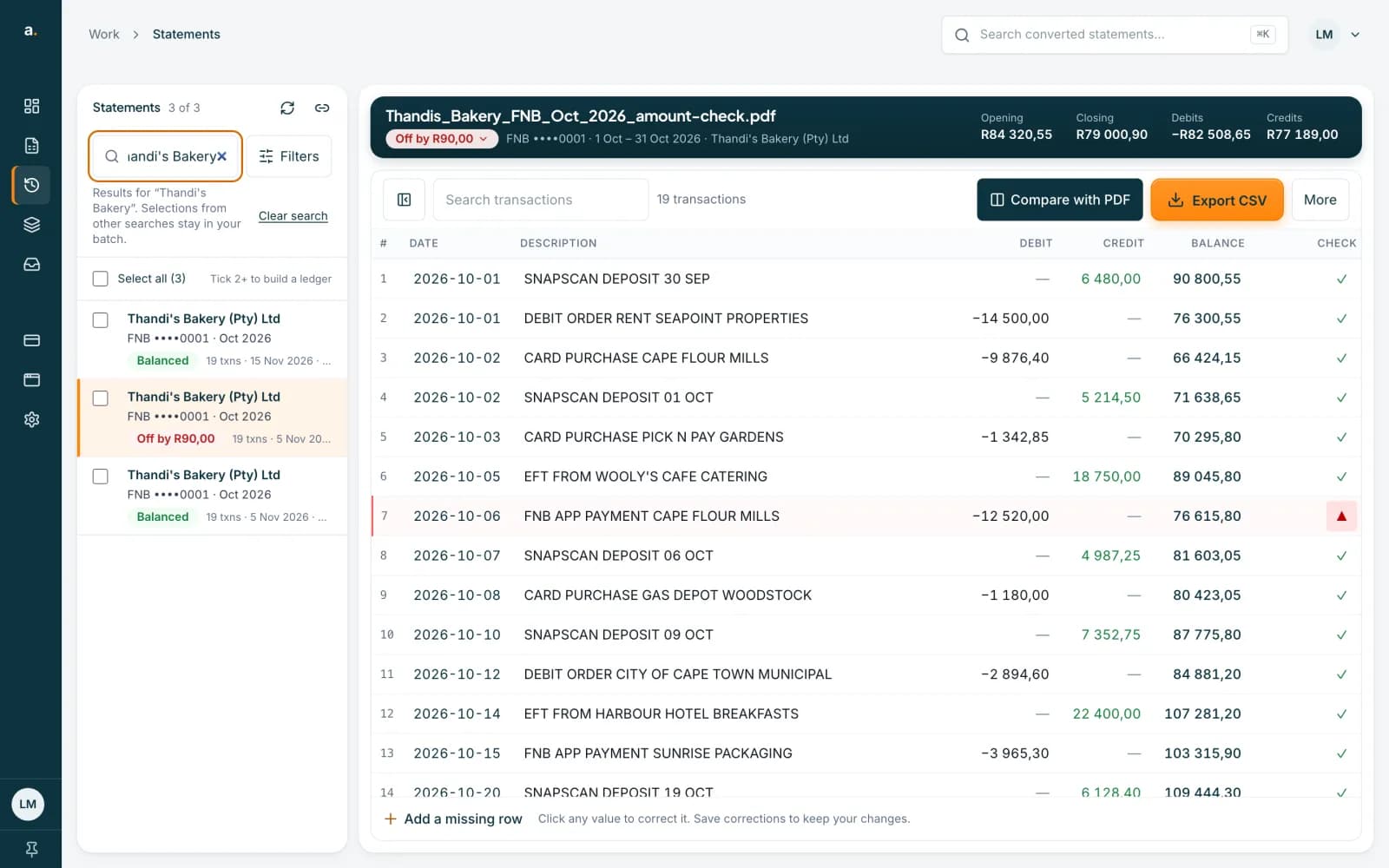
Find the flagged row when it is off
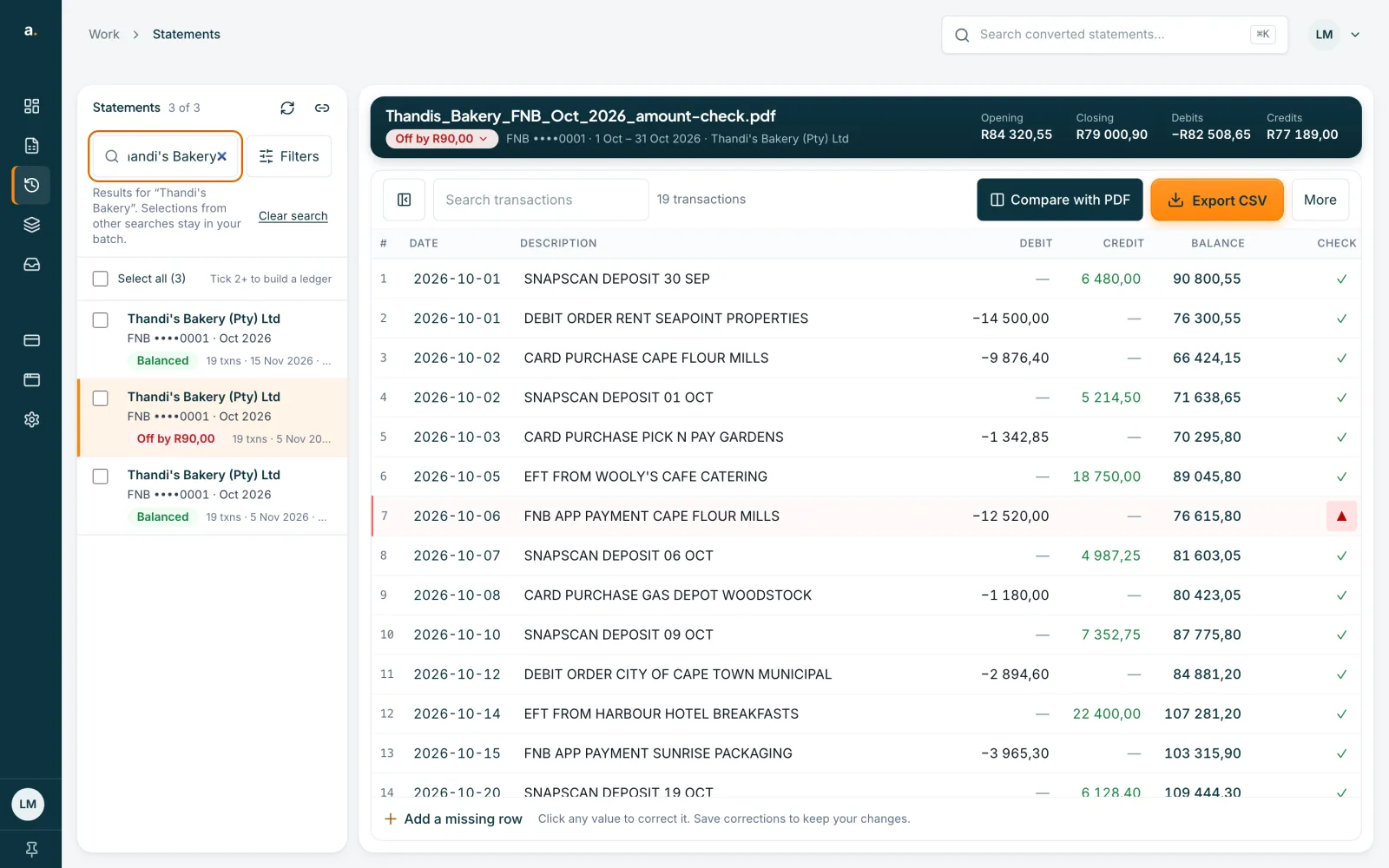
If the rows do not add up, the badge turns red and shows how far out they are, for example Off by R90,00. In the CHECK column, a red warning marker shows the row where the running balance does not chain. A dash means that row printed no running balance, so it cannot be checked.
 Open full size screenshot for step 3
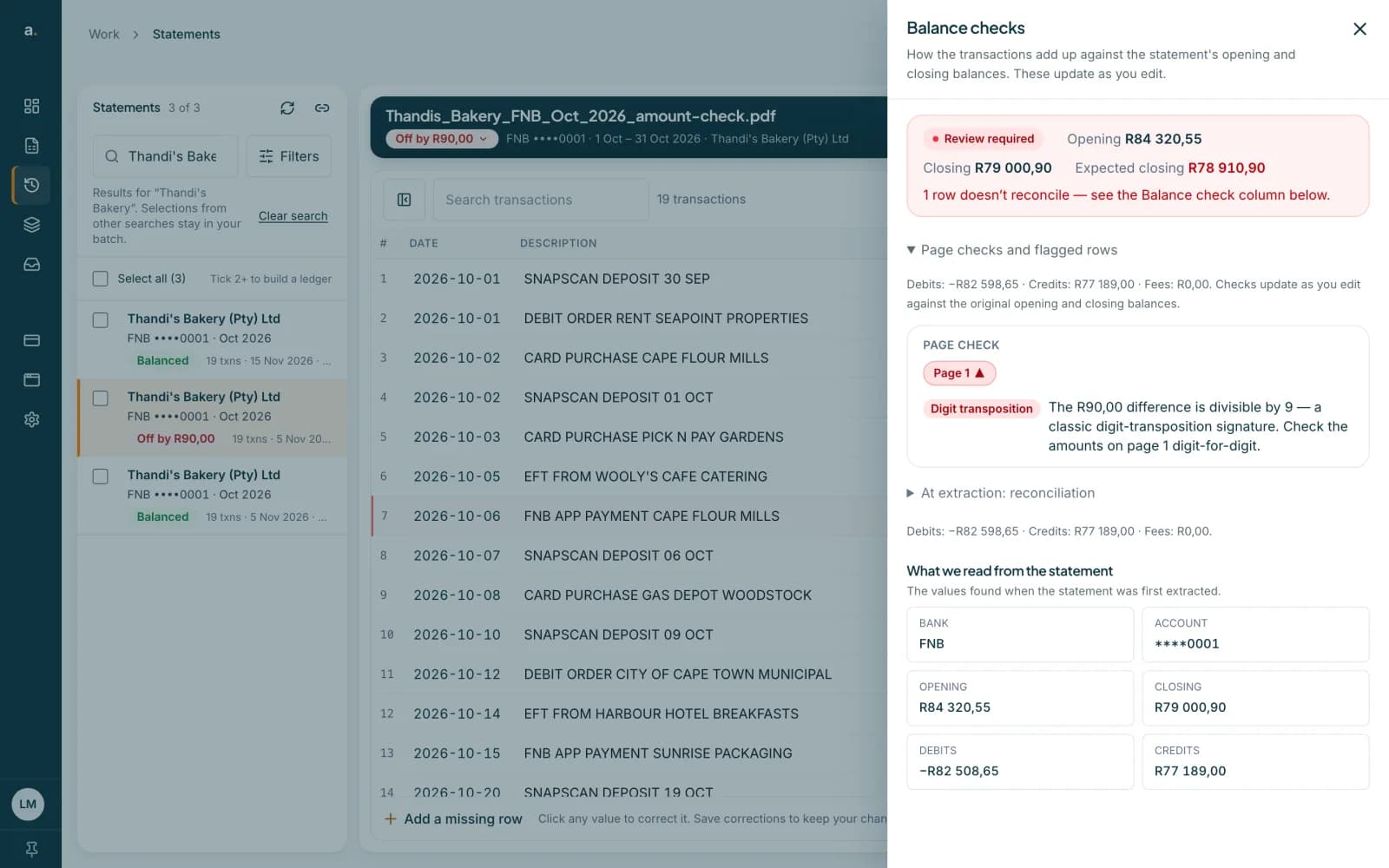
Read the explanation
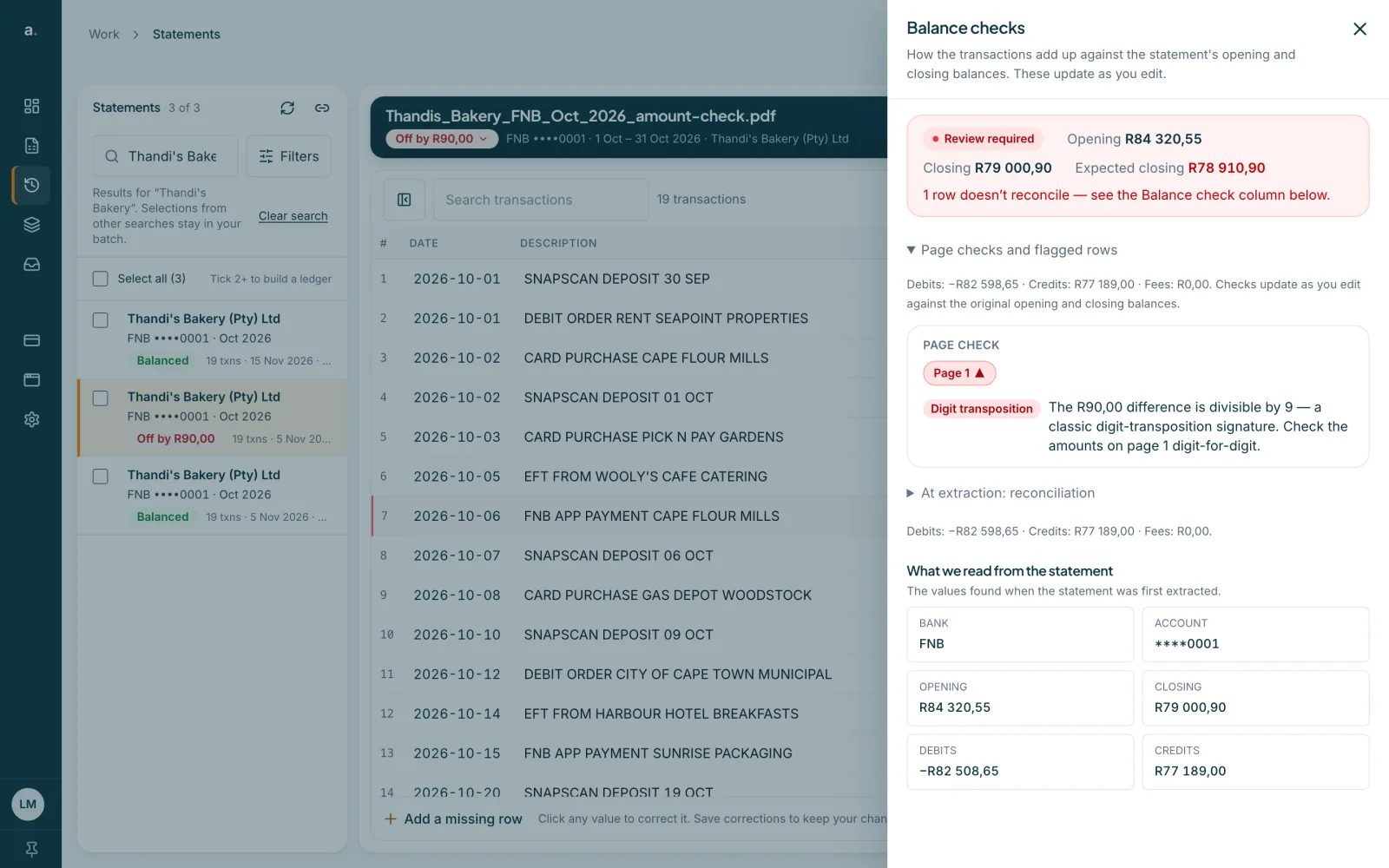
Click the red badge. The panel says Review required and shows the Opening balance, the Closing balance and the Expected closing balance. It also says how many rows do not reconcile, and lists the page checks and flagged rows. Where Accounter can guess the cause, it names it, for example Digit transposition when the difference is divisible by 9.
 Open full size screenshot for step 4
Fix the row and check again
Compare the flagged row with the original statement, using Compare with PDF. Correct the amount, and the checks update as you edit. When the badge turns green, press Save corrections. See the guide on editing and saving corrections.
Tips
- The other statuses are No opening balance (the statement did not show an opening balance), Check N rows, Needs review and Not checked. Edited means you saved corrections after the first check.
- The causes Accounter can suggest are Possible duplicate, Fee handling, Possible missing row, Rows missing at page break, Debit/credit flipped, Digit transposition and Unexplained difference.
- A balance check proves that the numbers chain together. It is still worth glancing at the descriptions.
If something goes wrong
- The badge is red and says Off by an amount.
- Open Balance checks, find the row marked in the CHECK column and compare it with the original PDF. A missing row, a duplicated row or a wrongly read digit are the usual causes.
- The badge says No opening balance.
- The statement did not print an opening balance, so the check has less to compare against. Check the rows against the PDF yourself.
- The badge says Fix N amounts.
- Some amounts could not be read as numbers, so the totals cannot be trusted until they are fixed. Click each amount that was not read and type the correct value.
- Many rows show a dash in the CHECK column.
- Those rows have no running balance printed on the statement, so Accounter has nothing to check them against.