Edit a statement and save corrections
Last reviewed 15 November 2026 · 6 steps
Fix a row that was read wrongly, add a missing row or delete an extra one, then save so your downloads include the changes.
Free account
Steps
Open the statement
Choose Statements in the left menu and select the statement. The transactions are shown in a grid under the header.
Click the value you want to correct
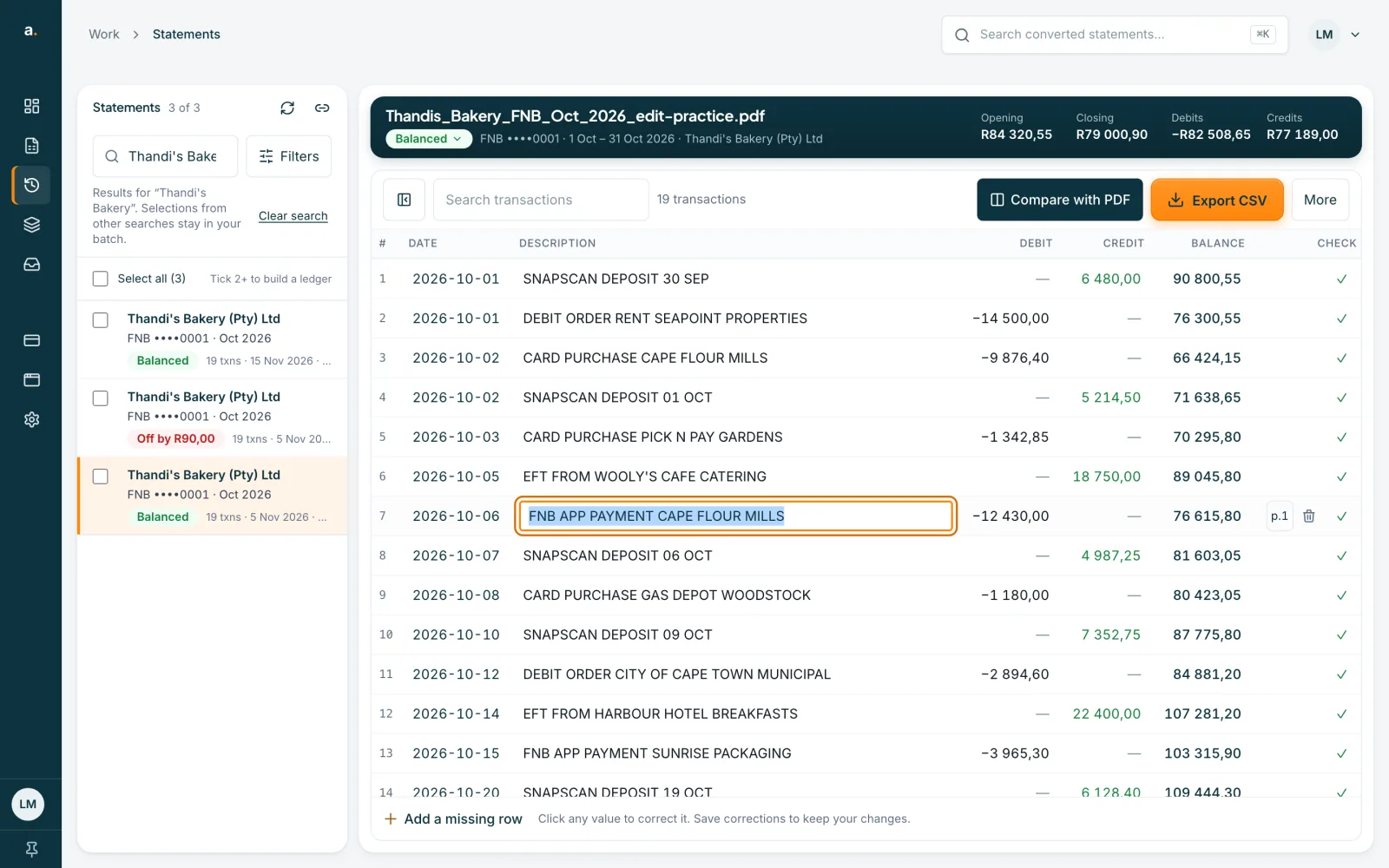
Click any Date, Description, Debit, Credit or Balance value. It turns into a box you can type in.
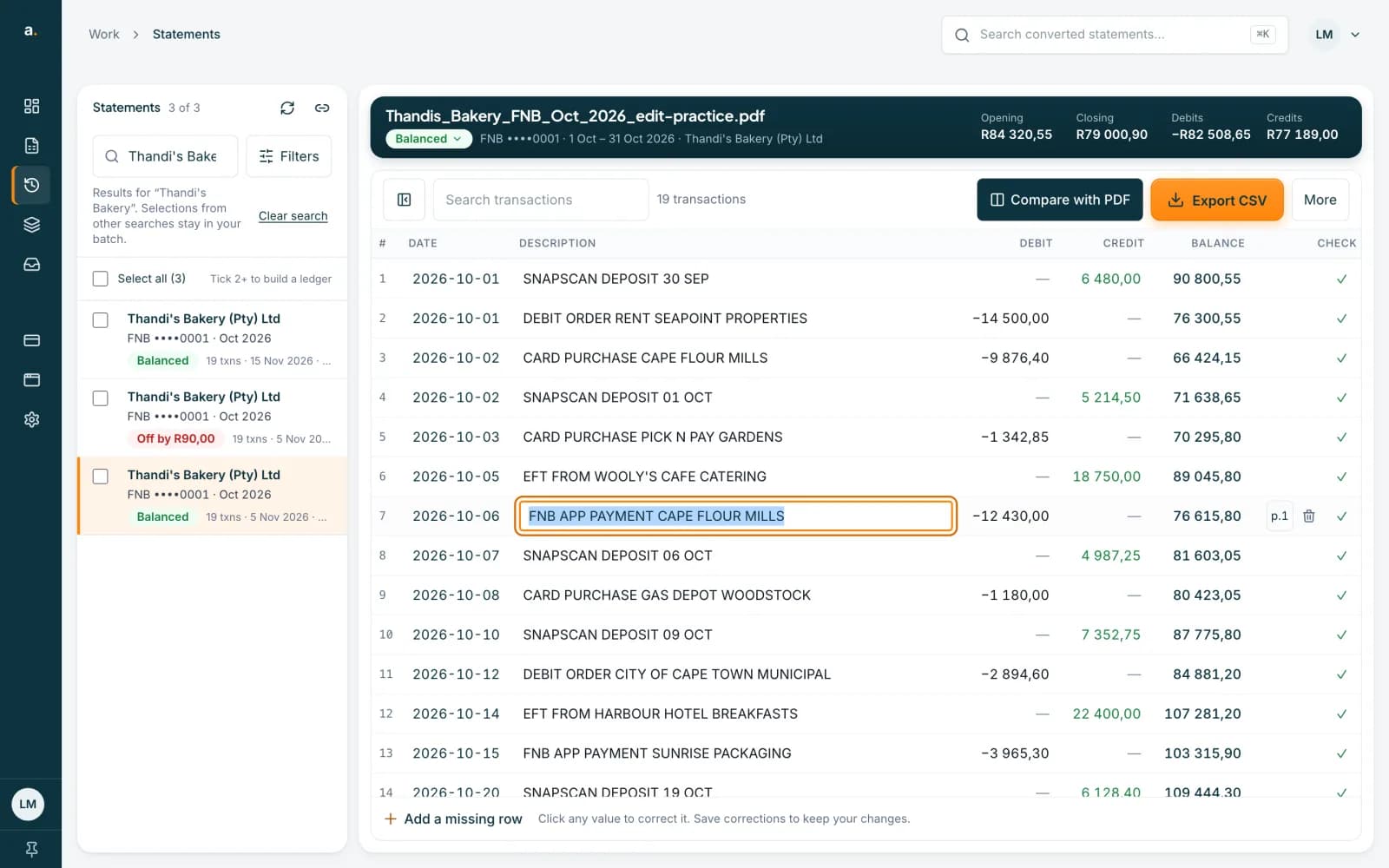 Open full size screenshot for step 2
Type the change
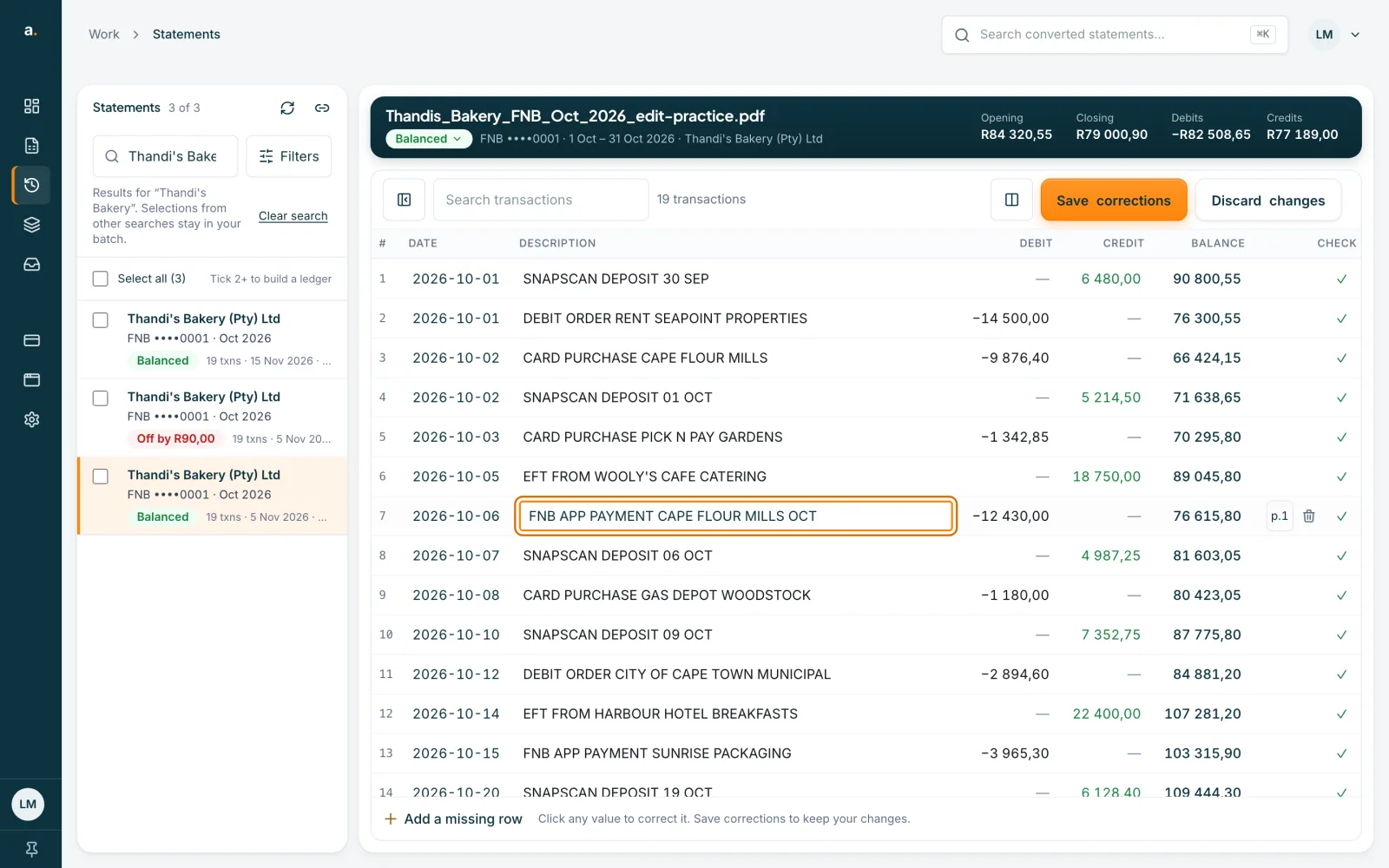
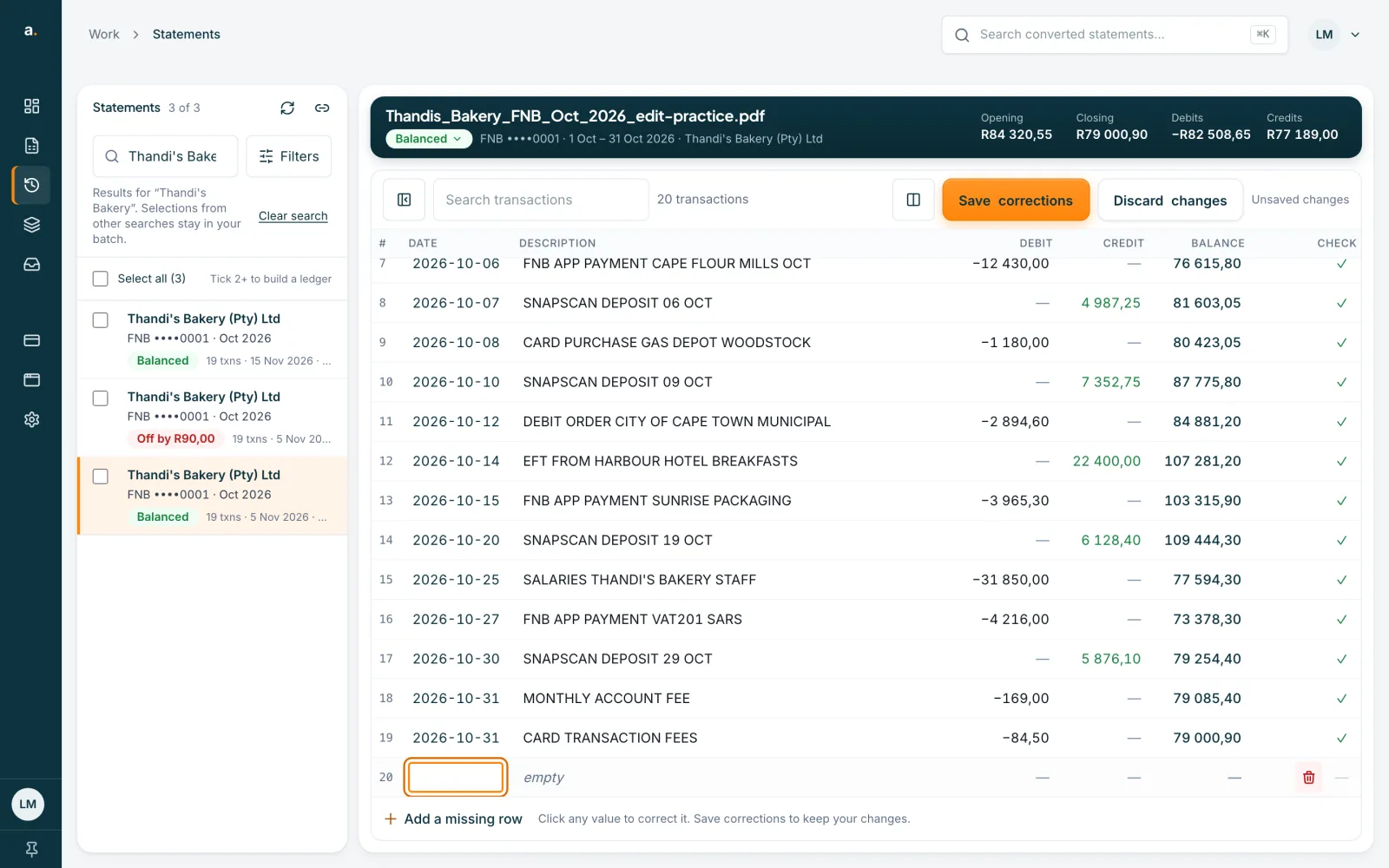
Press Enter to keep the change, or Escape to cancel it. Tab moves to the next value. The toolbar shows Unsaved changes, with Save corrections and Discard changes beside it.
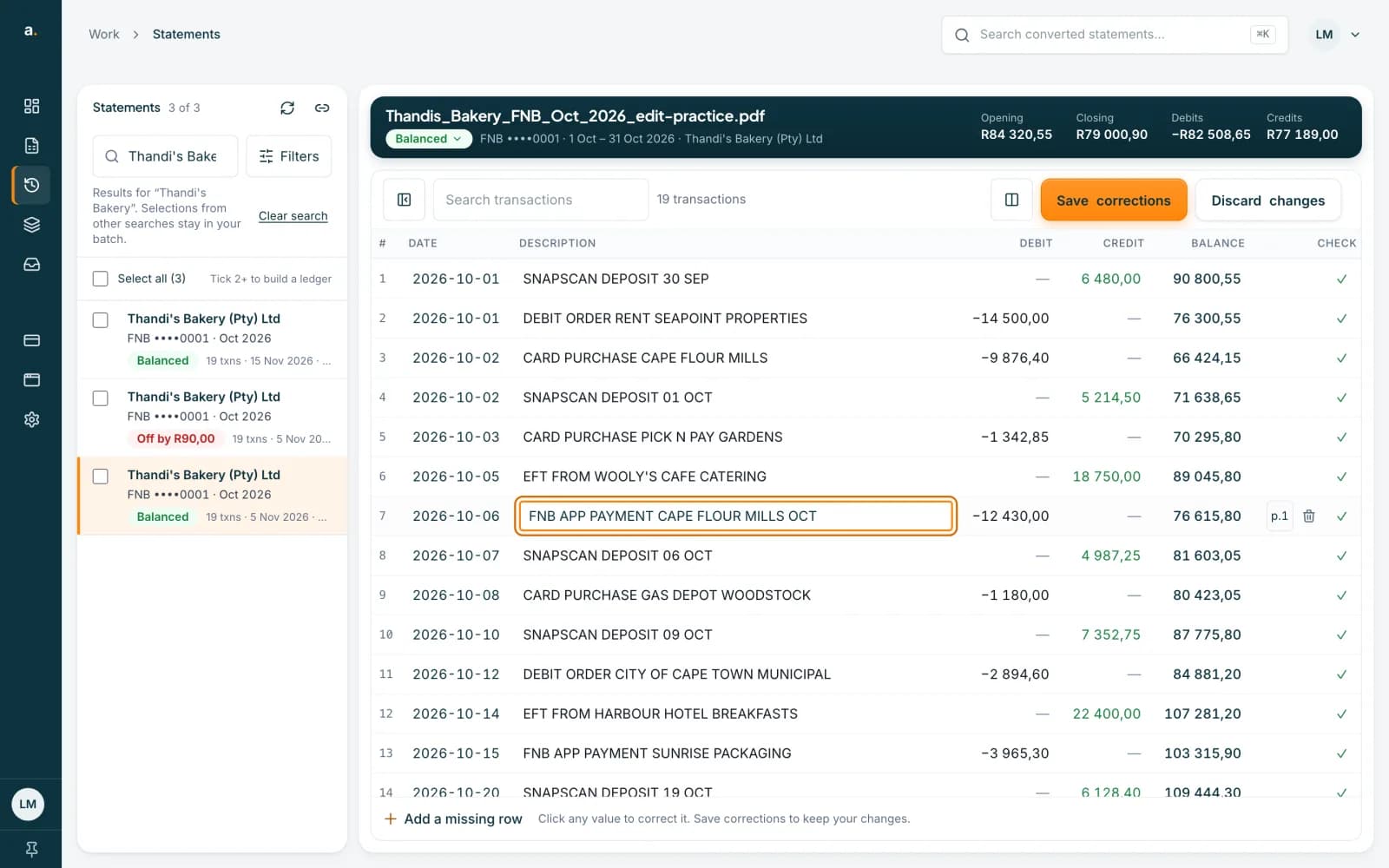 Open full size screenshot for step 3
Add a missing row
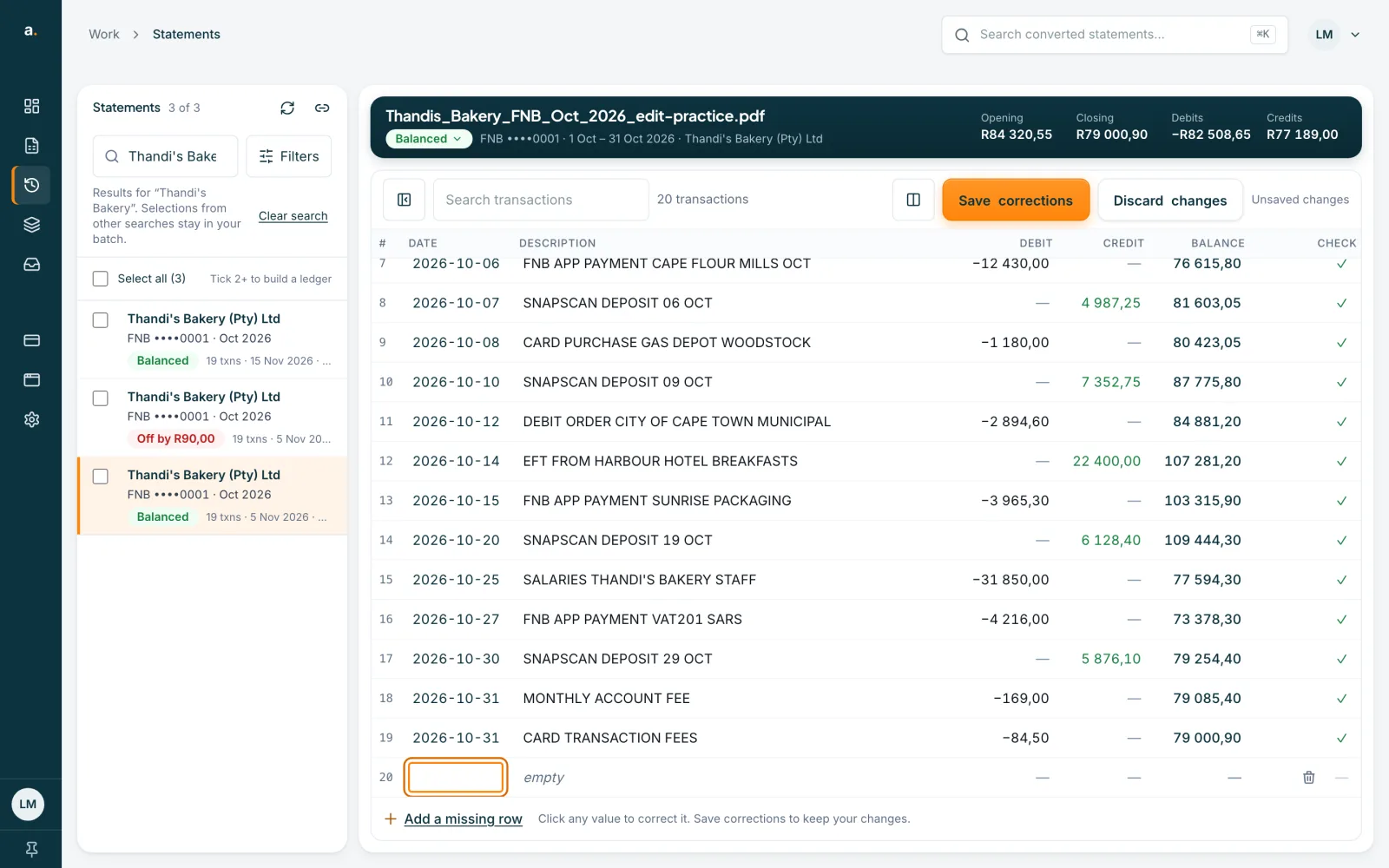
If the statement has a row Accounter missed, press Add a missing row under the grid. A blank row is added with its date ready to type. Fill in the date, description and amounts.
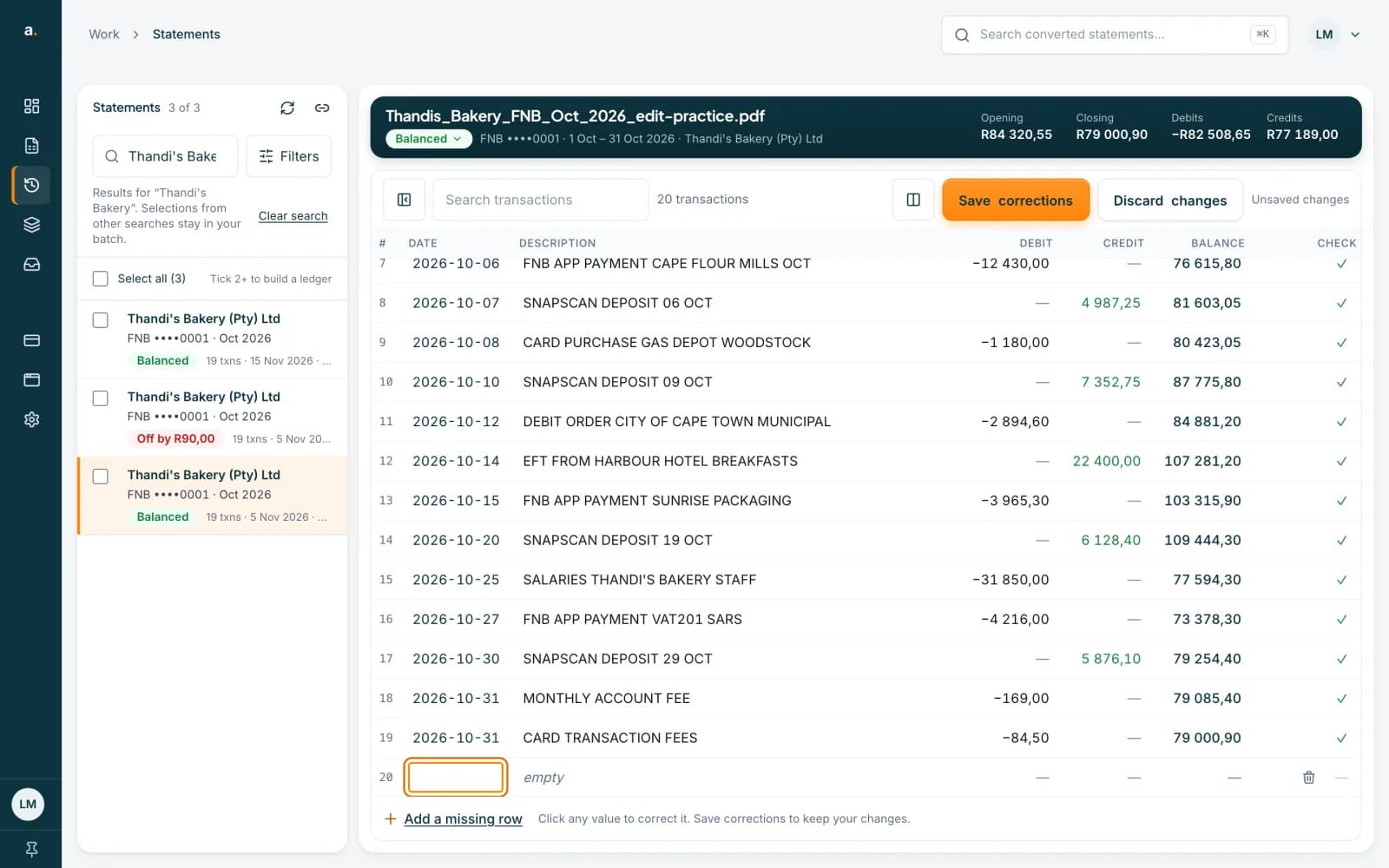 Open full size screenshot for step 4
Delete a row you do not need
Use the bin at the end of a row to delete it, for example a duplicated line. The rows below it move up.
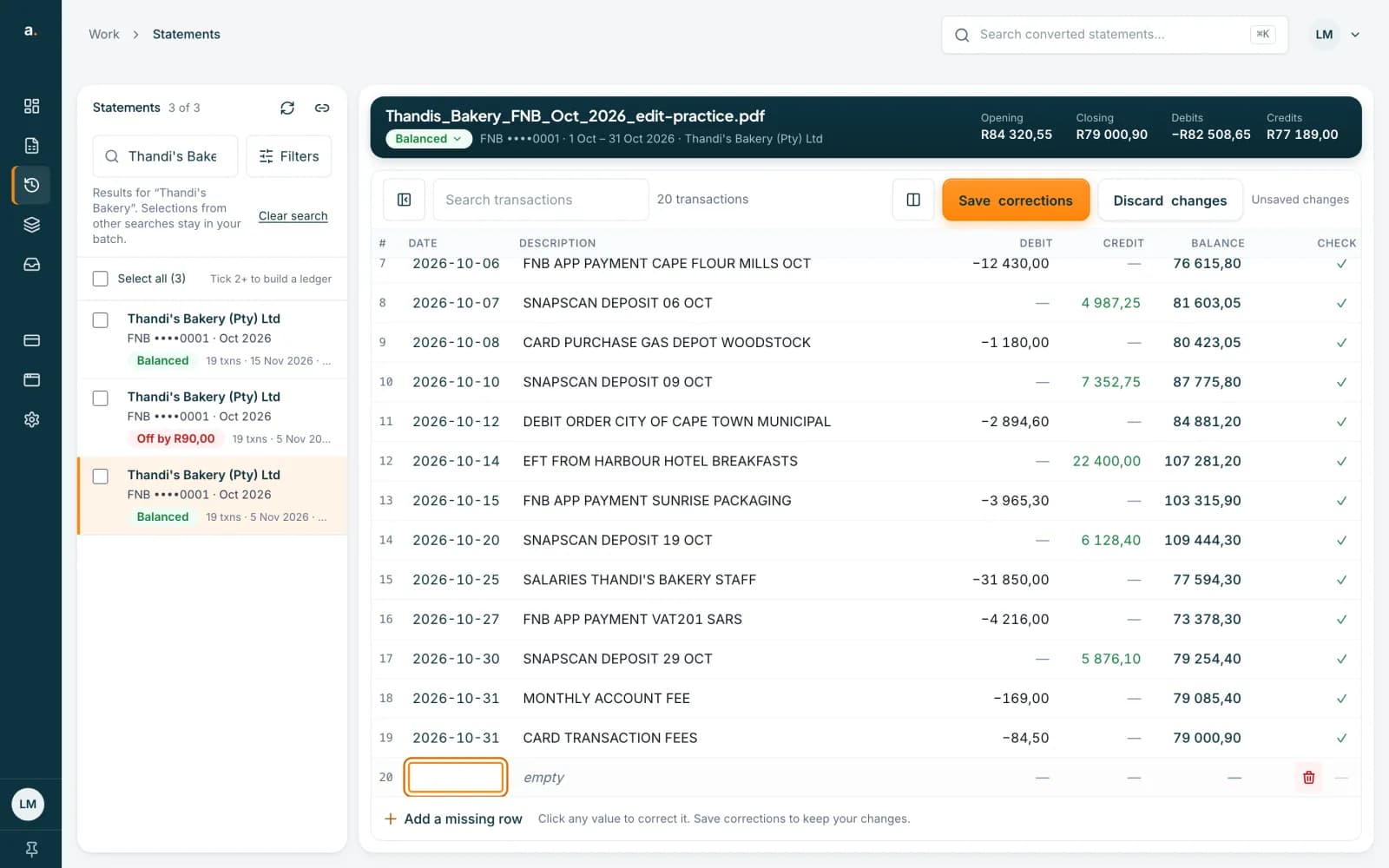 Open full size screenshot for step 5
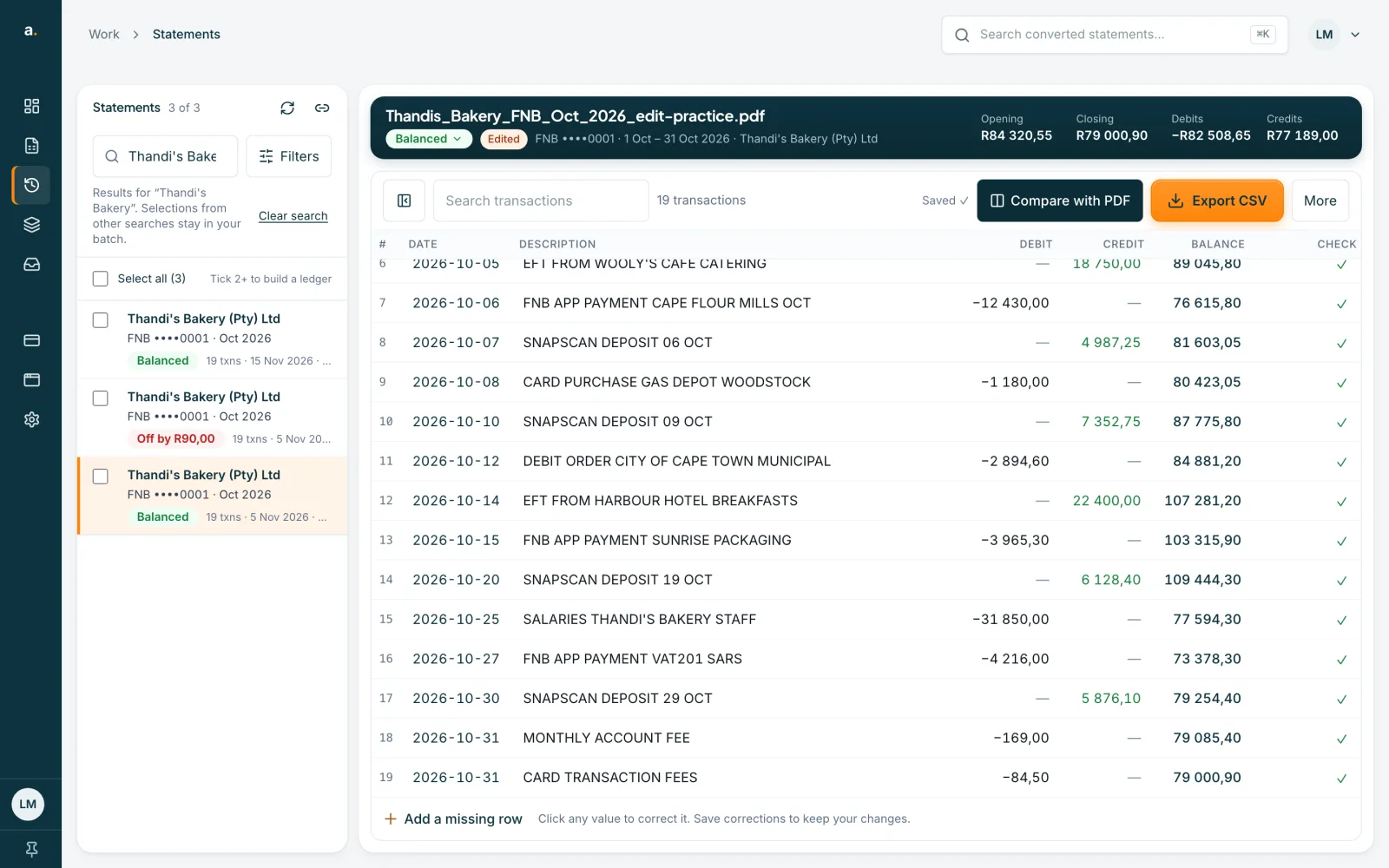
Save corrections
Press Save corrections. The toolbar shows Saved and the statement is marked Edited. The page says that individual and batch CSV downloads now include your changes. The balance check updates as you edit, so look for the green Balanced badge.
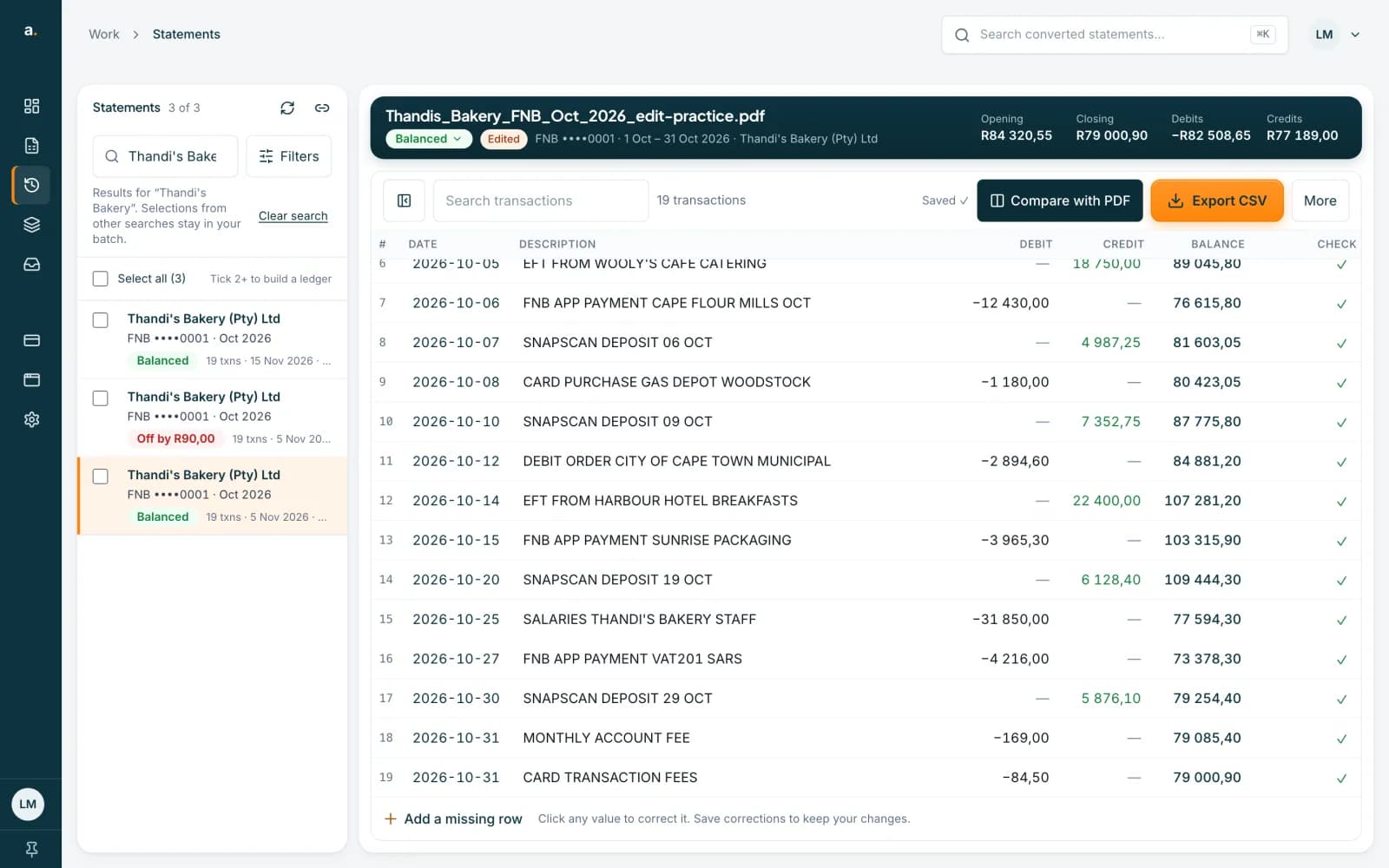 Open full size screenshot for step 6
Tips
- Save before you download. If you try to export with unsaved edits, Accounter says Save or discard your changes before downloading.
- Press Discard changes to go back to the last saved version.
- Use Compare with PDF to look at the original while you correct.
- On a phone or tablet, tap any value to correct it.
If something goes wrong
- You see Could not save corrections. Your edits are still here.
- Your changes are still in the grid. Check your connection and press Save corrections again.
- You see A newer version was saved. Your draft in the editor has not overwritten it.
- Someone, or another window of yours, saved a newer version. Compare the latest saved transactions, then press Discard my draft and load latest and make your edits again.
- An export says the date on a row could not be read.
- Fix the date in the table, as the message says, then download again. This applies to OFX, QIF and the Xero, QuickBooks and Sage CSV files.
- You want to bring the original rows back.
- Before saving, press Discard changes. After saving, retype the original values, or convert the PDF again with Extract again, which costs credits and saves a second copy.
Related guides
- Read the balance checkSee whether a converted statement adds up, find the row that does not, and read what the Balance checks panel suggests.
- Choose your export file type and columnsDownload a statement as CSV, OFX, QIF or an accounting-app CSV, and set the columns, date format and presets for your CSV.