Convert a bank statement PDF to CSV
Last reviewed 15 November 2026 · 6 steps
Upload a bank statement PDF, check the balance and download a CSV you can open in Excel.
Free account
Steps
Open Add statements
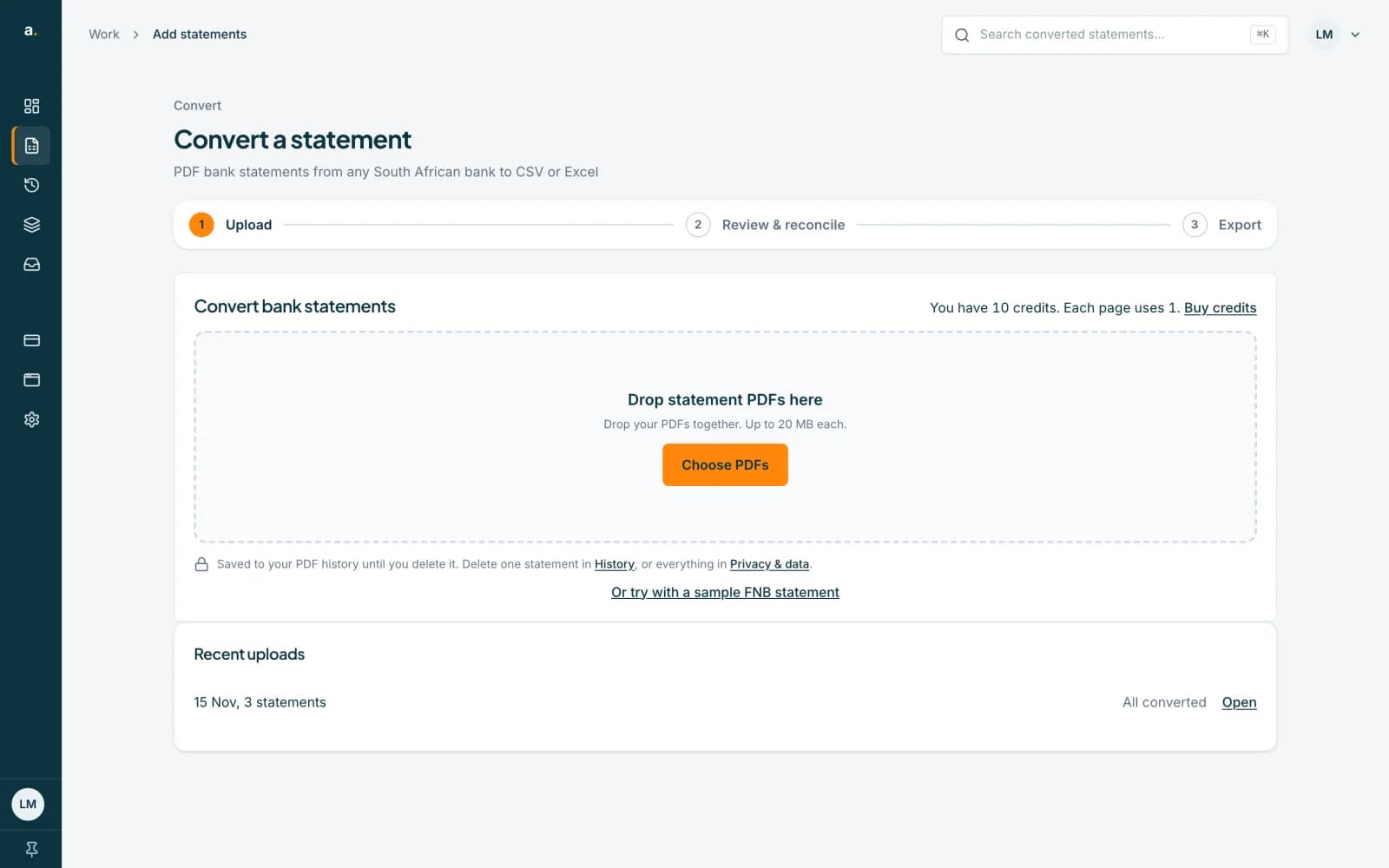
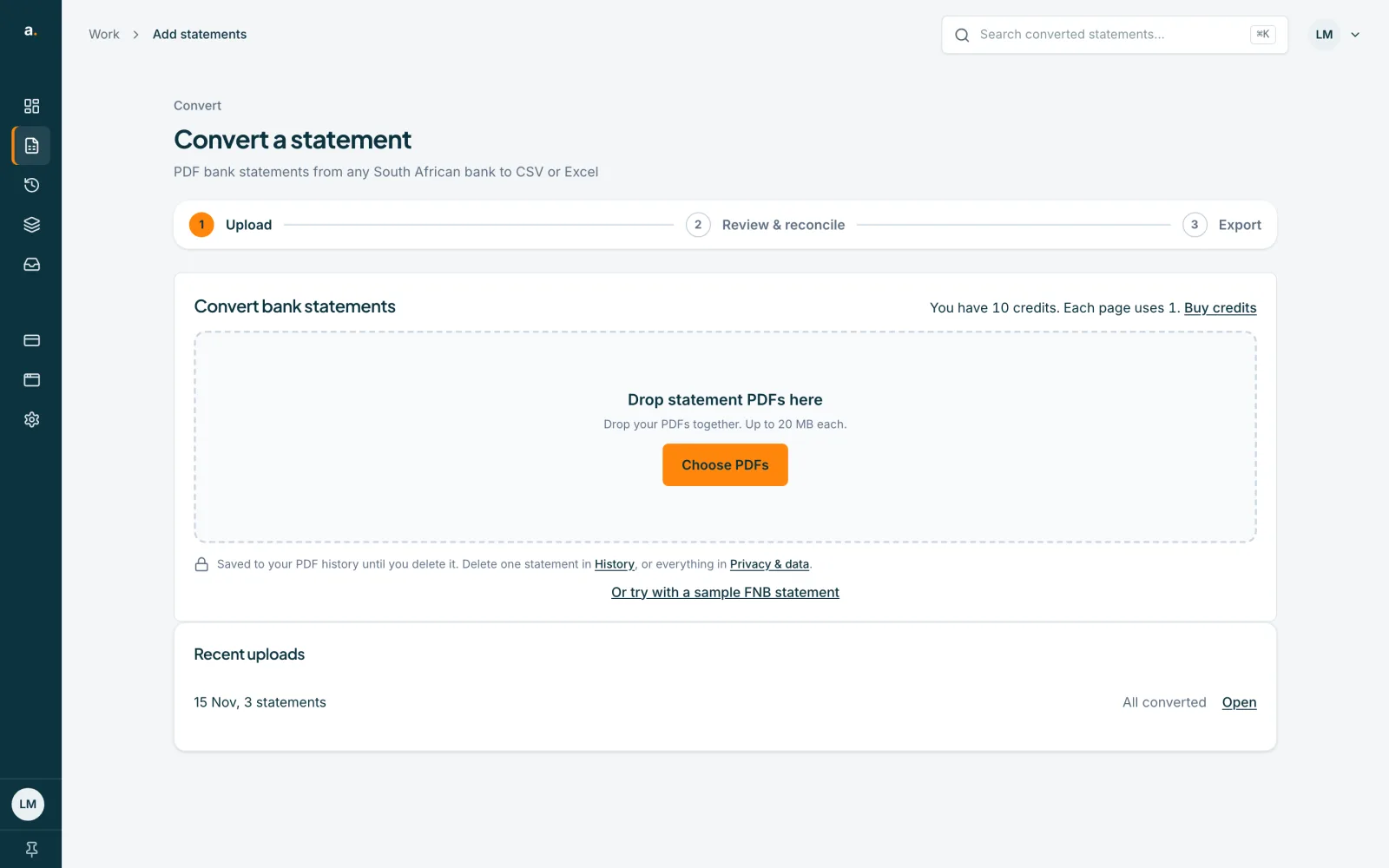
Log in and choose Add statements in the left menu, or press Convert statements on My work. Above the upload box, a line says how many credits you have and that each page uses 1.
 Open full size screenshot for step 1
Choose your PDF
Press Choose PDFs, or drop the file onto the page. Only PDFs are accepted, up to 20 MB each. On a phone, use the Choose statement PDFs button.
Check the file, the cost and the bank
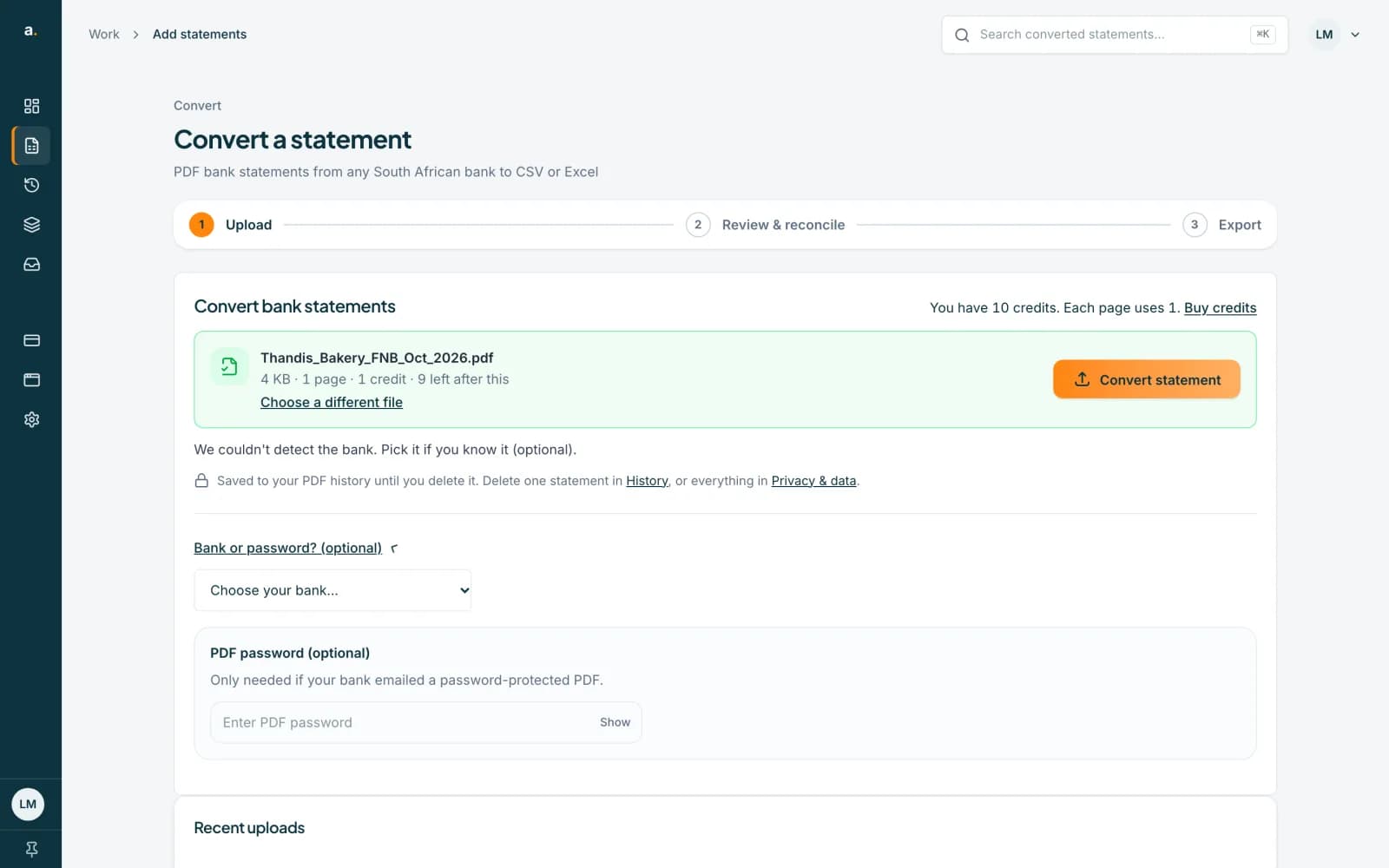
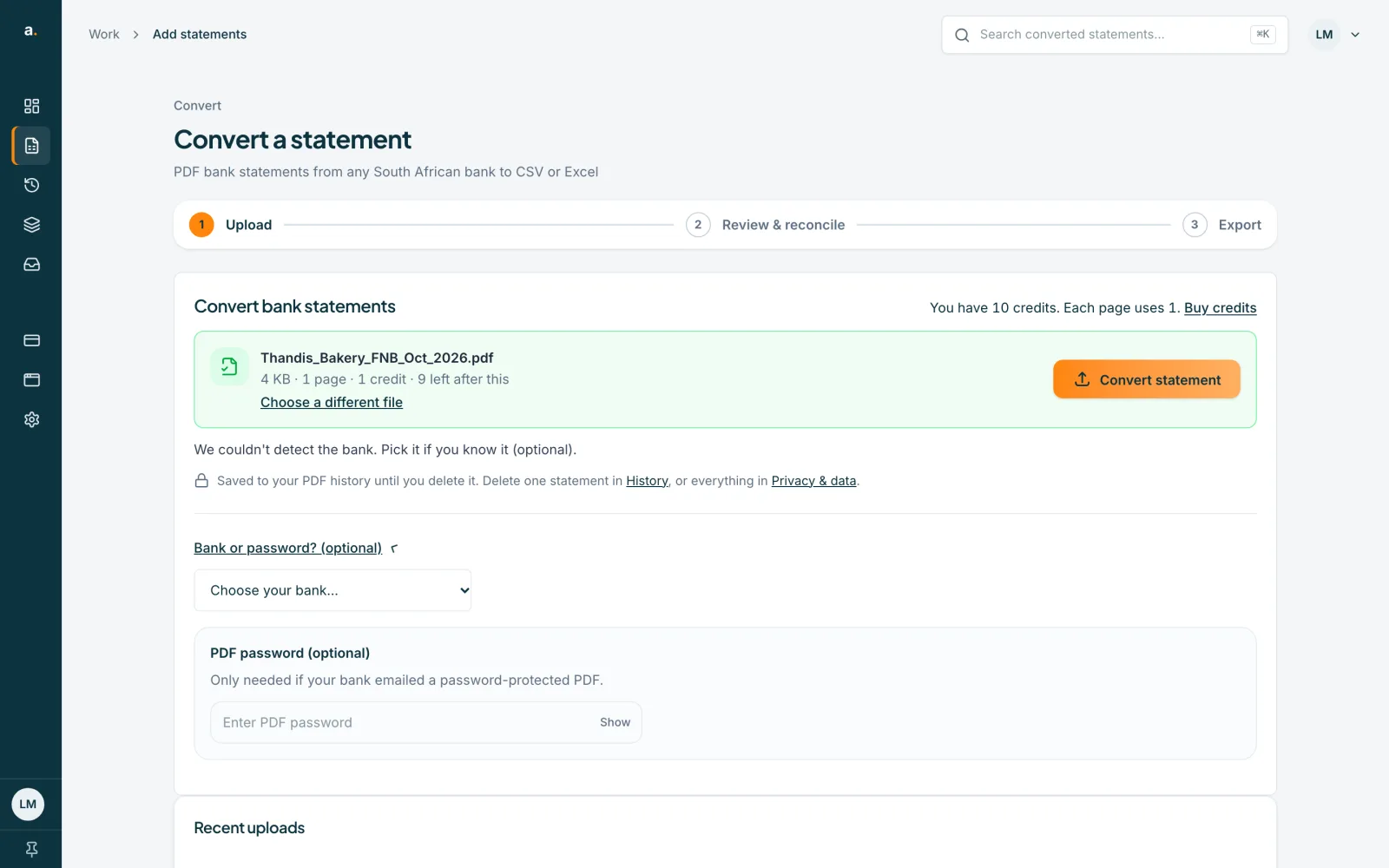
The file row shows the size, the number of pages and the cost, for example 1 page, 1 credit, 9 left after this. Nothing is charged yet. Accounter detects the bank. If it cannot, it says We couldn't detect the bank, and you can pick it from the Your bank list.
 Open full size screenshot for step 3
Press Convert statement
The button changes to Reading your statement while Accounter reads the pages and checks every balance. Keep the page open until the result appears. Large or scanned statements can take a few minutes.
Check the result
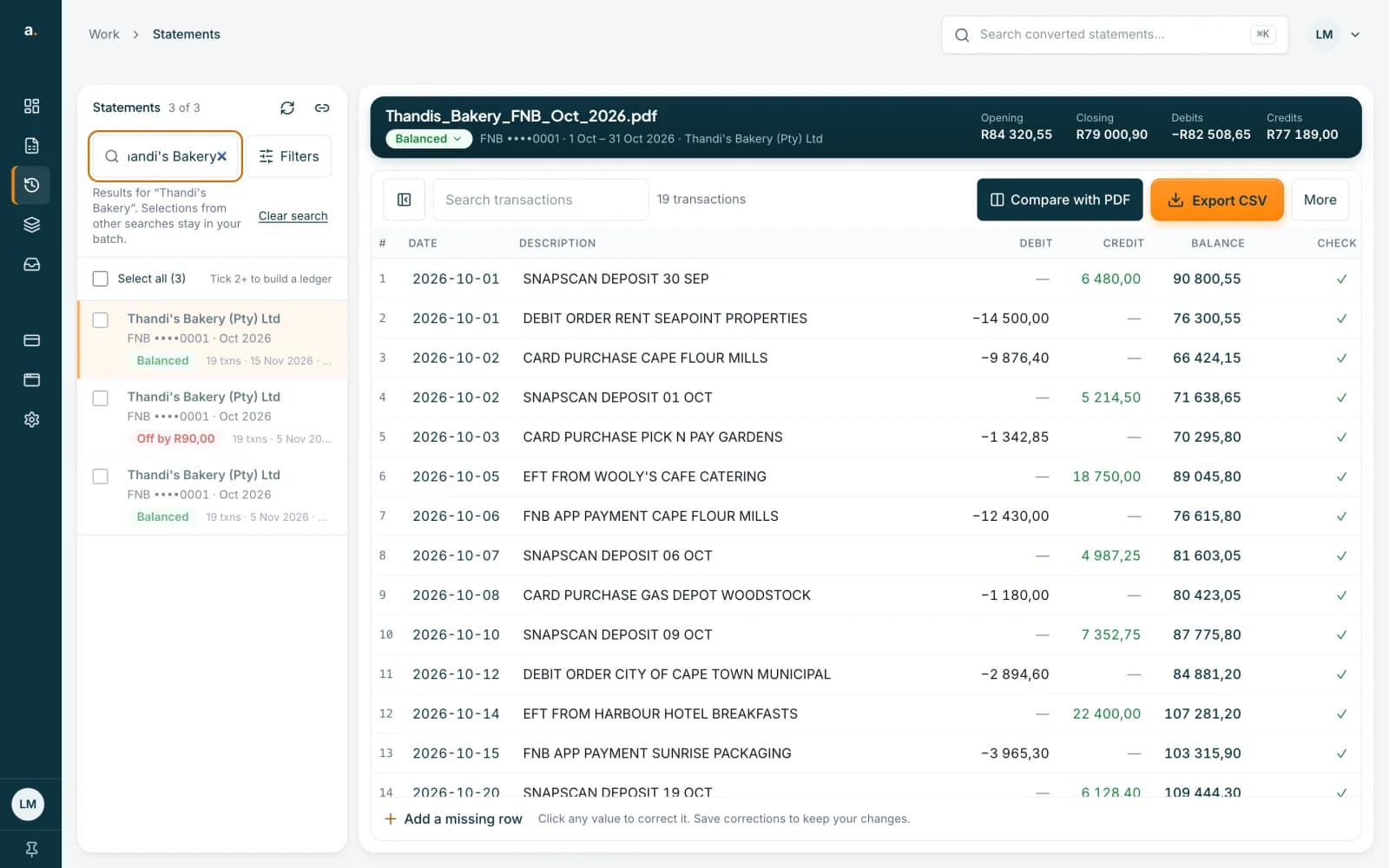
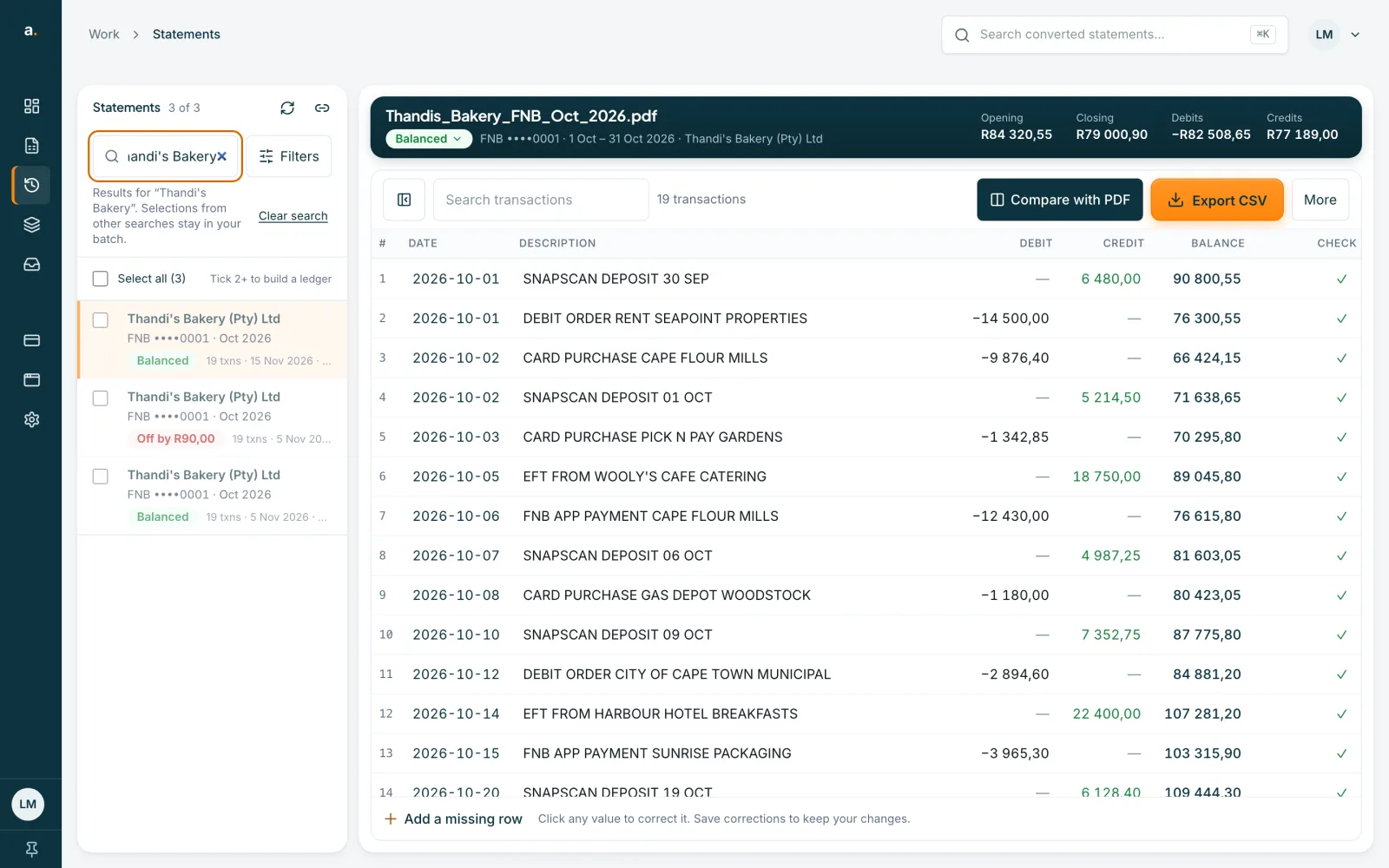
The result shows the opening and closing balances, the debits and credits, and one row per transaction. A green Balanced badge means the rows add up to the statement's balances, and the CHECK column shows a tick on every row that chains from the row above. If the badge is red, see the guide on reading the balance check.
 Open full size screenshot for step 5
Export, or come back to it later
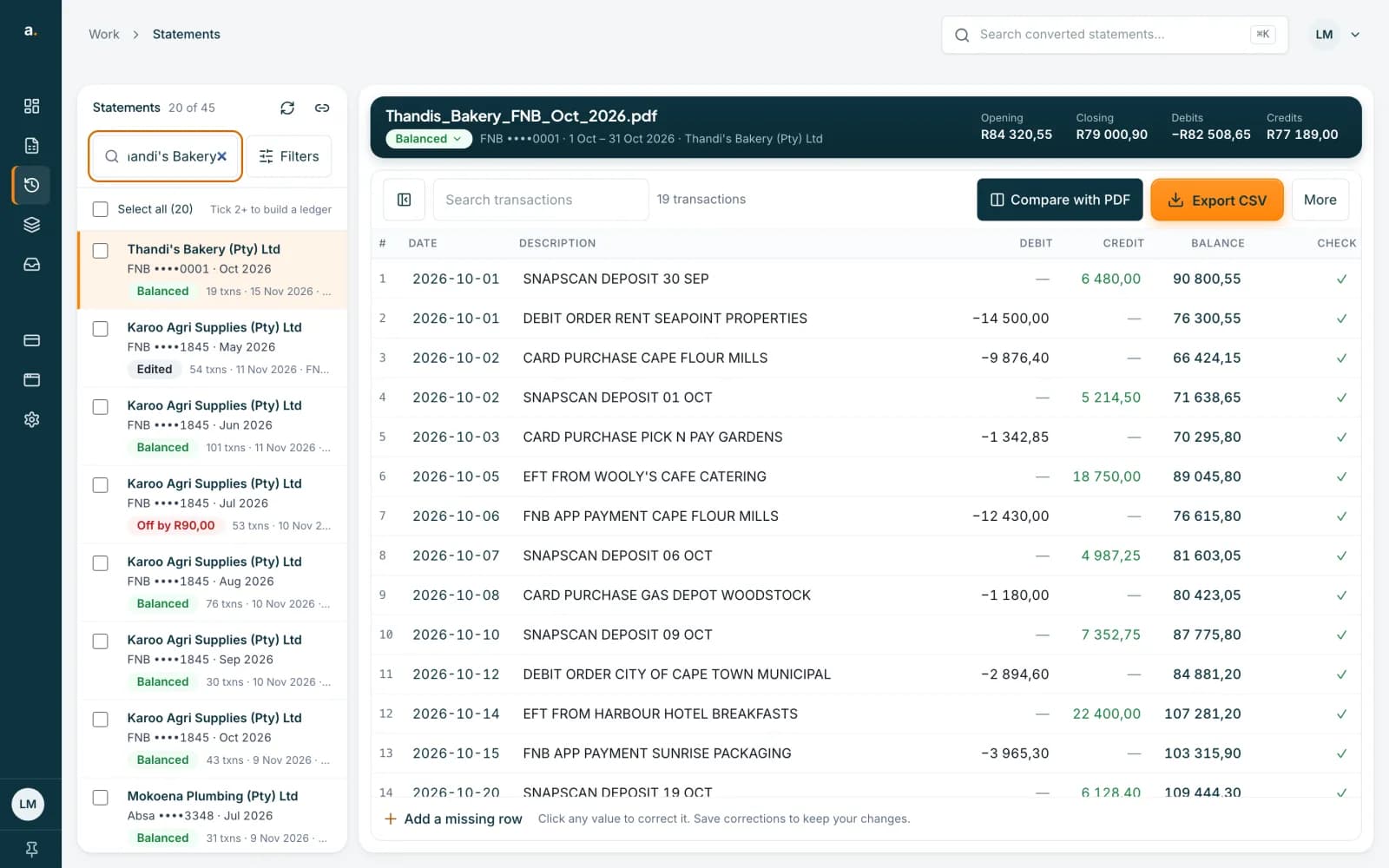
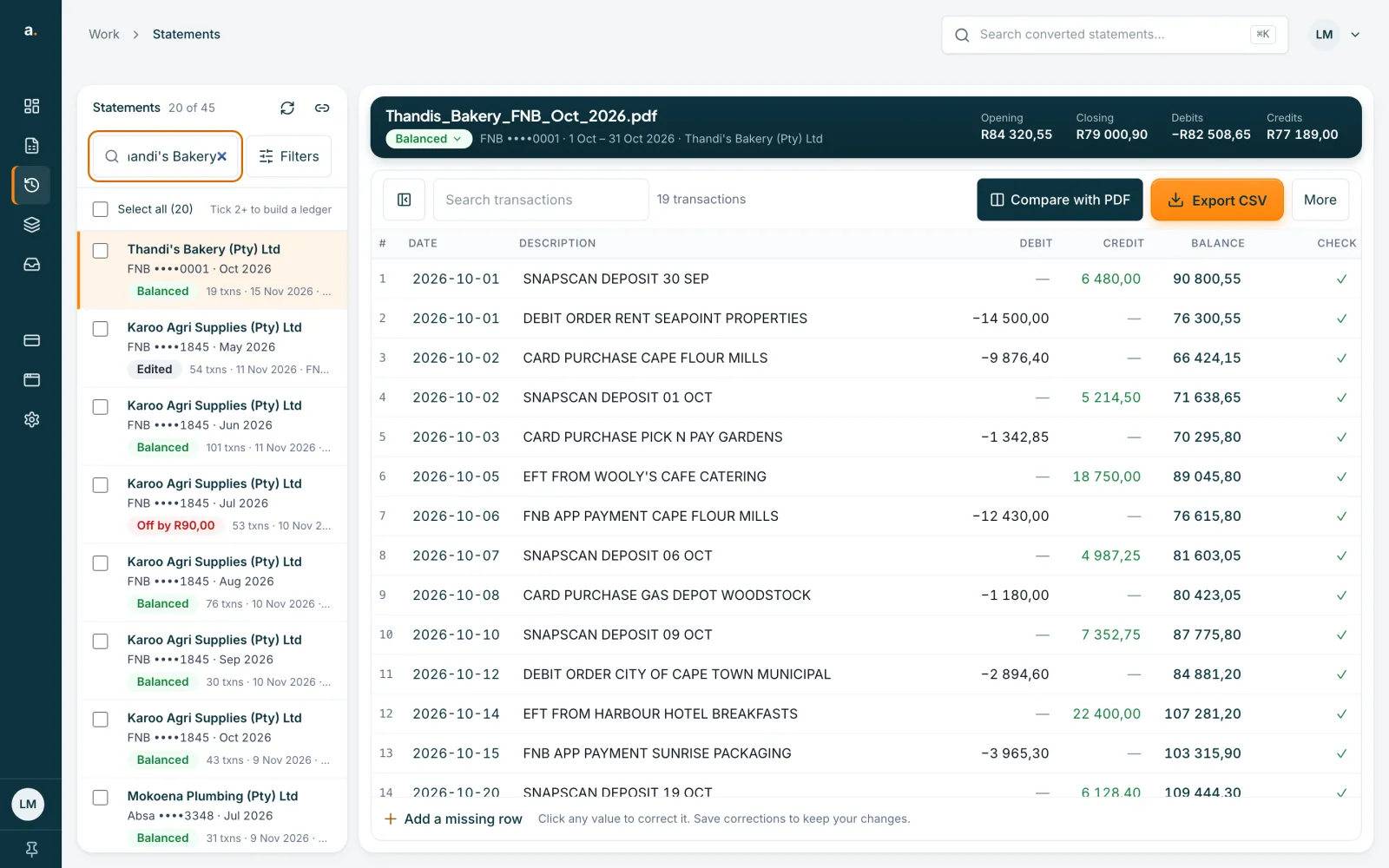
Press Export CSV to download the file. The conversion is also saved in Statements, where you can search for it, open it again for free and export it whenever you like.
 Open full size screenshot for step 6
Tips
- You see the page count and the credit cost before anything is charged.
- If you choose a PDF you have converted before, Accounter says You've converted this statement before. Open saved statement (free) costs nothing. Extract again costs credits.
- The CSV opens in Excel and Google Sheets. Accounter makes CSV, OFX, QIF and the Xero, QuickBooks and Sage CSV imports.
- Your PDF is saved in your PDF history until you delete it. Delete one statement in History, or everything in Privacy & data.
If something goes wrong
- The page says Only PDF files can be converted.
- Choose a PDF. Photos and Word files are not accepted. Download the statement as a PDF from your bank.
- The file is Too large.
- Files can be up to 20 MB. Use Split a PDF to cut it into smaller files, or download the statement again from your bank.
- You see More credits needed, or Waiting for credits.
- Each page uses 1 credit. Press Buy credits, or choose a shorter statement. Free pages are added once your email is verified.
- Accounter says it couldn't detect the bank, or Bank not recognised.
- Pick your bank in the Your bank list. If you do not know it, Accounter reads the statement as a general statement and identifies the bank while it reads.
- The PDF is locked.
- Enter the PDF password from your bank in the password box. See the guide on password-protected statements.
- You see This looks like a scanned statement.
- Scanned or photographed pages are harder to read, so check the rows carefully. If you can, download the digital PDF from your bank. You can still try.
- Your extraction is still running.
- Only one statement is converted at a time on this page. Wait for it to finish, or check PDF history for progress. To convert several, select them all at once and they run in the background.
- The conversion fails.
- Failed attempts don't use credits, and any credits held for the file are returned. Try again, and use Report an extraction issue if it keeps failing.
Related guides
- Read the balance checkSee whether a converted statement adds up, find the row that does not, and read what the Balance checks panel suggests.
- Convert many statements at once with batchesDrop up to 50 statement PDFs in one batch, let Accounter read and check them in the background, and review the ones that need a look.
- Convert a password-protected statementEnter the password your bank gave you before converting a locked statement PDF. A wrong password uses no credits.
- Choose your export file type and columnsDownload a statement as CSV, OFX, QIF or an accounting-app CSV, and set the columns, date format and presets for your CSV.