Find your way around Accounter
Last reviewed 15 November 2026 · 5 steps
A tour of your account: the My work page, the menu, where converted statements live and what Settings shows.
Free account
Steps
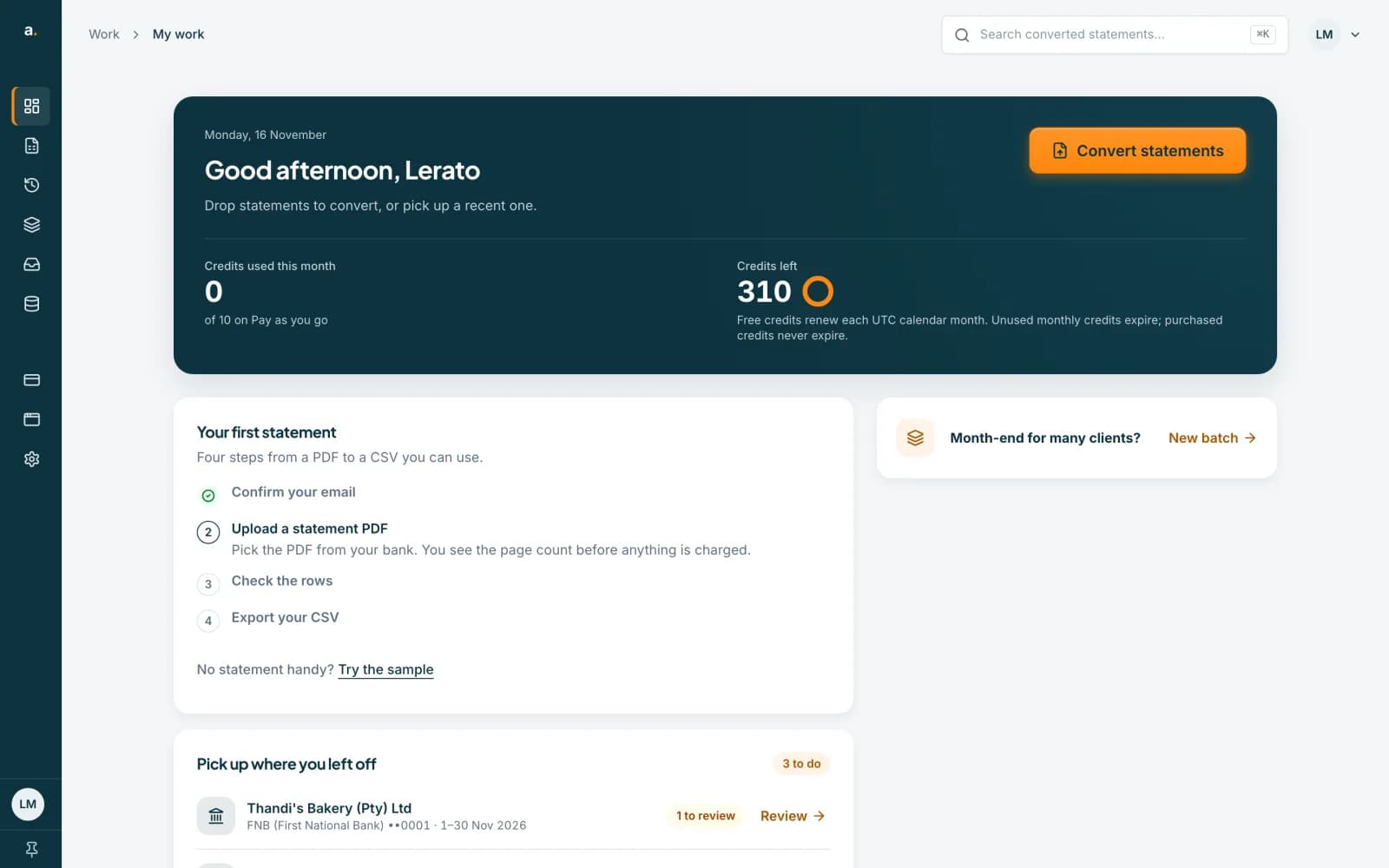
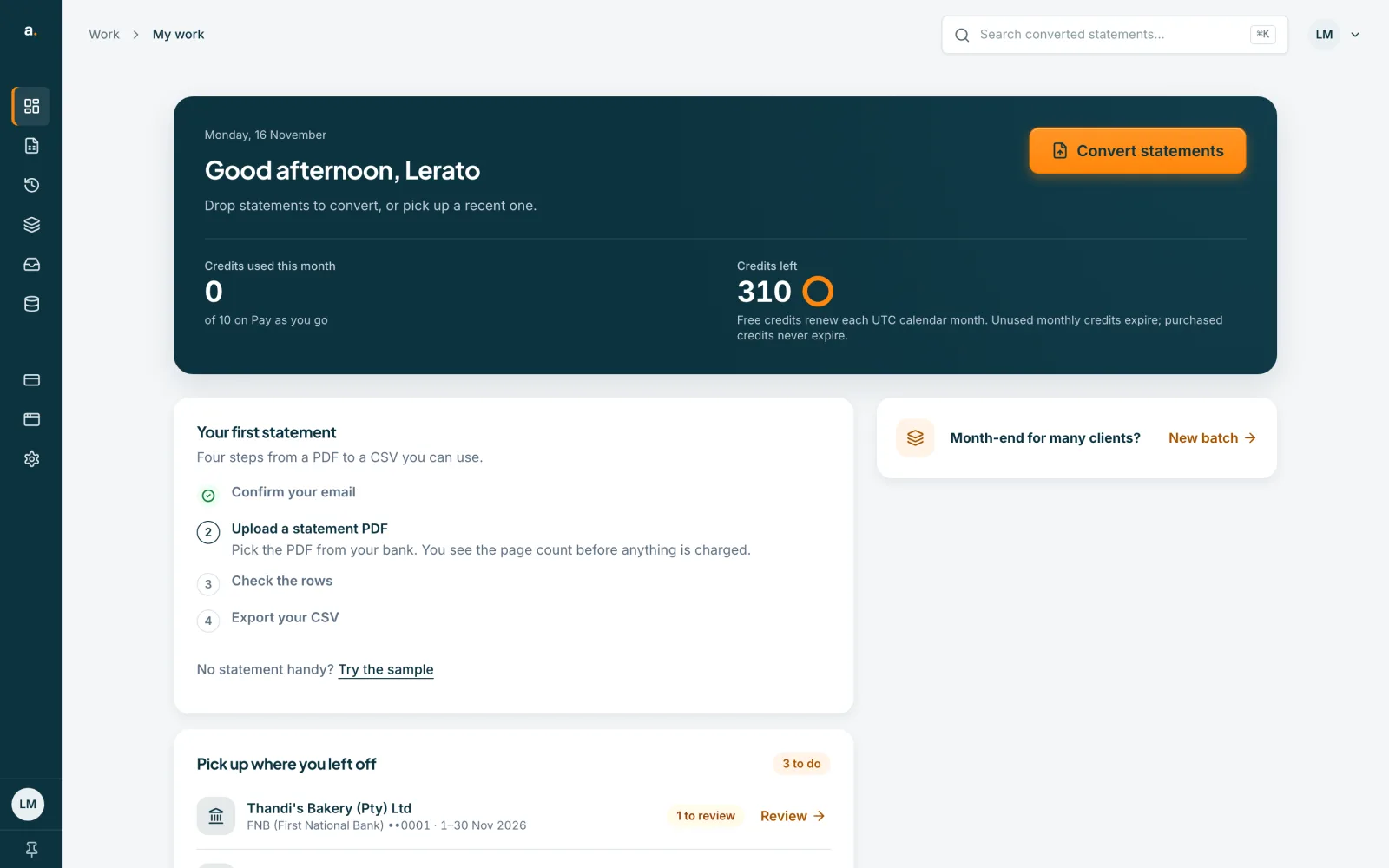
Start on My work
After you log in you land on My work. It shows Credits used this month and Credits left, a Convert statements button, a Pick up where you left off list of recent statements, and a Month-end for many clients? link to start a New batch.
 Open full size screenshot for step 1
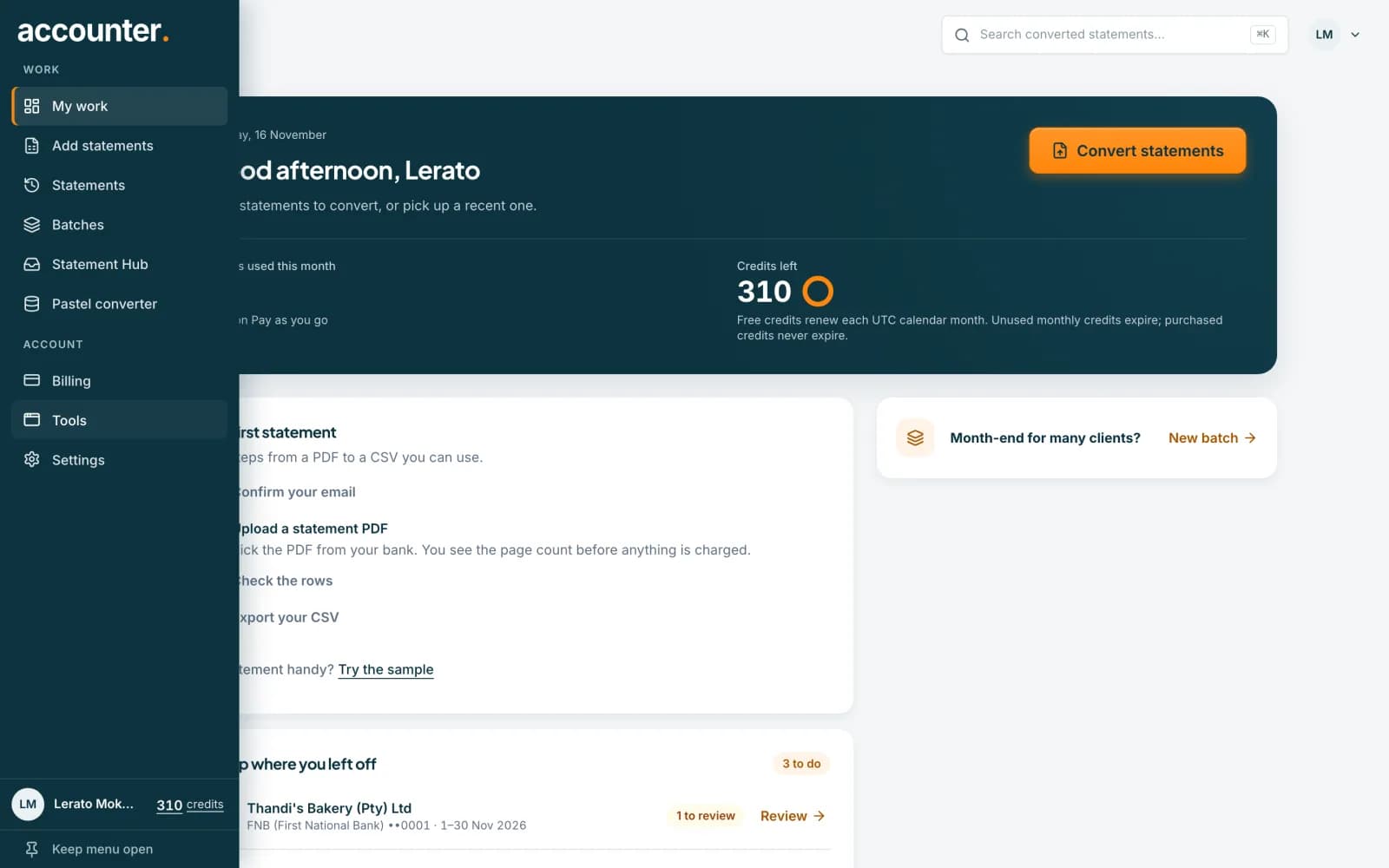
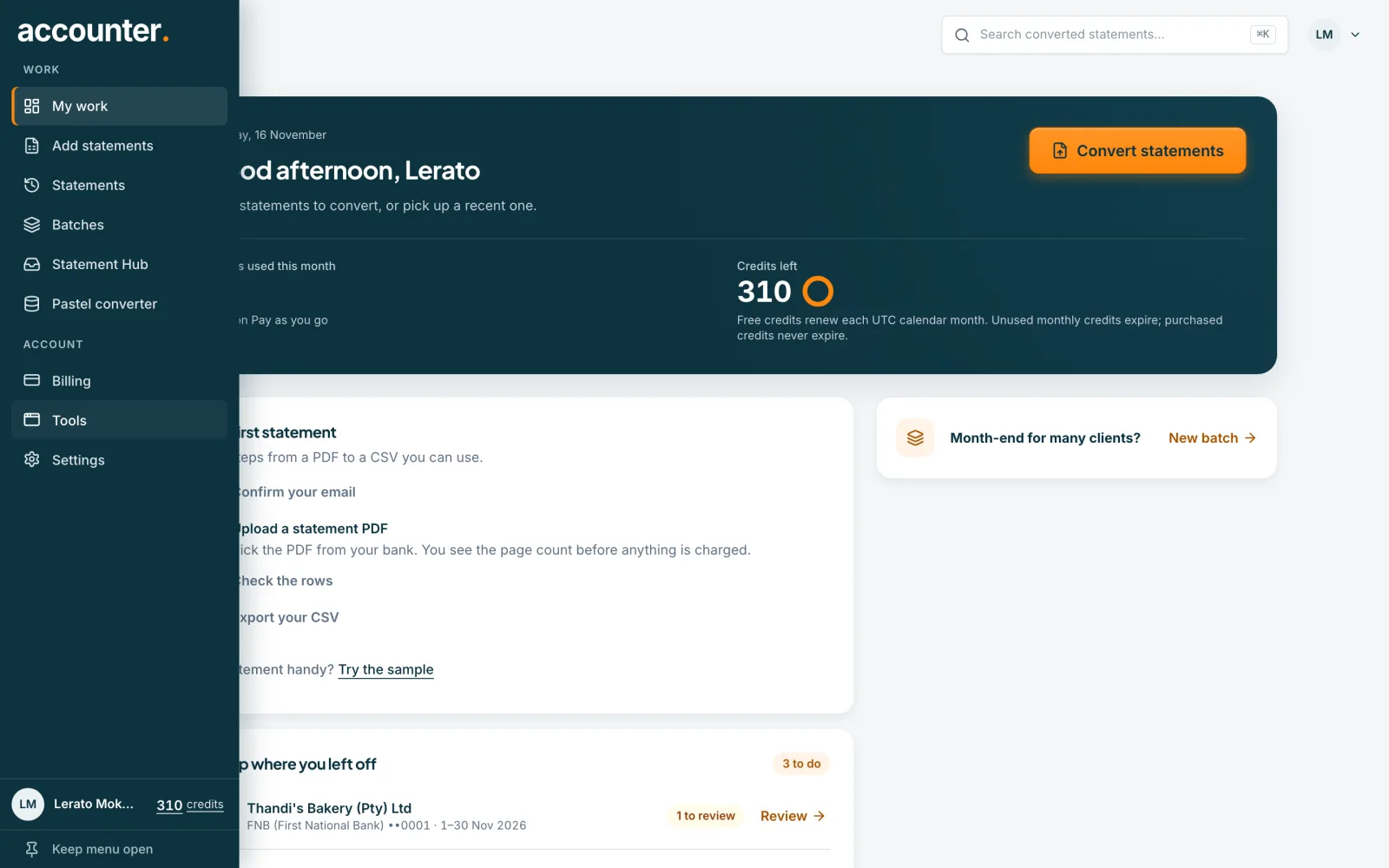
Use the menu on the left
The menu is a slim icon bar that opens when you point at it. Under WORK you will find My work, Add statements (convert a PDF), Statements (everything you have converted), Batches (many files at once) and the Pastel converter. Under ACCOUNT you will find Billing, Tools and Settings. Use Keep menu open if you want it to stay expanded.
 Open full size screenshot for step 2
Search your converted statements
Use the Search converted statements box at the top of any page to find a statement you converted earlier.
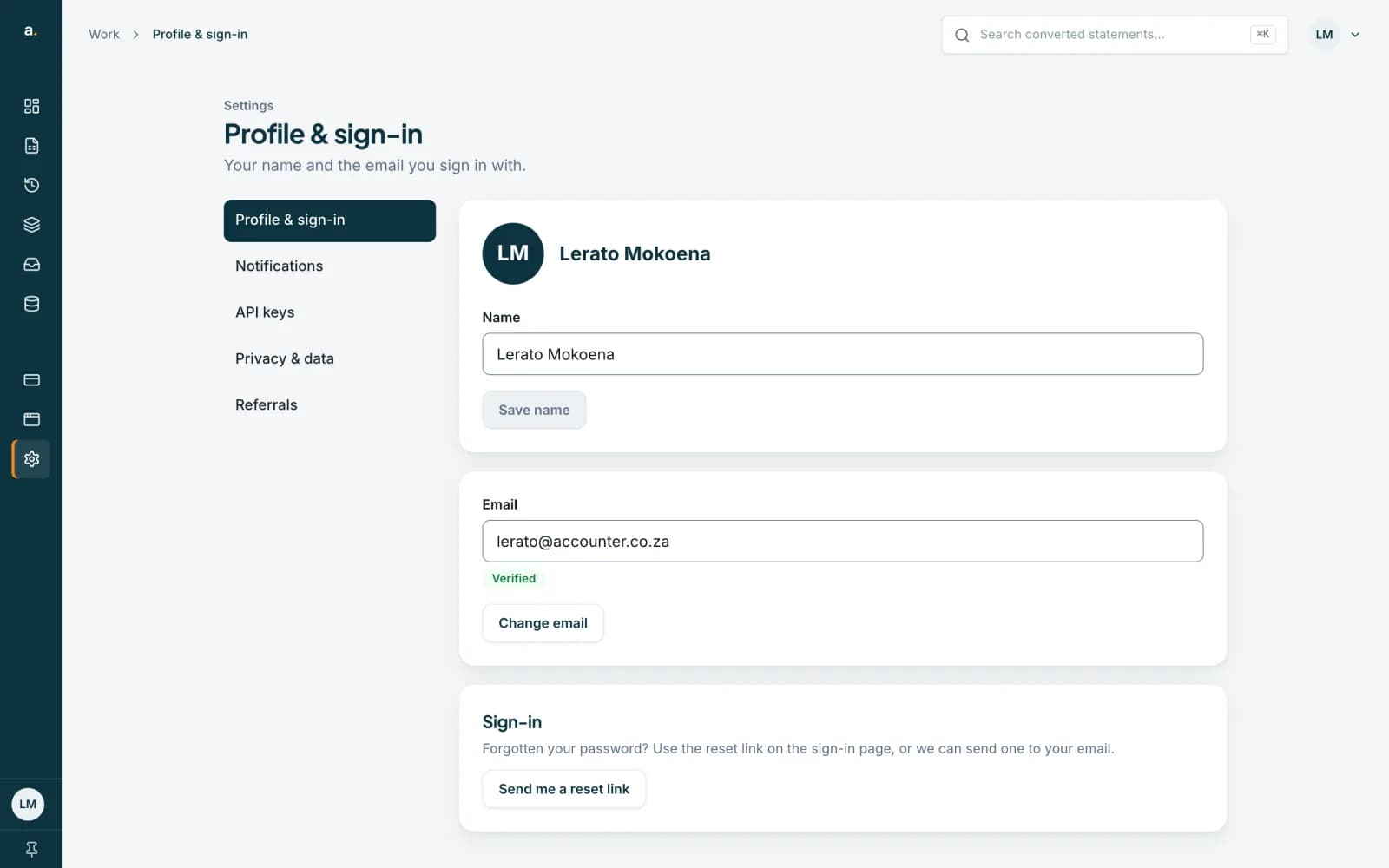
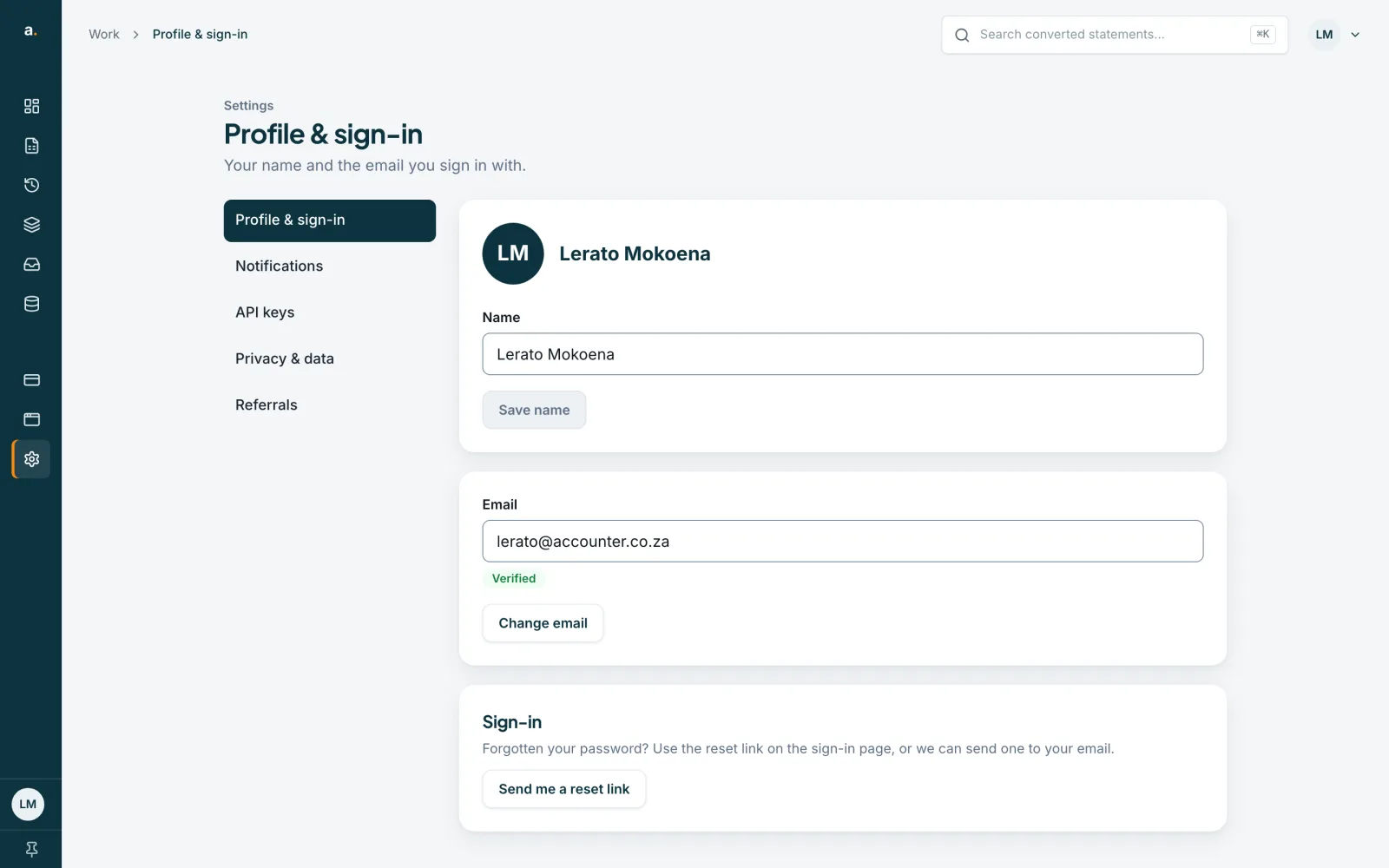
Open Settings
Settings has tabs for Profile & sign-in, Notifications, API keys, Privacy & data and Referrals, plus Team when your account belongs to an organisation. Profile & sign-in shows your name, your email and whether it is Verified. You can change your name there and save it. To change your sign-in email, choose Change email, type the new address and your current password, then click the link we send to the new address. Your email stays the same until you click it, and you will be signed out everywhere and sign in again with the new address.
 Open full size screenshot for step 4
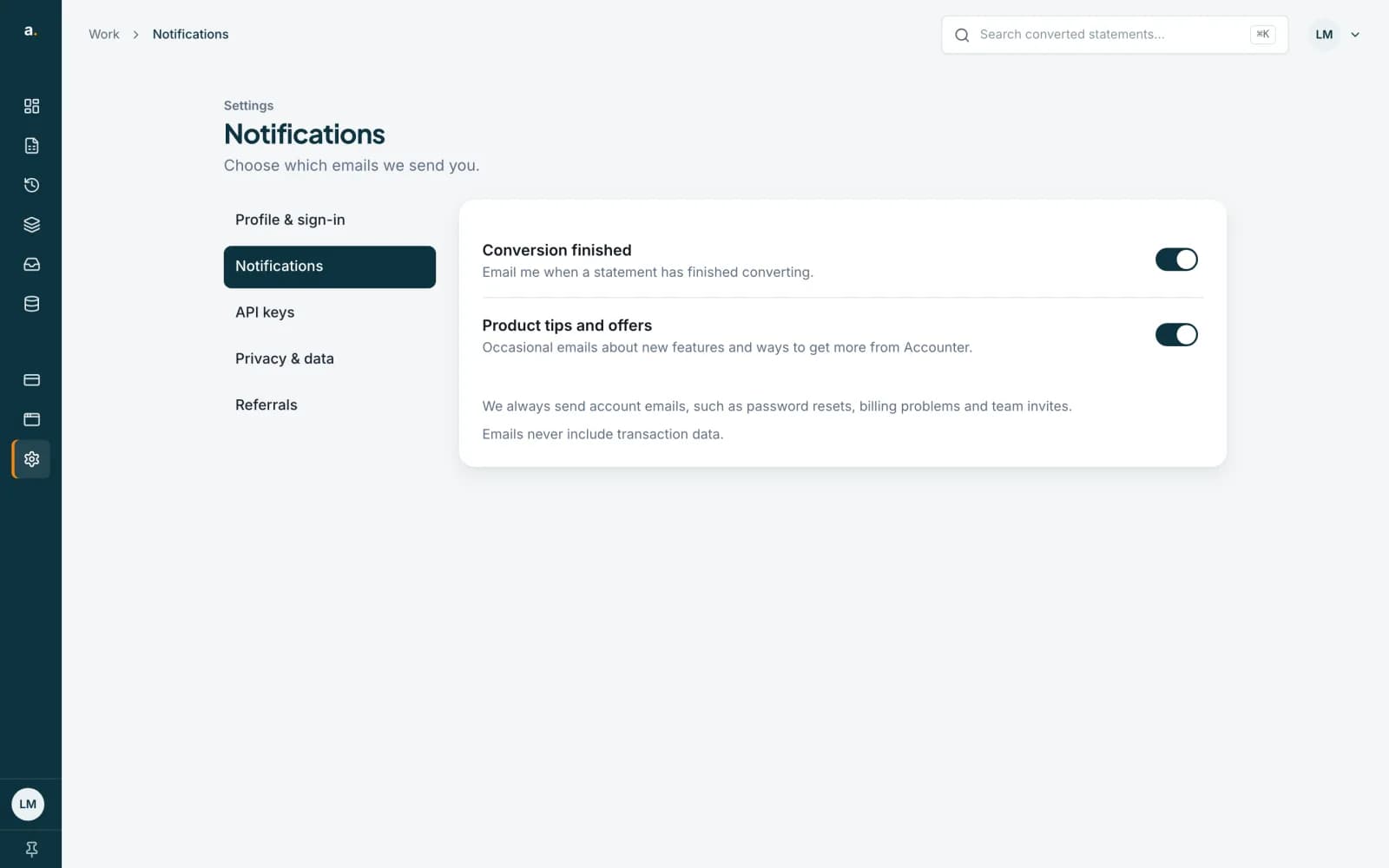
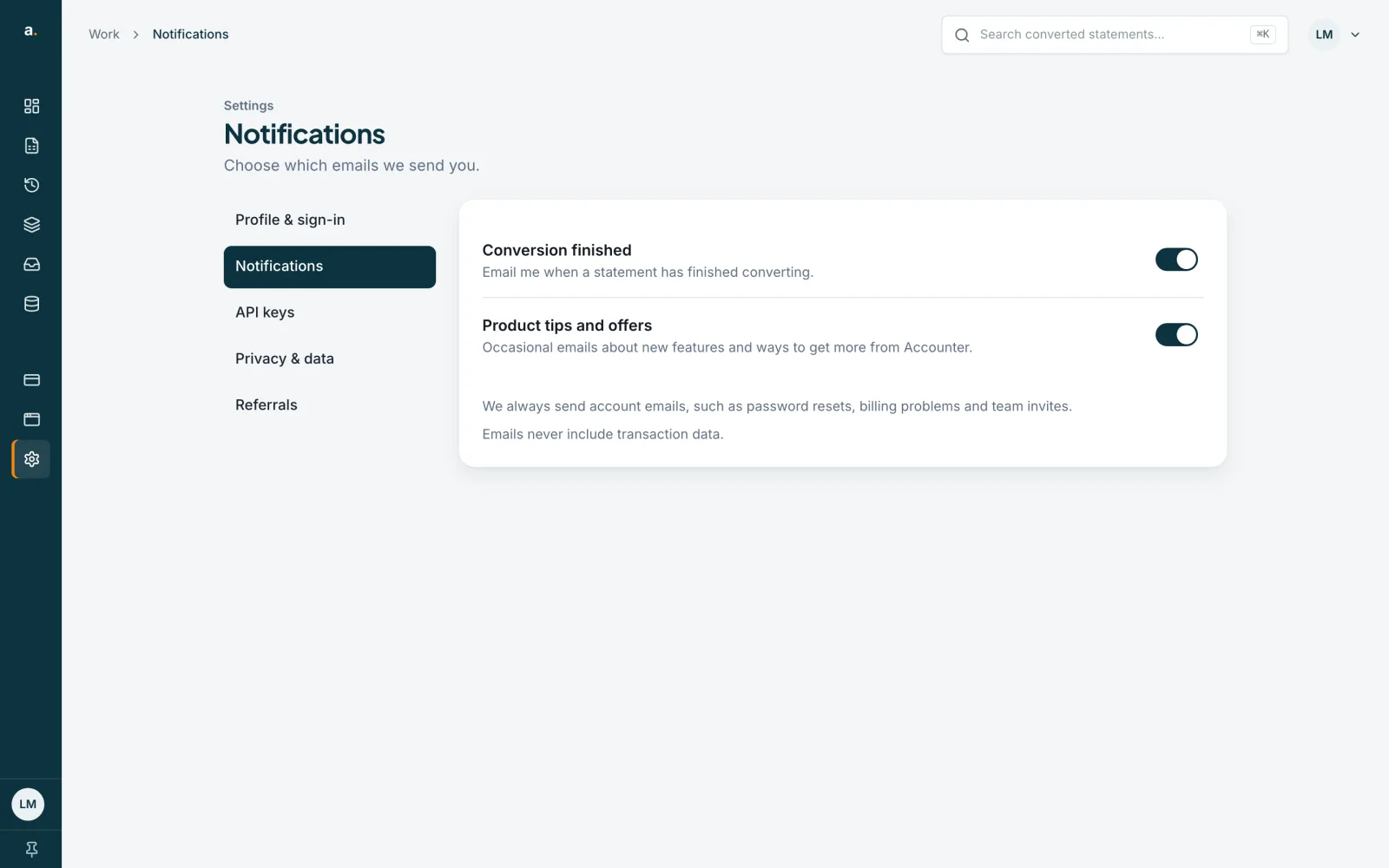
Look at Notifications
The Notifications tab has two switches: Conversion finished (an email when a statement has finished converting) and Product tips and offers. Each saves as soon as you click it. We always send account emails, such as password resets, billing problems and team invites. Emails never include transaction data.
 Open full size screenshot for step 5
Tips
- On a phone, open the menu with the menu button at the top, or use the tab bar at the bottom for quick links.
- Billing, and API keys in Settings, appear only to people who manage the account. If you belong to an organisation as a member, you will not see them.
- Team appears in Settings when your account belongs to an organisation.
If something goes wrong
- You cannot see Billing in the menu, or API keys in Settings.
- These are shown to account owners and admins. Ask the owner of your organisation to change a plan or create keys.
- You want to change your name or email.
- Settings shows these but cannot change them yet. Contact support if you need a change.