Delete a statement
Last reviewed 16 November 2026 · 4 steps
Delete one saved statement, its original PDF and its rows from your history.
Free account
Steps
Download what you need first
Deleting cannot be undone. If you may need the rows, press Export CSV and keep the file.
Open the statement and choose More
Choose Statements in the left menu and open the statement. Press More above the transactions. Delete is at the bottom of the menu, in red.
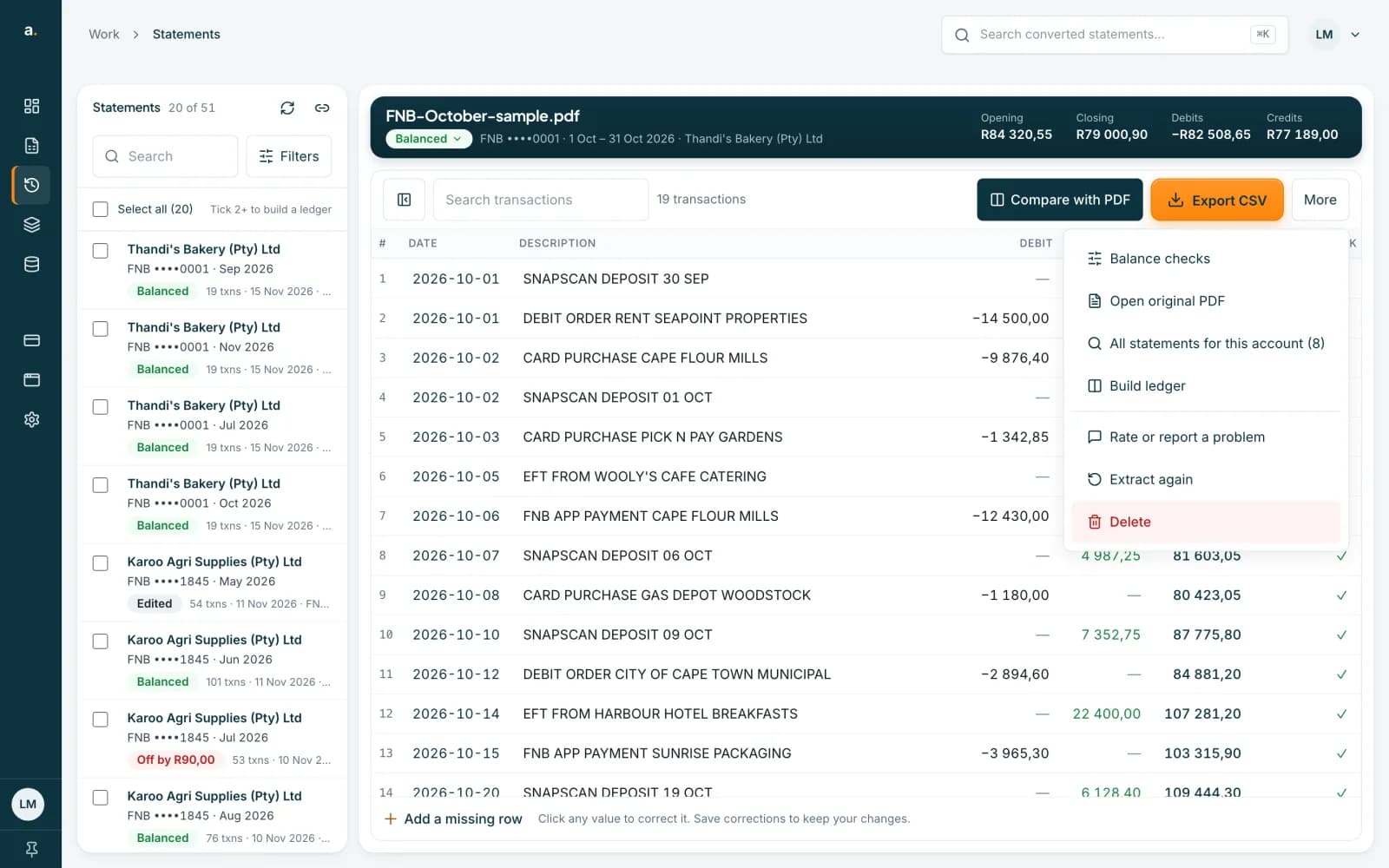 Open full size screenshot for step 2
Press Delete and confirm
Your browser asks Delete this archived statement and its extracted transactions? Press OK to delete it, or Cancel to keep it. This is a normal browser box, not an Accounter panel.
Check the list
The statement leaves your list and the count drops by one. Its saved PDF and its rows are deleted.
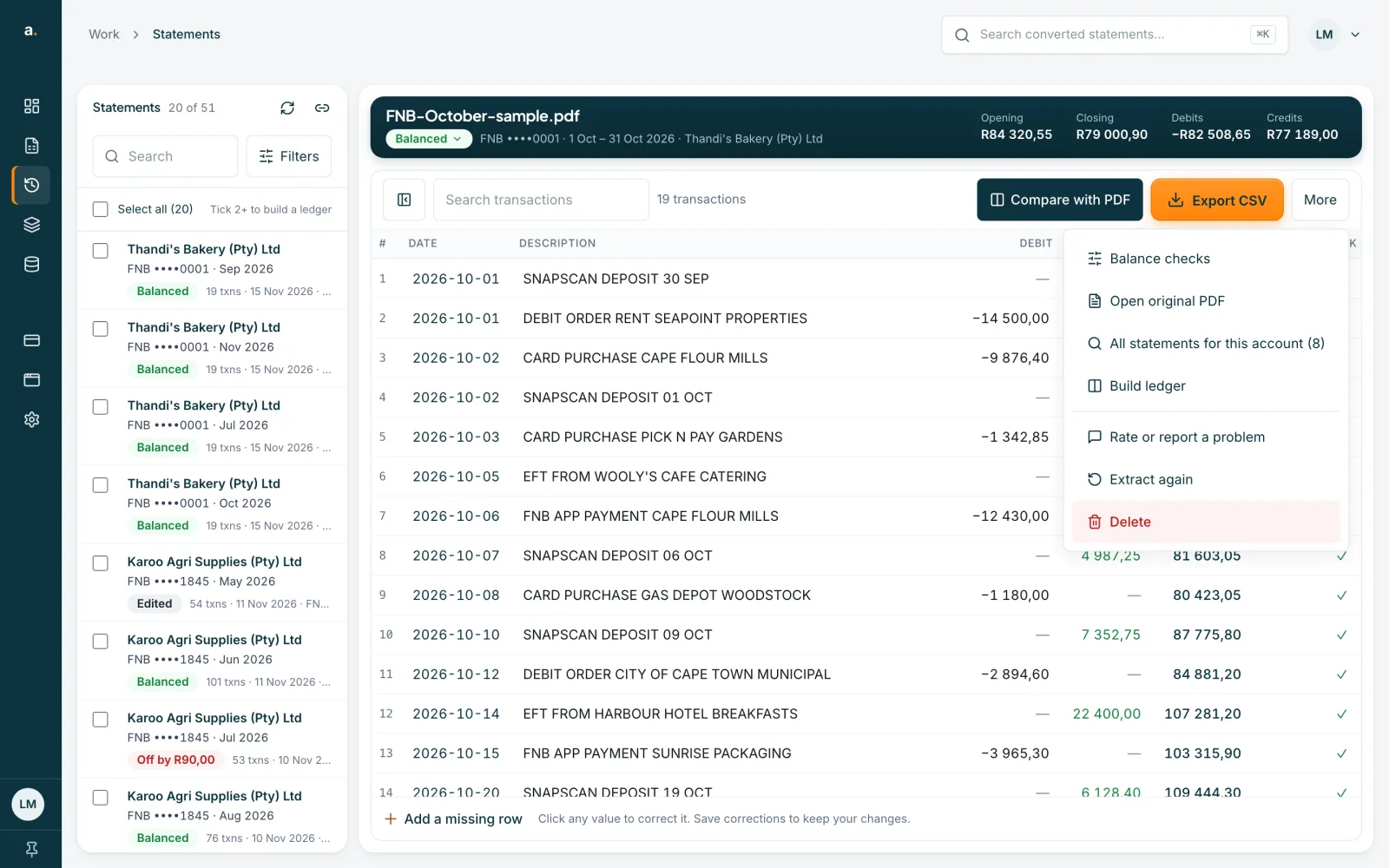
Tips
- To delete a failed background conversion, use the Failed extractions log. The browser asks Remove this failed background extraction from PDF history?
- To clear all your history, or delete your account, use Privacy & data.
- A ledger link that includes a deleted statement says the statement wasn't found and leaves it out.
If something goes wrong
- Delete is greyed out.
- It is switched off while the list loads or another delete is running. Wait a moment.
- You see Failed to delete statement.
- Try again. If it keeps failing, contact support.
- You cannot find Delete.
- It is in the More menu of an open statement. On a phone, open the statement from the list first.
Related guides
- What to do when the original PDF is not archivedSome statements are saved without their PDF. You can still edit and export them, and you can upload the file again to read it afresh.
- Reopen a statement for free or extract it againIf you add a PDF you have already converted, open the saved statement for free, or pay to read it again from scratch.