Share a filtered view of your statements
Last reviewed 16 November 2026 · 5 steps
Copy a link to your current search and filters, so a colleague who can see those statements opens the same view.
Free account
Steps
Set up the view
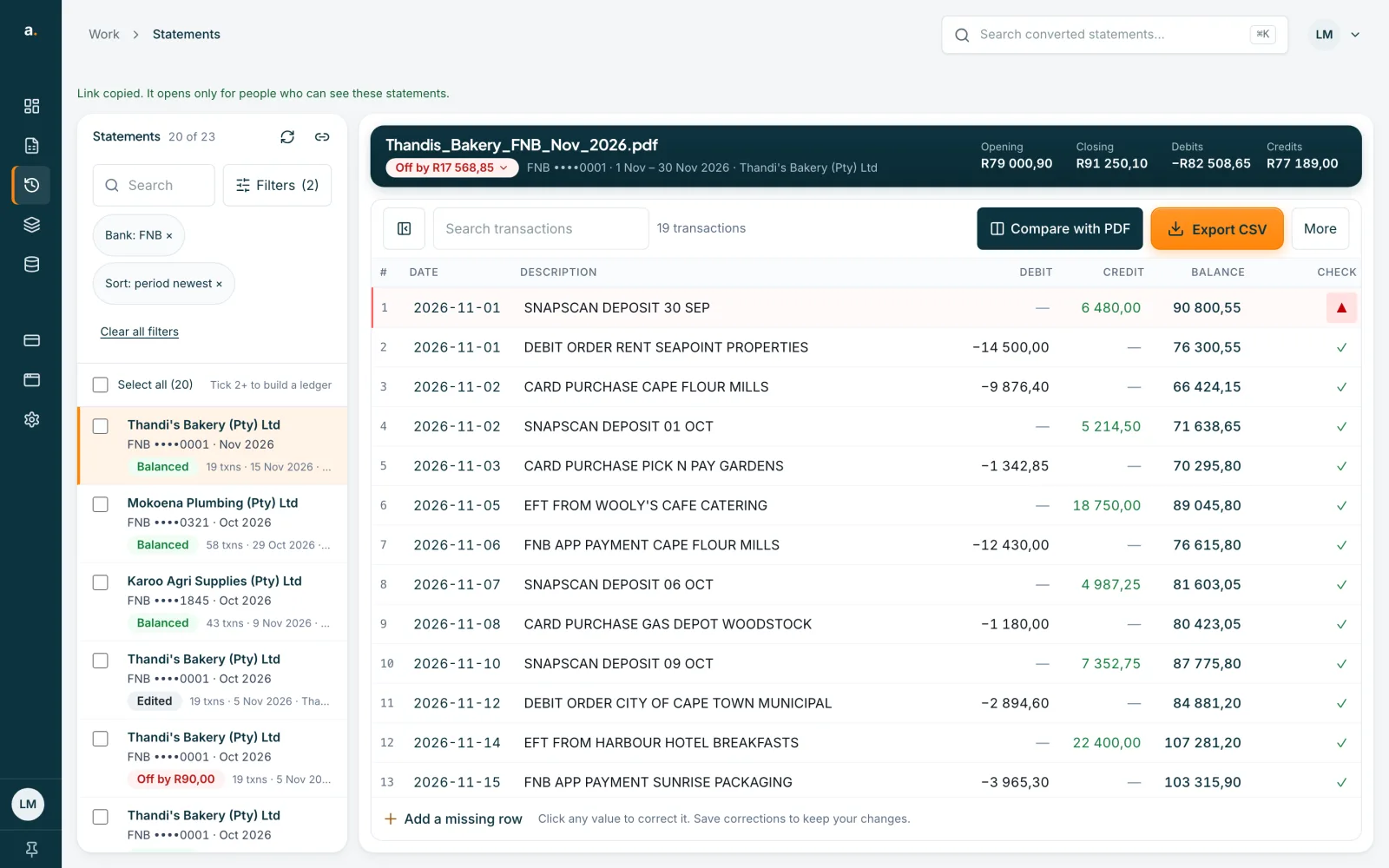
In Statements, search and apply the filters you want. The Filters button shows a count, for example Filters (2), and each filter shows as a chip, such as Bank: FNB.
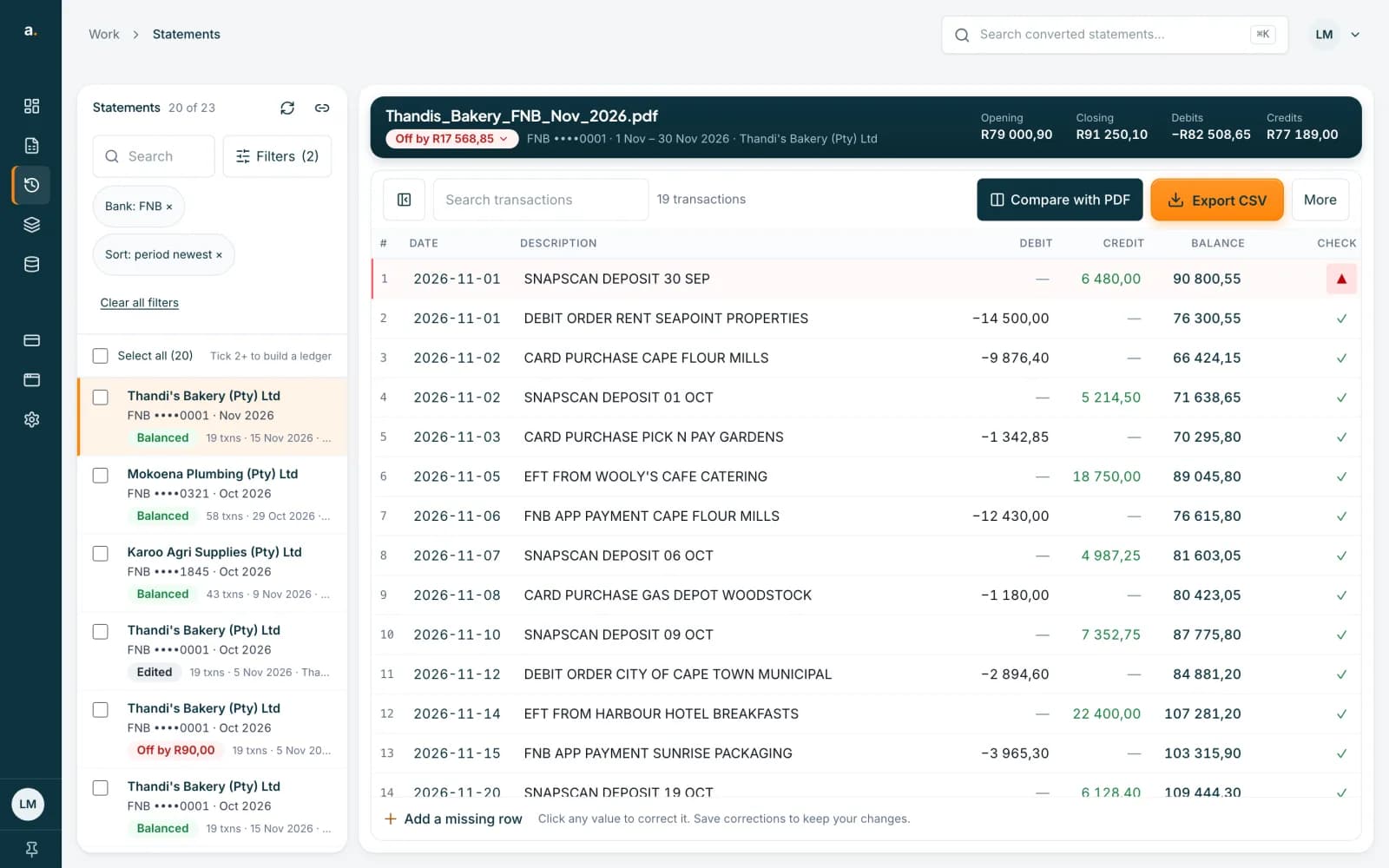 Open full size screenshot for step 1
Press the link icon
Press the link icon beside the count, called Copy link to this view. The address of the page is copied. It holds your search and filters.
Look for the confirmation
A line says Link copied. It opens only for people who can see these statements.
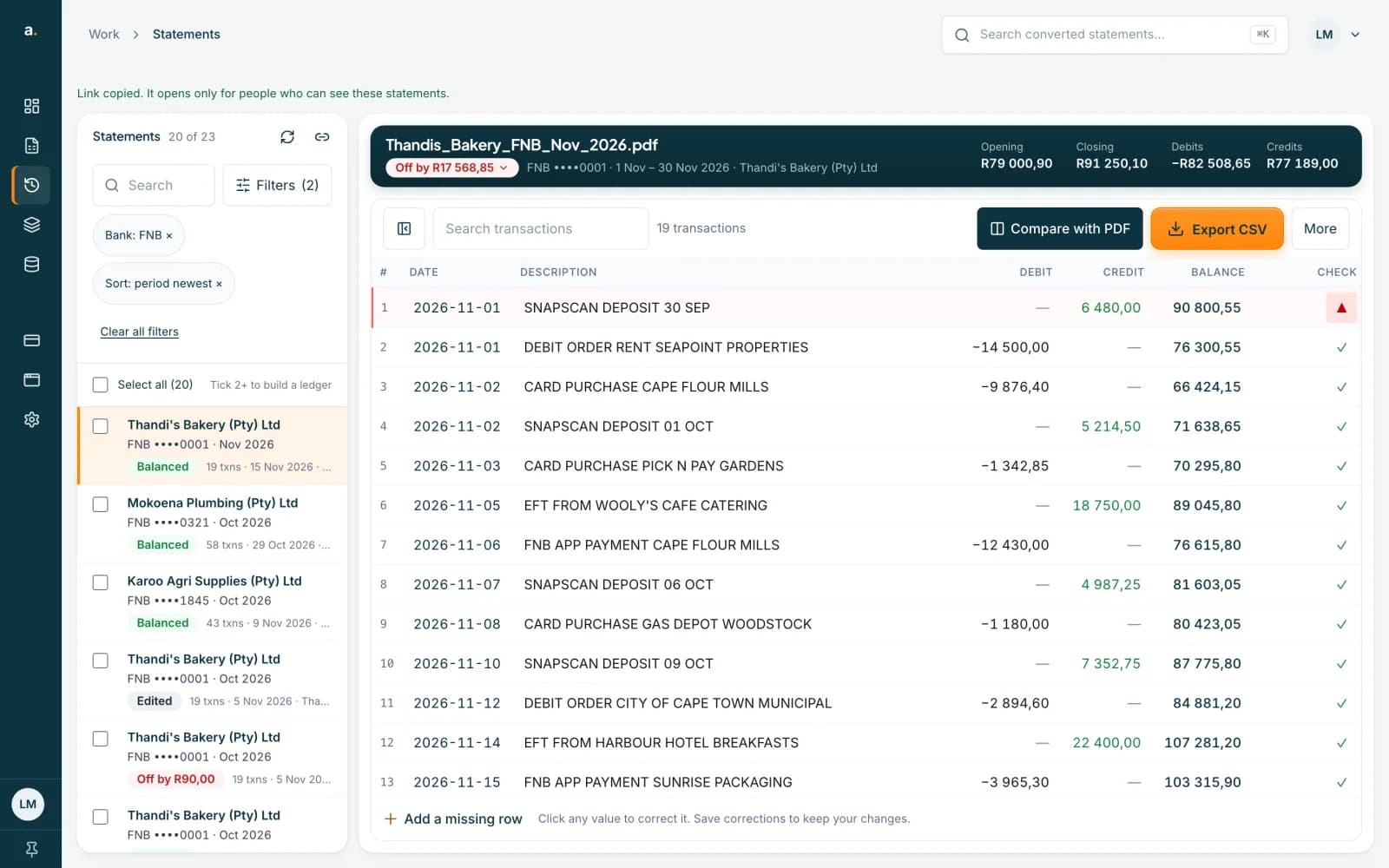 Open full size screenshot for step 3
Send the link
Paste it in an email or message. Your colleague must be signed in to Accounter and able to see those statements. Someone without access does not see them.
What the other person sees
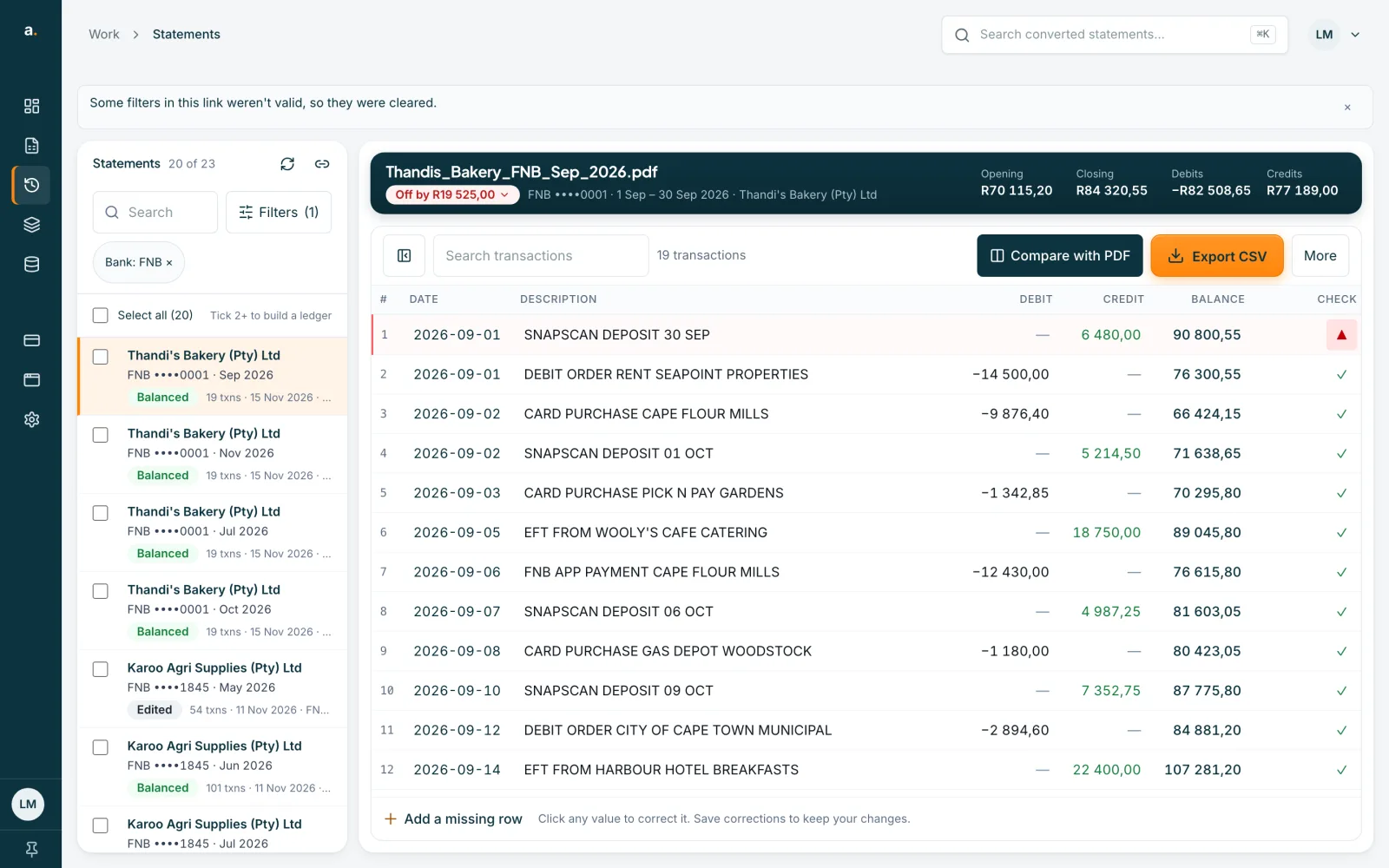
The list opens with the same search and filters. If a filter in the link is not valid, a line says Some filters in this link weren't valid, so they were cleared, and the rest still apply.
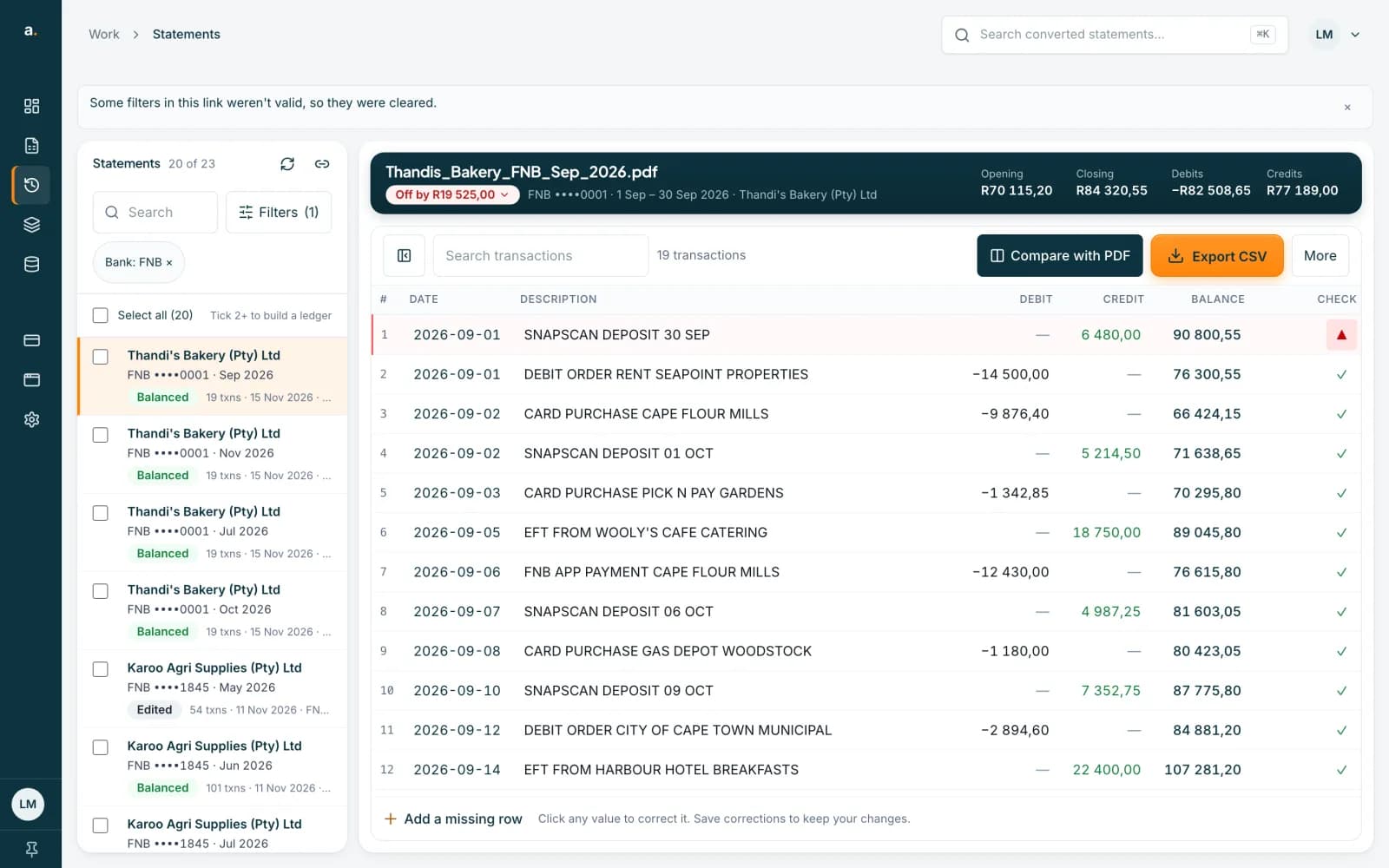 Open full size screenshot for step 5
Tips
- If copying fails, the page says Couldn't copy the link. Copy it from your browser's address bar.
- The link does not give anyone access to your statements. It only opens the view for people who already have it.
- A link made in the team view only helps owners and admins, because only they can see Team extractions.
If something goes wrong
- Your colleague sees fewer statements than you.
- They can only see statements they have access to. Members see their own. Owners and admins see the team's.
- The link opens a log in page.
- Sign in first, then open the link again.