Search, filter and sort your statements
Last reviewed 16 November 2026 · 5 steps
Find a statement by client, bank or date, narrow the list with filters, and change the sort order.
Free account
Steps
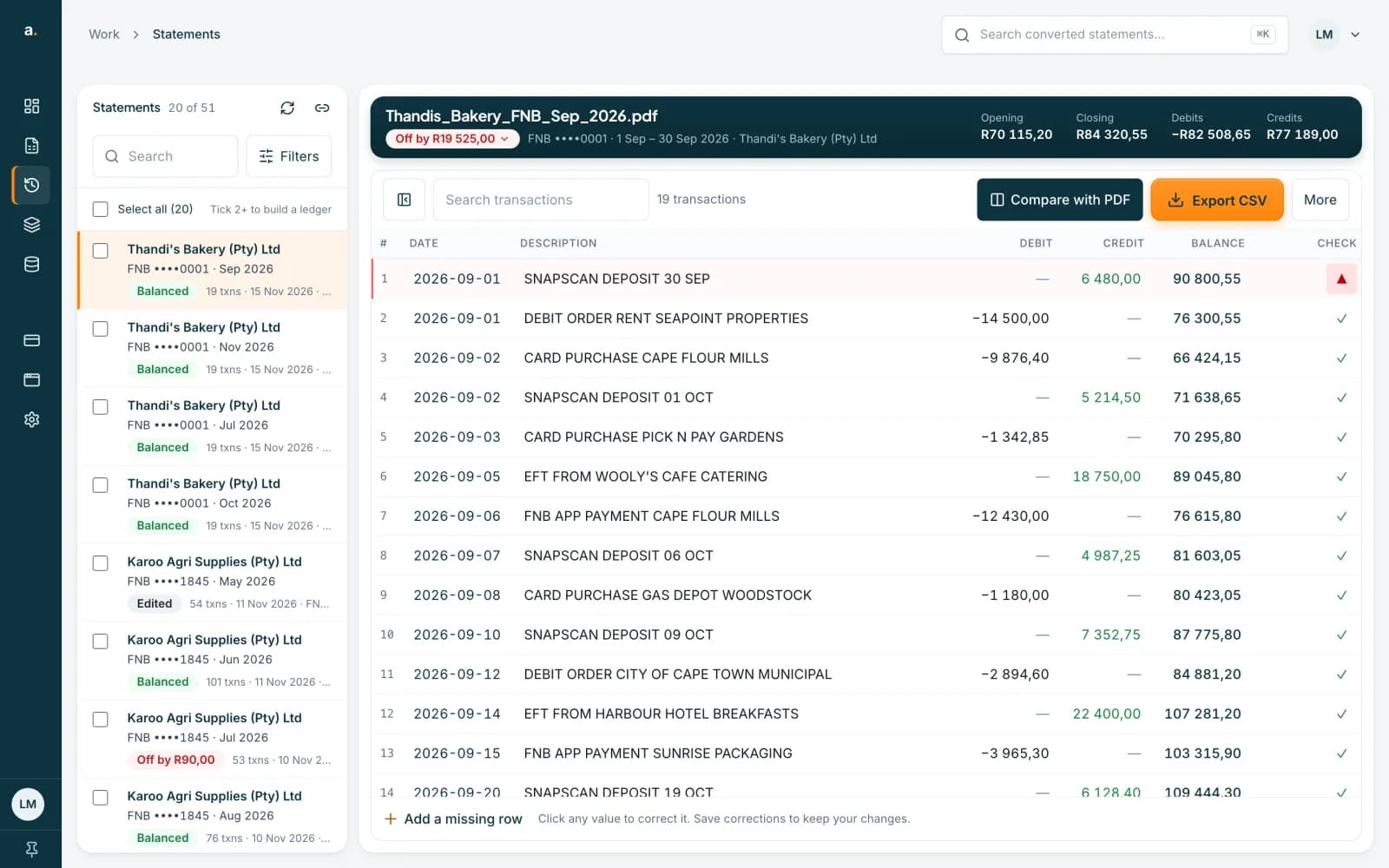
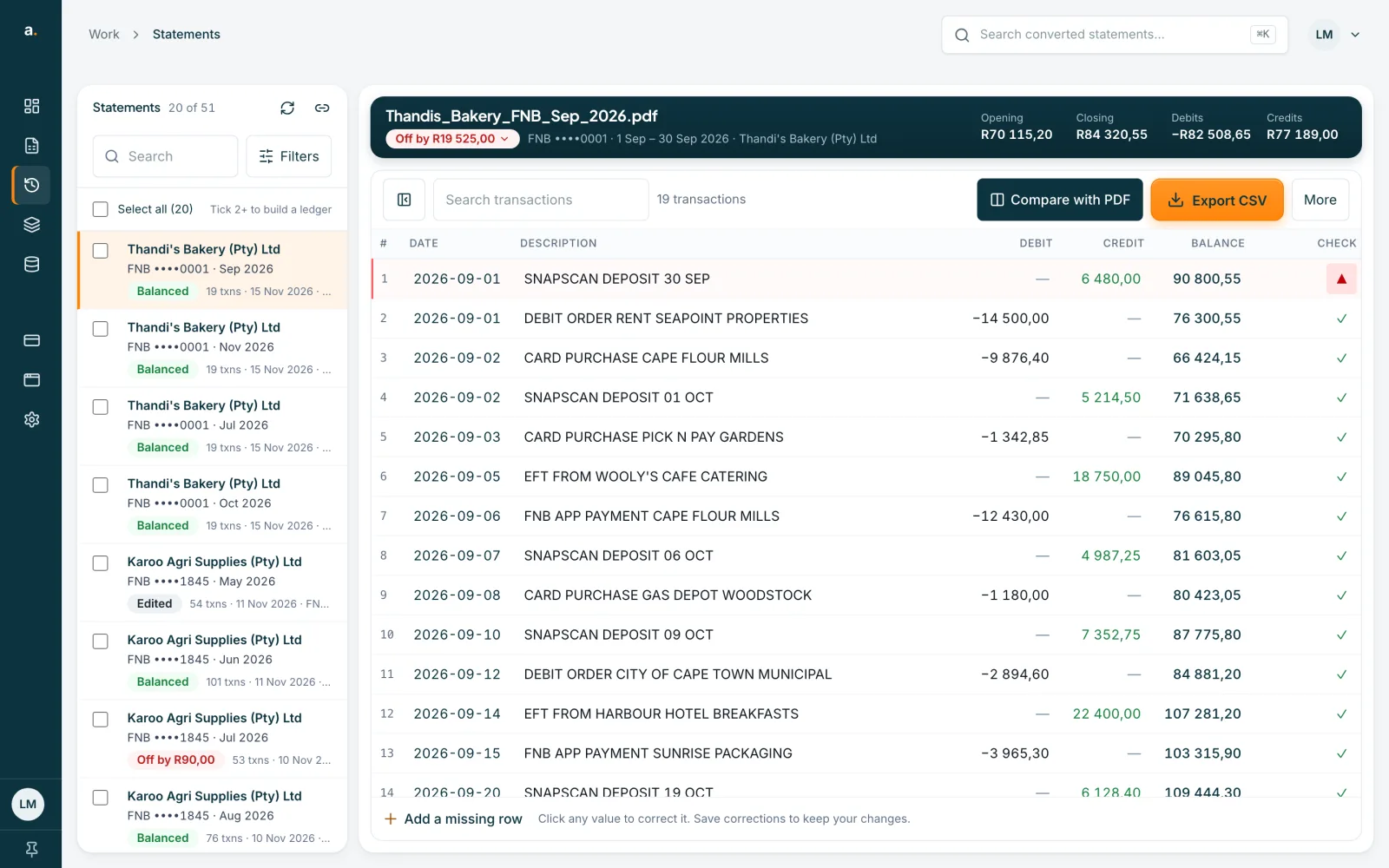
Open Statements and search
Choose Statements in the left menu. The list shows 20 at a time and says how many there are, for example 20 of 51. Type in Search and press Enter. It looks through client, account number, bank, file name and period. A line says Results for, followed by your words in quotes, with Clear search beside it.
 Open full size screenshot for step 1
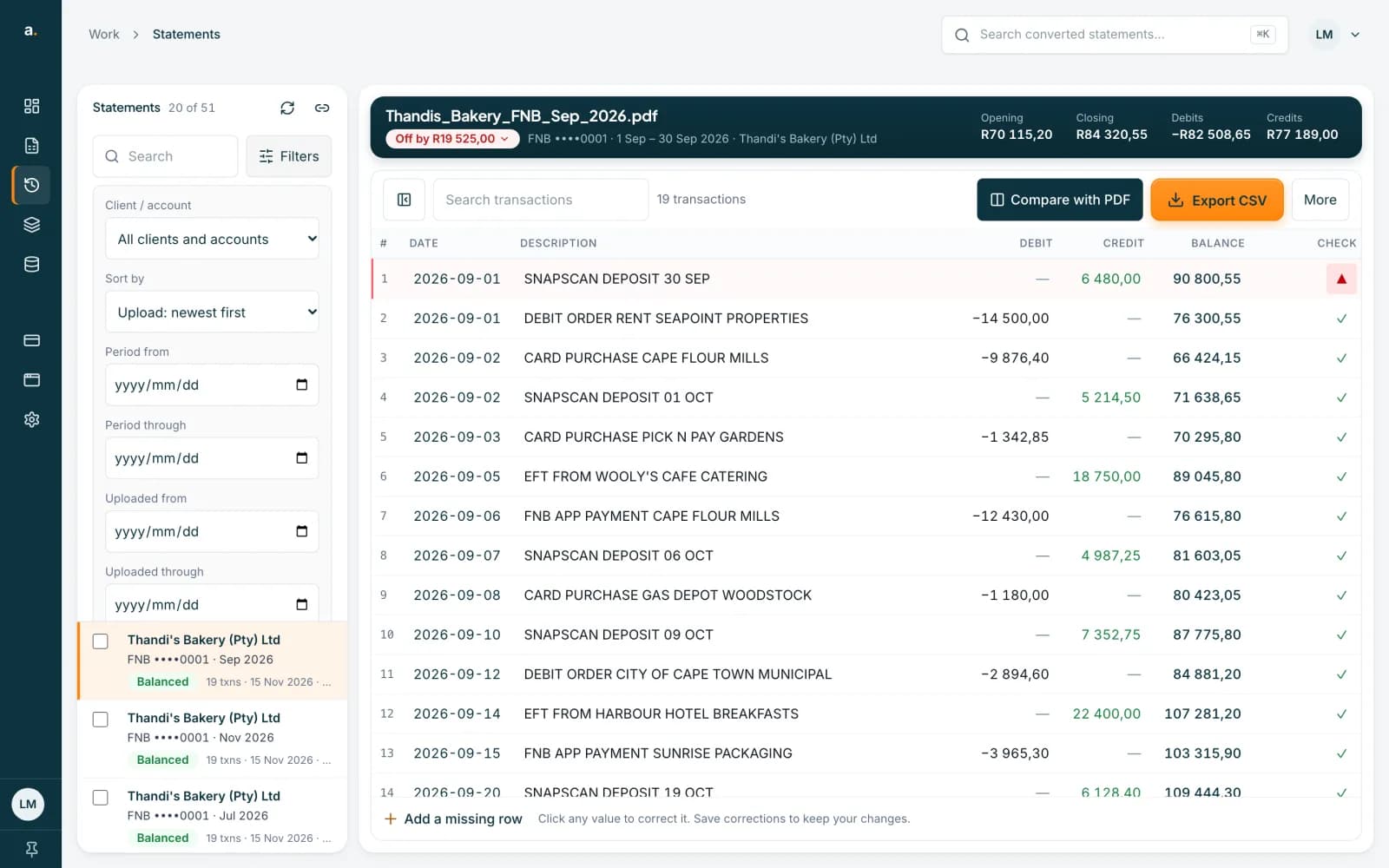
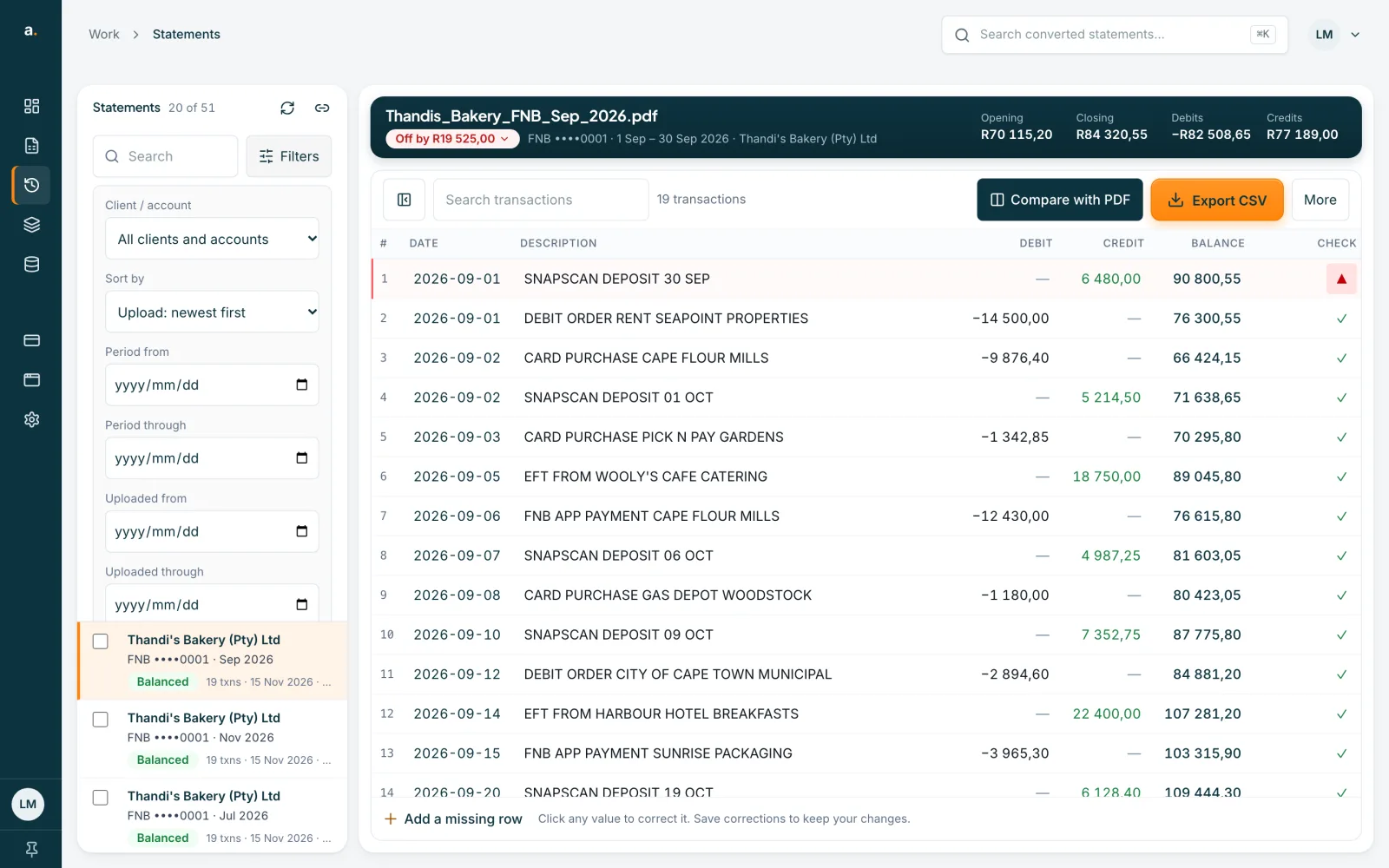
Open Filters
Press Filters. You can choose a Client / account, a Sort by order, a Period from and Period through, and Uploaded from and Uploaded through dates.
 Open full size screenshot for step 2
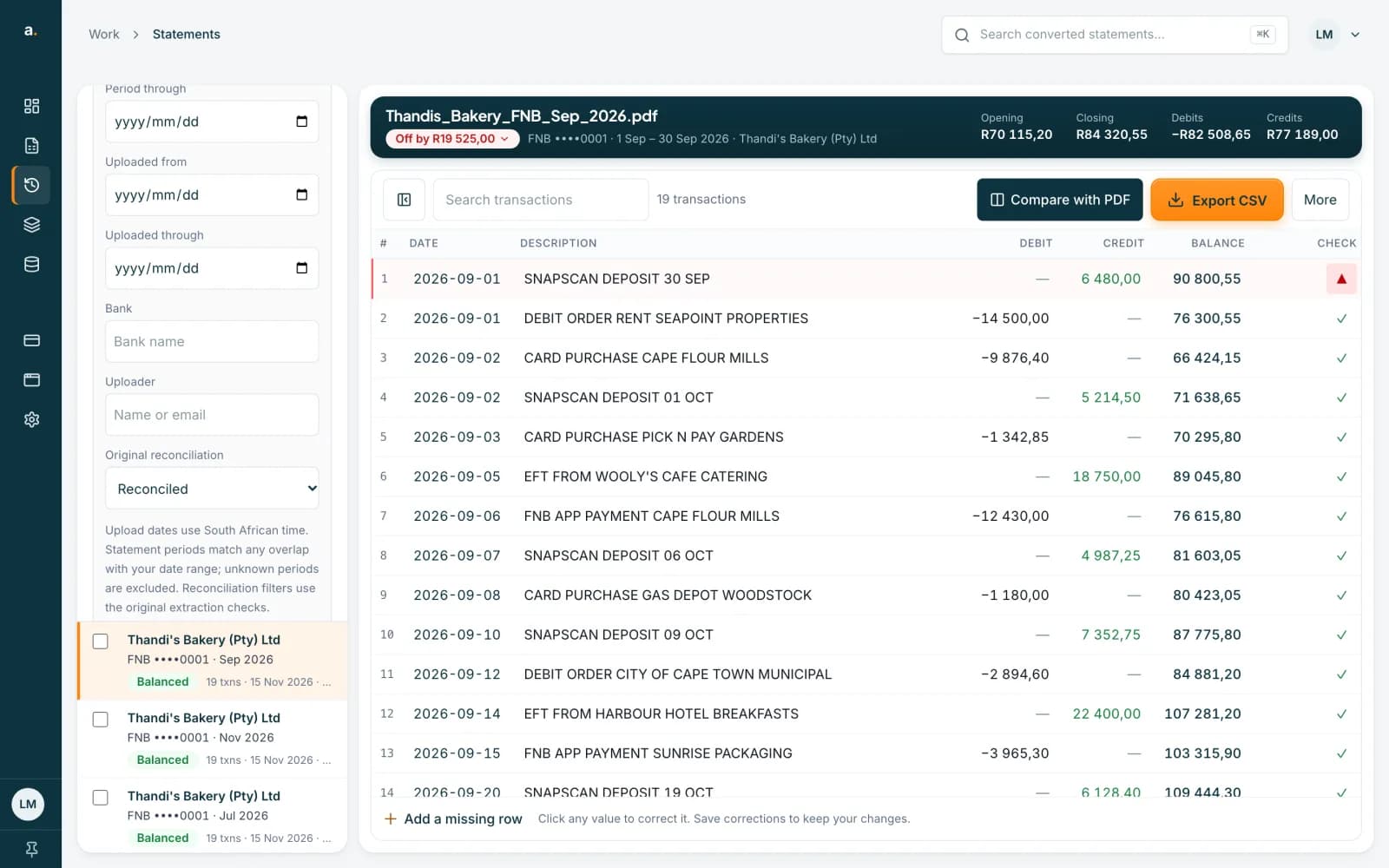
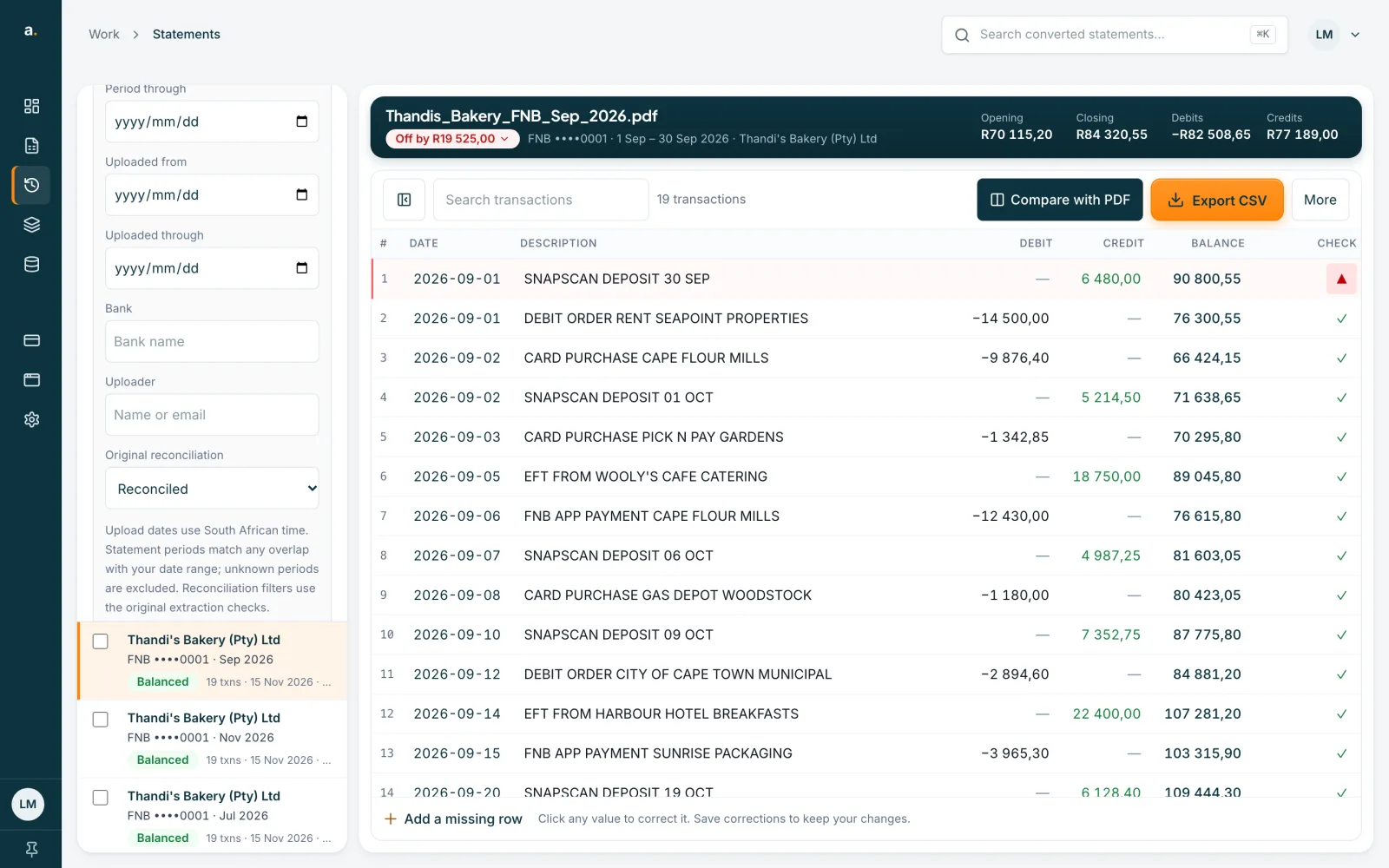
Add a bank, an uploader or a status
Further down, type a Bank or an Uploader (a name or email), and choose an Original reconciliation status: Any status, Reconciled, Review required, No opening balance or Not available. Press Apply filters.
 Open full size screenshot for step 3
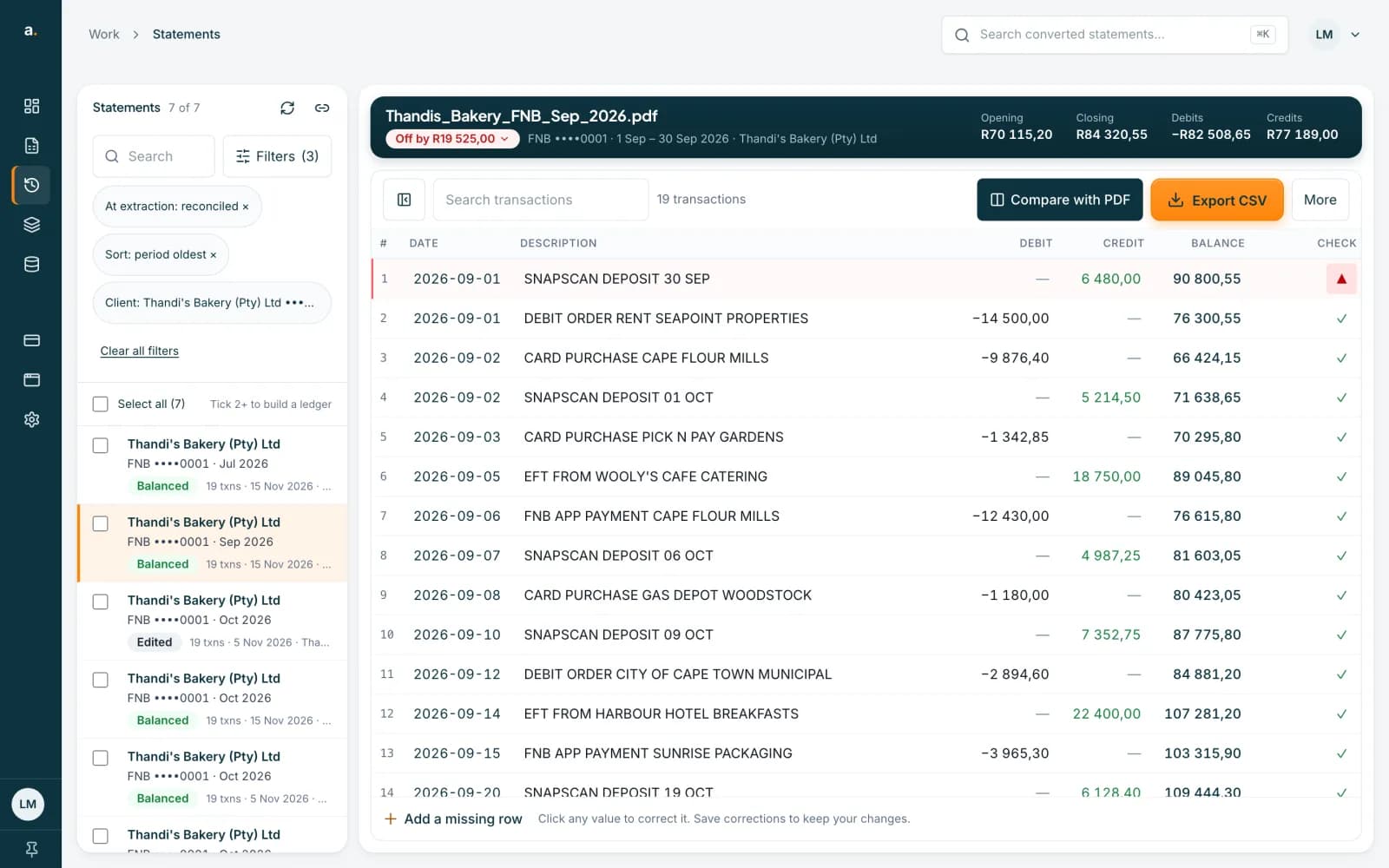
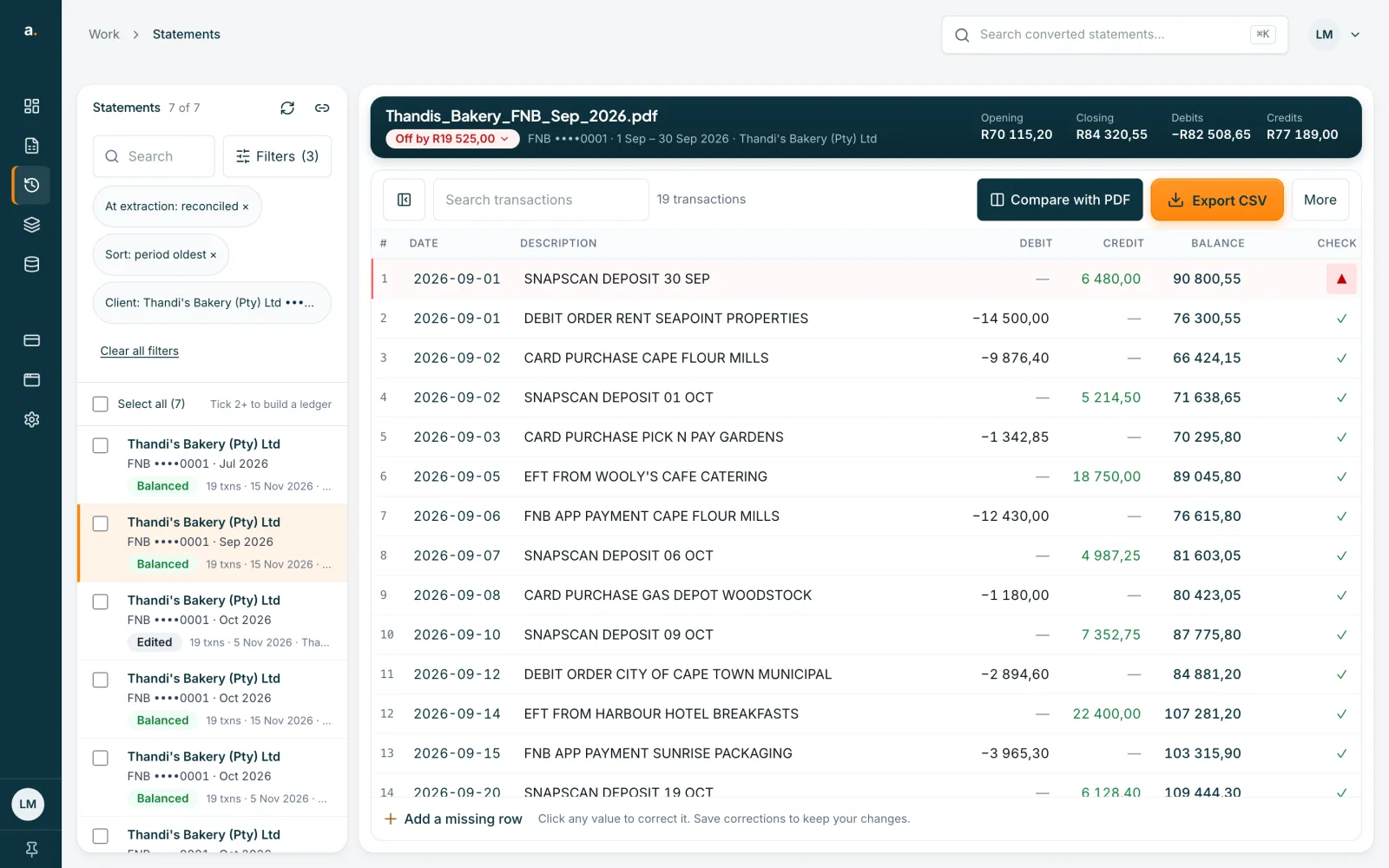
Read the chips
The panel folds away and each filter shows as a chip under Applied filters, for example Bank: FNB. The button says Filters (3). Press a chip to remove that filter. Press Clear all filters to remove them all.
 Open full size screenshot for step 4
Change the sort order
Under Sort by, choose Upload: newest first or oldest first, Filename: A–Z, Bank: A–Z, Uploader: A–Z, or Statement period newest first or oldest first. Press Apply filters.
Tips
- Upload dates use South African time. A period filter matches any statement that overlaps your dates, and statements with no period are left out.
- Original reconciliation uses the check made at extraction, not your later edits.
- Press Load more statements at the bottom of the list to see older ones.
- Owners and admins can switch between My extractions and Team extractions. Members see only their own.
- To share what you see, see the guide on sharing a filtered view.
If something goes wrong
- Search shows nothing.
- Press Enter after you type. Check that filters are not hiding statements, and press Clear all filters or Clear search.
- You cannot see a colleague's statements.
- Only owners and admins see Team extractions. A member sees their own.
- A period filter leaves out a statement.
- Statements whose period was not found are excluded. Search for the file name instead.
Related guides
- Share a filtered view of your statementsCopy a link to your current search and filters, so a colleague who can see those statements opens the same view.
- Download several statements at onceTick statements in the list, then download them as one CSV, as a zip of CSVs, or in OFX, QIF or an accounting-app format.
- Build a ledger from several statementsJoin statements of one account into a single ledger, with a check that each statement carries over from the one before.