Download several statements at once
Last reviewed 16 November 2026 · 5 steps
Tick statements in the list, then download them as one CSV, as a zip of CSVs, or in OFX, QIF or an accounting-app format.
Free account
Steps
Tick the statements
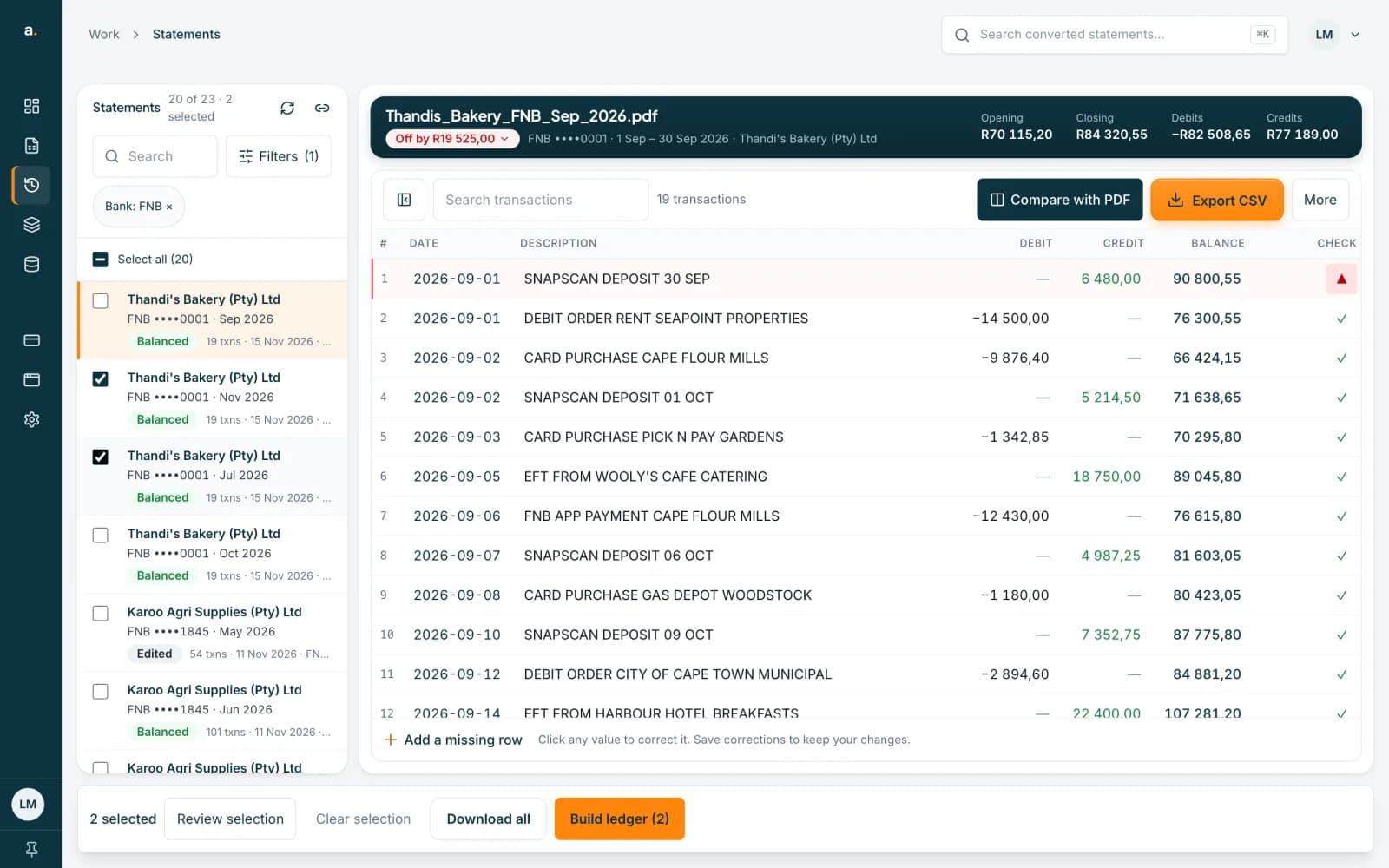
In Statements, tick the box at the left of each statement you want. Select all ticks every statement in the list, up to 100. A bar appears at the bottom saying how many are selected, for example 2 selected.
 Open full size screenshot for step 1
Review the selection if you like
Press Review selection to see the files, each with a Remove button. Selections you made in other searches stay in your batch. Press Clear selection to start again.
Press Download all
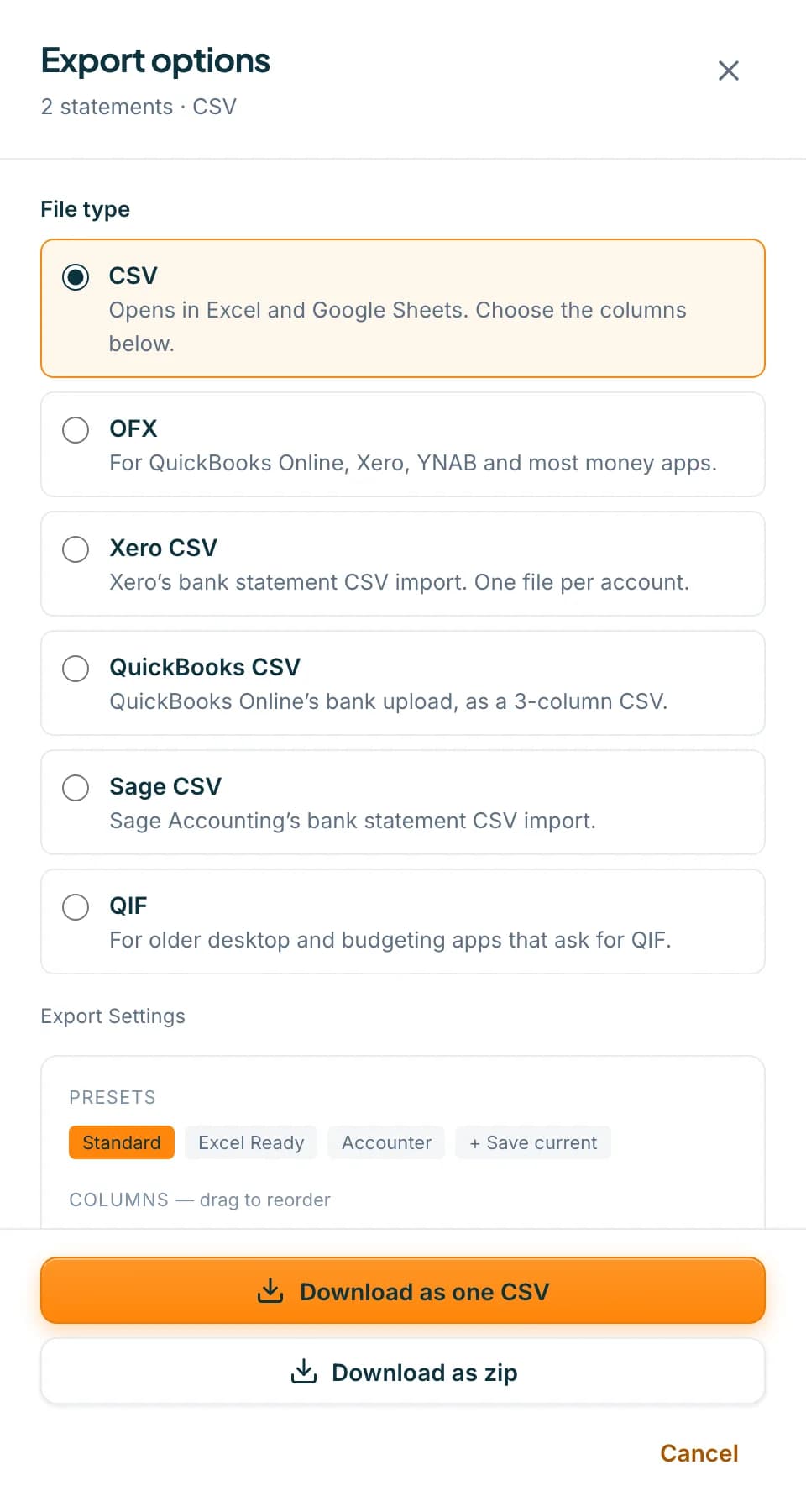
Press Download all. The Export options panel opens, saying 2 statements · CSV. Choose the file type, and for CSV choose your columns and date format. See the guide on CSV presets.
Choose one CSV or a zip
For CSV, press Download as one CSV to join every statement into a single file, or Download as zip for one CSV per statement. To tell accounts apart in one CSV, switch on the Bank or Account Number column.
 Open full size screenshot for step 4
For OFX, QIF or an accounting CSV
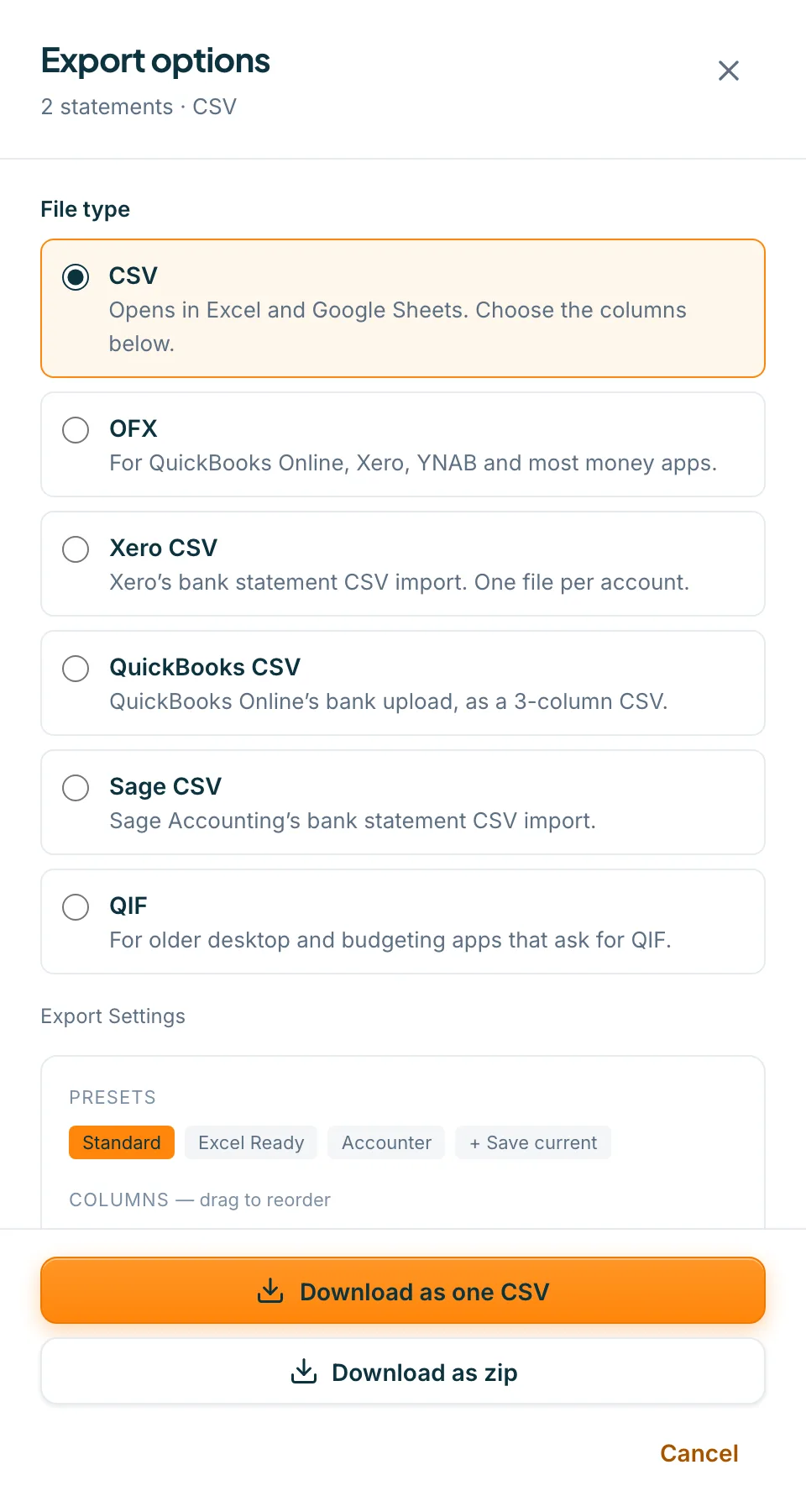
Choose the file type first. The button then reads Download one OFX per account, and so on. You get one file for each account, and several accounts come as a zip. Rows repeated on the next statement are left out.
Tips
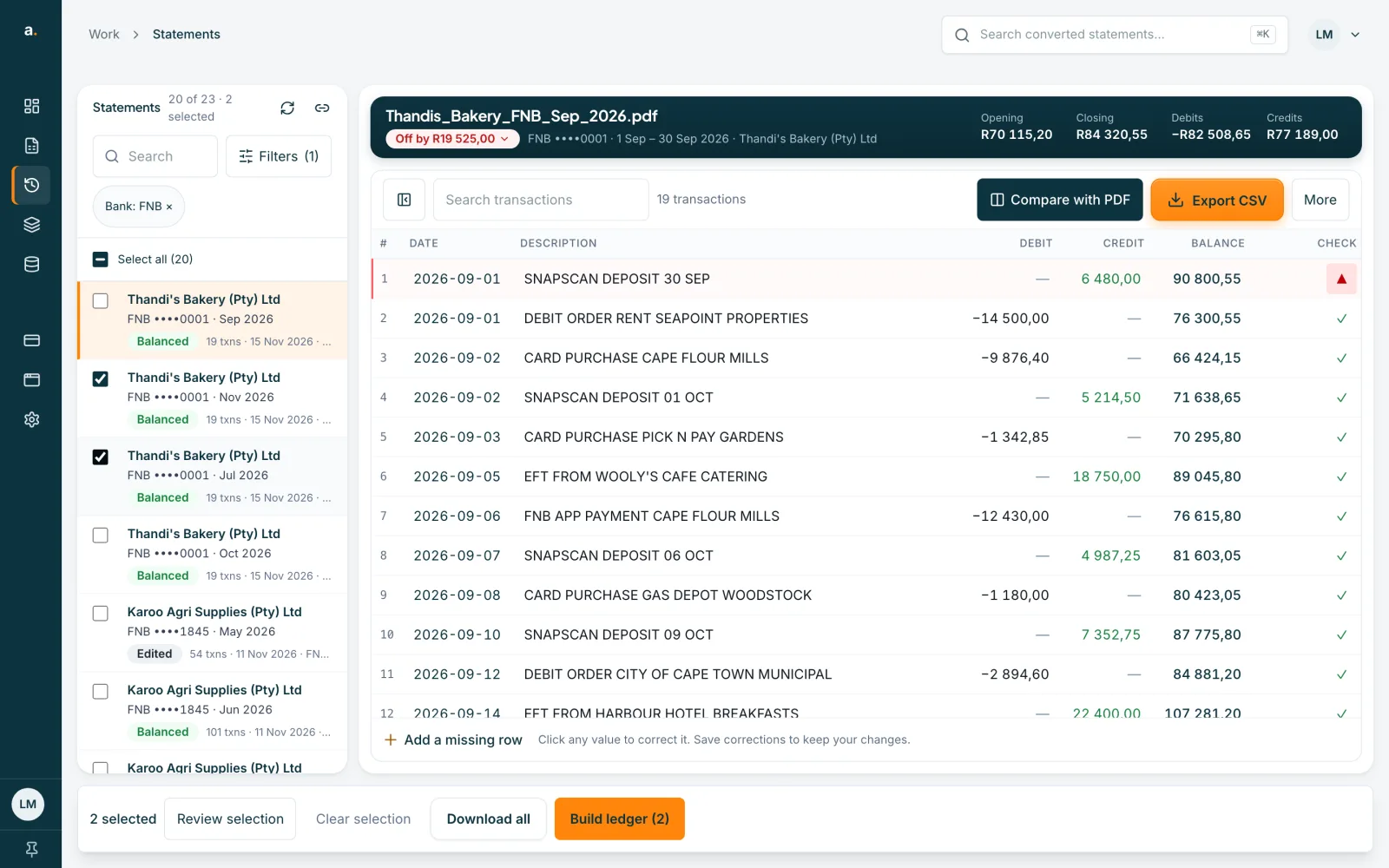
- One statement ticked shows Export CSV instead of Download all.
- Save your corrections first. Downloads include saved changes only.
- To check that the statements join up, press Build ledger instead. See the guide on building a ledger.
- The Advanced option to change the bank or account details applies to a single statement only. Batch downloads use the values read from each statement.
If something goes wrong
- You cannot select more statements.
- The limit is 100. The list shows Untick N (100-file limit). Remove some, or download in two goes.
- An export says the date on a row could not be read.
- Open that statement, fix the date and download again.
- The bar disappeared.
- It shows only while something is ticked. Tick two or more statements again.
Related guides
- Choose your export file type and columnsDownload a statement as CSV, OFX, QIF or an accounting-app CSV, and set the columns, date format and presets for your CSV.
- Build a ledger from several statementsJoin statements of one account into a single ledger, with a check that each statement carries over from the one before.
- Search, filter and sort your statementsFind a statement by client, bank or date, narrow the list with filters, and change the sort order.