Turn on Statement Hub
Last reviewed 15 November 2026 · 4 steps
Turn on Statement Hub for your firm so you can add clients and collect their bank statements.
Firms
Steps
Open Statement Hub
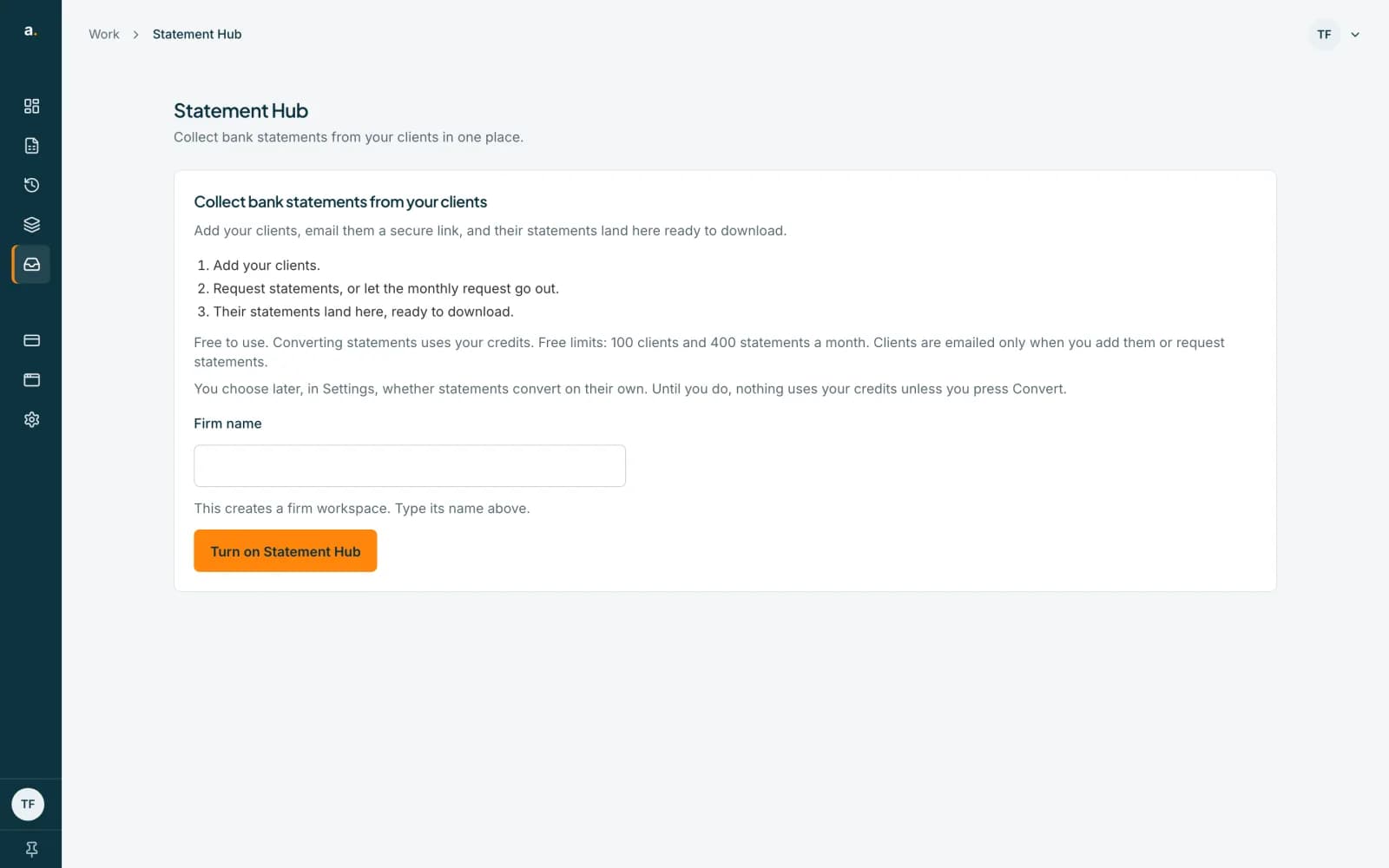
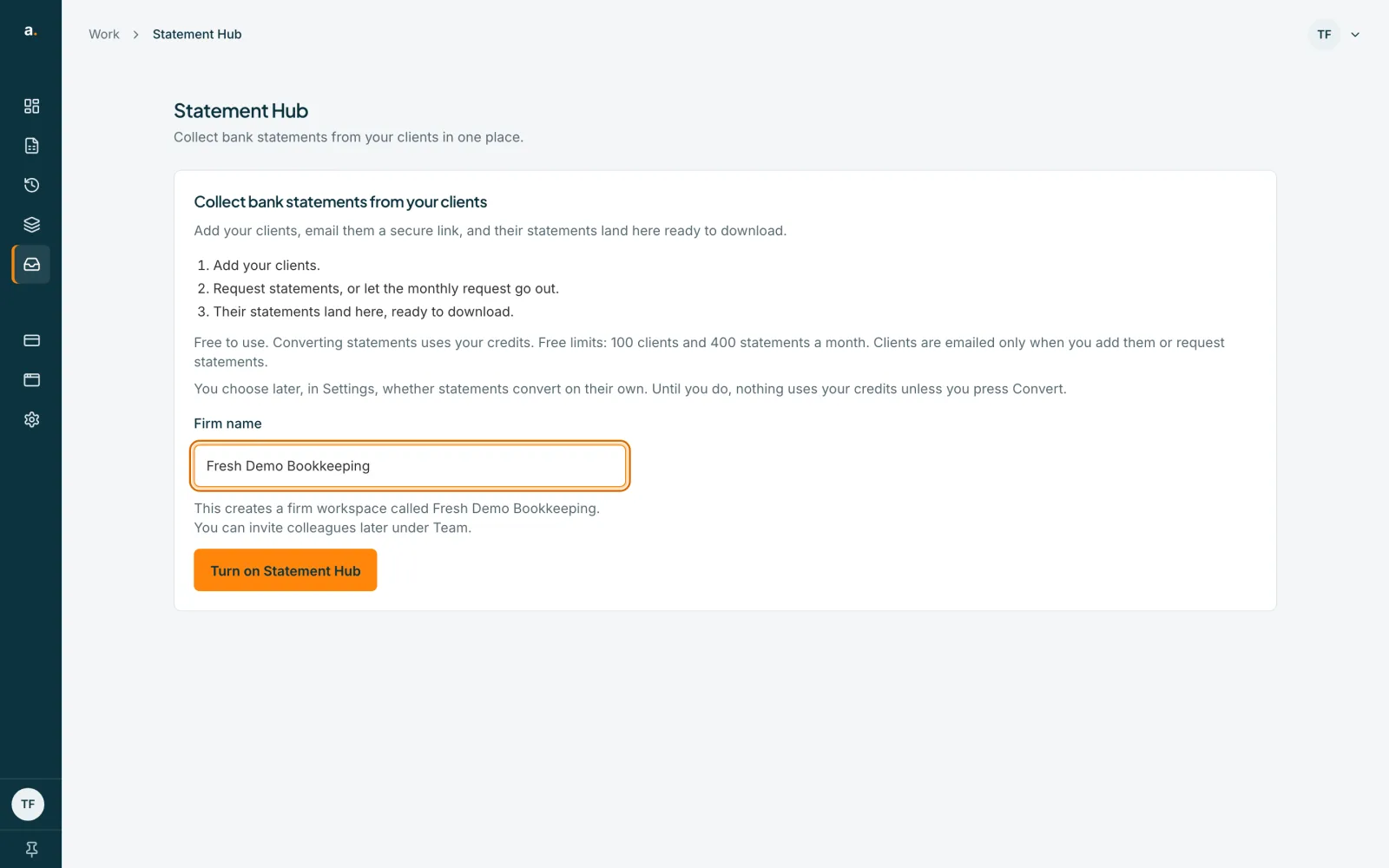
Choose Statement Hub in the left menu. If you do not see it, contact us and we'll check your account. The page shows the card Collect bank statements from your clients, with the three steps: add your clients, request statements (or let the monthly request go out), and their statements land here ready to download.
 Open full size screenshot for step 1
Check the firm name
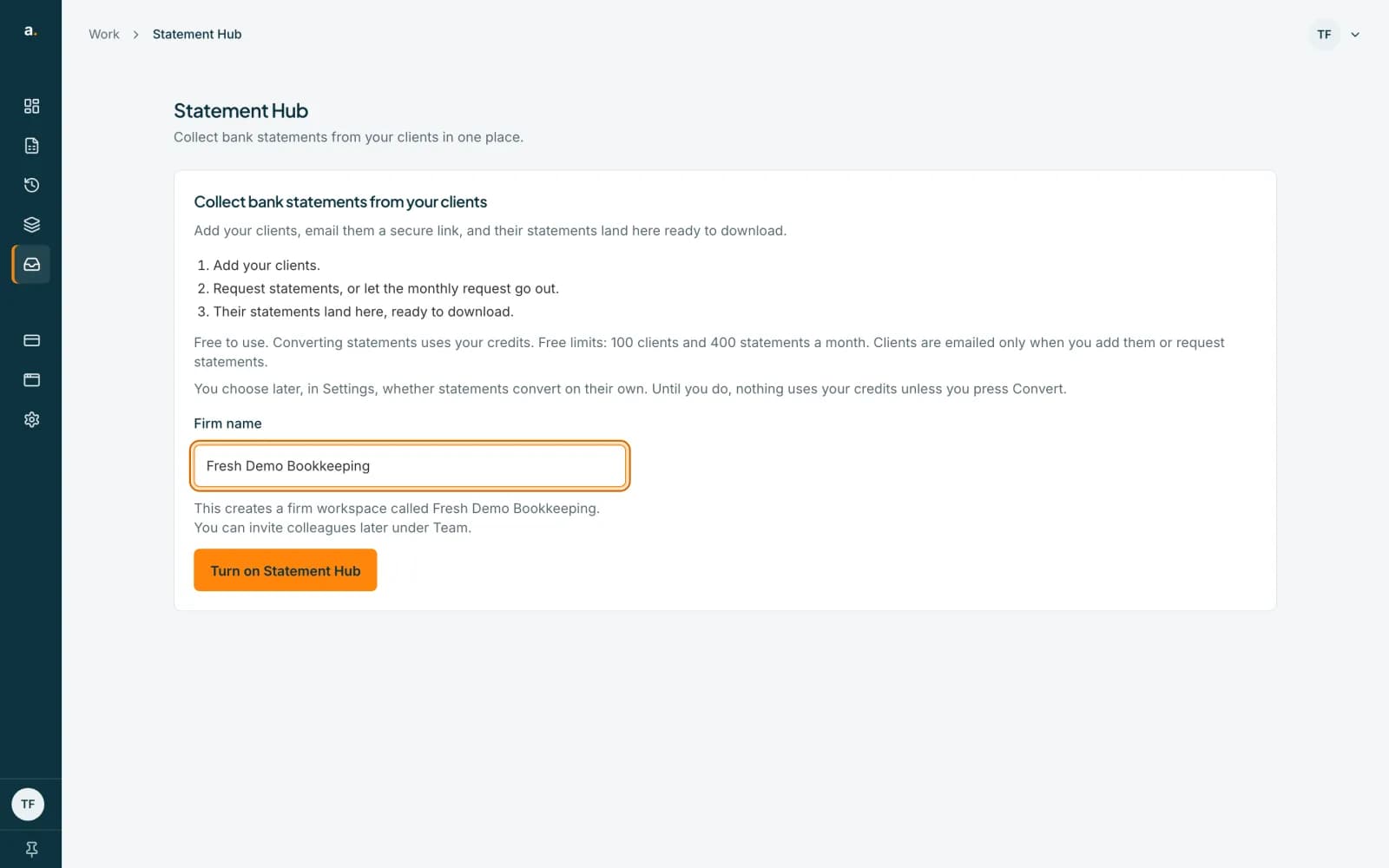
Type your firm name in the Firm name box. If you already own or administer a workspace on Accounter, the name is filled in and cannot be changed here, because Statement Hub uses your existing workspace.
 Open full size screenshot for step 2
Press Turn on Statement Hub
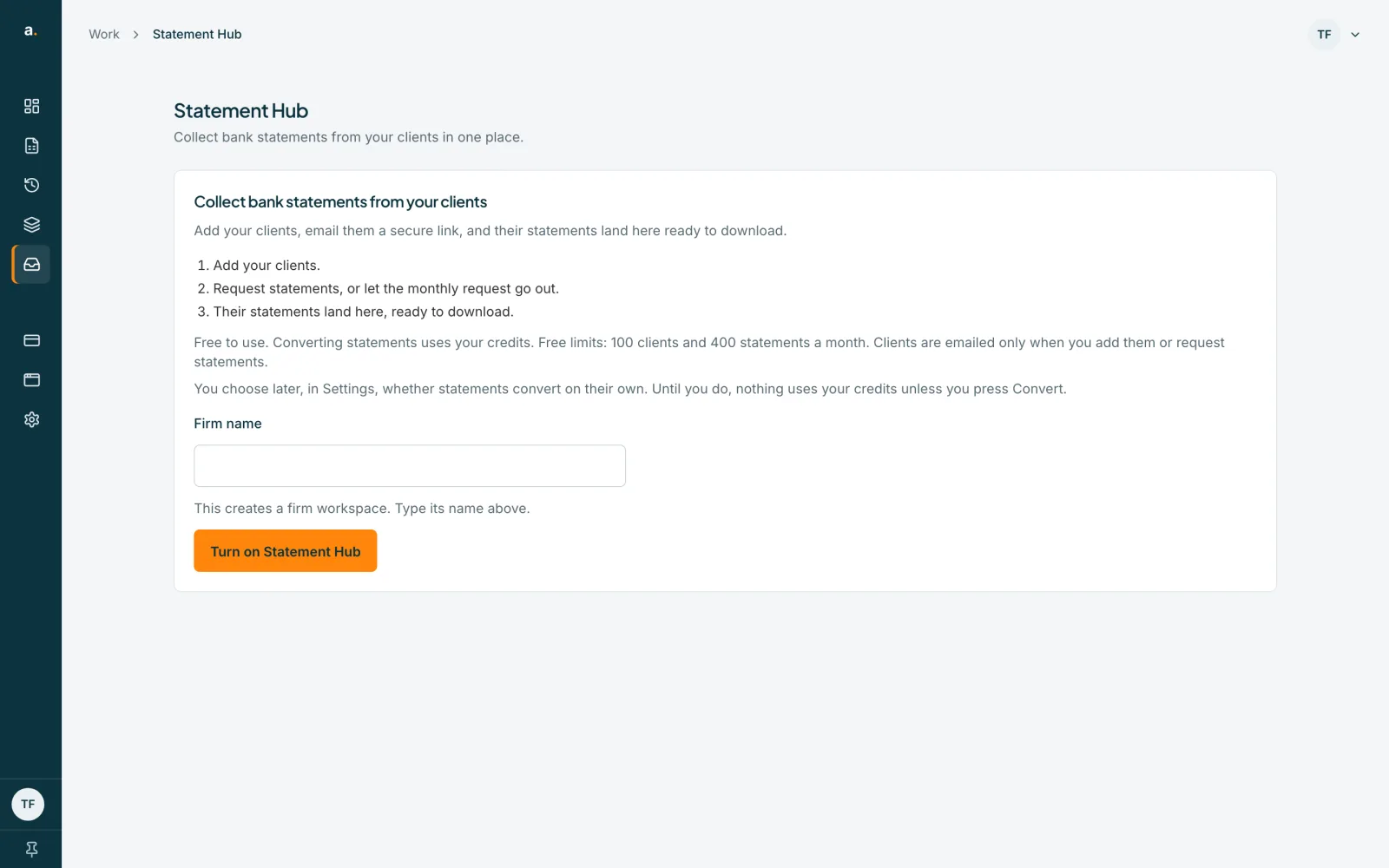
The button changes to Turning on while it works. This creates your firm workspace if you did not have one. Nobody is emailed and no credits are used.
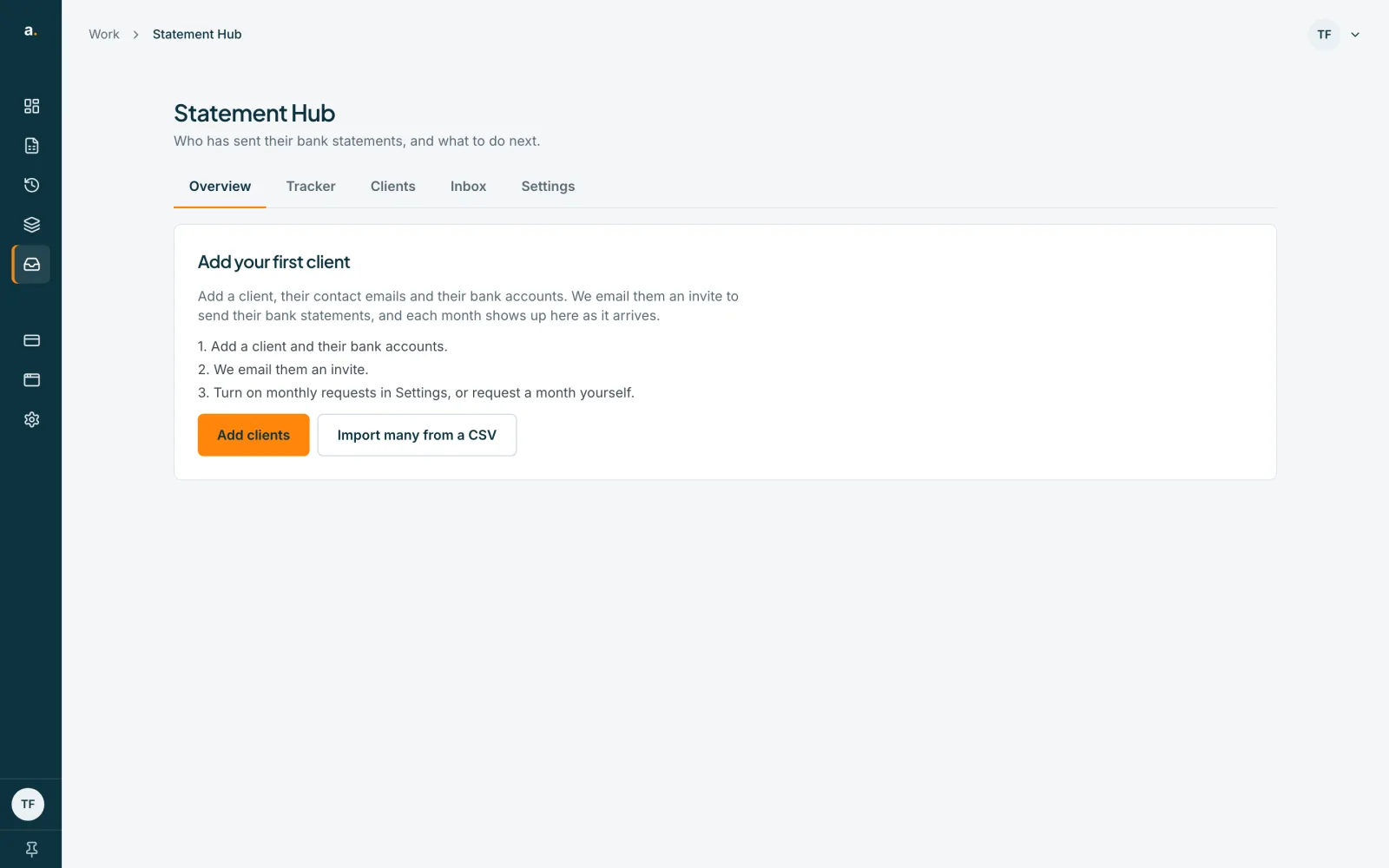
Add your first client
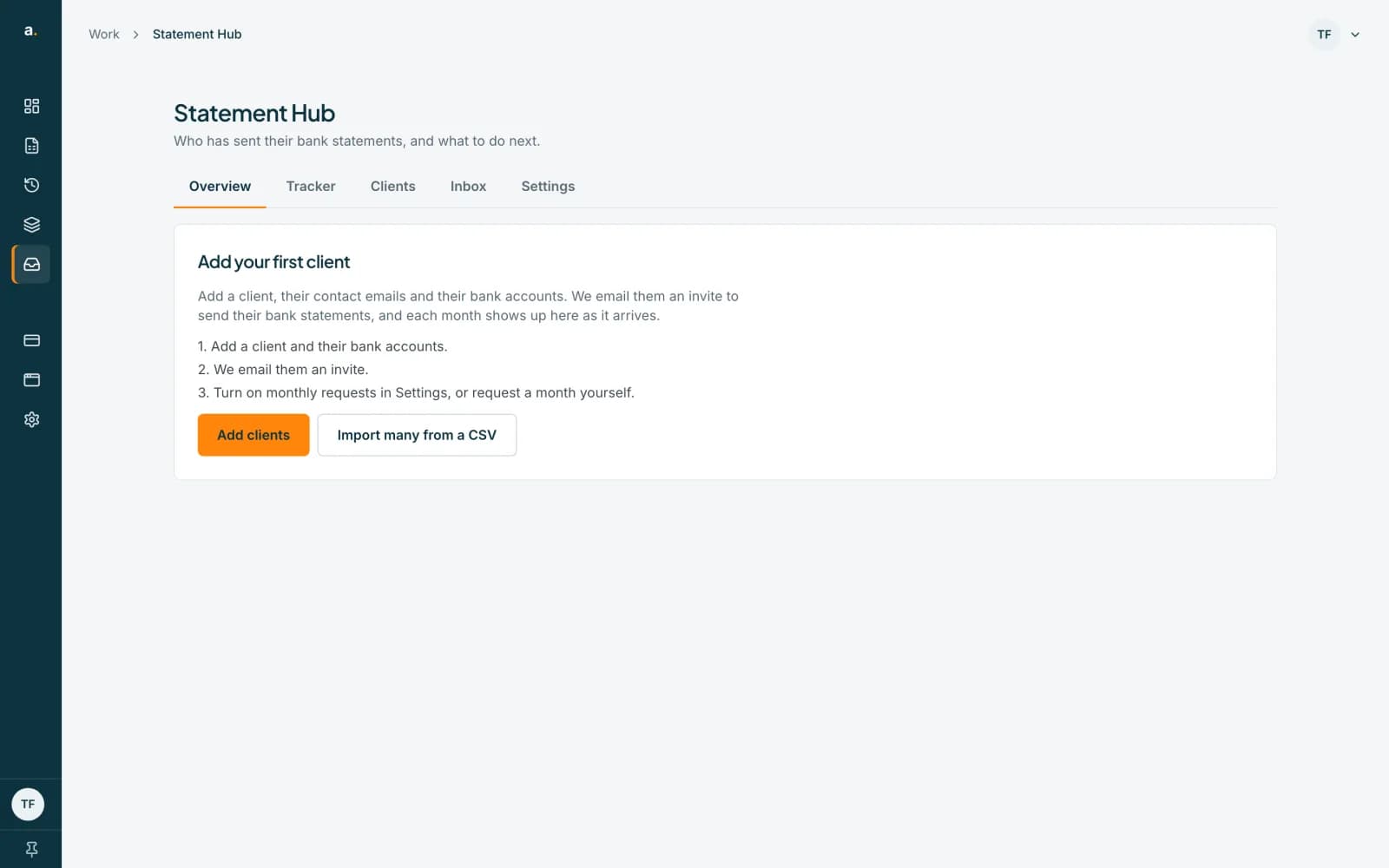
The page now says Add your first client, with the buttons Add clients and Import many from a CSV. Carry on with the guide on adding a client.
 Open full size screenshot for step 4
Tips
- Statement Hub is free to use. The card shows your free limits: by default 100 clients and 400 statements a month.
- Converting statements uses your credits, but nothing converts on its own until you choose that in Settings. Until then, credits are used only when you press Convert.
- Clients are emailed only when you add them or request statements.
If something goes wrong
- You see Statement Hub is off and Ask your firm's owner to turn on Statement Hub.
- You are a member of an existing firm workspace. Only an owner or admin can turn the Hub on. Ask one of them.
- The page says Enter your firm name.
- Type a name in the Firm name box and press Turn on Statement Hub again. The name can be up to 100 characters.
- You see Could not turn on Statement Hub. Please try again.
- Check your connection and press the button again. If it keeps failing, contact support.
- There is no Statement Hub item in the left menu.
- If Statement Hub doesn't appear for your firm, contact us and we'll check your account.
Related guides
- Use the Get set up checklistFollow the four-step Get set up strip on the Overview to go from your first client to your first request.
- Add a clientAdd one client with up to five contact emails and their bank accounts, and email them an invite.
- Free limits, credits and held statementsKnow the free client and statement limits, what happens when you go over, and how a purchase releases held statements.