Add a client
Last reviewed 15 November 2026 · 5 steps
Add one client with up to five contact emails and their bank accounts, and email them an invite.
Firms
Steps
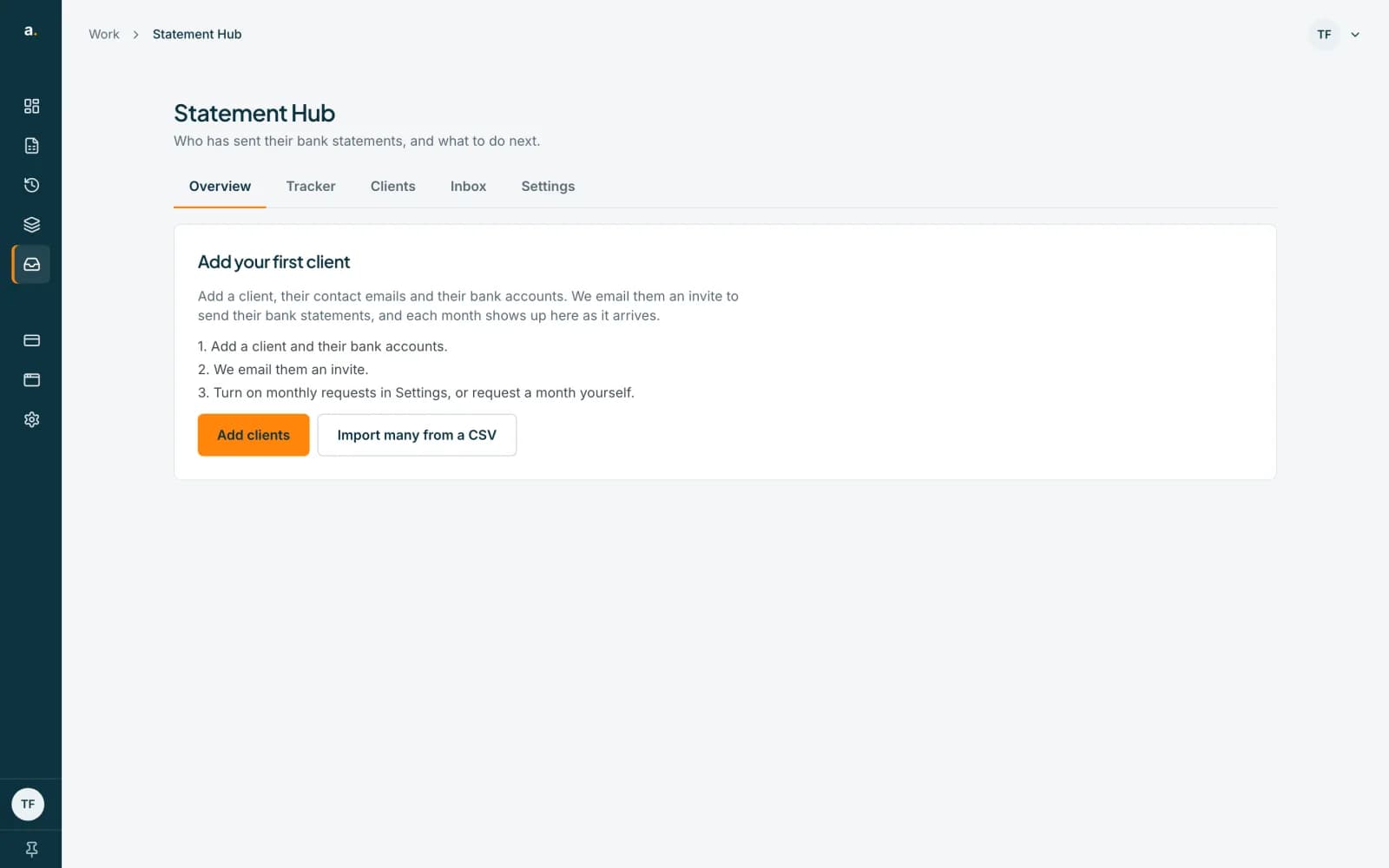
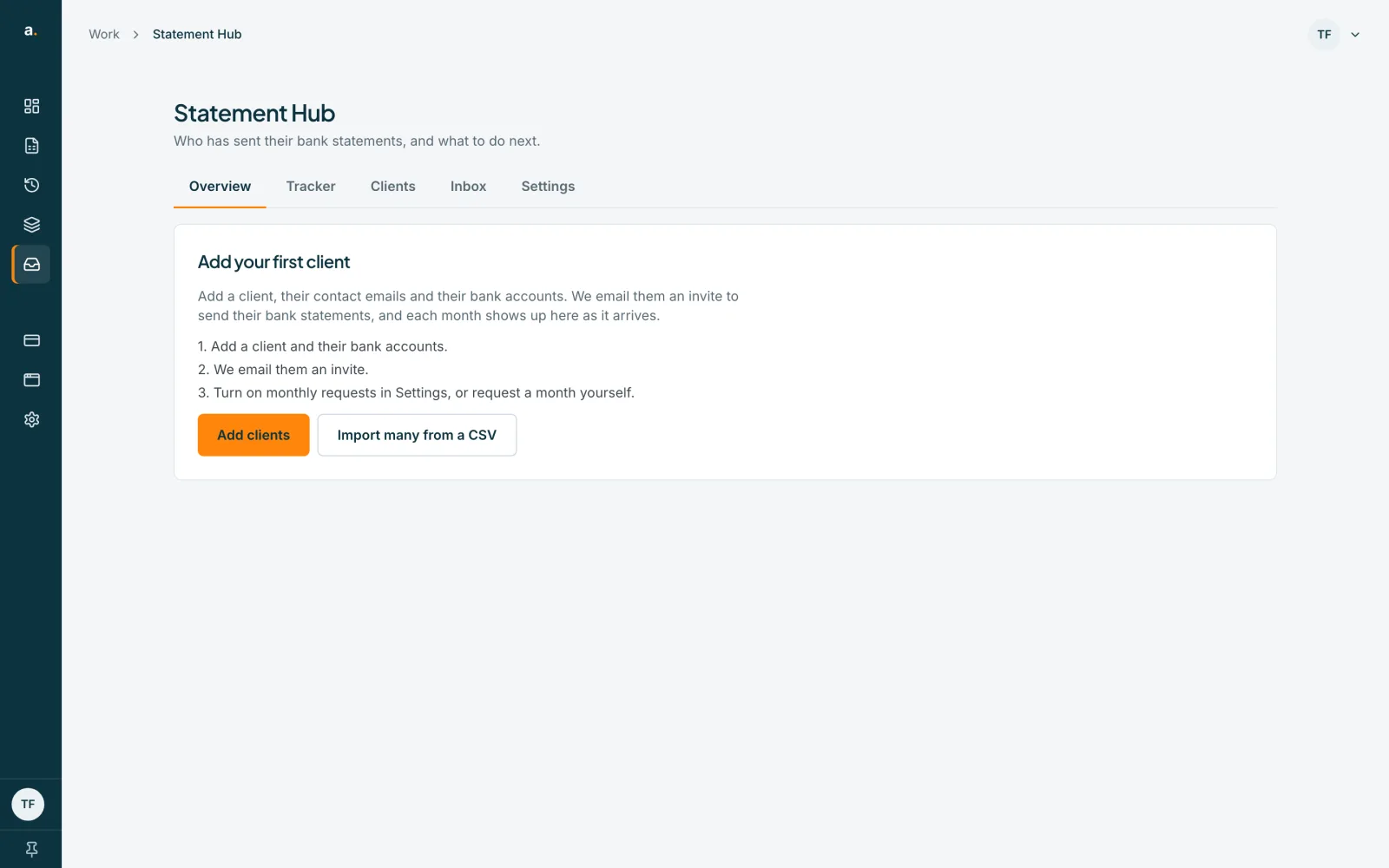
Open the Add clients sheet
Press Add clients at the top of the Statement Hub page. On an empty Hub you can also use the Add clients button on the Add your first client card.
 Open full size screenshot for step 1
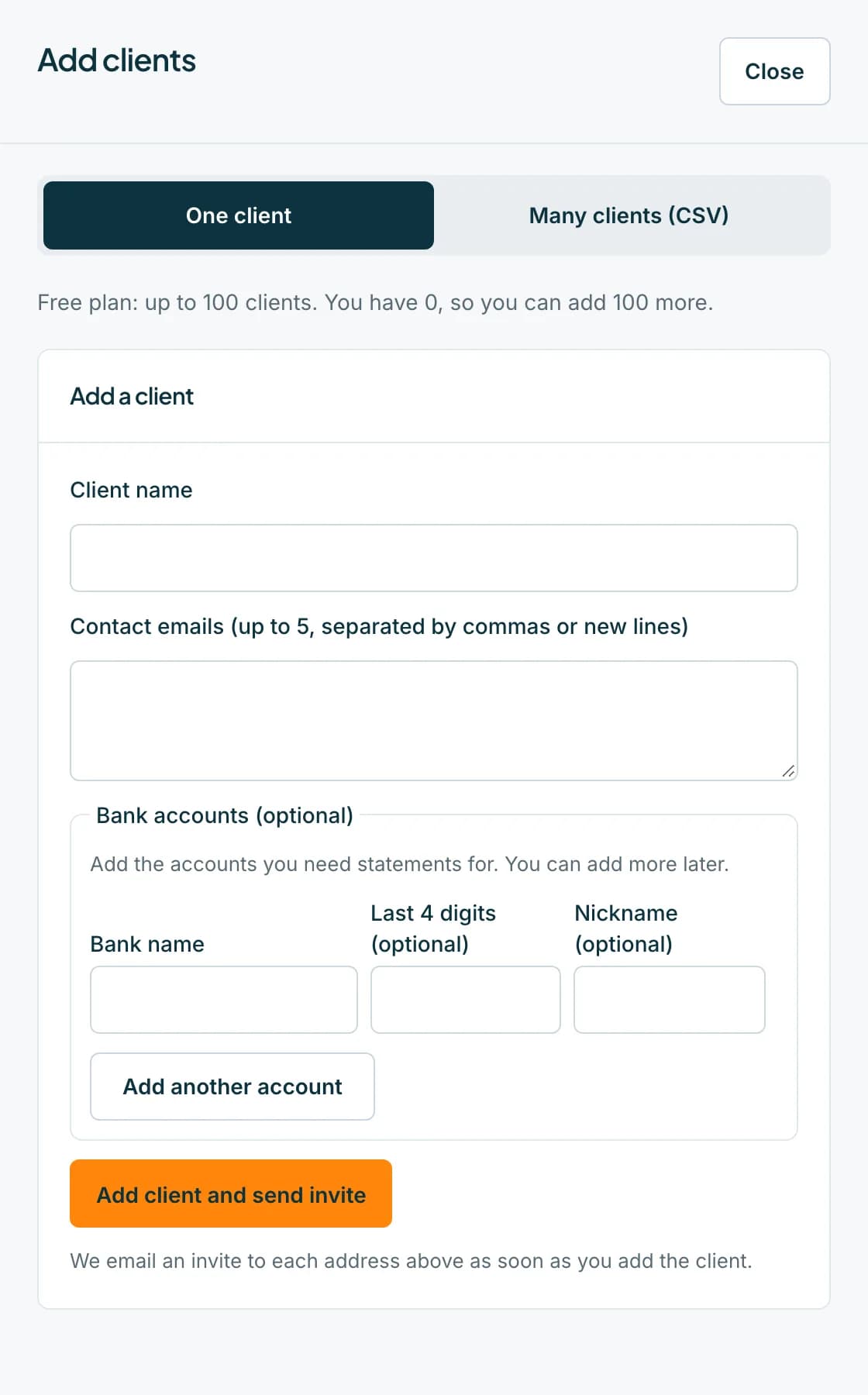
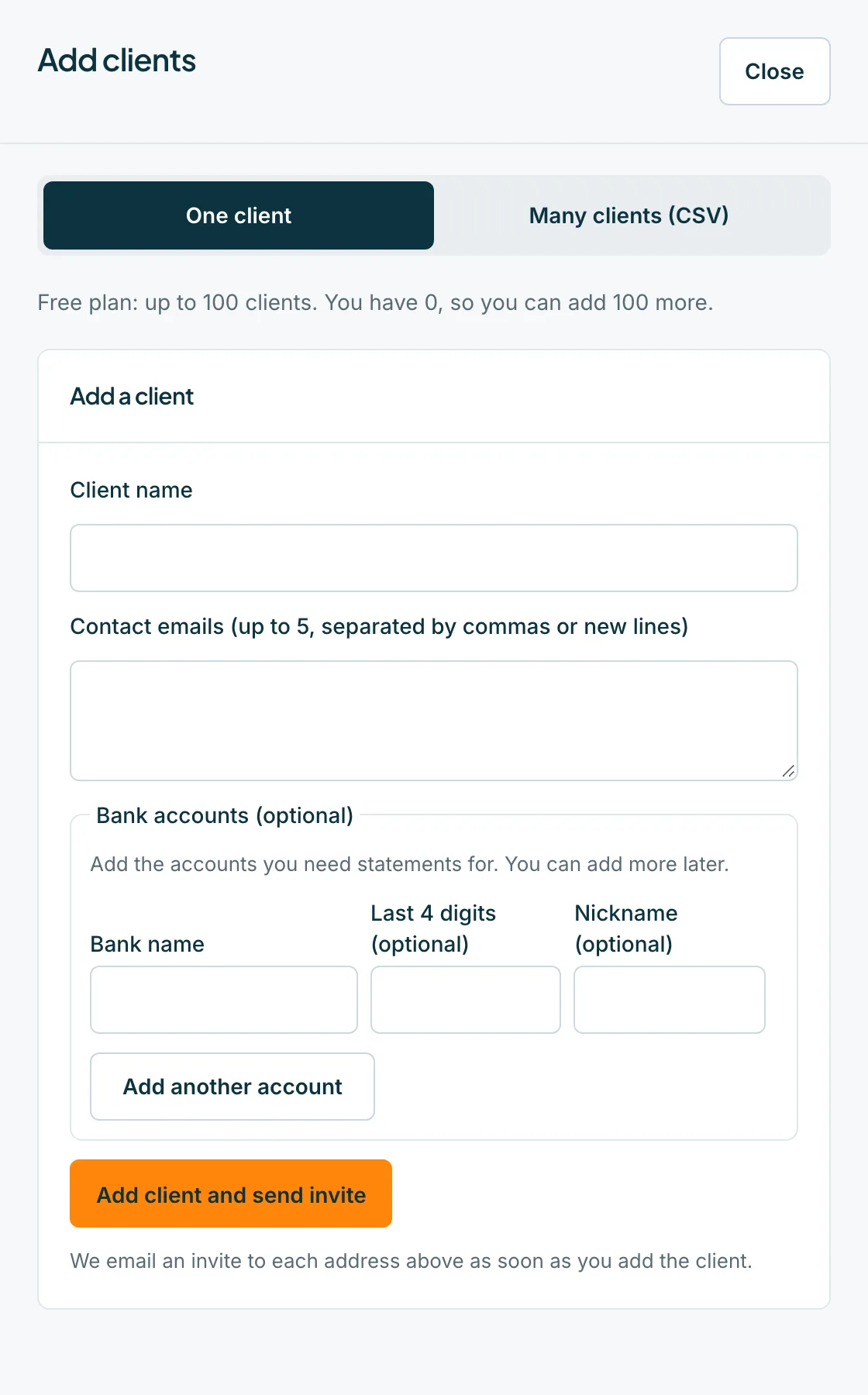
Choose One client
The sheet has two tabs, One client and Many clients (CSV). Choose One client. If you are on the free plan, the sheet tells you how many more clients you can add, for example Free plan: up to 100 clients.
 Open full size screenshot for step 2
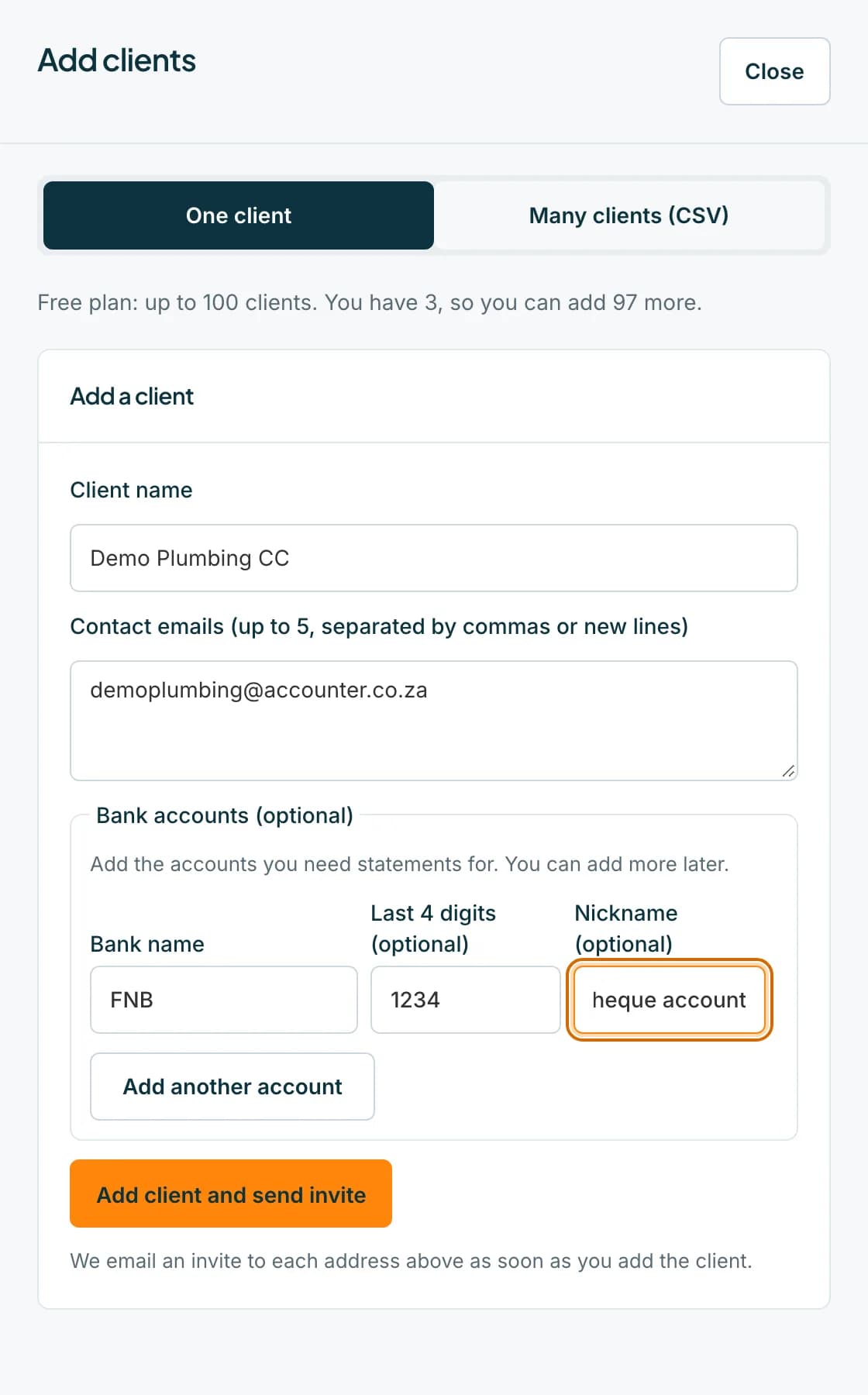
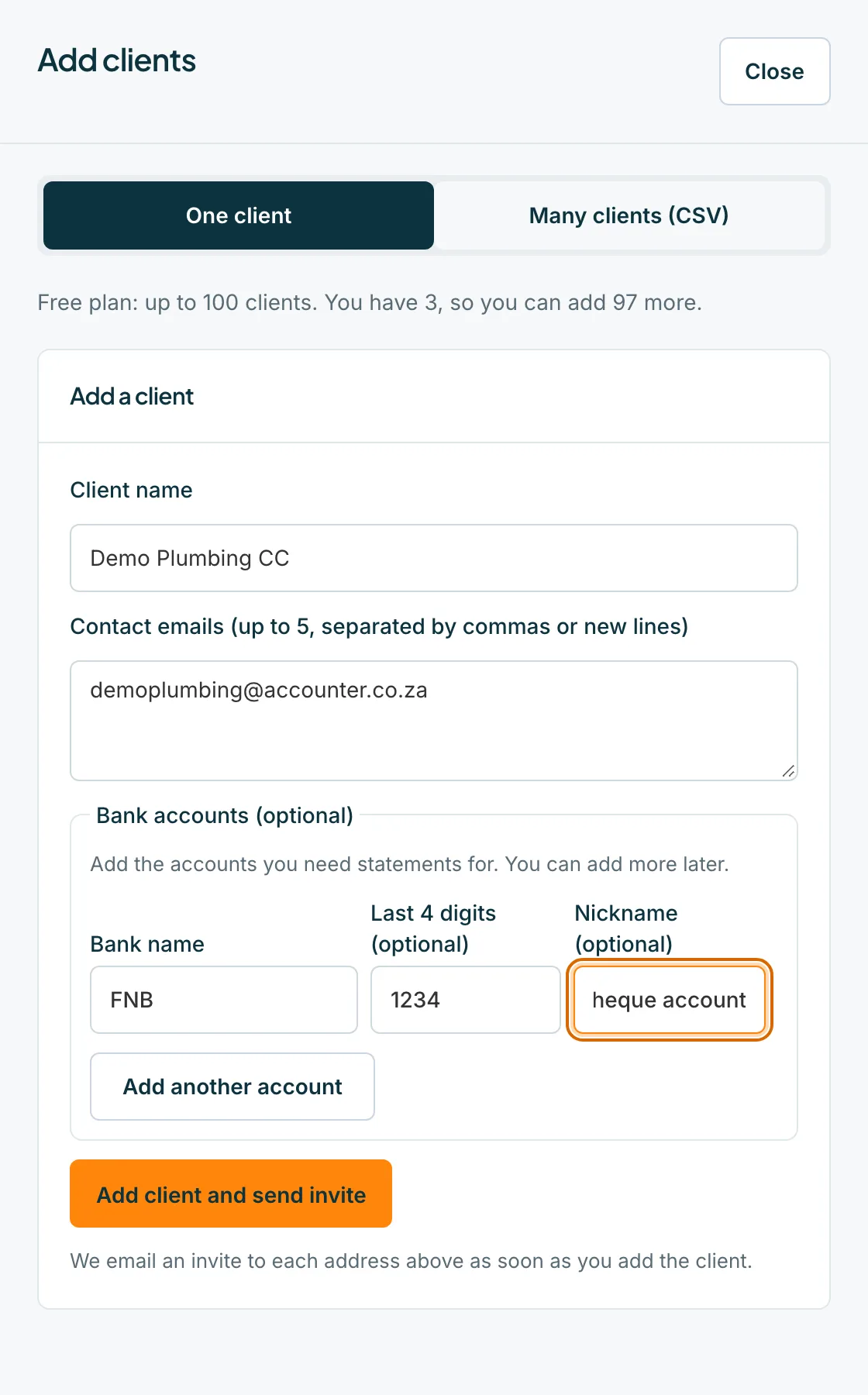
Type the name and contact emails
Type the Client name (up to 160 characters). Under Contact emails, type up to 5 addresses, separated by commas or new lines. Each person who gets an email can sign in and upload.
Add their bank accounts (optional)
Under Bank accounts, type the Bank name, and if you like the Last 4 digits (optional) and a Nickname (optional). Press Add another account for more, up to 5 rows here. You can add more later, up to 20 accounts per client.
 Open full size screenshot for step 4
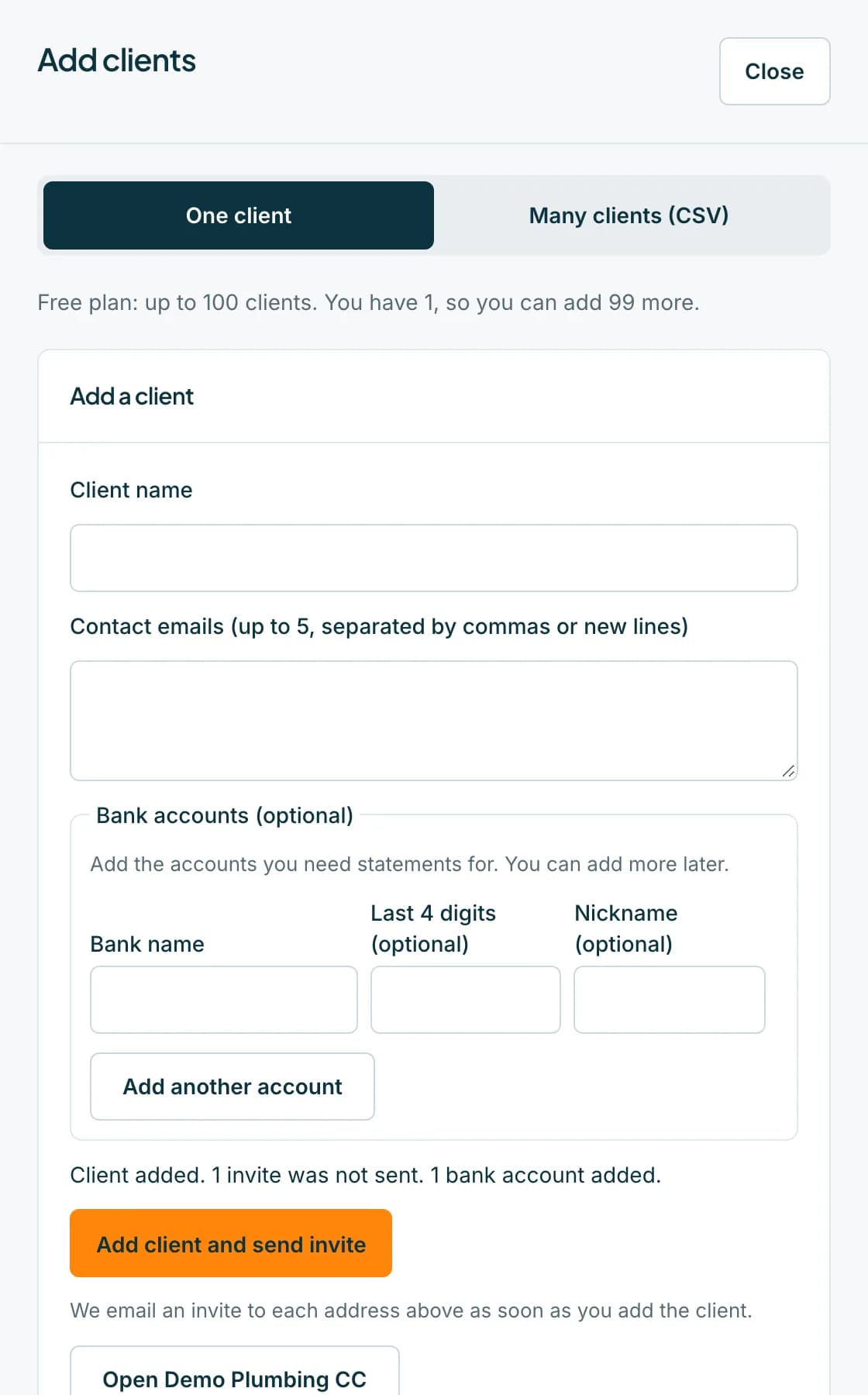
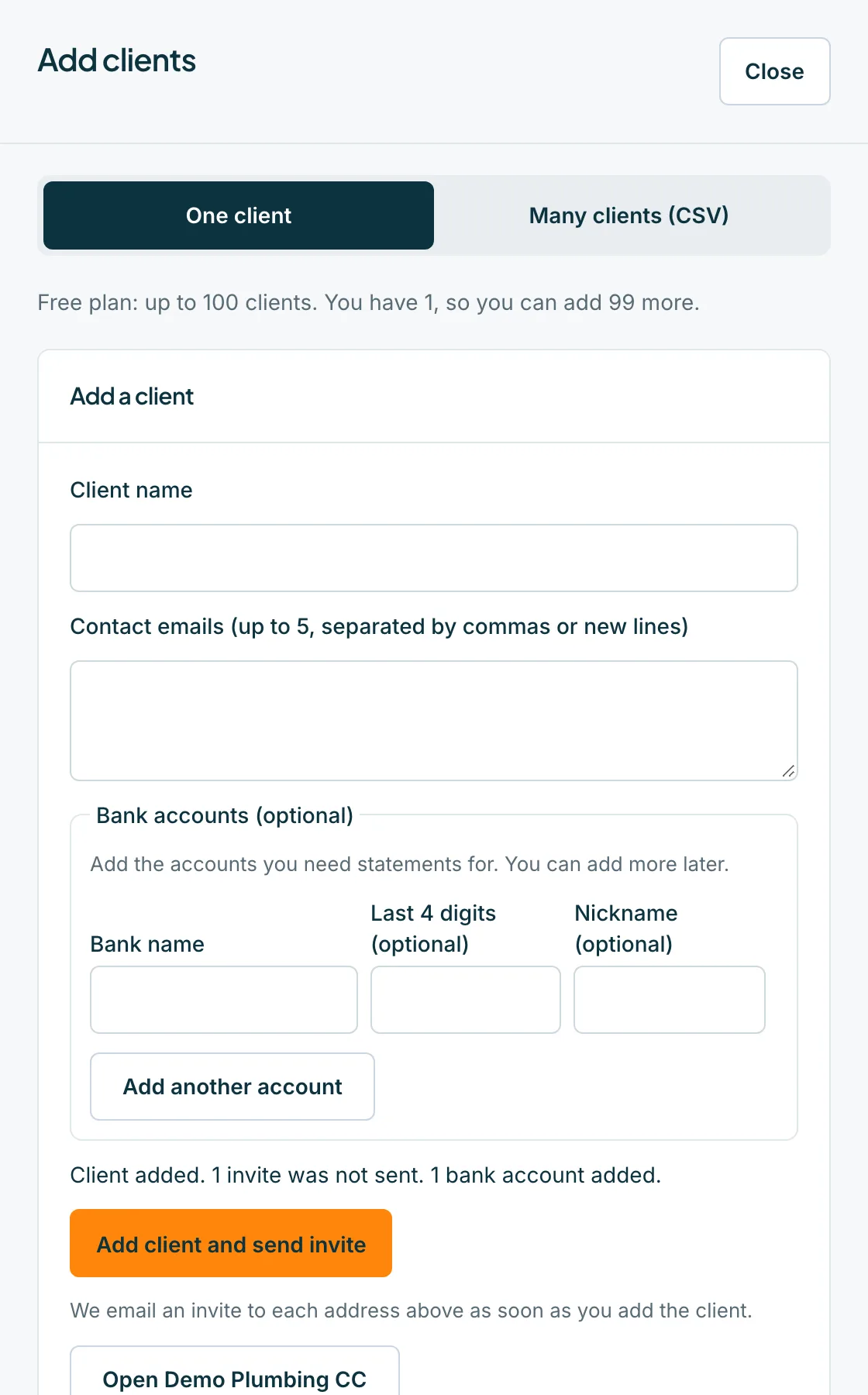
Press Add client and send invite
We email an invite to each address straight away, within the sending hours. A message confirms Client added and how many invites were sent. Press Open and the client's name to go to their sheet.
 Open full size screenshot for step 5
Tips
- The bank name suggests known banks as you type. If a bank is not listed you can still type it.
- A request has nothing to ask for until the client has at least one bank account, so add the accounts you need statements for.
- The fields clear after you add a client, so a second press cannot create a duplicate.
If something goes wrong
- You see Add the bank name for each account, or remove the row.
- A row has a last four digits or nickname but no bank name. Fill in the bank name or press Remove.
- The button is greyed out and the sheet says You've reached the free limit of 100 clients.
- Free firms can have up to 100 active clients. Buy credits or a plan to add more, or archive clients you no longer need.
- The message says 1 not sent: that person turned off emails, or Invites weren't sent: confirm your email address first.
- The client is added, but the invite was not sent. Confirm your own email address, or check with the client, then use Send invite on the Clients tab.
- The message says 1 will be invited tomorrow.
- That person was already emailed today. Each address gets one email a day, so the invite goes out tomorrow.
Related guides
- Import many clients from a CSVAdd many clients at once from a CSV file, check the preview and download the rows that were skipped.
- Add and close a client's bank accountsTell Statement Hub which bank accounts to collect for each client, and close an account that is no longer used.
- Invite clients and resend invitesSee who has joined, who has been invited and who has not, and send or resend an invite to a contact.