Invite clients and resend invites
Last reviewed 15 November 2026 · 4 steps
See who has joined, who has been invited and who has not, and send or resend an invite to a contact.
Firms
Steps
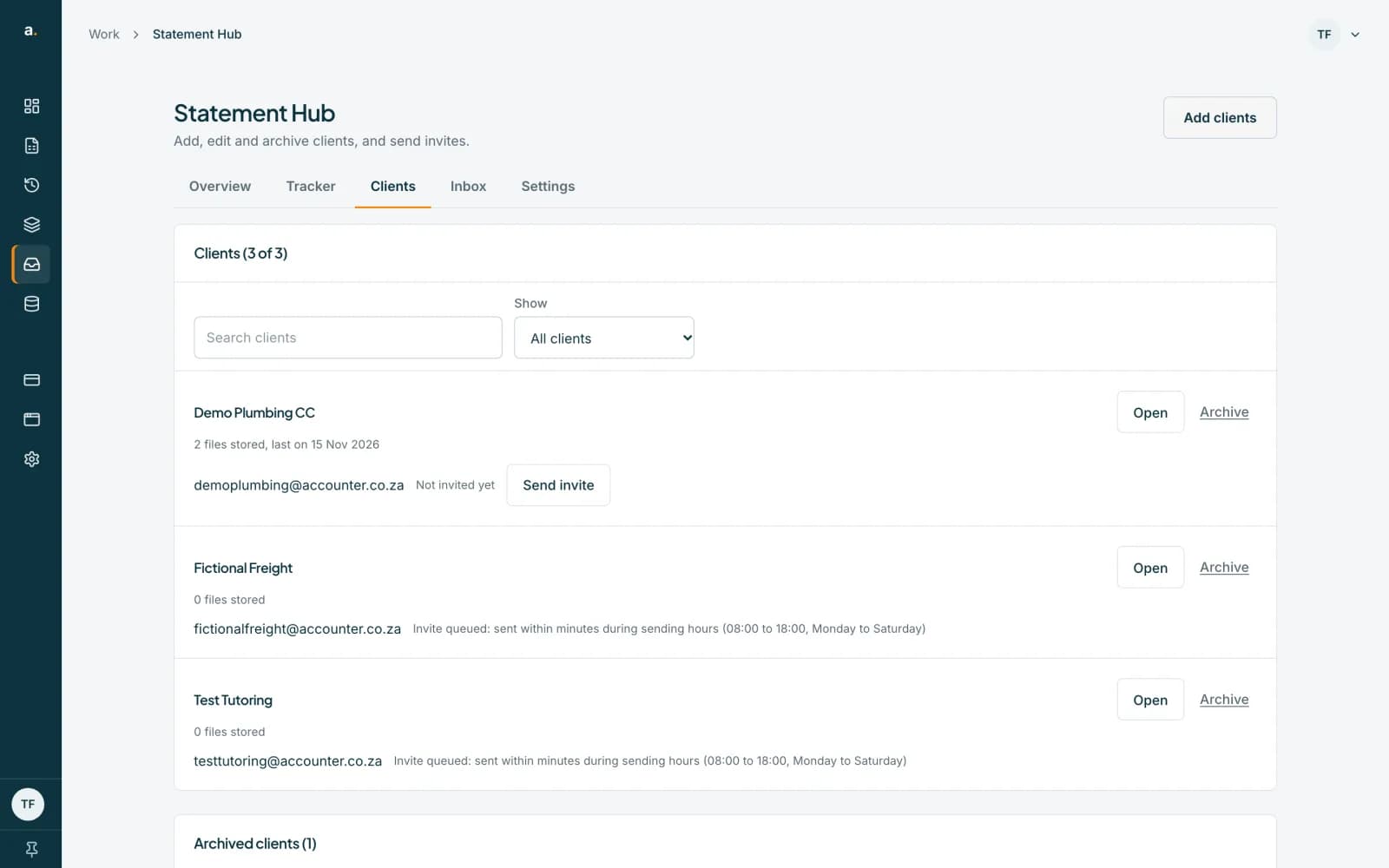
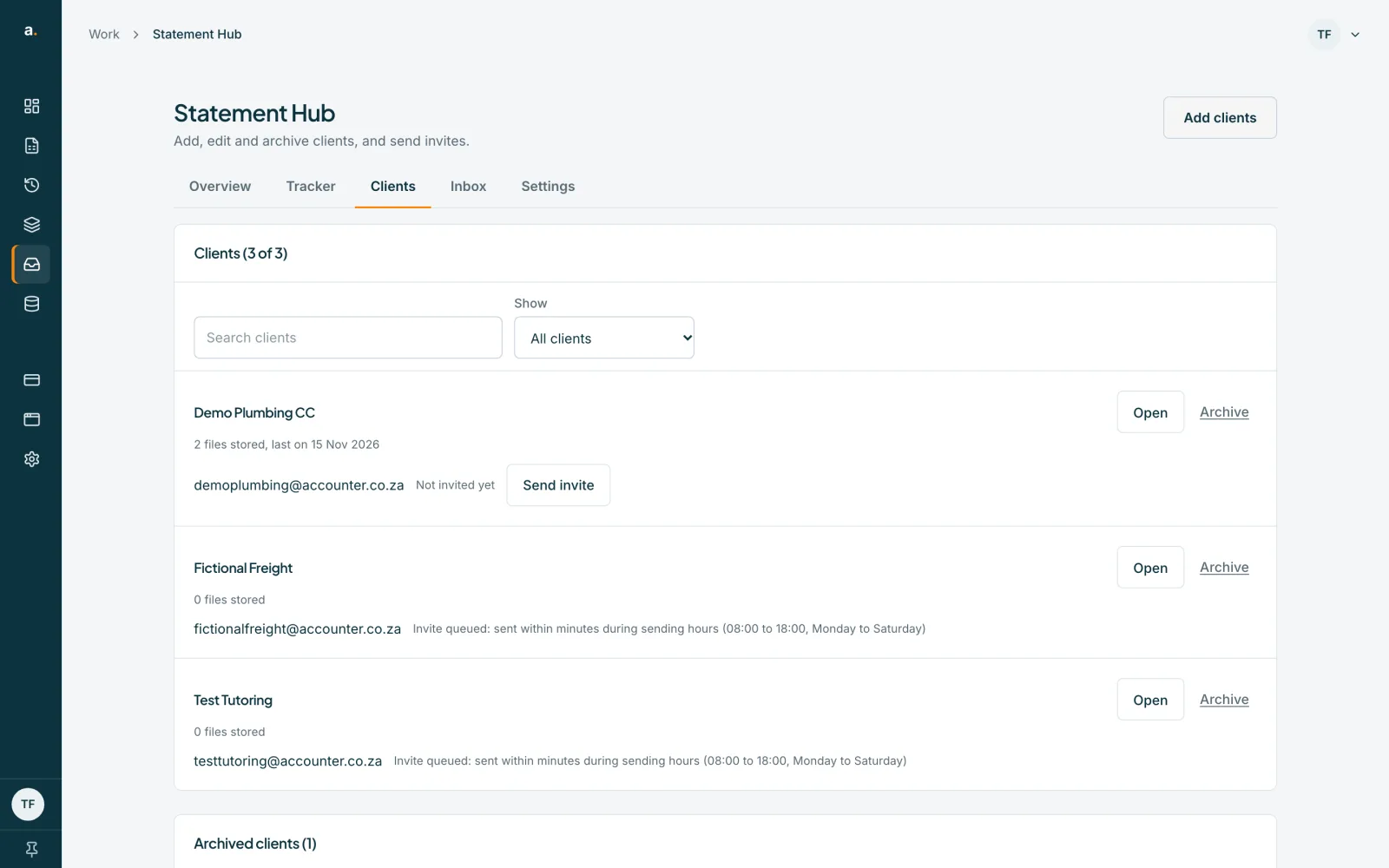
Open the Clients tab
Each client is listed with its contacts. Next to each contact you see their status: Joined, Invited, Invite queued, or Not invited yet. You may also see Emails turned off by client or Email bounced.
 Open full size screenshot for step 1
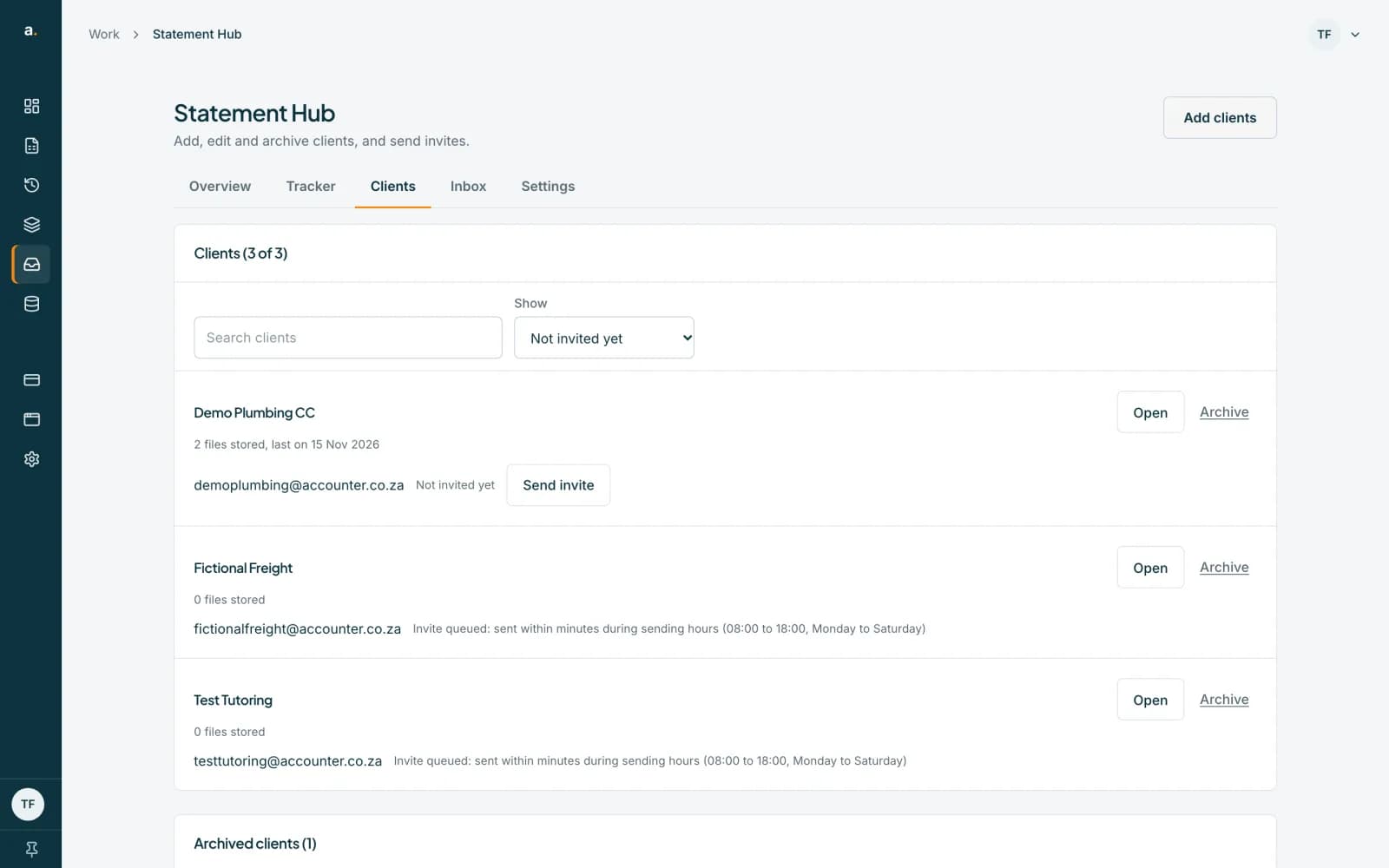
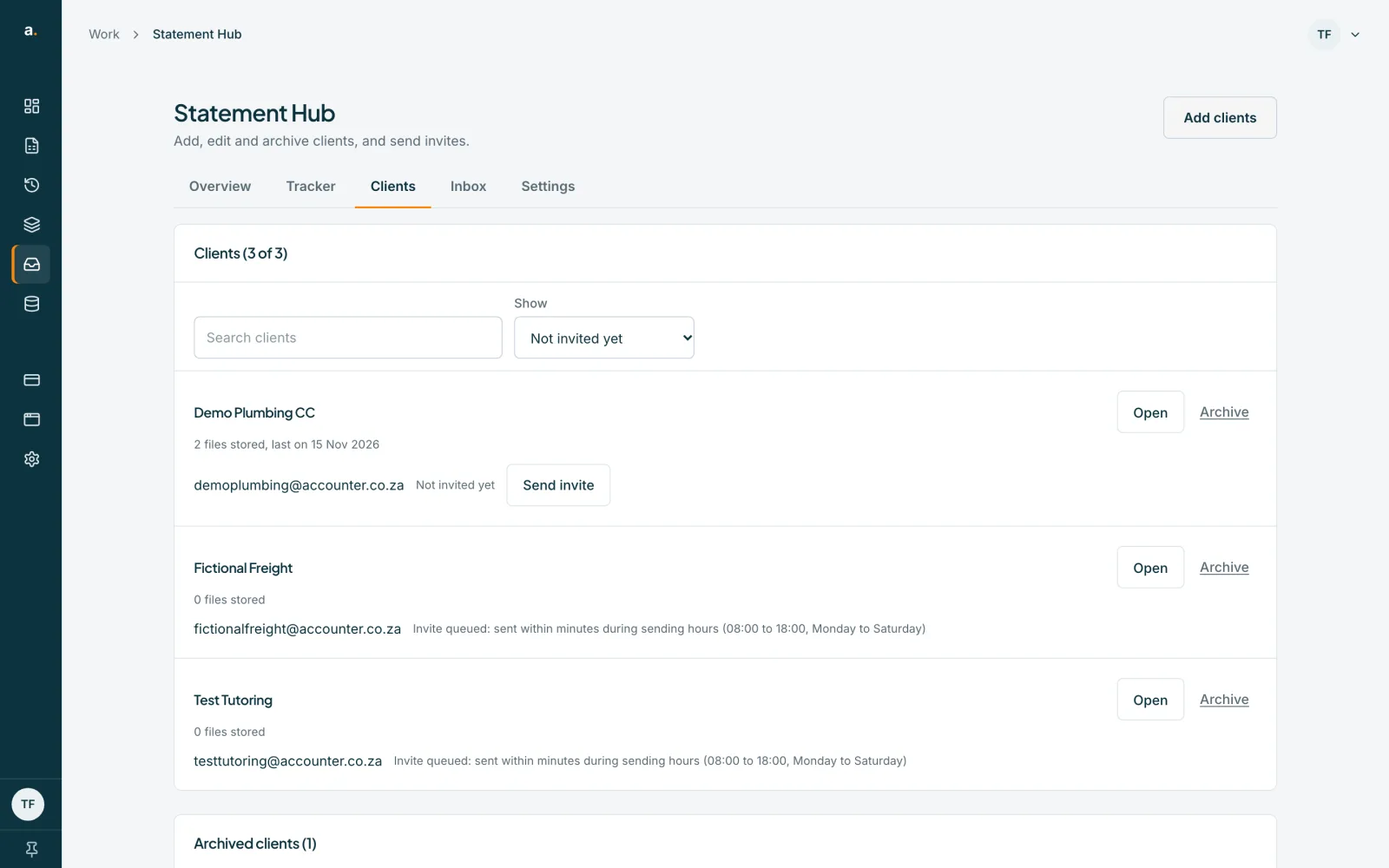
Filter the list
Use the Show list to narrow the clients: All clients, Not invited yet, Invited, hasn't joined, Joined, Emails off or bounced, or No bank accounts. You can also search by name.
 Open full size screenshot for step 2
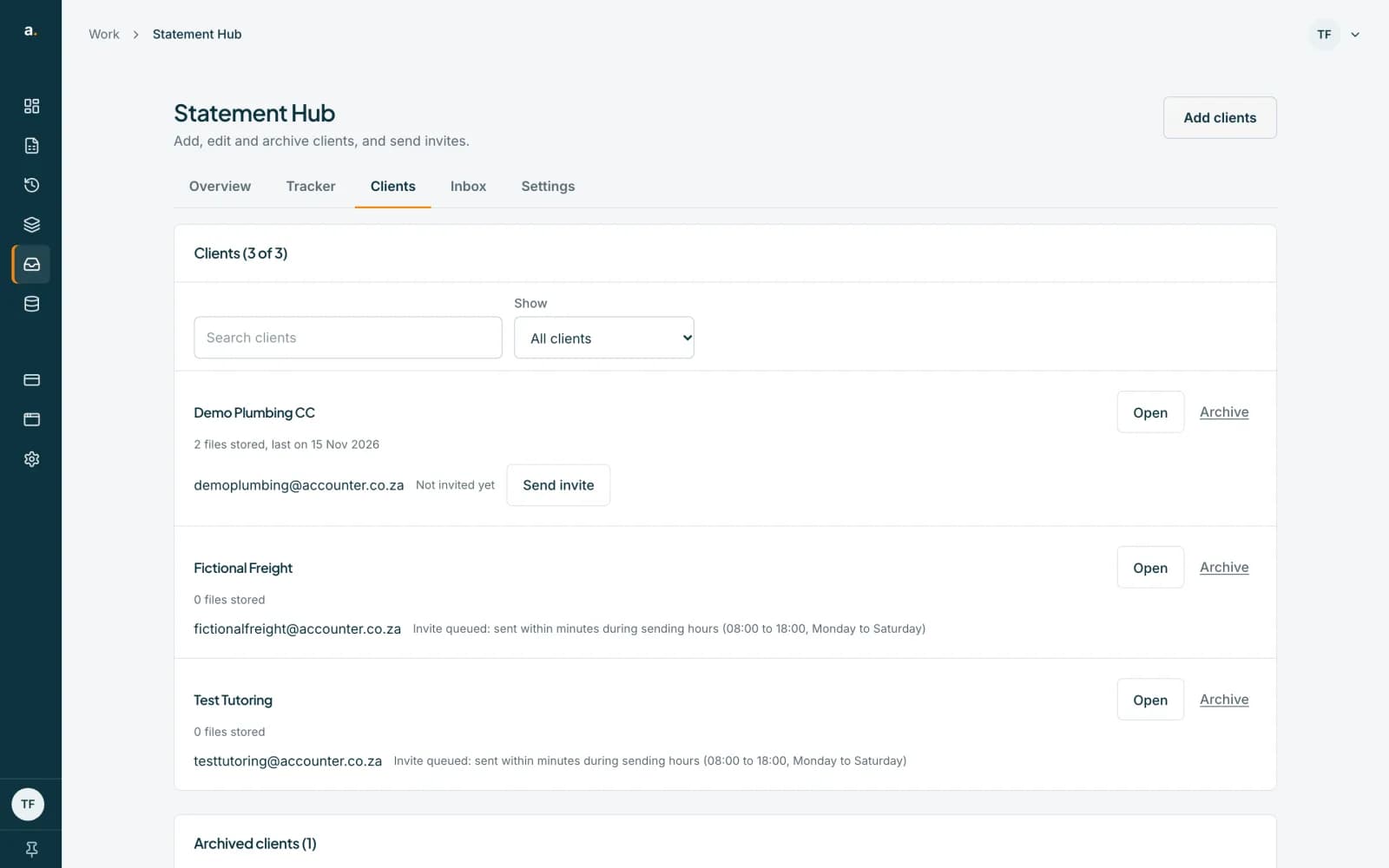
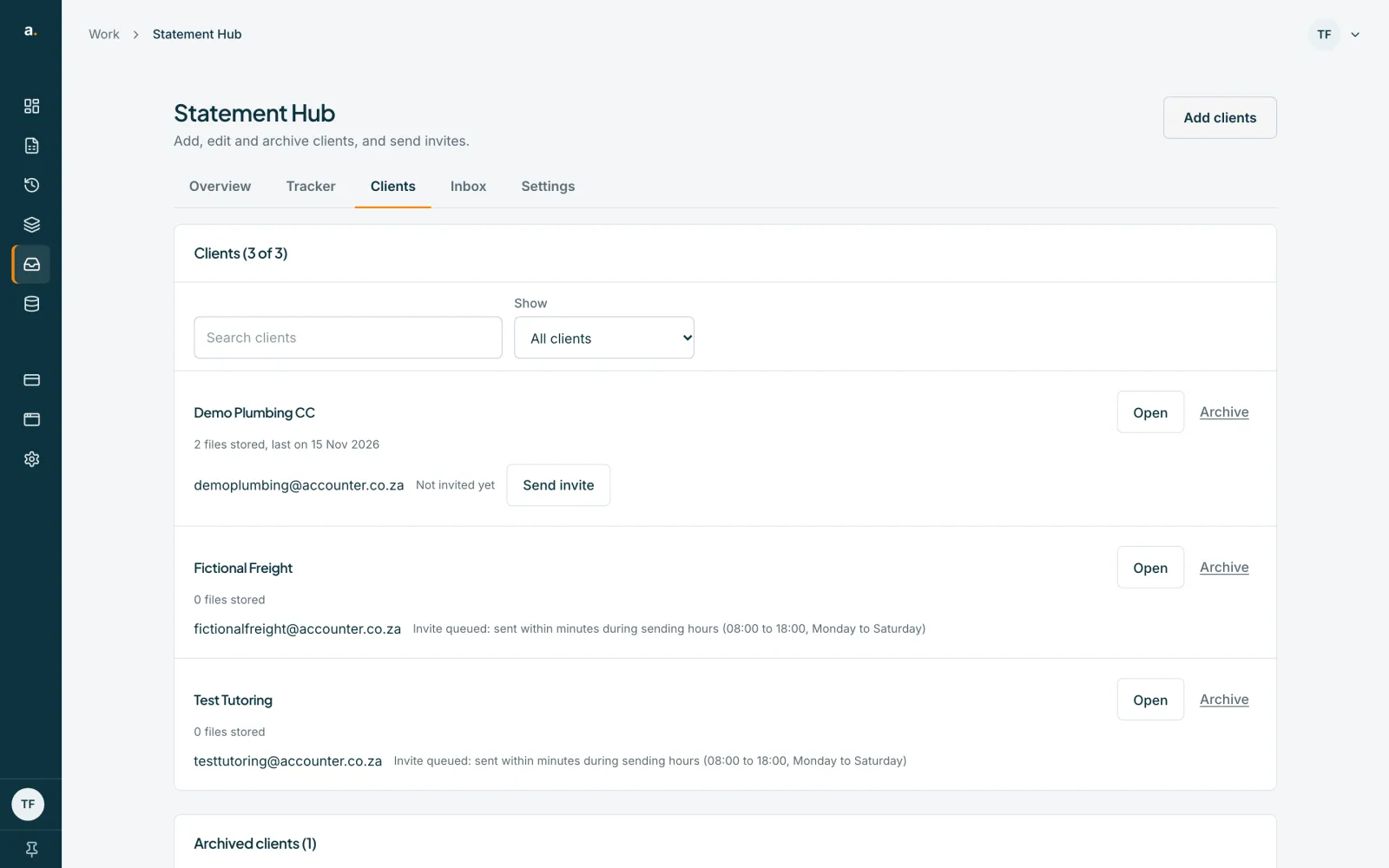
Press Send invite or Resend invite
Beside a contact who has not joined, press Send invite (never invited) or Resend invite (already invited).
 Open full size screenshot for step 3
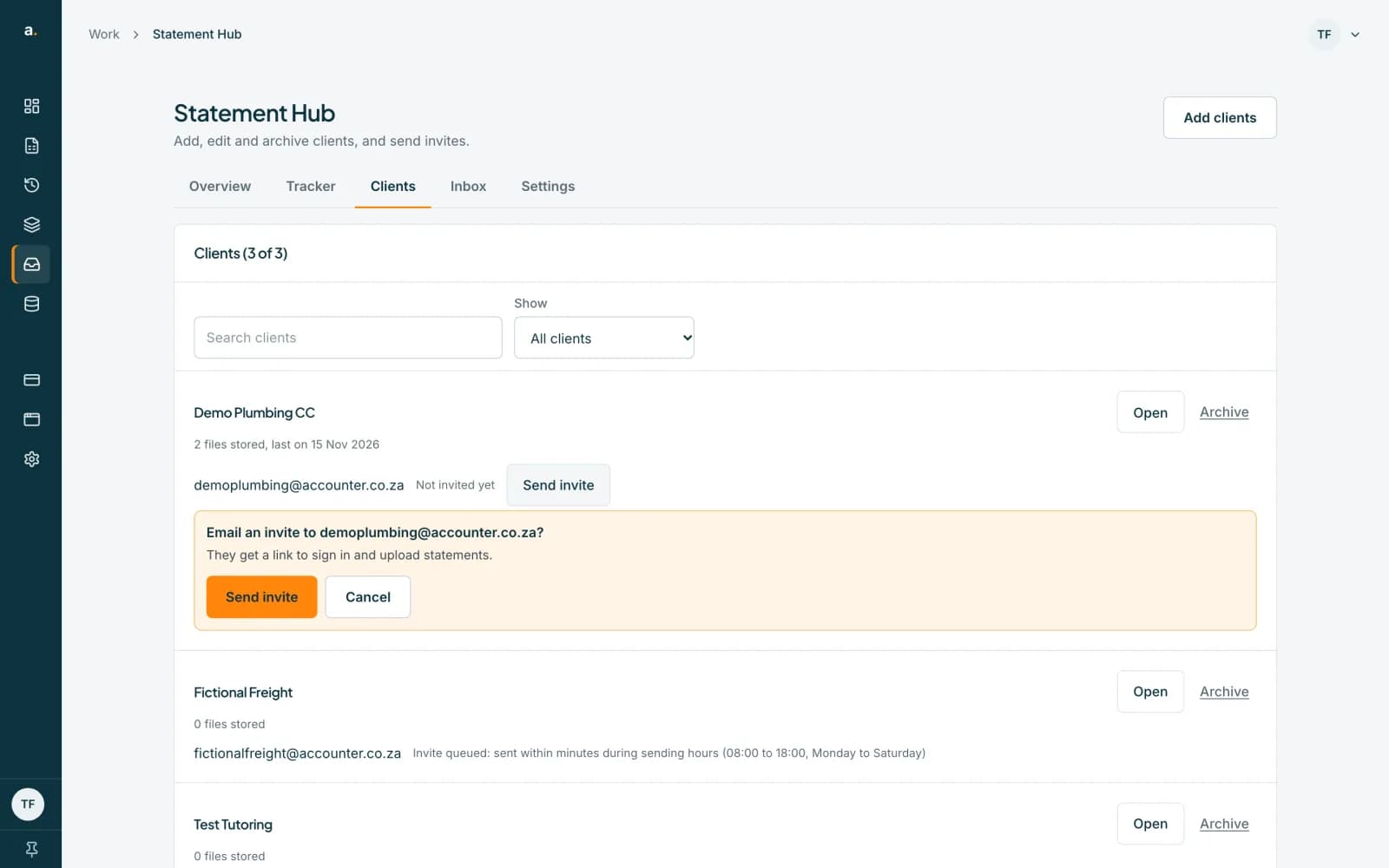
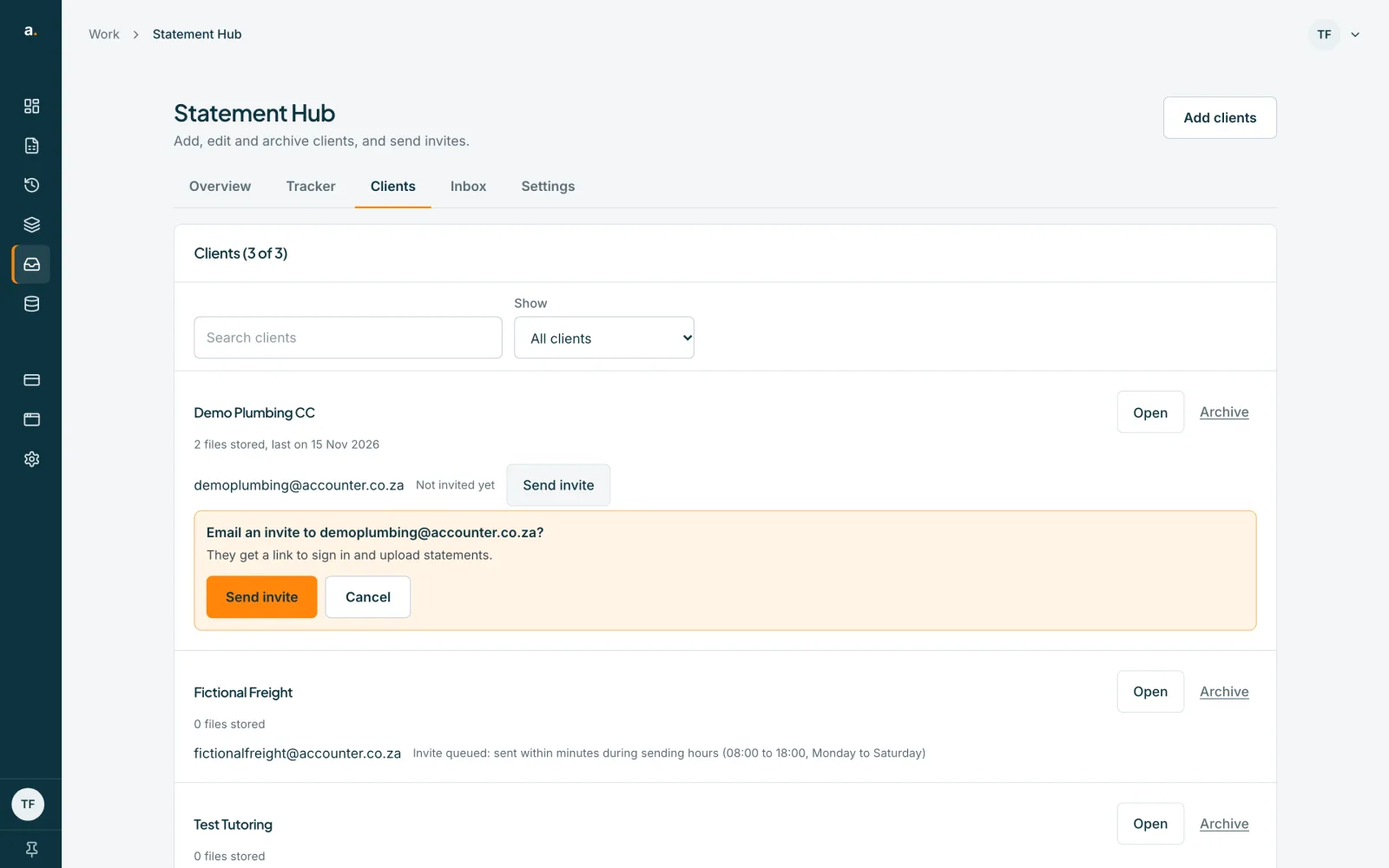
Confirm the invite
A panel asks Email an invite to the contact's address? and says They get a link to sign in and upload statements. Press Send invite, or Cancel. A message confirms Invite sent to 1 contact.
 Open full size screenshot for step 4
Tips
- Invites go out automatically when you add a client, so you only need this to resend or to invite a contact you could not reach.
- The sign-in link in the invite works once and expires in 7 days. A client with an old link can ask for a new one on the sign-in page.
- Each address gets one email a day from your firm, and invites go out only during the sending hours (08:00 to 18:00, Monday to Saturday).
If something goes wrong
- You see This person was already emailed today. Try again tomorrow.
- Each contact can be emailed once a day. Try again tomorrow.
- You see This person turned off emails from your firm.
- The client chose to stop emails. They can turn them back on from their page, or you can ask them to.
- You see This person's email address bounced.
- No emails can be sent to that address. Check the spelling with the client and add the correct address.
- You see Invites weren't sent: confirm your email address first.
- Confirm your own Accounter email address, then send the invite again.
- You see You've reached today's invite limit.
- A firm can send 200 invites a day. The rest need to be sent tomorrow.
Related guides
- Add a clientAdd one client with up to five contact emails and their bank accounts, and email them an invite.
- Understand the sending windowInvites, requests and reminders go out 08:00 to 18:00, Monday to Saturday, South African time. See what happens outside those hours.
- Sign in to send your statementsUse the link in your accountant's email to open your secure page, or ask for a new link. There is no password.