Invite someone to your team
Last reviewed 16 November 2026 · 6 steps
Send an invite by email, choose their role, and track or revoke invites that are still pending.
Team owners
Steps
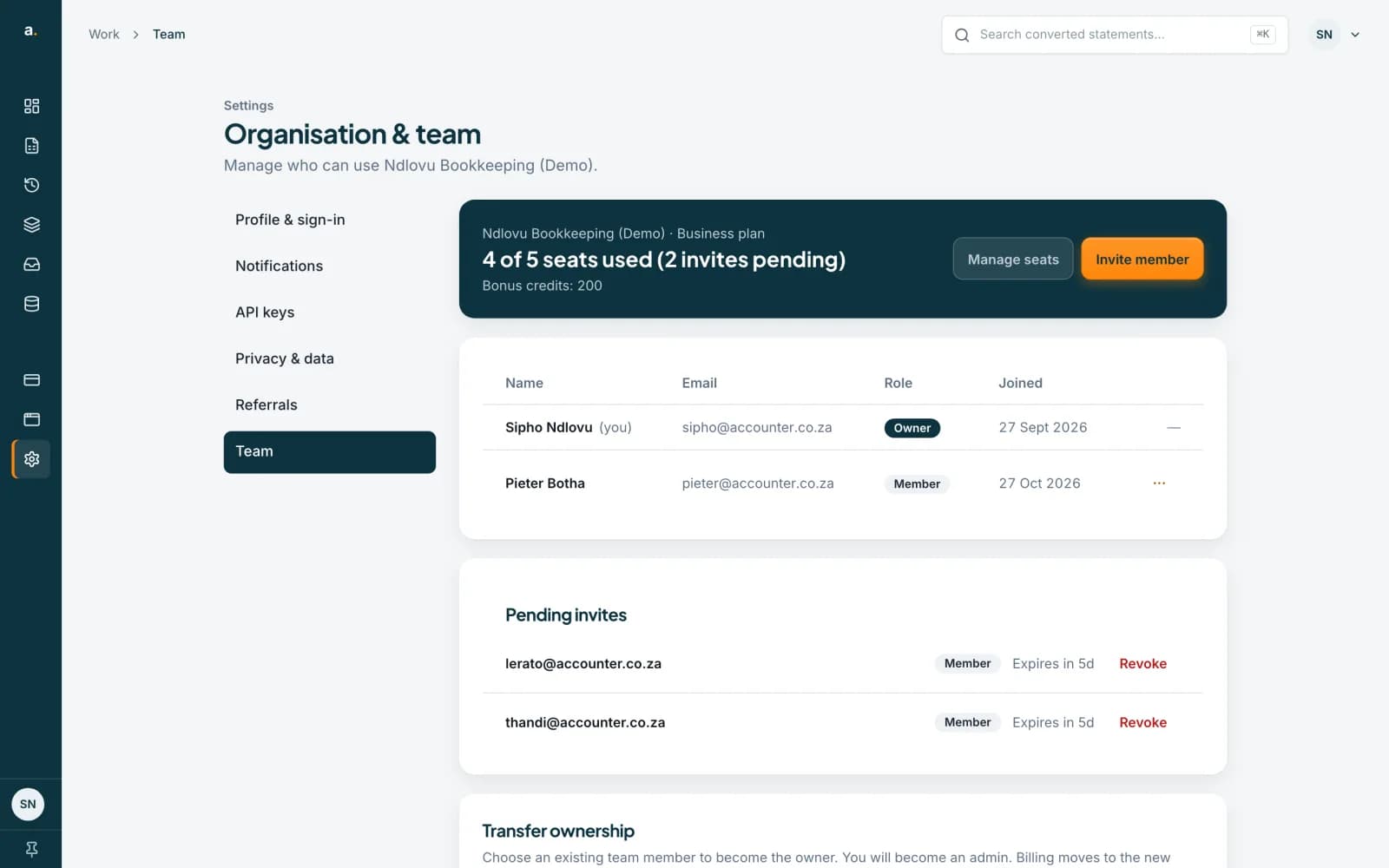
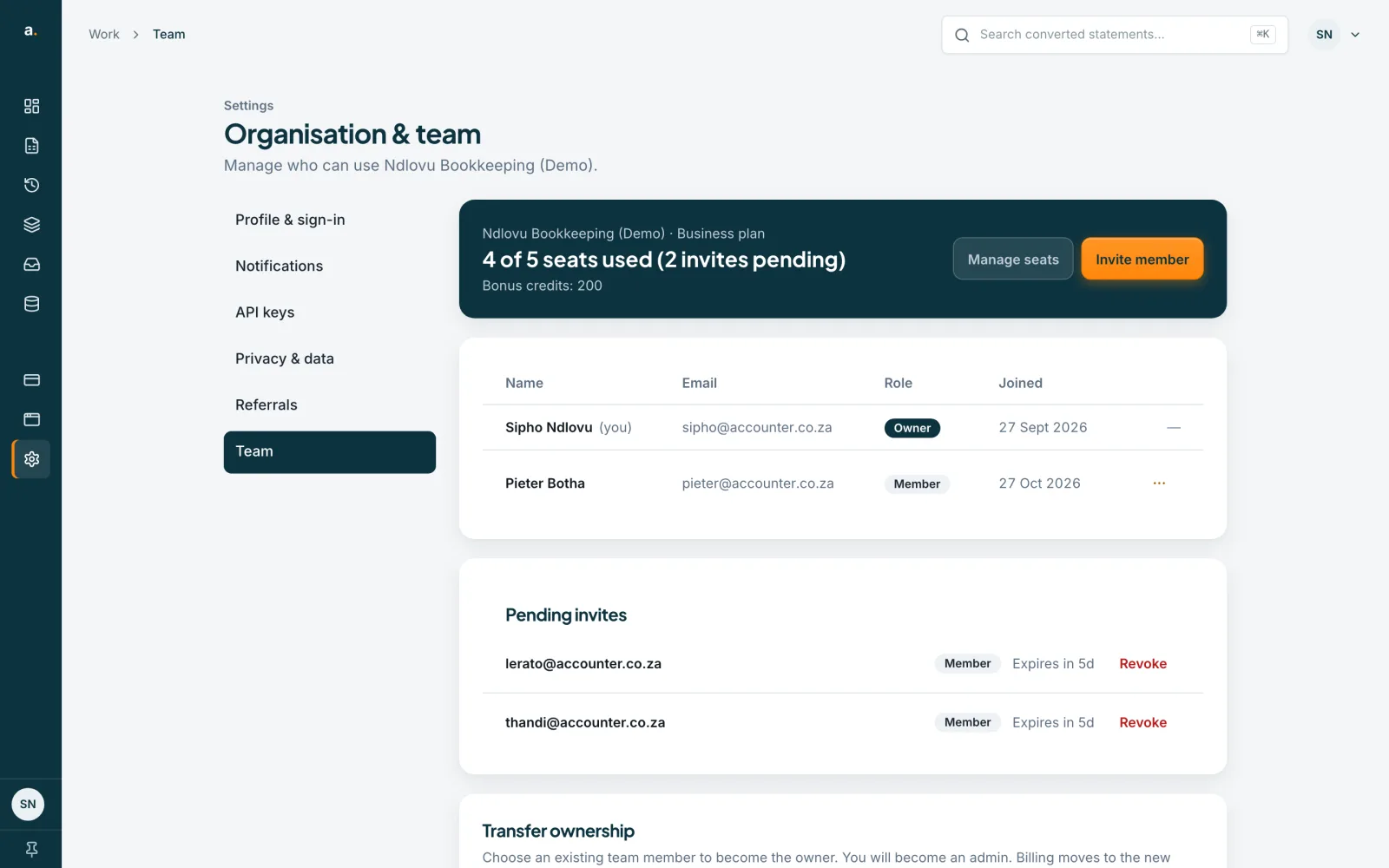
Open the Team page
Open Settings in the left menu, then choose Team. It shows your organisation and plan, how many seats are used, your bonus credits and the list of team members. Team plans are Business with 5 seats, Practice with 10 and Enterprise with 20. Only the owner and admins can invite.
 Open full size screenshot for step 1
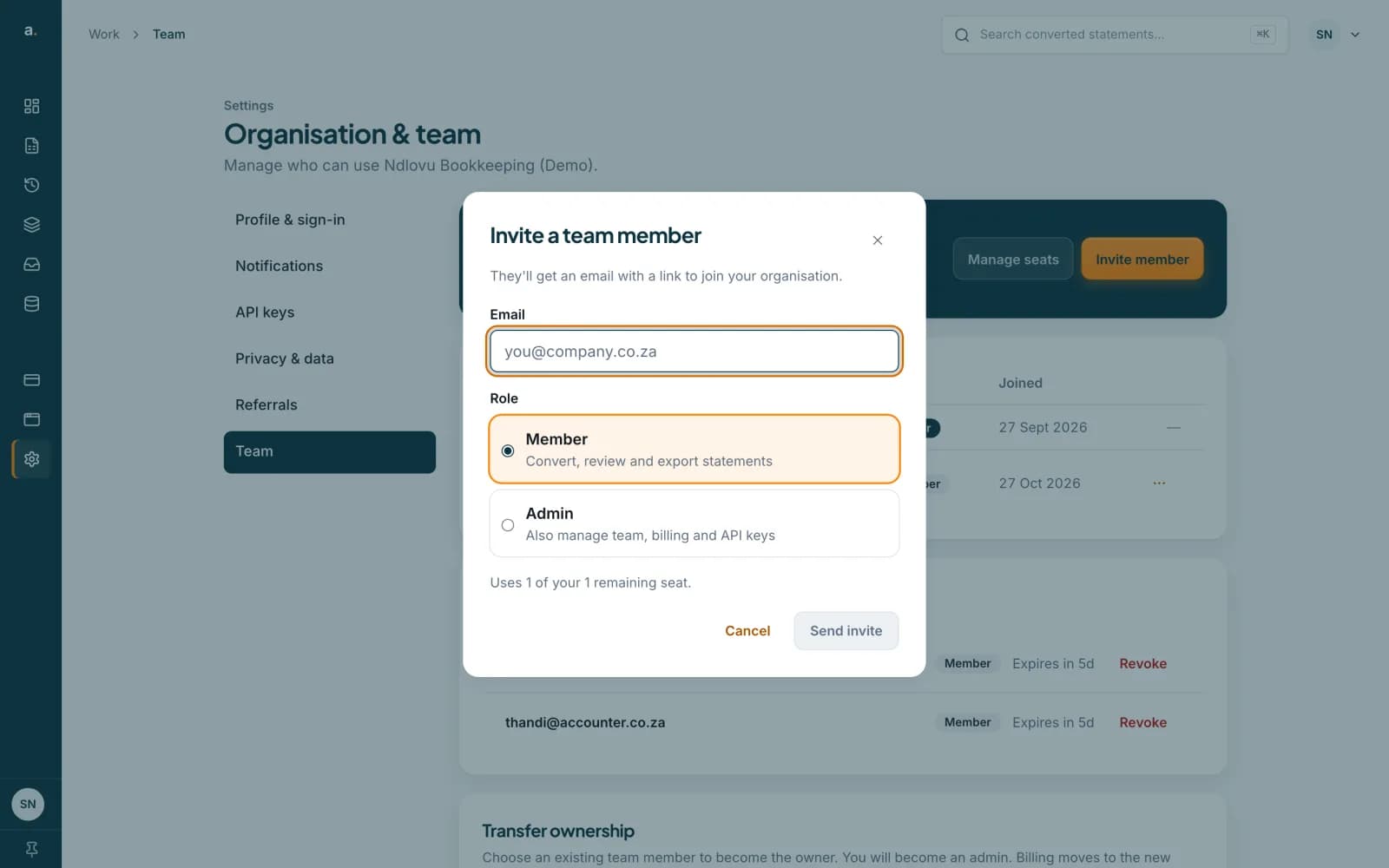
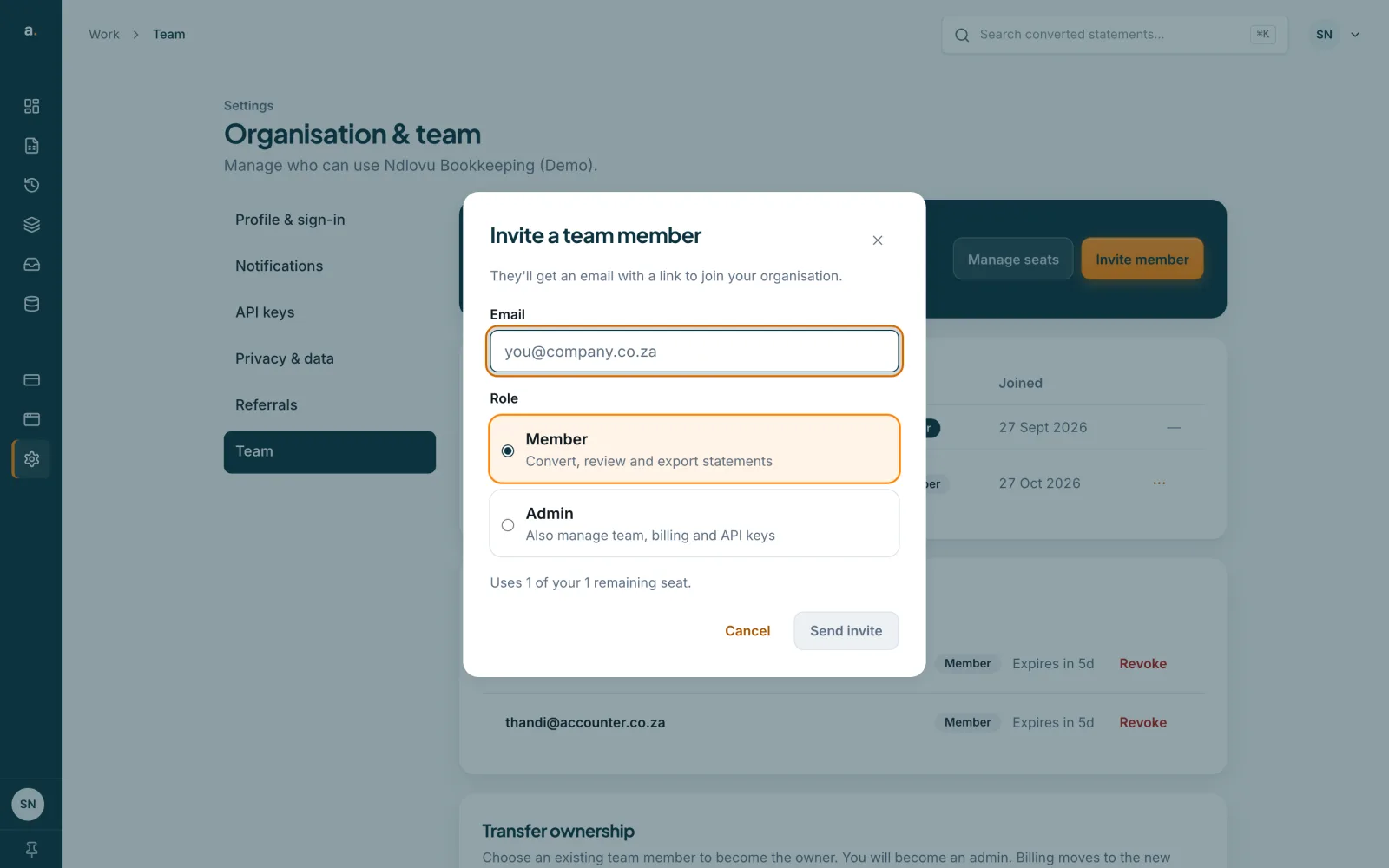
Press Invite member
The Invite a team member box asks for their Email and a Role, and says they will get an email with a link to join your organisation. Near the bottom, it says how many seats remain, for example Uses 1 of your 3 remaining seats. A pending invite uses a seat, so that line is the one to rely on. If it says No seats remaining, you cannot invite anyone until a seat is free.
 Open full size screenshot for step 2
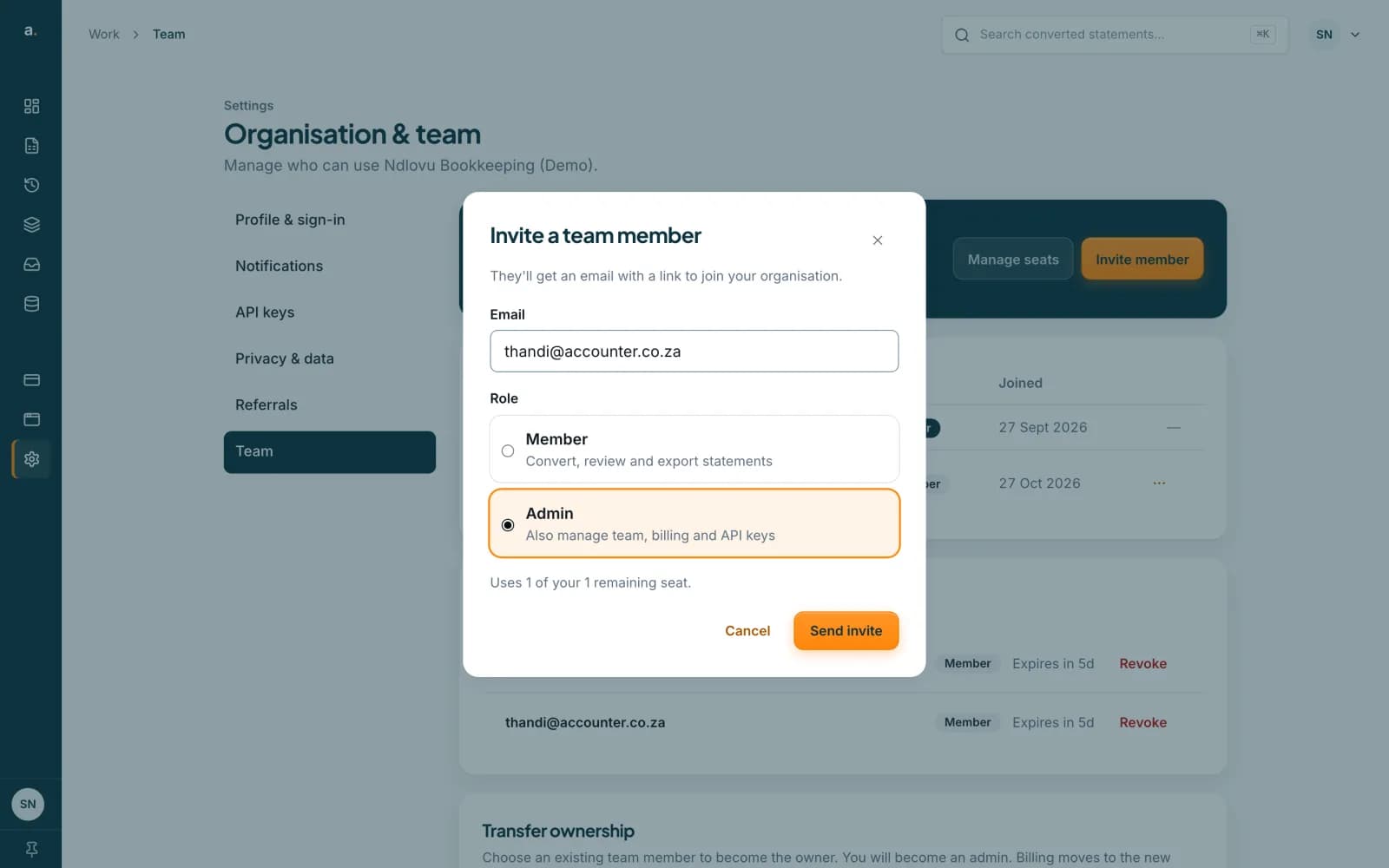
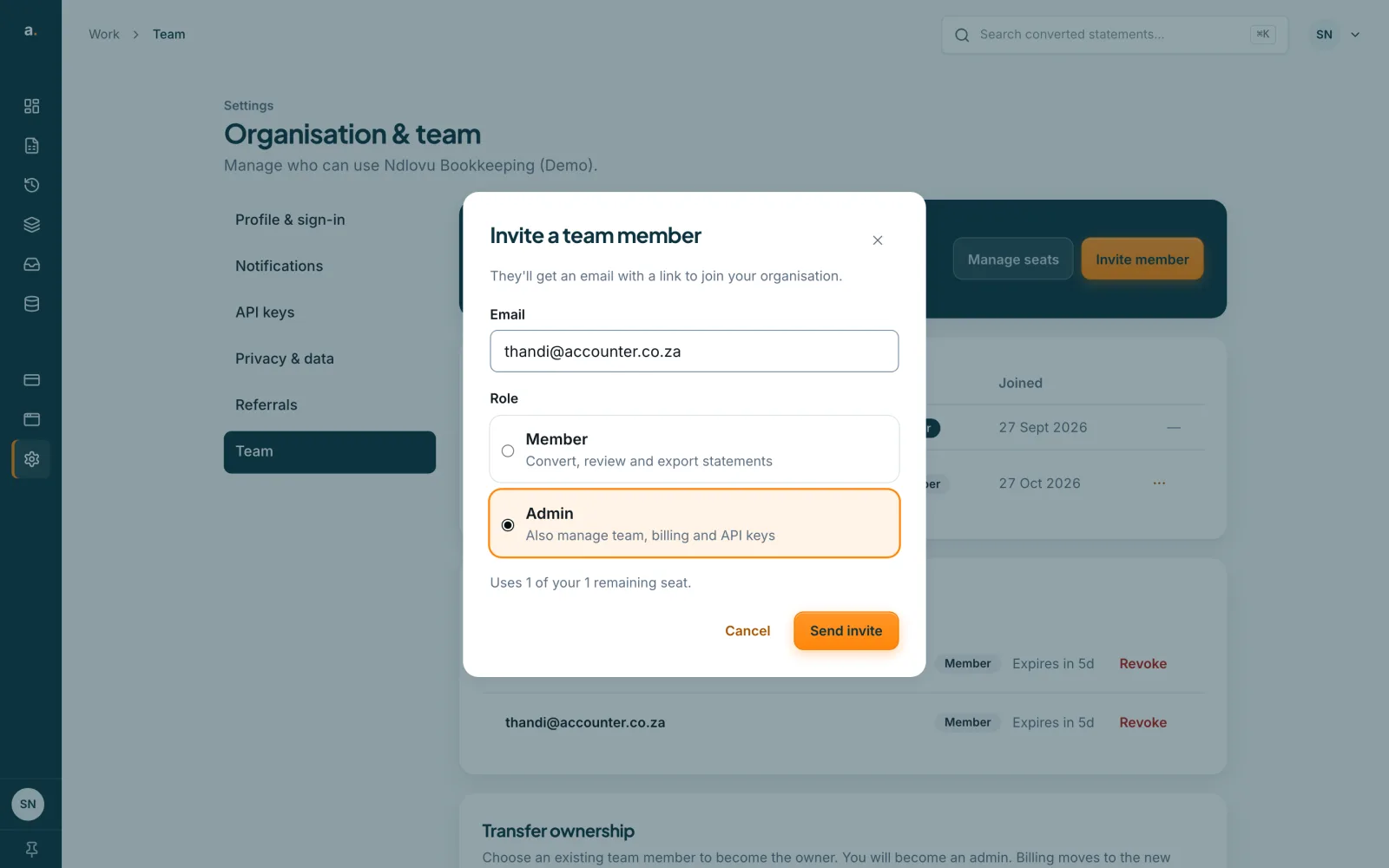
Type the email and choose a role
Type their email address. Choose Member, who can convert, review and export statements, or Admin, who can also manage the team, billing and API keys. Press Send invite.
 Open full size screenshot for step 3
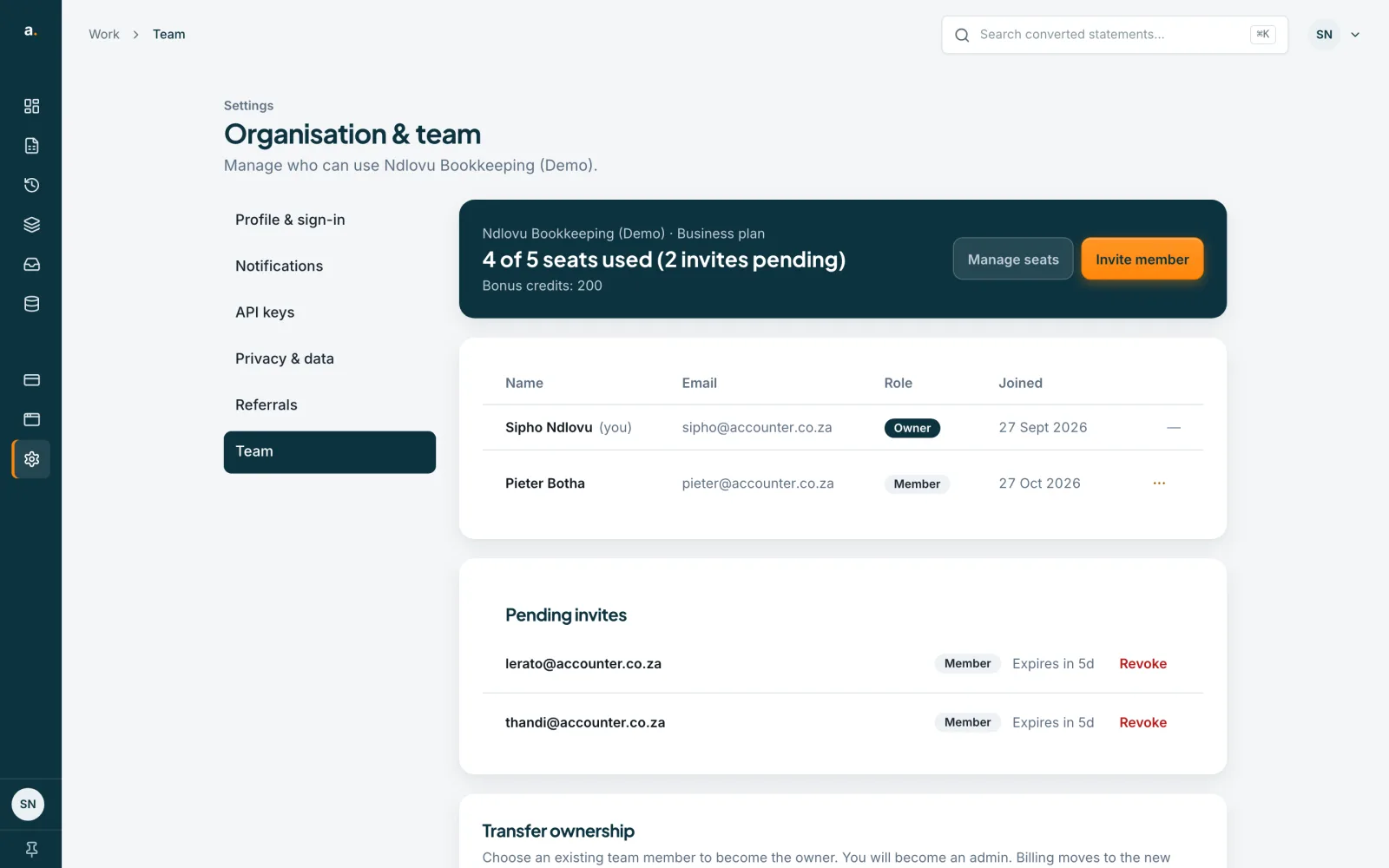
Wait for them to accept
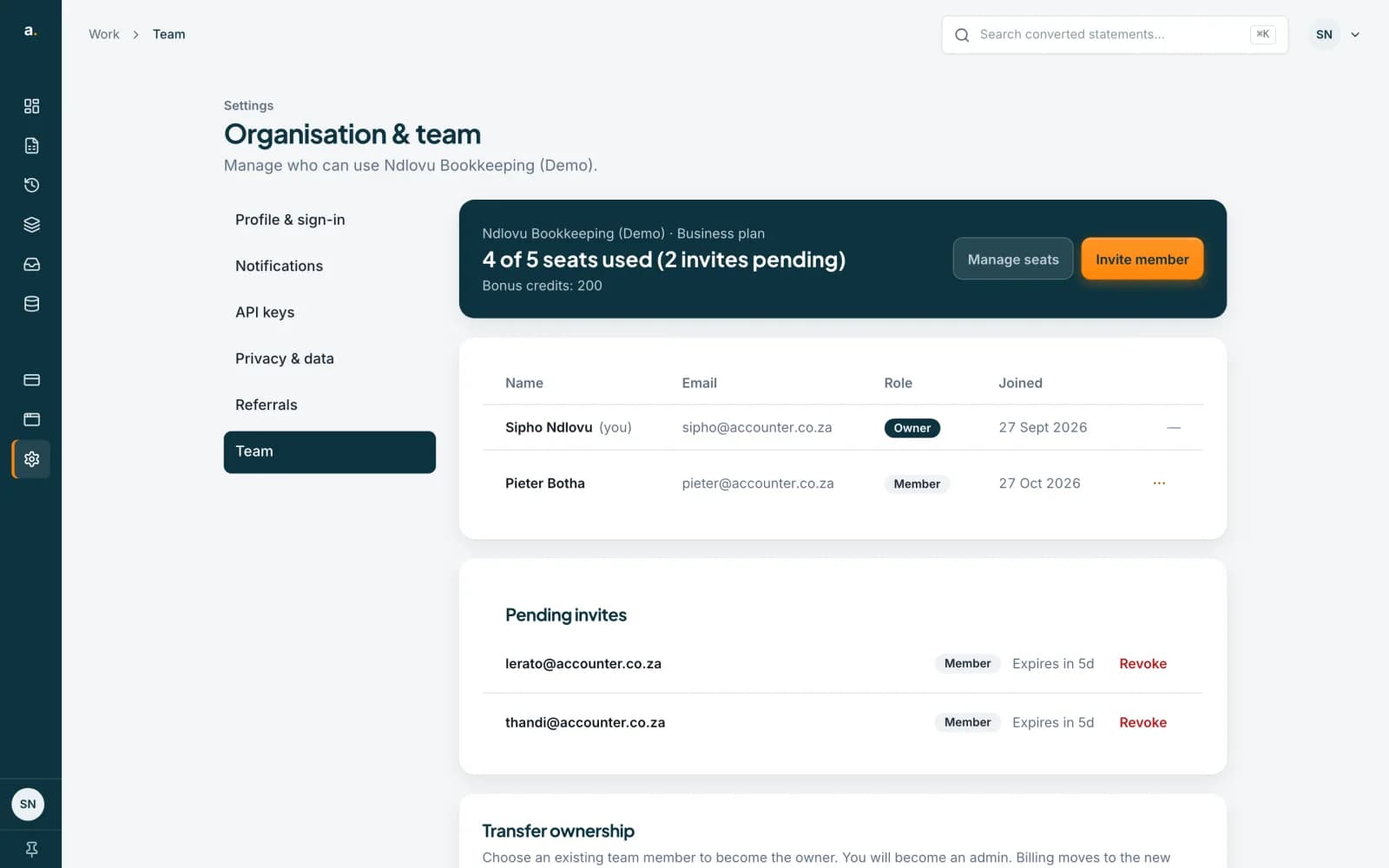
They are emailed a link that works for 7 days. The invite shows under Pending invites and uses a seat until they accept, you revoke it, or it expires. An expired invite does not hold a seat. The person must use the email address you invited. See the guide on accepting an invite.
Revoke an invite
Under Pending invites, each invite shows the role and Expires in, with a count of days. Press Revoke next to an invite to cancel it, then confirm Revoke this invite? Its seat becomes free again.
 Open full size screenshot for step 5
Change a role or remove someone later
In the Team members table, open the three-dot menu on a person’s row. Make admin promotes a member. Make member changes an admin back and is for the owner. Remove takes them out, after you confirm Remove this member from the organization? You cannot change or remove the owner or yourself.
Tips
- A team shares one pool of credits and shared history.
- You can send up to 10 invites an hour.
- Someone can belong to one organisation at a time. If they already belong to another, they must leave it before joining.
- When a person joins, their own personal plan is paused. It comes back if they leave.
If something goes wrong
- Invite member is greyed out.
- All seats are in use, counting pending invites. Revoke an unused invite, remove a member, or ask us about a bigger plan.
- You see An invite is already pending for this email.
- Revoke the old invite first if you want to send a fresh one.
- You see This person is already a member, or You cannot invite yourself.
- Check the address. Each person can be on the team once.
- You see Too many invites. Try again in an hour.
- You can send 10 invites an hour. Wait and try again.
Related guides
- Accept an invite to join a teamOpen your invite email, log in or create an account with the invited address, and join the team.
- Transfer ownership or leave a teamHand a team to another member and move billing with it, or leave a team you belong to.
- Change or cancel your planSee the plans, ask to change from your current plan, or cancel and keep access to the end of the period you have paid for.