Add a missing row or delete an extra one
Last reviewed 16 November 2026 · 4 steps
Add a transaction Accounter missed, or delete a duplicate, then save your corrections.
Free account
Steps
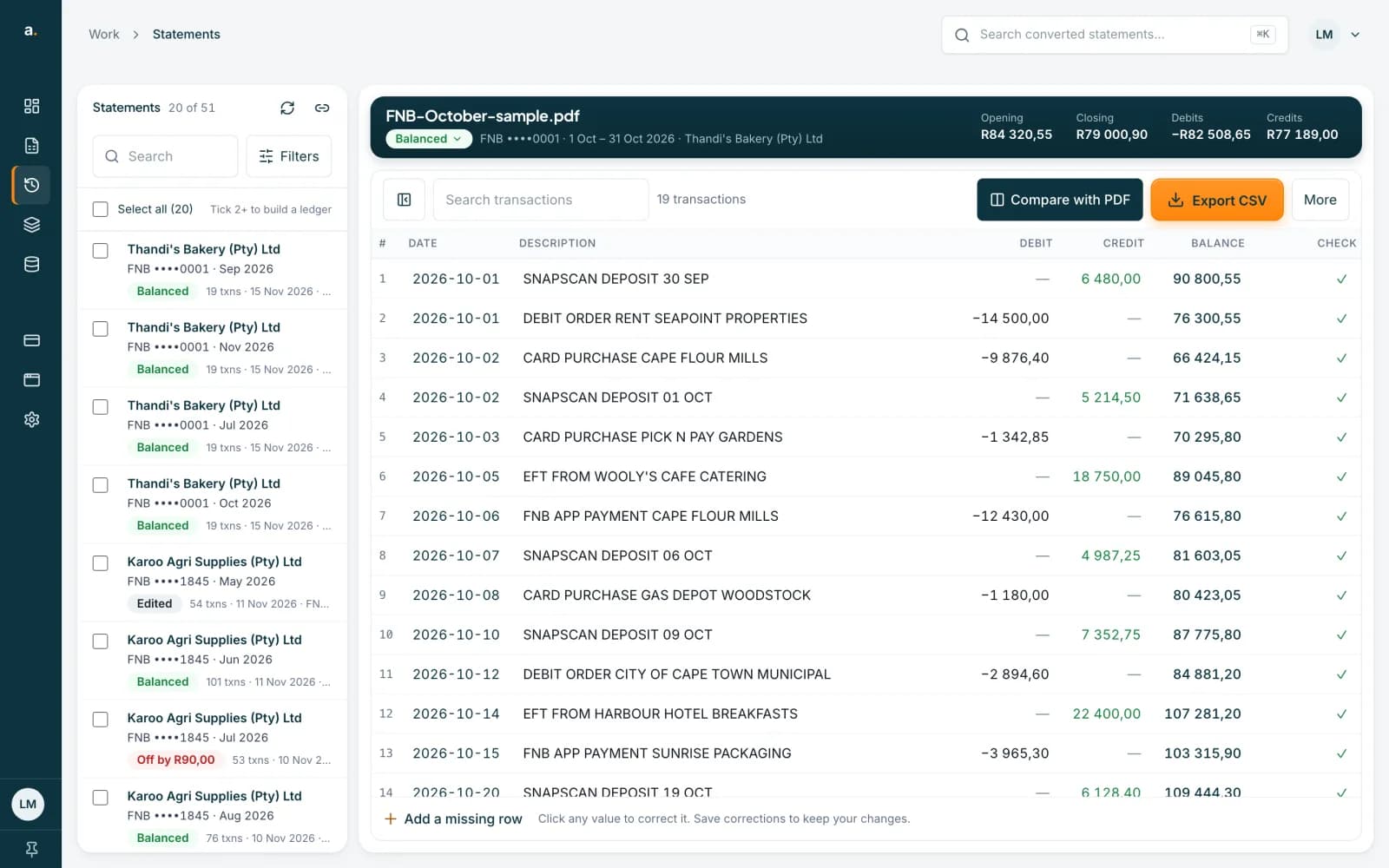
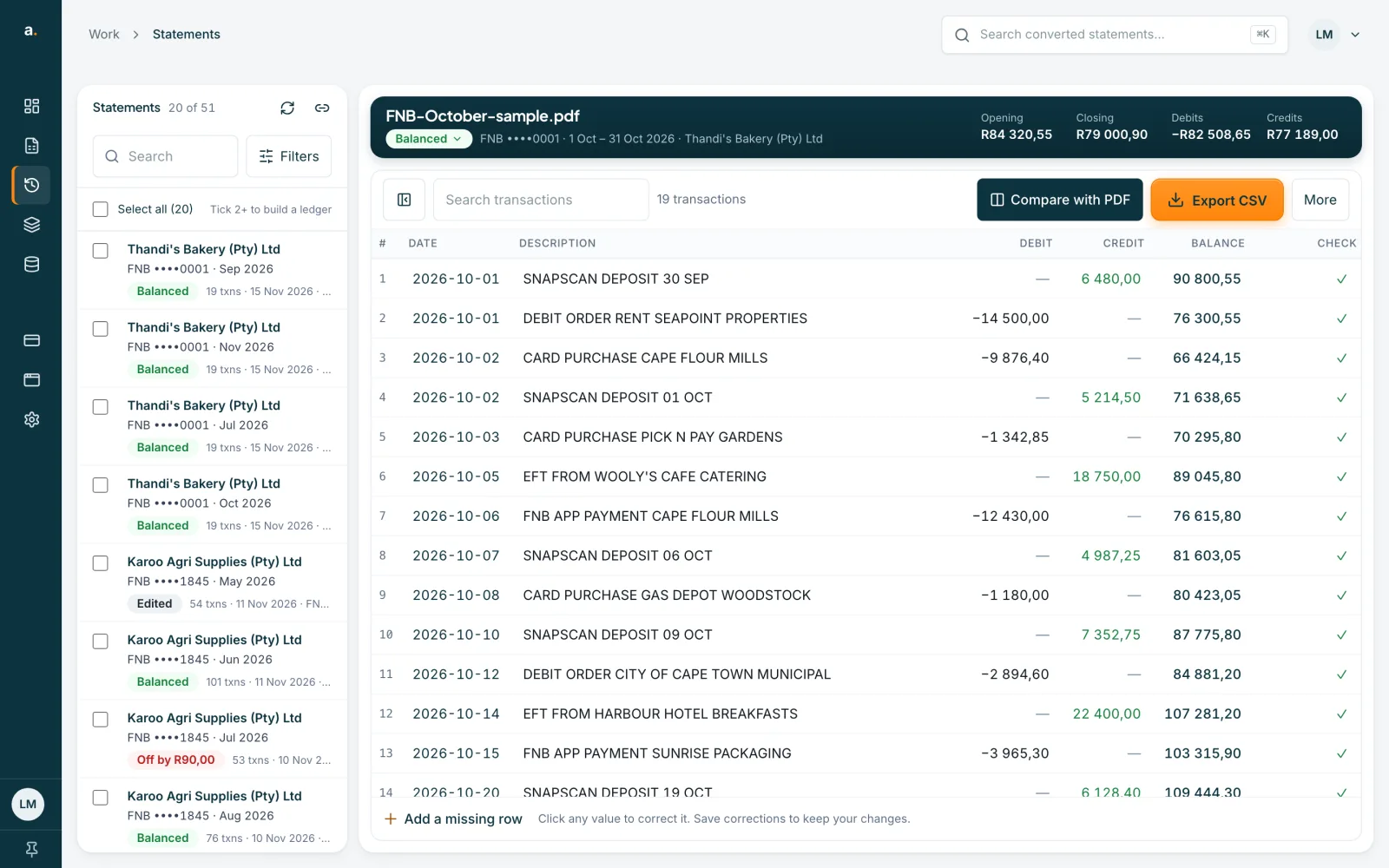
Open the statement and find Add a missing row
Open the statement from Statements. Under the transactions, press Add a missing row. The line beside it reminds you: Click any value to correct it. Save corrections to keep your changes.
 Open full size screenshot for step 1
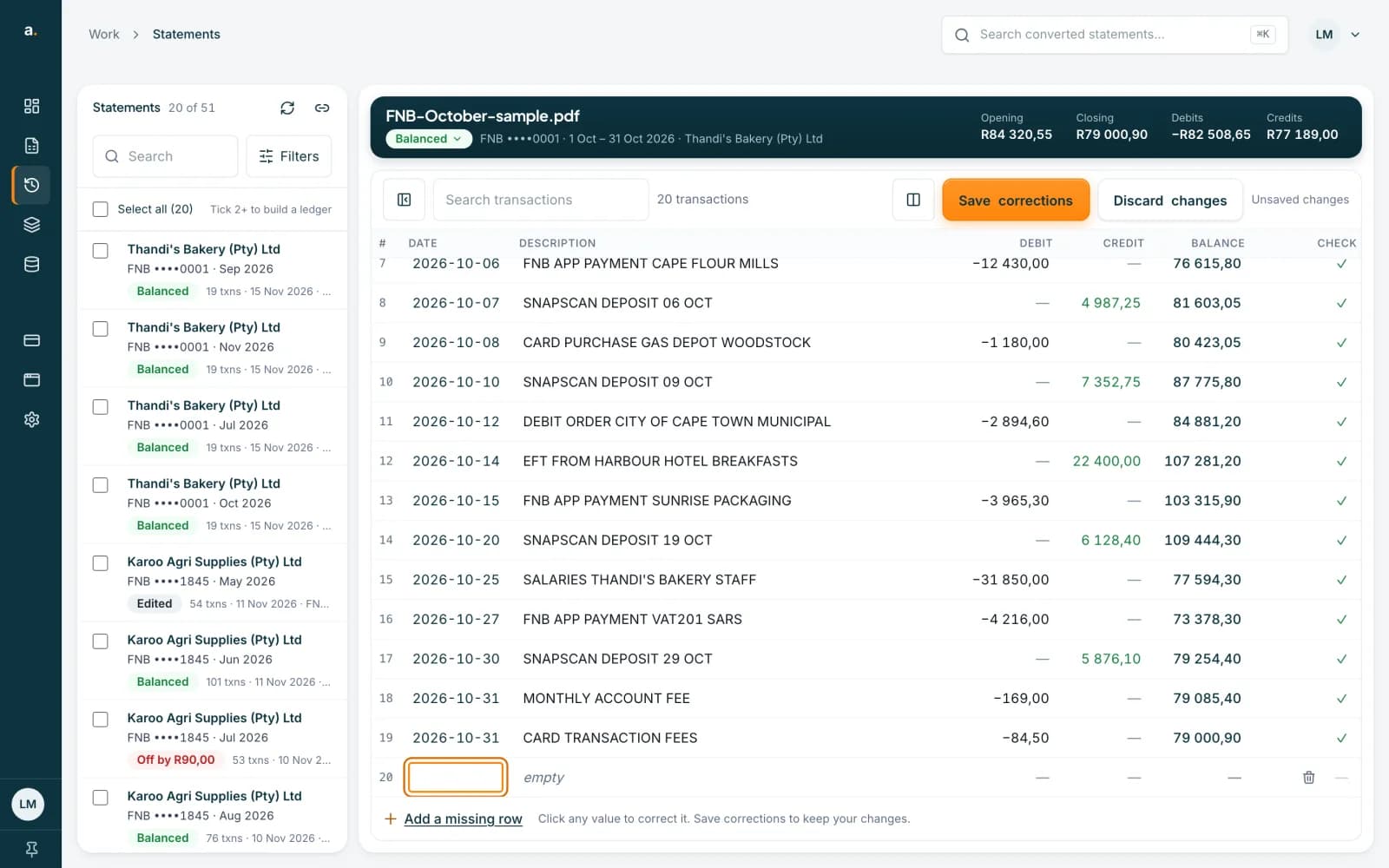
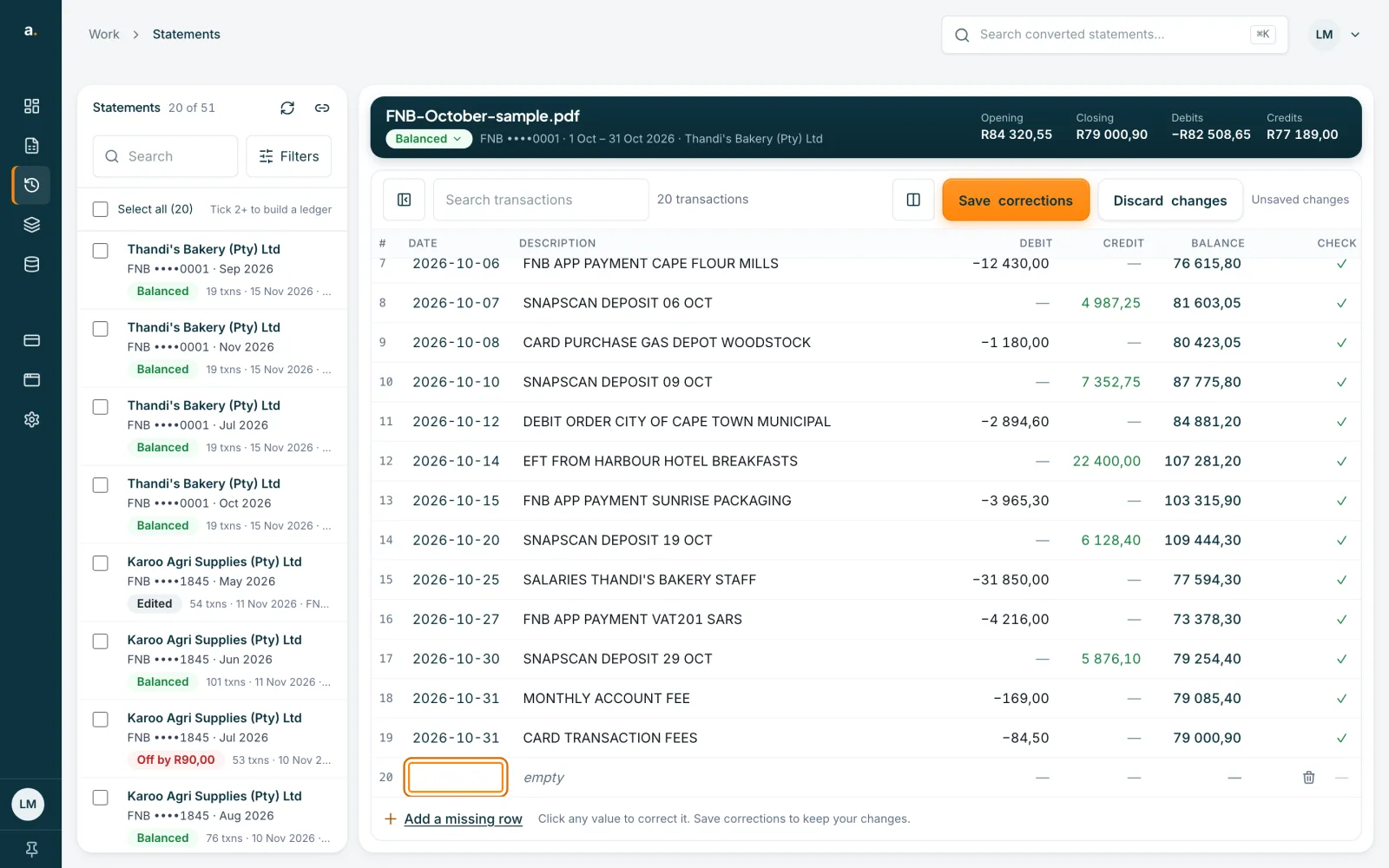
Fill in the new row
A blank row is added at the end of the list and its date box opens. Type the date, the description, and the amount in Debit or Credit. Add the Balance if the statement prints one. Press Enter to keep a value, or Tab to move to the next.
 Open full size screenshot for step 2
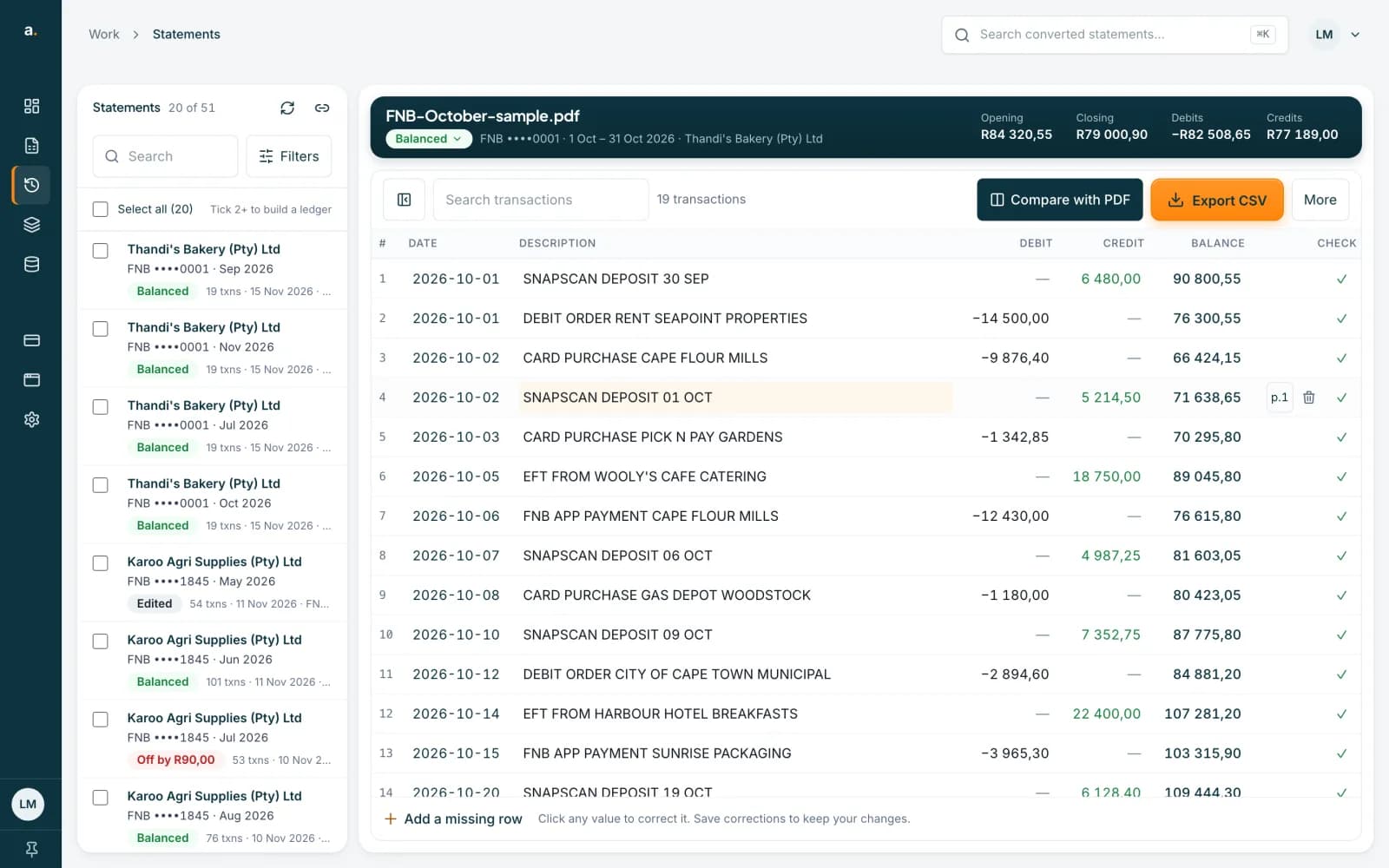
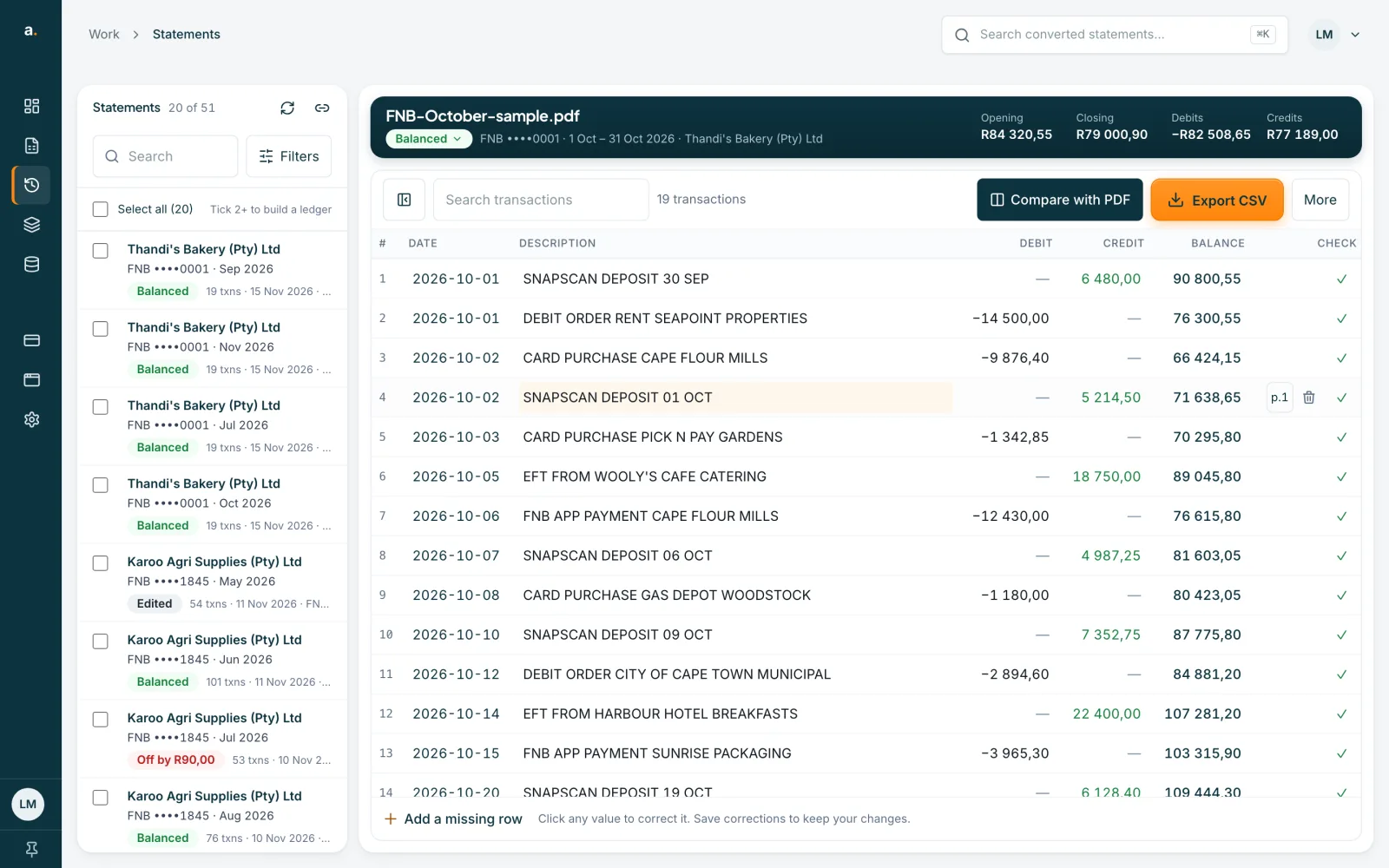
Find the bin to delete a row
Point at a row. A page button and a bin appear at the end of the row. The bin is labelled Delete row. Press it to remove an extra or duplicated row. The rows below move up.
 Open full size screenshot for step 3
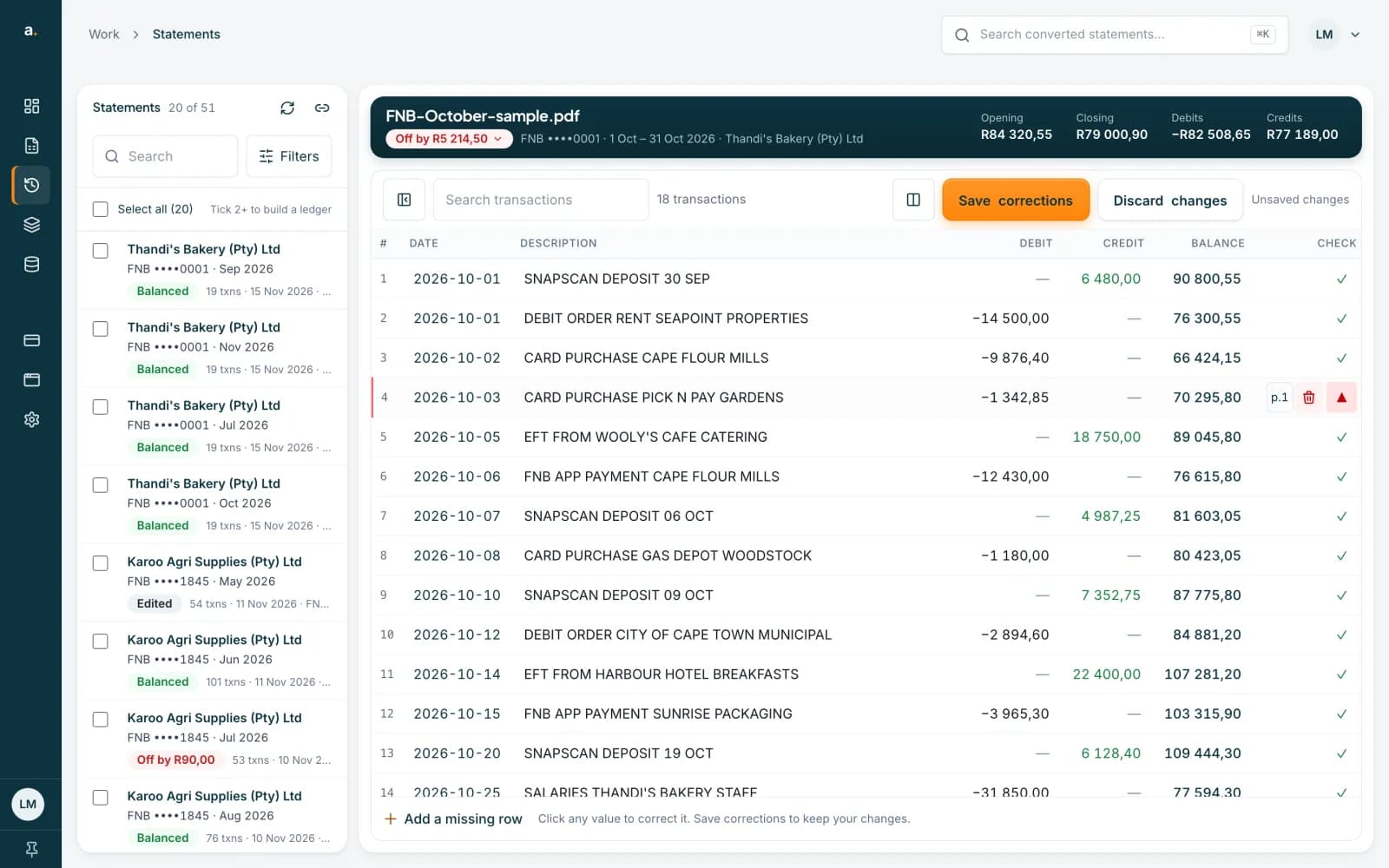
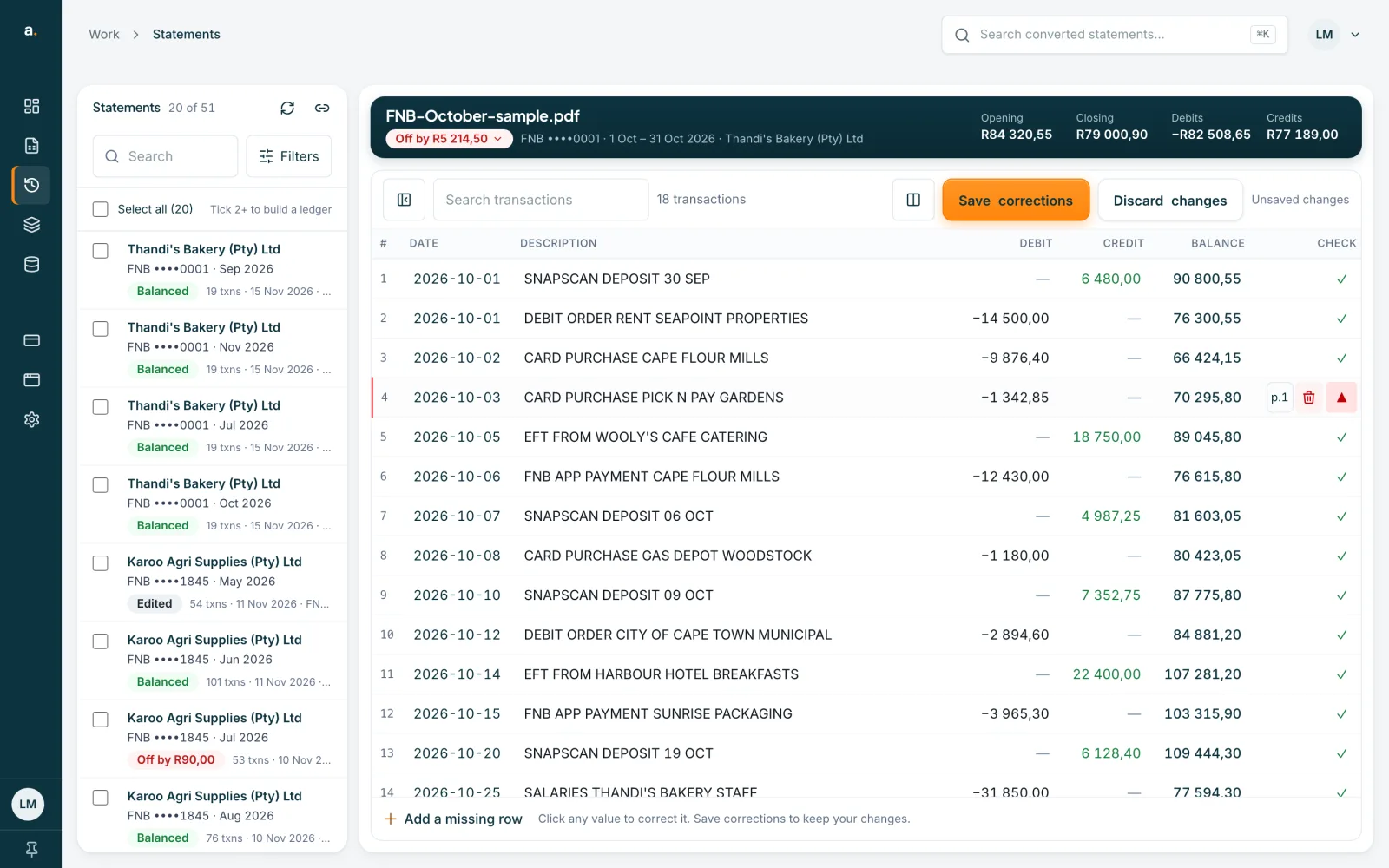
Save corrections
After an add or a delete, the toolbar shows Unsaved changes with Save corrections and Discard changes. Watch the badge. Deleting a real transaction can turn it to Off by. Press Save corrections when the rows are right.
 Open full size screenshot for step 4
Tips
- A row you add has no page button, because it did not come from a page of the PDF.
- Adding a row clears the search box so the new row is in view.
- Every row needs a readable date, or OFX, QIF and the Xero, QuickBooks and Sage exports will refuse it.
- Press Discard changes to undo everything you have not saved.
If something goes wrong
- You deleted the wrong row.
- If you have not saved, press Discard changes. If you have, press Add a missing row and type it back, or use Extract again to read the PDF from scratch.
- You cannot see the bin.
- Point at the row, or tab to it. The bin sits at the end of the row.
- You see Save or discard your changes before downloading.
- Press Save corrections, or Discard changes, and export again.
Related guides
- Edit a statement and save correctionsFix a row that was read wrongly, add a missing row or delete an extra one, then save so your downloads include the changes.
- Fix a statement that is offFind the row that stops a statement balancing, correct it, and save when the badge turns Balanced.
- Compare a statement with its PDFOpen the original PDF beside the transactions to check rows, page by page, while you correct them.