Compare a statement with its PDF
Last reviewed 16 November 2026 · 5 steps
Open the original PDF beside the transactions to check rows, page by page, while you correct them.
Free account
Steps
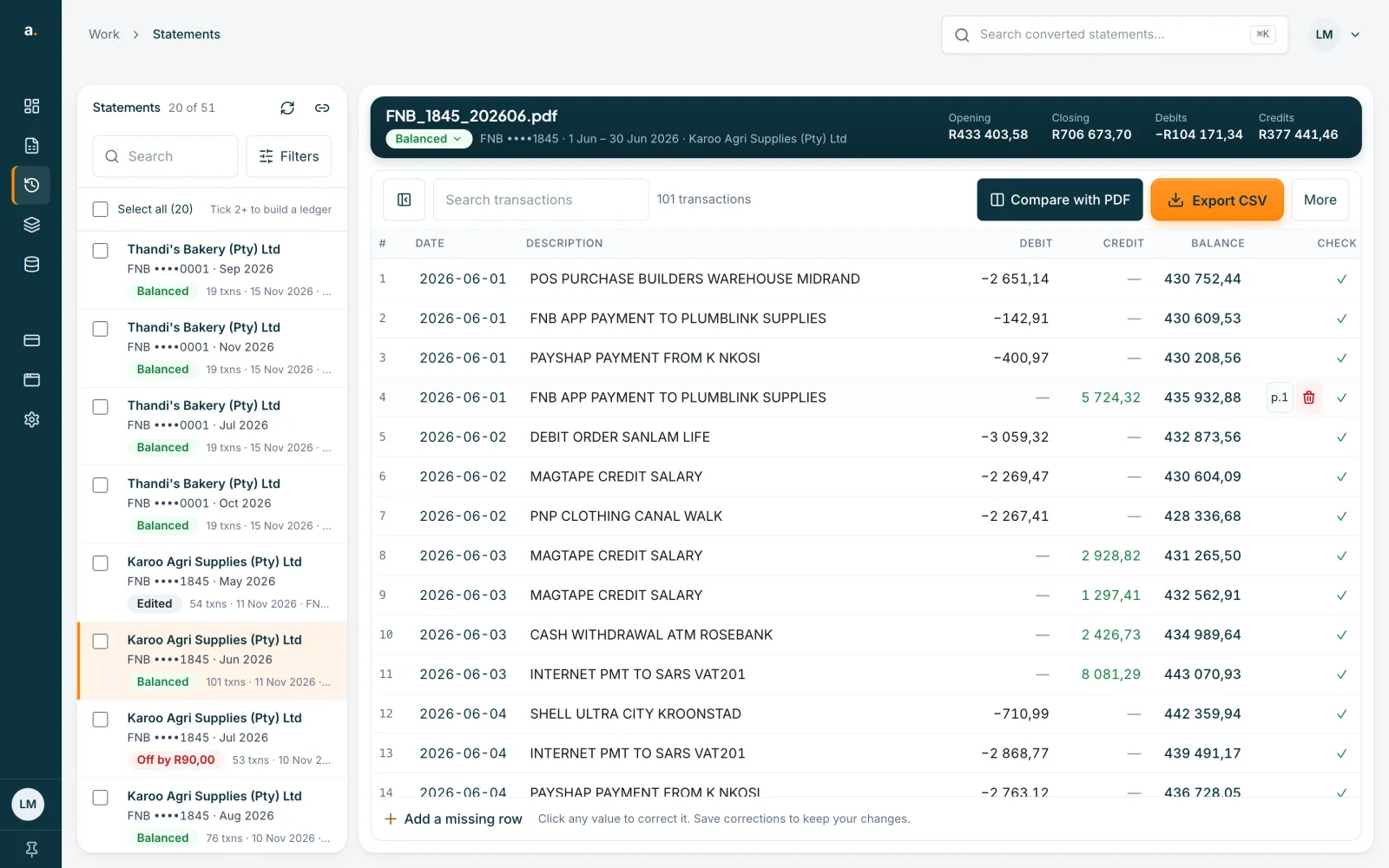
Press Compare with PDF
Open the statement from Statements. Above the transactions, press Compare with PDF, next to Export CSV. On a narrow window the button reads Compare.
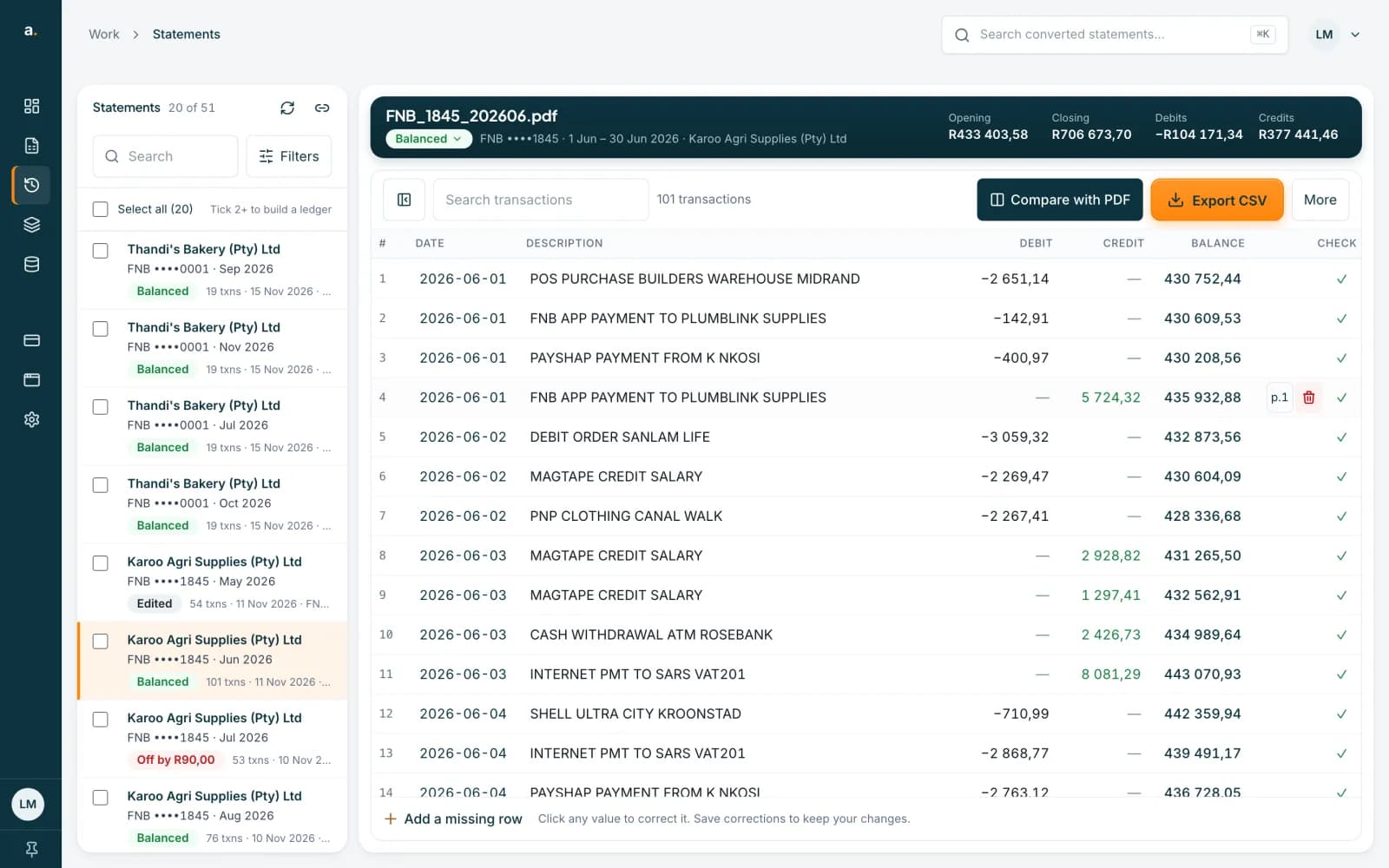 Open full size screenshot for step 1
Read the two sides
The original PDF opens on the left, with the transactions on the right. At the top of the PDF are the previous page and next page arrows, a Page box showing Page 1 of 5, a zoom list (Fit width, 125%, 150%, 200%) and an Open original link that opens the PDF in a new tab.
Resize the two sides
Drag the divider between them. With the divider selected, the left and right arrow keys move it, and Shift makes bigger steps. Double-click it to reset.
Correct rows while you compare
Edit values on the right as usual. Save corrections and Discard changes are in the header, and the balance badge updates as you edit. The arrows at the top right move to the previous or next statement in your list.
Close the comparison
Press the cross at the top left, called Close PDF comparison, or press Esc. You are back to the full table.
Tips
- On a phone or tablet there is no side-by-side. Press Original PDF to see the PDF full width, then Back to transactions to return.
- Press the page button on a row to jump the PDF to that row's page. See the guide on page attribution.
- With unsaved edits, Compare shows as an icon instead of its name.
If something goes wrong
- The button says No original PDF.
- The PDF was not archived for this statement. See the guide on statements without an original PDF.
- The PDF does not load.
- The page says The PDF preview is unavailable. Press Open original to view it in a new tab, or close and reopen the comparison.
- A page will not draw.
- The page says This page could not be rendered. Try another page, or open the original PDF.
Related guides
- See which PDF page a row came fromUse the page button on a row to jump the original PDF to the page the row was read from.
- What to do when the original PDF is not archivedSome statements are saved without their PDF. You can still edit and export them, and you can upload the file again to read it afresh.
- Fix a statement that is offFind the row that stops a statement balancing, correct it, and save when the badge turns Balanced.