See which PDF page a row came from
Last reviewed 16 November 2026 · 4 steps
Use the page button on a row to jump the original PDF to the page the row was read from.
Free account
Steps
Point at a row
Open a statement from Statements and point at any row. A small page button appears at the end of the row, showing the page the row was read from, for example p.1 or p.3. On a wider table it reads Page 3.
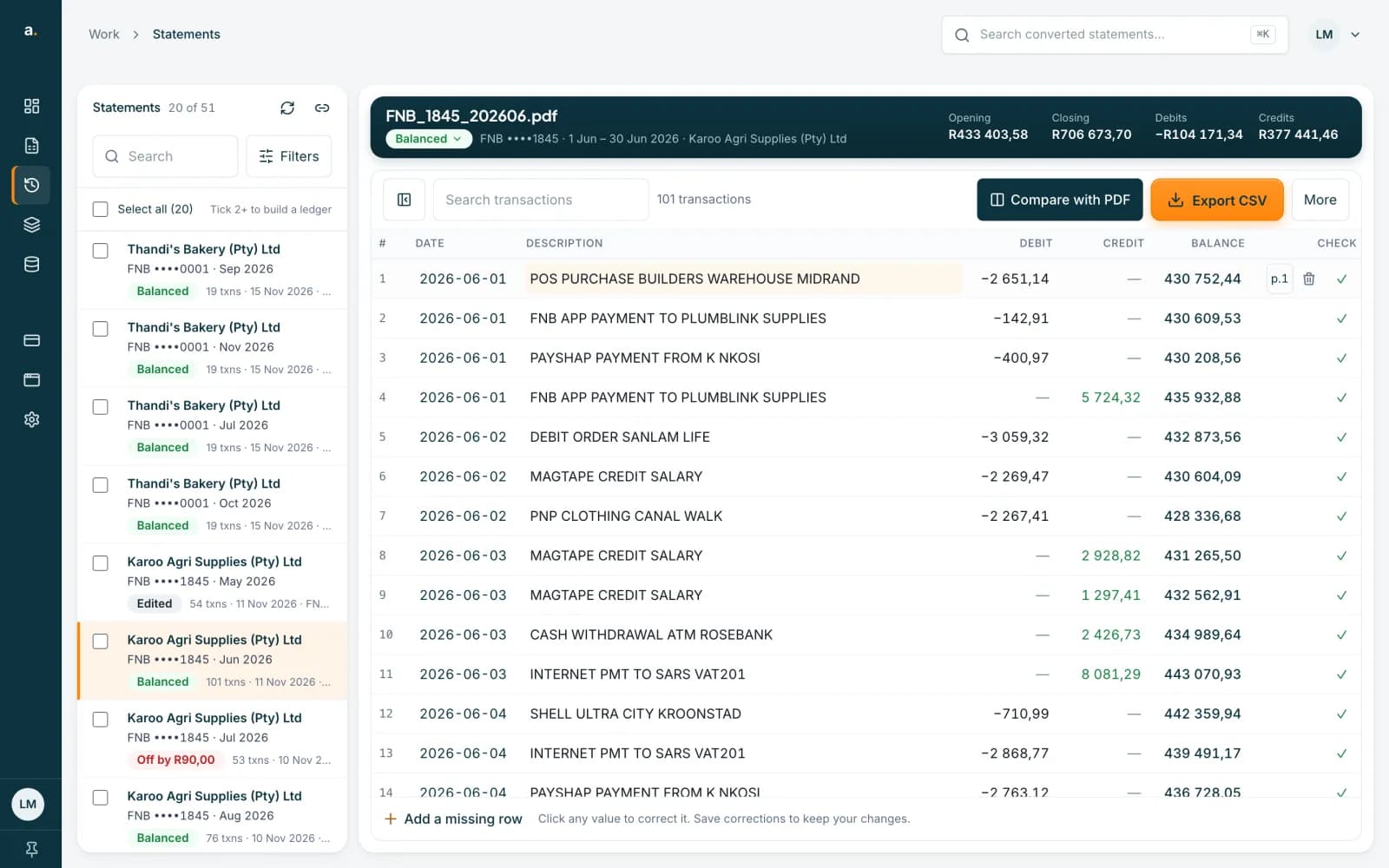 Open full size screenshot for step 1
Press the page button
The original PDF opens beside the transactions, on that page. The Page box shows the page, for example Page 3 of 5.
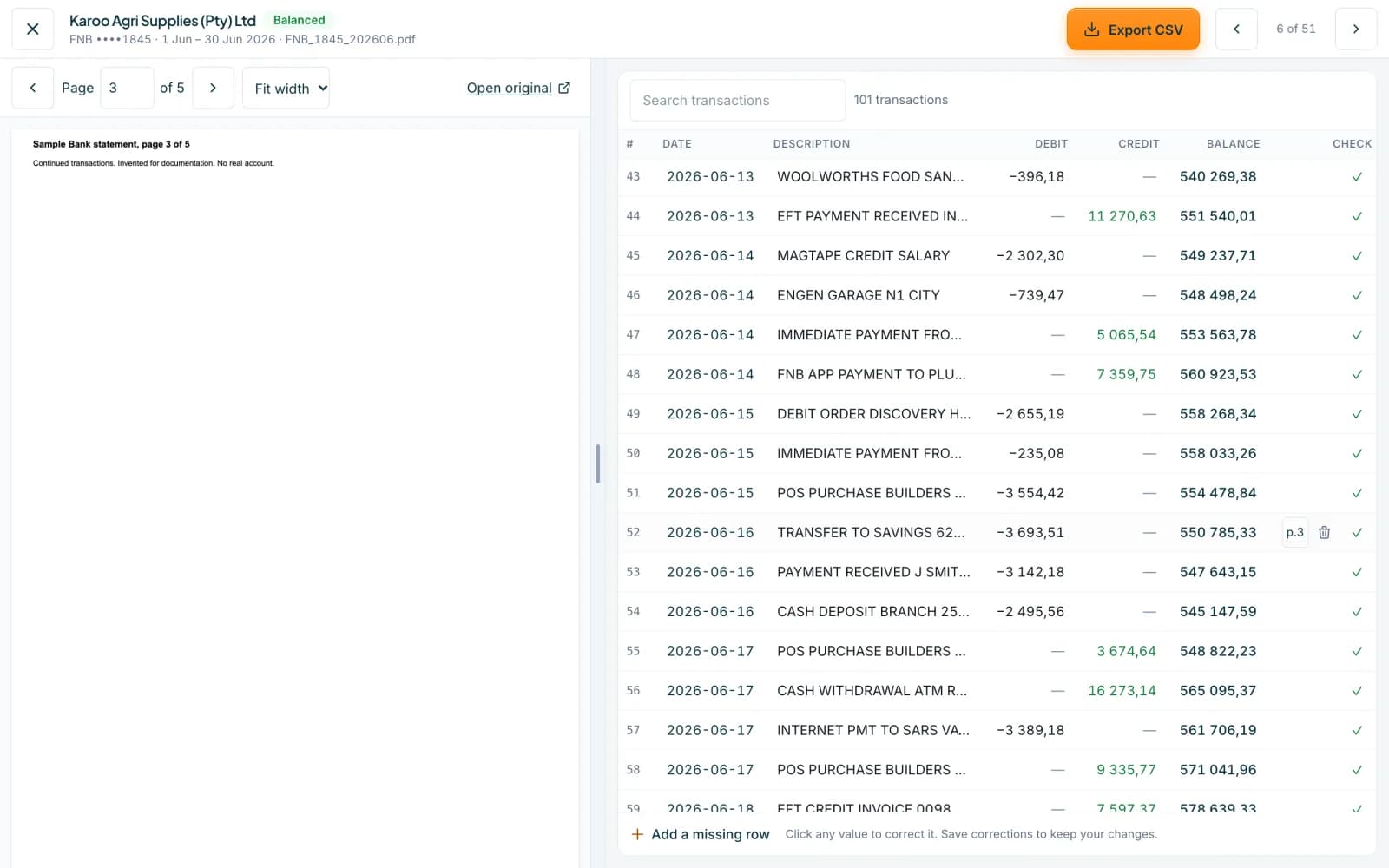 Open full size screenshot for step 2
Check the row against the page
Find the row on the page and compare the date, description and amount. Correct it in the table if needed, then press Save corrections.
Jump from a flagged row
In Balance checks, press Jump to row on a suggestion. Accounter scrolls to the row and shows its page in the PDF.
Tips
- The Page check chips in Balance checks, such as Page 1, show which pages have a balance problem.
- A row you added by hand has no page button.
- Not every statement records a page for every row. Where a row has no page button, use Compare with PDF and move through the pages with the arrows.
- The PDF has to be archived. Without it you will see No original PDF instead.
If something goes wrong
- There is no page button on a row.
- The row was added by hand, or the page was not recorded. Use Compare with PDF instead.
- You see No original PDF.
- The original was not archived. Upload the file again to read it, see the guide on statements without an original PDF.
Related guides
- Compare a statement with its PDFOpen the original PDF beside the transactions to check rows, page by page, while you correct them.
- Fix a statement that is offFind the row that stops a statement balancing, correct it, and save when the badge turns Balanced.
- What to do when the original PDF is not archivedSome statements are saved without their PDF. You can still edit and export them, and you can upload the file again to read it afresh.