Set up and save your own CSV preset
Last reviewed 16 November 2026 · 6 steps
Pick a built-in preset, choose and reorder columns, set date and number formats, and save your own preset.
Free account
Steps
Open Export options
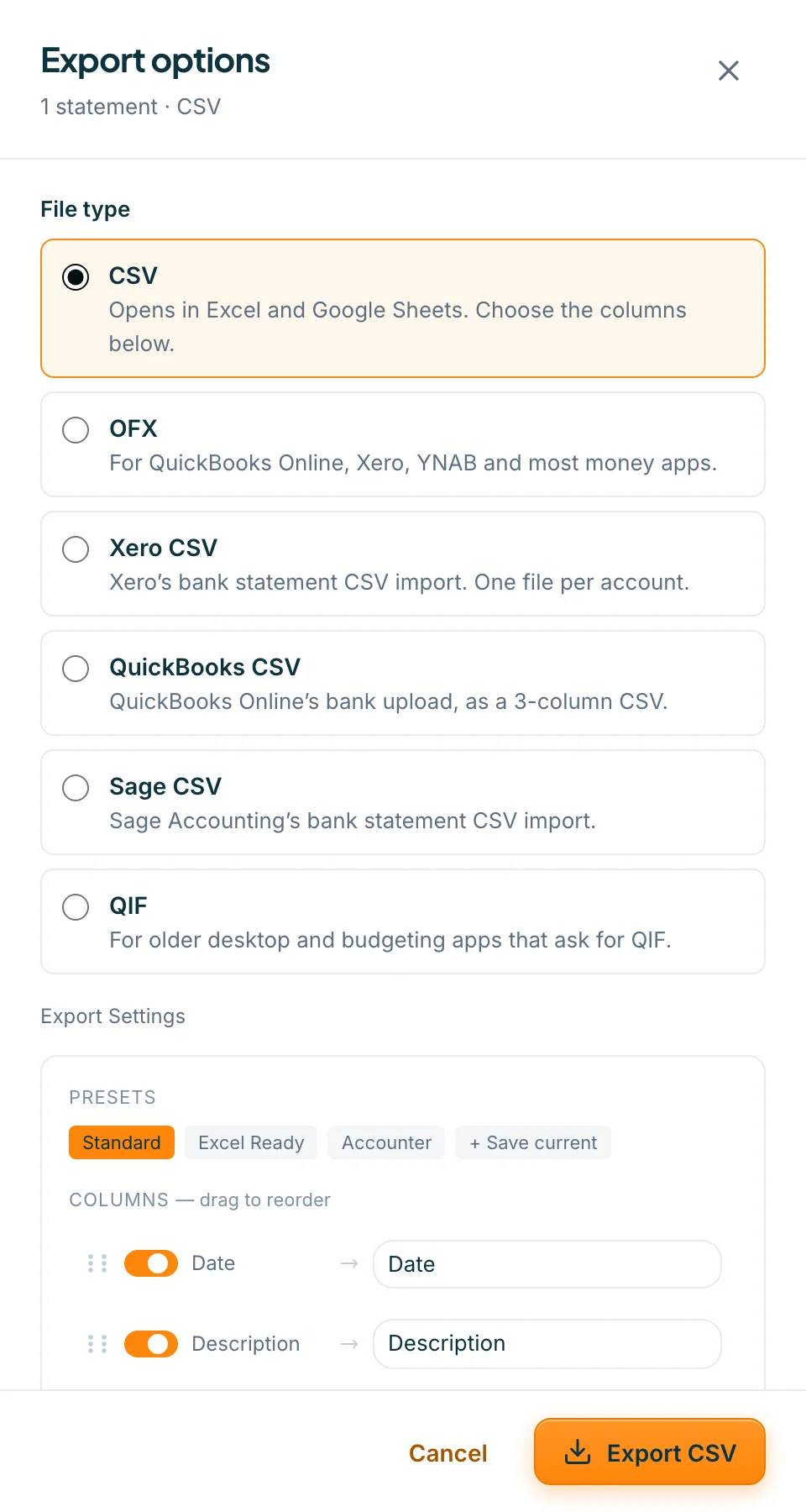
Open a statement and press Export CSV. The Export options panel opens. Under File type, choose CSV. Scroll to Export Settings.
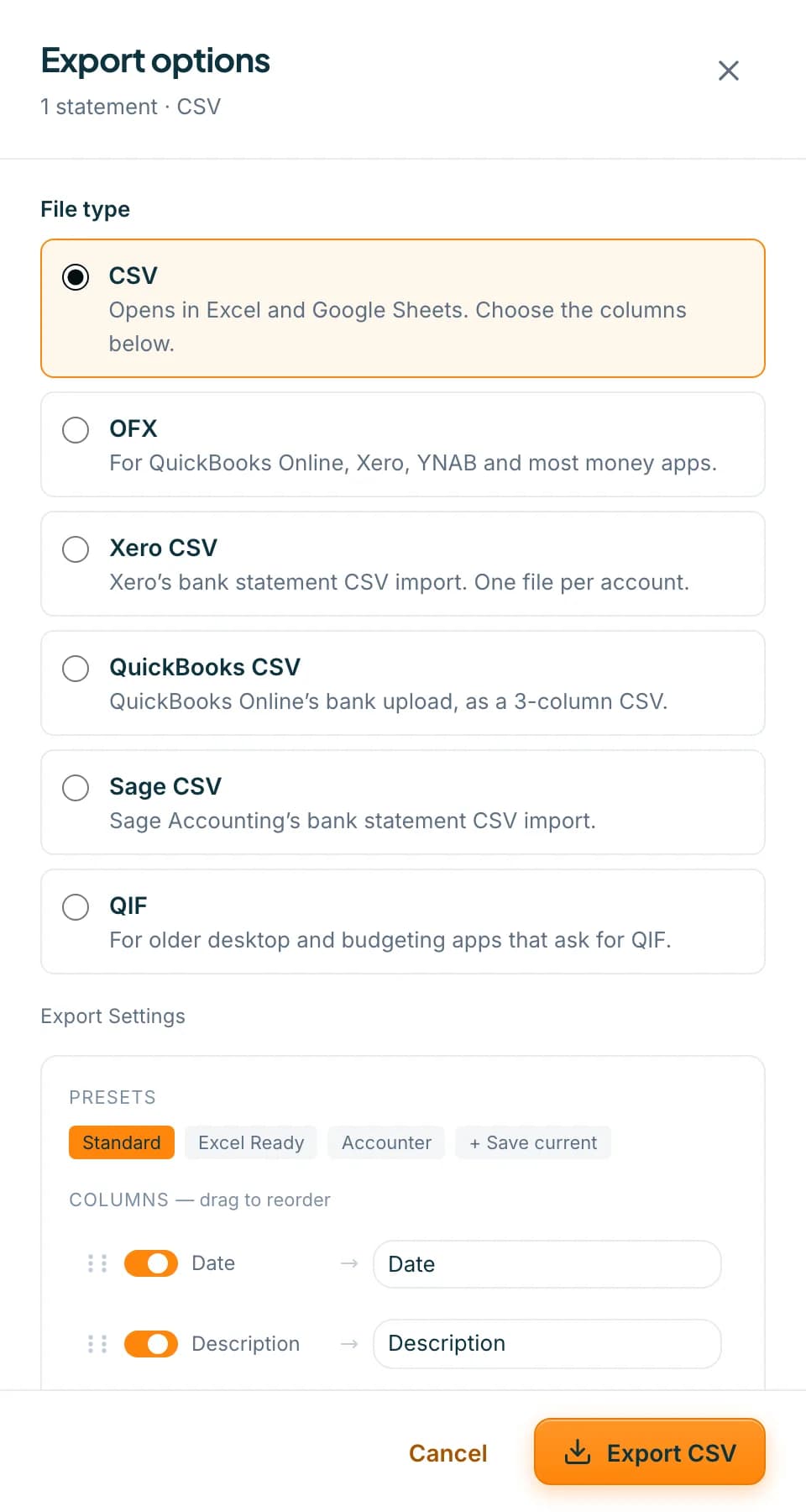 Open full size screenshot for step 1
Choose a preset
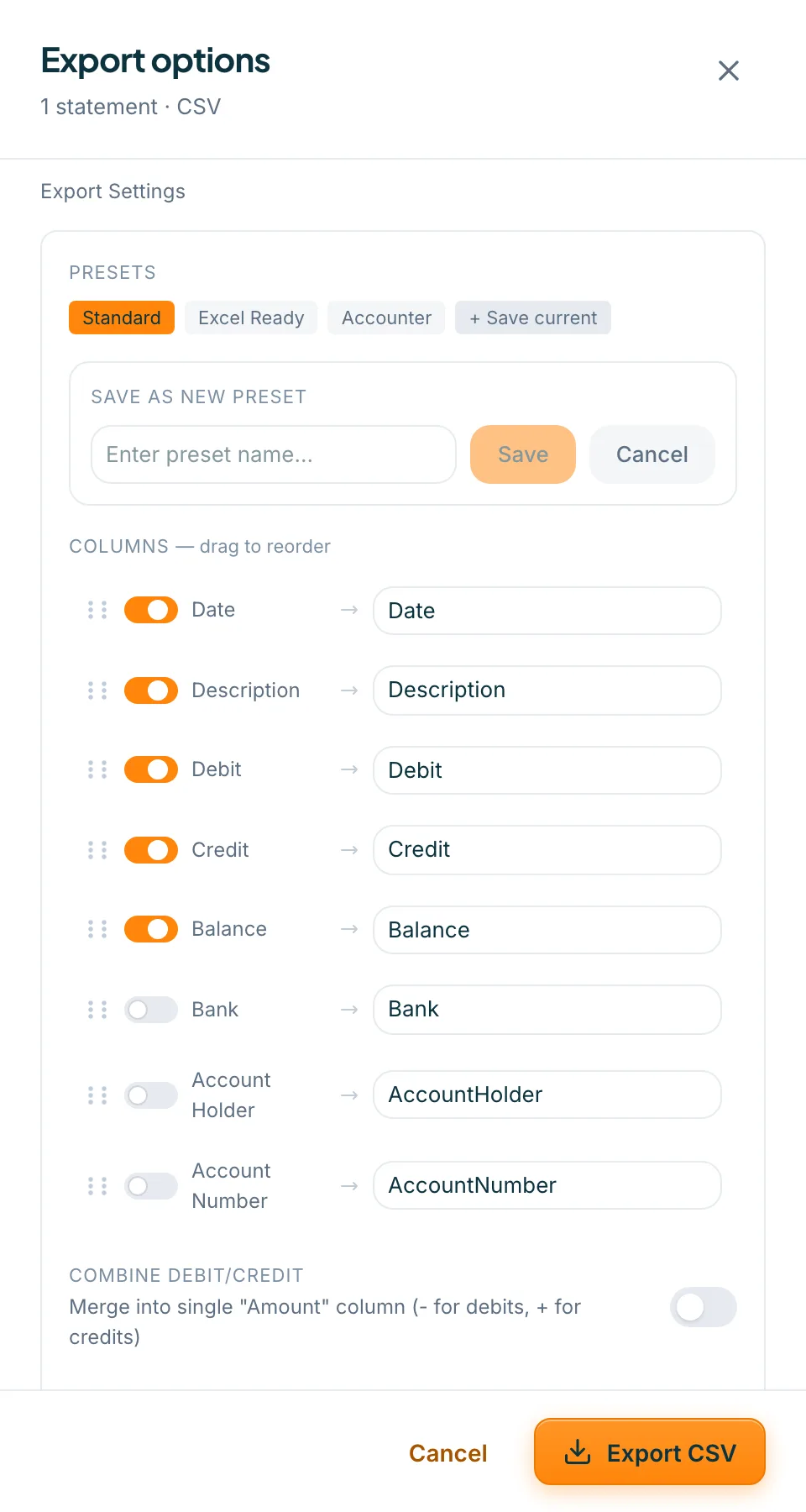
Under Presets, choose Standard (Date, Description, Debit, Credit and Balance), Excel Ready (one Amount column, with Bank, AccountHolder and AccountNumber, dates as YYYY-MM-DD) or Accounter (Date, Description and Amount).
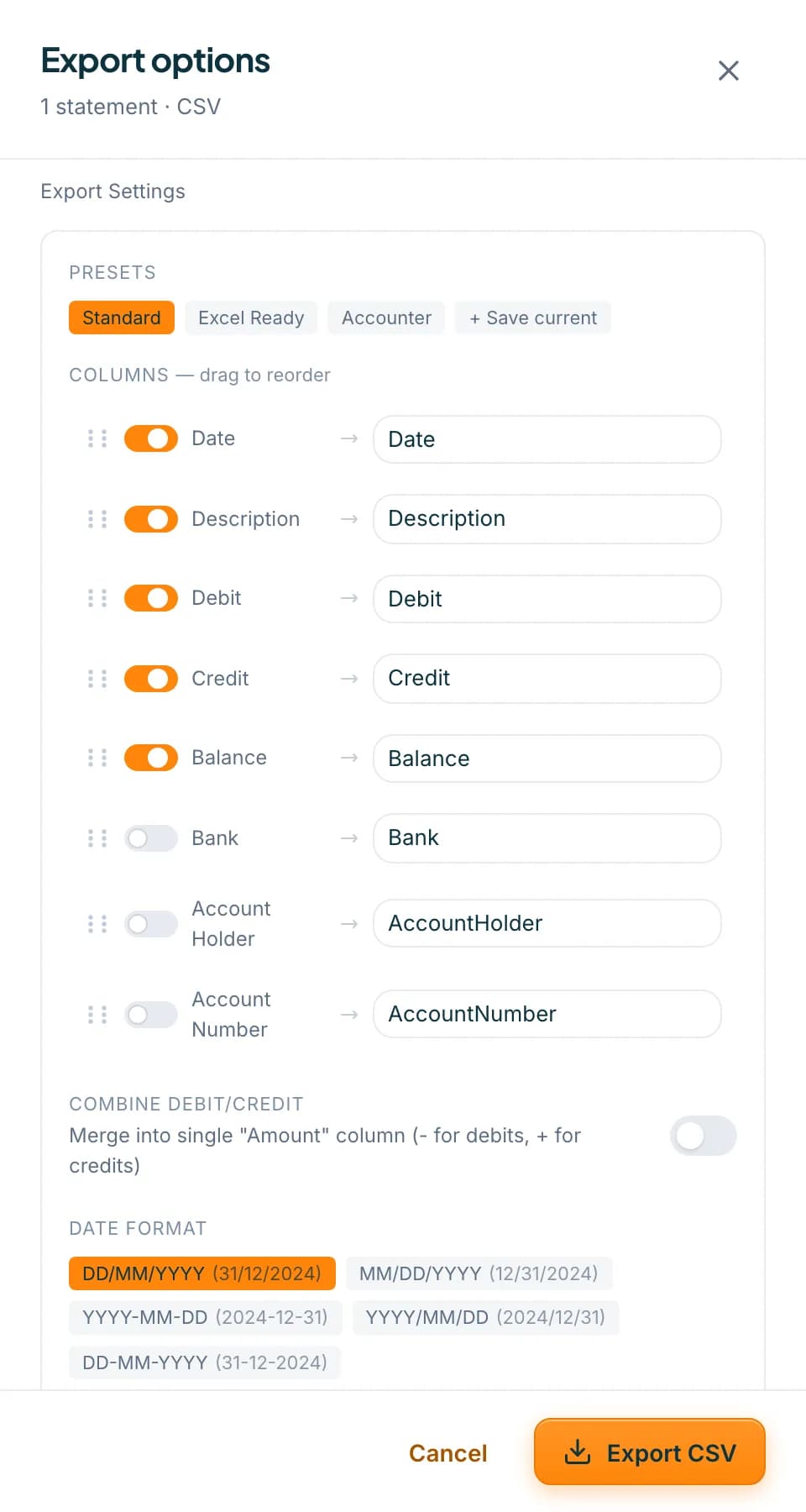 Open full size screenshot for step 2
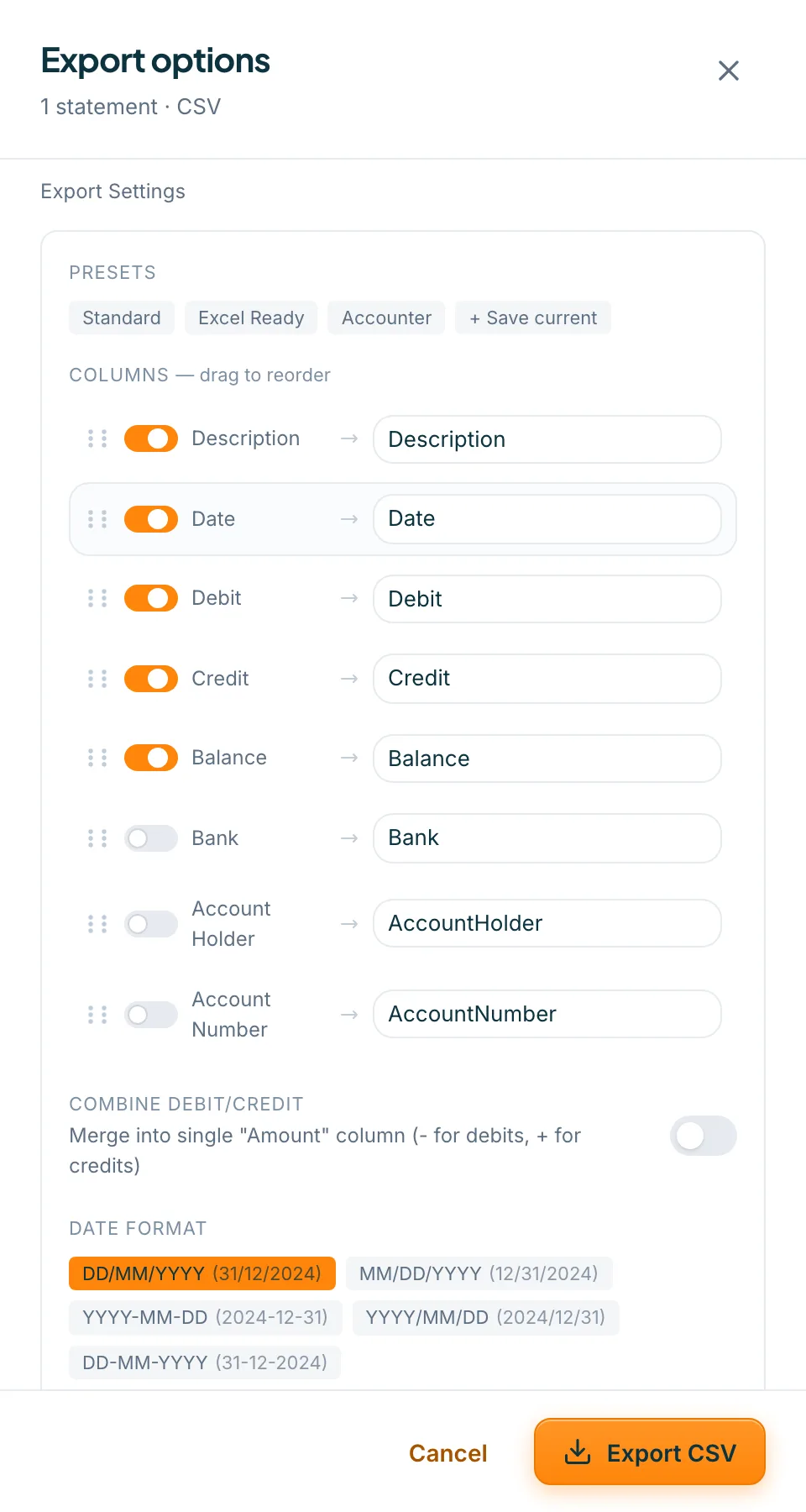
Switch columns on or off, rename and reorder
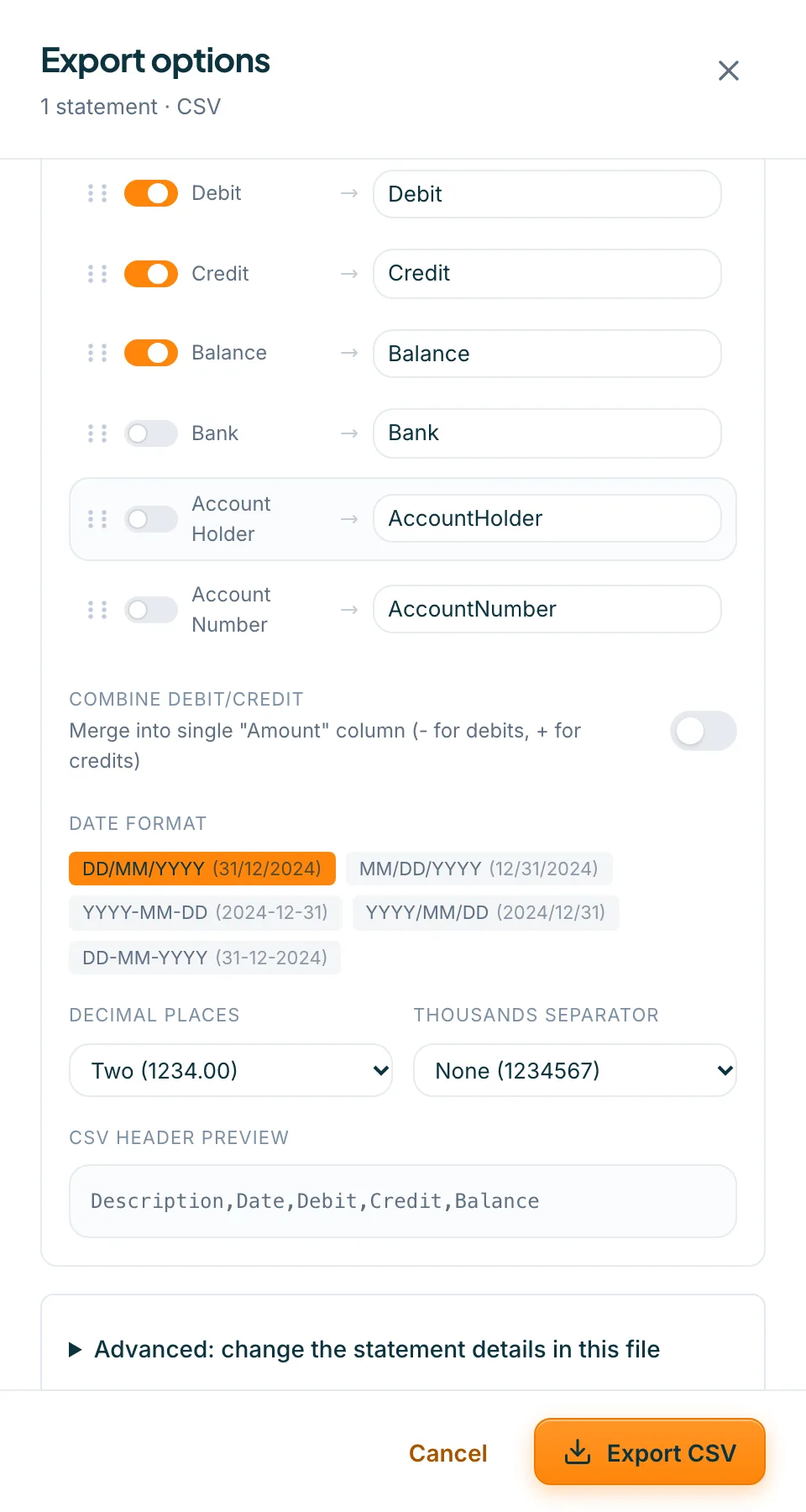
Under Columns, use each switch to include a column and type a new Header name. Drag a column by its handle to change the order. The file uses the new order.
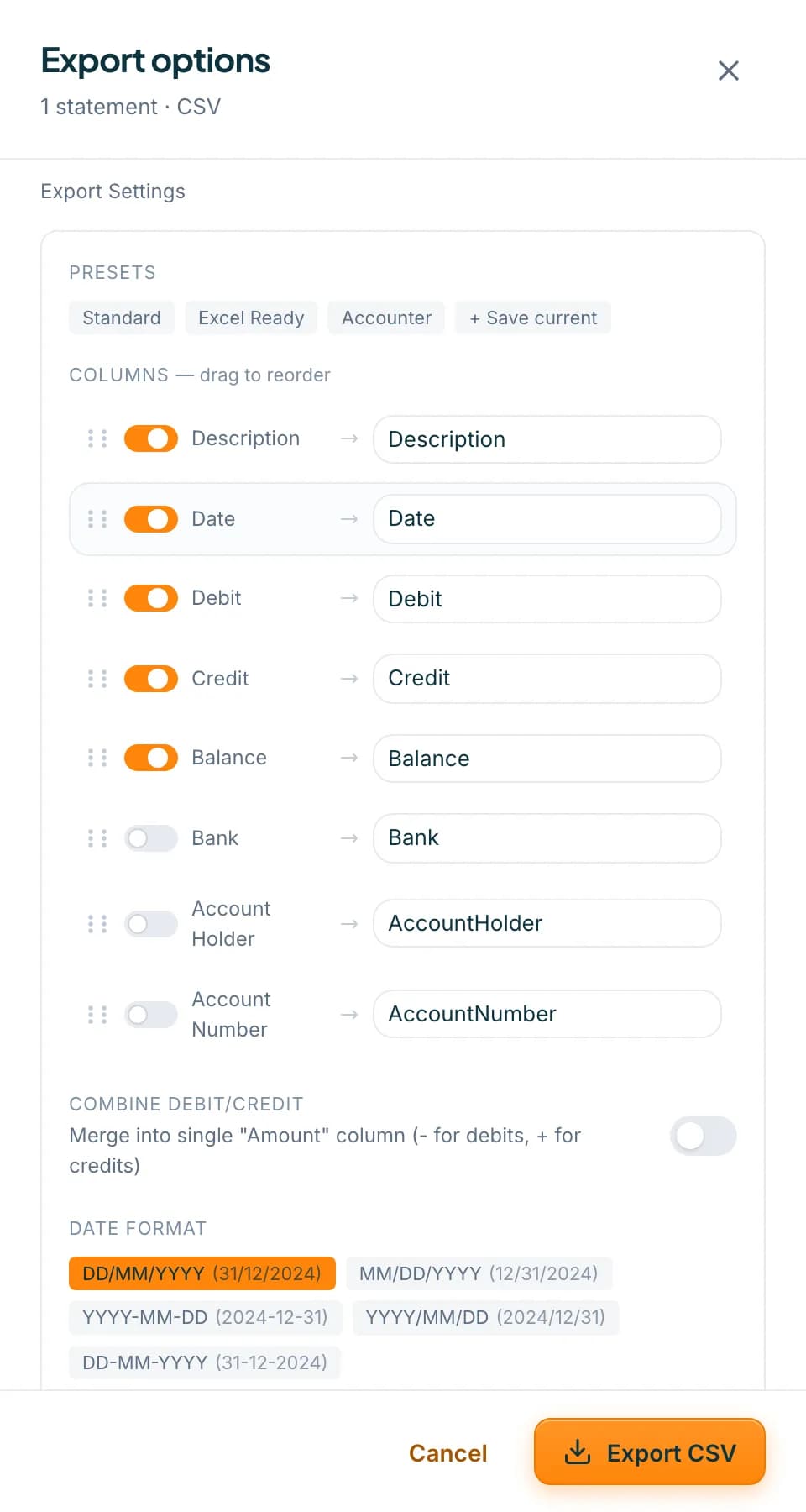 Open full size screenshot for step 3
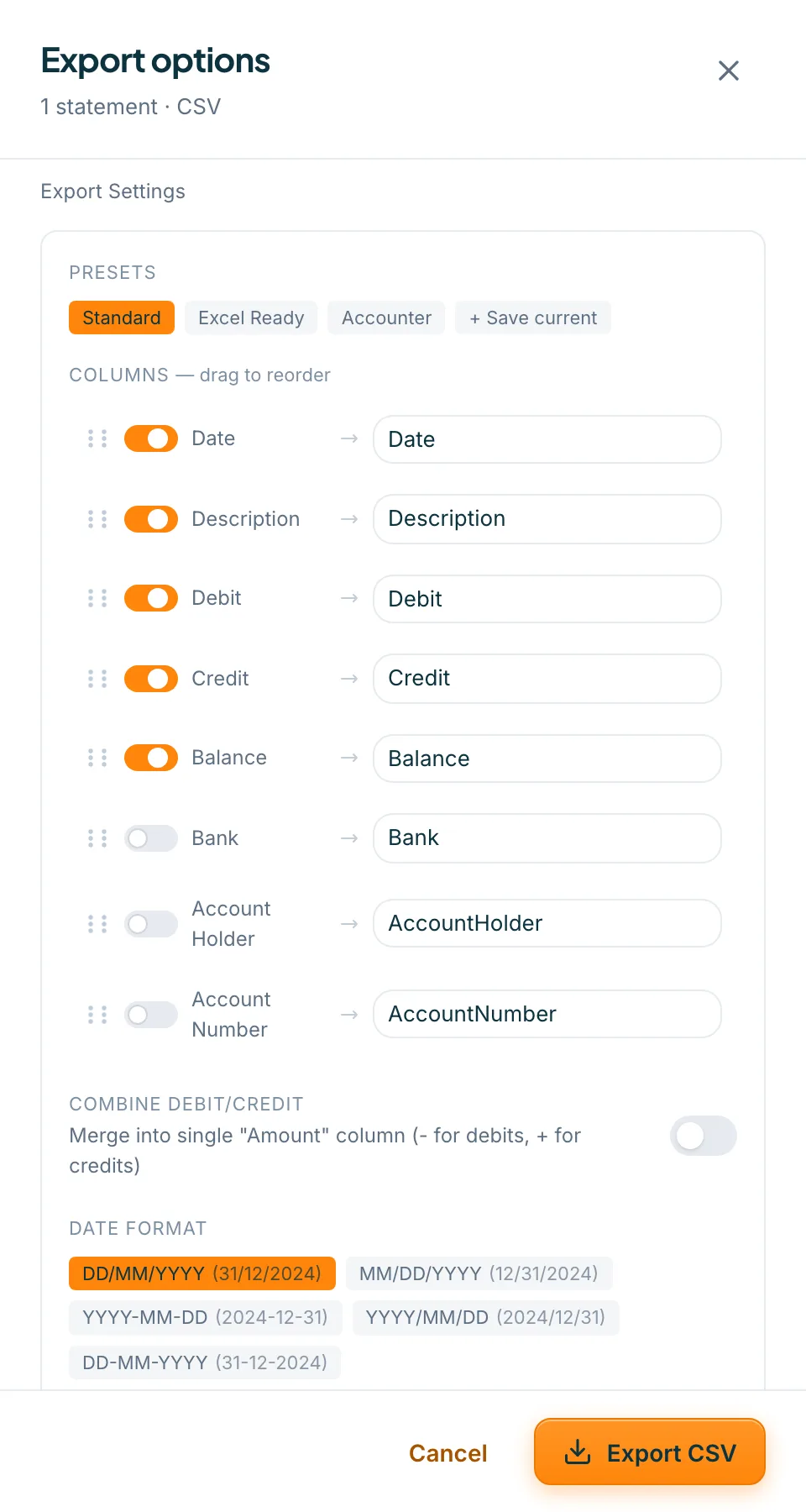
Set the formats
Combine Debit/Credit merges them into one Amount column, with debits negative. Choose a date format, Decimal places and a Thousands separator. Fees can be a separate column, individual line items or a total row. The CSV header preview shows the exact header row.
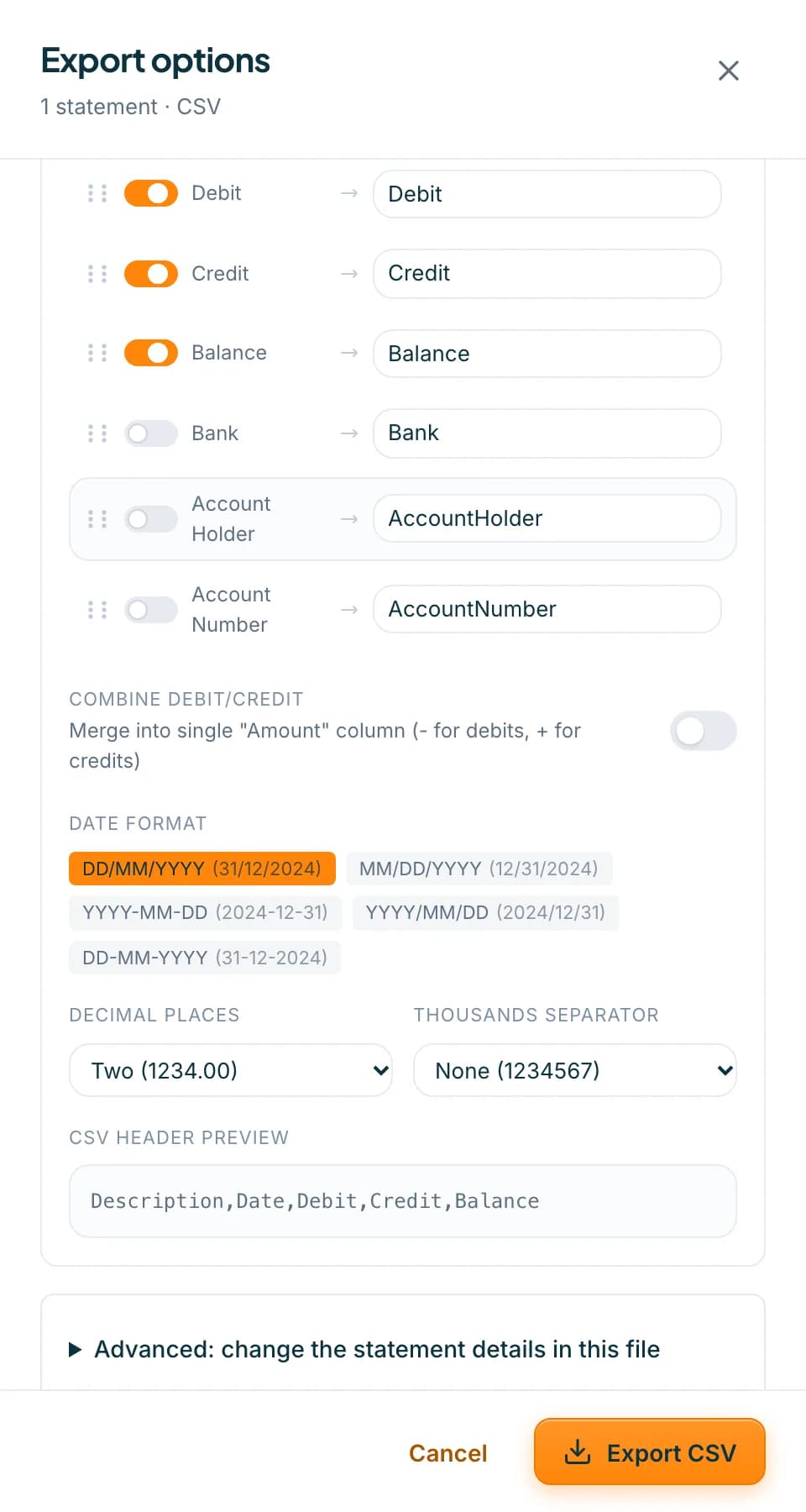 Open full size screenshot for step 4
Save it as a preset
Press + Save current. Under Save as new preset, type a name and press Save. Your preset appears beside the built-in ones. Select it and press Delete to remove it.
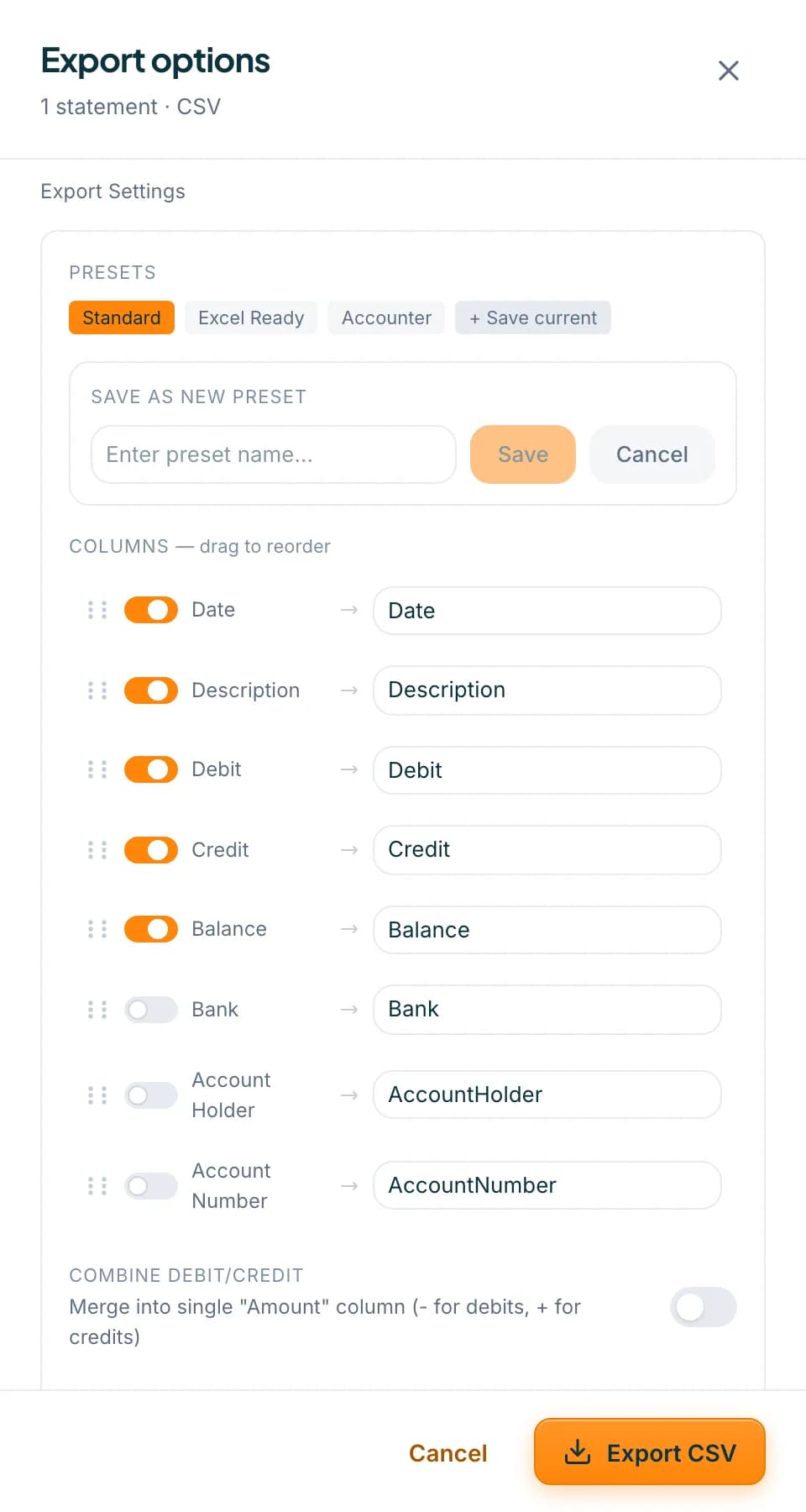 Open full size screenshot for step 5
Press Export CSV
Press Export CSV. The file follows your settings.
Tips
- Your settings and presets are kept in this browser, so they will not follow you to another browser.
- Changing a column after choosing a preset unselects it. Save it under a new name to keep the change.
- OFX, QIF and the Xero, QuickBooks and Sage CSVs have a fixed layout, so presets apply to CSV only.
- Cells that start with =, @, + or - are written with an apostrophe in front, so a spreadsheet does not treat them as formulas.
If something goes wrong
- Your preset has gone.
- Presets live in your browser. Clearing browser data removes them. Save the preset again.
- Save is switched off.
- Type a name for the preset first.
- The Fees column is missing.
- It shows only when the statement has fees and fees are set to a separate column.
Related guides
- Choose your export file type and columnsDownload a statement as CSV, OFX, QIF or an accounting-app CSV, and set the columns, date format and presets for your CSV.
- Export a statement as OFX or QIFDownload a statement as an OFX or QIF file for QuickBooks Online, Xero, YNAB and other money apps.
- Change the bank or account details in a CSVReplace the bank, account holder or account number written into one statement's CSV, without changing the saved statement.