Export a statement as OFX or QIF
Last reviewed 16 November 2026 · 5 steps
Download a statement as an OFX or QIF file for QuickBooks Online, Xero, YNAB and other money apps.
Free account
Steps
Save your corrections and press Export CSV
Open the statement. Press Save corrections if you have edited it. Then press Export CSV. The Export options panel opens.
Choose OFX
Under File type, choose OFX. It says For QuickBooks Online, Xero, YNAB and most money apps. OFX has one layout, so there are no columns to choose. The button reads Export OFX.
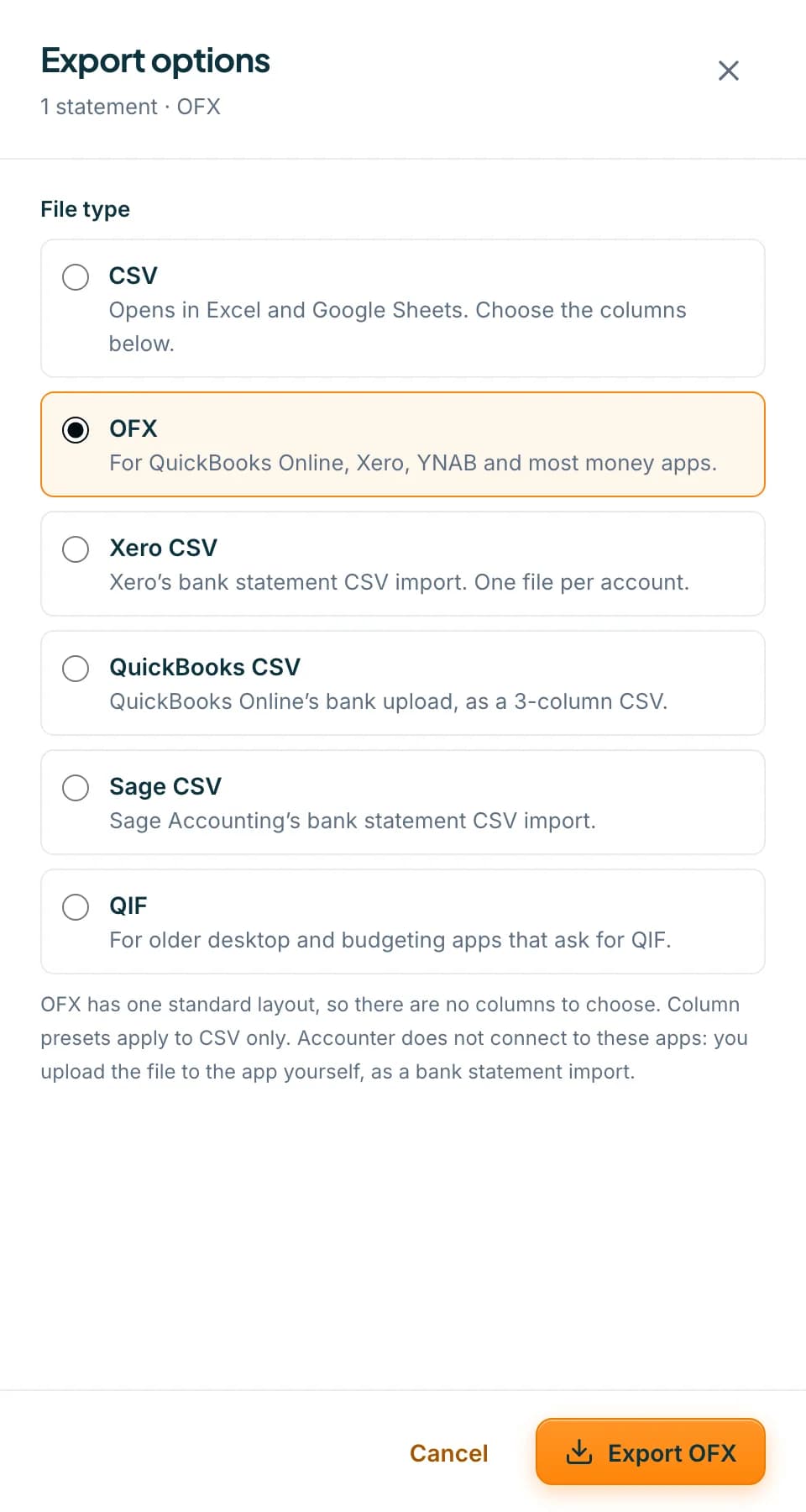 Open full size screenshot for step 2
Or choose QIF
QIF is for older desktop and budgeting apps. Under Dates in the file, choose Day/month/year (South Africa, UK) or Month/day/year (US-made apps), whichever your app expects. The button reads Export QIF.
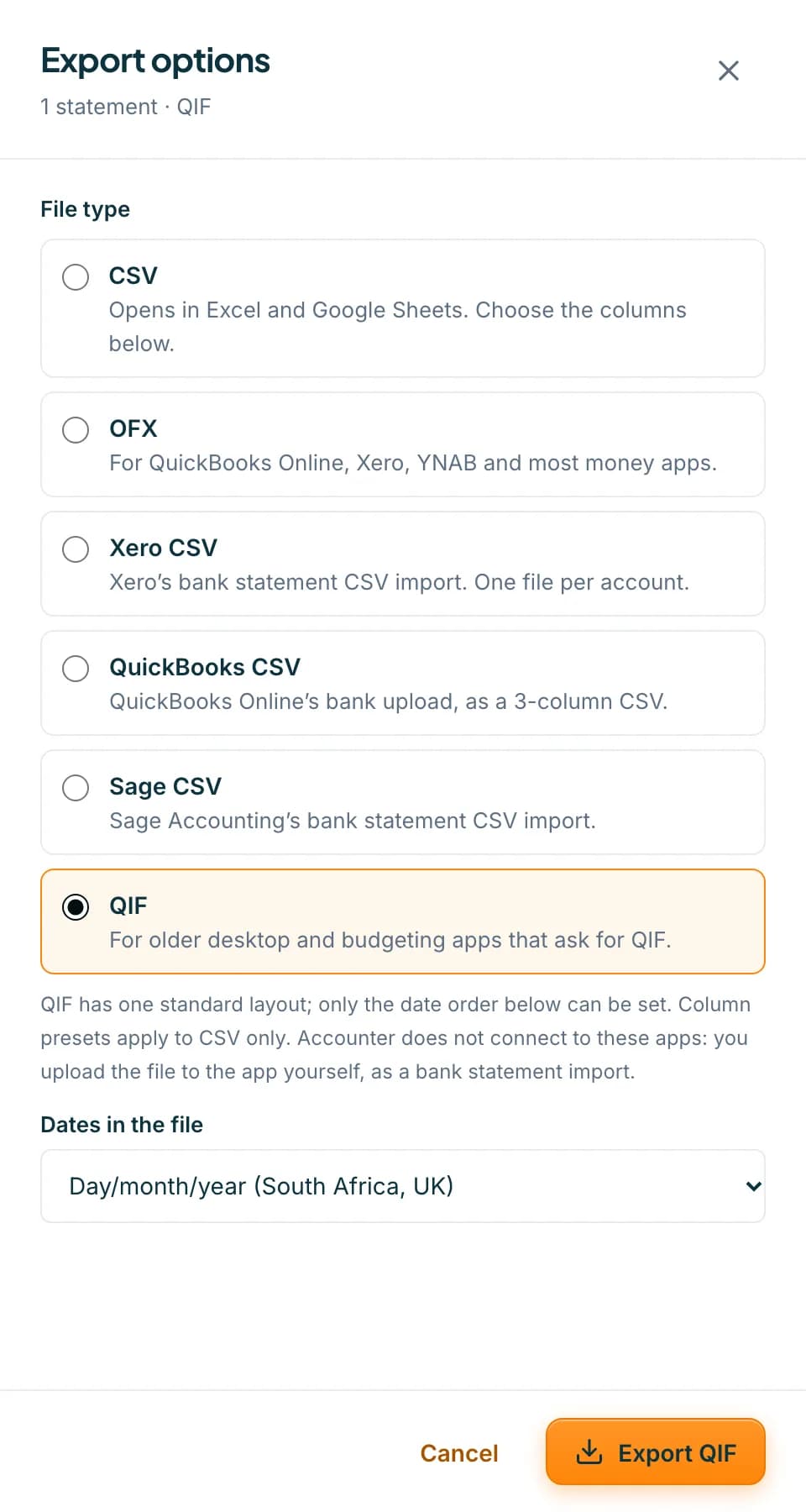 Open full size screenshot for step 3
Press the export button
The file downloads. Each account is its own file. Where a bank's fees change the running balance, a fee appears as its own row starting [Bank Fee].
Import the file in your software
Accounter does not connect to these apps. In your software, open the bank account and use its bank statement import to upload the file.
Tips
- For several statements, tick them and press Download all. With OFX or QIF the button reads Download one OFX per account, and several accounts come as a zip.
- Rows repeated on the next statement are left out of a multi-statement download.
- Accounter makes plain OFX. It does not make QBO or QFX files.
- Accounter remembers the last file type you chose in this browser.
If something goes wrong
- The export says the date on a row could not be read.
- Fix the date in the table, as the message says, then download again. Each row needs a readable date.
- You see Save or discard your changes before downloading.
- Press Save corrections, or Discard changes, and export again.
- Dates look swapped after import.
- For QIF, export again with the other date order. For OFX, check the import settings of your software.
Related guides
- Choose your export file type and columnsDownload a statement as CSV, OFX, QIF or an accounting-app CSV, and set the columns, date format and presets for your CSV.
- Export a statement to Xero, QuickBooks or SageDownload a converted statement as a Xero, QuickBooks or Sage CSV, then upload it to your accounting software as a bank statement import.
- Download several statements at onceTick statements in the list, then download them as one CSV, as a zip of CSVs, or in OFX, QIF or an accounting-app format.