Download your Pastel data as CSV files
Last reviewed 16 November 2026 · 4 steps
Download every table as a CSV zip, the import pack for the last two financial years, or a single table.
Free account
Steps
Open a data set that is Ready
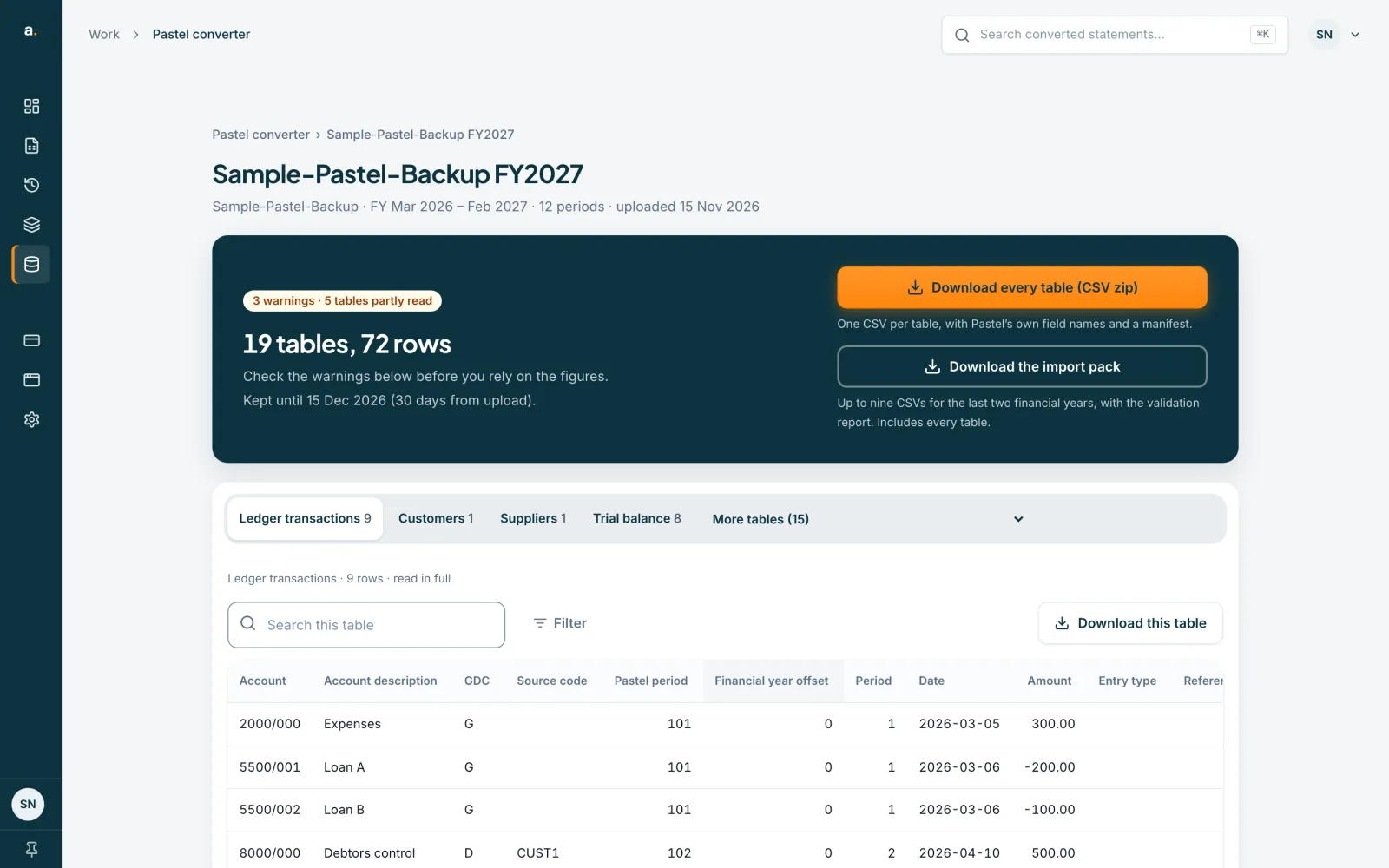
In the Pastel converter, press the name of a data set that says Ready. Two downloads sit near the top of the page.
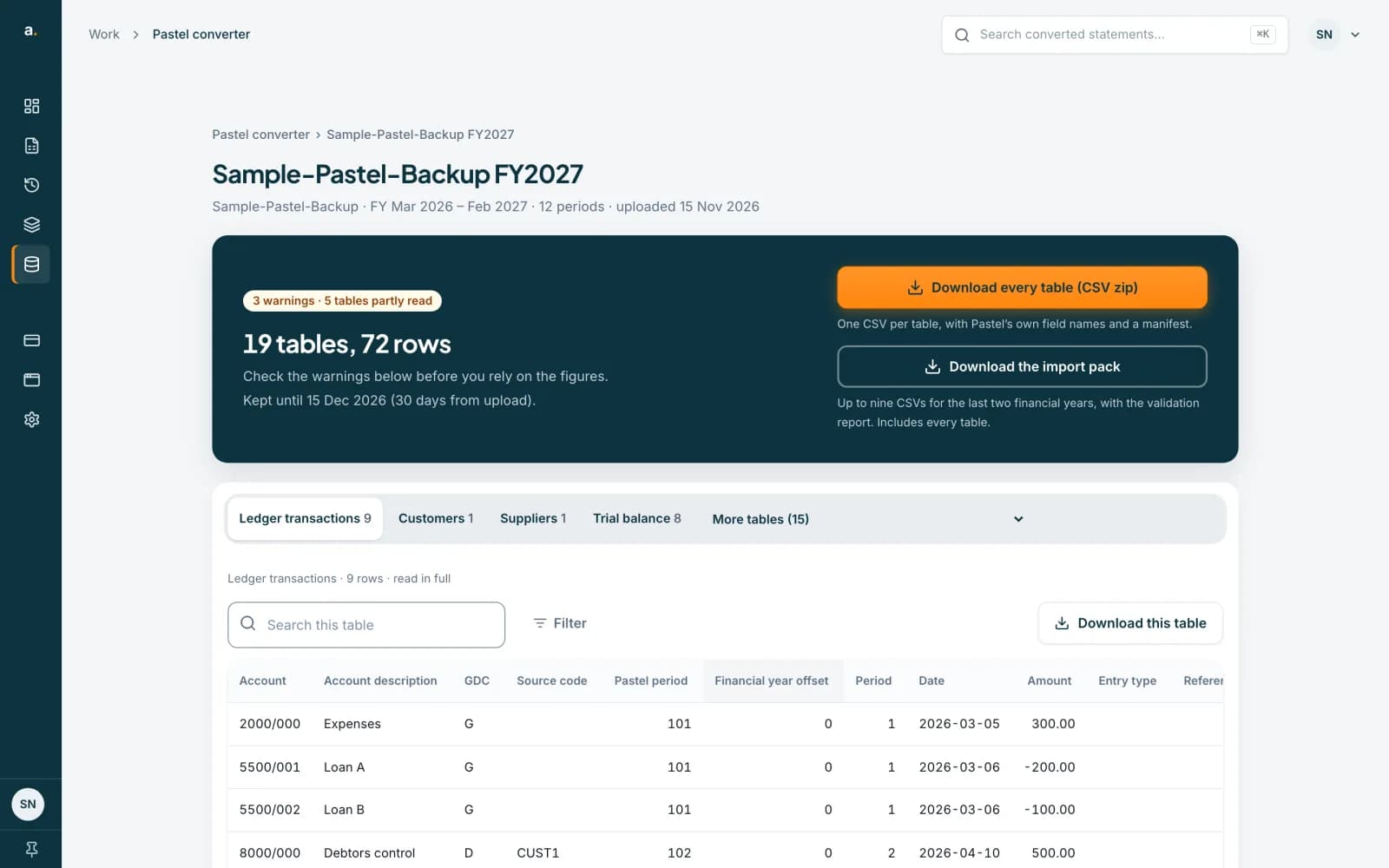 Open full size screenshot for step 1
Download every table
Press Download every table (CSV zip) for one CSV per table, with Pastel’s own field names and a manifest file called _manifest.csv. This is the main download. It includes every table, including those marked partly read or raw fields only.
Download the import pack
Press Download the import pack for up to nine CSVs covering the last two financial years, with a validation report called _validation.txt. It includes every table too. Older data sets may say Import pack unavailable, in which case use the every-table zip.
Download one table
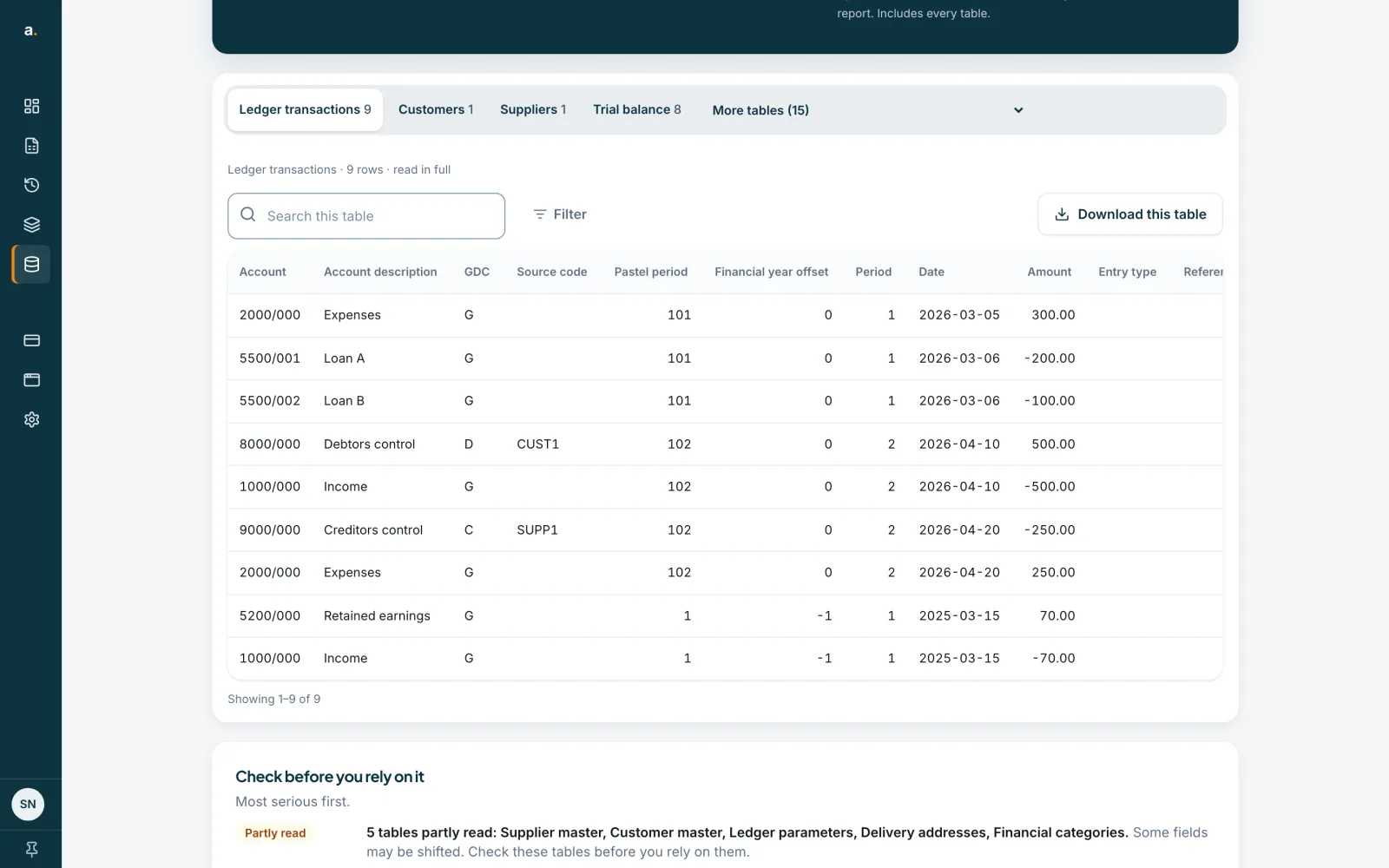
To get a single table, open it from the tabs or More tables and press Download this table. You get one CSV for the table you are looking at.
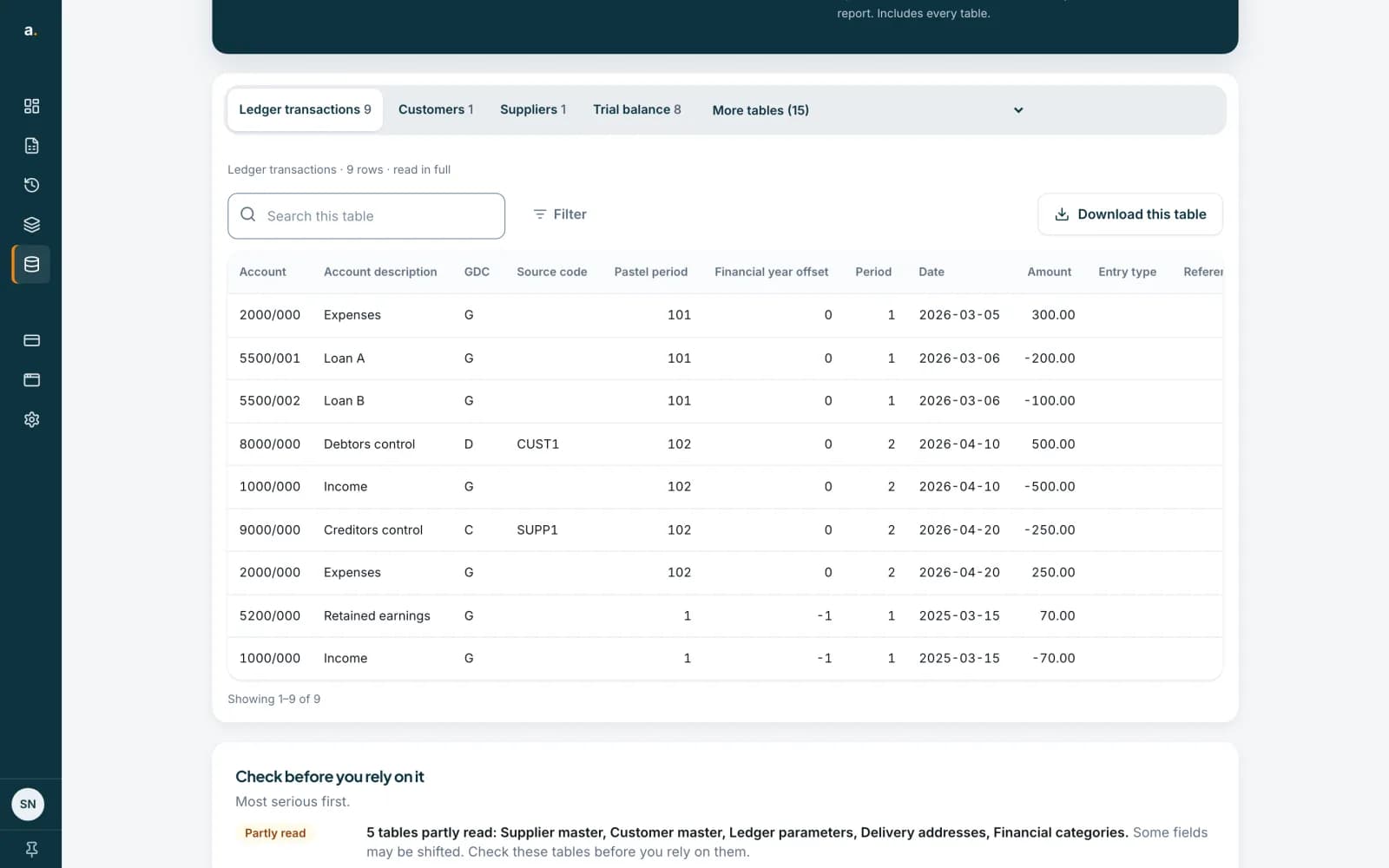 Open full size screenshot for step 4
Tips
- Read Check before you rely on it first. The CSV files contain exactly what was read, warnings and all.
- The CSV files open in Excel and Google Sheets.
- Your downloads stay available until the data set expires 30 days after upload. After your free conversion is used you can still download existing data sets.
If something goes wrong
- The import pack says unavailable.
- Older data sets may not have one. Download every table instead.
- The download does not start.
- The data set must say Ready. If it is still reading, wait for it to finish, then try again.
- The data set is gone.
- Data sets are removed 30 days after upload. Upload the backup again.
Related guides
- Review the tables in a converted Pastel backupOpen a converted data set, look through its tables, search and filter, and read the checks before you rely on the figures.
- Convert a Pastel backup with Quick convertUpload a Pastel Partner or Pastel Xpress backup zip, wait while Accounter reads it, then download one zip of CSV files.
- Pastel plans, free conversion and retentionYour first Pastel conversion is free, any paid plan makes them unlimited, and converted data is kept for 30 days.