Convert a Pastel backup with Quick convert
Last reviewed 16 November 2026 · 6 steps
Upload a Pastel Partner or Pastel Xpress backup zip, wait while Accounter reads it, then download one zip of CSV files.
Free account
Steps
Open the Pastel converter
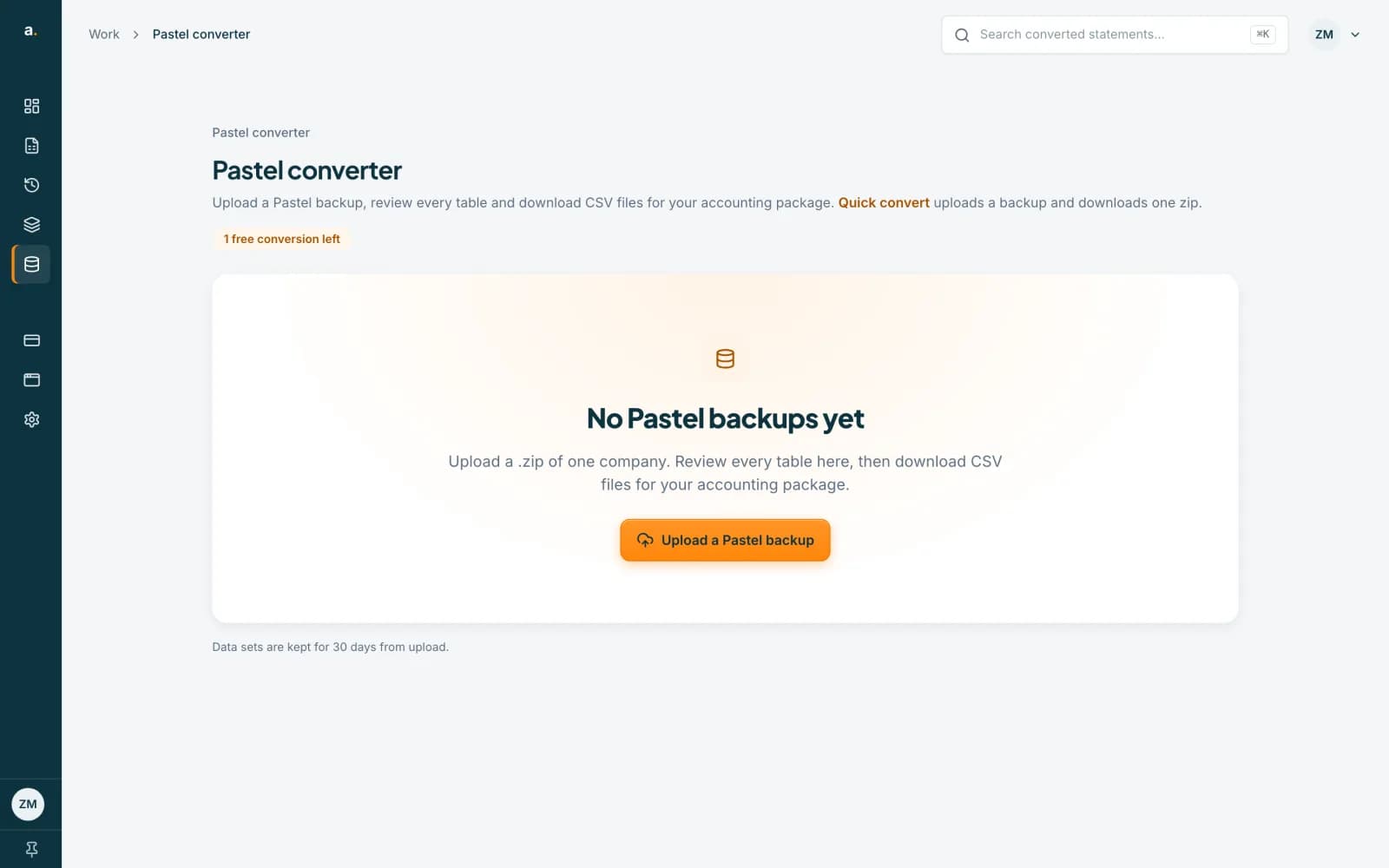
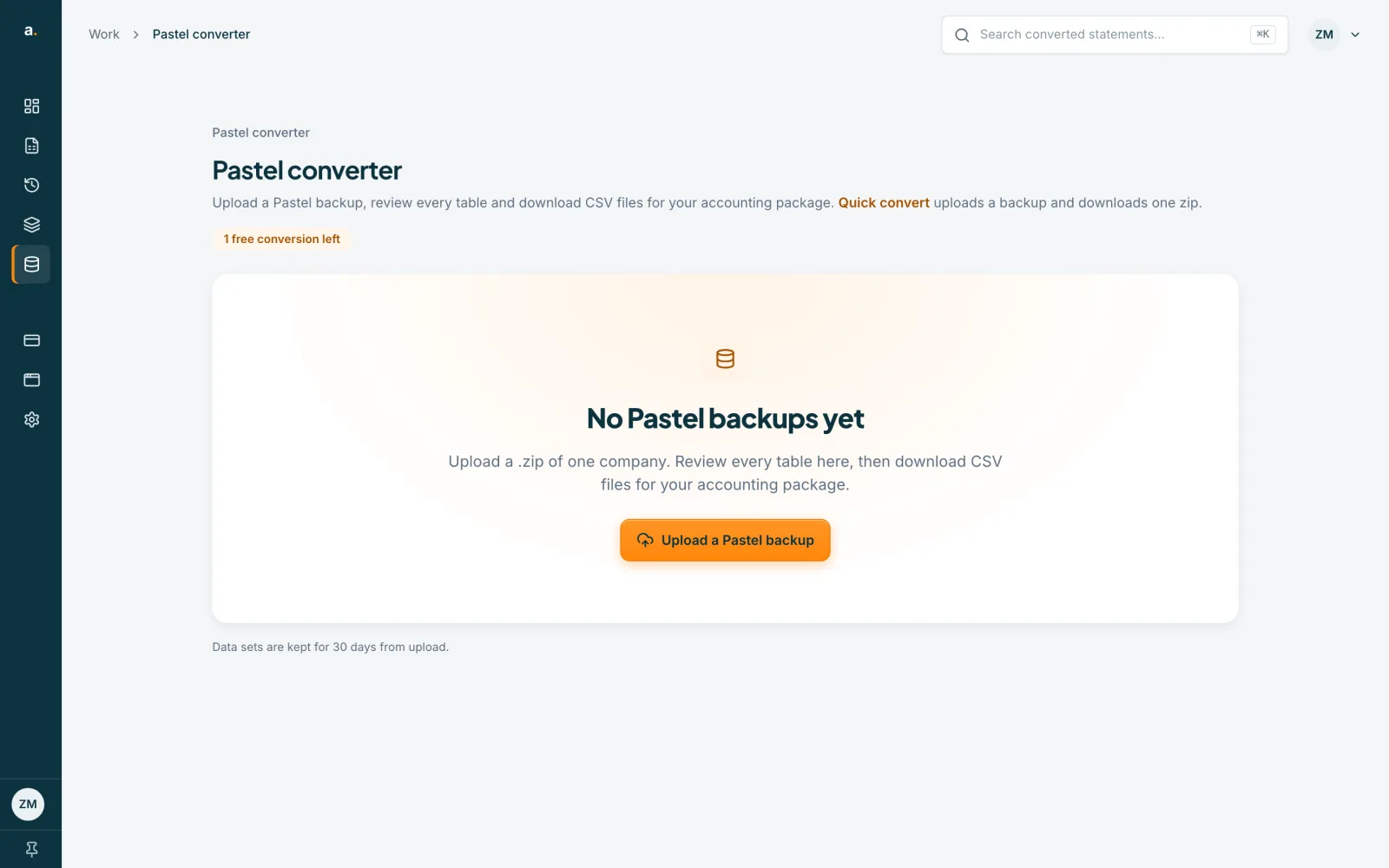
Log in and choose Pastel converter in the left menu. With no backups yet, the page says No Pastel backups yet. Press Quick convert for the shortest route: one upload, then one download.
 Open full size screenshot for step 1
Choose your backup zip
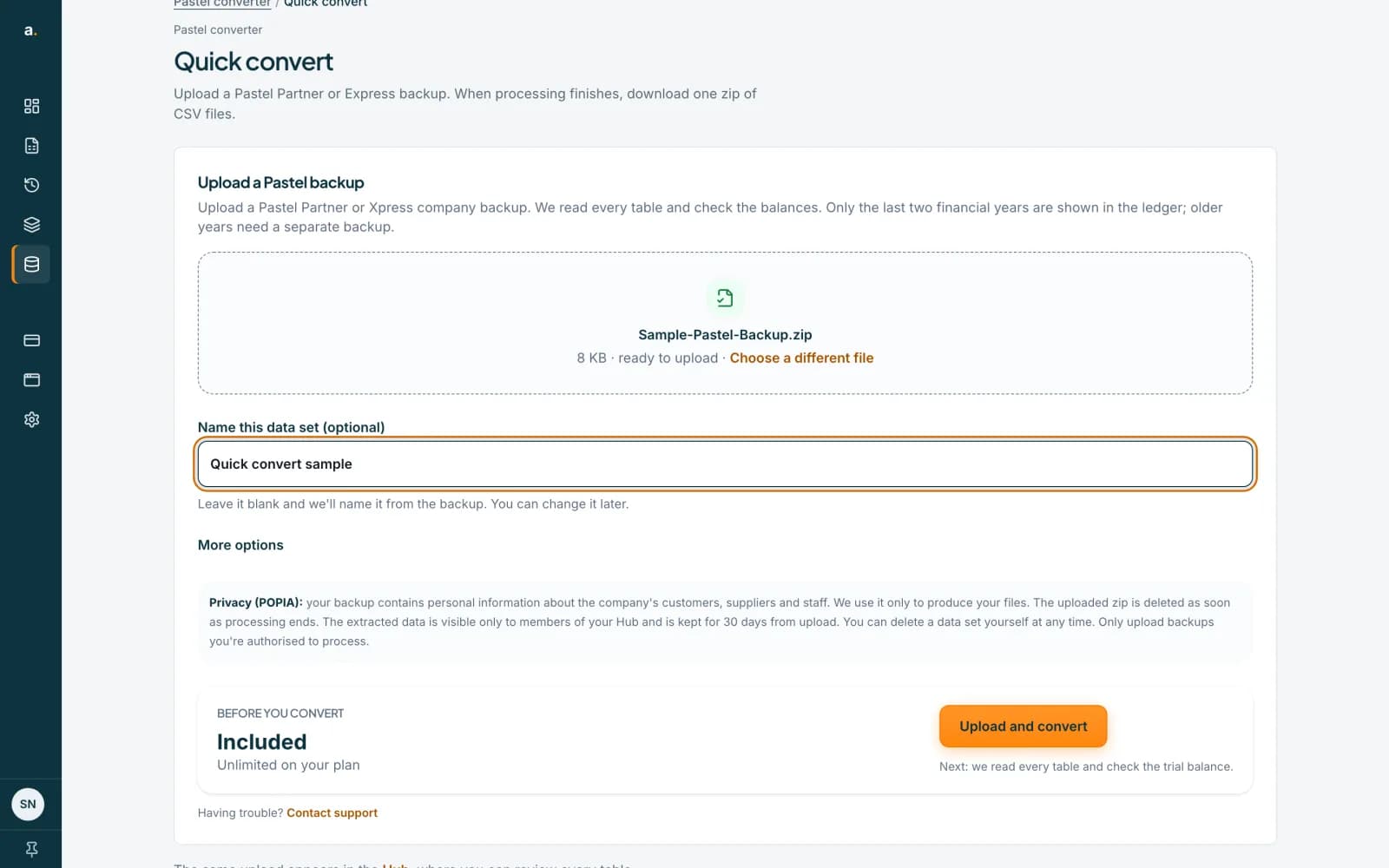
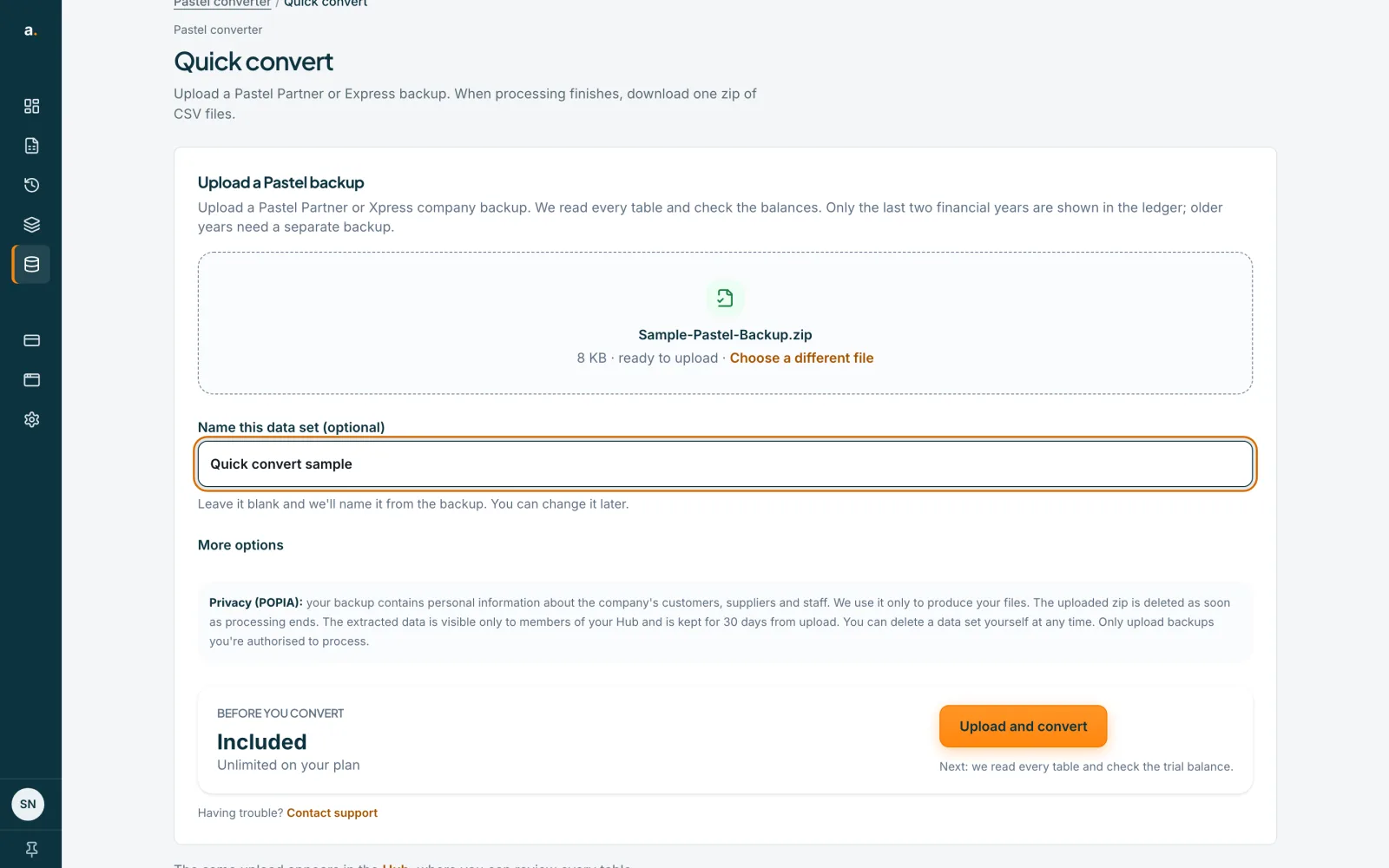
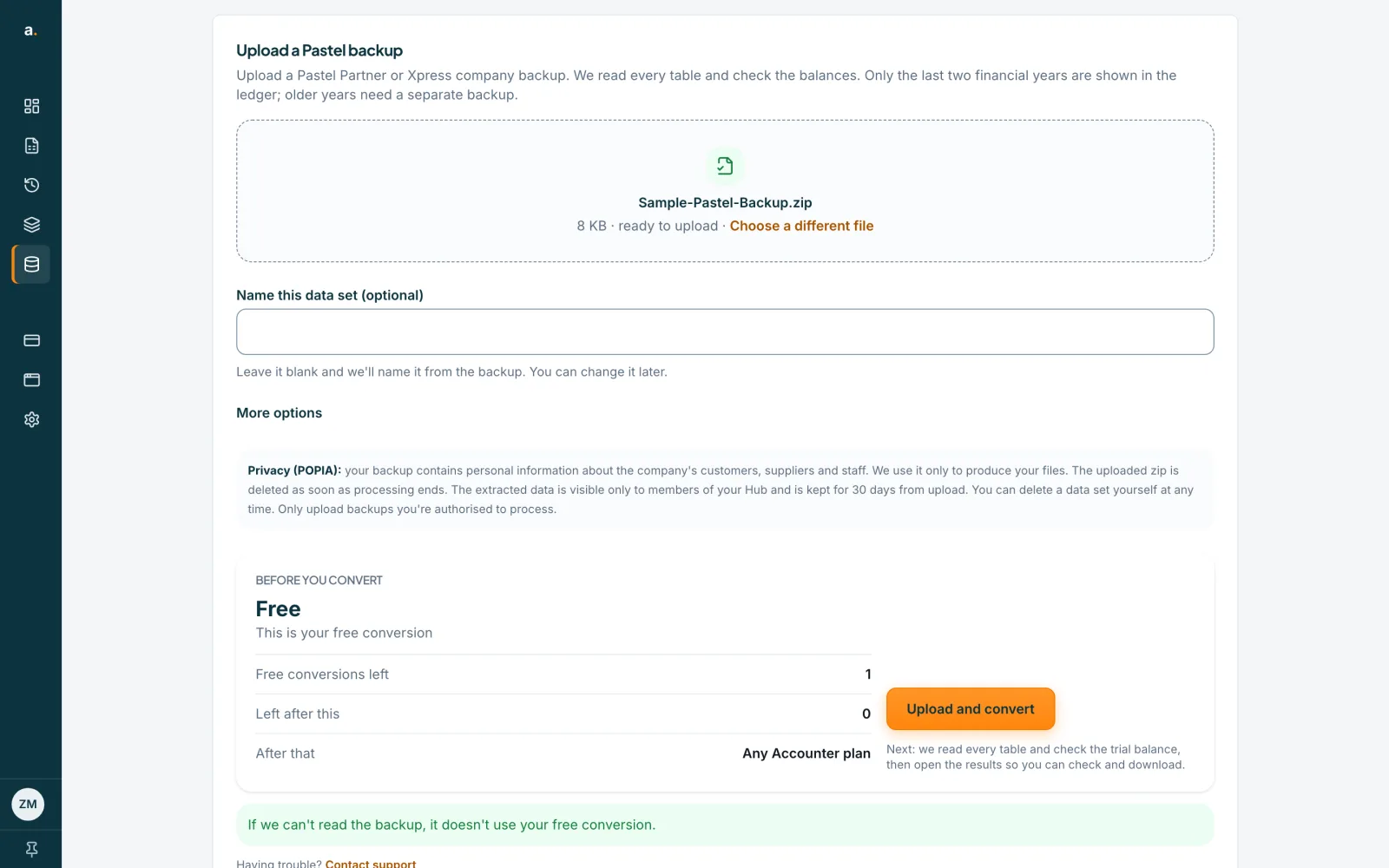
Drop the backup .zip onto the upload box, or choose it from your files. Upload one company per zip and do not unzip it first. Accounter reads Pastel Partner and Pastel Xpress backups of up to 500 MB. Zips over 30 MB upload in parts and can resume, as the guide on large backups explains. You can type a name in Name this data set (optional), or leave it blank and Accounter names it from the backup.
 Open full size screenshot for step 2
Check what the conversion costs
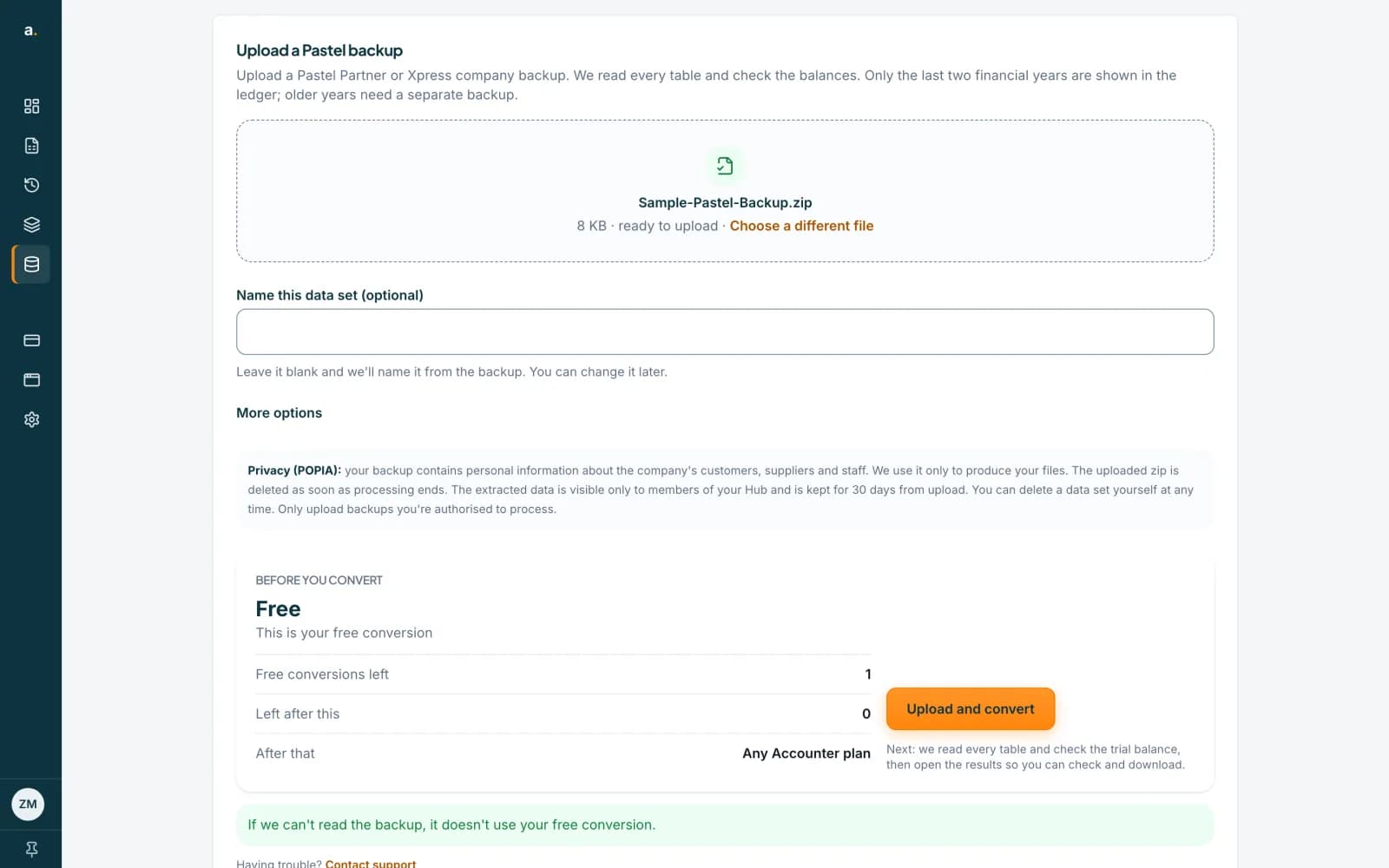
Under Before you convert, Accounter tells you what applies. Your first conversion reads This is your free conversion, with Free conversions left 1. On a paid plan it reads Included, Unlimited on your plan. Pastel conversions never use page credits. If Accounter cannot read the backup, it does not use your free conversion.
 Open full size screenshot for step 3
Press Upload and convert
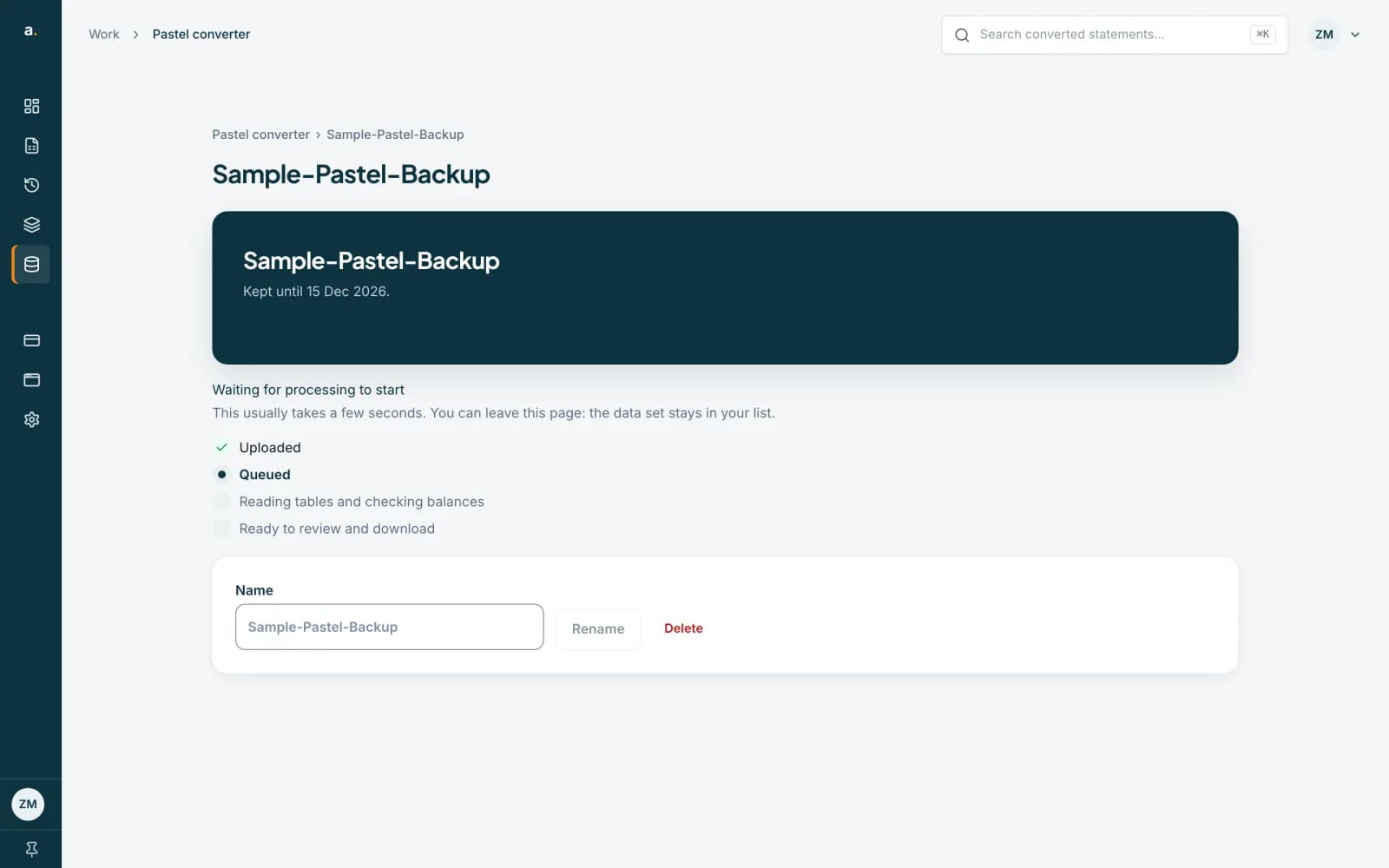
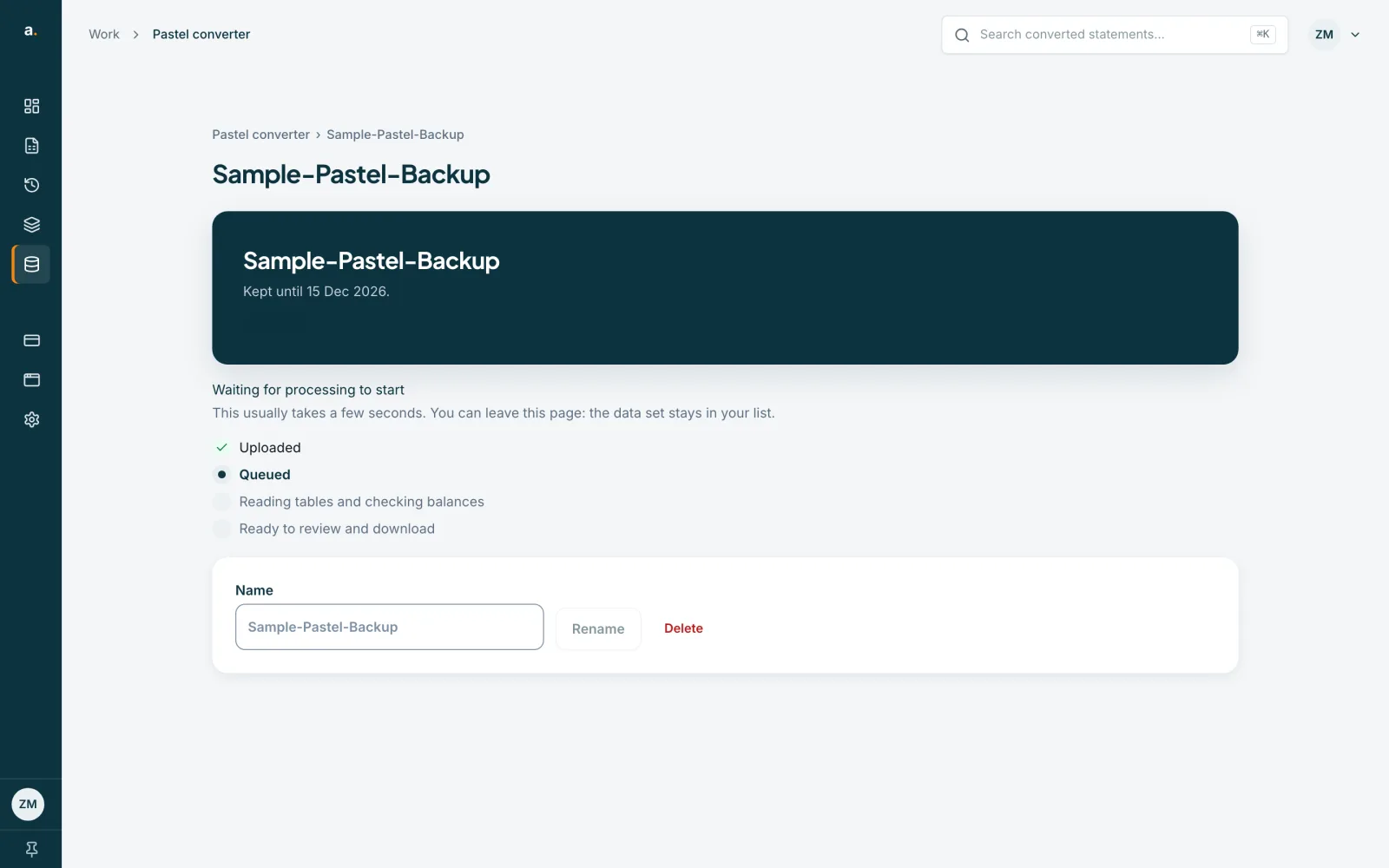
The page shows the progress: Queued, Uploaded, Reading tables and checking balances, then Ready to review and download. You can leave the page while it works, because the data set stays in your Pastel converter list.
 Open full size screenshot for step 4
Download your CSV zip
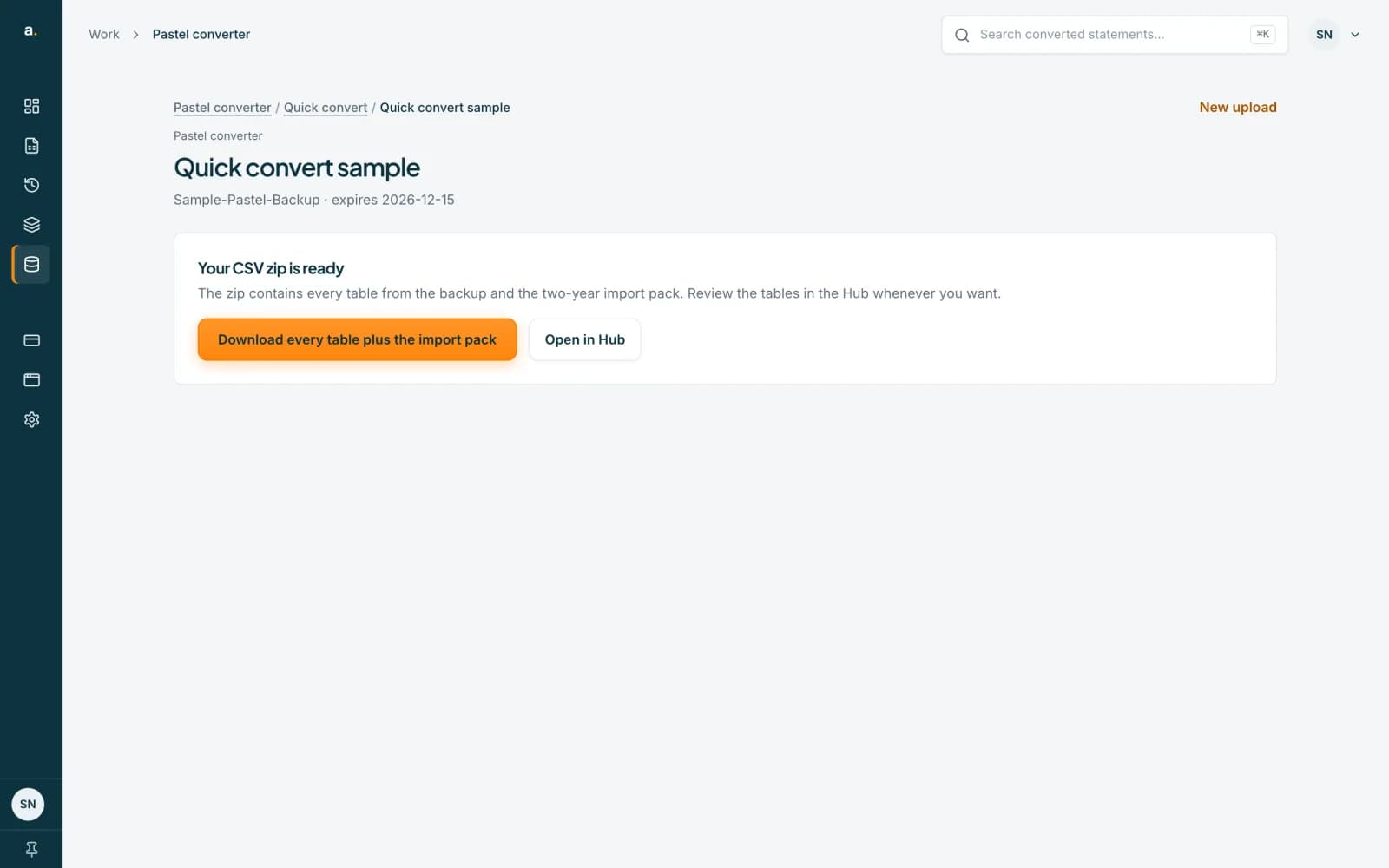
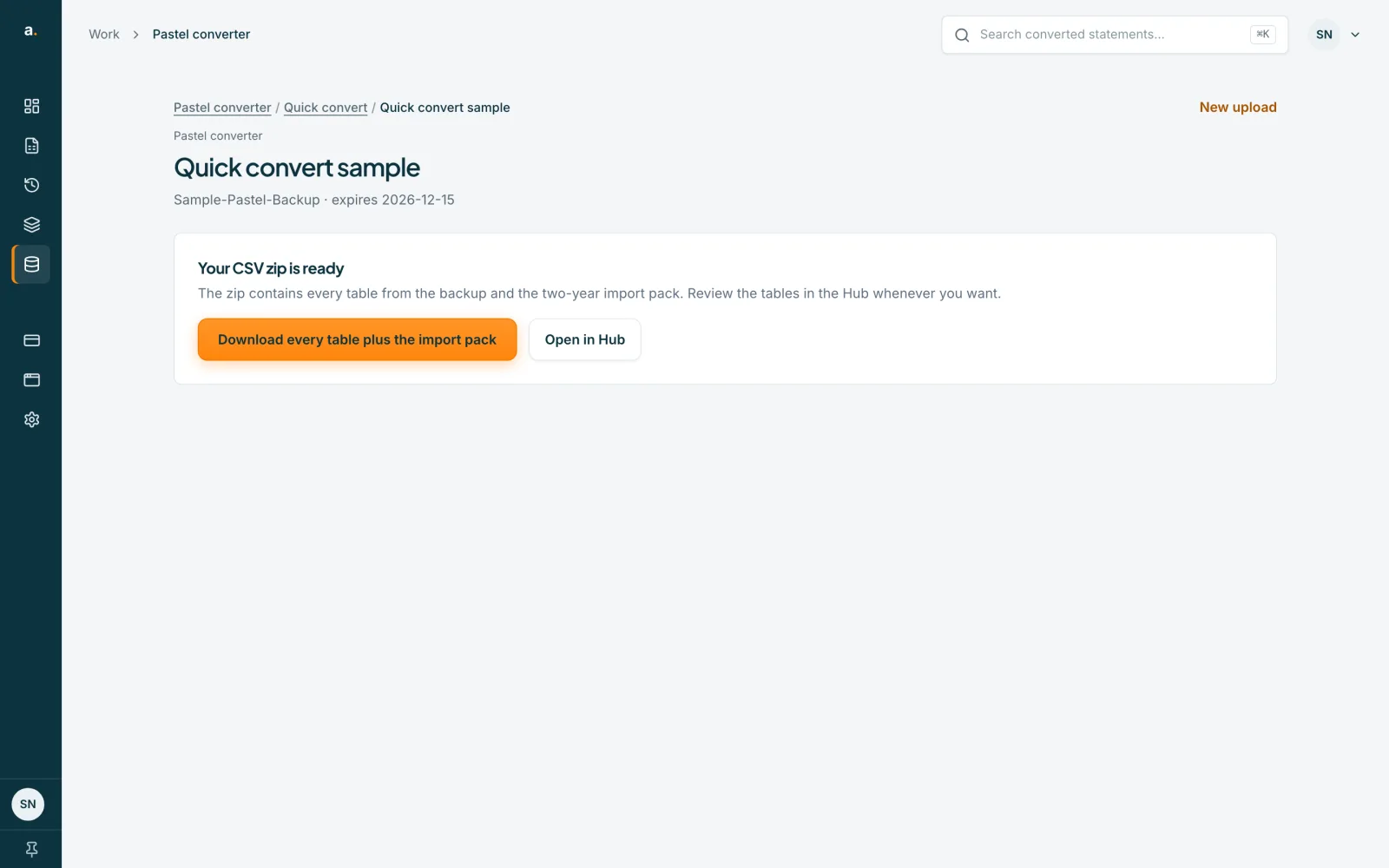
When the page says Your CSV zip is ready, press Download every table plus the import pack. The zip holds every table from the backup and the two-year import pack. Press Open in Hub whenever you want to review the tables on screen.
 Open full size screenshot for step 5
If you uploaded the same backup before
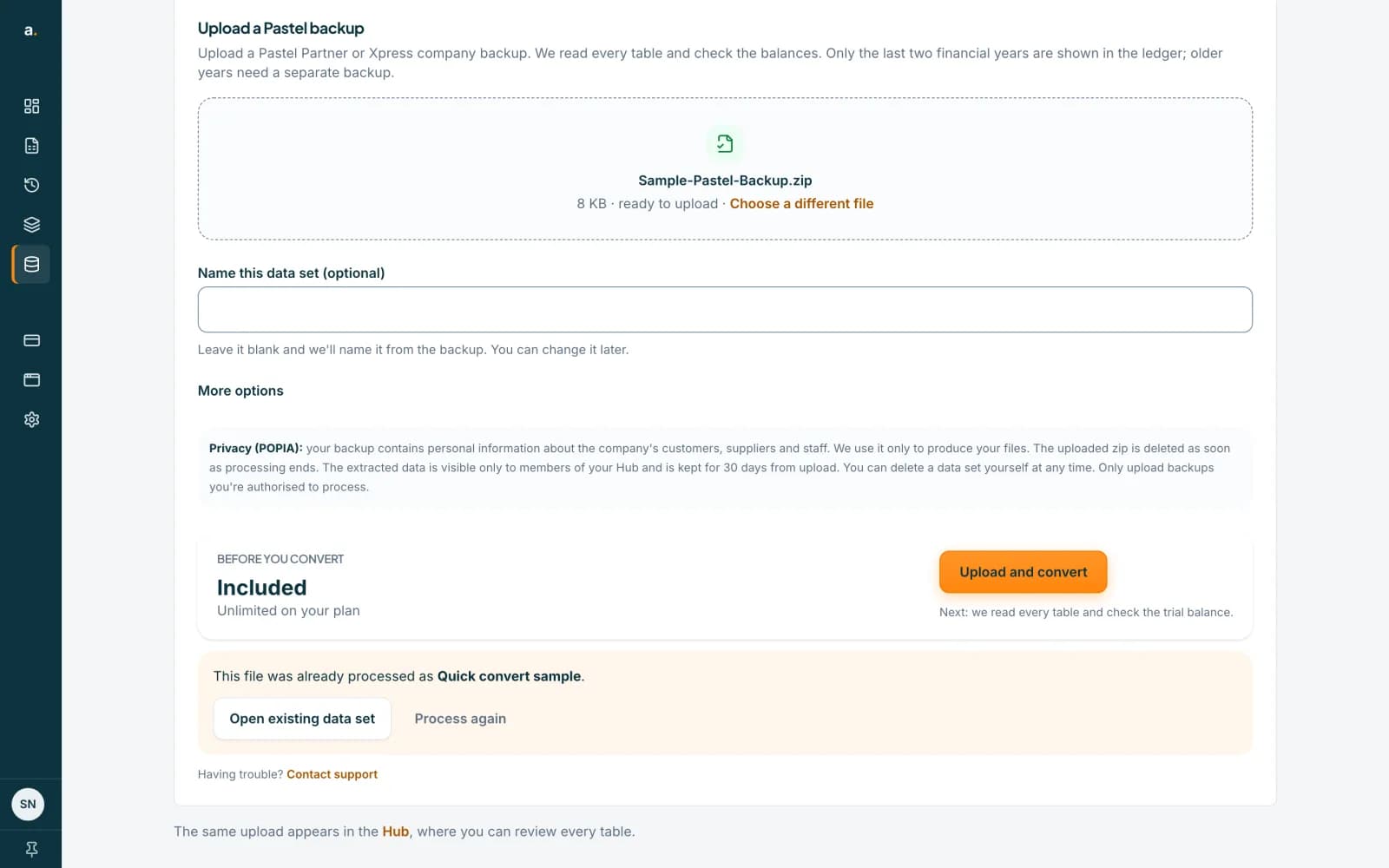
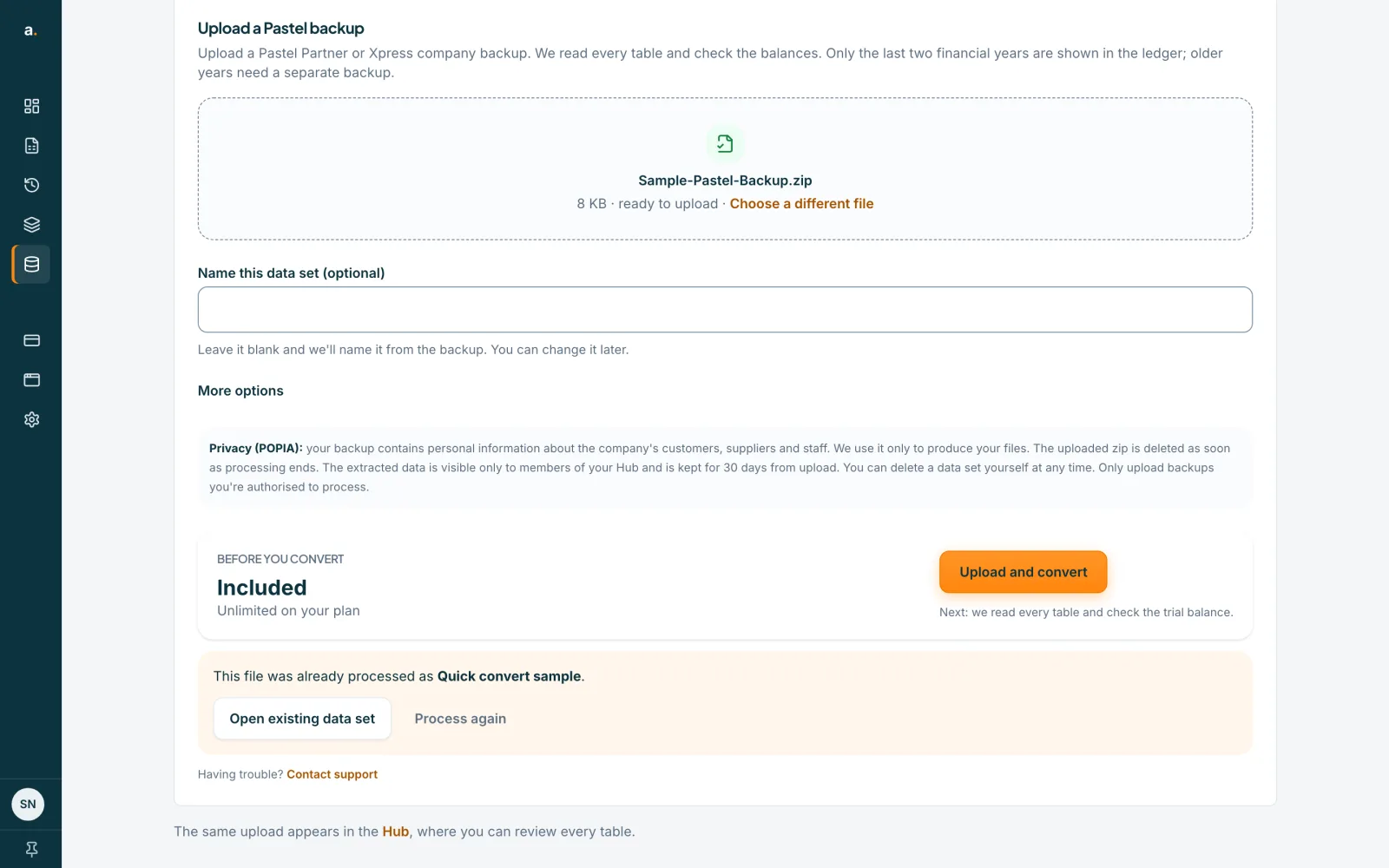
Accounter recognises the same file. It shows This file was already processed as, followed by the data set name. Press Open existing data set to go to what you already have, or Process again to read it afresh. Reading the same file again is not counted as another conversion.
 Open full size screenshot for step 6
Tips
- The zip you upload is deleted as soon as processing ends. The converted data is kept for 30 days from upload.
- Only the last two financial years are shown in the ledger. Older years need a separate backup.
- Want to look through the tables before downloading? Use Upload a Pastel backup on the Pastel converter page instead of Quick convert, then see the guide on reviewing tables.
- You can upload up to 10 backups an hour.
If something goes wrong
- You see Choose a .zip backup first.
- Choose the .zip file from your Pastel backup. Other file types are refused.
- The page says This doesn’t look like a Pastel company backup.
- Make a fresh backup of the company in Pastel and upload that zip, without unzipping it or choosing individual files.
- The page says This zip holds more than one company.
- Upload one company per zip. Make a separate backup for each company.
- You see Verify your email address to use your free conversion.
- Verify your email first. Press Verify your email on the page, or use the link we emailed you.
- You see Your free conversion is used. Subscribe to continue.
- Any Accounter plan gives unlimited Pastel conversions. See the guide on Pastel plans and retention, then press Choose a plan.
- The backup will not read.
- Backups that are compressed, password-protected or in the newer Pervasive and Zen formats are not supported. Nothing is charged when a backup cannot be read, so you can try again with a fresh backup.
Related guides
- Upload a large Pastel backupBackups over 30 MB upload in parts, up to 500 MB in total, and an interrupted upload can resume.
- Download your Pastel data as CSV filesDownload every table as a CSV zip, the import pack for the last two financial years, or a single table.
- Pastel plans, free conversion and retentionYour first Pastel conversion is free, any paid plan makes them unlimited, and converted data is kept for 30 days.
- Free pages and credits: how they workEvery verified free account gets 10 free pages each calendar month, and 1 credit pays for 1 statement page.