Upload a large Pastel backup
Last reviewed 16 November 2026 · 4 steps
Backups over 30 MB upload in parts, up to 500 MB in total, and an interrupted upload can resume.
Free account
Steps
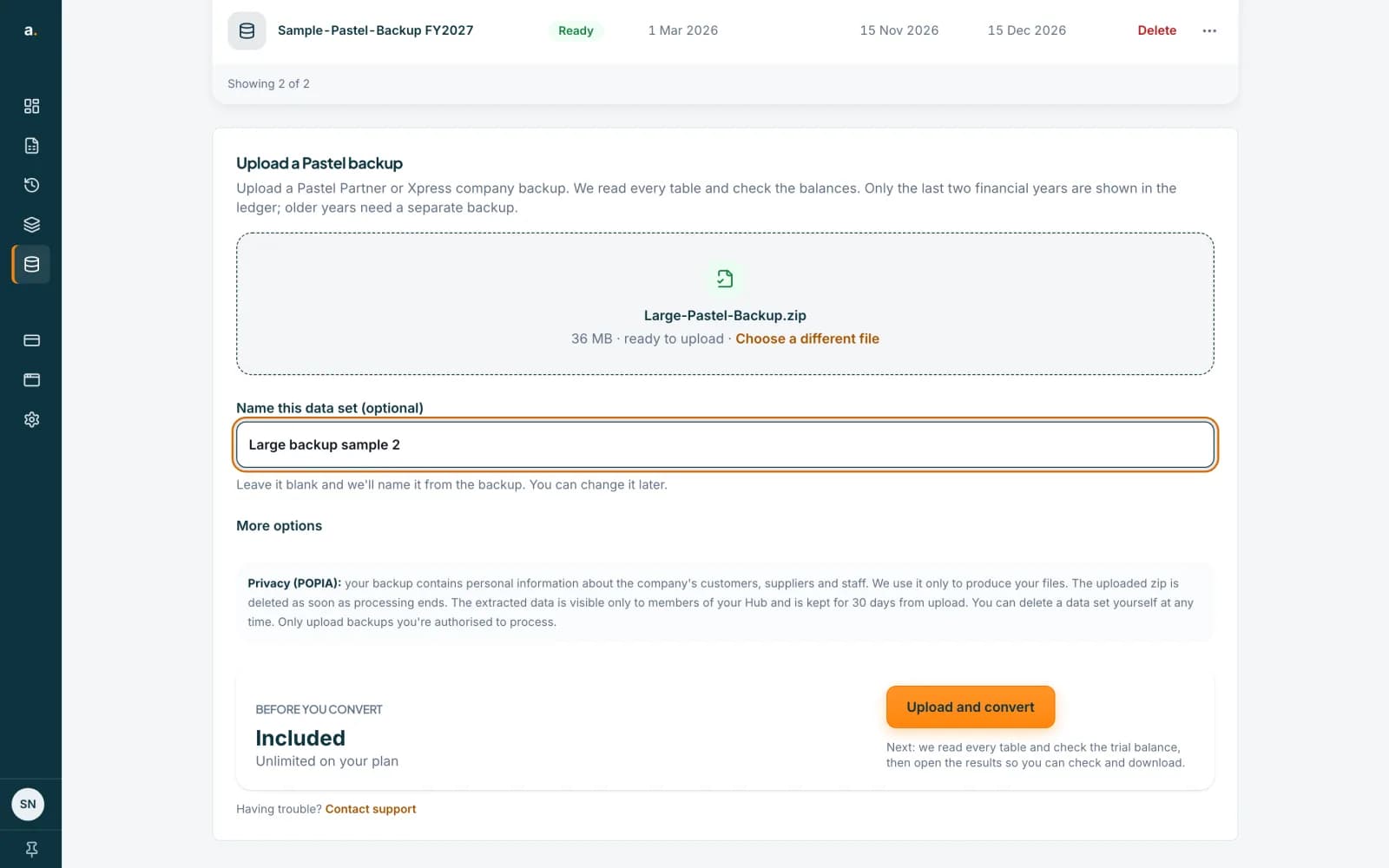
Choose the backup zip
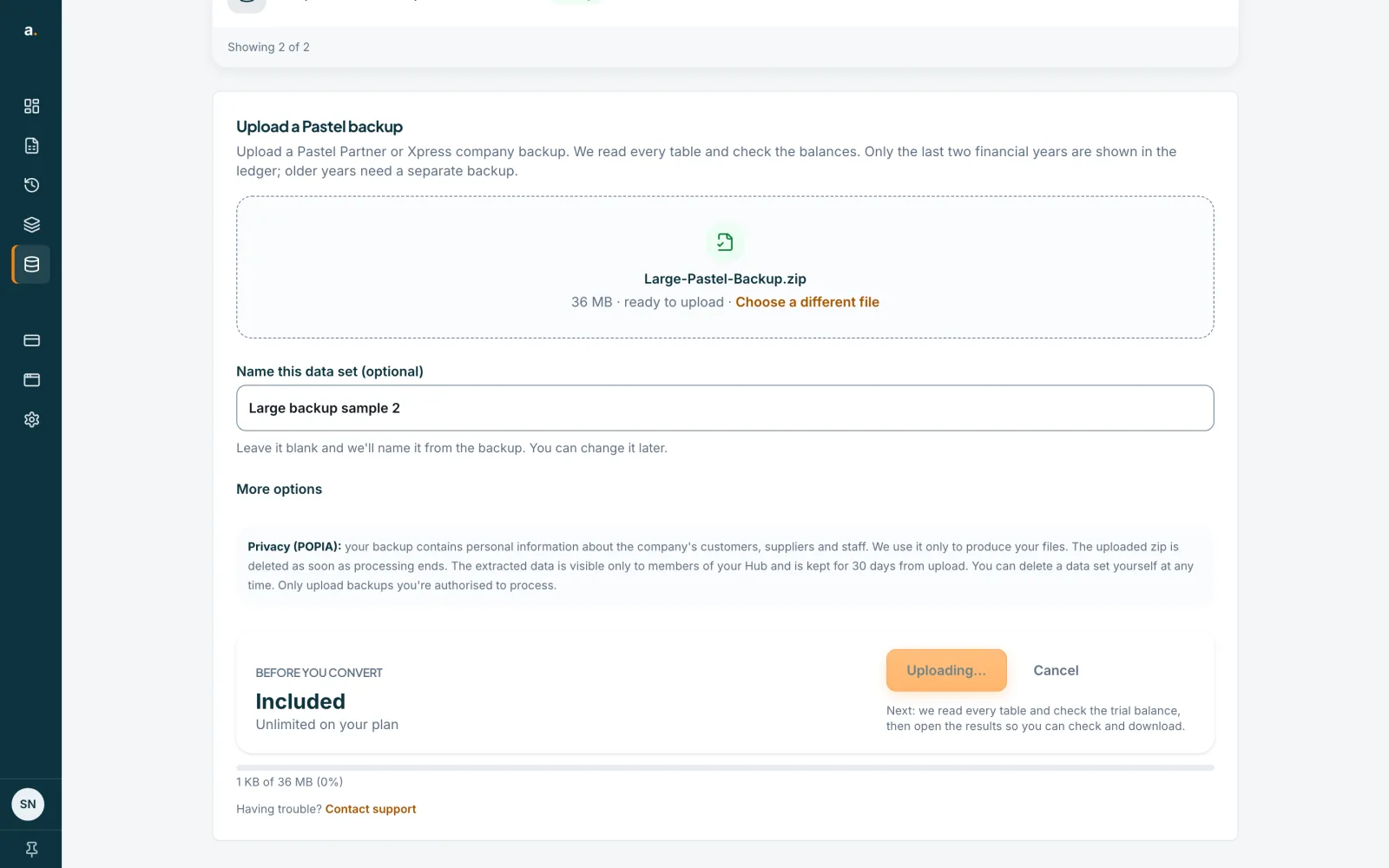
On the Pastel converter, press Upload a Pastel backup and choose the .zip, or use Quick convert. Accounter accepts backups of up to 500 MB. A zip of up to 30 MB goes up in one go. A larger zip is uploaded in parts of 16 MB, so a slow or patchy connection does not mean starting from the beginning.
 Open full size screenshot for step 1
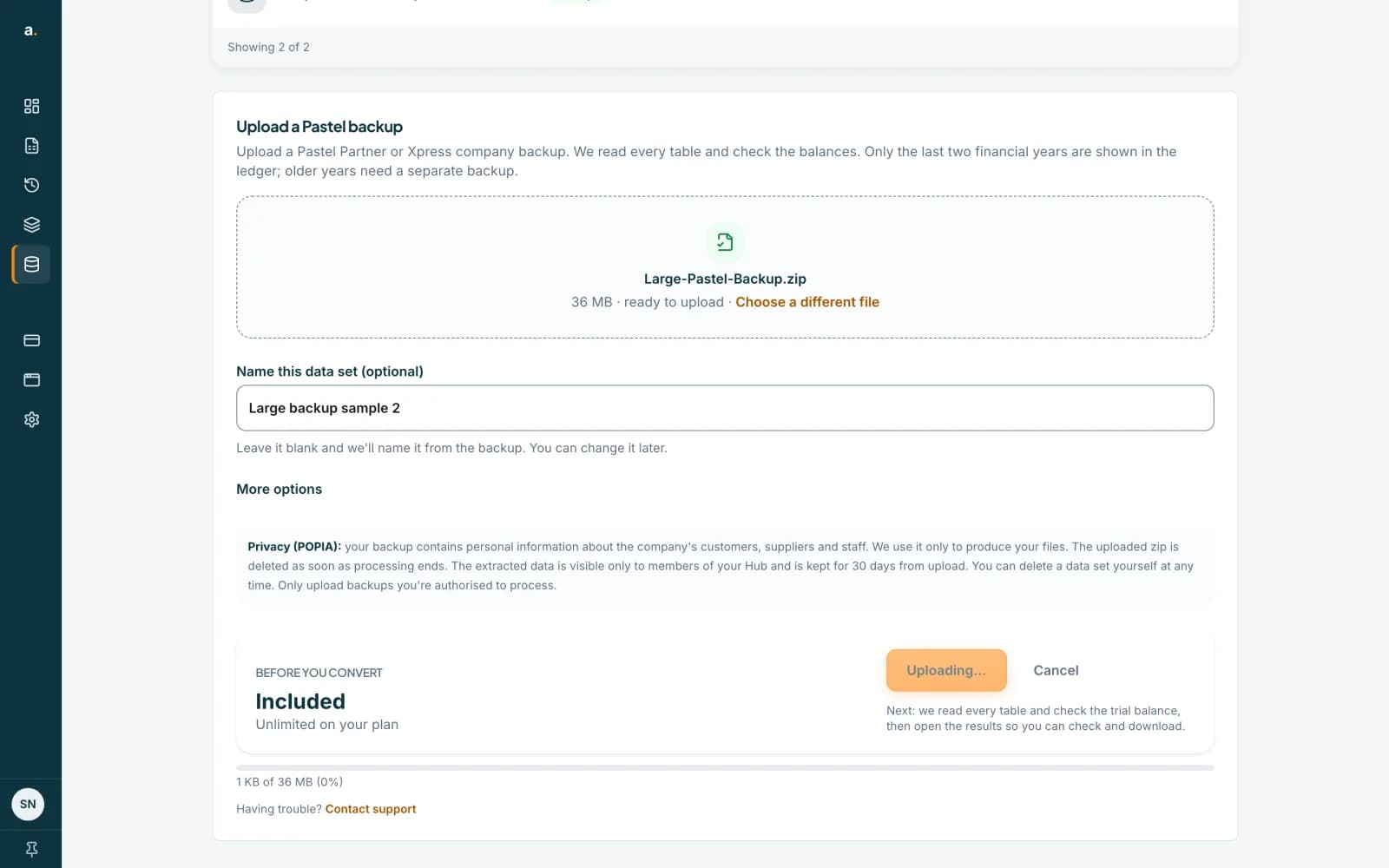
Press Upload and convert and keep the page open
The button changes to Uploading and shows a line such as 1 KB of 36 MB (0%) that counts up as each part arrives. A Cancel button stops the upload and discards what was sent.
 Open full size screenshot for step 2
Resume if it is interrupted
If your connection drops or you close the page, the button changes to Resume upload. Choose the same file again and press it, and the upload carries on from where it stopped, even after you reload the page. Do not rename or replace the file in between. An upload left unfinished for a day is abandoned and removed.
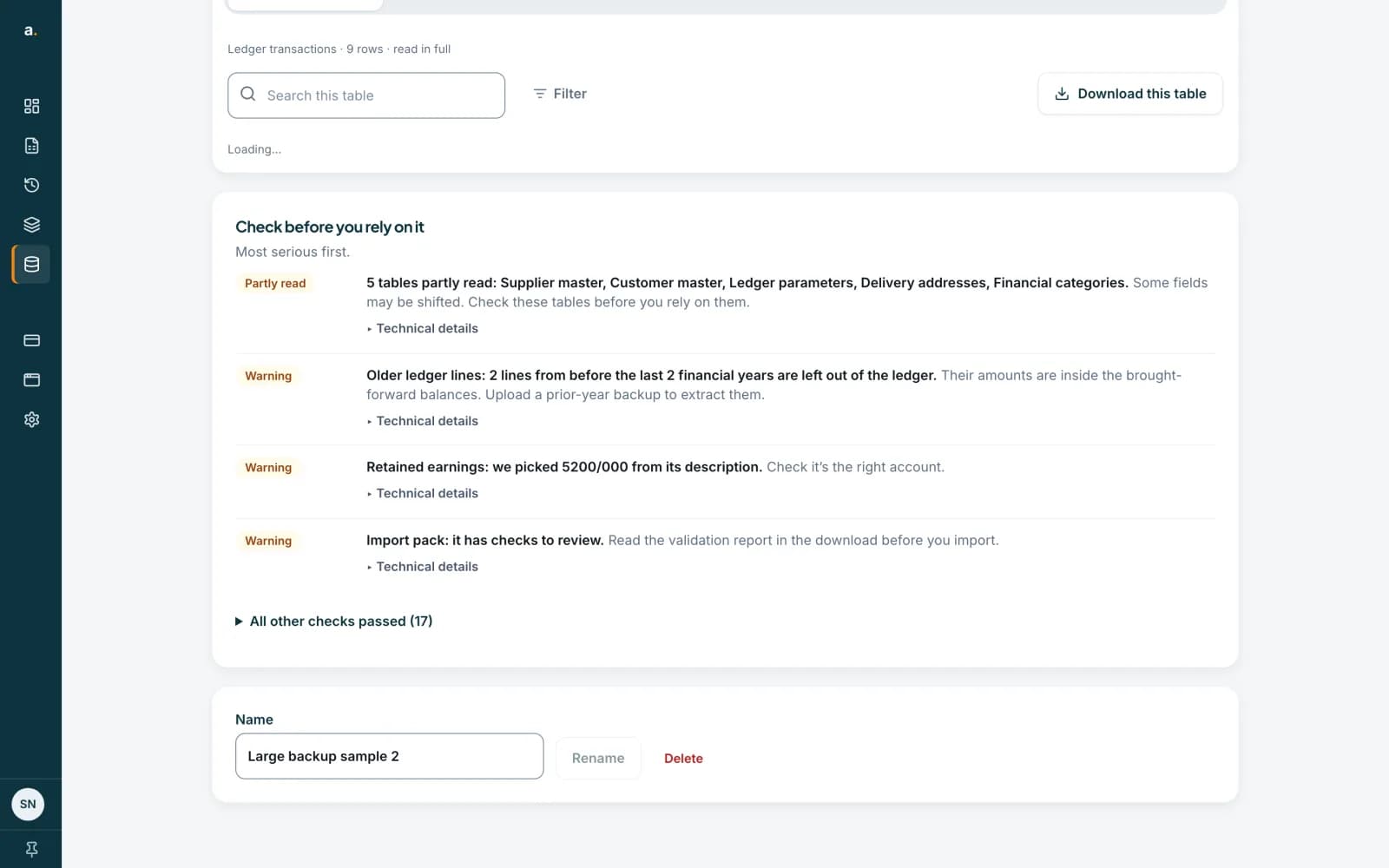
Wait while it is read
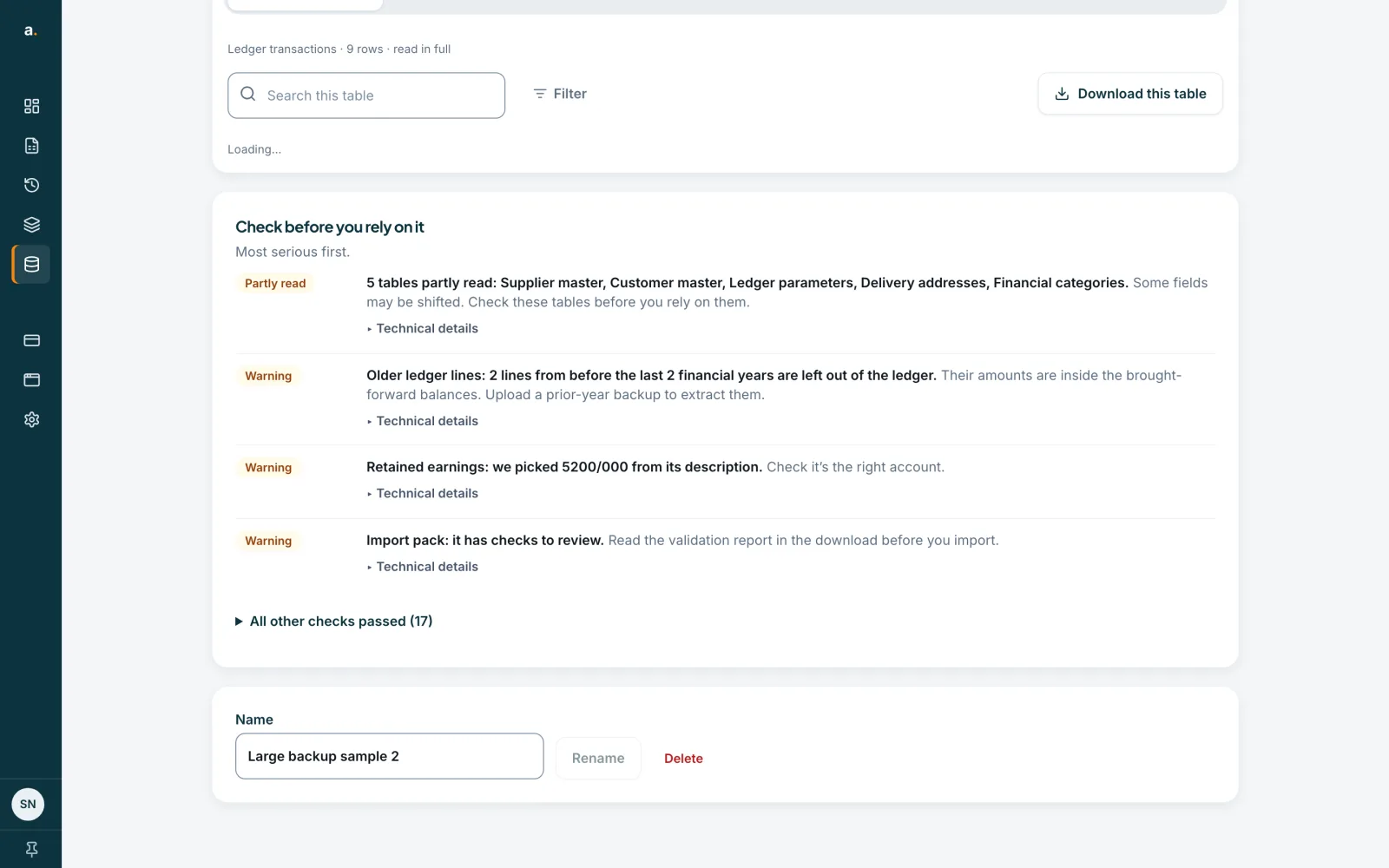
After the last part arrives, the data set page opens and Accounter starts reading the tables and checking the balances. Large backups take longer than small ones. You can leave the page: the data set stays in your list until it is ready.
 Open full size screenshot for step 4
Tips
- You can have up to 5 unfinished uploads open at once.
- A workspace can hold up to 10 data sets that have not failed. Delete the ones you no longer need to make room.
- The zip you upload is deleted as soon as processing ends.
If something goes wrong
- The page says the file is larger than the limit.
- The limit is 500 MB. Make a backup of a single company and leave out other companies and old data.
- The page says the backup is too large to process once unpacked.
- The files inside the zip add up to more than the 500 MB the reader allows. Remove old company data in Pastel and back up again, or contact support.
- The upload keeps stopping.
- Press Resume upload each time. It carries on from the last part that arrived. If it still will not finish, try a more stable connection.
- You see Too many uploads.
- You can start 10 uploads an hour. Wait a little and try again.
Related guides
- Convert a Pastel backup with Quick convertUpload a Pastel Partner or Pastel Xpress backup zip, wait while Accounter reads it, then download one zip of CSV files.
- Review the tables in a converted Pastel backupOpen a converted data set, look through its tables, search and filter, and read the checks before you rely on the figures.
- Pastel plans, free conversion and retentionYour first Pastel conversion is free, any paid plan makes them unlimited, and converted data is kept for 30 days.