Review the tables in a converted Pastel backup
Last reviewed 16 November 2026 · 6 steps
Open a converted data set, look through its tables, search and filter, and read the checks before you rely on the figures.
Free account
Steps
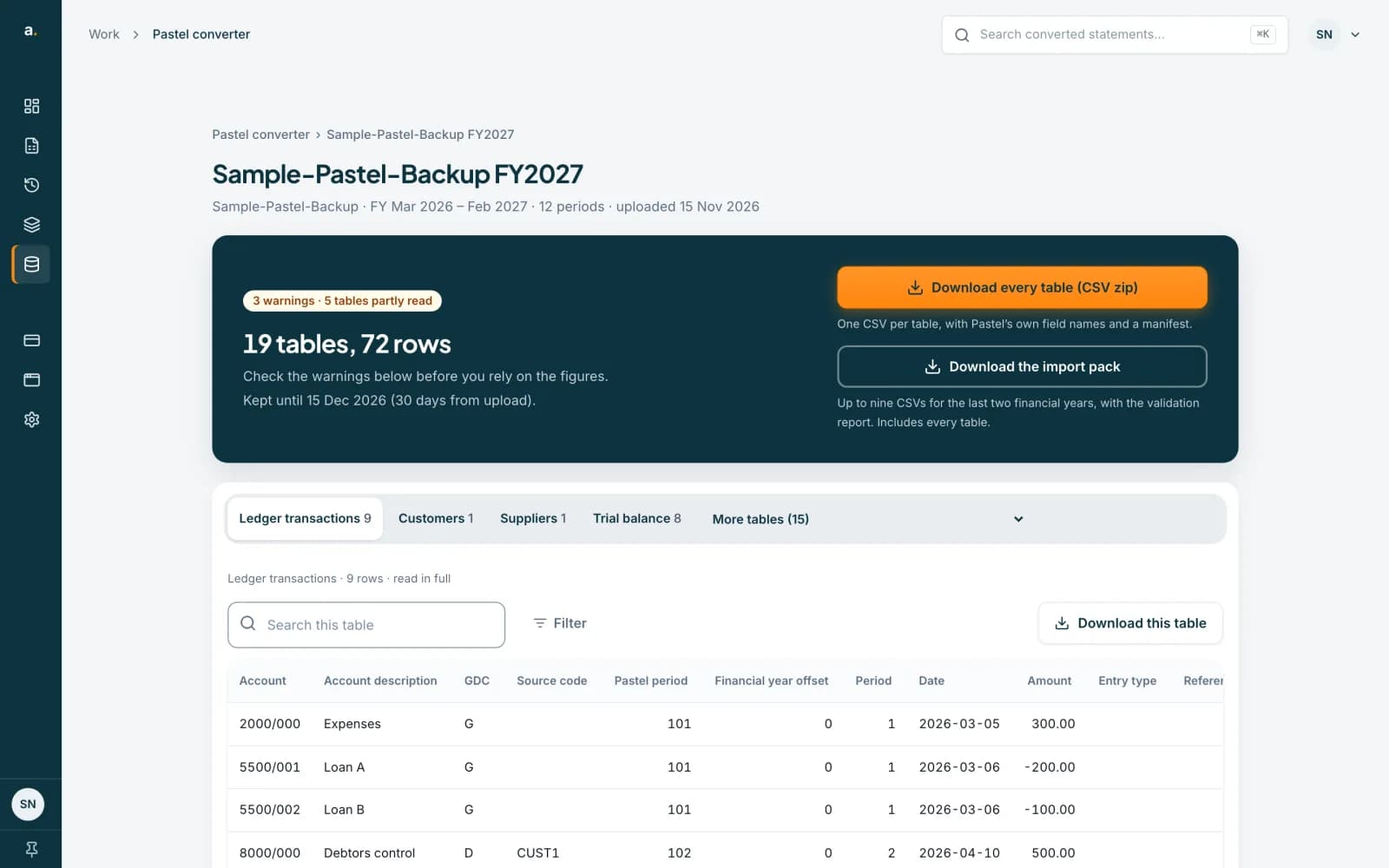
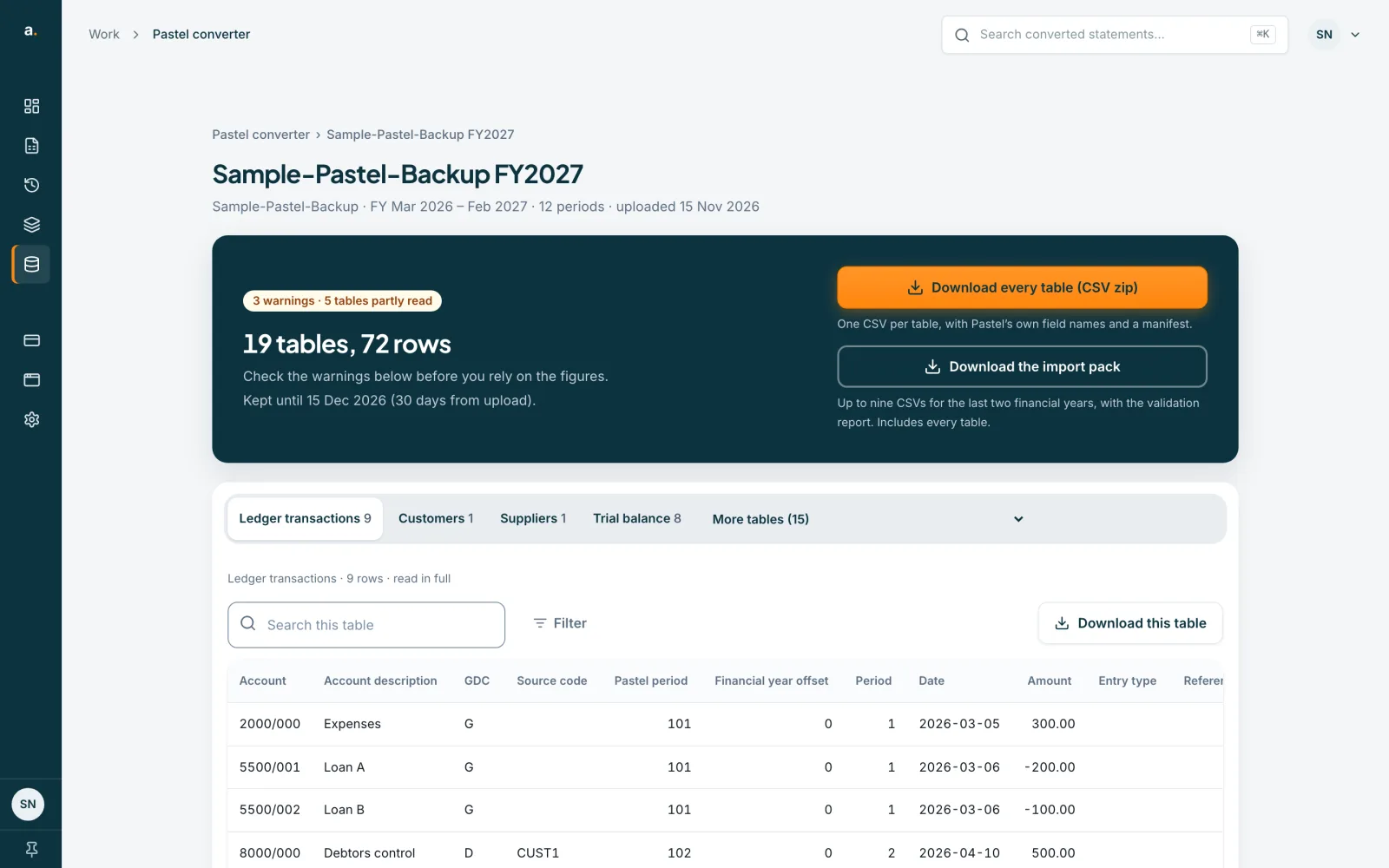
Open the data set
In the Pastel converter, press the name of a data set that says Ready. The top of the page shows a summary such as 19 tables, 72 rows, a count of warnings, and Kept until followed by a date. It also shows the financial year start, the periods covered, and whether the trial balance nets to zero. The two downloads sit alongside.
 Open full size screenshot for step 1
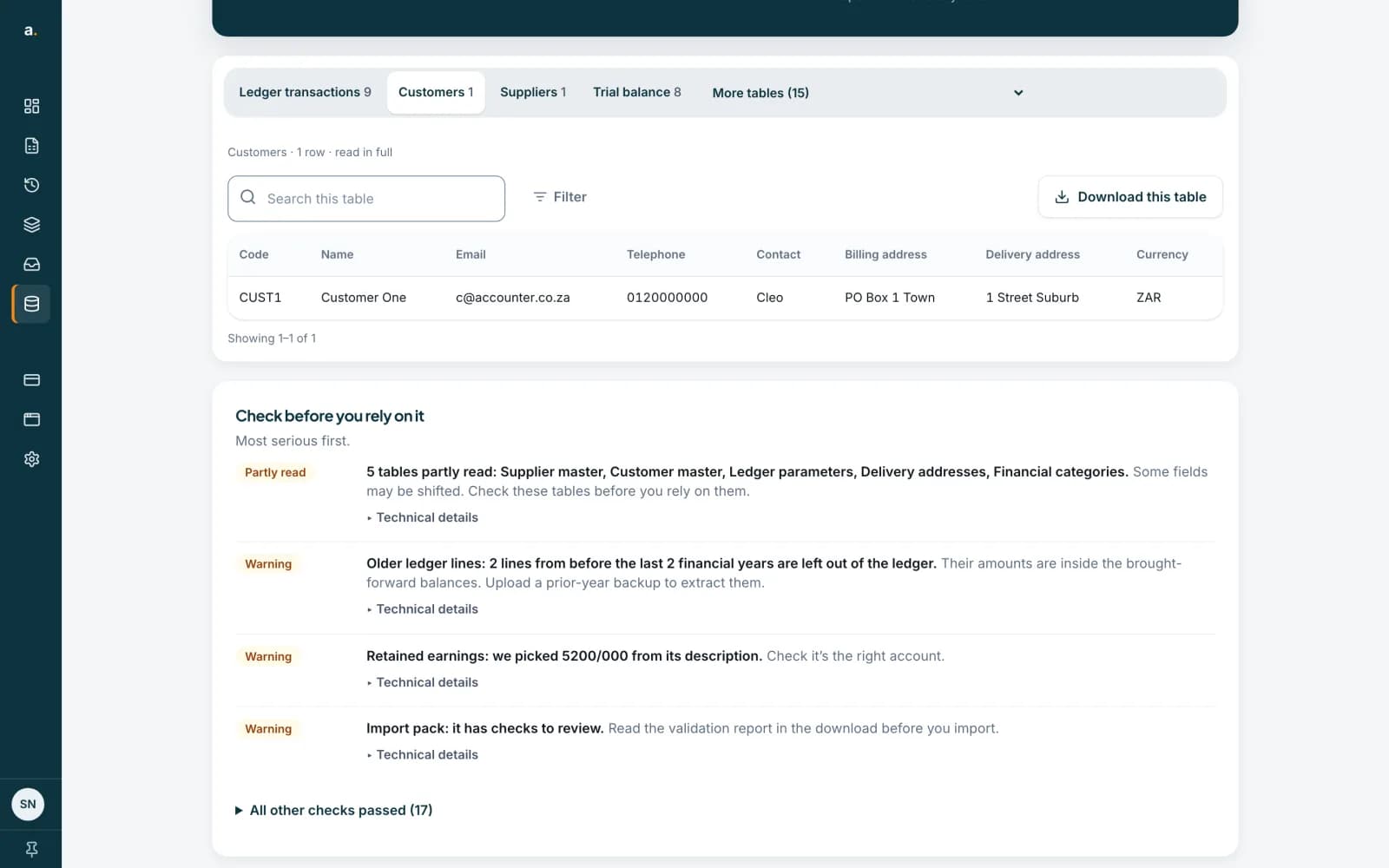
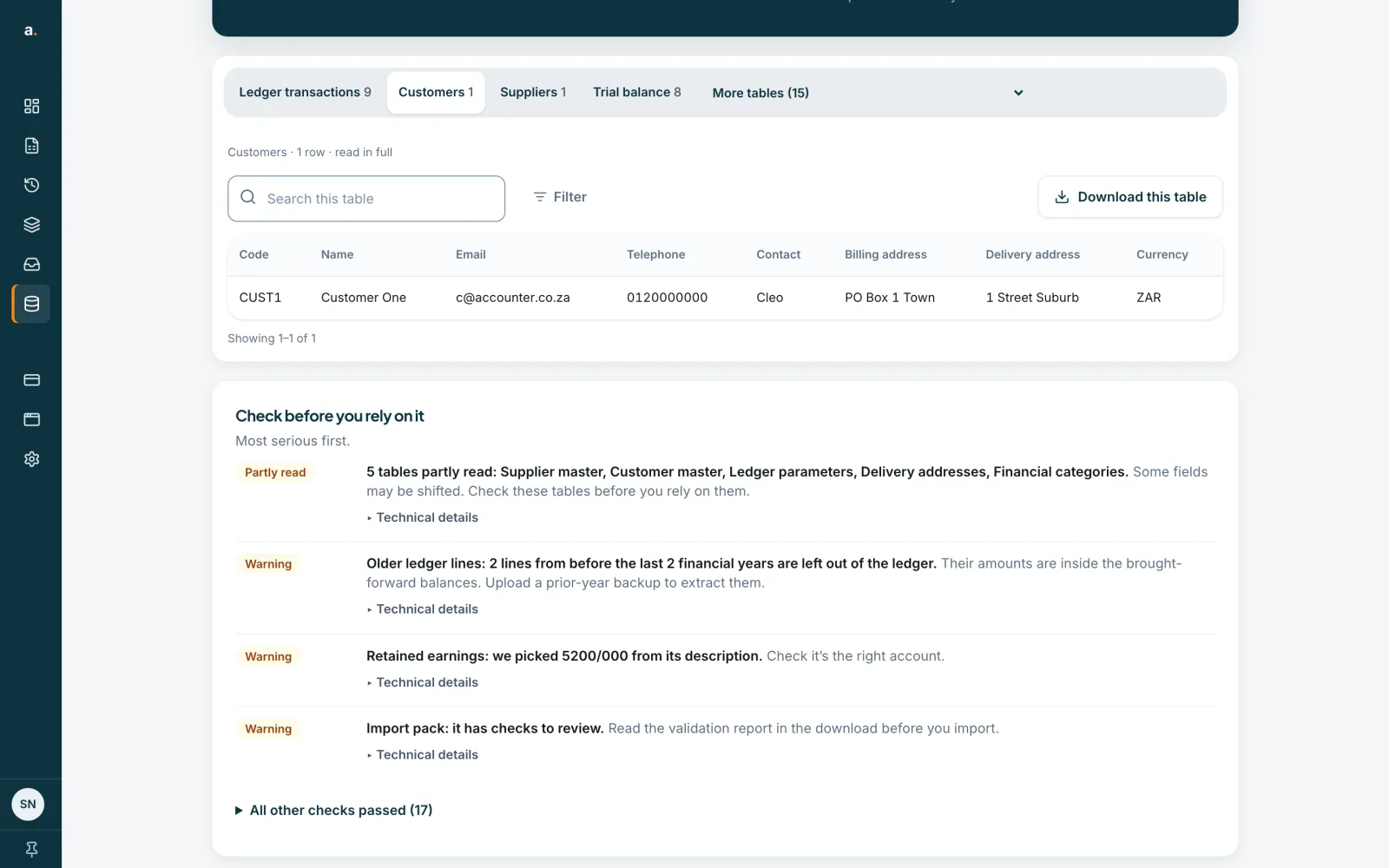
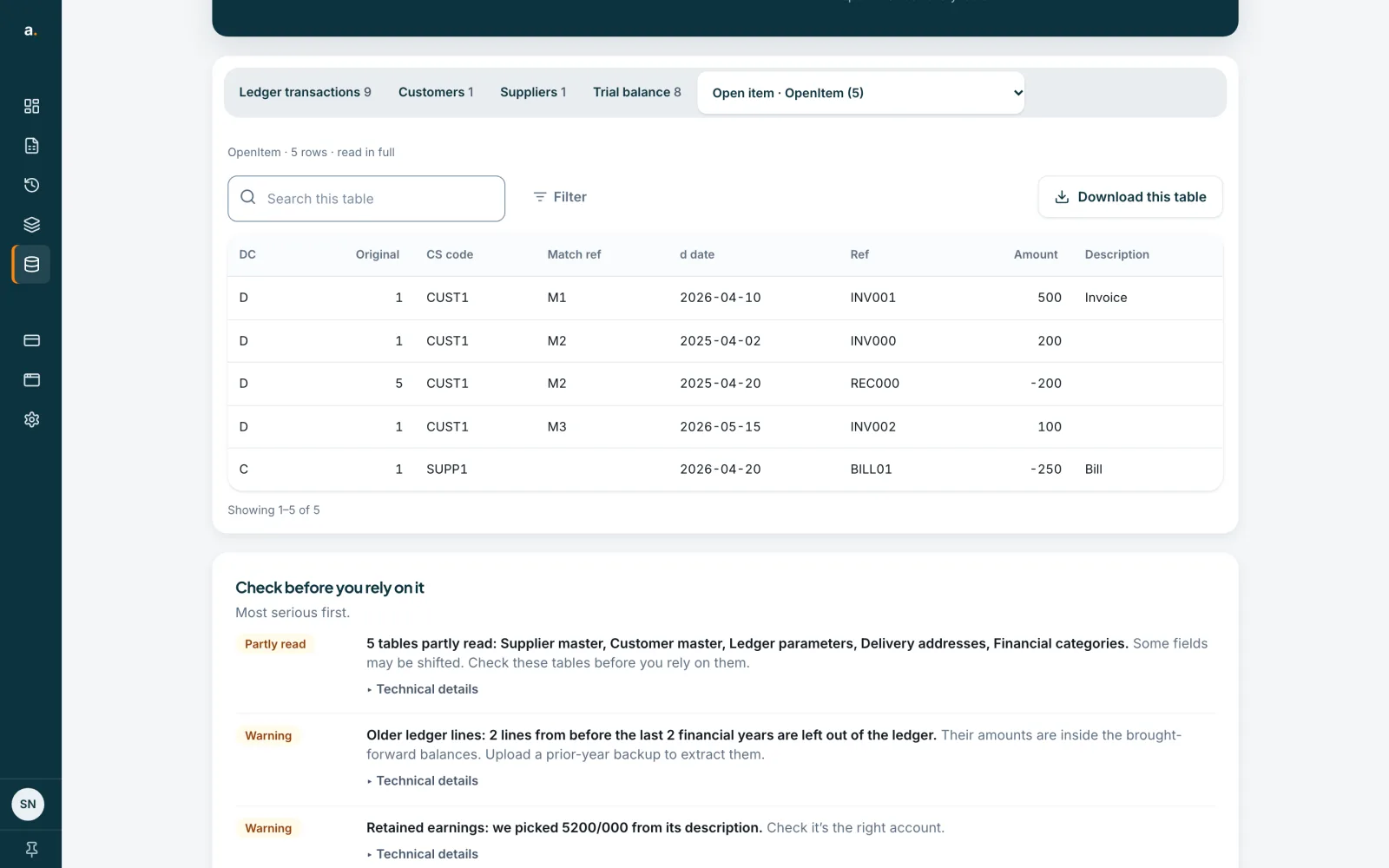
Open a table
The tabs across the top are Ledger transactions, Customers, Suppliers and Trial balance. Press one. Each table shows its row count and how fully it was read: read in full, partly read, or raw fields only.
 Open full size screenshot for step 2
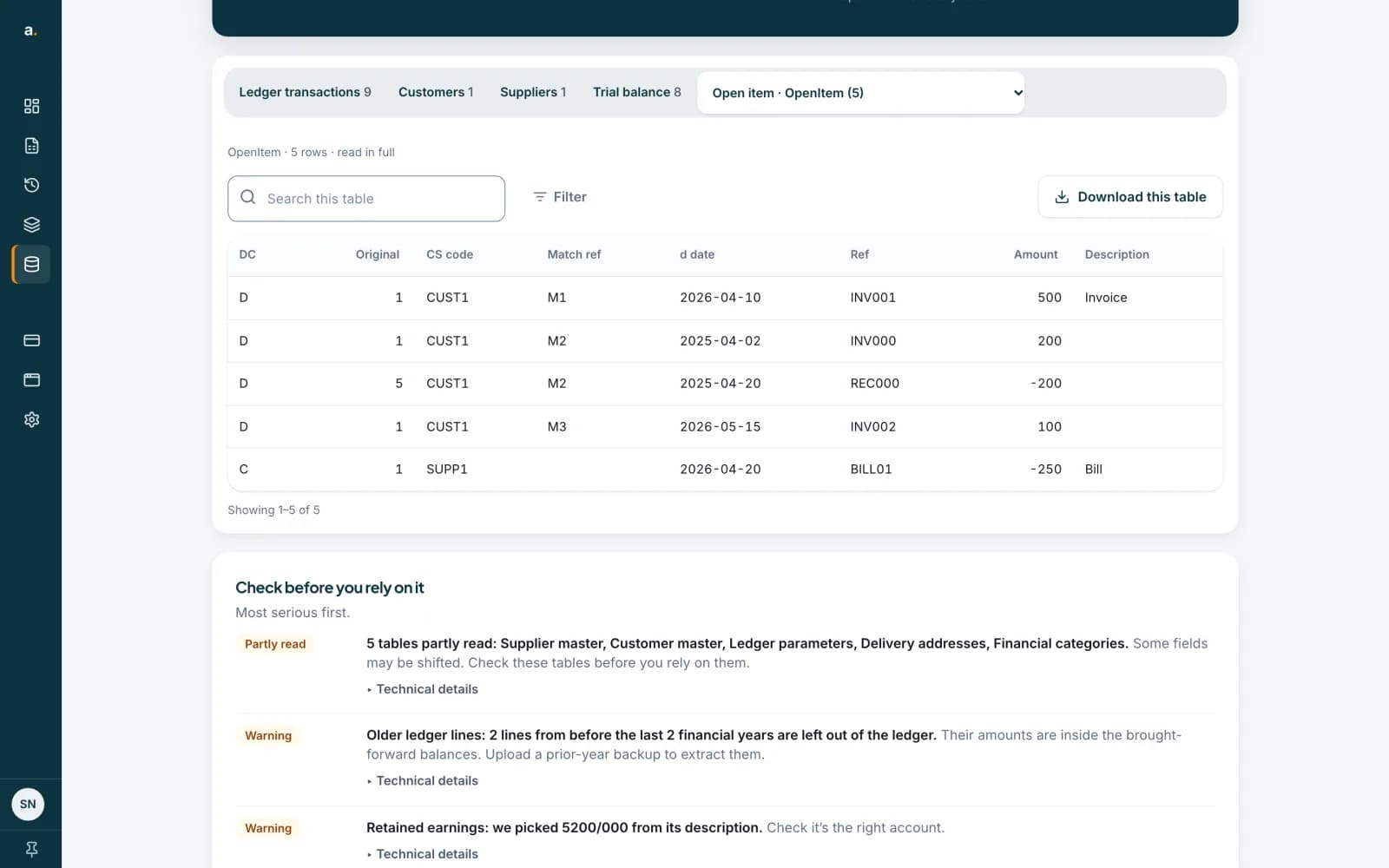
Find other tables under More tables
Press More tables to open the rest of the backup, each with its row count. Tables with nothing in them say so, for example Inventory, none in this backup. Choose one to open it.
 Open full size screenshot for step 3
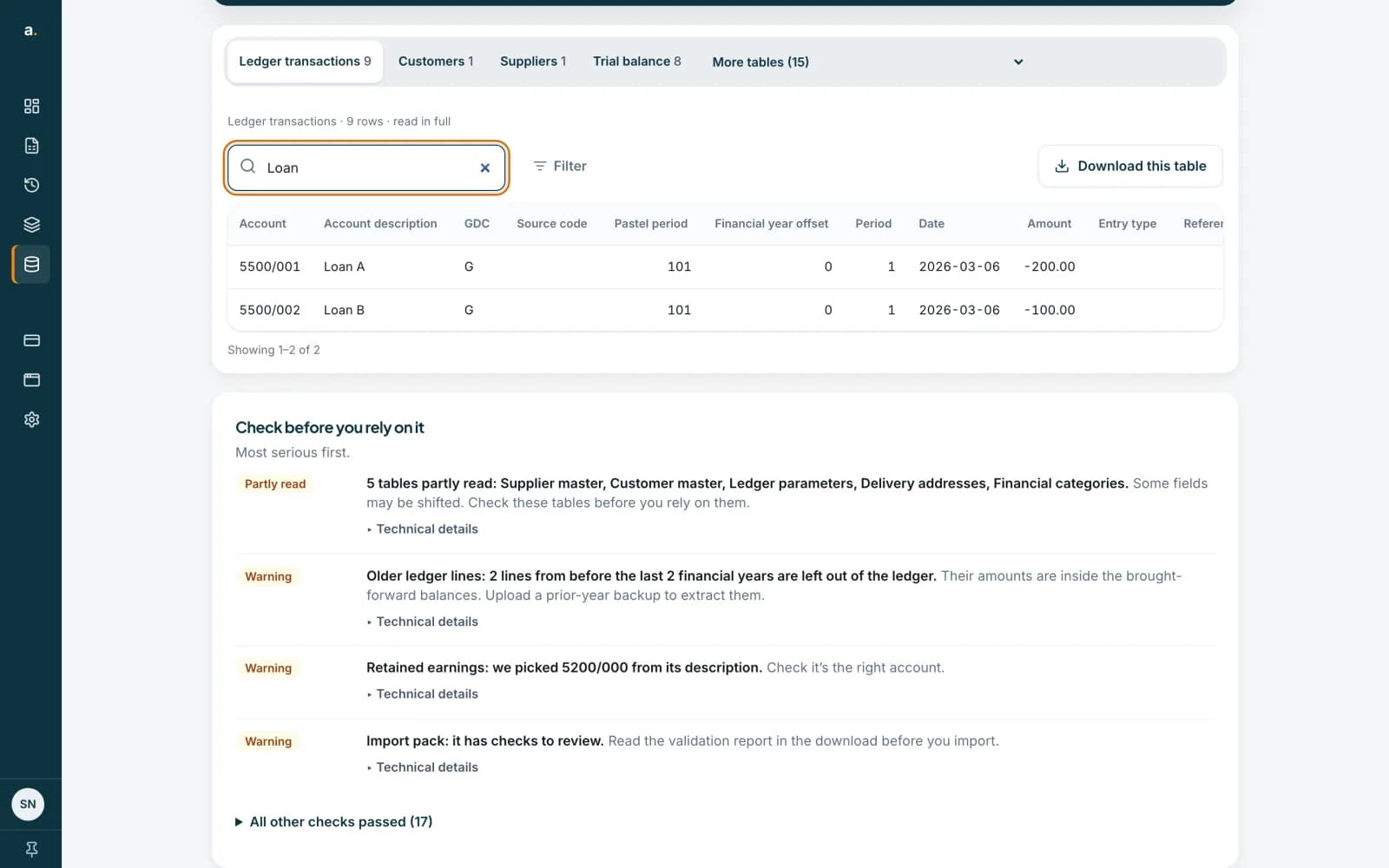
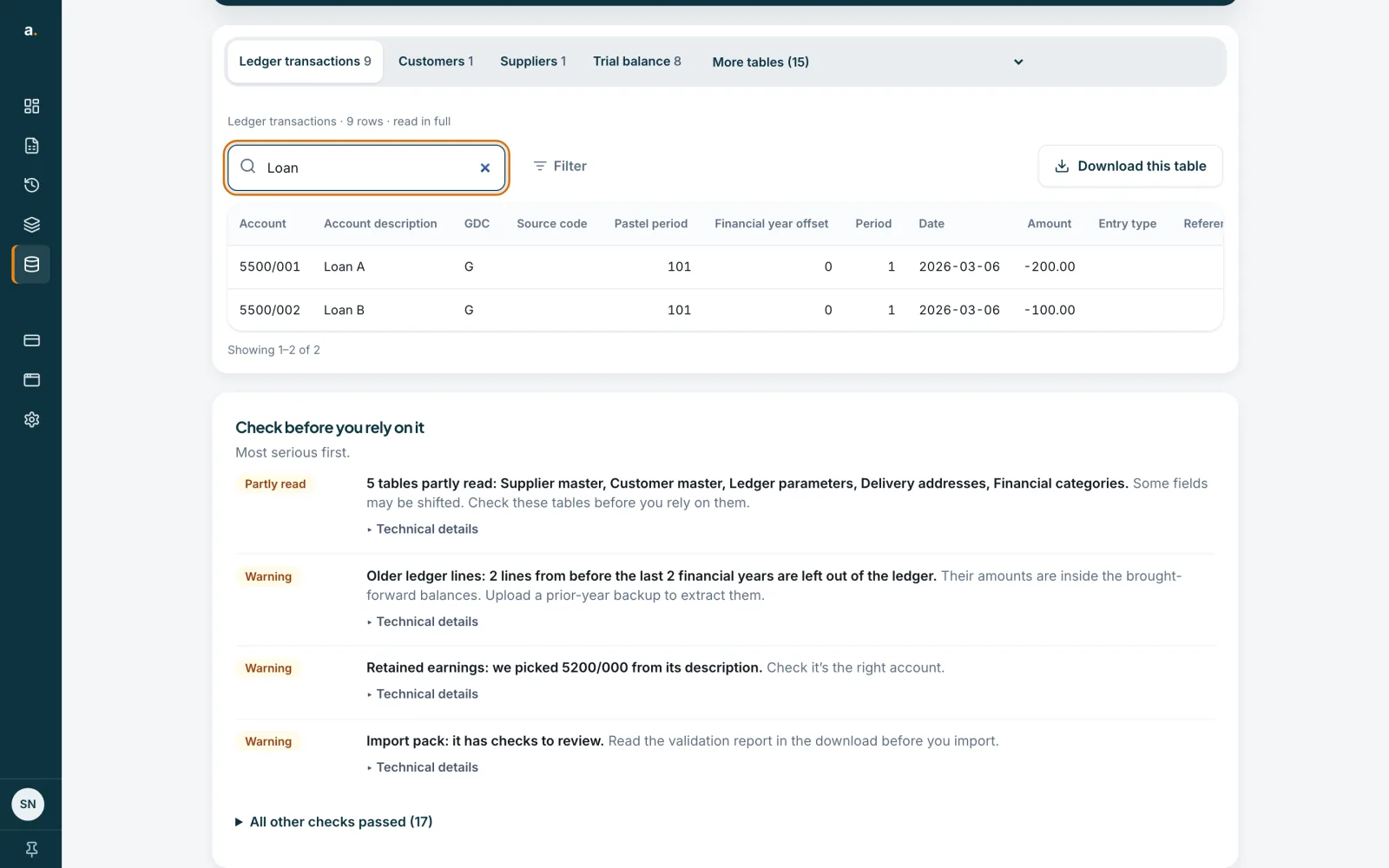
Search a table
Type in Search this table to narrow the rows. Search reads up to 64 characters and looks in the first 16 columns. The page shows how many rows match.
 Open full size screenshot for step 4
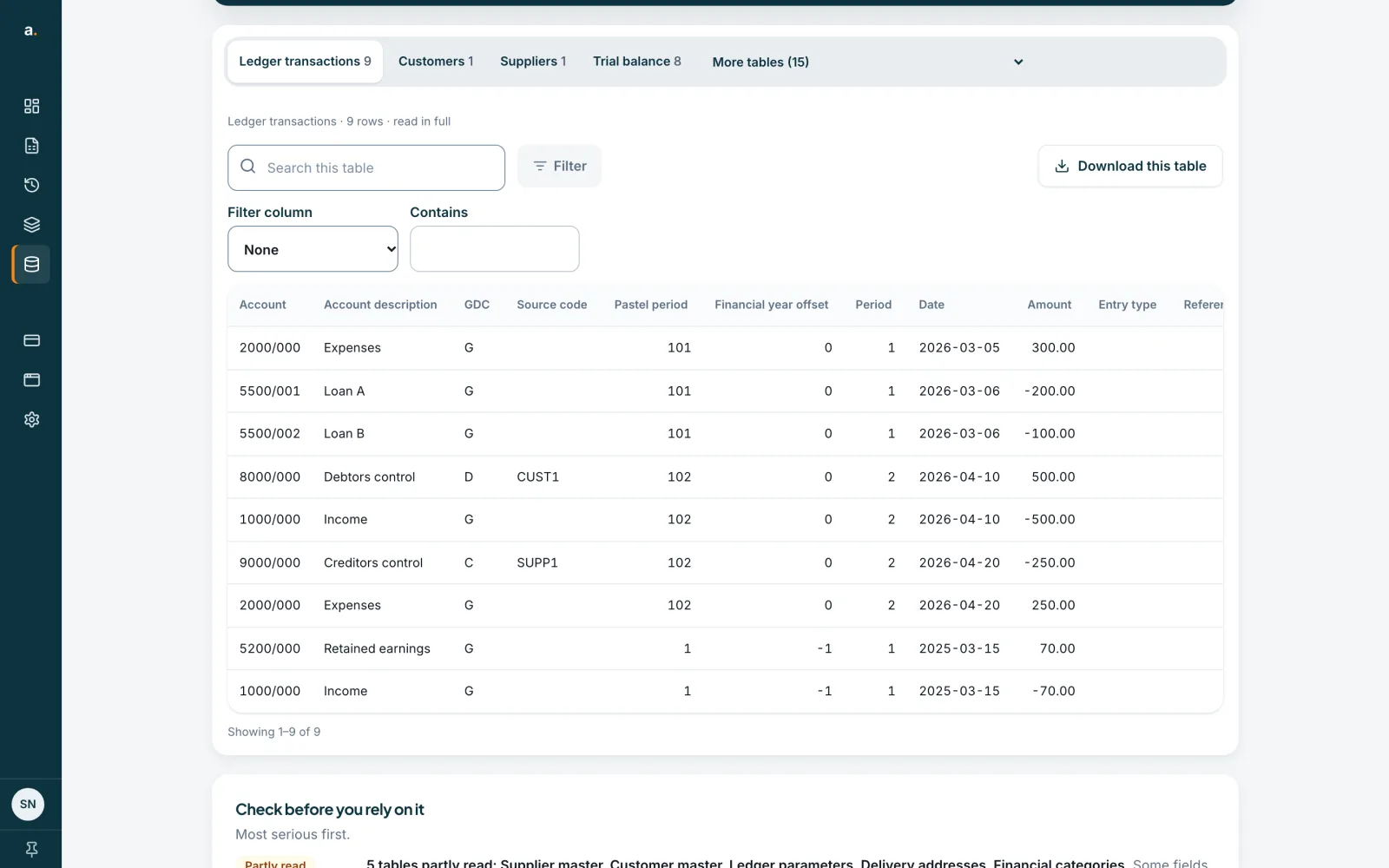
Filter by a column
Press Filter, choose a Filter column, and type a value in Contains. Tables are shown 50 rows at a time. Searches and filters show the first 10,000 matches, so narrow them if you need to see further.
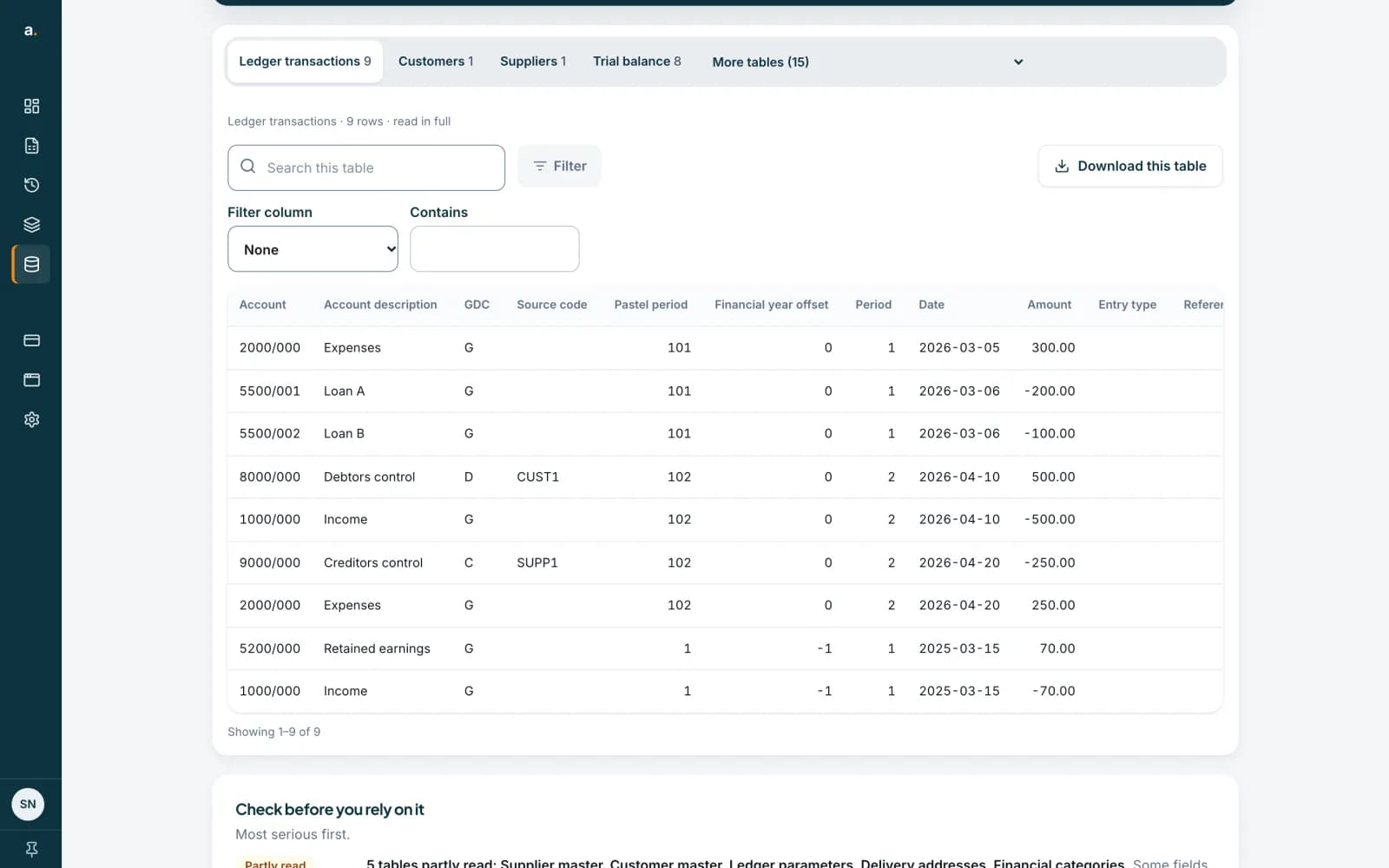 Open full size screenshot for step 5
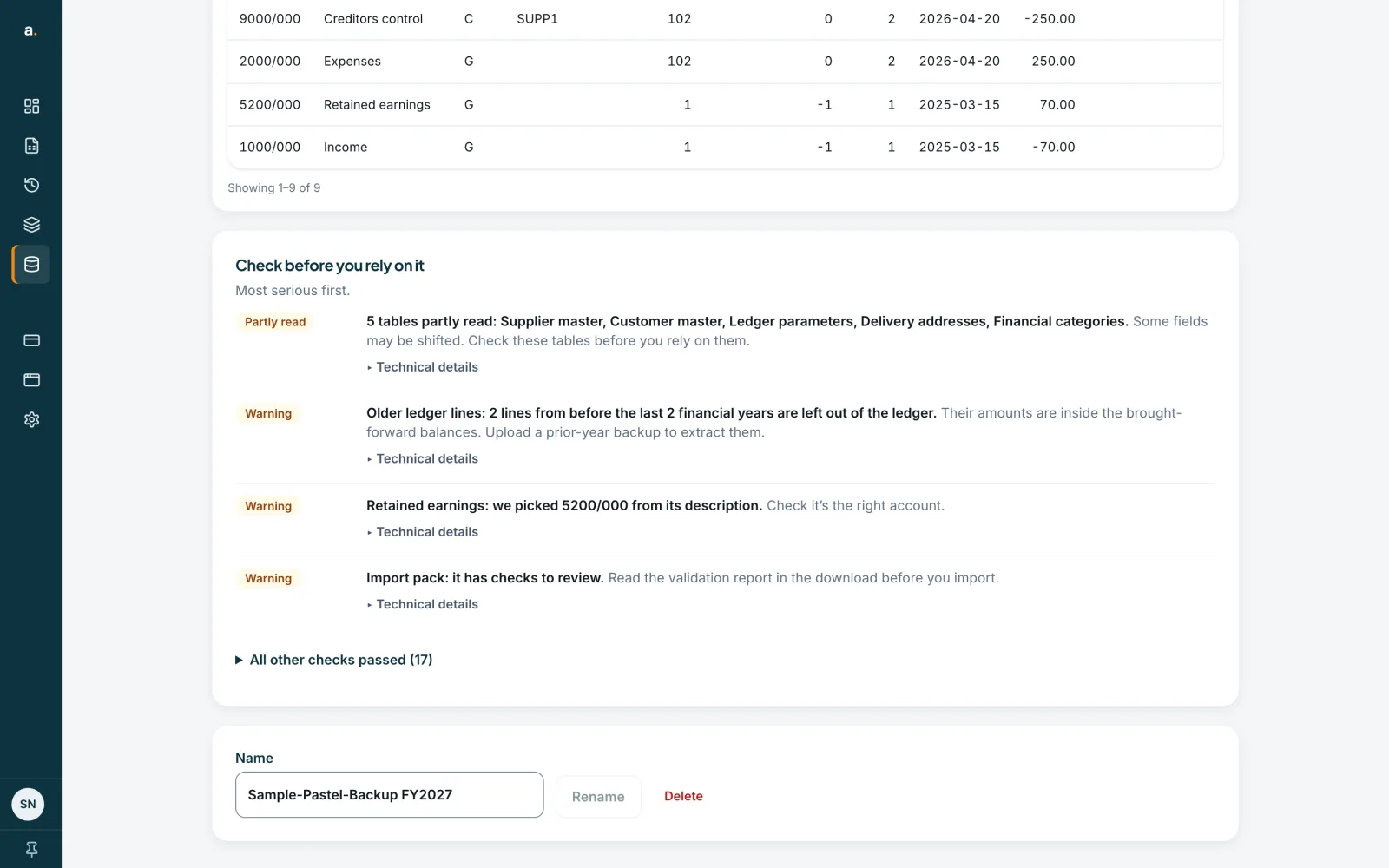
Read the checks and warnings
Look at Check before you rely on it. It lists anything to look at, most serious first, with labels such as Partly read and Warning. Press Technical details for more. All other checks passed shows how many checks were fine. Fix or note each warning before you rely on the figures.
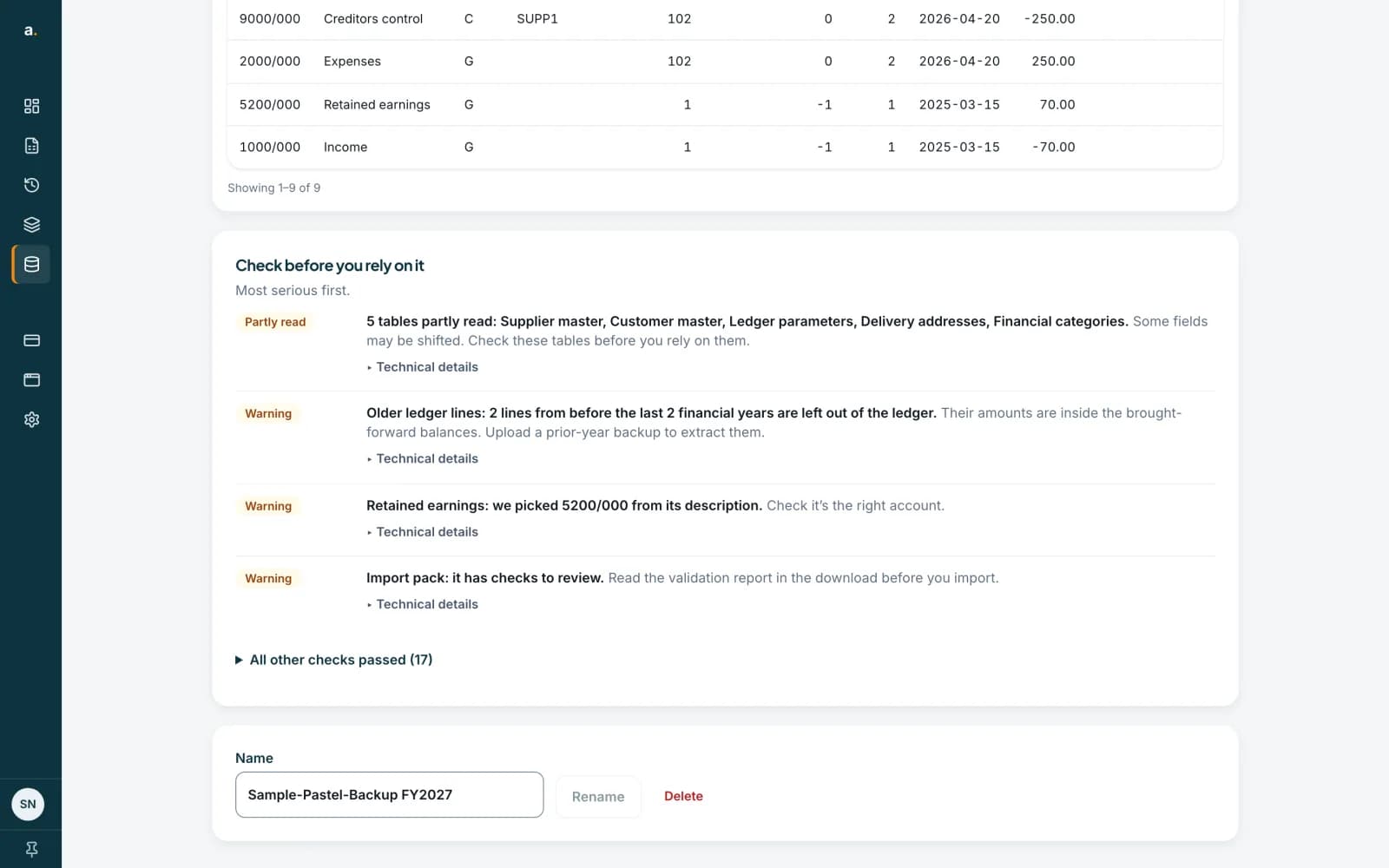 Open full size screenshot for step 6
Tips
- A backup can hold ledger lines older than the last two financial years. They are not shown in the ledger view, and the page tells you how many. Upload a prior-year backup to extract them.
- Very large tables cannot be sorted. Use search and filter instead.
- Press Rename to give the data set a clearer name.
If something goes wrong
- The page says Unverified: a check failed.
- Open Check before you rely on it and read which check failed. The tables are still there to view and download, but treat the figures with care.
- The trial balance does not net to zero.
- Check the warnings for the reason, then check the figures against Pastel before importing anything.
- A table says partly read or raw fields only.
- Accounter could not name every field in that table. The data is still in the CSV, but check it before using it.
- The data set has disappeared.
- Data sets are kept for 30 days from upload and then removed. Upload the backup again if you still need it.
Related guides
- Download your Pastel data as CSV filesDownload every table as a CSV zip, the import pack for the last two financial years, or a single table.
- Convert a Pastel backup with Quick convertUpload a Pastel Partner or Pastel Xpress backup zip, wait while Accounter reads it, then download one zip of CSV files.
- Delete a Pastel data setDelete a converted Pastel data set permanently, or clear everything from Privacy & data.