Convert a credit card statement
Last reviewed 16 November 2026 · 5 steps
Upload a credit card statement PDF, then check purchases, repayments, refunds, interest and fees before you export a CSV.
Free account
Steps
Download the full statement as a PDF
Download the whole statement from your bank's app or website. Use the PDF itself, not a screenshot of your balance. Include every page.
Upload it on Add statements
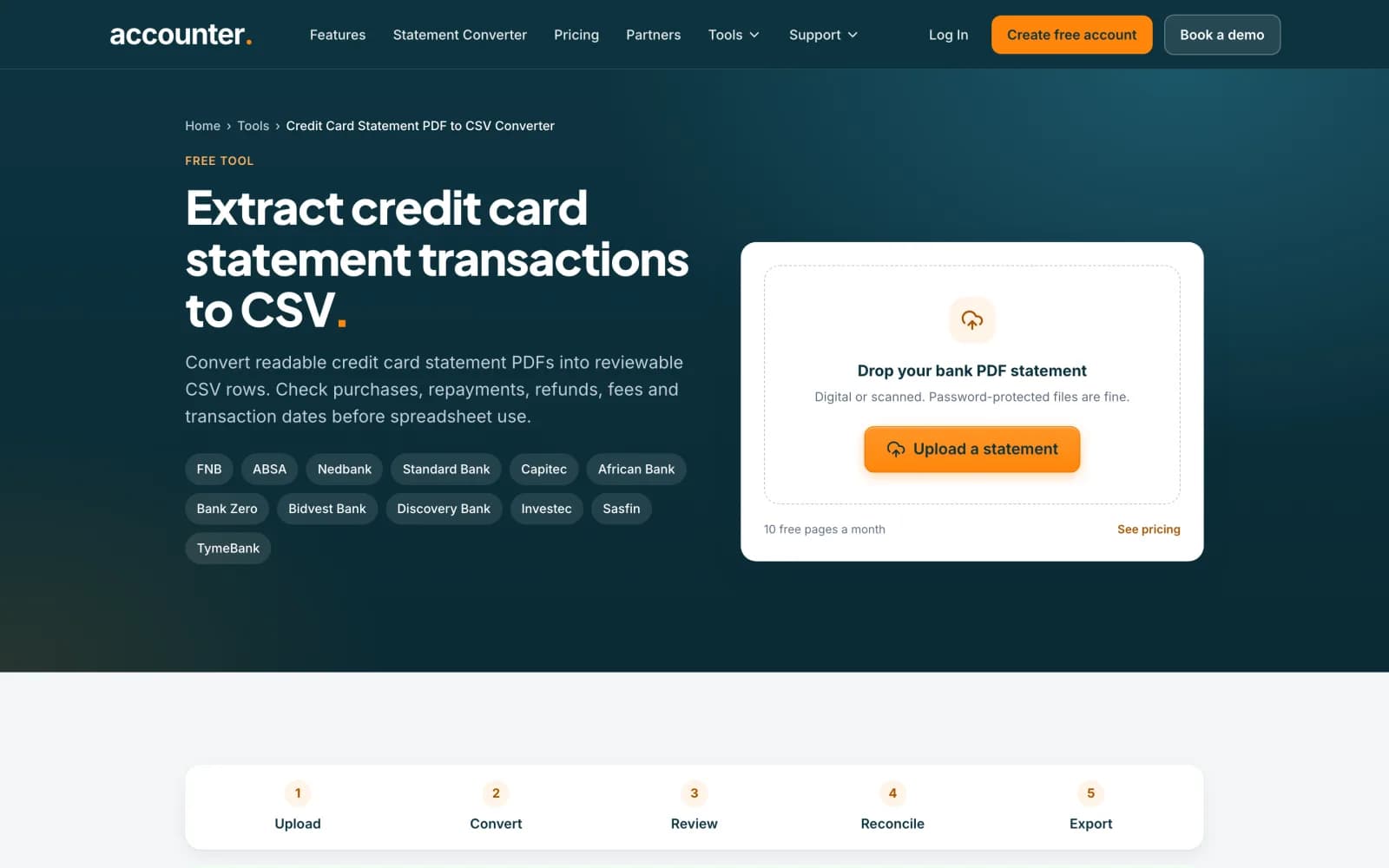
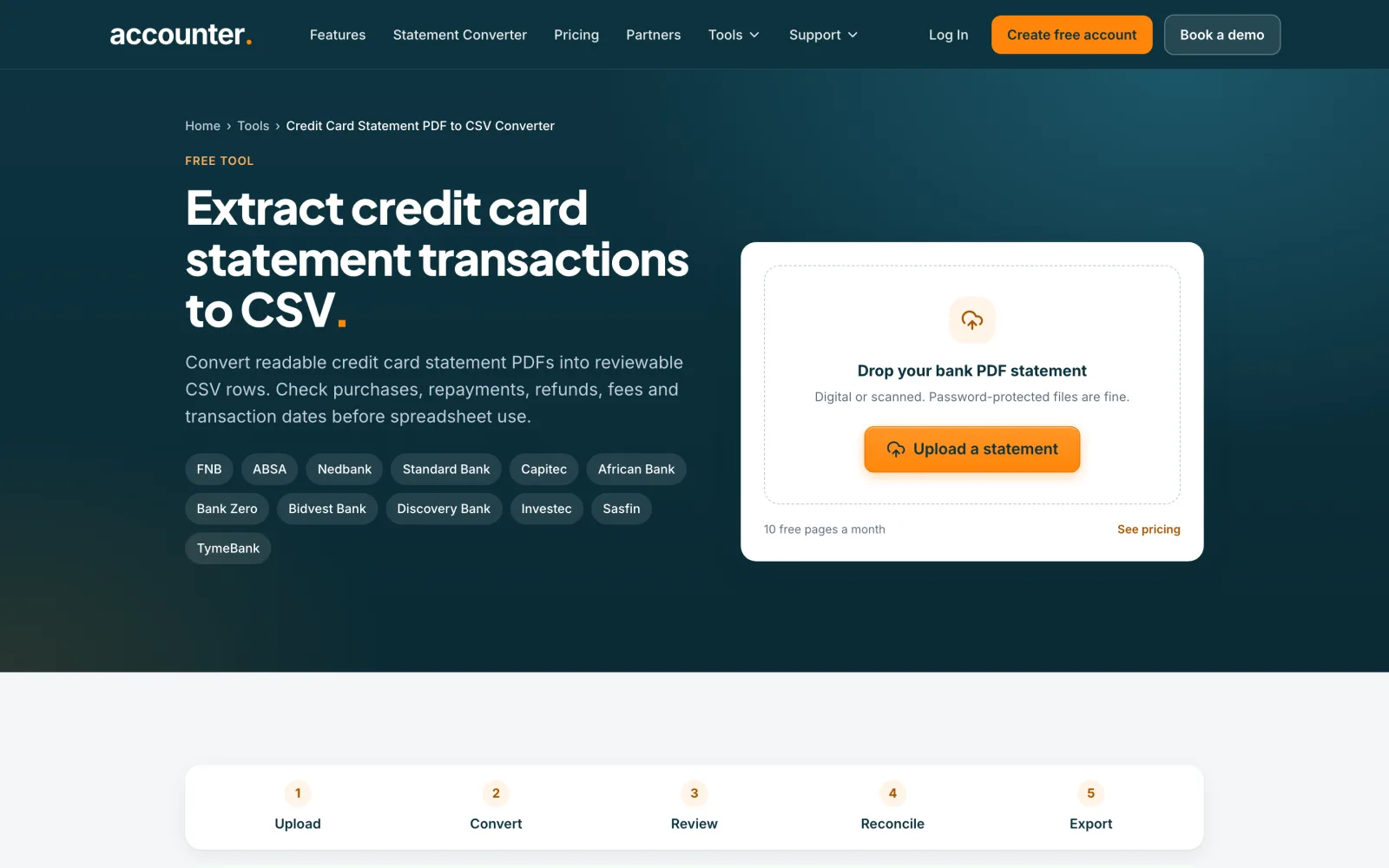
Choose Add statements and drop the PDF, or press Choose PDFs. Card statements use the same upload as bank statements. The free credit card page on the website, Credit Card Statement PDF to CSV Converter, takes the same kind of file.
 Open full size screenshot for step 2
Choose the bank if it is not detected
Accounter looks for the bank itself. If it says We couldn't detect the bank, open Bank or password? (optional) and pick the card's bank from Your bank, or My bank isn't listed. Enter the PDF password there if the file is locked.
Press Convert statement and open the result
A card statement opens in Statements like any other: the opening and closing balances, one row per transaction and a Balanced, Off by or other badge. Accounter checks a card in the card's own direction, where purchases add to what you owe.
Check the signs and the extras
Look at purchases, repayments, refunds, interest and fees against the PDF. Make sure a repayment is not treated as income or a refund as an expense when you import the rows. Fix any row, then press Save corrections and export.
Tips
- Many card statements print only a summary balance and no running balance on each row. Those rows show a dash in the CHECK column because there is nothing to check them against.
- Foreign-currency purchases can show two amounts. Check which one is the original purchase and which is the amount billed to your account, and whether an exchange fee is its own row.
- The converter reads a PDF you upload. It does not connect to your card account.
- Accounter exports CSV, OFX, QIF and the Xero, QuickBooks and Sage CSVs. It does not make XLSX files.
If something goes wrong
- Repayments look like expenses in the spreadsheet.
- A card is a liability, so debit and credit work the other way round from a bank account. Check how your accounting software expects a card account to be signed before you change anything.
- The statement is Off by an amount.
- Open Balance checks, find the flagged row and compare it with the PDF. Interest, fees and refunds are common culprits. See the guide on fixing a statement that is off.
- The result has no transactions, or the conversion fails.
- Check that the file is a statement with transaction rows and not a balance summary. Choose the bank and try again, or see the guide on failed conversions.
Related guides
- Convert a bank statement PDF to CSVUpload a bank statement PDF, check the balance and download a CSV you can open in Excel.
- Choose the bank for a statementAccounter detects the bank itself. Here is how to pick it yourself when detection fails, or change it if it got it wrong.
- Read the balance checkSee whether a converted statement adds up, find the row that does not, and read what the Balance checks panel suggests.