Convert a scanned statement
Last reviewed 16 November 2026 · 4 steps
Upload a scanned or photographed statement PDF, read the Looks scanned warning and check every row before you export.
Free account
Steps
Choose the scanned PDF on Add statements
Choose Add statements, then drop the PDF or press Choose PDFs. Accounter checks the file in your browser before anything is charged. If the pages look like pictures rather than text, a note appears: This looks like a scanned statement.
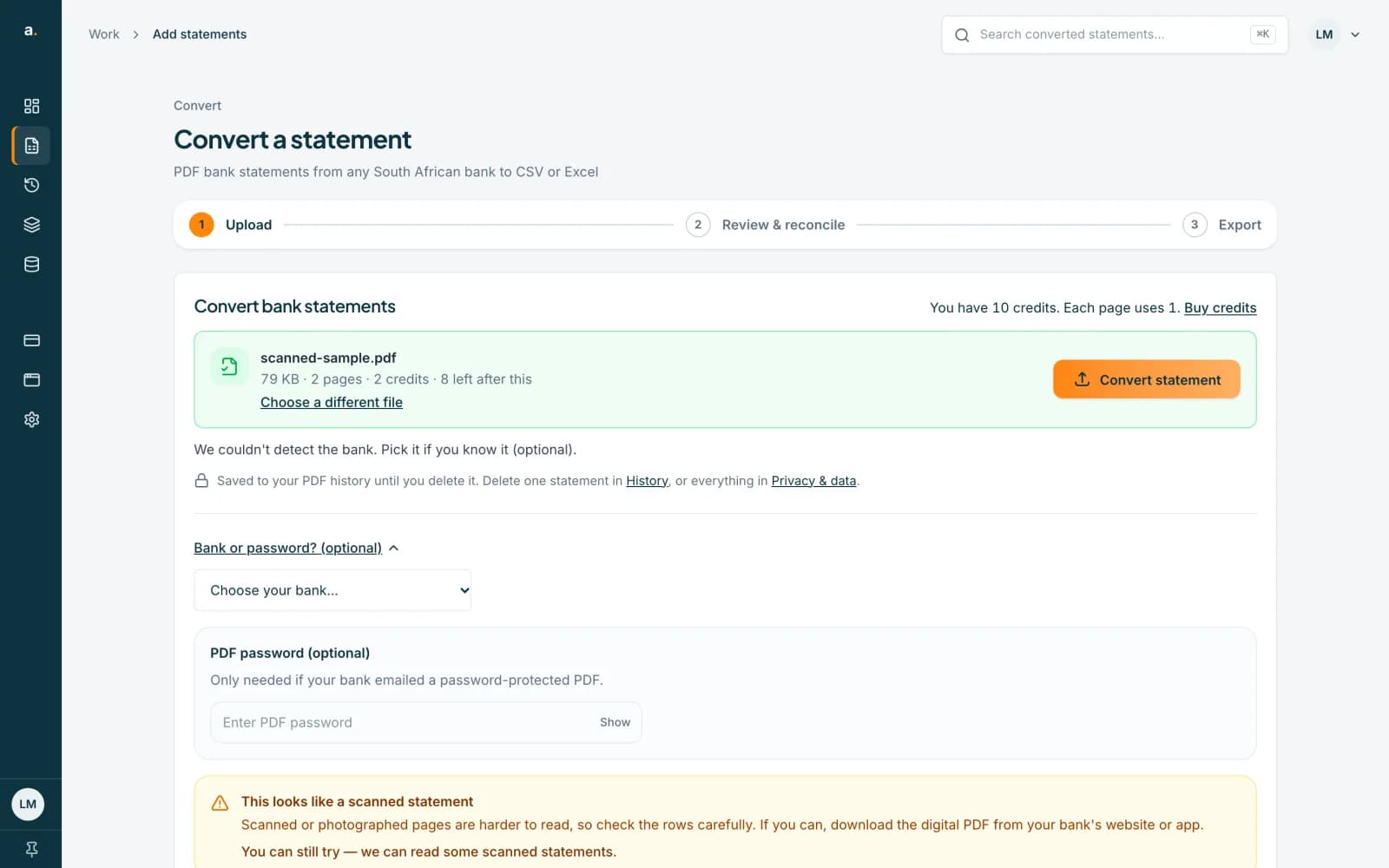 Open full size screenshot for step 1
Read the warning
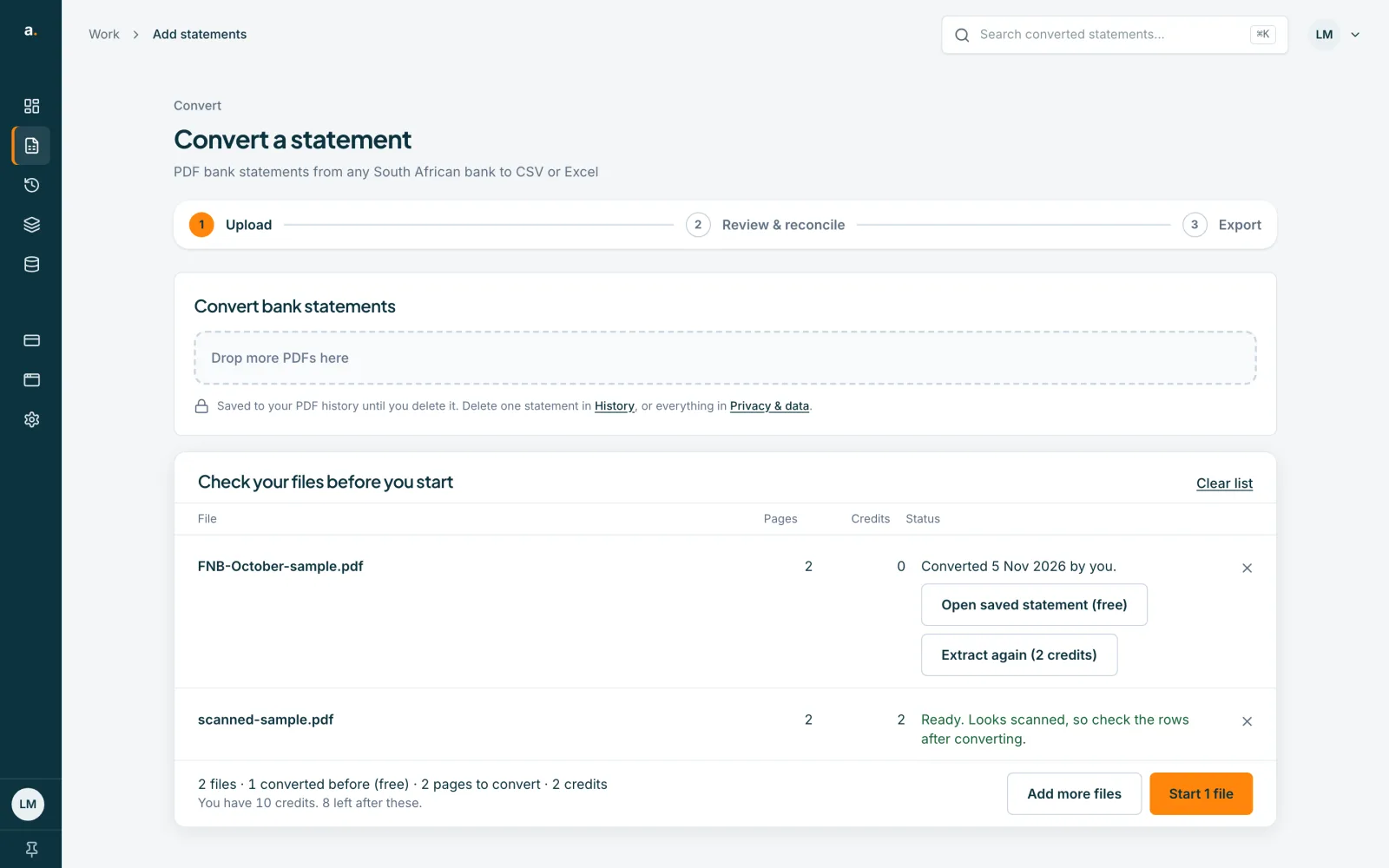
The note says scanned or photographed pages are harder to read, so check the rows carefully, and that you should download the digital PDF from your bank's website or app if you can. It ends: You can still try. In a list of several files, the file's status reads Ready. Looks scanned, so check the rows after converting.
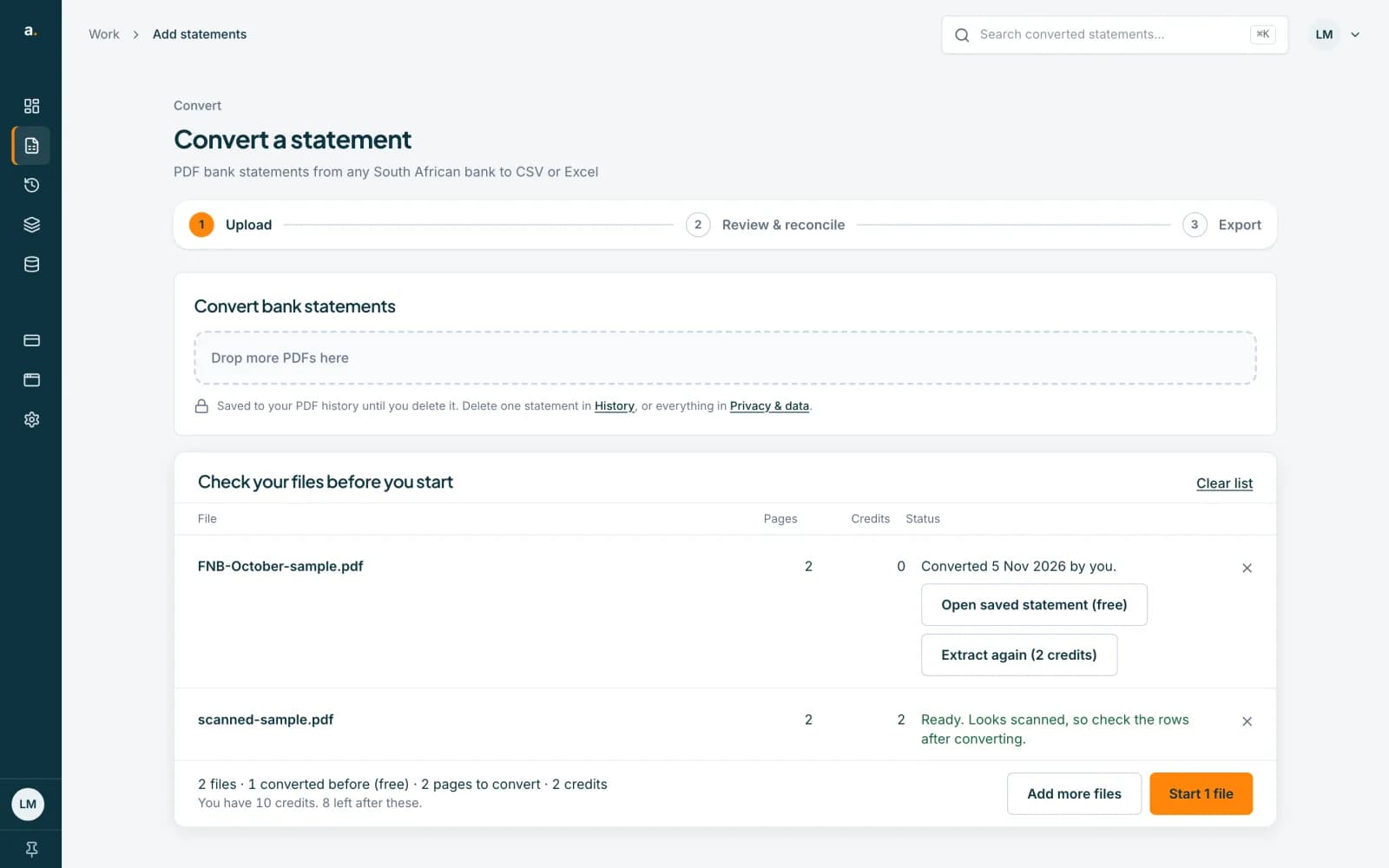 Open full size screenshot for step 2
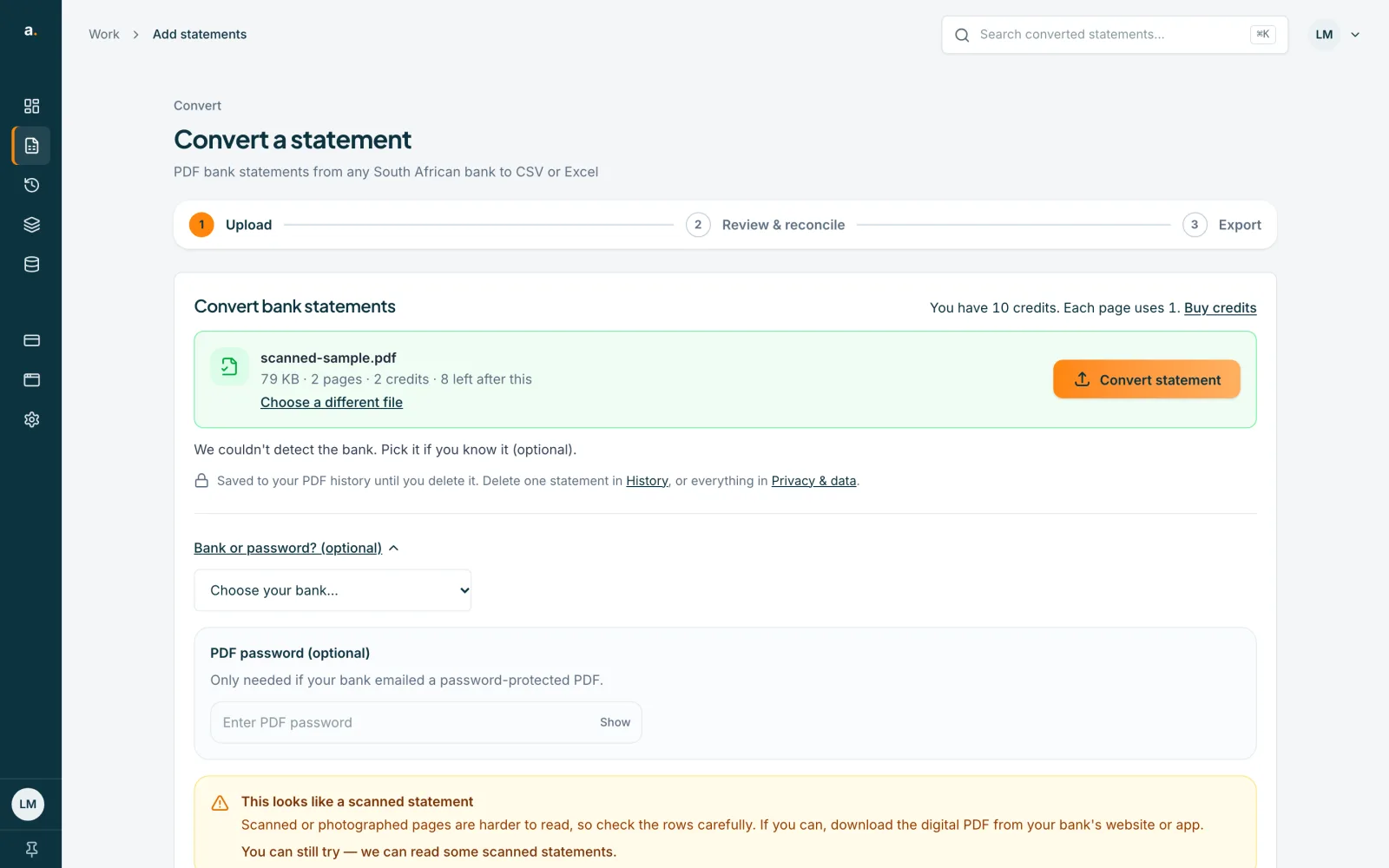
Press Convert statement
Press Convert statement, or Start for a list. Scanned statements take longer to read than digital ones, so keep the page open or leave and come back. The conversion is saved in Statements either way.
Check the balance and every row
Open the result and look at the badge. A green Balanced badge means the rows add up to the printed balances. Whatever the badge says, compare the rows with the PDF using Compare with PDF, and correct anything that was misread. Then press Save corrections and export.
Tips
- The digital PDF from your bank's website or app is always the best source. Use a scan only when it is all you have.
- Upright, complete, clear pages read best. Blur, skew, cropped edges and low resolution all make mistakes more likely.
- Include every page of the statement period. A missing page means missing rows.
- A balanced scan can still hold a misread description, so scan your descriptions as well as your totals.
If something goes wrong
- Conversion fails with This looks like a scanned statement.
- The pages could not be read reliably. Download a digital PDF from your bank and upload that. Avoid screenshots, photos and scanned copies. Failed attempts don't use credits.
- You see We couldn't find any transactions.
- Check that the file is a statement with transaction rows and not a scan of a summary page. If it is, choose your bank in Bank or password? (optional) and try again.
- The badge says Off by an amount.
- A row was probably misread. Follow the guide on fixing a statement that is off, and use Compare with PDF to check each flagged row.
Related guides
- Convert a bank statement PDF to CSVUpload a bank statement PDF, check the balance and download a CSV you can open in Excel.
- Fix a statement that is offFind the row that stops a statement balancing, correct it, and save when the badge turns Balanced.
- Compare a statement with its PDFOpen the original PDF beside the transactions to check rows, page by page, while you correct them.