Convert a statement from a foreign bank
Last reviewed 16 November 2026 · 5 steps
Convert a statement from a US, UK, Canadian or Australian bank, choose the bank, and check the rows against the PDF.
Free account
Steps
Open the international converter or Add statements
The International Bank Statement Converter page covers US, UK, Canadian and Australian banks such as Chase, HSBC, Barclays and Westpac. It says it is not for South African banks. Signed in, you can also use Add statements.
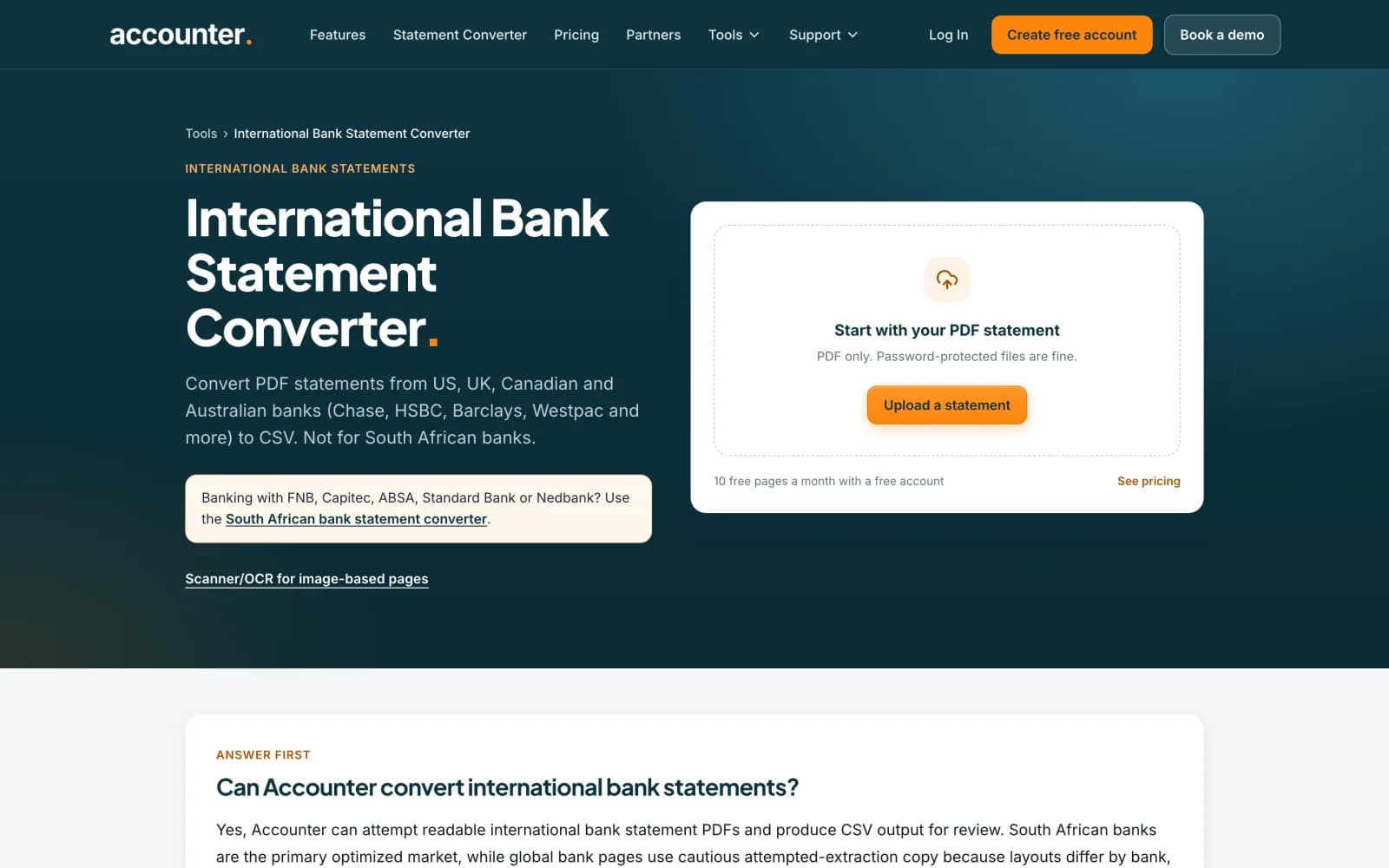 Open full size screenshot for step 1
Or open your bank's own page
There is a page for each bank, for example Convert Chase Bank Statements to CSV. It loads the same converter with that bank in mind. Banks listed include Chase, Bank of America, Wells Fargo, Citi, Capital One, HSBC, Barclays, Lloyds, NatWest, Santander, Revolut, Monzo, Starling, TD Bank, RBC, Scotiabank, CIBC, Westpac, Commonwealth Bank, ANZ and NAB.
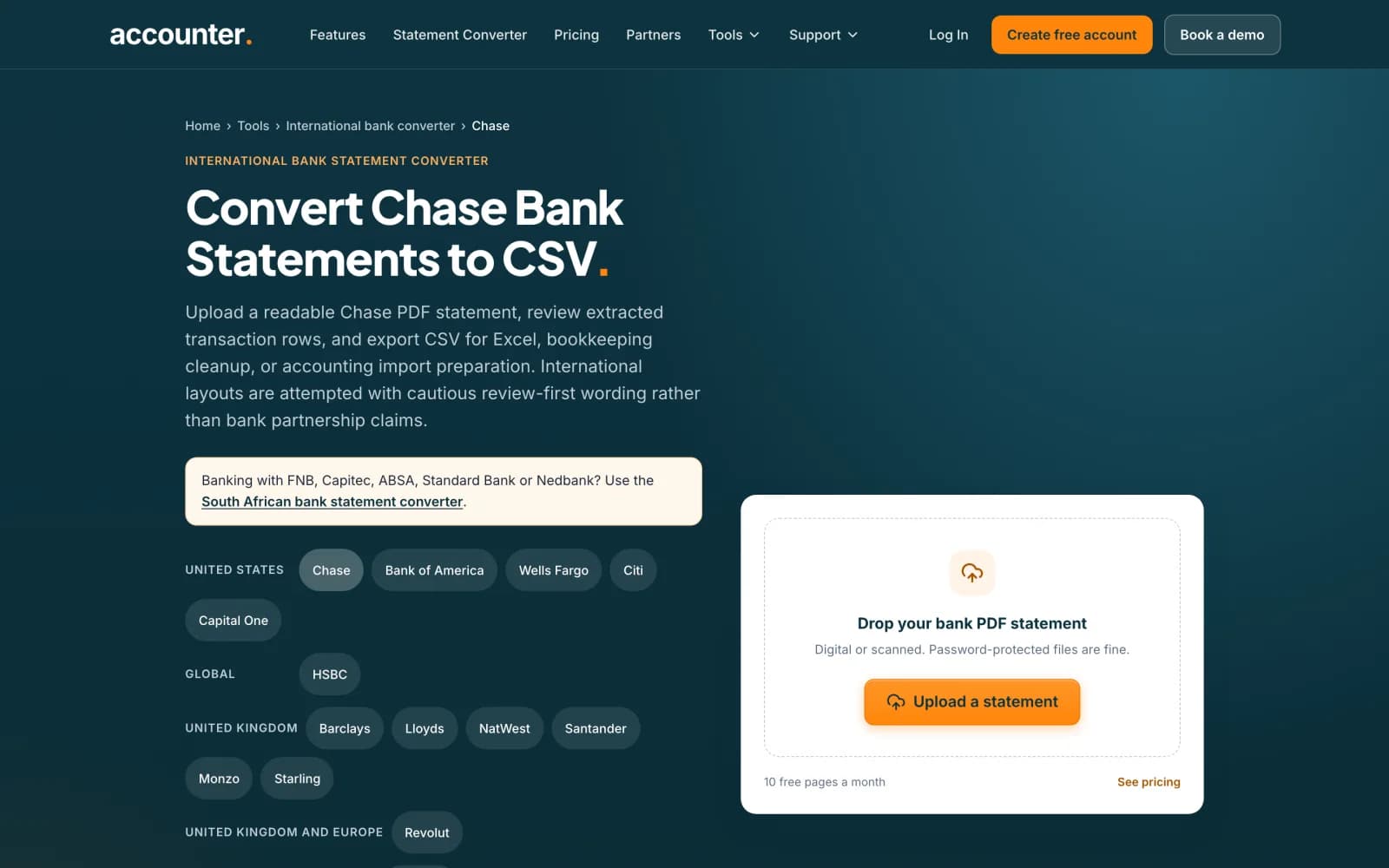 Open full size screenshot for step 2
Upload the PDF and pick the bank
Drop the PDF or press Upload a statement. If the bank is not detected, open Bank or password? (optional) and choose it from Your bank. International banks are at the end of the list, under Banks outside South Africa.
Press Convert statement and check the rows
Accounter attempts international layouts on a best-effort basis, because layouts vary by country and account type. Compare the rows with the PDF, using Compare with PDF, and watch the balance badge.
Choose the date format when you export
US banks print month first and UK, Canadian and Australian banks mostly print day first. In the Export options panel, choose the date format your software expects. For QIF, choose Day/month/year or Month/day/year under Dates in the file.
Tips
- The PDF should be a readable digital statement. Scanned pages are harder.
- Check which currency the statement is in before you import.
- If your bank is not in the list, try My bank isn't listed and check the result carefully.
If something goes wrong
- The bank is not detected.
- Pick it yourself from Your bank. If it is not listed, choose My bank isn't listed.
- Dates look swapped, such as 03/04 read as 4 March.
- Correct the dates in the table and set the date format you want in Export options. Check the statement's own convention before you trust either order.
- The conversion fails.
- See the guide on failed conversions. Failed attempts don't use credits.
Related guides
- Choose the bank for a statementAccounter detects the bank itself. Here is how to pick it yourself when detection fails, or change it if it got it wrong.
- Convert a bank statement PDF to CSVUpload a bank statement PDF, check the balance and download a CSV you can open in Excel.
- Choose your export file type and columnsDownload a statement as CSV, OFX, QIF or an accounting-app CSV, and set the columns, date format and presets for your CSV.