Convert several statements at once
Last reviewed 16 November 2026 · 5 steps
Drop two or more statement PDFs on Add statements, check the list, press Start and download the results together.
Free account
Steps
Open Add statements and choose your PDFs
Choose Add statements in the left menu. Drop all the PDFs onto the page together, or press Choose PDFs and select several files. You can add more later with Drop more PDFs here. Each file can be up to 20 MB.
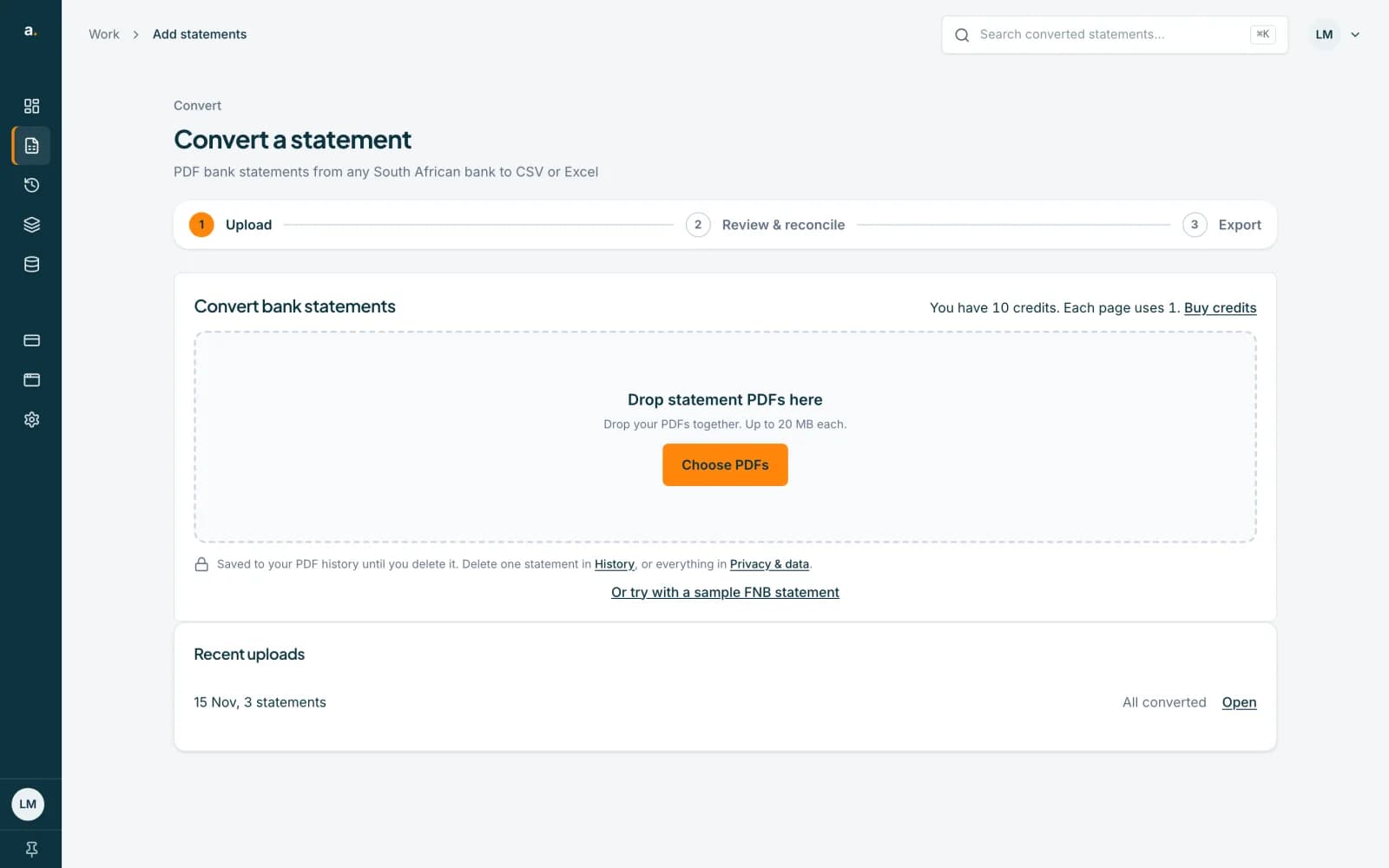 Open full size screenshot for step 1
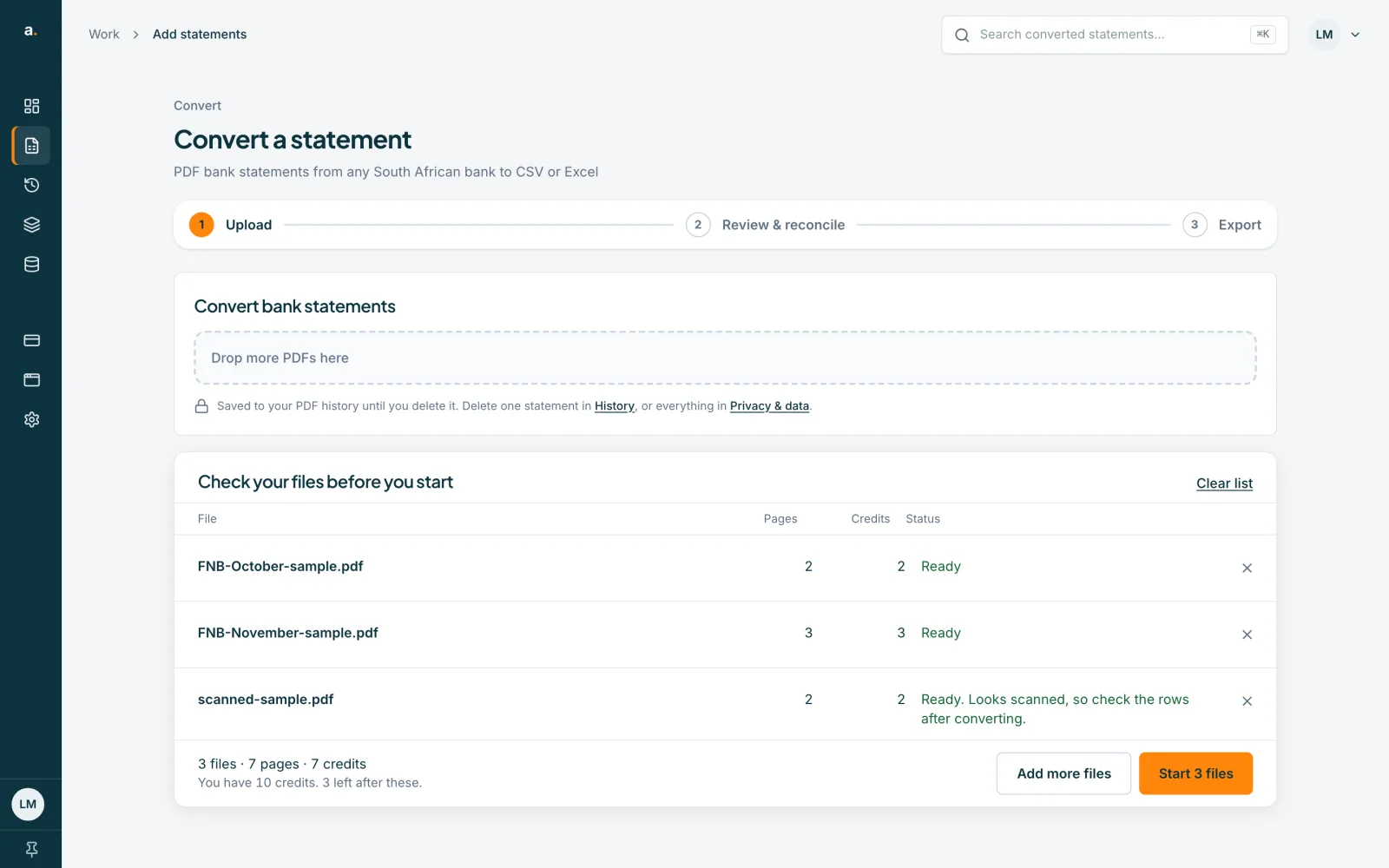
Read the list under "Check your files before you start"
Every file gets a row with its Pages, Credits and Status. A line underneath adds it up, for example 3 files · 7 pages · 7 credits, and says how many credits you will have left. Nothing is charged yet. Use the cross at the end of a row to remove a file, Add more files to add others, or Clear list to start again.
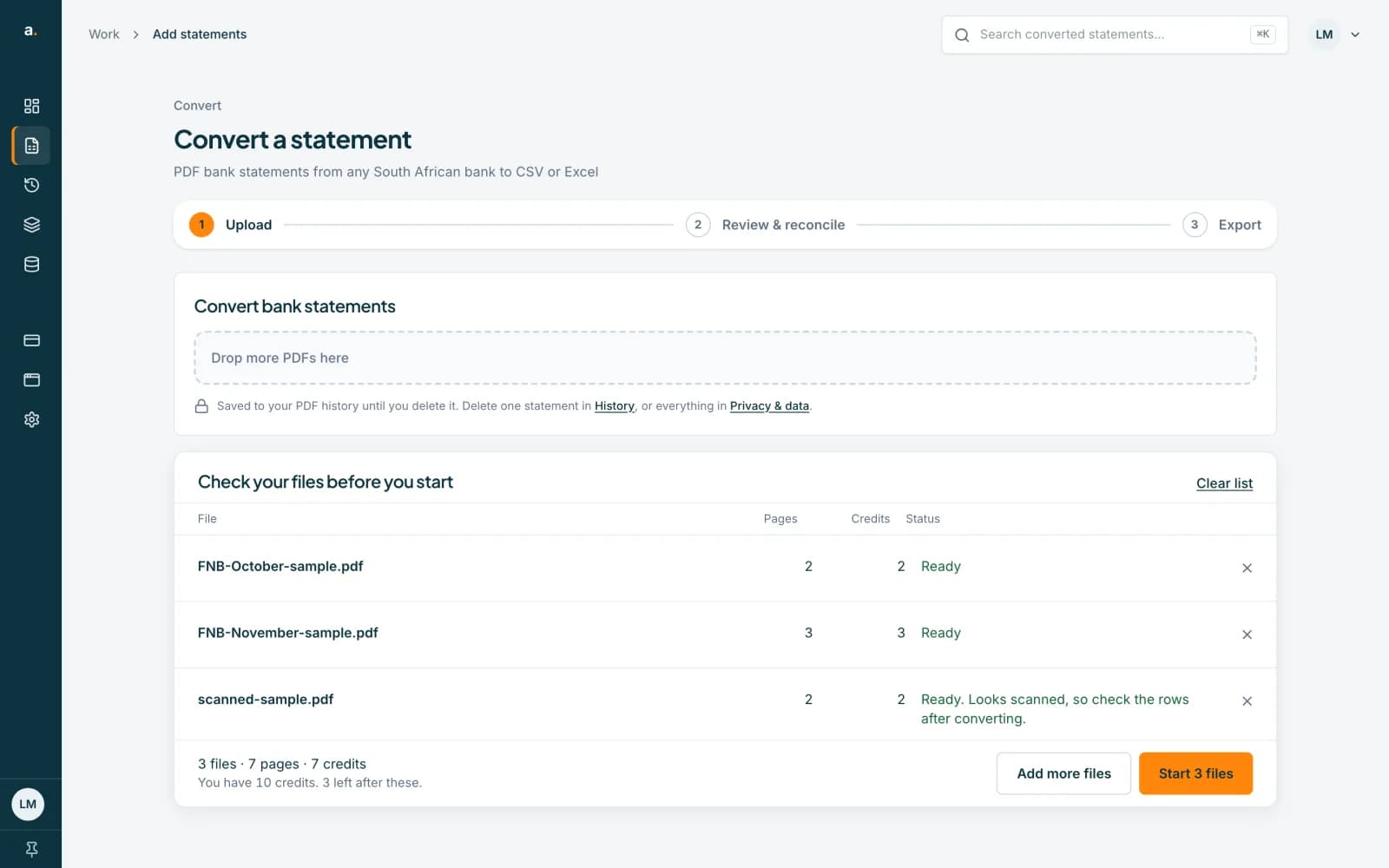 Open full size screenshot for step 2
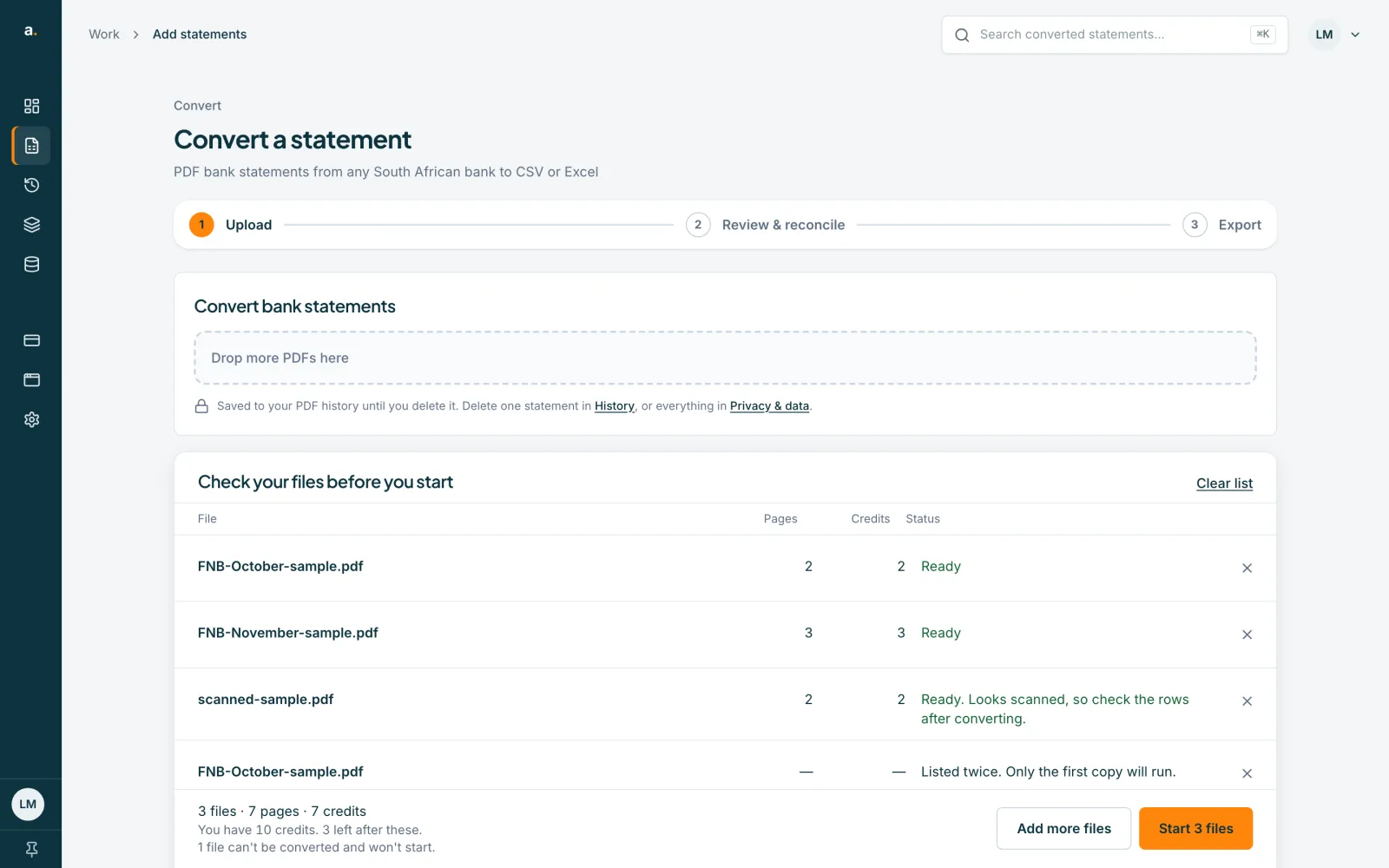
Deal with any file that is flagged
A file that looks scanned still runs, so check its rows afterwards. A file added twice says Listed twice and only the first copy runs. A locked file asks for its PDF password, and a file that is too large says so and offers Split this PDF. A file you converted before says Converted, with Open saved statement (free) or Extract again.
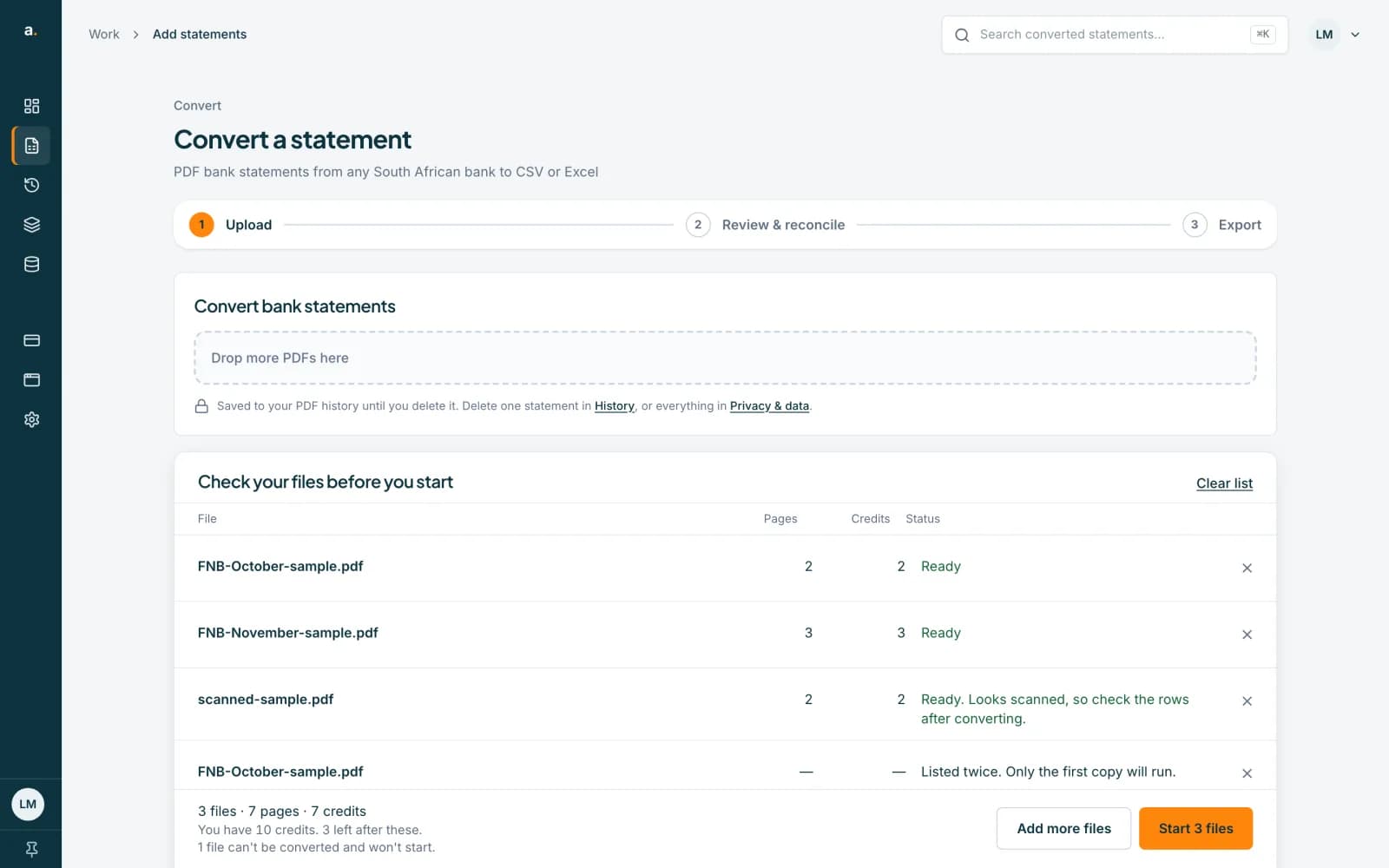 Open full size screenshot for step 3
Press Start
Press the Start button, which names the files, for example Start 3 files. The heading changes to Converting 3 statements, with a bar showing how many pages have been read. You can leave the page. Accounter says it will keep going and save each statement to your PDF history.
Download the results
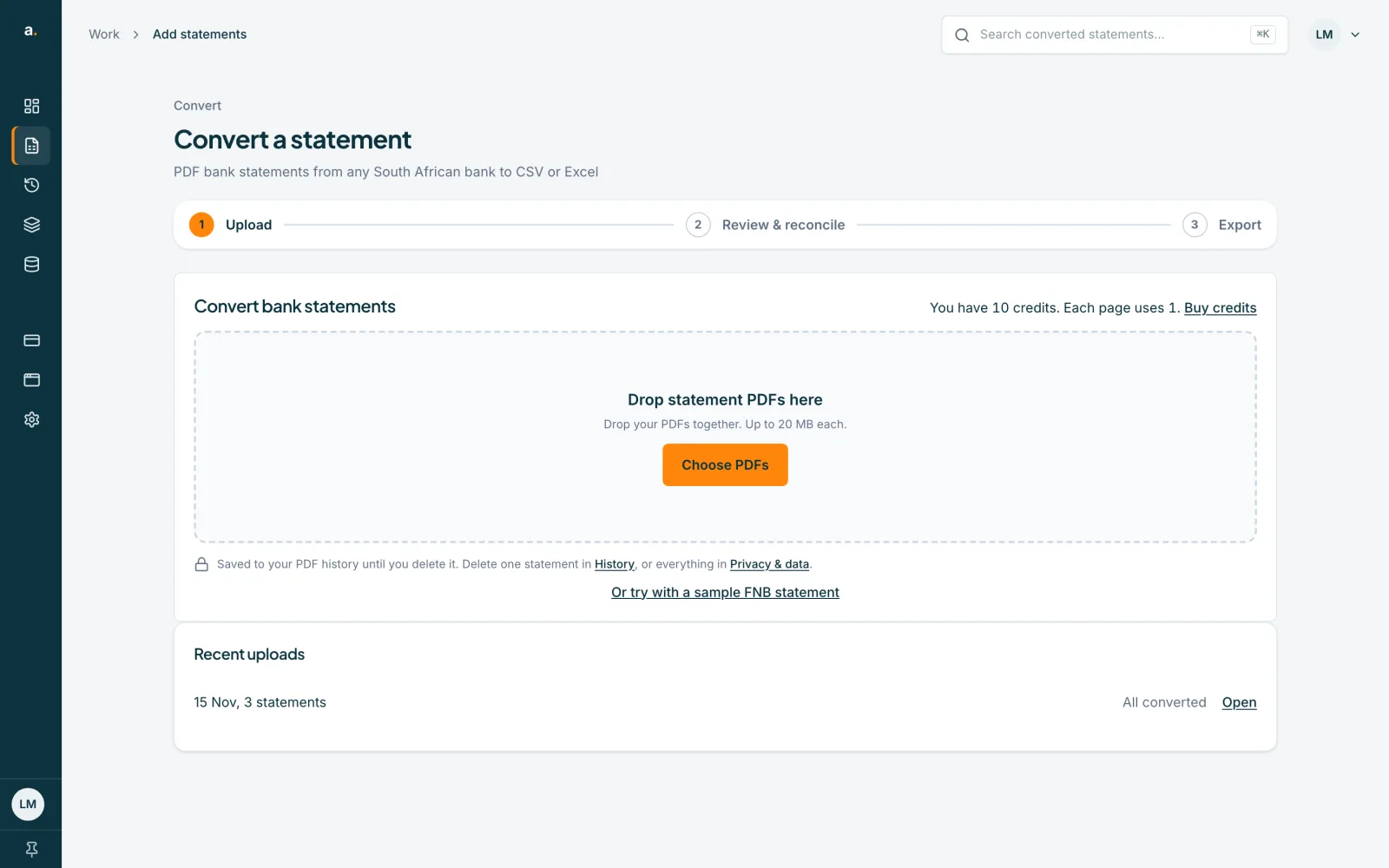
When the files finish, a summary says how many converted and how many need review. Press Download all (zip) for one CSV per statement, or Download all (one CSV) to join them. Download status report (CSV) lists each file and whether it converted. Open PDF history to review a statement, or press Convert more statements.
Tips
- Up to 50 files can be started in one go. For more, start a second upload.
- Credits are 1 per page. If a file fails, the credits held for it are returned.
- For a long list of clients, the Batches page does the same job with an overview of every batch. See the guide on converting many statements with batches.
- Keep the page open until the files have finished uploading. If some are still uploading you will see Some files still need to finish uploading.
If something goes wrong
- The Start button says Waiting for credits.
- The files need more credits than you have. Remove files to lower the total, or buy credits. Your files stay listed while checkout opens in a new tab. See the guide on failed conversions and credits.
- You see Couldn't start these files, or We couldn't confirm your files started.
- Look in your PDF history before you try again, so nothing runs twice. If the statements appear there within a minute, they started.
- A file says Nothing to convert. This file was converted before.
- You already have it. Open the saved statement for free, or choose Extract again if you want it read from scratch.
Related guides
- Convert many statements at once with batchesDrop up to 50 statement PDFs in one batch, let Accounter read and check them in the background, and review the ones that need a look.
- Fix a failed conversion or not enough creditsSee what each message means, buy credits when you are short, and try again. Failed attempts do not use credits.
- Reopen a statement for free or extract it againIf you add a PDF you have already converted, open the saved statement for free, or pay to read it again from scratch.
- Download several statements at onceTick statements in the list, then download them as one CSV, as a zip of CSVs, or in OFX, QIF or an accounting-app format.