Fix a failed conversion or not enough credits
Last reviewed 16 November 2026 · 5 steps
See what each message means, buy credits when you are short, and try again. Failed attempts do not use credits.
Free account
Steps
If you are short of credits, read the message
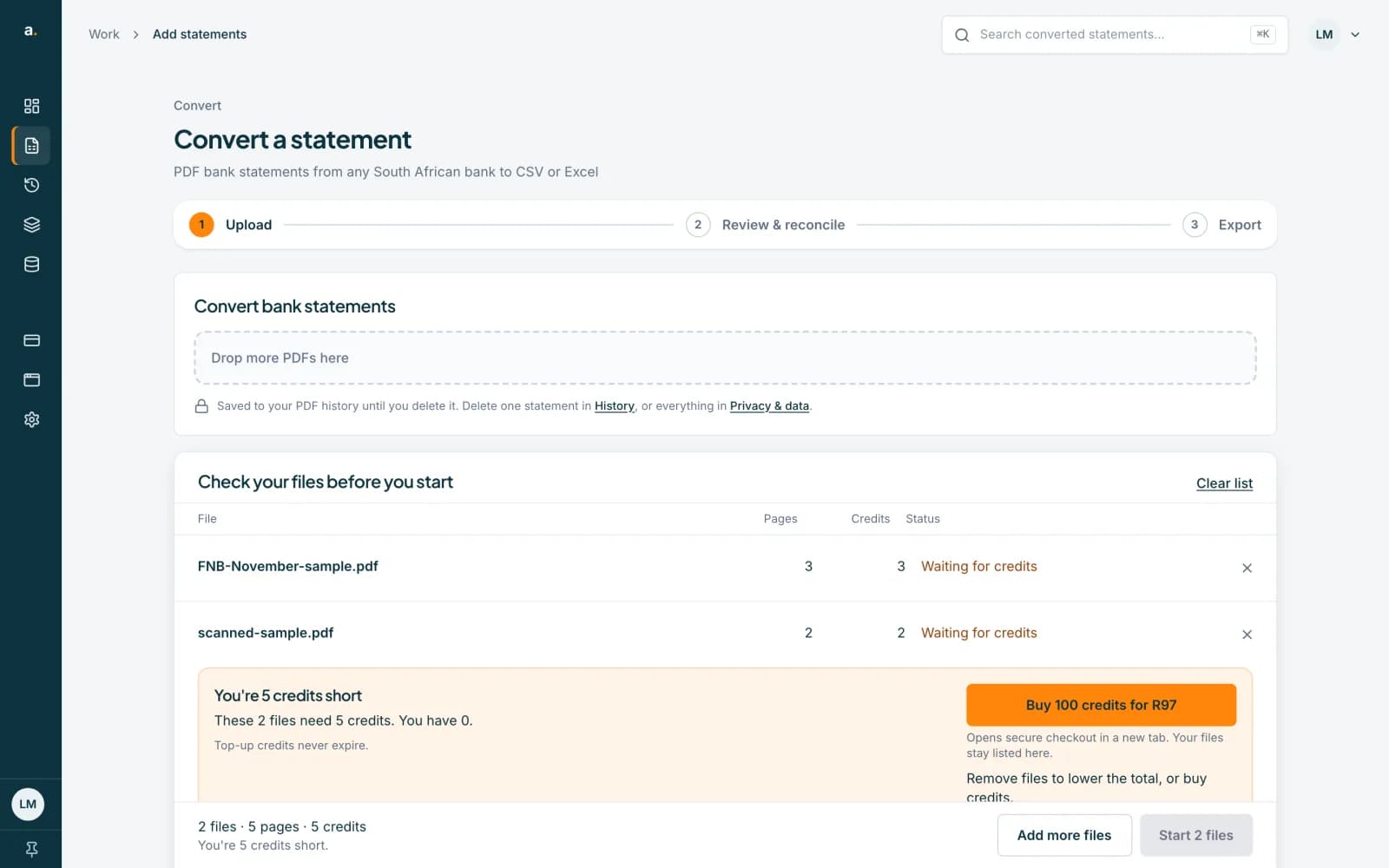
When your files need more credits than you have, the list says Waiting for credits, and a box says how many you are short, for example You're 3 credits short. These 1 file needs 3 credits. You have 0. Start stays switched off.
 Open full size screenshot for step 1
Remove files or buy credits
Remove files to lower the total, or press the Buy button, which names a pack. Checkout opens in a new tab and your files stay listed. Top-up credits never expire. Other pack sizes shows the rest. When your balance is enough, Start switches on.
If a conversion fails, read the card
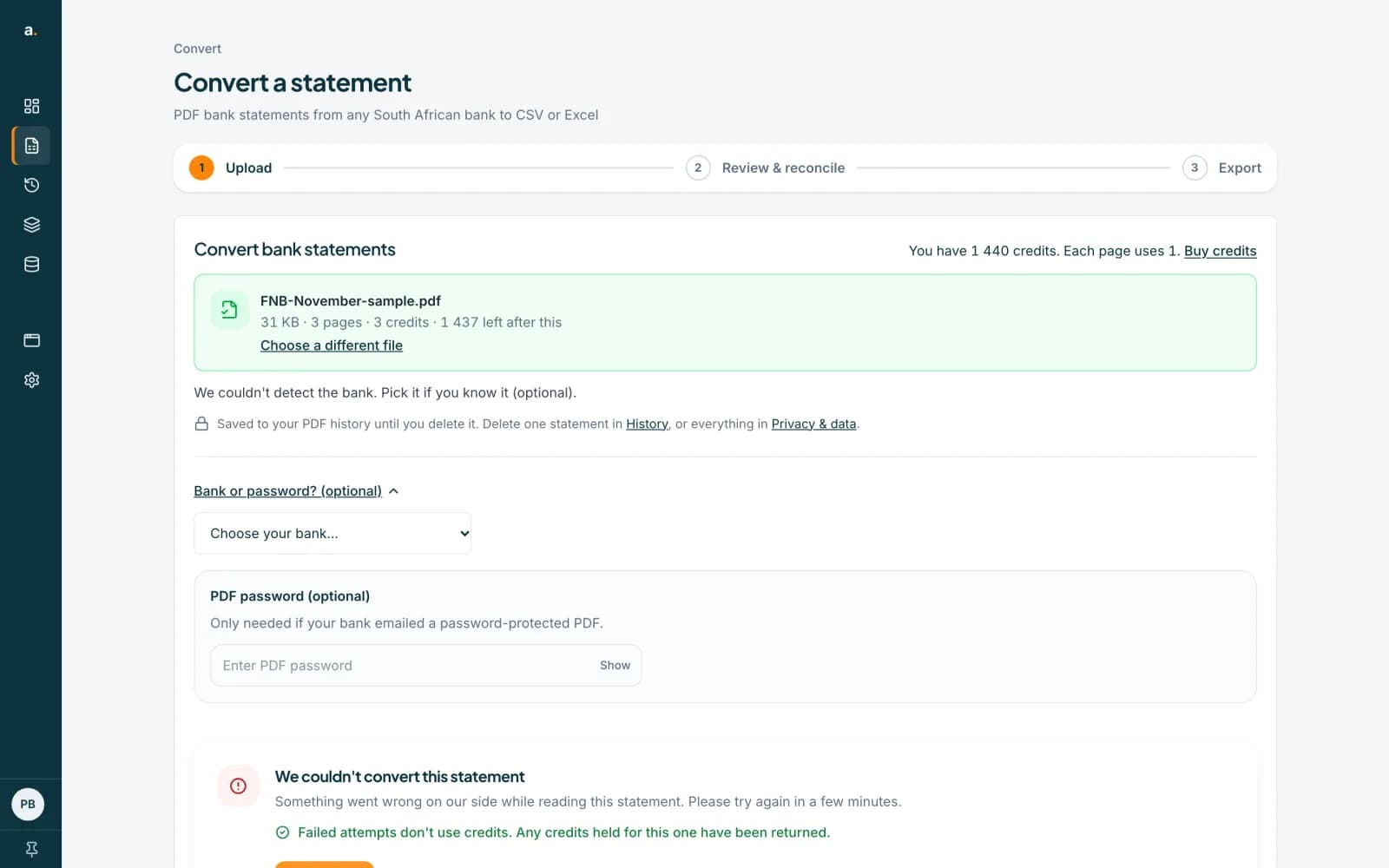
A failed conversion shows a card, such as We couldn't convert this statement, and says Failed attempts don't use credits. Any credits held for this one have been returned. The generic message means something went wrong on our side. Wait a few minutes and try again.
 Open full size screenshot for step 3
Follow the specific message when there is one
Many failures name the cause: This PDF is password-protected or That PDF password didn't work (enter the password under Bank or password?), This PDF looks damaged or We couldn't read this PDF (download it again from your bank), This looks like a scanned statement, We couldn't find any transactions, This file is too large, This file isn't a PDF, and We're busy right now (wait a minute).
Press Try again
Press Try again, or Start again, or Add this file again, whichever the row offers. If it keeps failing, press Help us fix this and send a report with the reference shown on the card. See the guide on reporting a problem.
Tips
- A file that is still uploading says Some files still need to finish uploading. Keep the page open, or add the file again to resume.
- Only one statement is read at a time per account. If you see Your previous statement is still being processed, wait for it, or check your PDF history.
- A file in a list may say Not started. Your credits ran out before this file's turn. Buy credits and start it again. No credits were used.
- A new account must verify its email first: Not started. Verify your email first.
If something goes wrong
- The row says Skipped. You already converted this exact file.
- Open the saved statement for free from your history, or choose to convert it again for another charge.
- The row says No transactions were found.
- Check that the file is a statement with transaction rows and not a scan of a summary page, then try again, choosing your bank.
- The row says Reading stopped before it finished.
- Press Try again. The credits held for the file were returned, so nothing is lost.
- The row says Too large. Files can be up to 20 MB.
- Press Split this PDF, or download a shorter date range from your bank. See the guide on splitting a large PDF.
Related guides
- Report a problem with a statementRate an extraction and tell us what went wrong, or use Help us fix this after a failed conversion.
- Split a large PDFPull the pages you need out of a large PDF, or cut it into smaller files, in your browser, before you convert it.
- Convert a password-protected statementEnter the password your bank gave you before converting a locked statement PDF. A wrong password uses no credits.
- Convert several statements at onceDrop two or more statement PDFs on Add statements, check the list, press Start and download the results together.