Split a large PDF
Last reviewed 16 November 2026 · 5 steps
Pull the pages you need out of a large PDF, or cut it into smaller files, in your browser, before you convert it.
Anyone
Steps
Open the Split PDF tool
Go to Tools and choose Split PDF, or press Split a PDF or Split this PDF when Accounter says a file is too large. Drop your PDF or press Choose file. The page says your PDF is processed entirely in your browser and is never uploaded.
Look at the pages
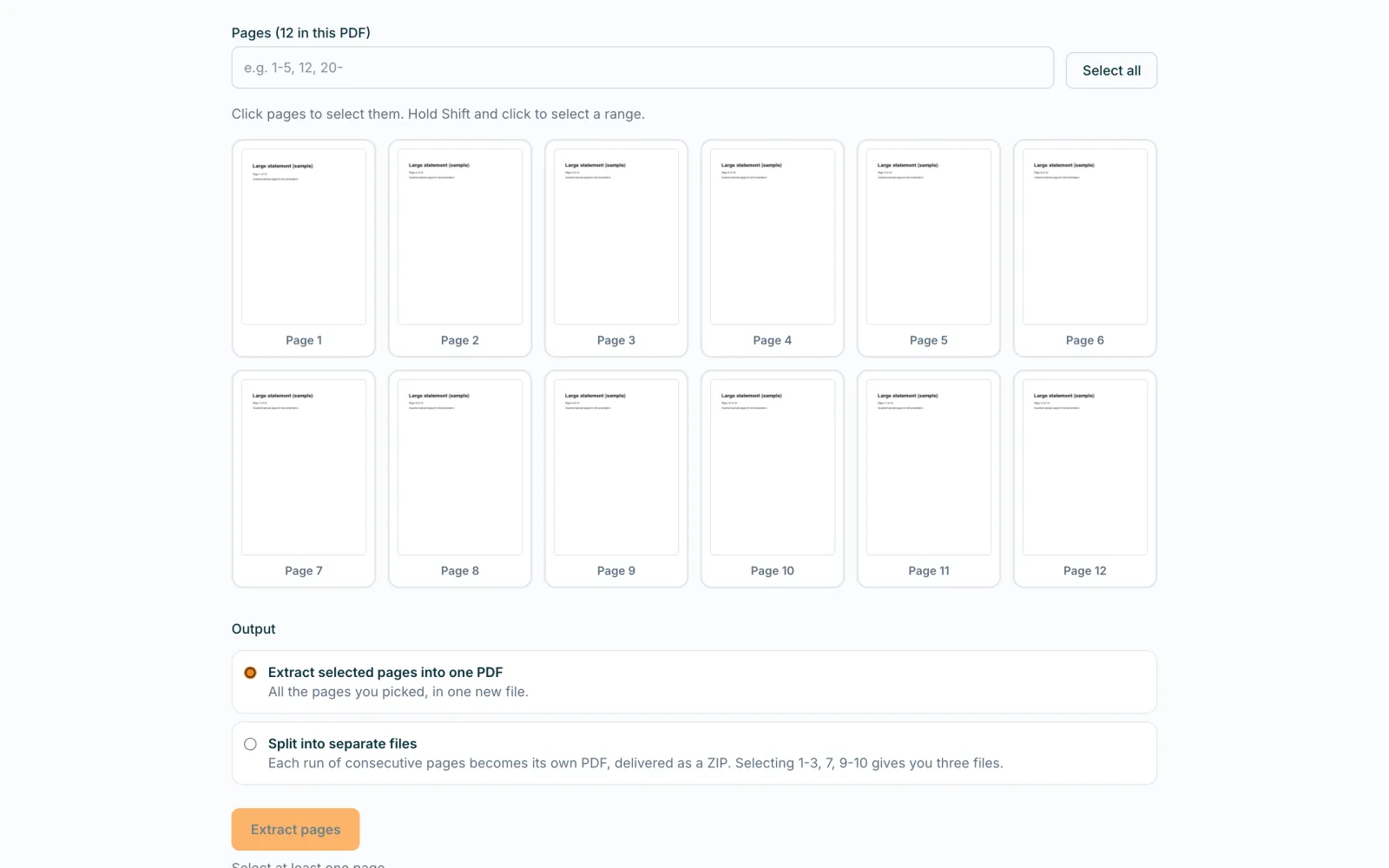
Every page appears as a thumbnail under Pages (12 in this PDF). Click a page to select it. Hold Shift and click to select a run of pages.
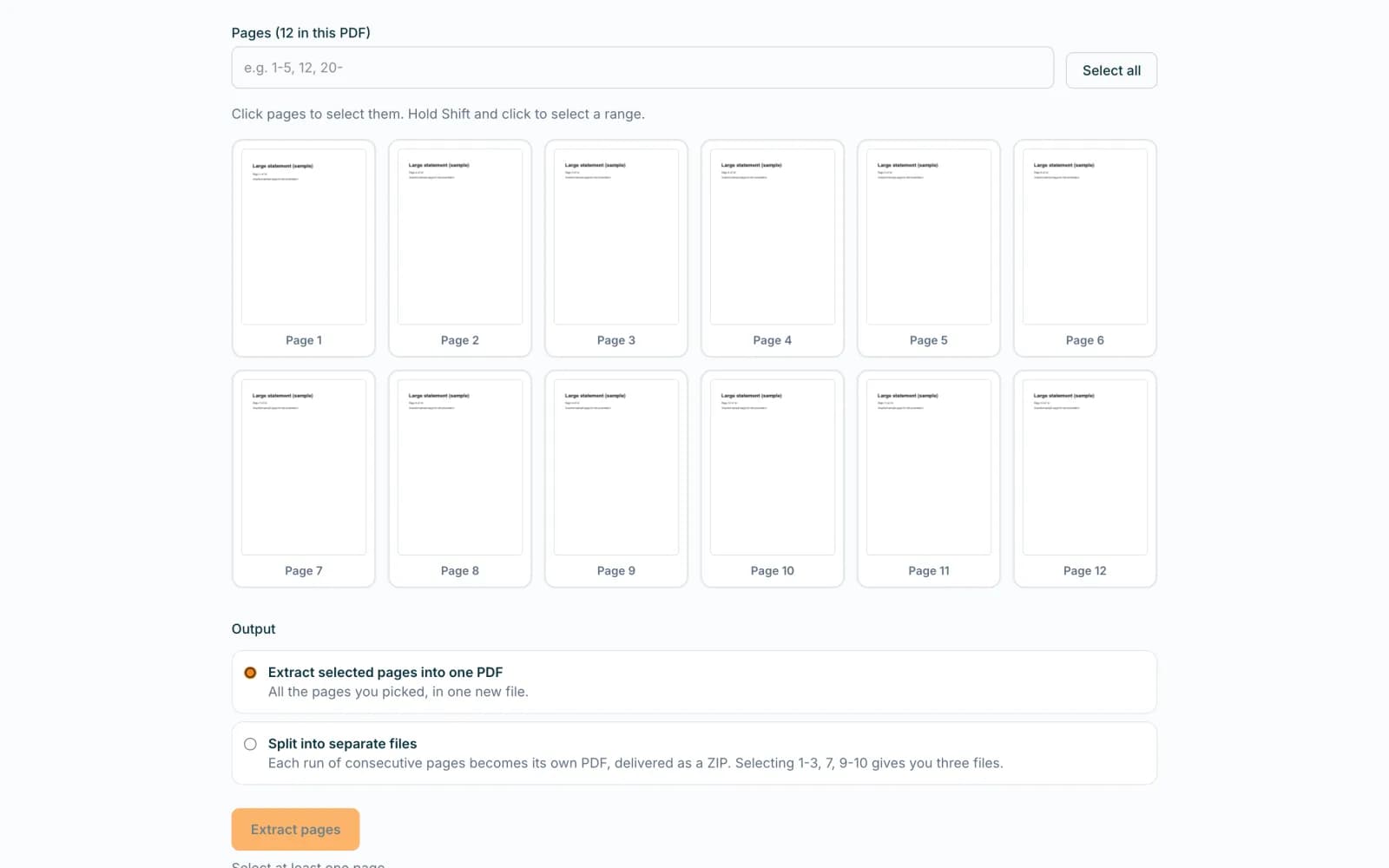 Open full size screenshot for step 2
Or type the page numbers
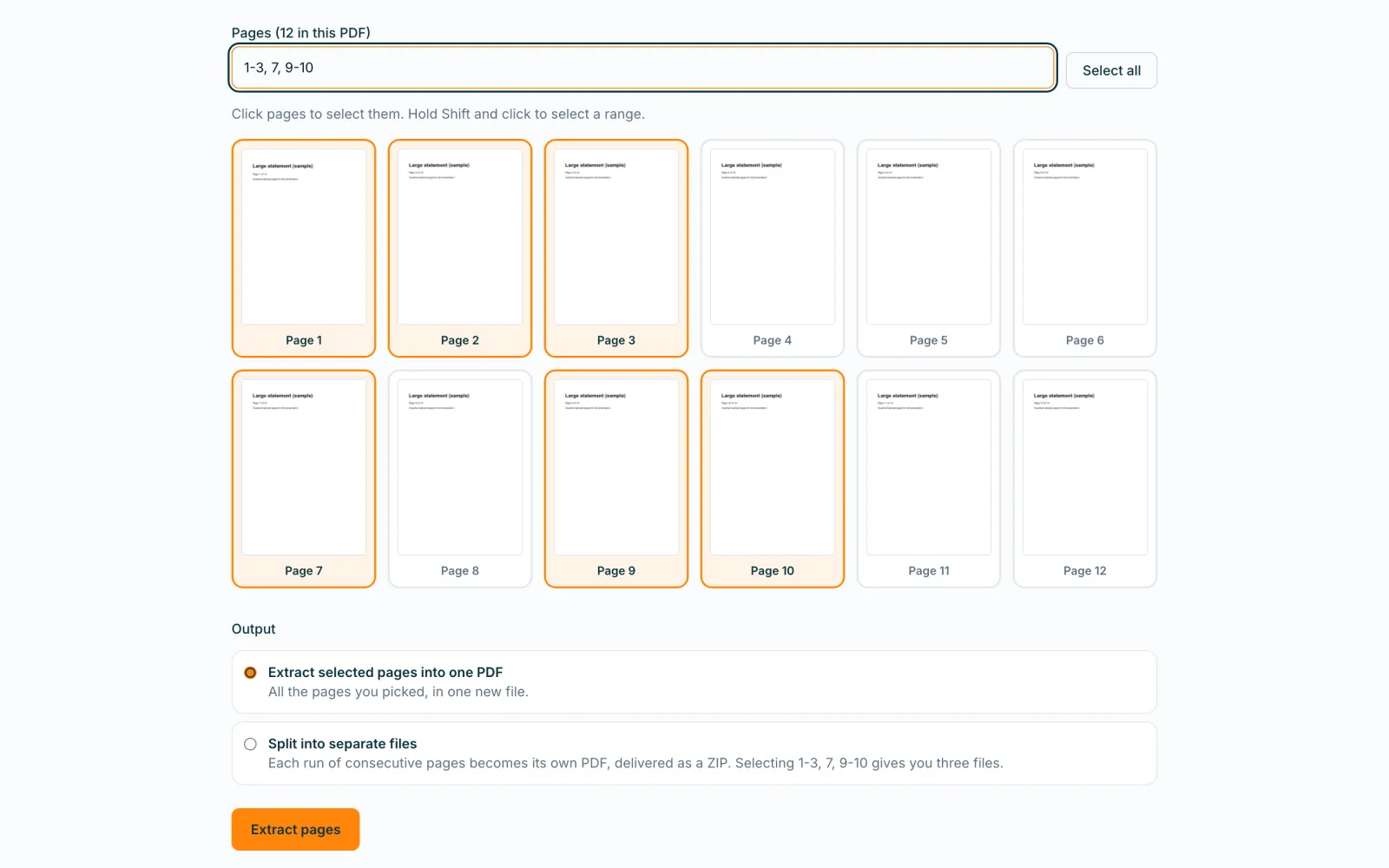
Type ranges in the box, for example 1-3, 7, 9-10. Those pages are highlighted. Select all selects every page, and the same button then clears the selection.
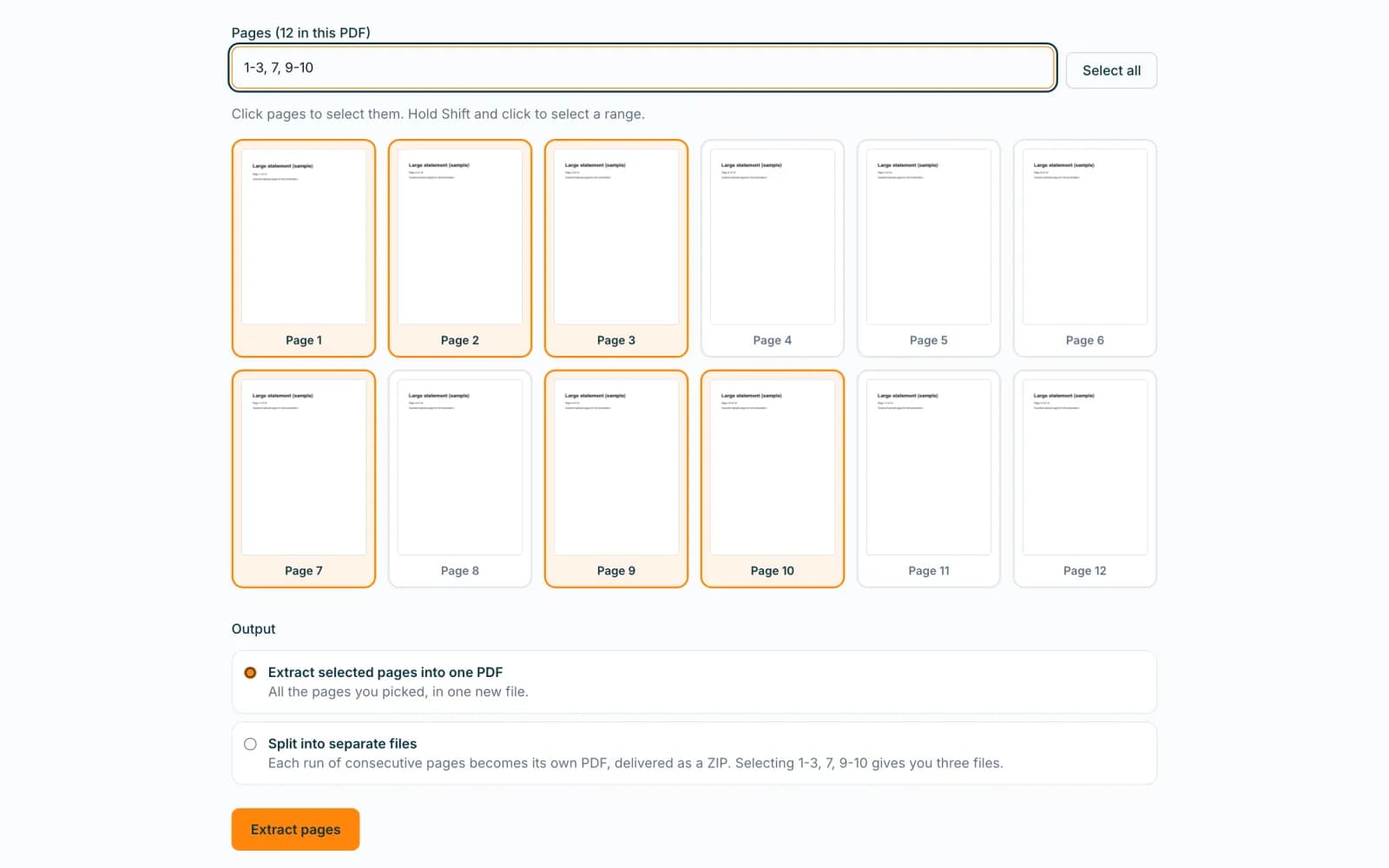 Open full size screenshot for step 3
Choose the output
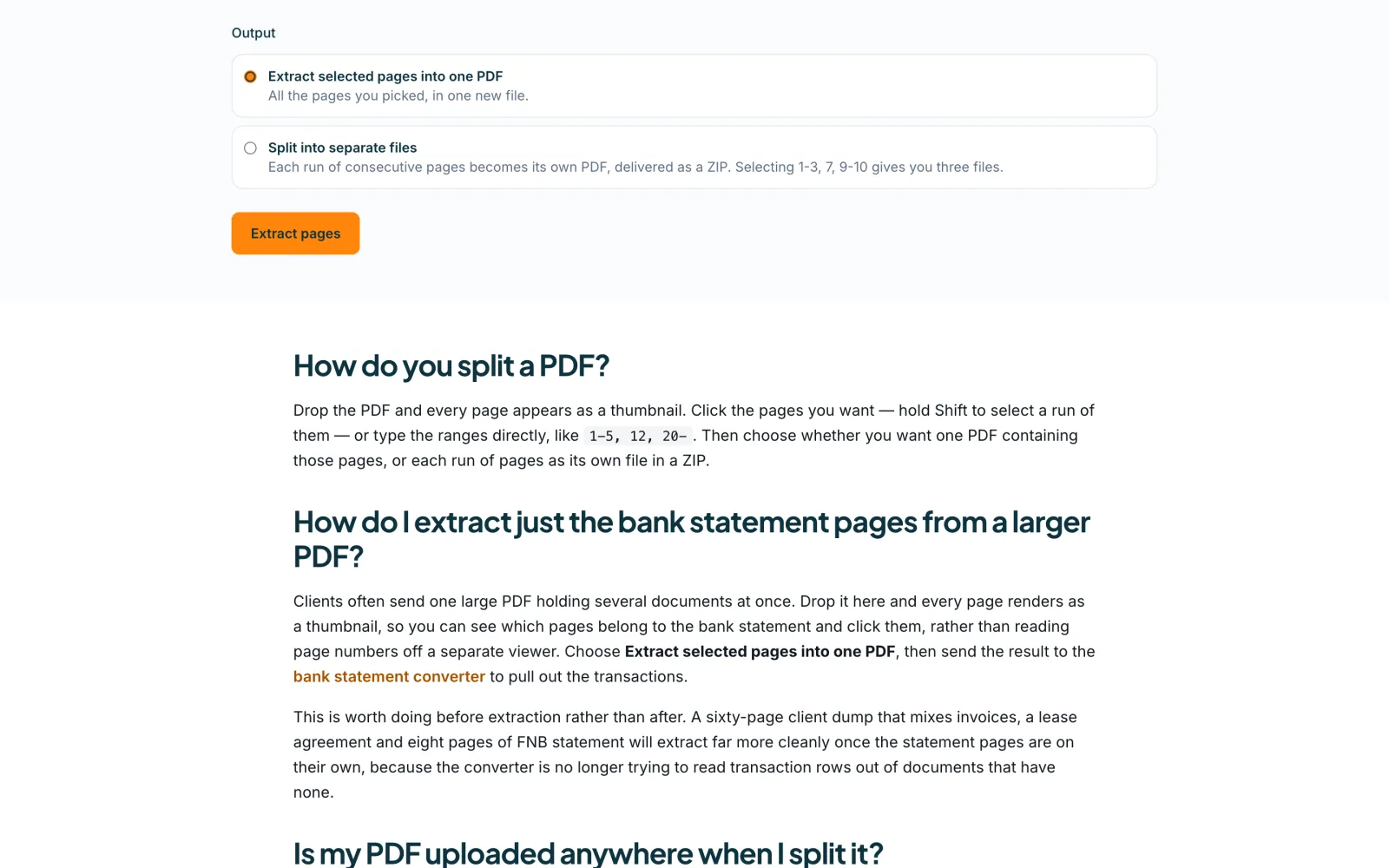
Under Output, choose Extract selected pages into one PDF to get all the pages you picked in one new file, or Split into separate files to get each run of consecutive pages as its own PDF, delivered as a ZIP. Selecting 1-3, 7, 9-10 gives three files.
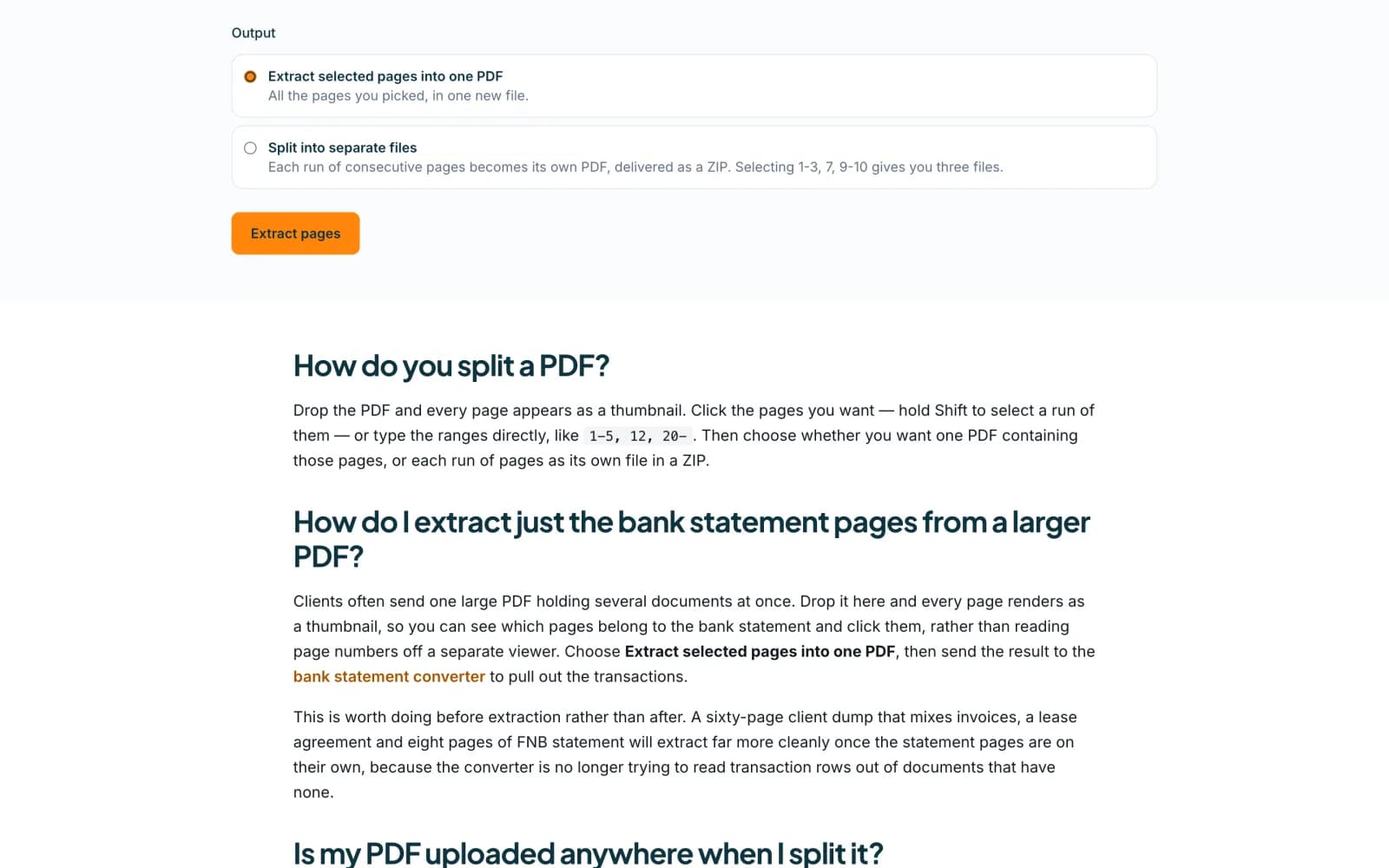 Open full size screenshot for step 4
Press the button and download
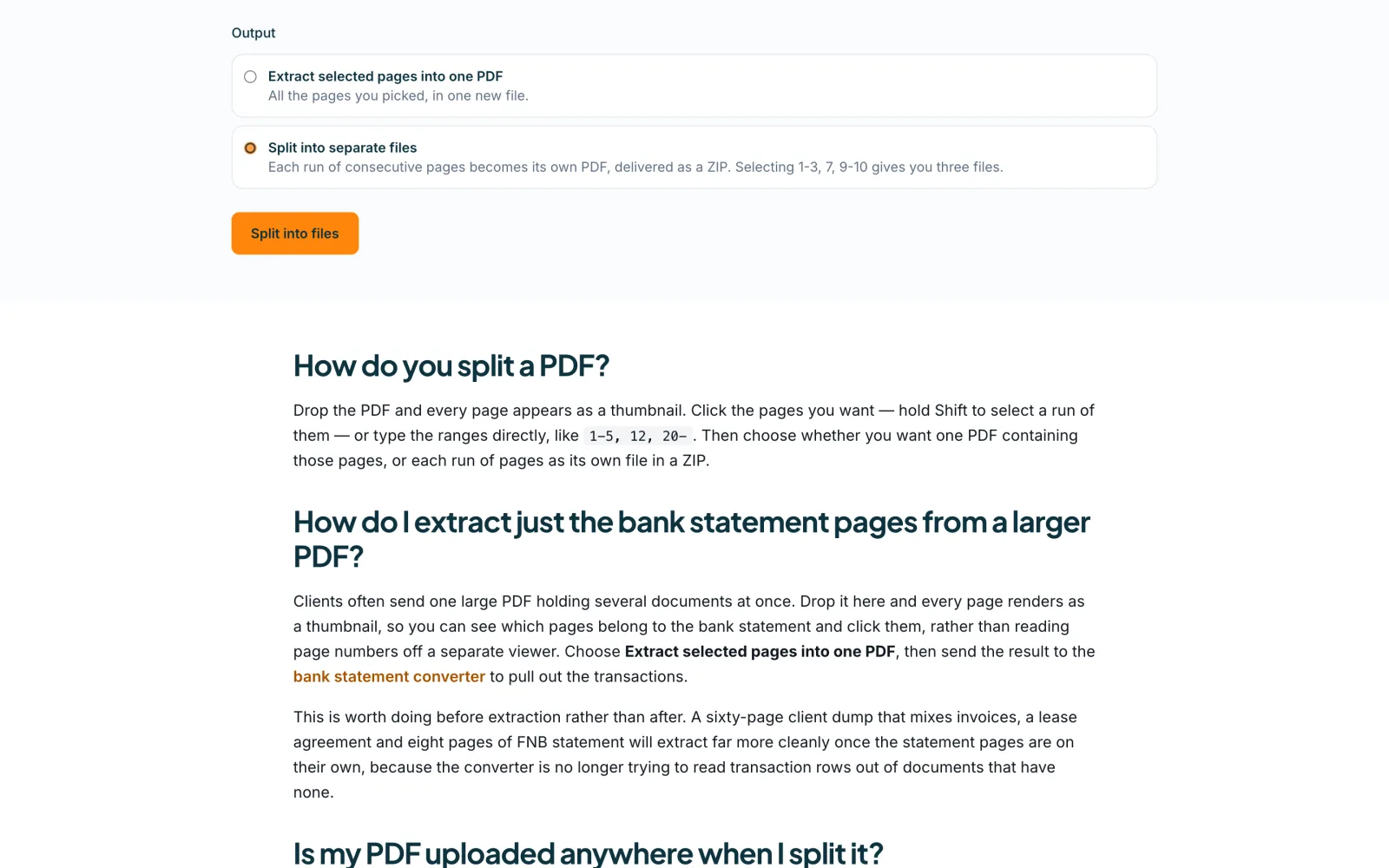
Press Extract pages, or Split into files. Then press Download to save the PDF or the ZIP. Unzip a ZIP before you add the files to Add statements.
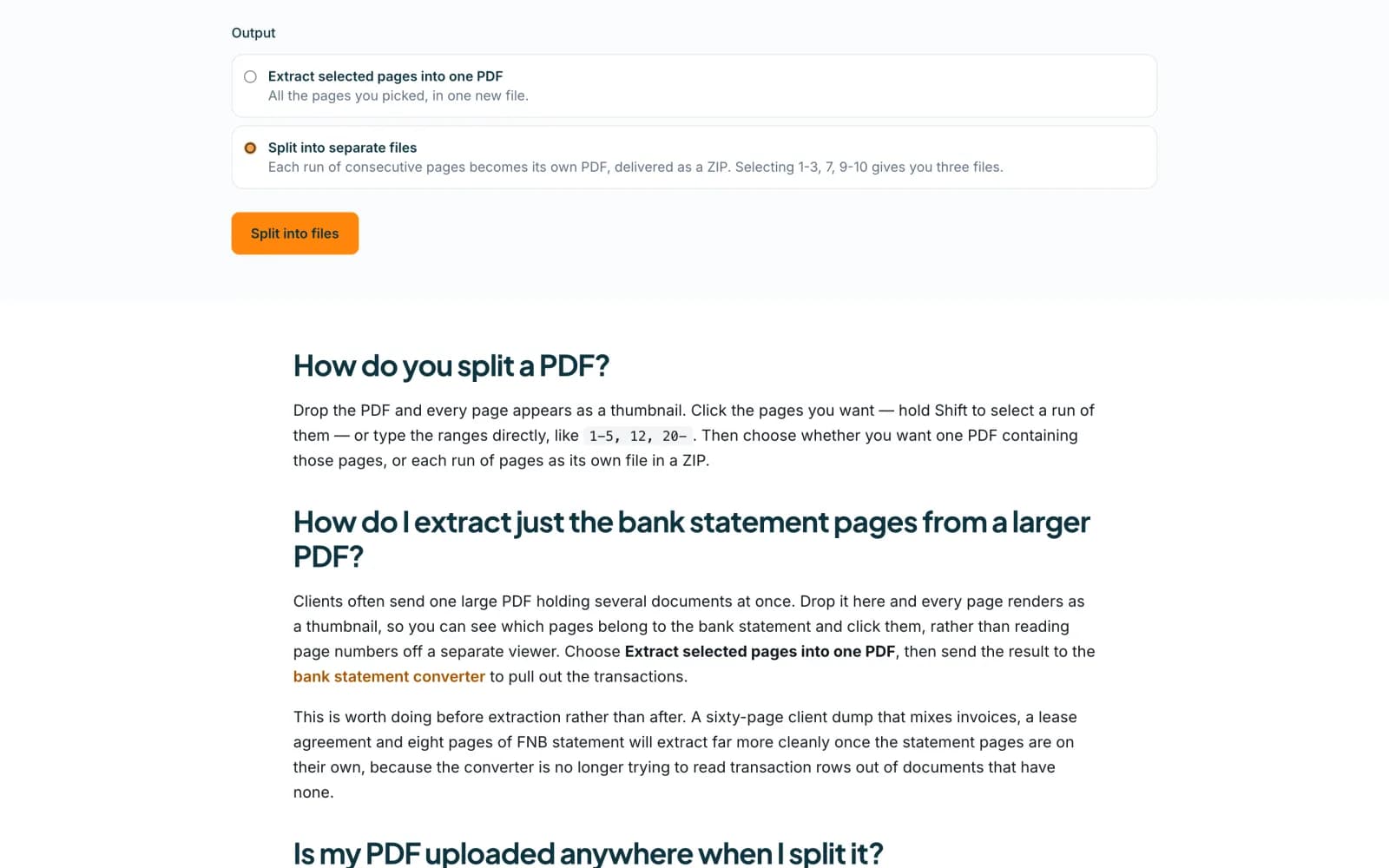 Open full size screenshot for step 5
Tips
- Keep all the pages of one statement in the same file, so its opening and closing balances stay together.
- A file can be up to 20 MB for conversion. If a part is still too big, split it into smaller ranges.
- The result of a single PDF also offers Now extract the transactions. That step uploads your PDF, because reading it uses our AI. Splitting itself does not.
- Large files are processed in your browser and may be slow on a phone.
- Each page you convert uses 1 credit, however you split the file.
If something goes wrong
- You see Select at least one page.
- Click a page, or type a range, then press the button again.
- The file could not be read.
- The page says This file could not be read. It may have been moved or renamed. Choose the file again. A locked PDF may need to be unlocked first.
- Accounter says your file is Too large.
- Use this tool to cut it into smaller parts, or download a shorter date range from your bank.
Related guides
- Convert a bank statement PDF to CSVUpload a bank statement PDF, check the balance and download a CSV you can open in Excel.
- Fix a failed conversion or not enough creditsSee what each message means, buy credits when you are short, and try again. Failed attempts do not use credits.
- Convert several statements at onceDrop two or more statement PDFs on Add statements, check the list, press Start and download the results together.