Turn emails off
Last reviewed 15 November 2026 · 4 steps
Stop reminder emails from your accountant, or turn them back on, without losing the ability to send statements.
Clients
Steps
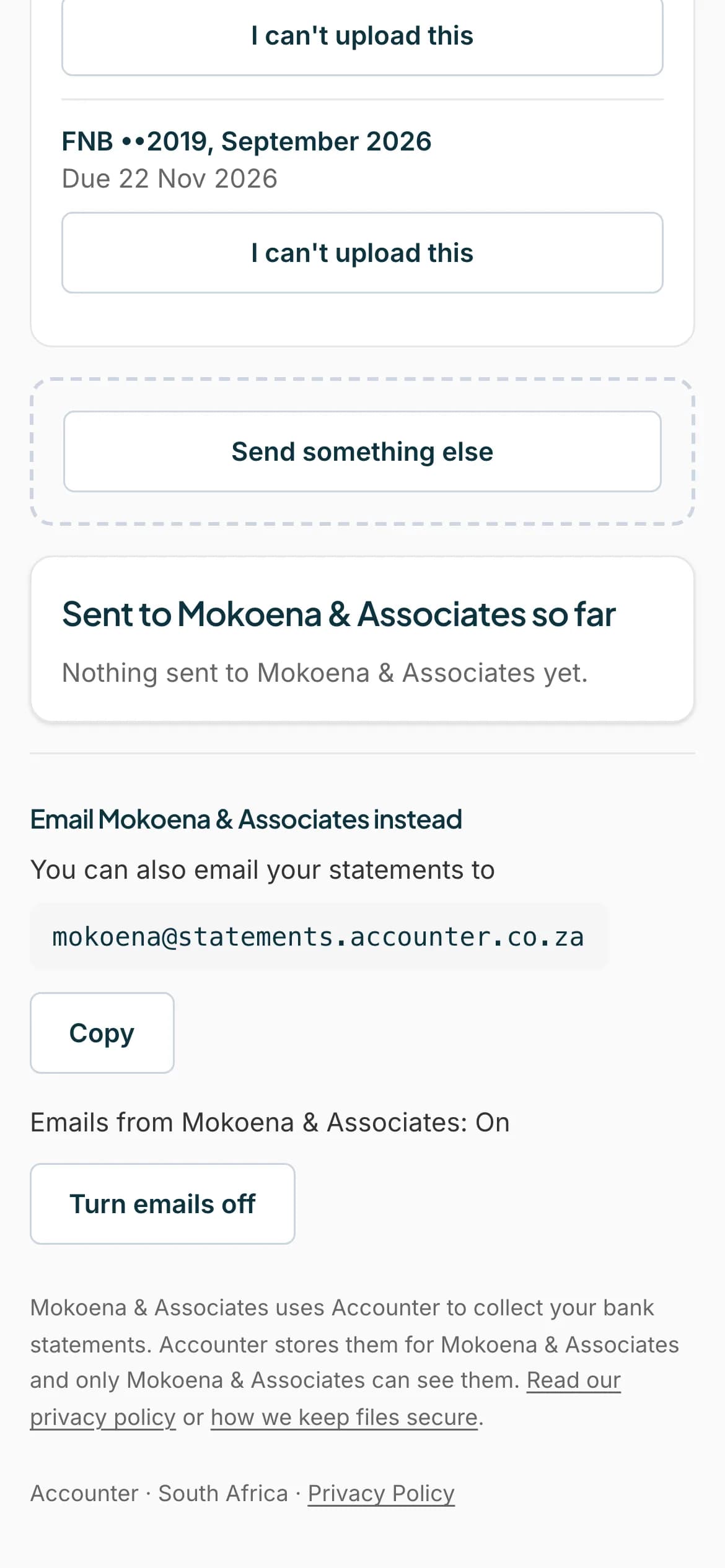
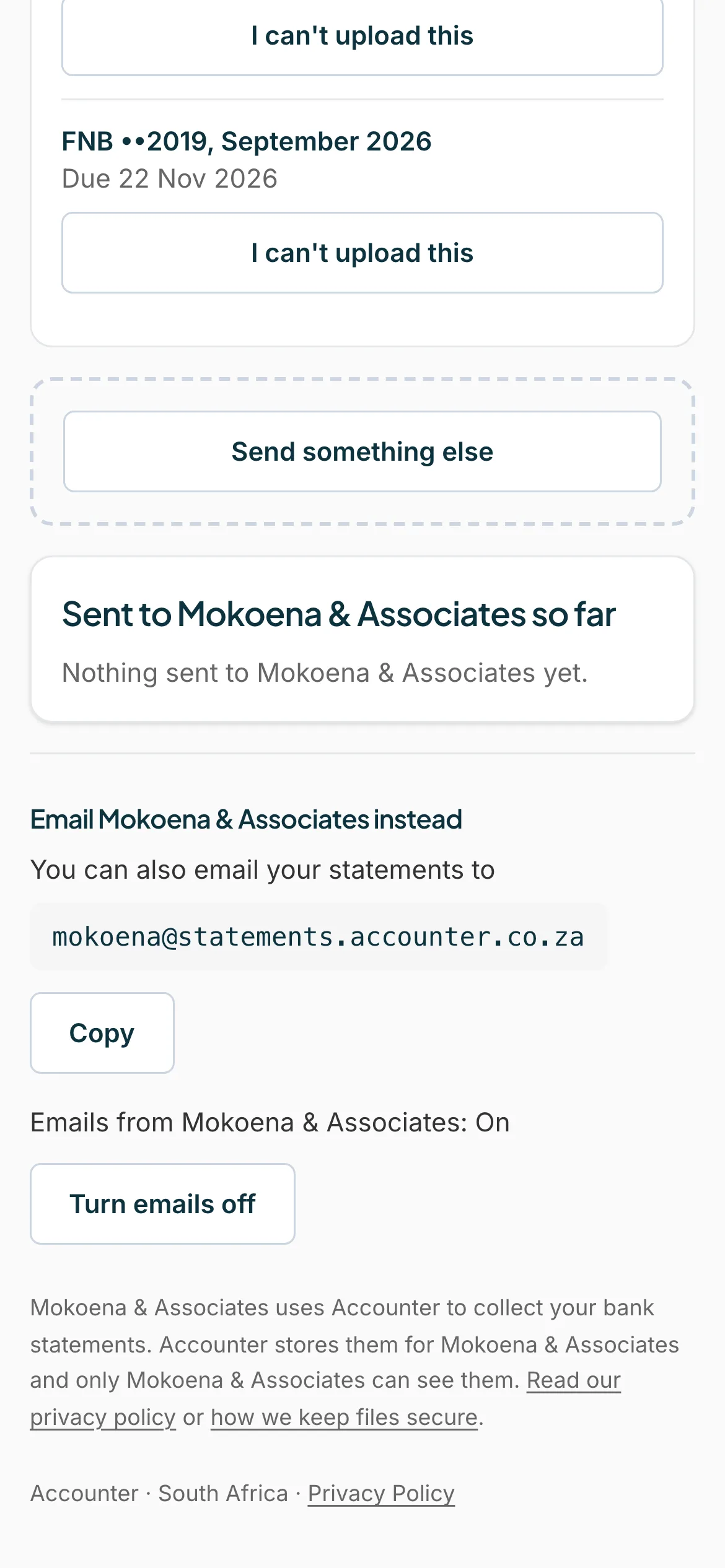
Find the emails setting
On your page, below your accountant's section, it says Emails from your accountant's name: On, with a Turn emails off button.
 Open full size screenshot for step 1
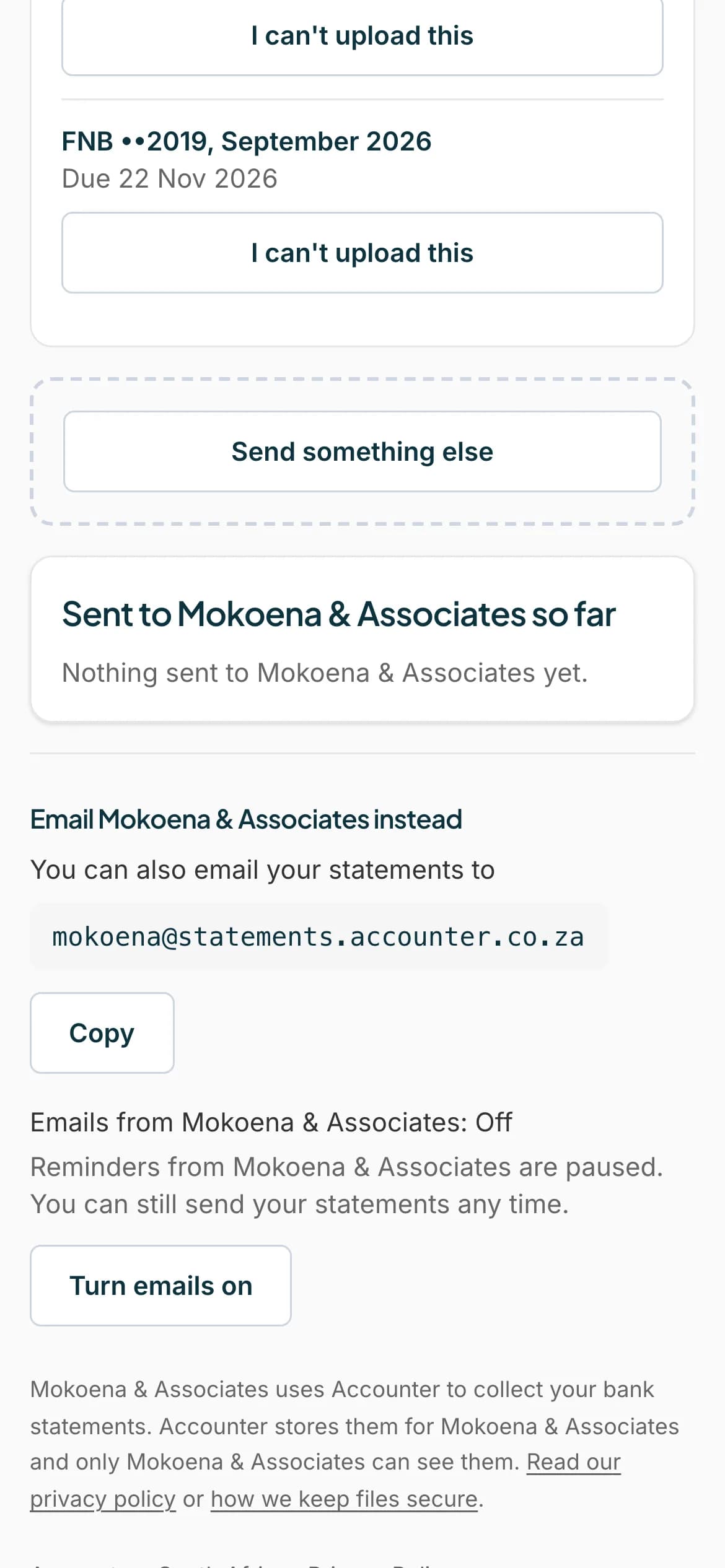
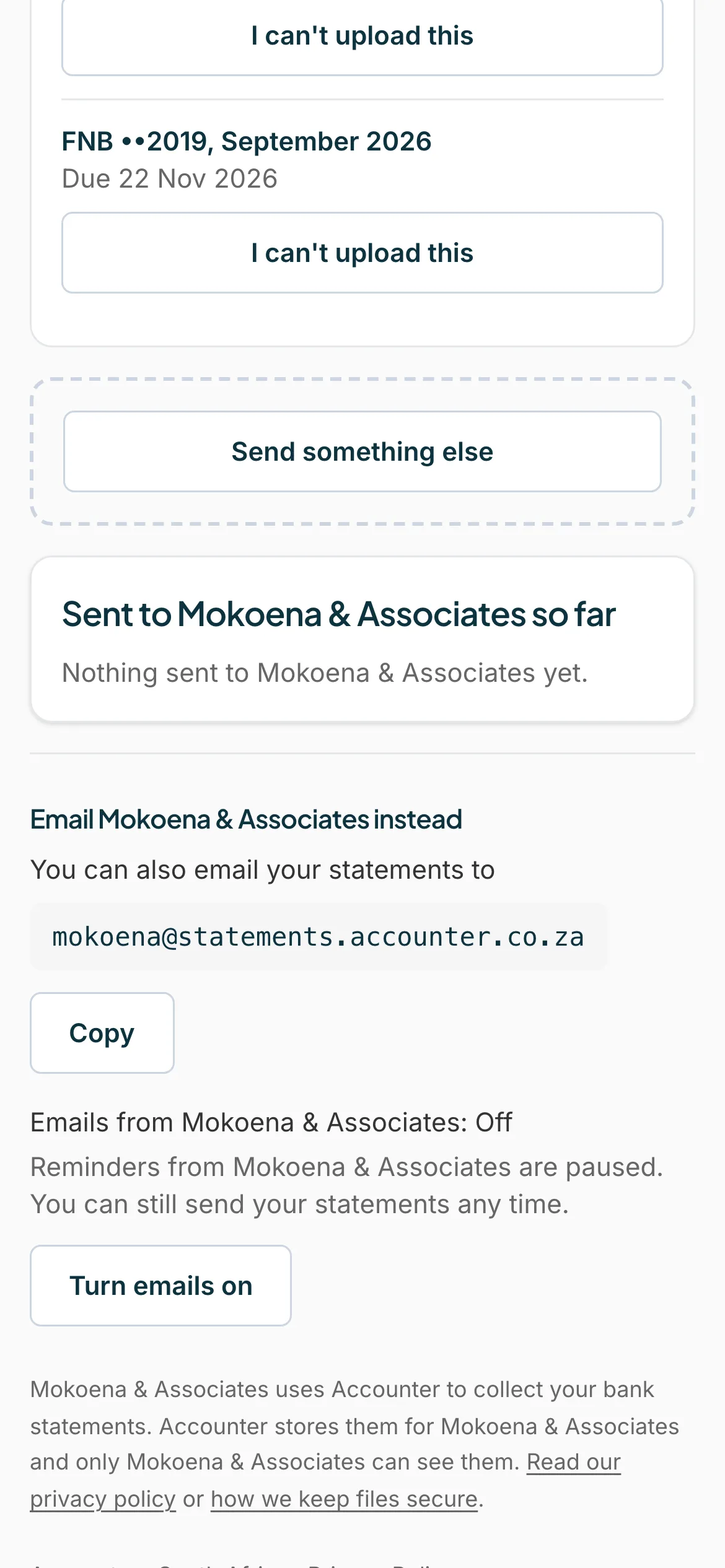
Press Turn emails off
It changes to Off, and says Reminders from your accountant are paused. You can still send your statements any time. Press Turn emails on to bring them back.
 Open full size screenshot for step 2
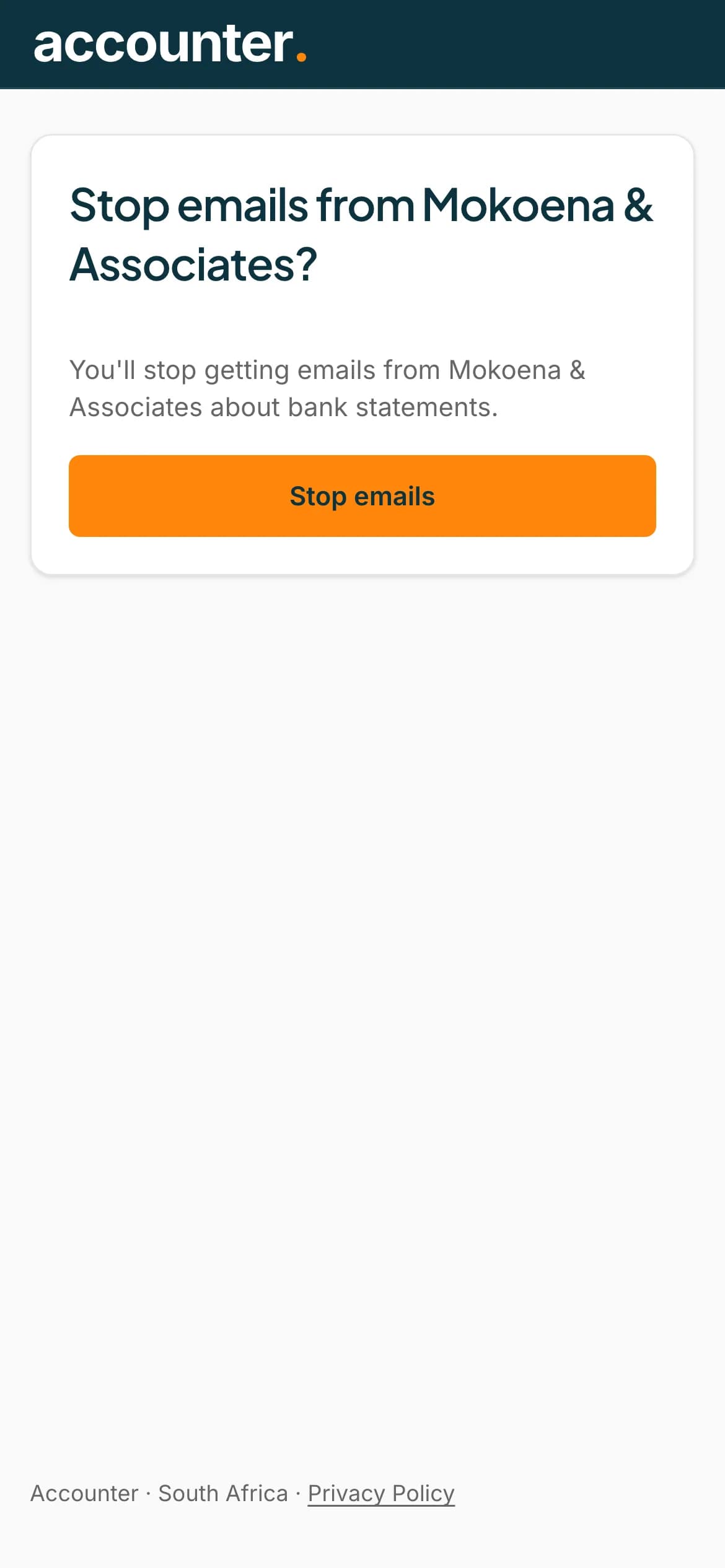
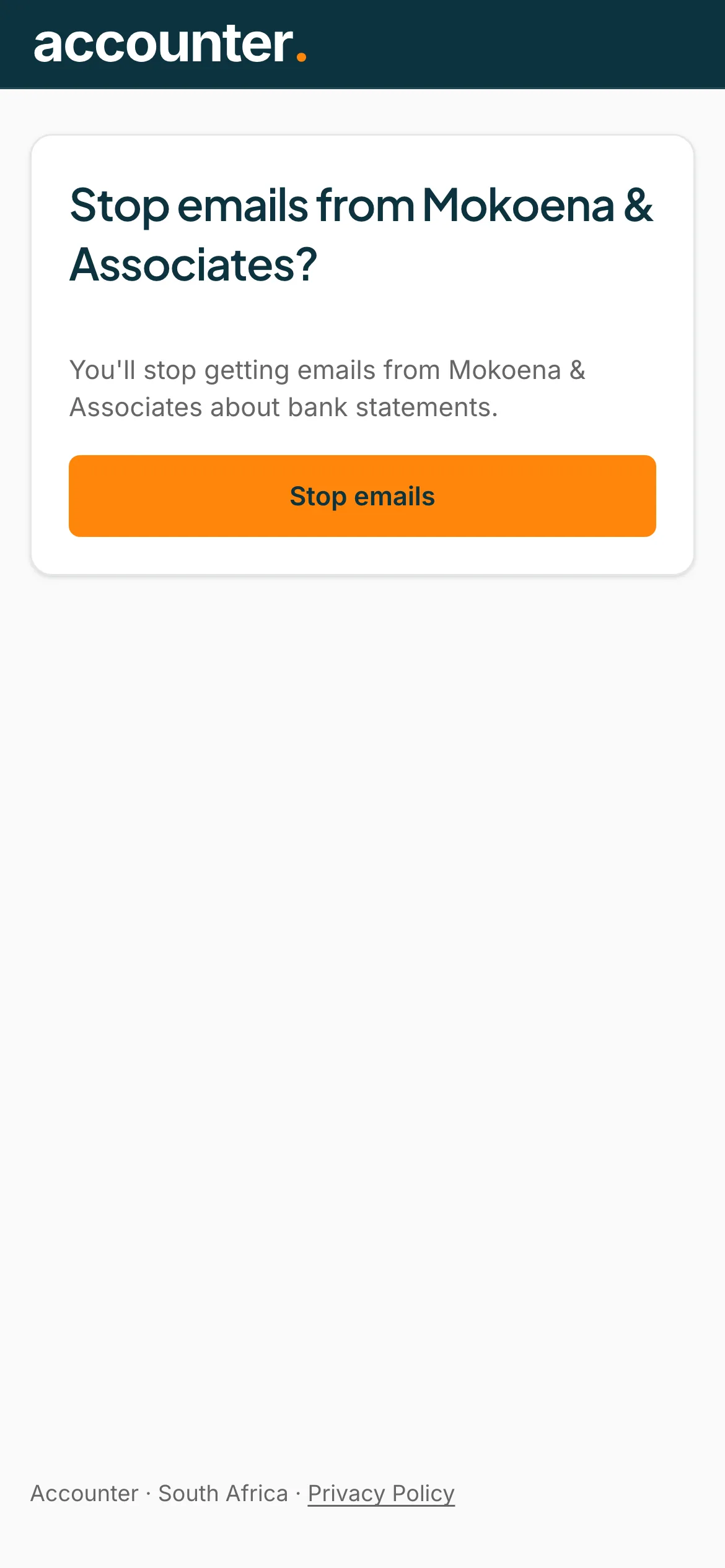
Or use the link in an email
Every email from your accountant has a link at the bottom, Stop emails from and the accountant's name. It opens a page that asks Stop emails from your accountant? Press Stop emails.
 Open full size screenshot for step 3
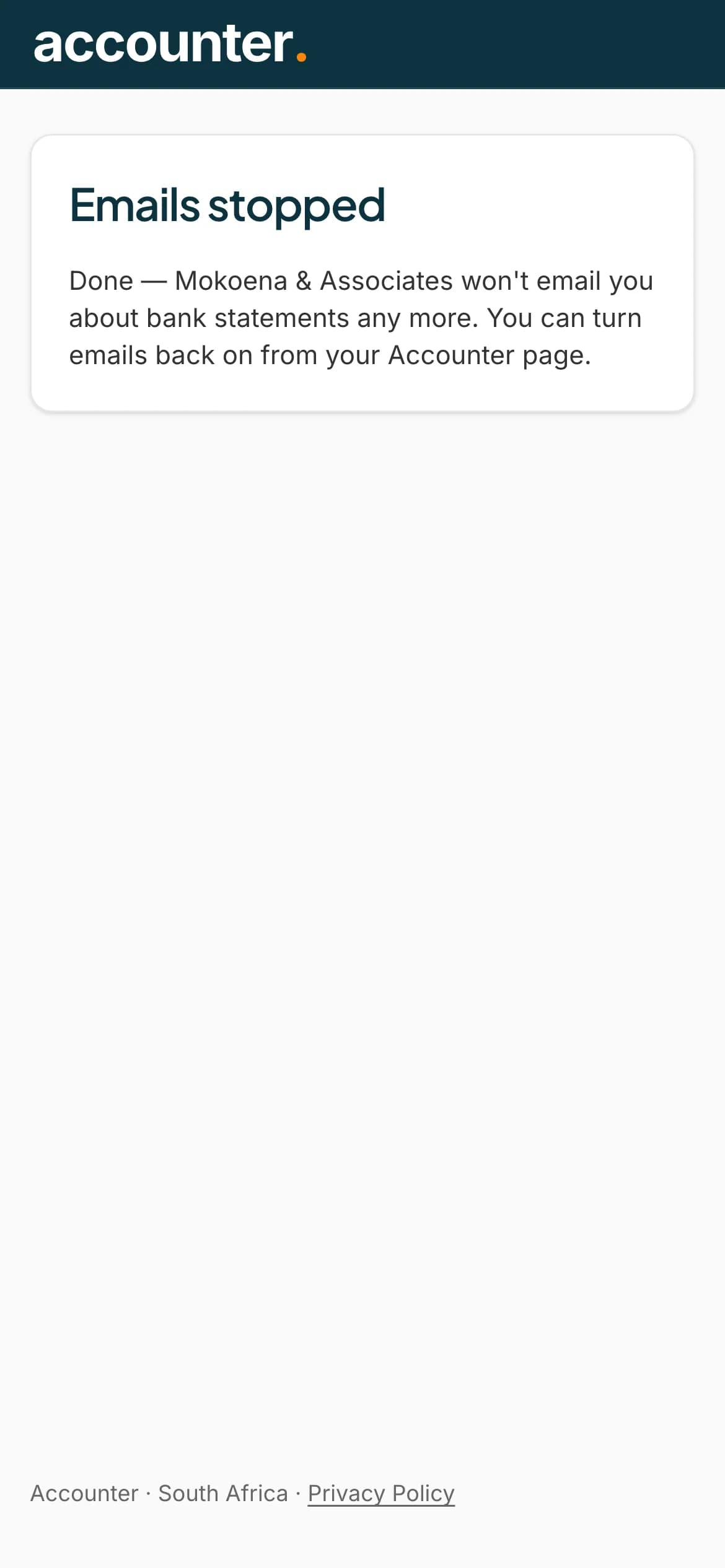
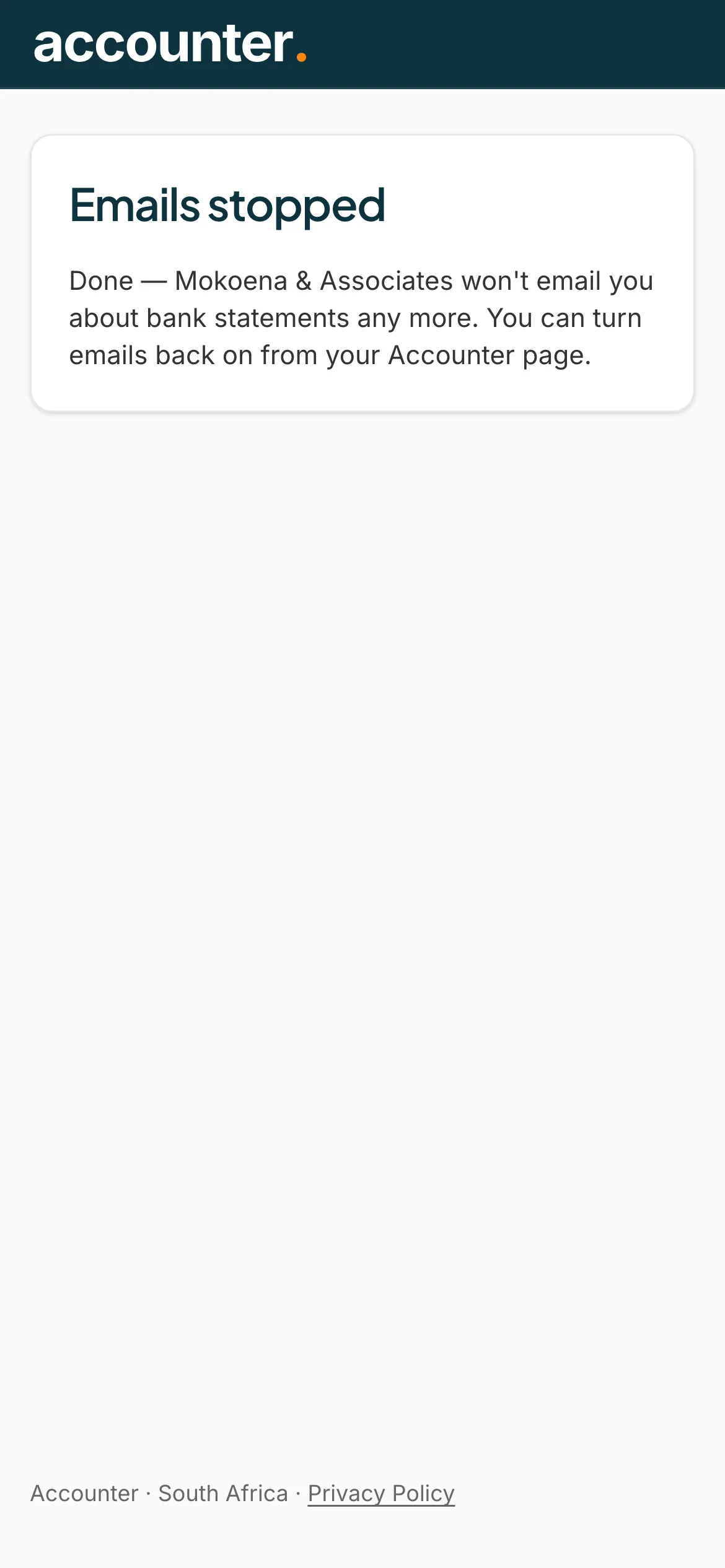
Check it worked
The page says Done, and that your accountant won't email you about bank statements any more. You can turn emails back on from your Accounter page.
 Open full size screenshot for step 4
Tips
- Turning emails off is per accountant. If you work with more than one, it applies only to that firm.
- Opening the link in an email does nothing until you press Stop emails.
- You can still sign in and send statements while emails are off.
If something goes wrong
- You see We couldn't save that. Try again.
- Check your connection and press the button again.
- You see This link isn't valid.
- Use the link from a recent email, or turn emails off from your page.
Related guides
- Sign in to send your statementsUse the link in your accountant's email to open your secure page, or ask for a new link. There is no password.
- Use Statement Hub with more than one accountantIf two or more accountants ask you for statements, each has its own section on your page.
- Upload a statementSend your accountant the bank statements they asked for, from your phone or computer.