Upload a statement
Last reviewed 15 November 2026 · 7 steps
Send your accountant the bank statements they asked for, from your phone or computer.
Clients
Steps
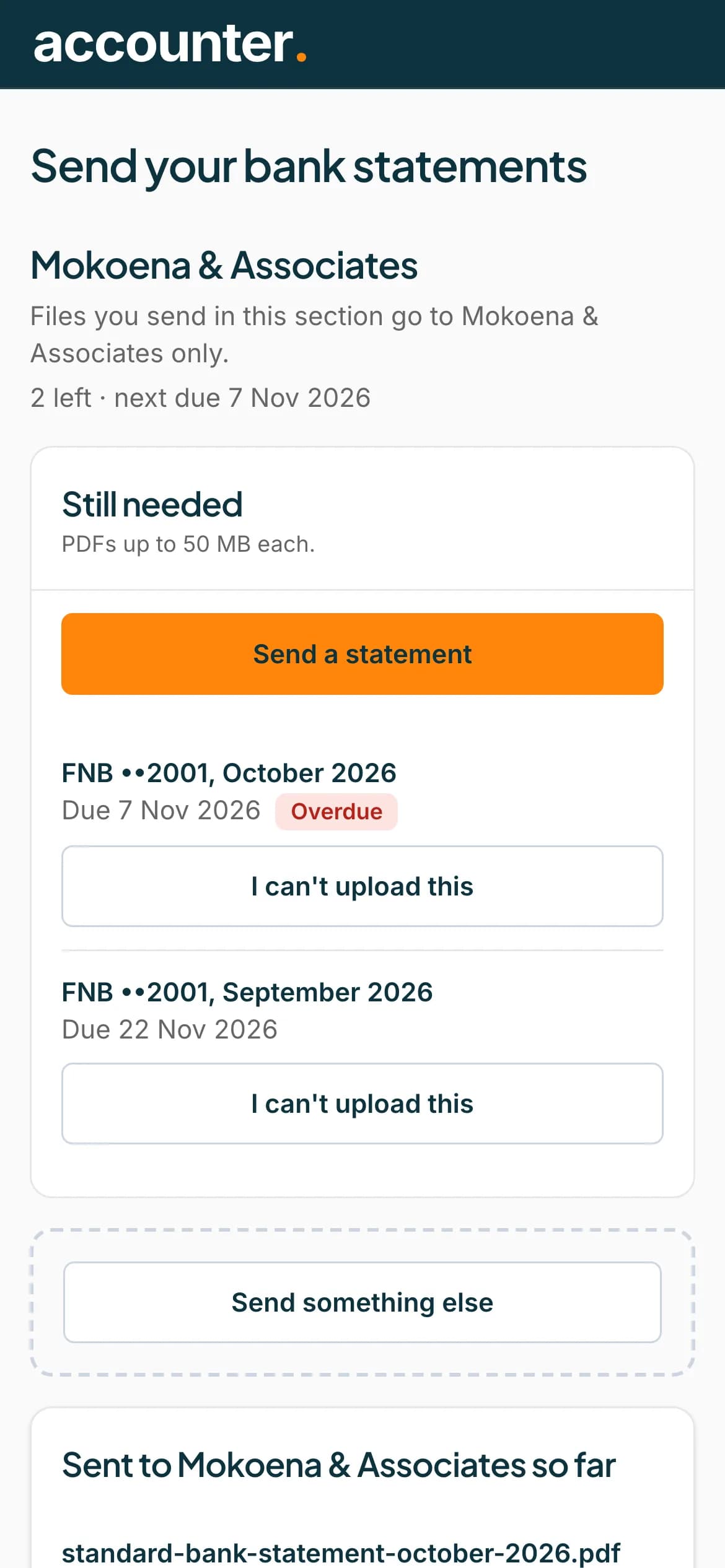
Open Send your bank statements
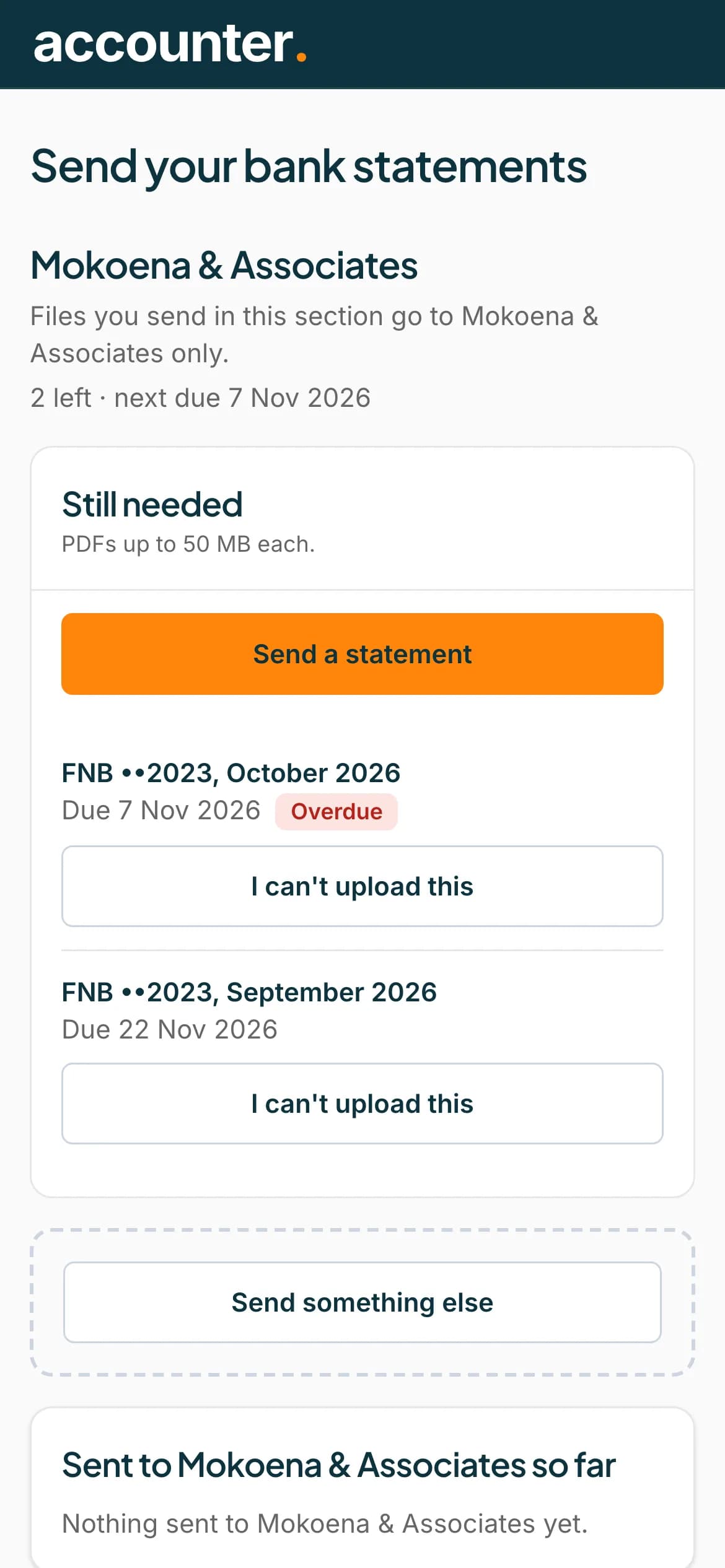
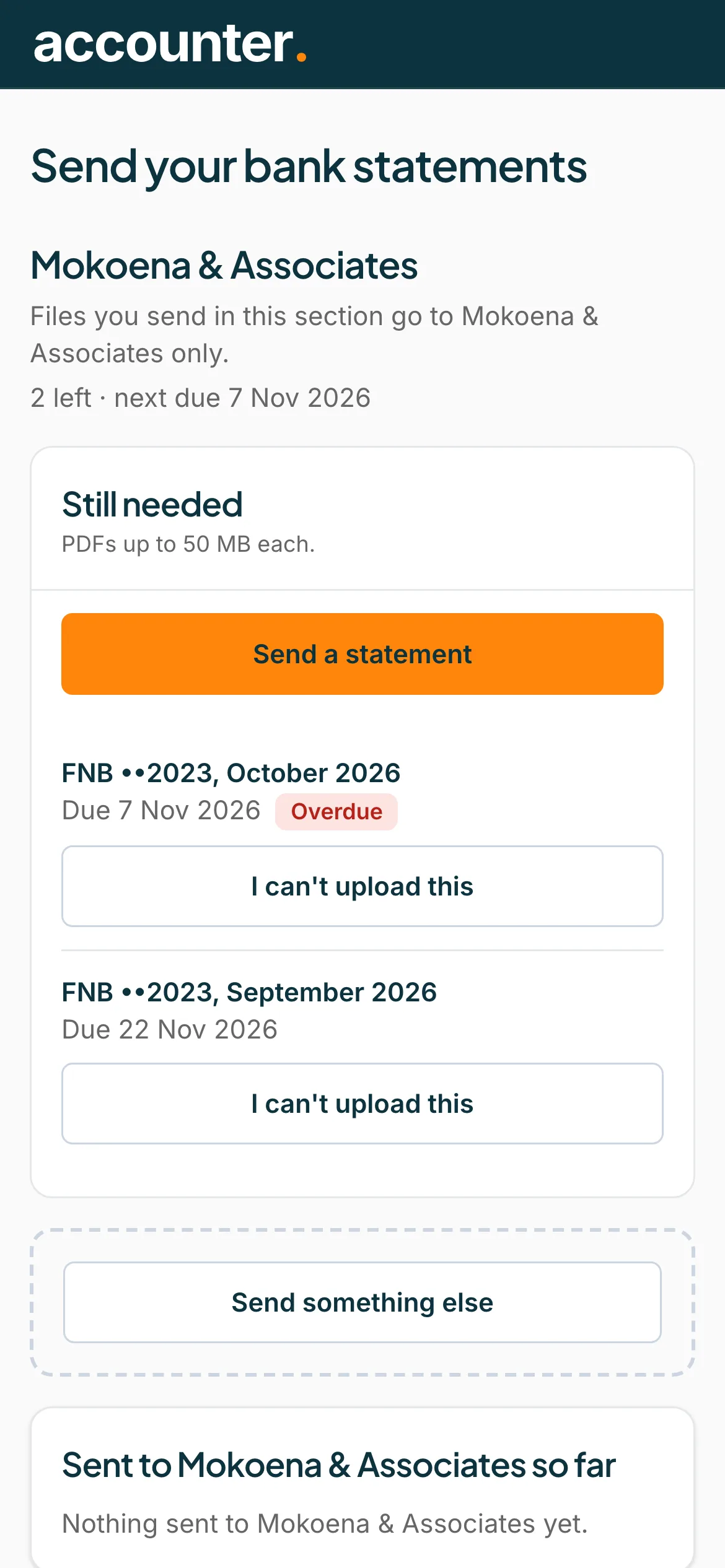
Sign in using the link in your accountant's email. Your page shows your accountant's name, and says that files you send in this section go to them only.
 Open full size screenshot for step 1
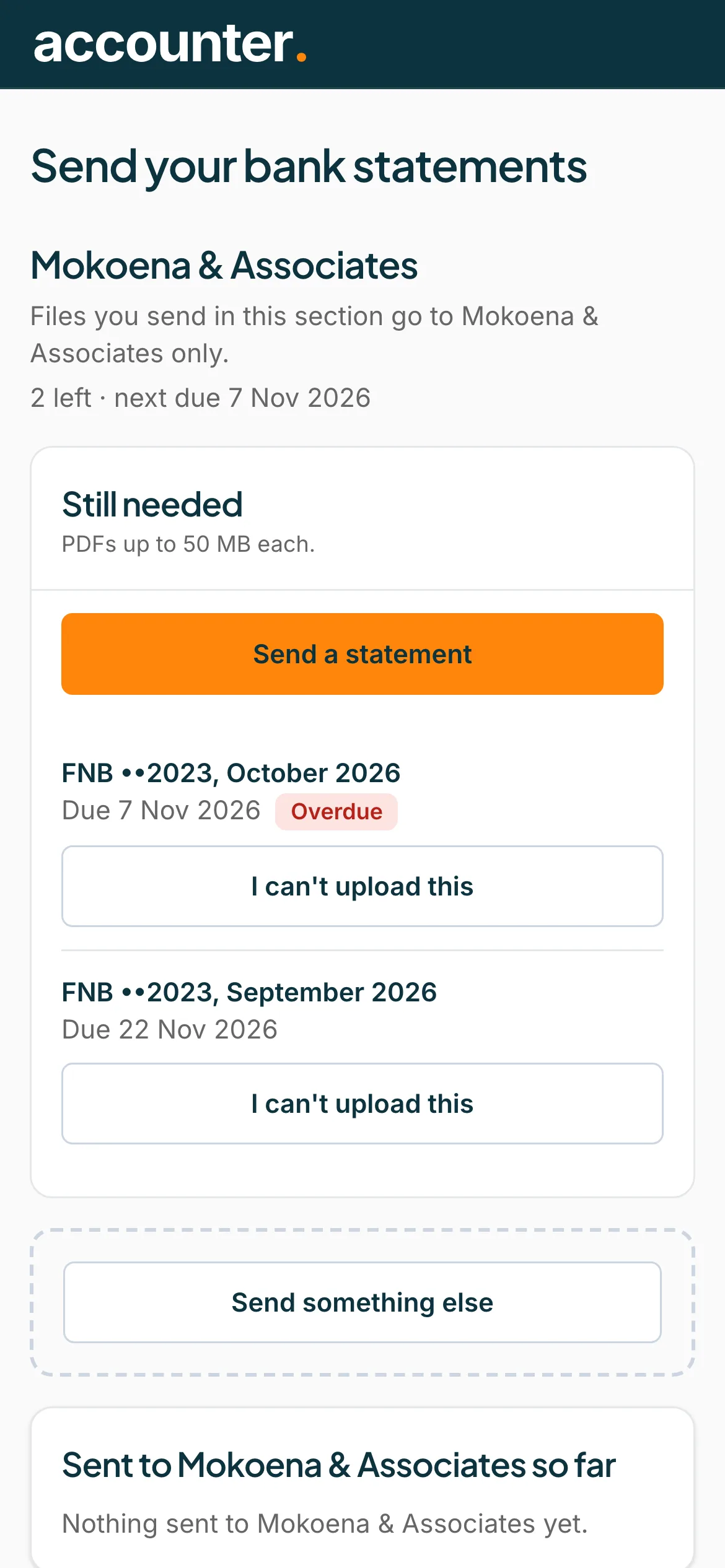
See what is still needed
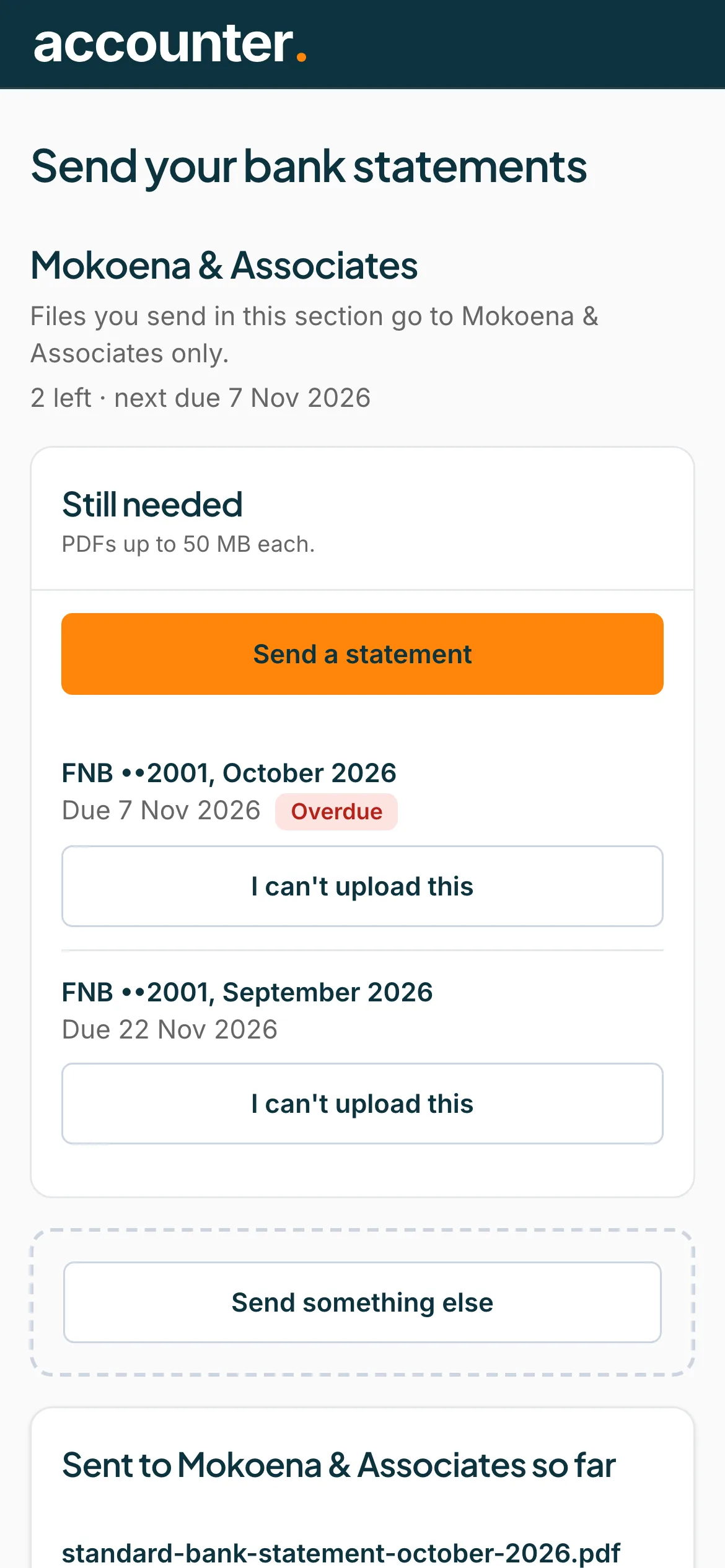
Under Still needed, each line names an account and month, for example FNB ••2023, October 2026, with the due date and an Overdue tag if it is late. PDFs up to 50 MB each.
Press Send a statement and choose your PDF
Press Send a statement (or Send and the account name, if only one is needed). Choose the PDF you downloaded from your bank. The file is checked on your phone first and shows Checking…, then Ready.
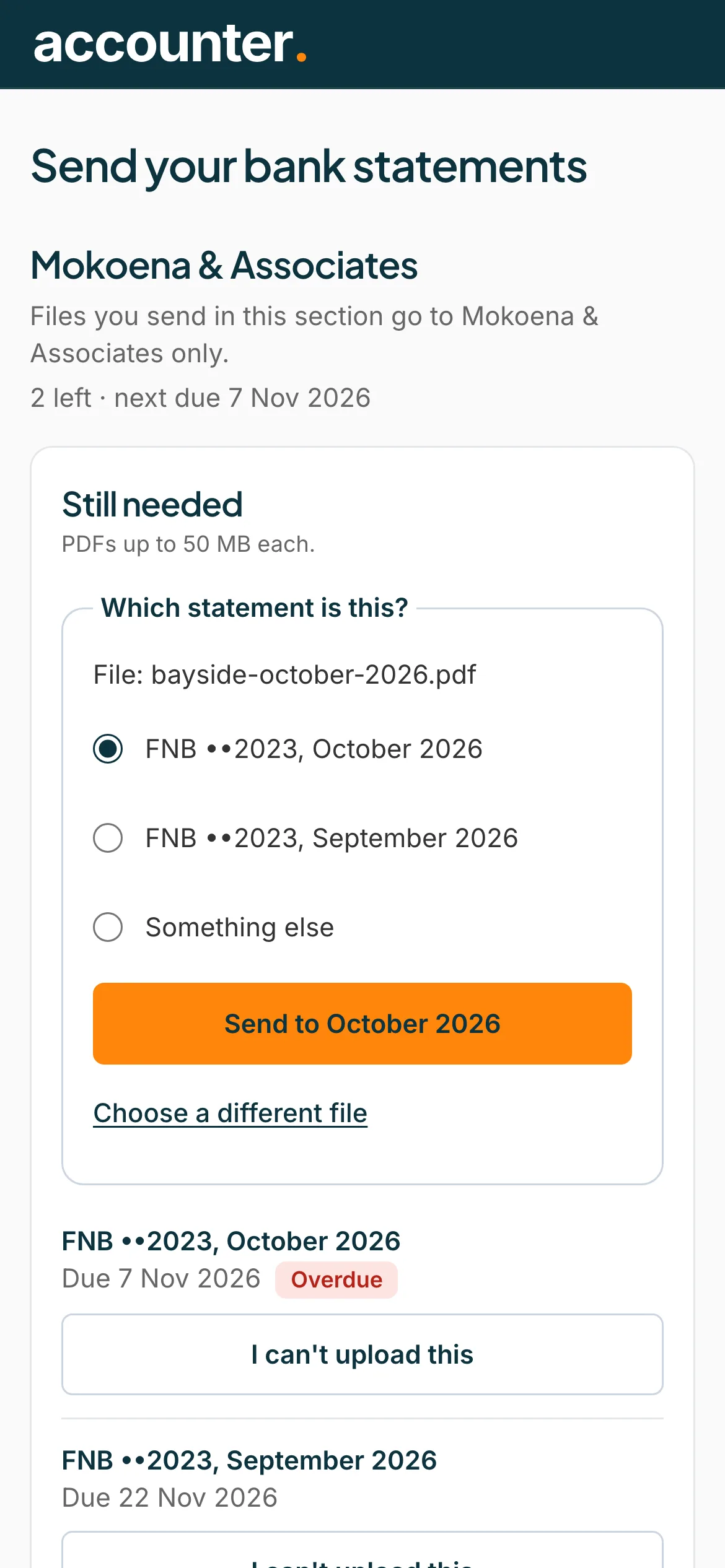
Say which statement it is
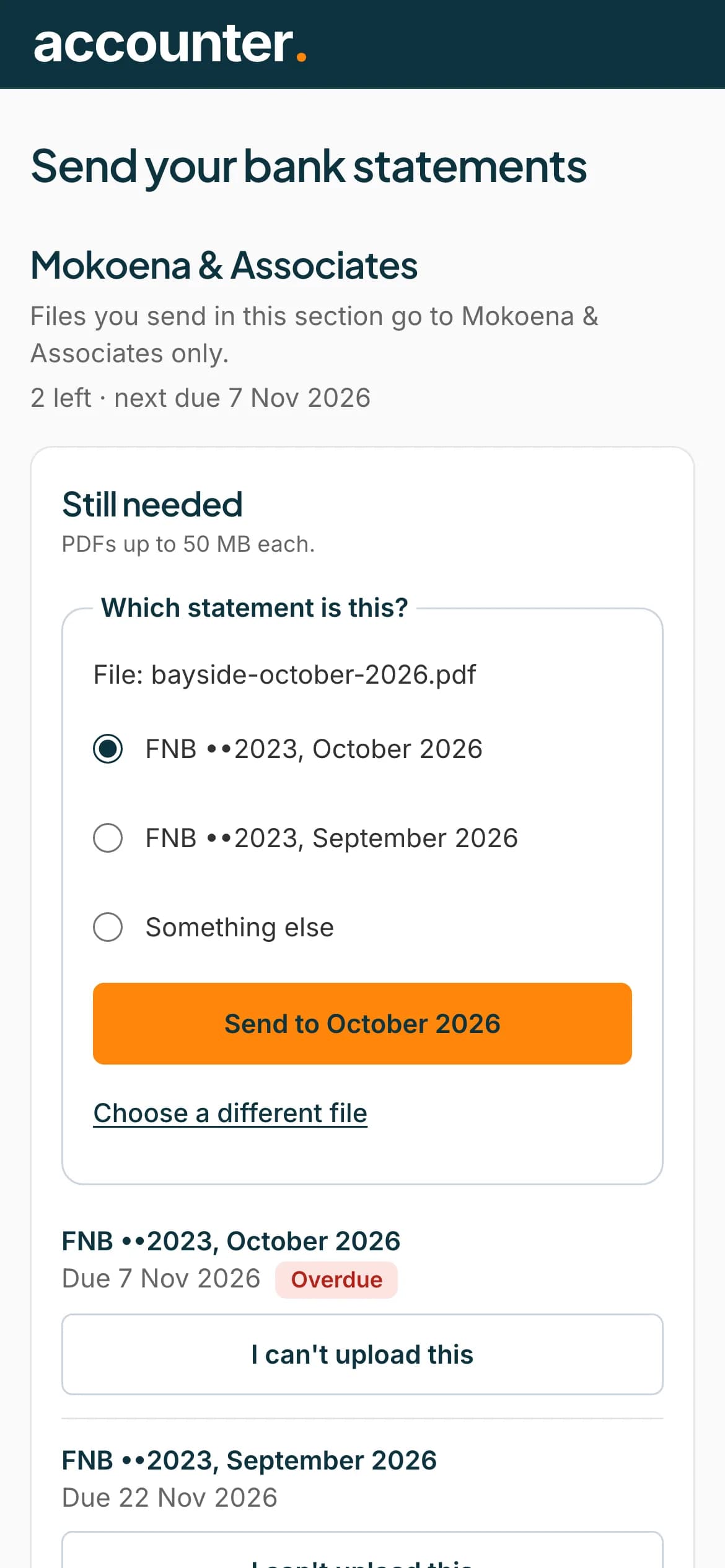
If more than one statement is needed, a question asks Which statement is this? Choose the right month, or Something else, then press Send to and the month.
 Open full size screenshot for step 4
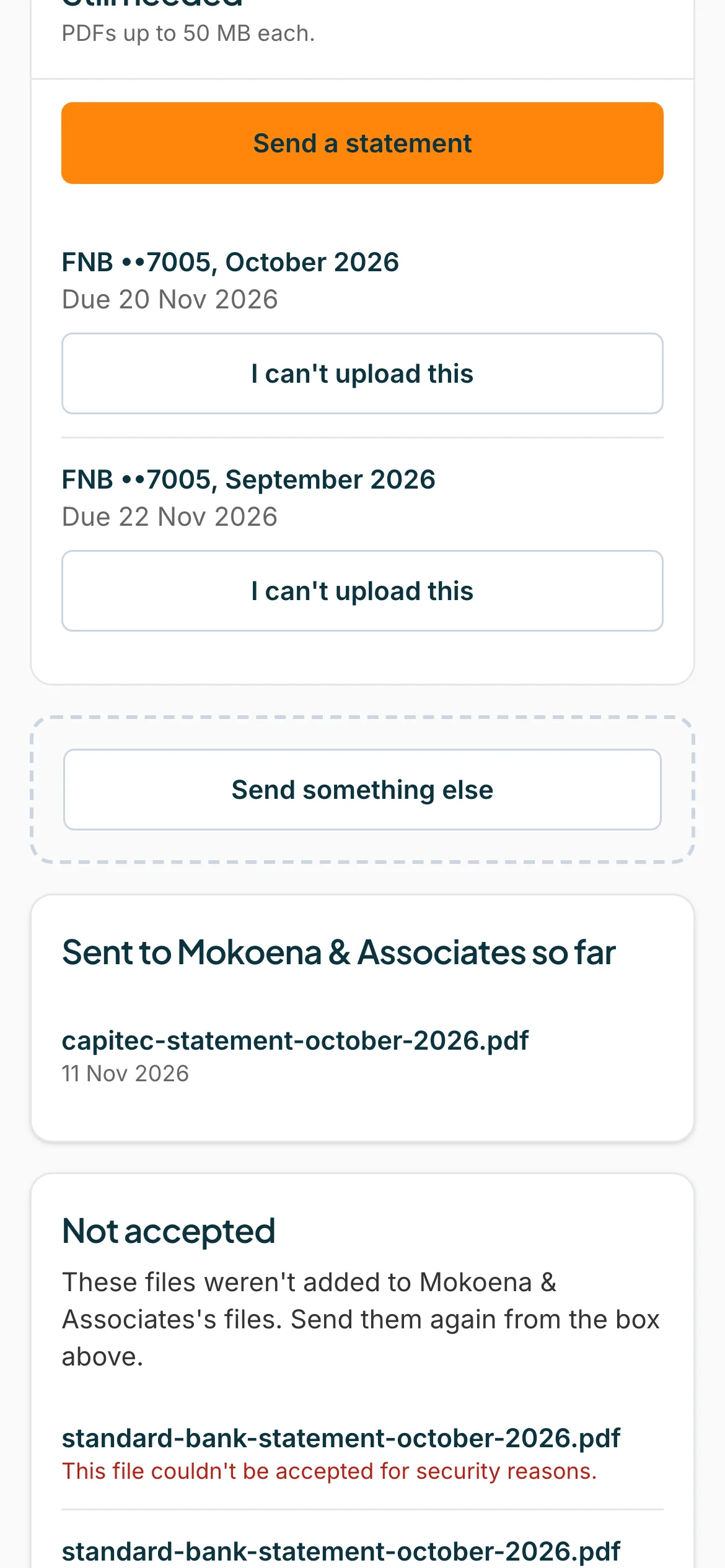
Wait for it to send
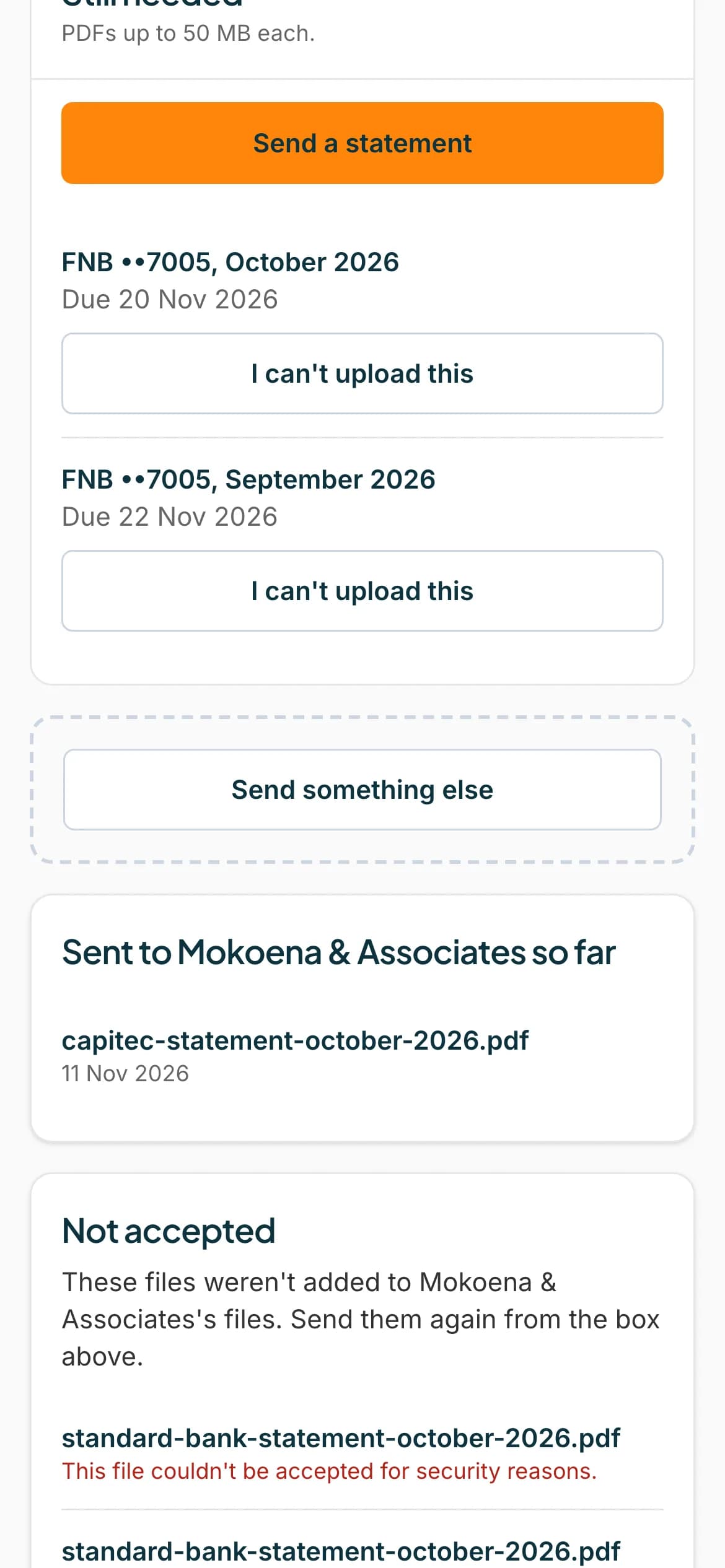
You see Sending… and a percentage, then Sent. Checking your file…. The statement moves to Sent, being checked, and then to Sent. This usually takes under a minute.
 Open full size screenshot for step 5
Send anything else
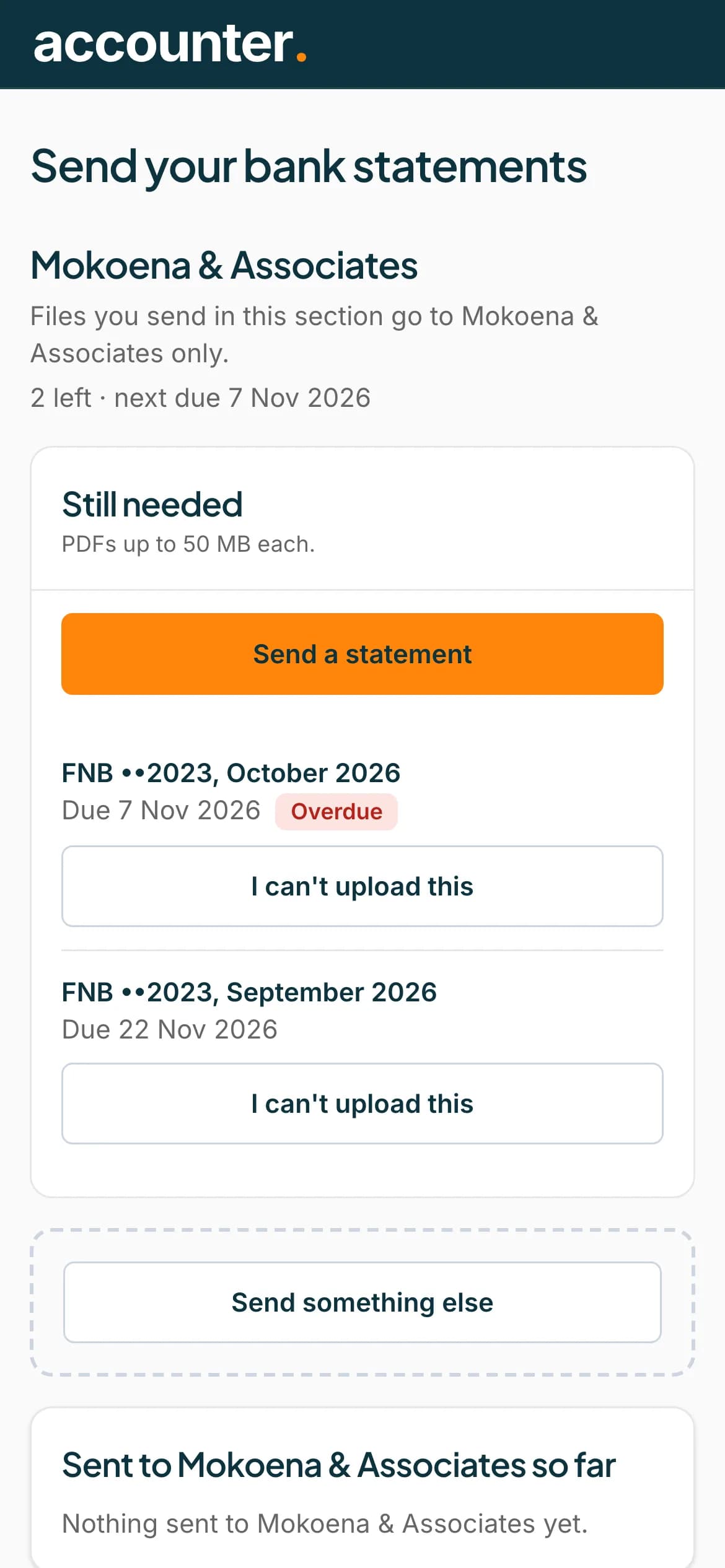
To send a statement that is not on the list, press Send something else. Your accountant sees it as a file you sent without a request.
 Open full size screenshot for step 6
Check you are done
When everything is sent, the page says You're all done for your accountant's name, and lists the files you sent.
 Open full size screenshot for step 7
Tips
- Send one PDF for each month and account. You can choose several files at once.
- Download the statements from your bank's app or website as PDFs. Photos and screenshots are not accepted.
- Your accountant's name appears wherever it matters, and only your accountant can see your files.
- You can also email your statements in. See the guide on emailing statements.
If something goes wrong
- You see Only PDF files can be sent.
- Download the statement from your bank as a PDF and try again. Photos and Word files are not accepted.
- A file is refused for being too large.
- Files can be up to 50 MB each. Download each month as its own PDF and try again.
- You see This statement is locked.
- Type the password your bank gave you. See the guide on fixing file problems.
- You see We couldn't send that file. Check your connection and try again.
- Your connection dropped. Try again when it is steady.
- You see That didn't send, and it wasn't your connection.
- Your accountant has not received it yet. Try again in a few minutes, or email it to the address shown.
Related guides
- Fix problems with a fileUnlock a password-protected statement, and fix files that are not PDFs, are too large, or were not accepted.
- Can't upload a statement? Tell your accountantIf you cannot send a statement, say why, so your accountant knows and does not keep waiting.
- Sign in to send your statementsUse the link in your accountant's email to open your secure page, or ask for a new link. There is no password.