Turn the daily summary email on or off
Last reviewed 15 November 2026 · 3 steps
Get a short email each morning about new statements, completed requests and files that could not be checked.
Firms
Steps
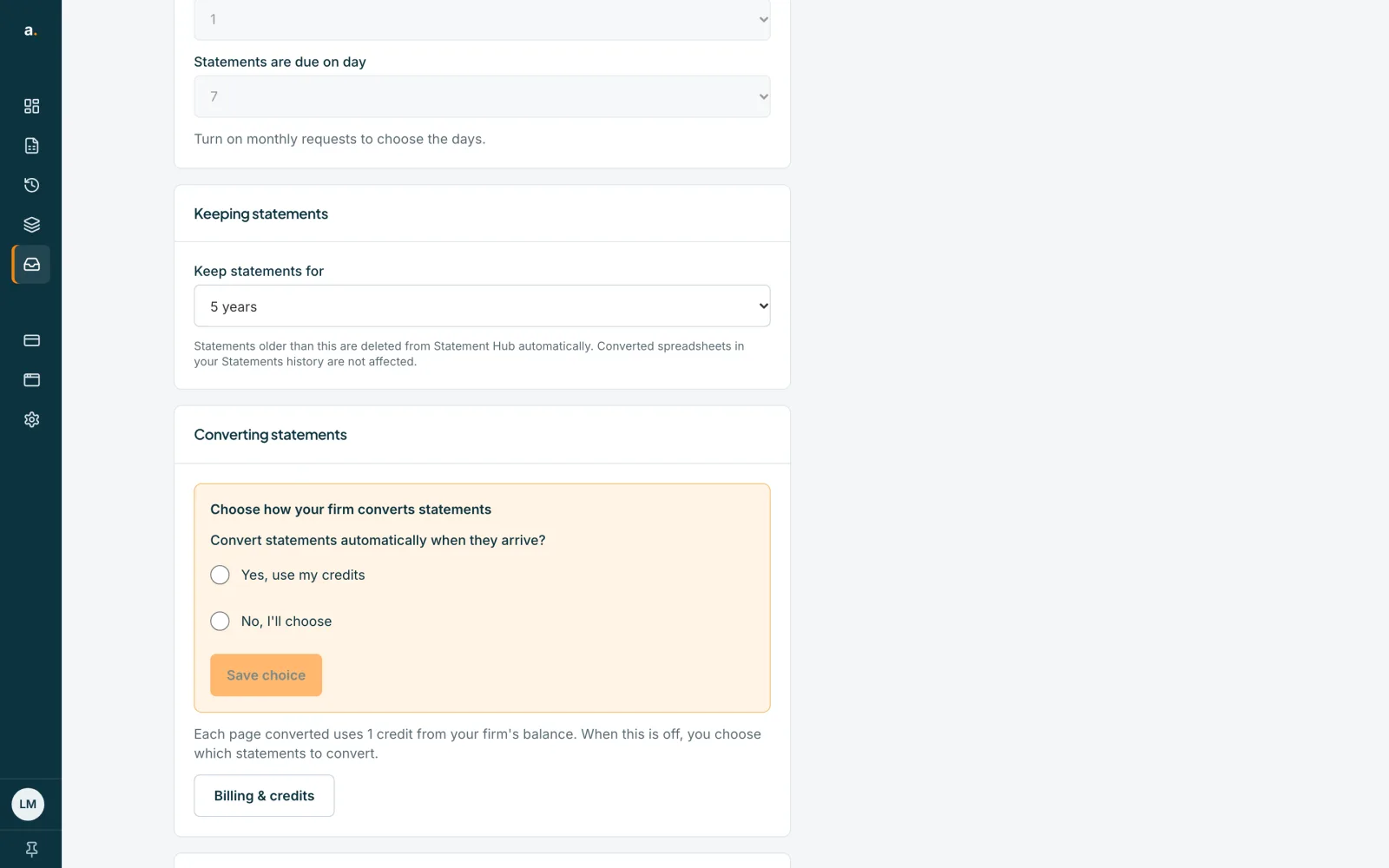
Open Settings and scroll to Notifications
Choose the Settings tab and scroll to the bottom. The Notifications card has one setting, Daily summary email.
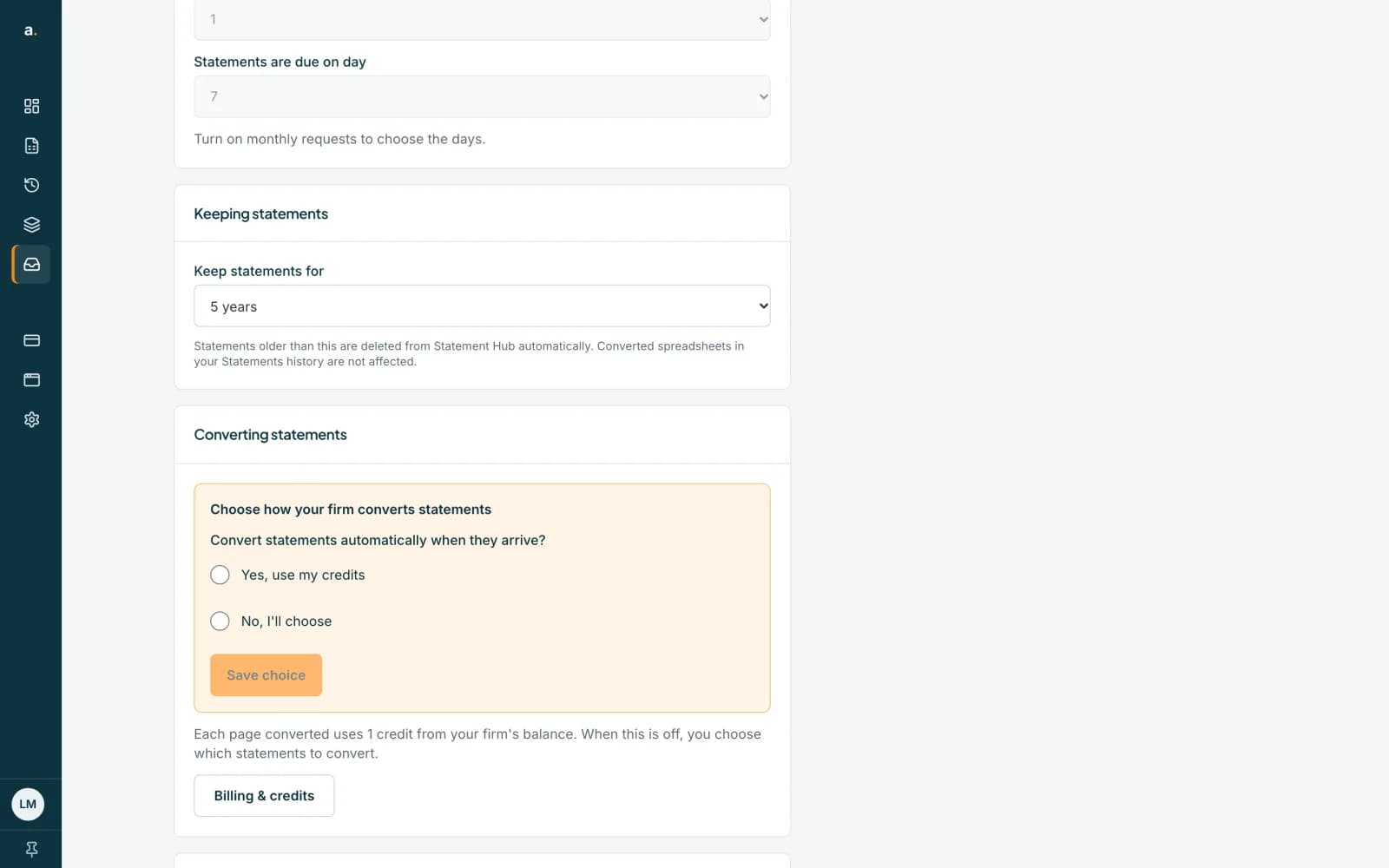 Open full size screenshot for step 1
Tick or clear Daily summary email
Tick it to get the email, or clear the tick to stop. It saves at once. It is your own setting and does not change anyone else's.
Know what arrives
A short email arrives at about 07:00 South African time, on days when something happened in the last 24 hours: new statements, completed requests, or files that were blocked or could not be checked. It also lists emails to sort, overdue items and statements waiting for credits. Press Open Statement Hub in the email.
Tips
- It goes to every owner, admin and member with a confirmed email address, unless they turned it off.
- No email is sent on a day with no news, and a backlog alone does not trigger one.
- Turning it off never stops client emails or anything in the Hub.
If something goes wrong
- You did not get the email.
- It is sent only on days with new statements, completed requests or blocked files, and only to confirmed addresses. Check that Daily summary email is ticked.
- You see Could not save that. Please try again.
- Tick or clear the box again.
Related guides
- Handle files that need a lookFind files that were blocked, could not be checked or are locked, and unlock a locked statement with its password.
- Who can do what in Statement HubSee what owners, admins and members can each do in Statement Hub, and where colleagues are added.
- Read the OverviewSee who has sent their statements for a month, who is overdue, and what to do next for each client.