Read the Overview
Last reviewed 15 November 2026 · 5 steps
See who has sent their statements for a month, who is overdue, and what to do next for each client.
Firms
Steps
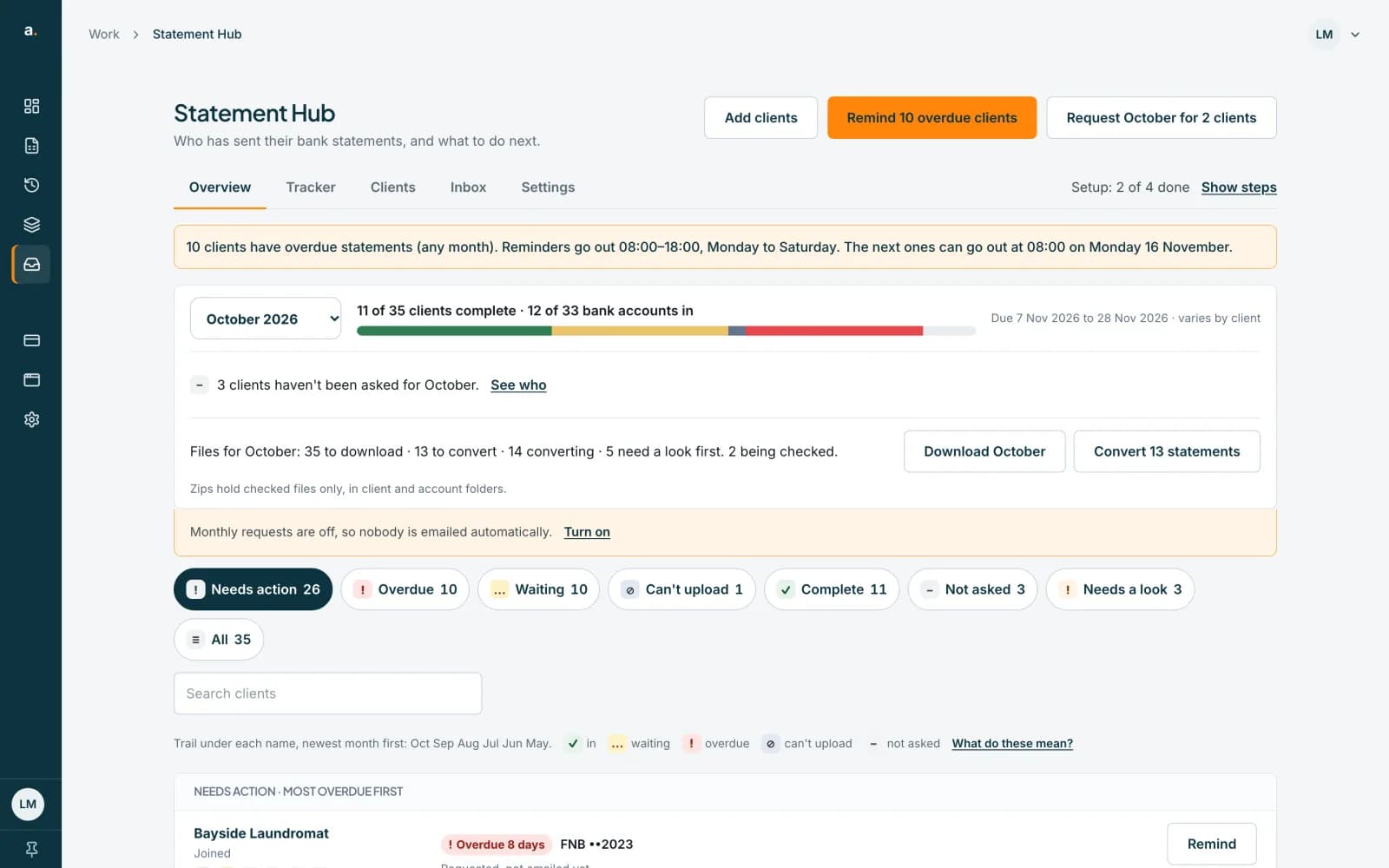
Open the Overview and pick a month
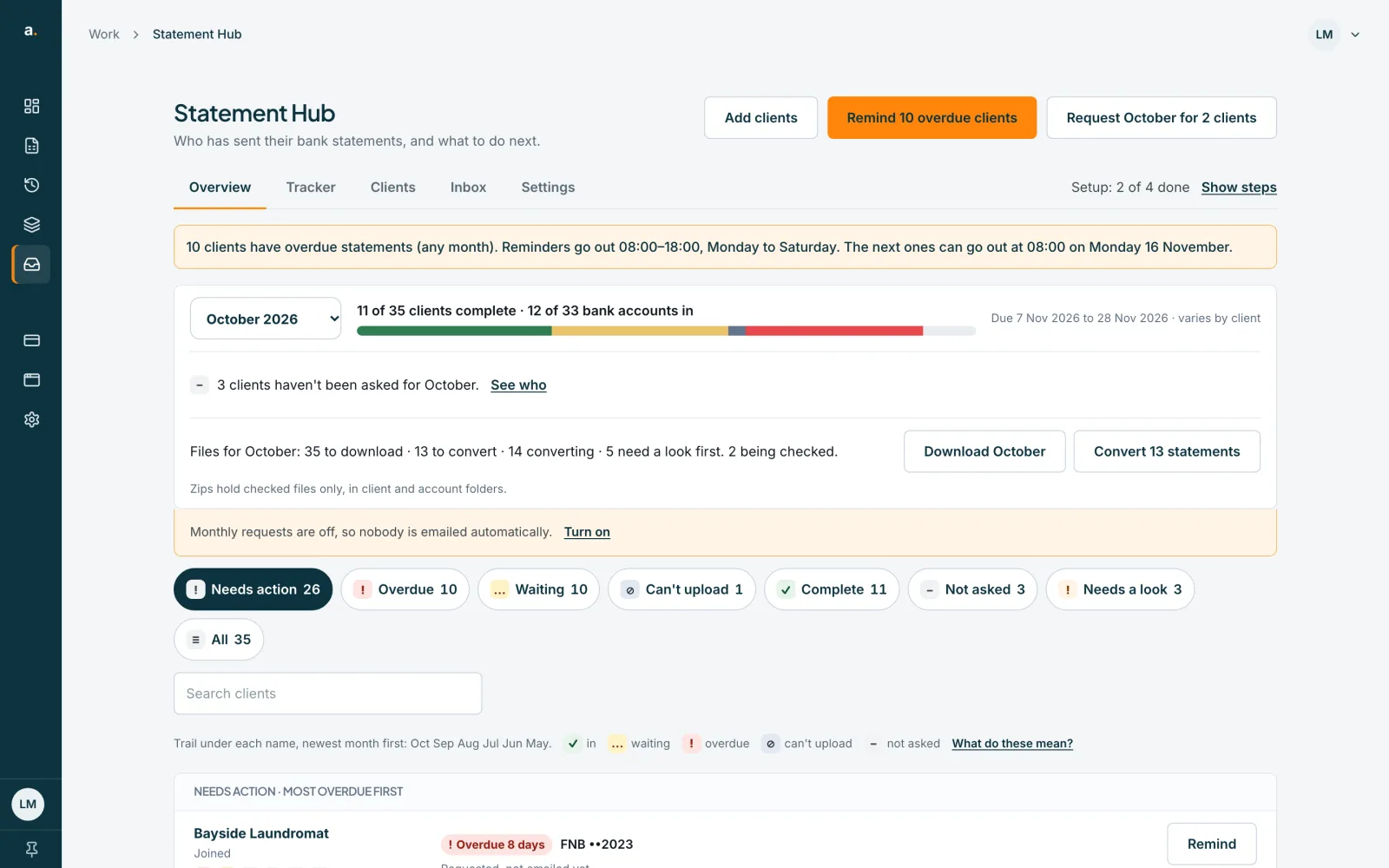
The Overview is the first tab. Use the Month list to choose a month; it covers the last 6 months. The line under it says how many clients are complete and how many bank accounts are in, for example 11 of 35 clients complete · 12 of 33 bank accounts in, with a progress bar.
 Open full size screenshot for step 1
Use the filter chips
The chips are Needs action, Overdue, Waiting, Can't upload, Complete and Not asked. Needs a look and Wrong account? also appear when some files need attention. Each chip shows how many clients it holds. Press one to filter the list, and press it again to go back to Needs action.
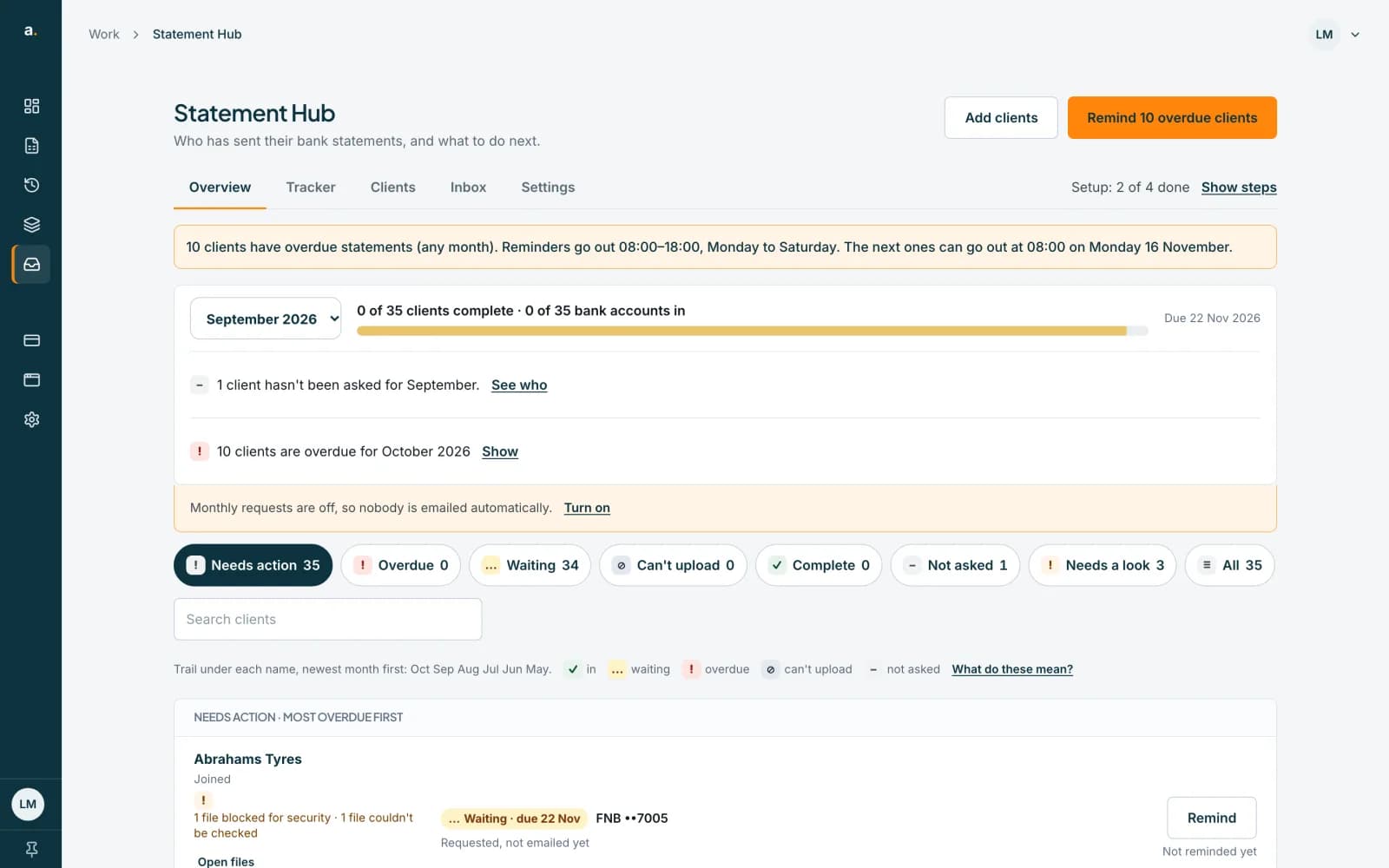
Change month or search
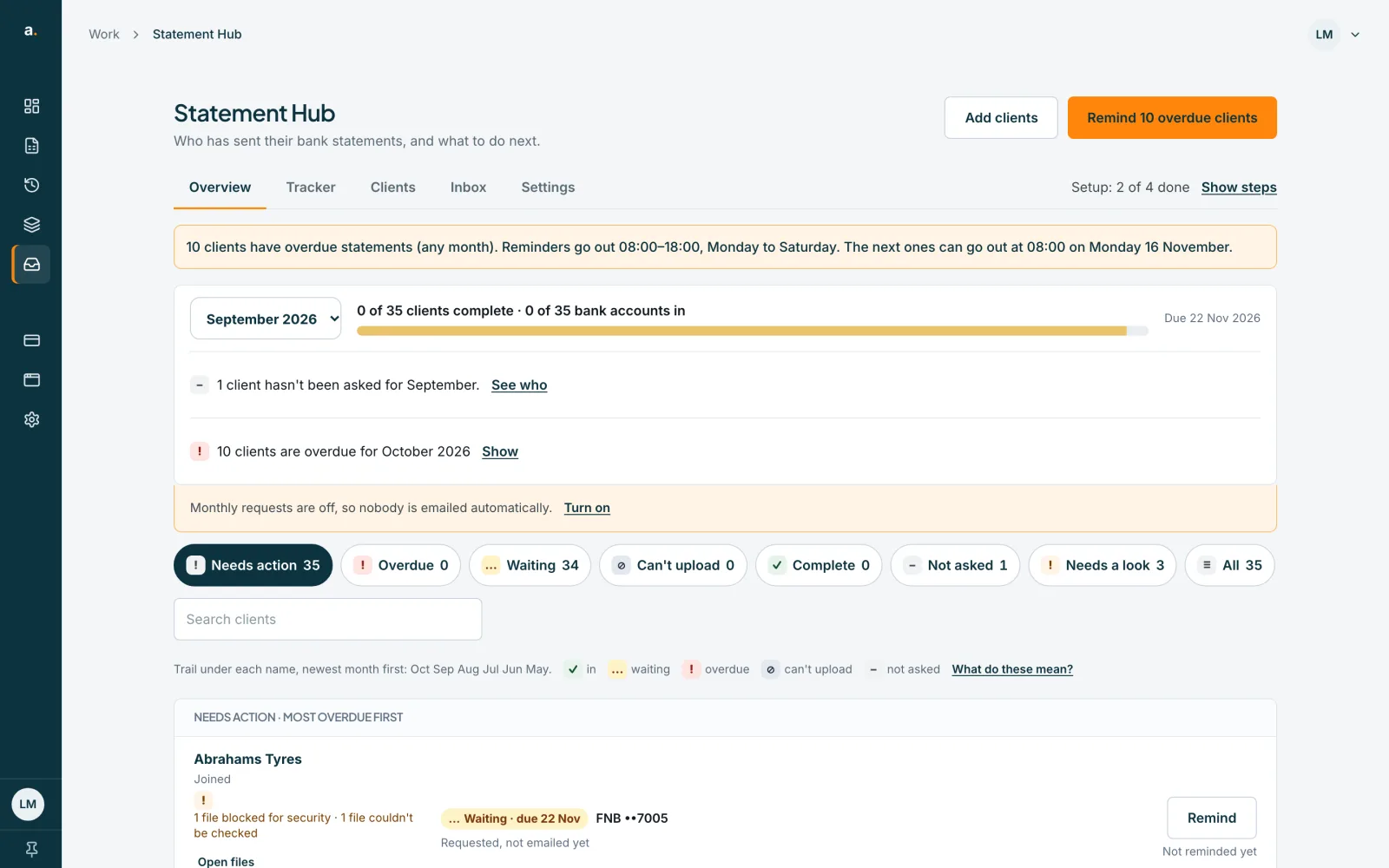
Choose another month in the Month list, or type in Search clients. The list shows the clients that need action first, most overdue first.
 Open full size screenshot for step 3
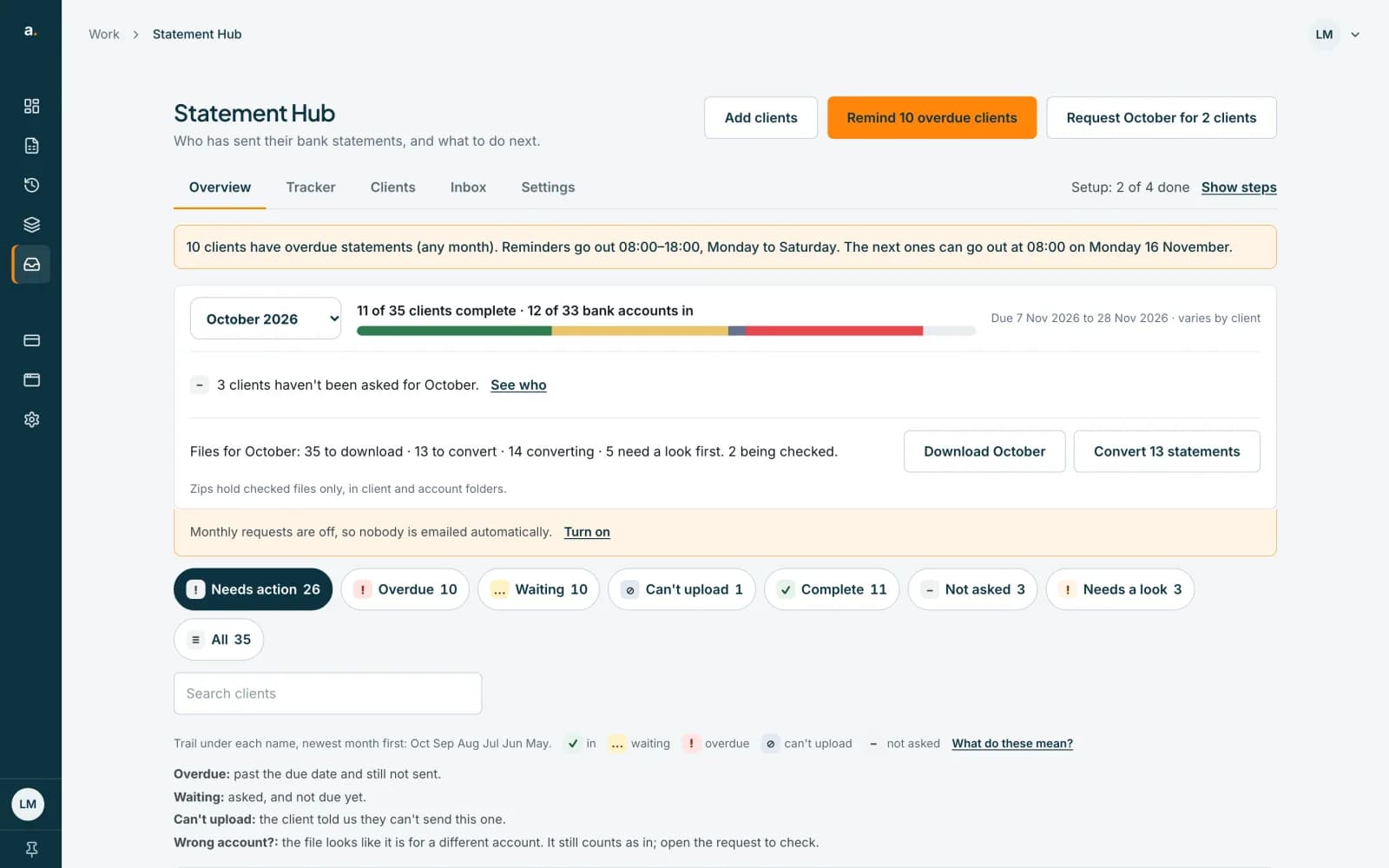
Read each client row
Each row shows the client, a trail of marks for the last 6 months (newest first), the status, for example Overdue 8 days, and one button for the next action: Request, Remind, Send invite, Resend invite, View files, or Open client.
 Open full size screenshot for step 4
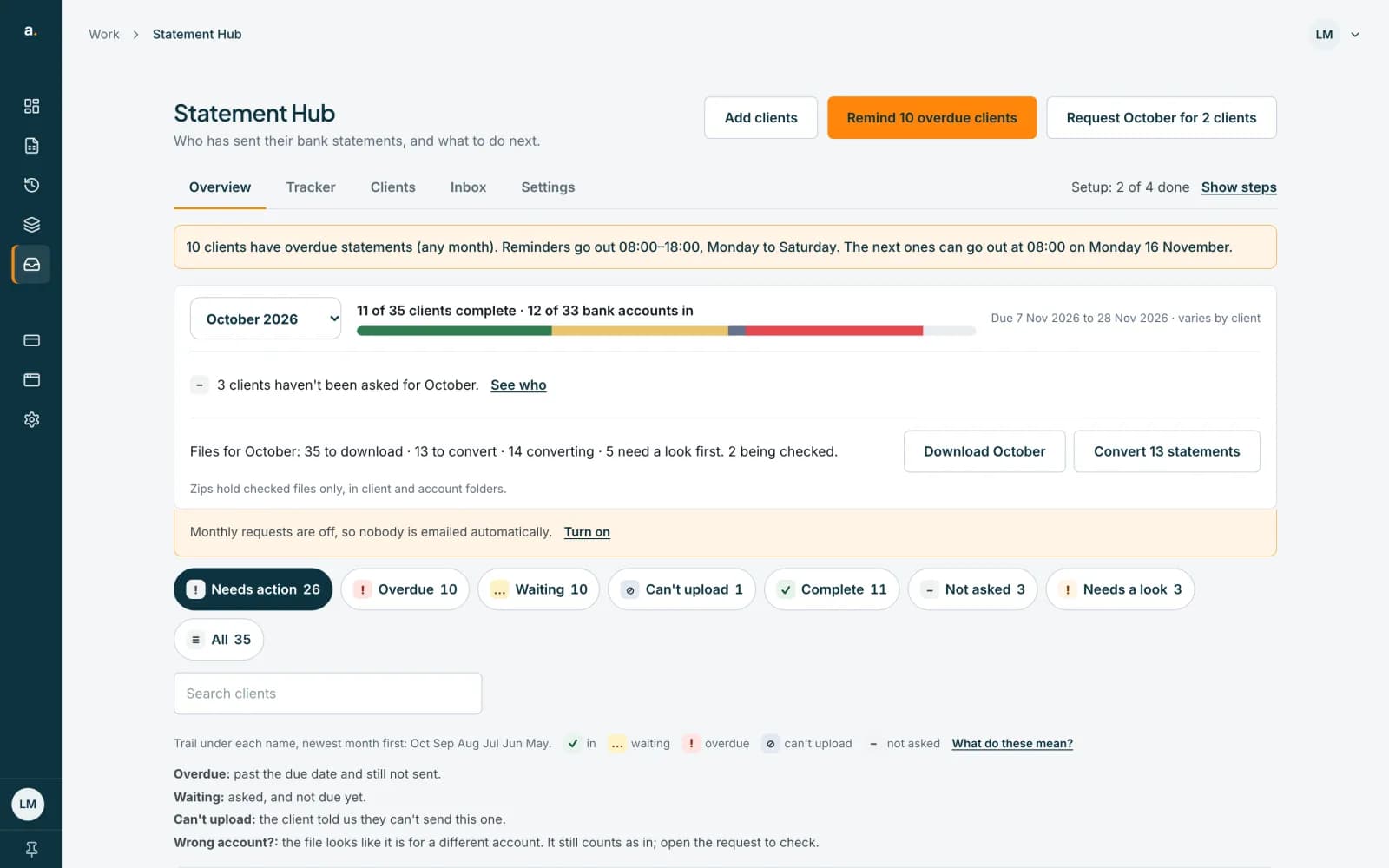
Learn the marks
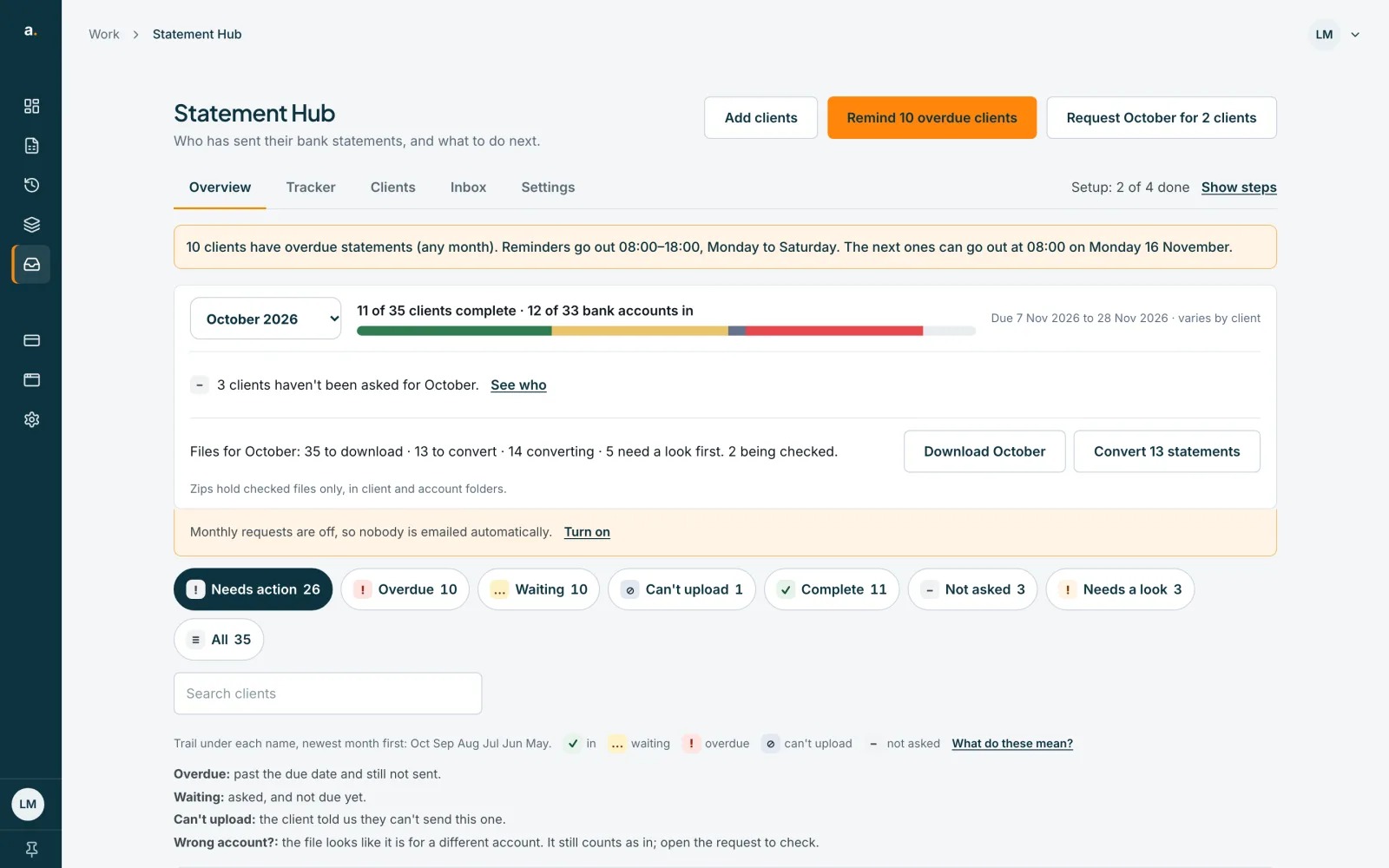
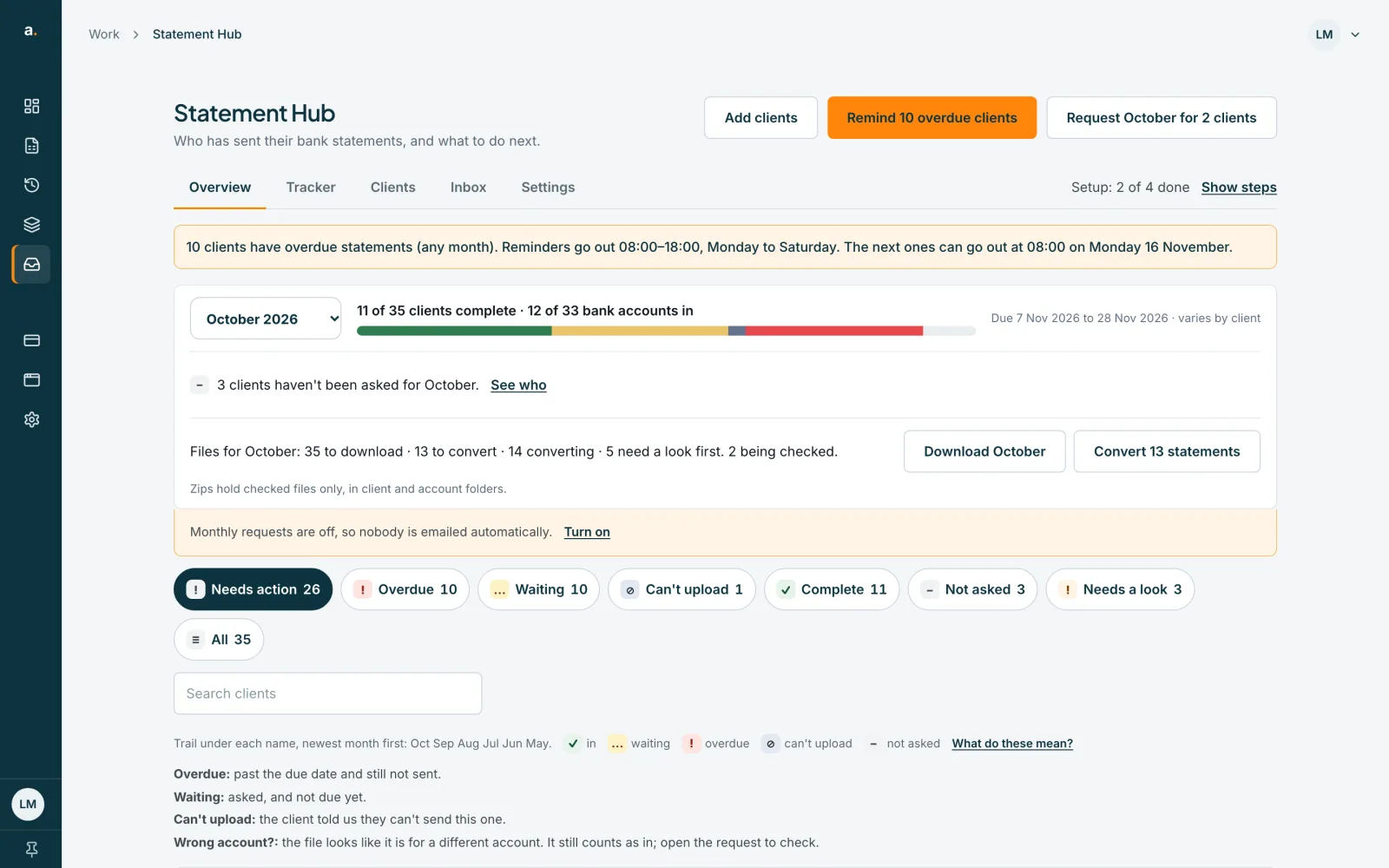
Press What do these mean? to see the key. Overdue is past the due date and still not sent. Waiting is asked and not due yet. Can't upload is when the client told us they can't send it. Wrong account? is a file that looks like it is for a different account; it still counts as in.
 Open full size screenshot for step 5
Tips
- Below the list, Sent without a request shows files clients sent when you had not asked for that month.
- The row buttons that email someone always ask you to confirm first.
- A banner at the top says how many clients are overdue in any month.
If something goes wrong
- You see Nothing needs action for October 2026.
- Everyone is in or not yet due. Press All to see every client.
- A client is complete but has a Wrong account? mark.
- The file counts as in, but looks like it is for a different account. Open the request to check.
- You see We couldn't load who has sent their statements.
- Press Try again. If it keeps failing, refresh the page.
Related guides
- Use the Tracker to see what is missingSee every client and month in one grid, filter to what is still missing, and mark a statement received or can't upload.
- Handle files that need a lookFind files that were blocked, could not be checked or are locked, and unlock a locked statement with its password.
- Send reminders to clientsRemind one client, or every overdue client at once, and see how automatic reminders work.