Use the Tracker to see what is missing
Last reviewed 15 November 2026 · 5 steps
See every client and month in one grid, filter to what is still missing, and mark a statement received or can't upload.
Firms
Steps
Open the Tracker tab
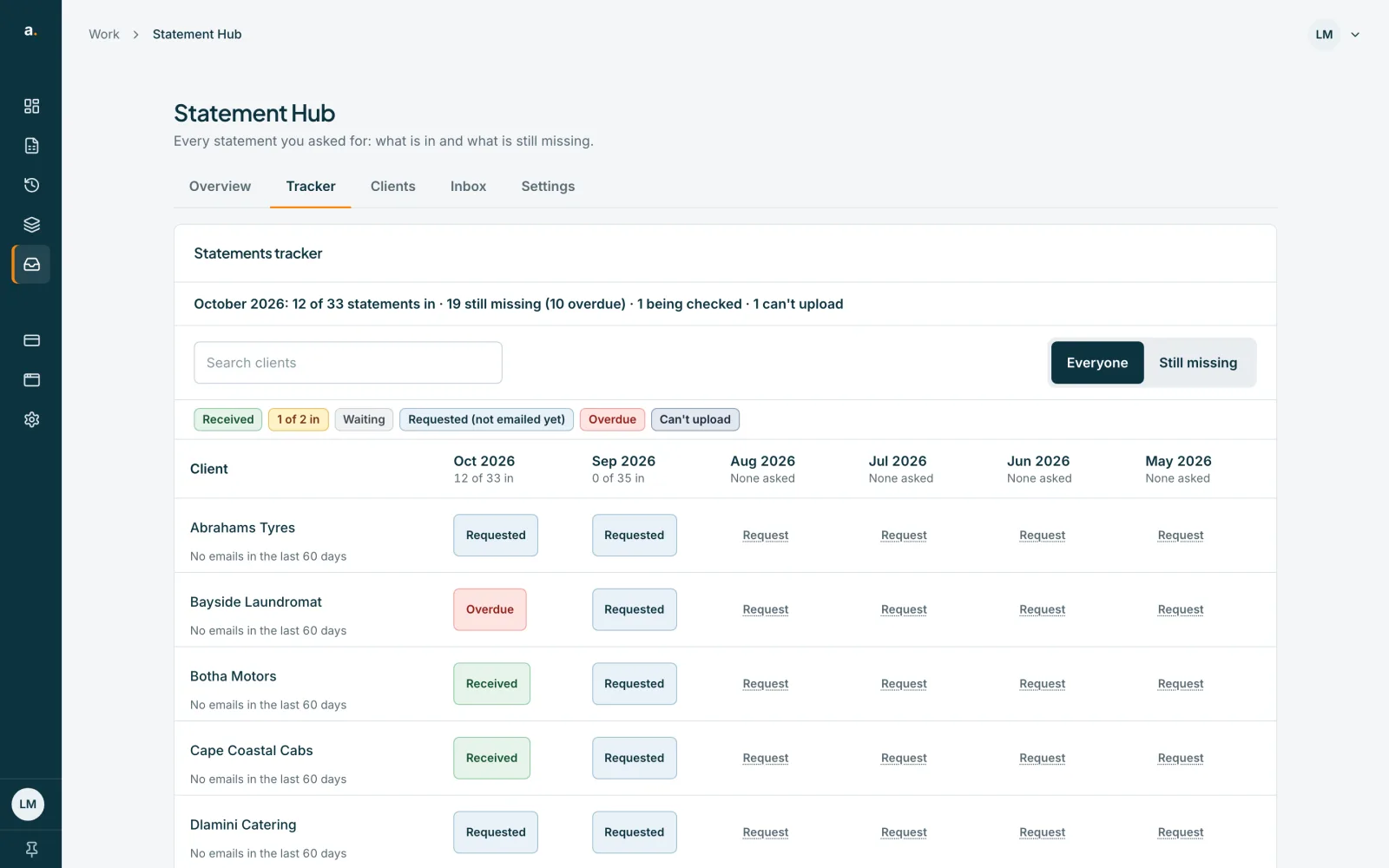
The Statements tracker is a grid with one row per client and one column per month. Each cell shows the state: Received, Some in (for example 1 of 2 in), Waiting, Requested (not emailed yet), Overdue or Can't upload. The key is above the grid.
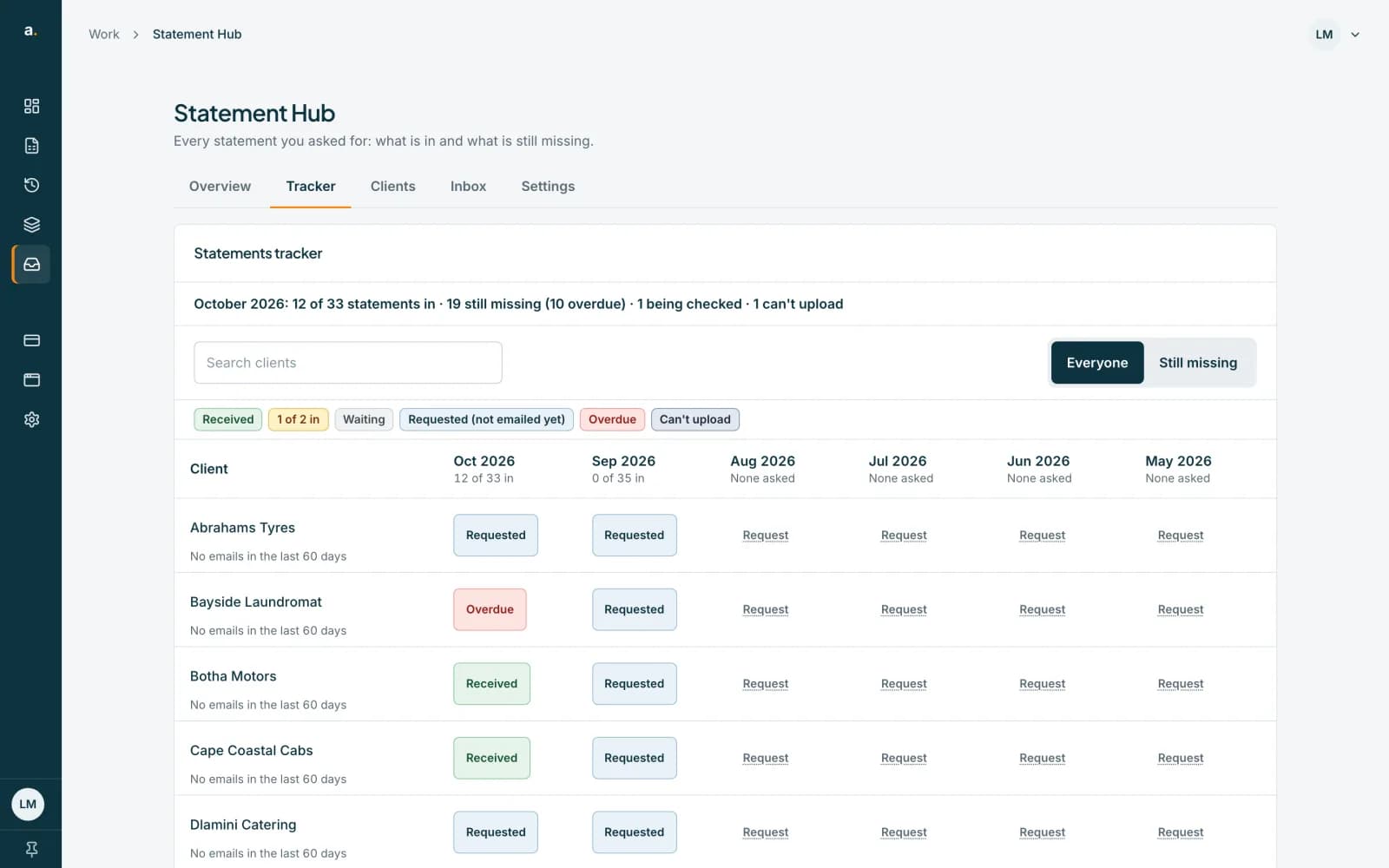 Open full size screenshot for step 1
Show only what is missing
Press Still missing to hide clients who are complete. Press Everyone to see all of them. Type in Search clients to find one. Under each month you see a tally such as 3 of 5 in. Scroll sideways for older months.
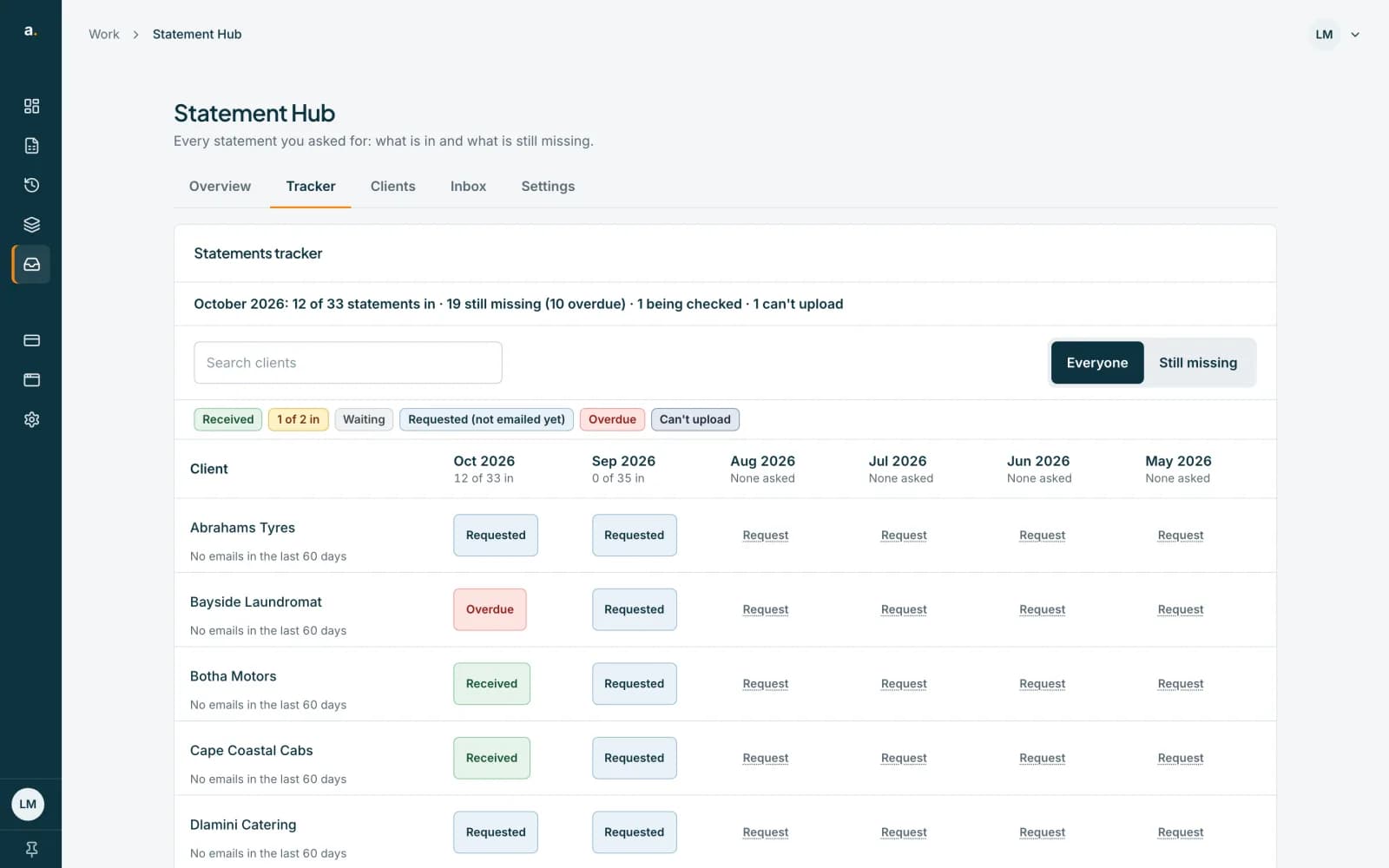 Open full size screenshot for step 2
Open a cell
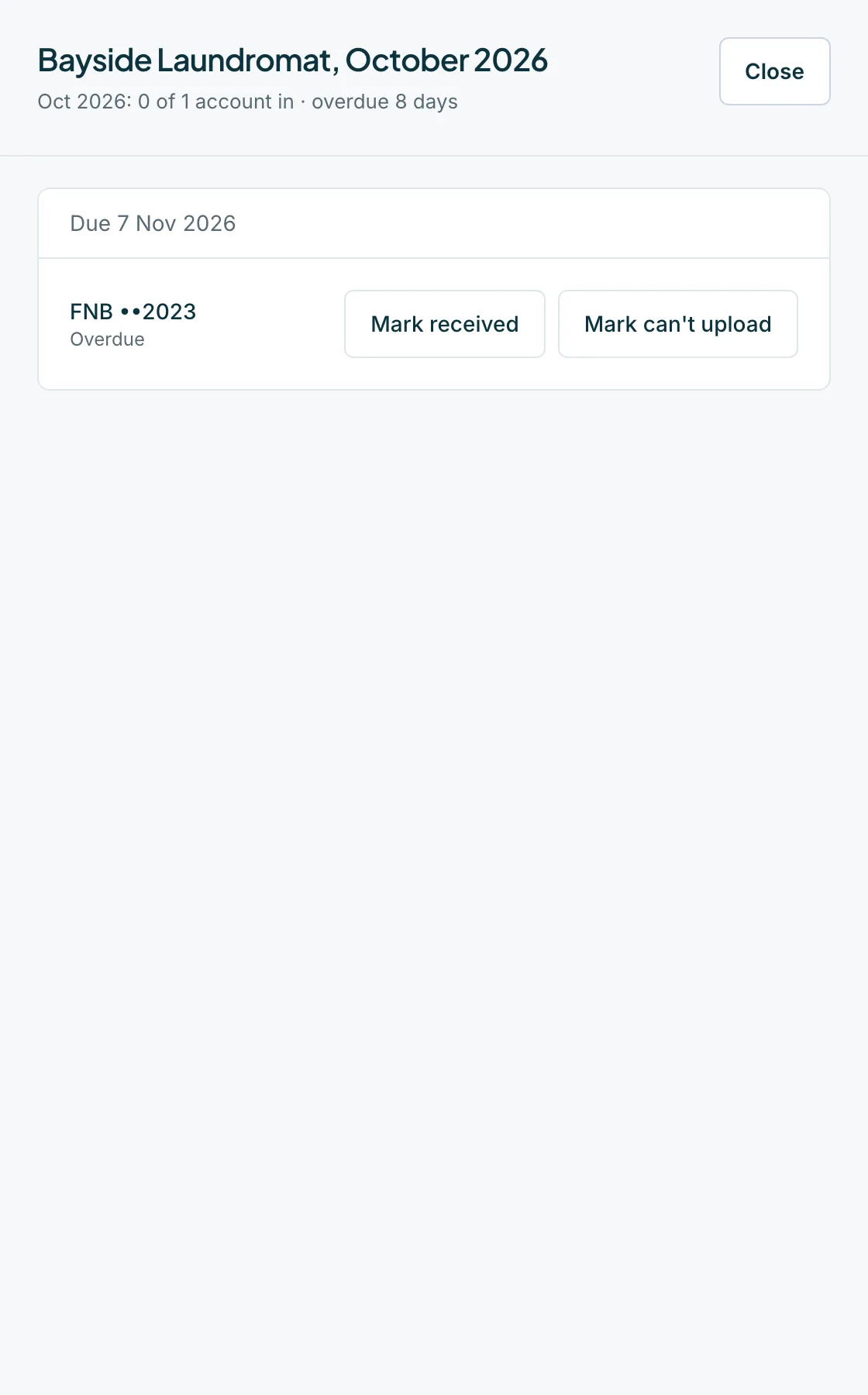
Press a cell to open the request. The sheet shows the due date and each account. You can download the files and convert them from here too.
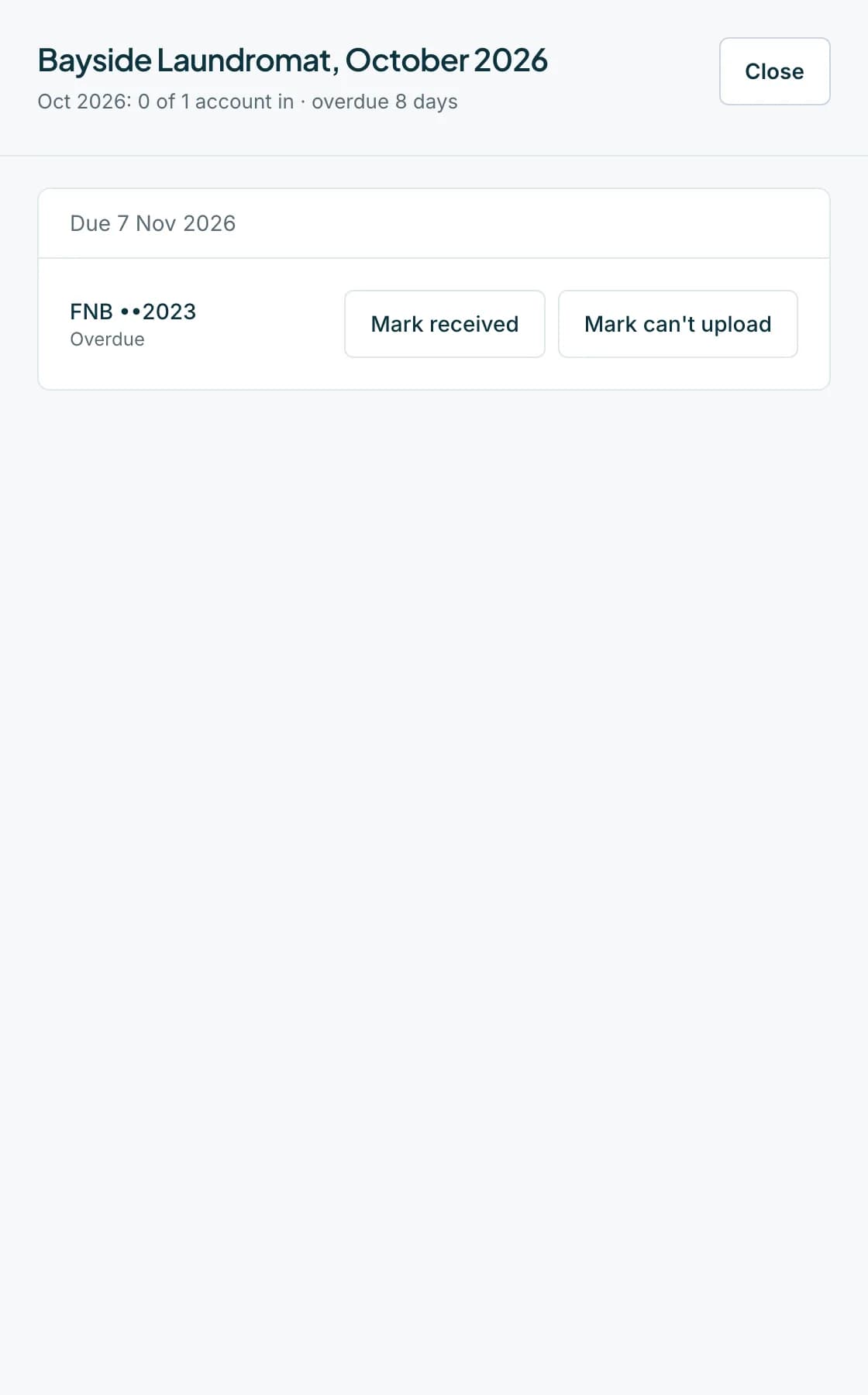 Open full size screenshot for step 3
Mark a statement received or can't upload
Press Mark received for an account you have in another way, for example by email. Press Mark can't upload and choose a reason: The account is closed, Not available yet, Not their account, or Other with a note. Press Reopen to undo either.
Ask from an empty cell
A month with no request shows Request, or Add accounts when the client has no bank accounts. Press it to ask for that month. A panel asks you to confirm first.
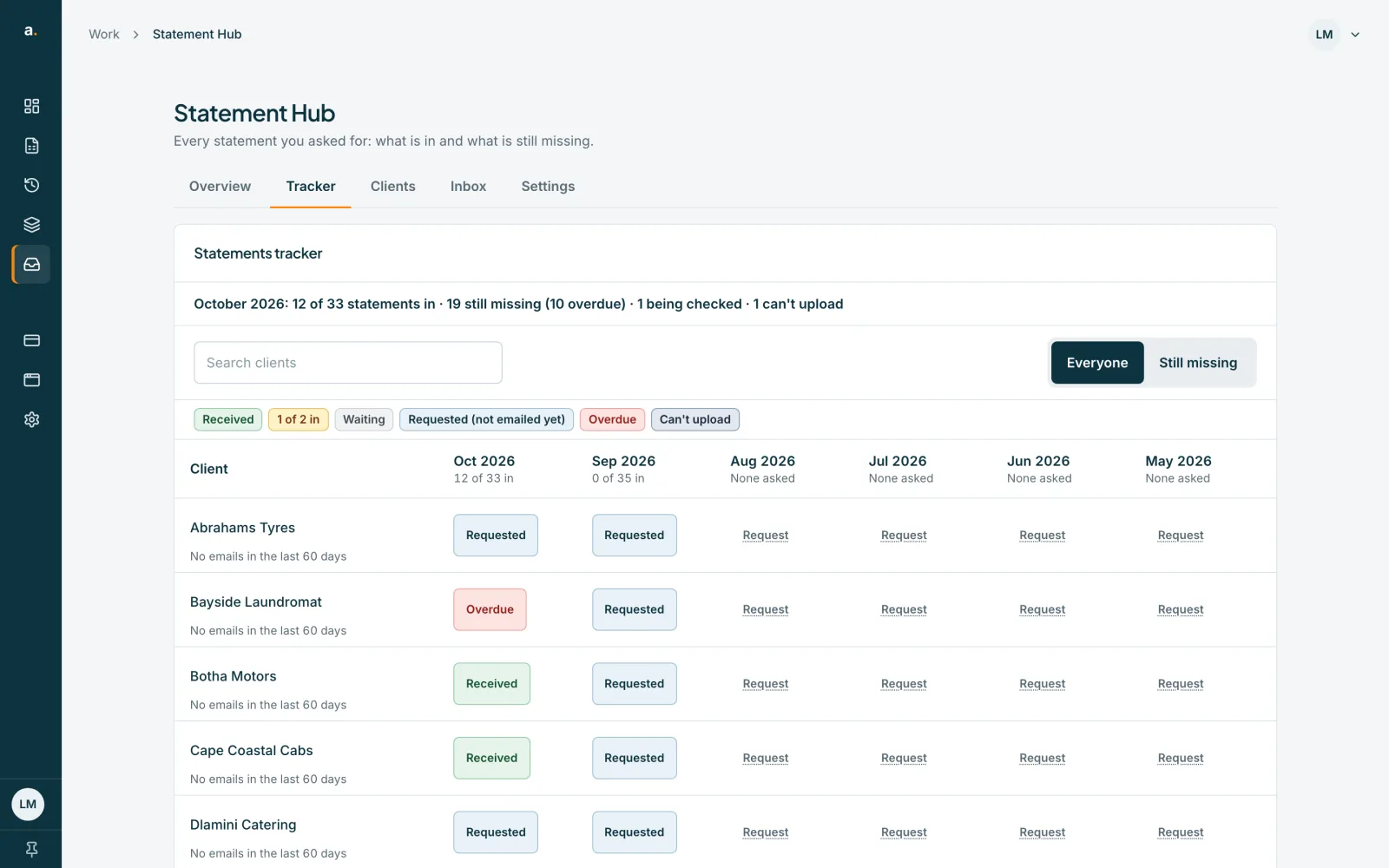
Tips
- A client who turned off emails shows Emails off beside their name.
- The tracker is about what you asked for. Files a client sent unasked are shown on the Overview under Sent without a request.
If something goes wrong
- You see Nothing is still missing.
- Every request is in. Anything being checked, or marked can't upload, is under Everyone.
- The Other reason will not save.
- Add a note, up to 200 characters. A note is required for Other.
- You see We couldn't load the request grid.
- Press Try again, or refresh the page.
Related guides
- Read the OverviewSee who has sent their statements for a month, who is overdue, and what to do next for each client.
- Download a client's files and a month zipDownload one file, all of a client's files, or every checked file for a month as a zip.
- Send reminders to clientsRemind one client, or every overdue client at once, and see how automatic reminders work.