Set up your Hub inbox and email-in address
Last reviewed 15 November 2026 · 5 steps
Create your firm's Hub inbox address so clients can email statements in, and see how those emails are handled.
Firms
Steps
Open the Inbox tab
Choose the Inbox tab. A firm that has no address yet sees a Create inbox address button. Statement Hub does not make one for you automatically.
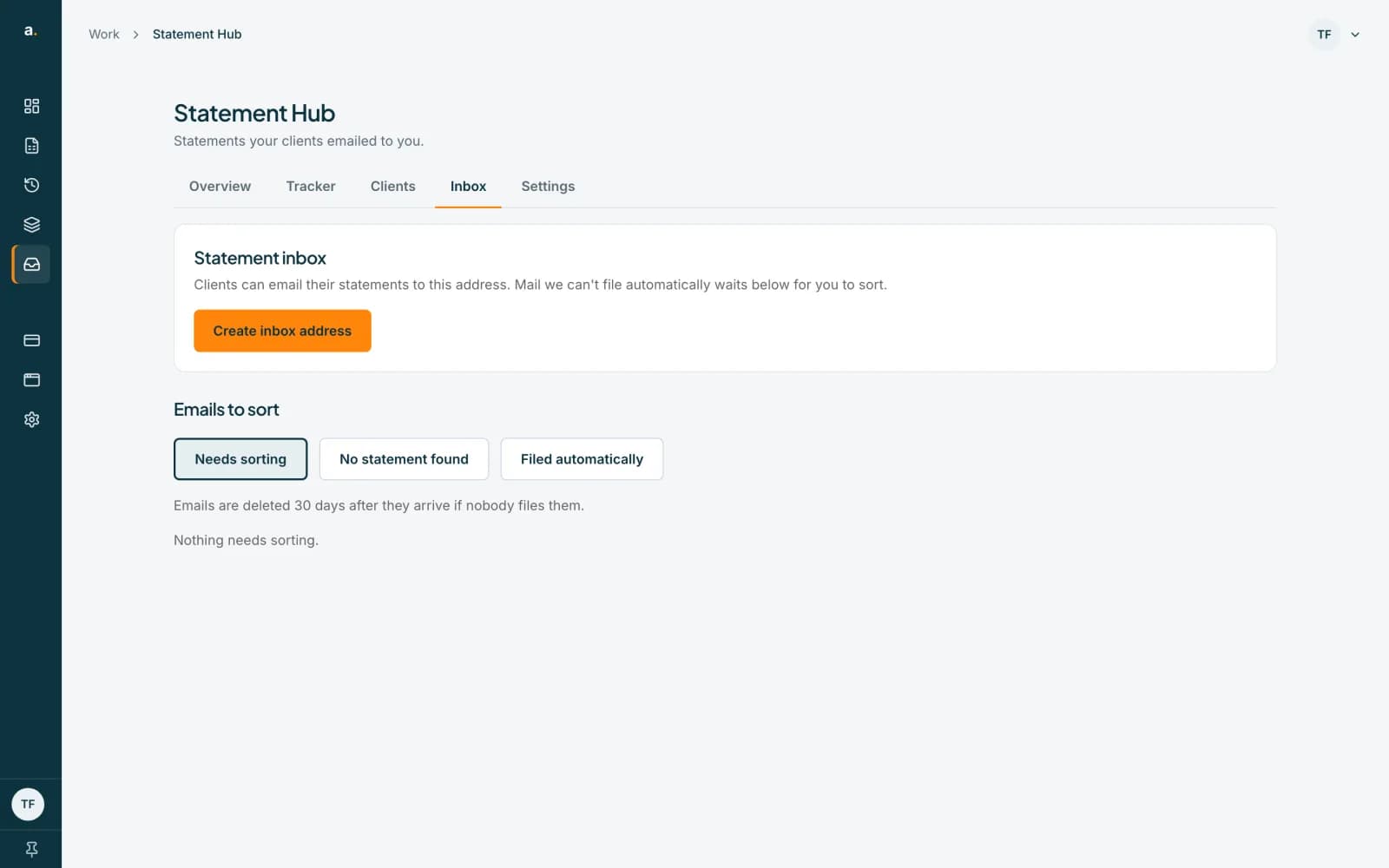 Open full size screenshot for step 1
Press Create inbox address (owner or admin)
Only an owner or admin can create it. A member sees Ask an owner or admin of your firm to create the inbox address. The address ends in @statements.accounter.co.za and starts with your firm's name.
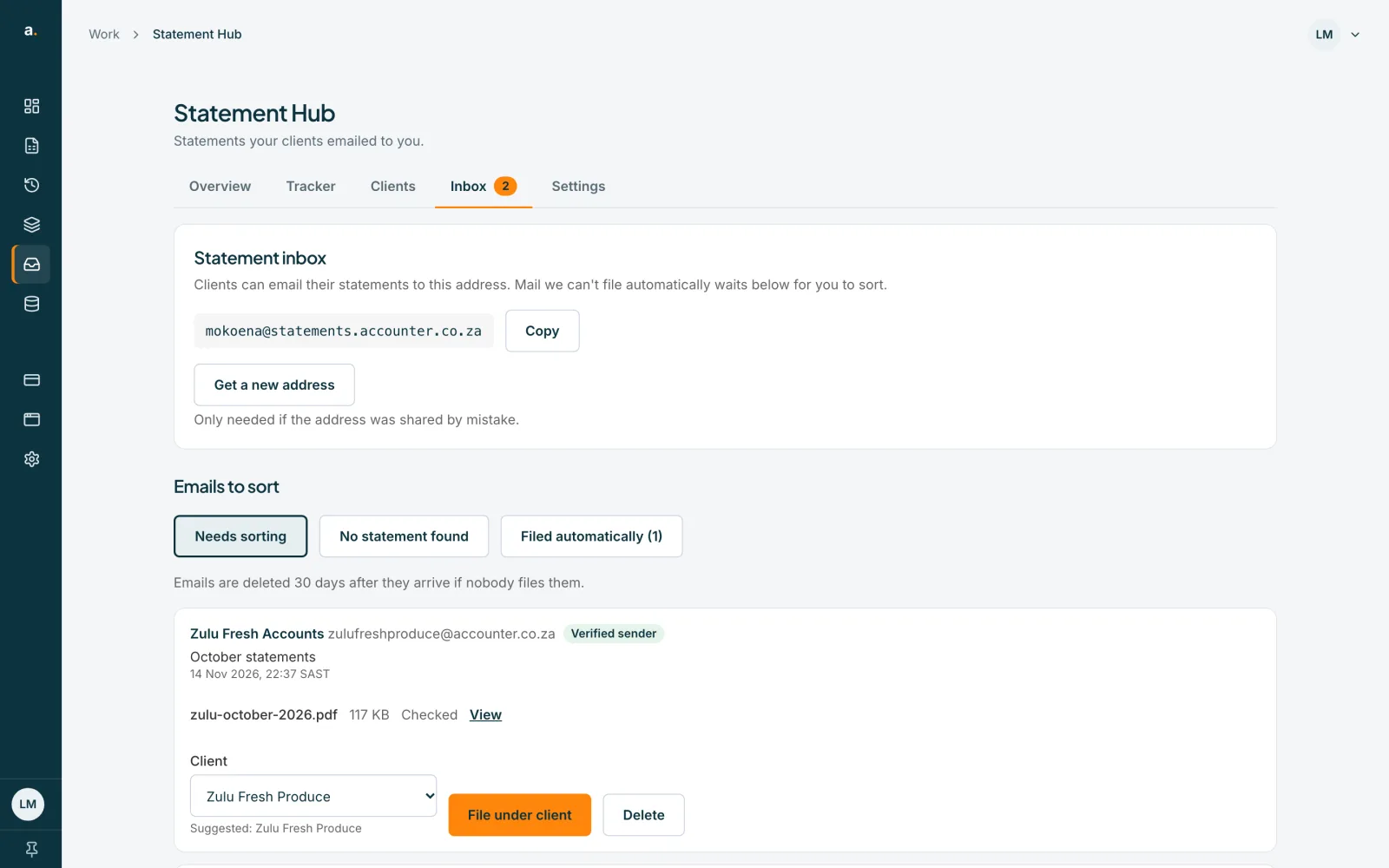
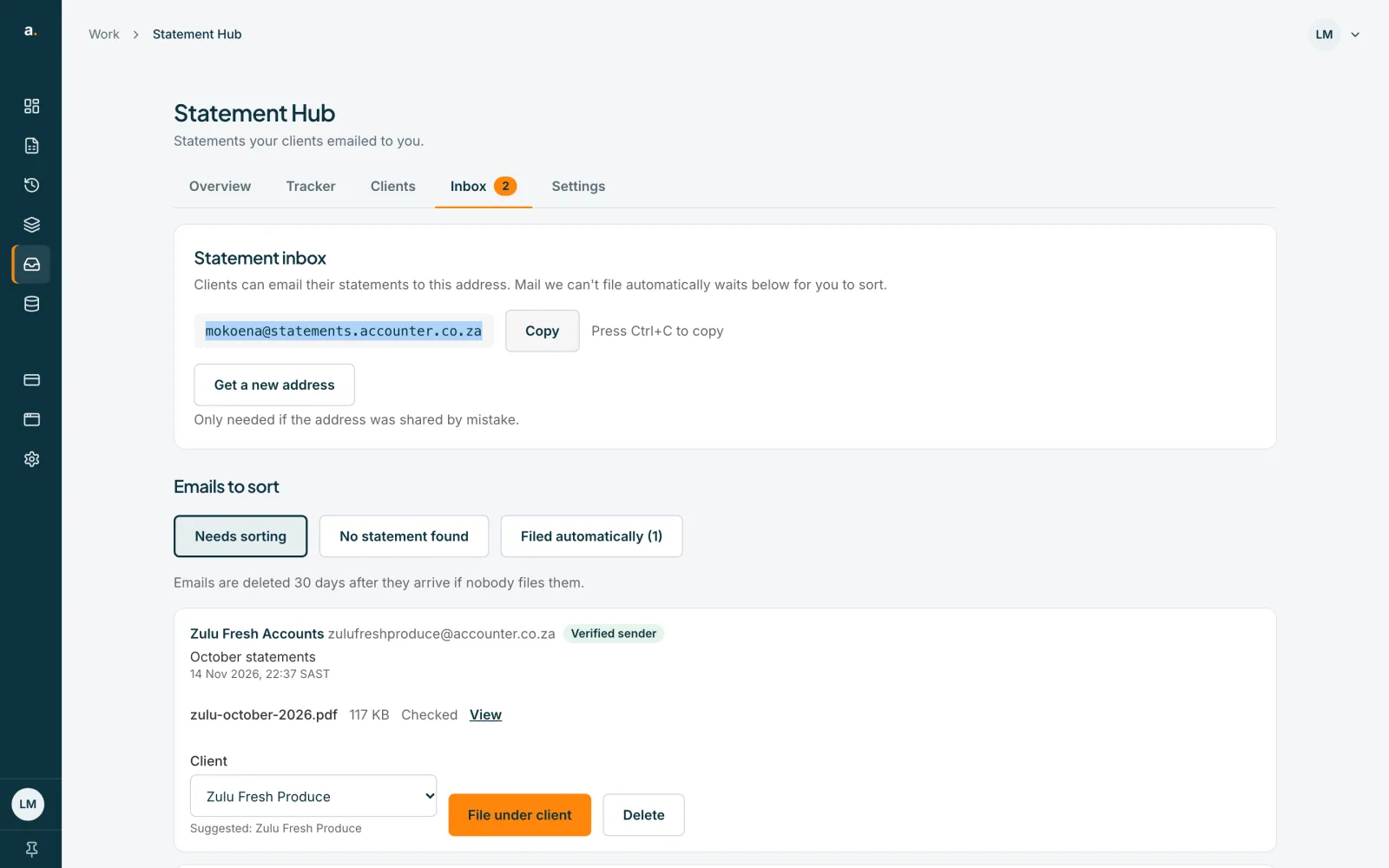
Copy the address
Press Copy inbox address. The button changes to Copied. The address is receive-only: it cannot be used to send email.
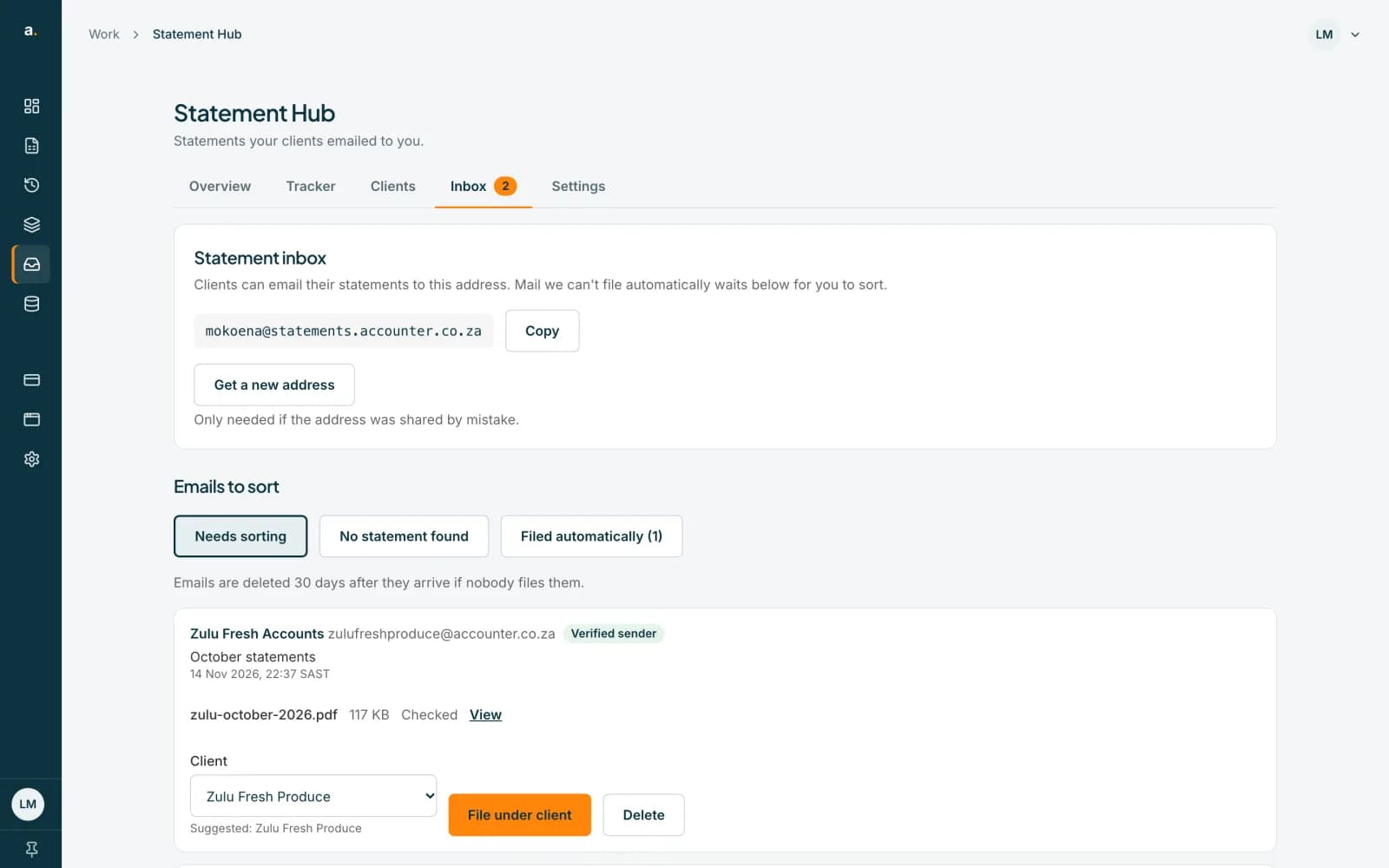 Open full size screenshot for step 3
Share it with clients
Clients also see the address on their own page, under Email and the firm's name followed by instead, with a Copy button. You can paste it into your own emails.
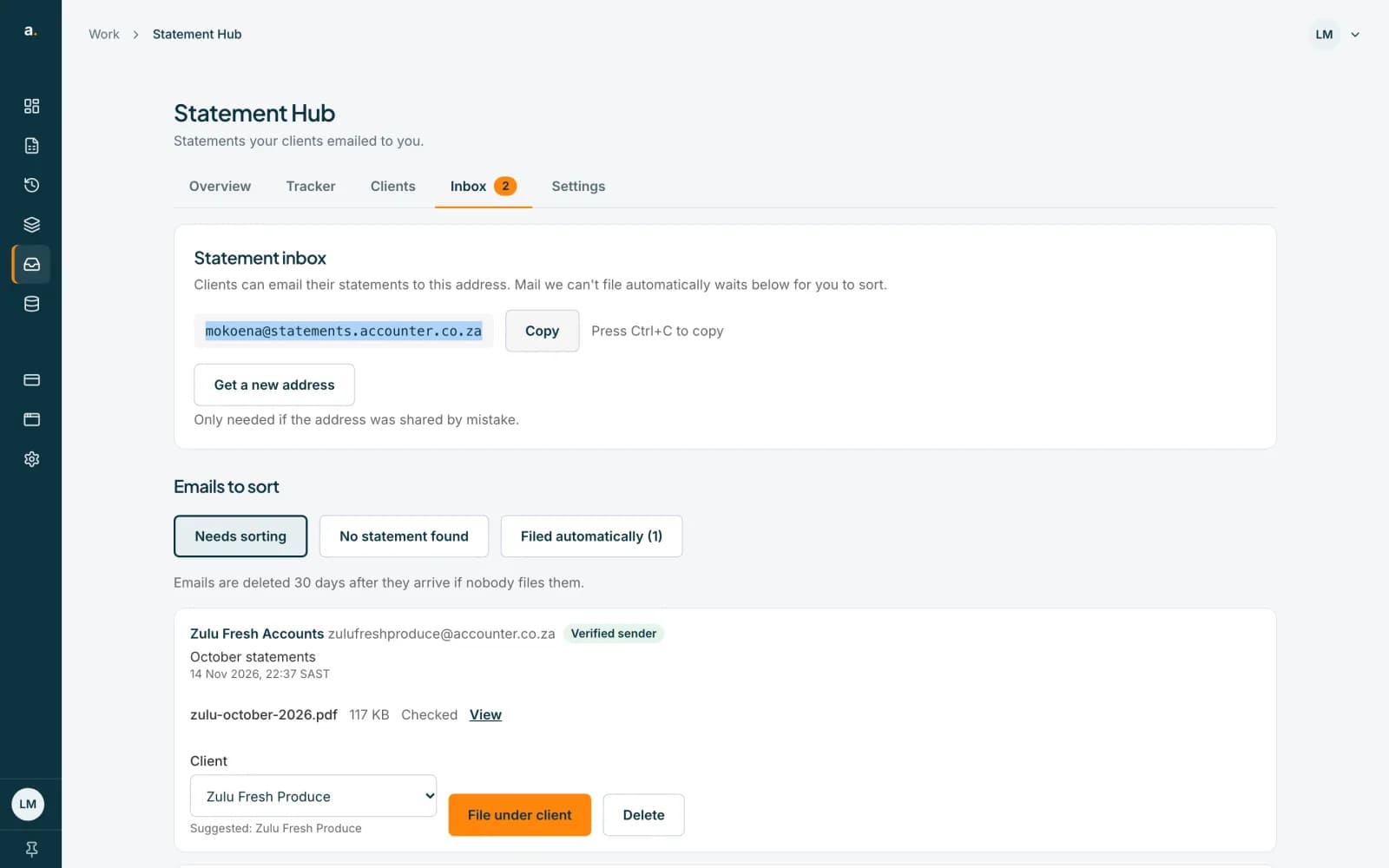 Open full size screenshot for step 4
Check the Emails to sort tabs
Below the address, Emails to sort has three tabs: Needs sorting, No statement found, and Filed automatically. A count badge on the Inbox tab shows how many emails need sorting.
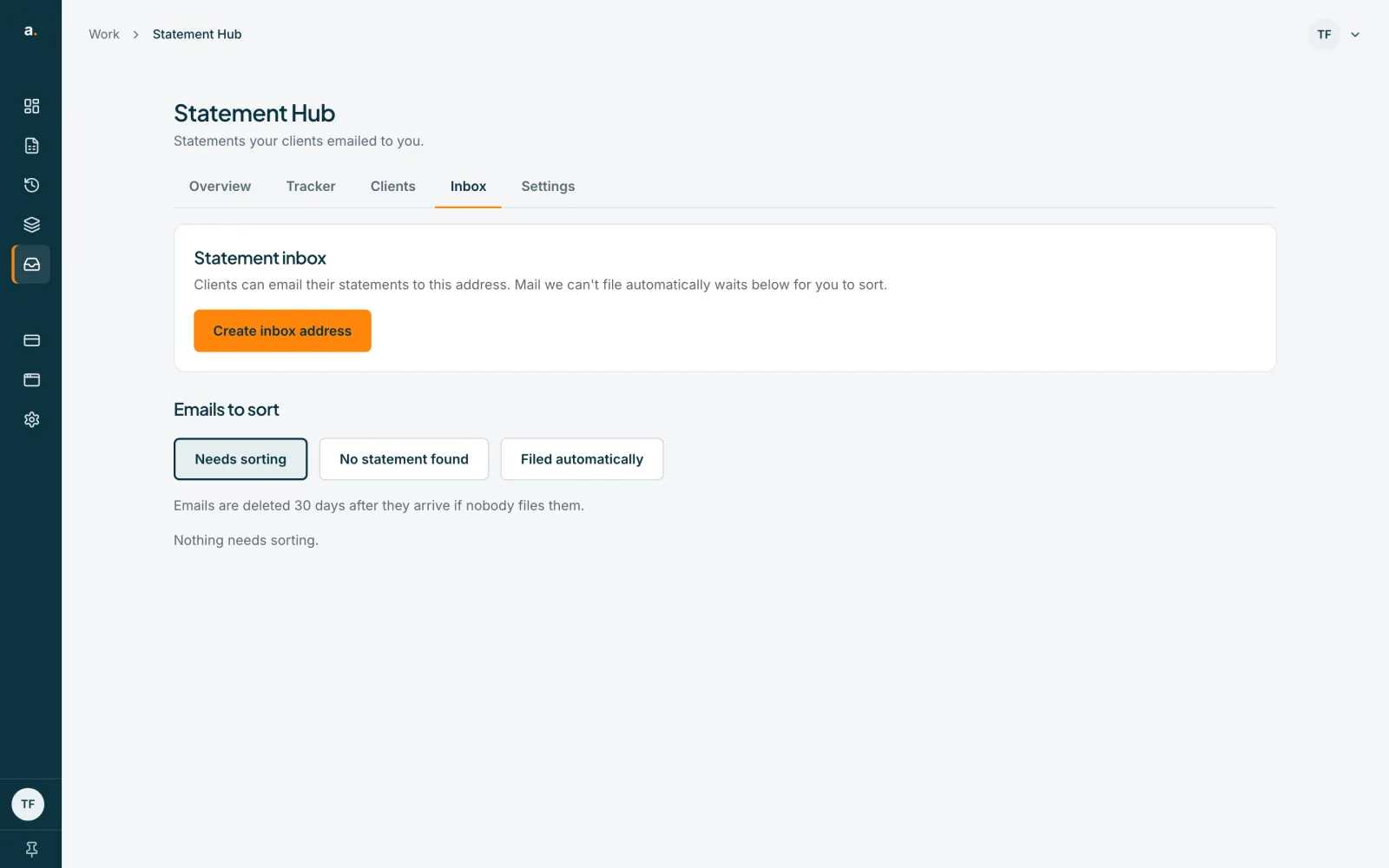
Tips
- An email is filed automatically when it comes from a verified sender whose address is one of a client's contacts. Otherwise it waits under Needs sorting for you to file.
- Each email can have up to 20 PDFs. Any more are ignored and noted. A PDF over 50 MB is not kept, and each inbox takes up to 300 emails a day.
- Emails nobody files are deleted 30 days after they arrive.
If something goes wrong
- You see We couldn't load your inbox address.
- Press Try again, or refresh the page.
- You see Could not create your inbox address.
- Check your connection and try again.
- A client says their email did not arrive.
- Check that they used the current address. If you replaced the address, the old one bounces.
- An email shows Unverified sender.
- The sender could not be verified, so it is not filed automatically. It waits in Needs sorting for you to file by hand.
Related guides
- Sort, move and delete emailed statementsFile emailed statements under the right client, move one that was filed automatically to another client, or delete an email.
- Get a new Hub inbox addressReplace your firm's Hub inbox address if it was shared by mistake. The old address stops working straight away.
- Email your statements insteadEmail your statements to your accountant's Statement Hub address instead of uploading them.