Sort, move and delete emailed statements
Last reviewed 15 November 2026 · 5 steps
File emailed statements under the right client, move one that was filed automatically to another client, or delete an email.
Firms
Steps
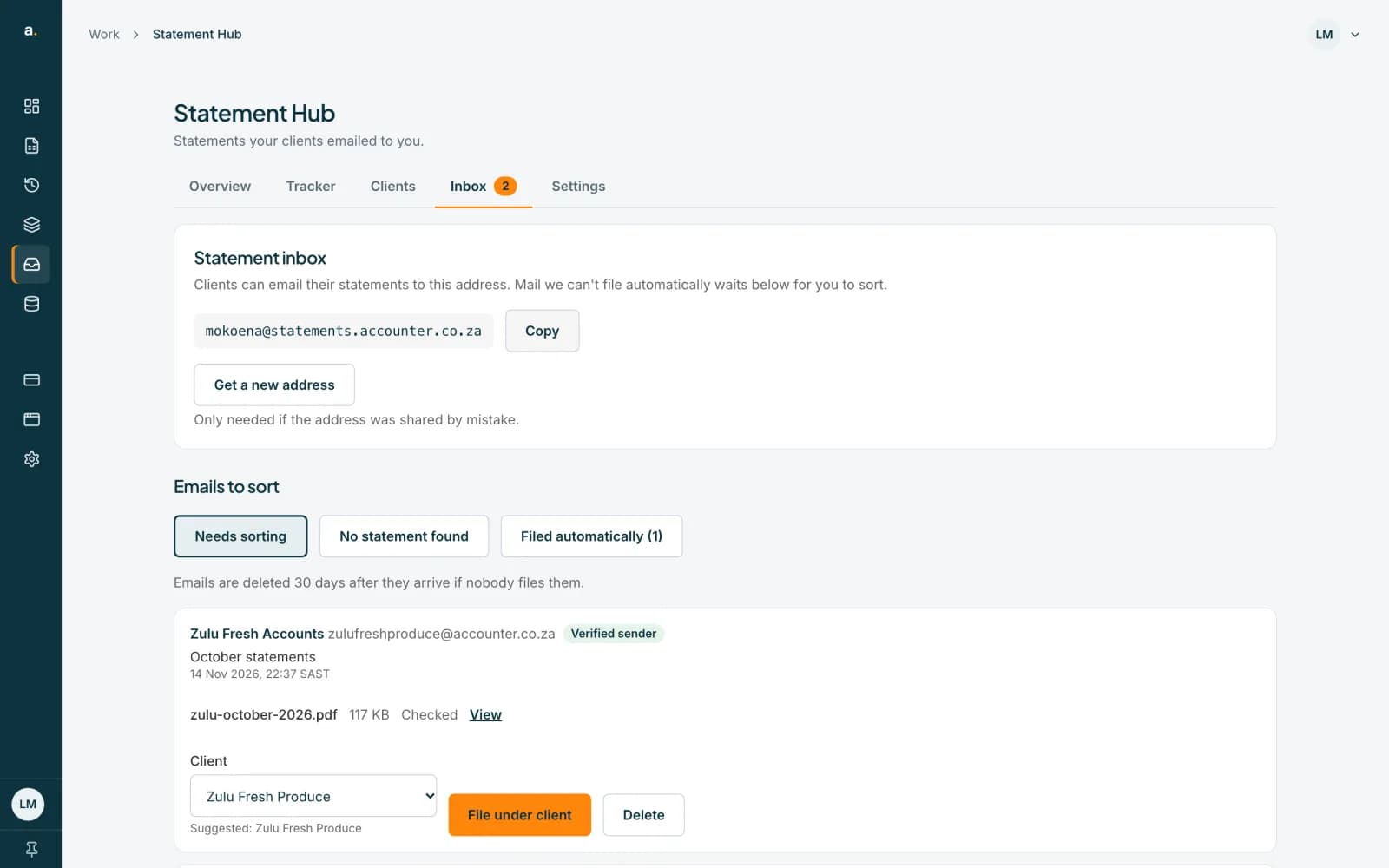
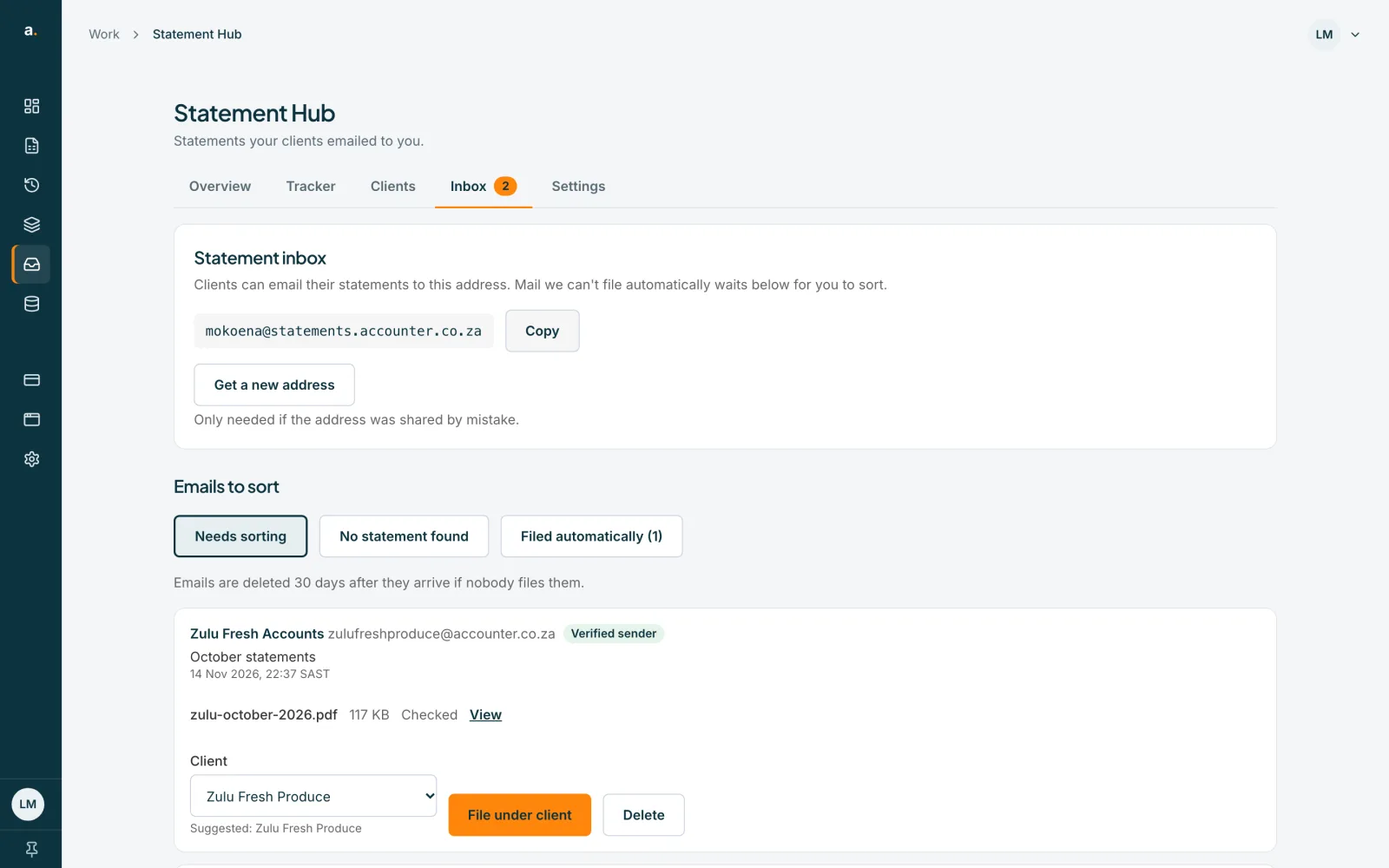
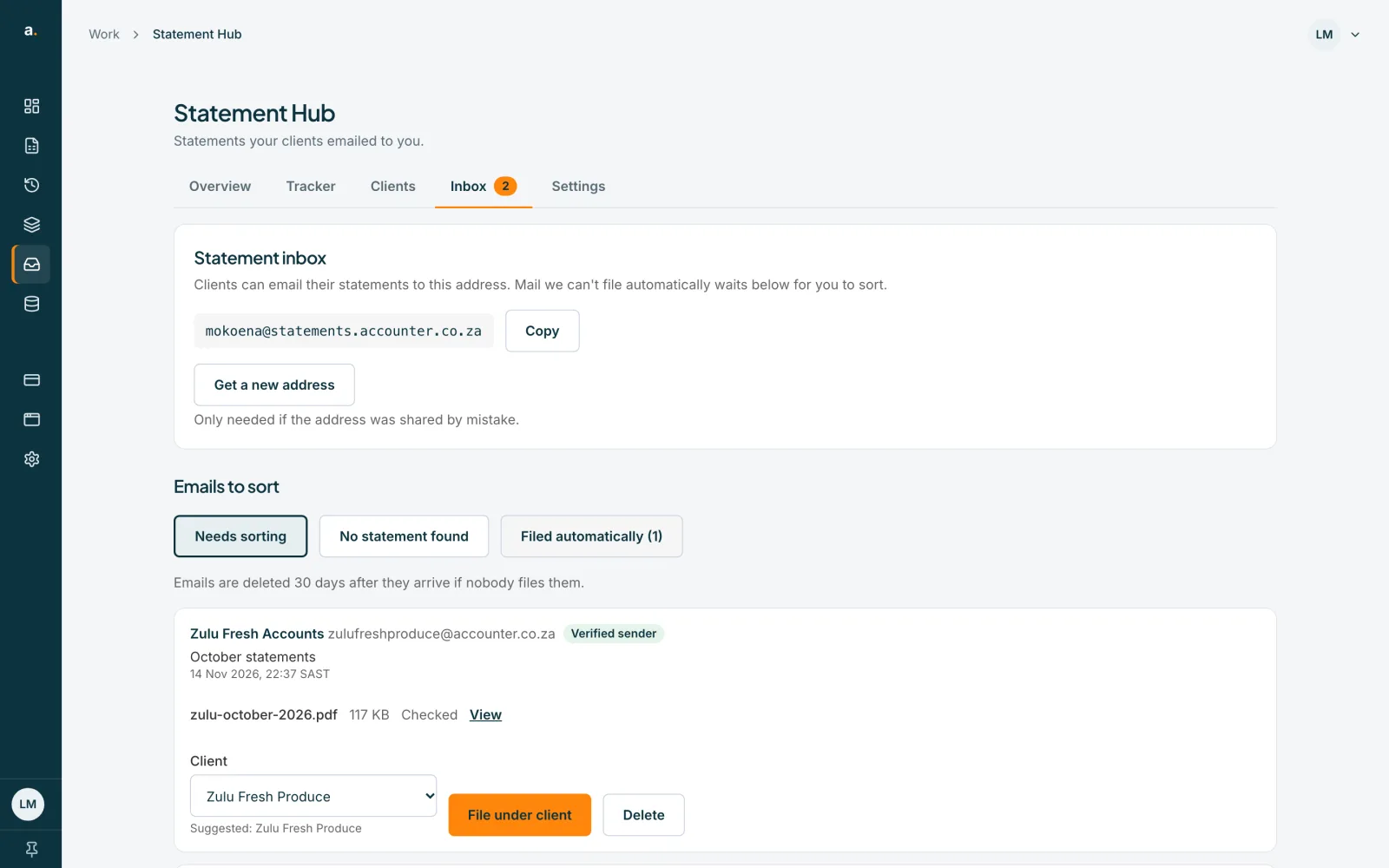
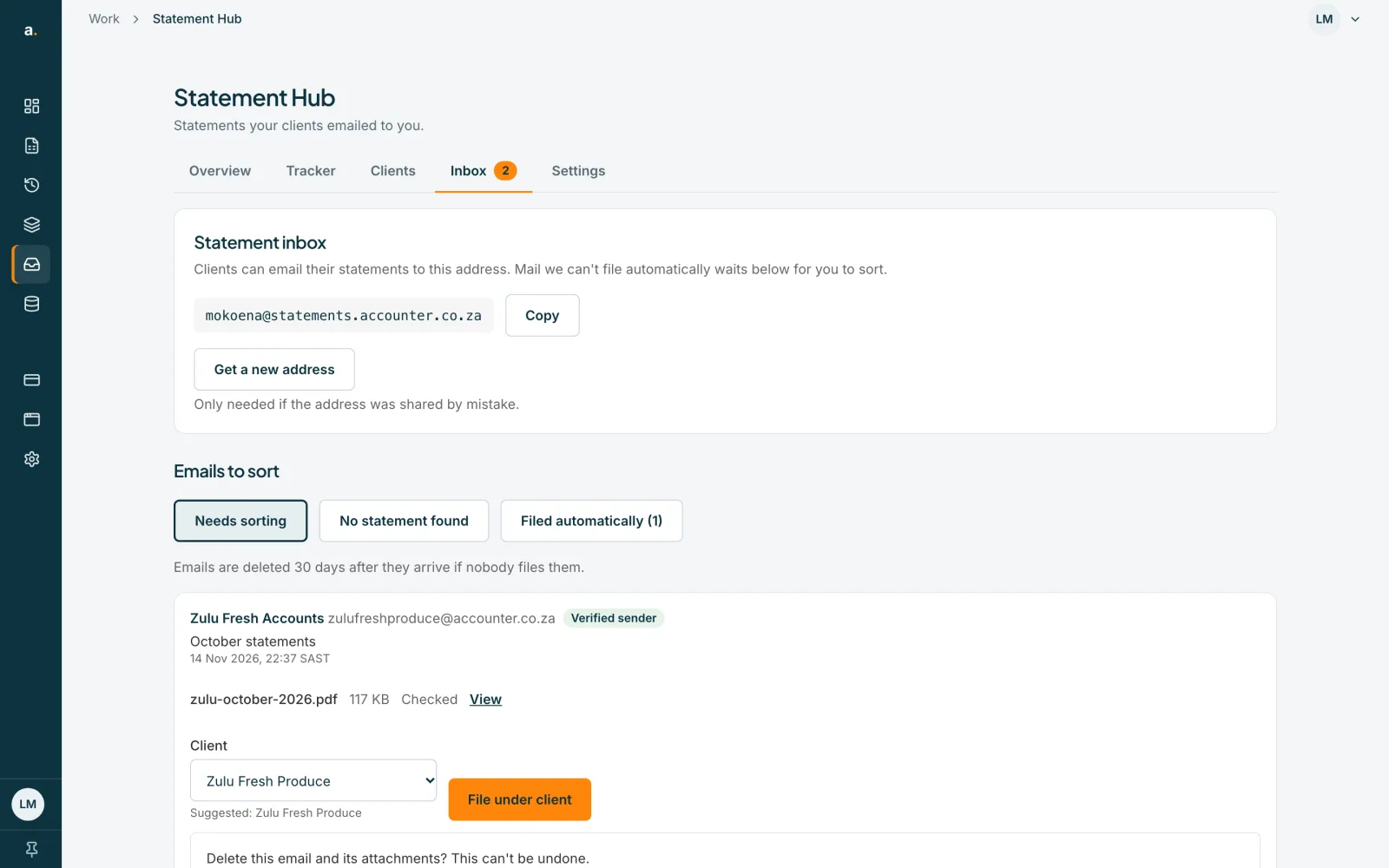
Open Needs sorting
On the Inbox tab, Needs sorting lists emails the inbox could not file by itself. Each shows the sender, whether it is a Verified sender or an Unverified sender, and its attachments. Press View beside an attachment to look at it.
 Open full size screenshot for step 1
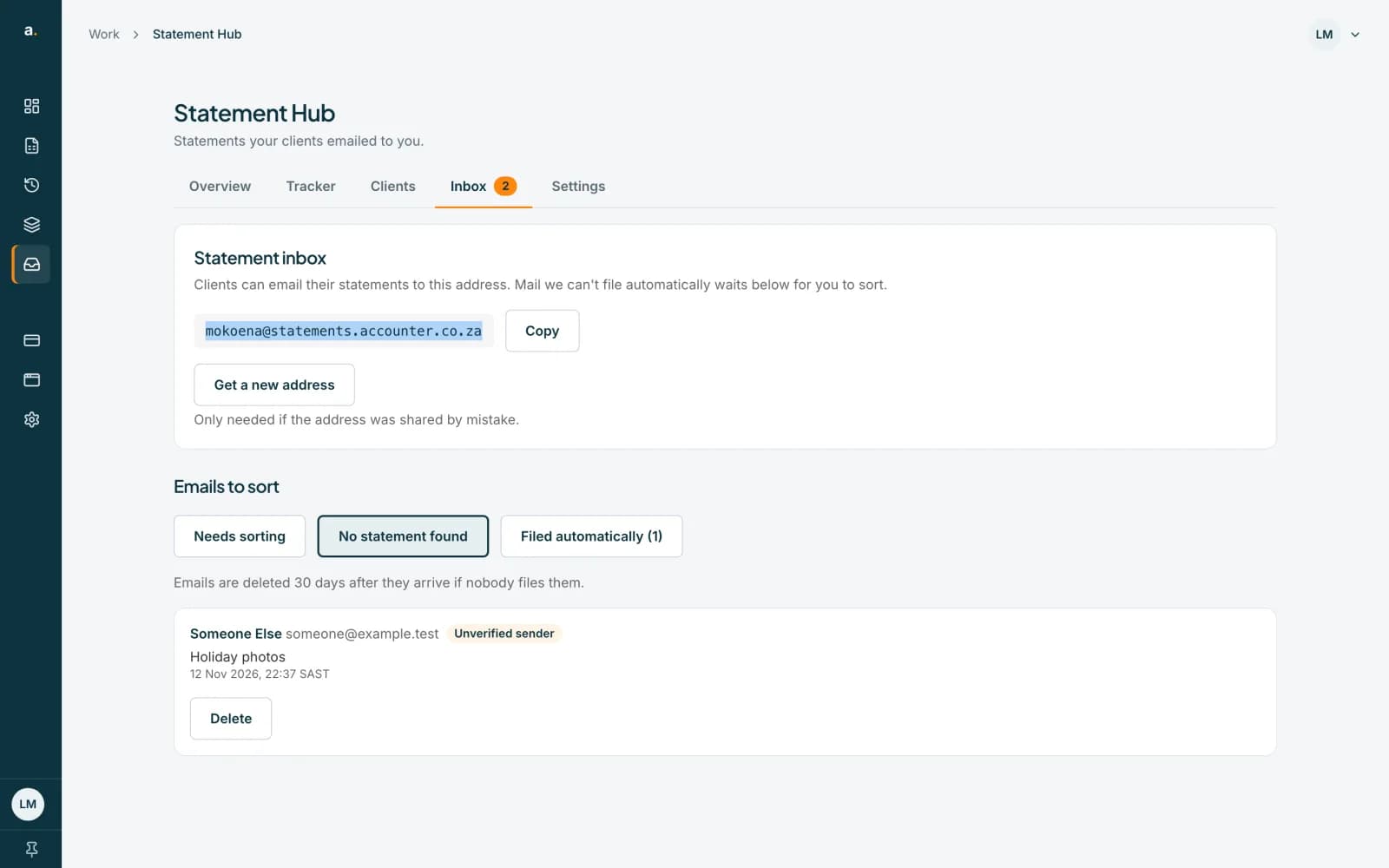
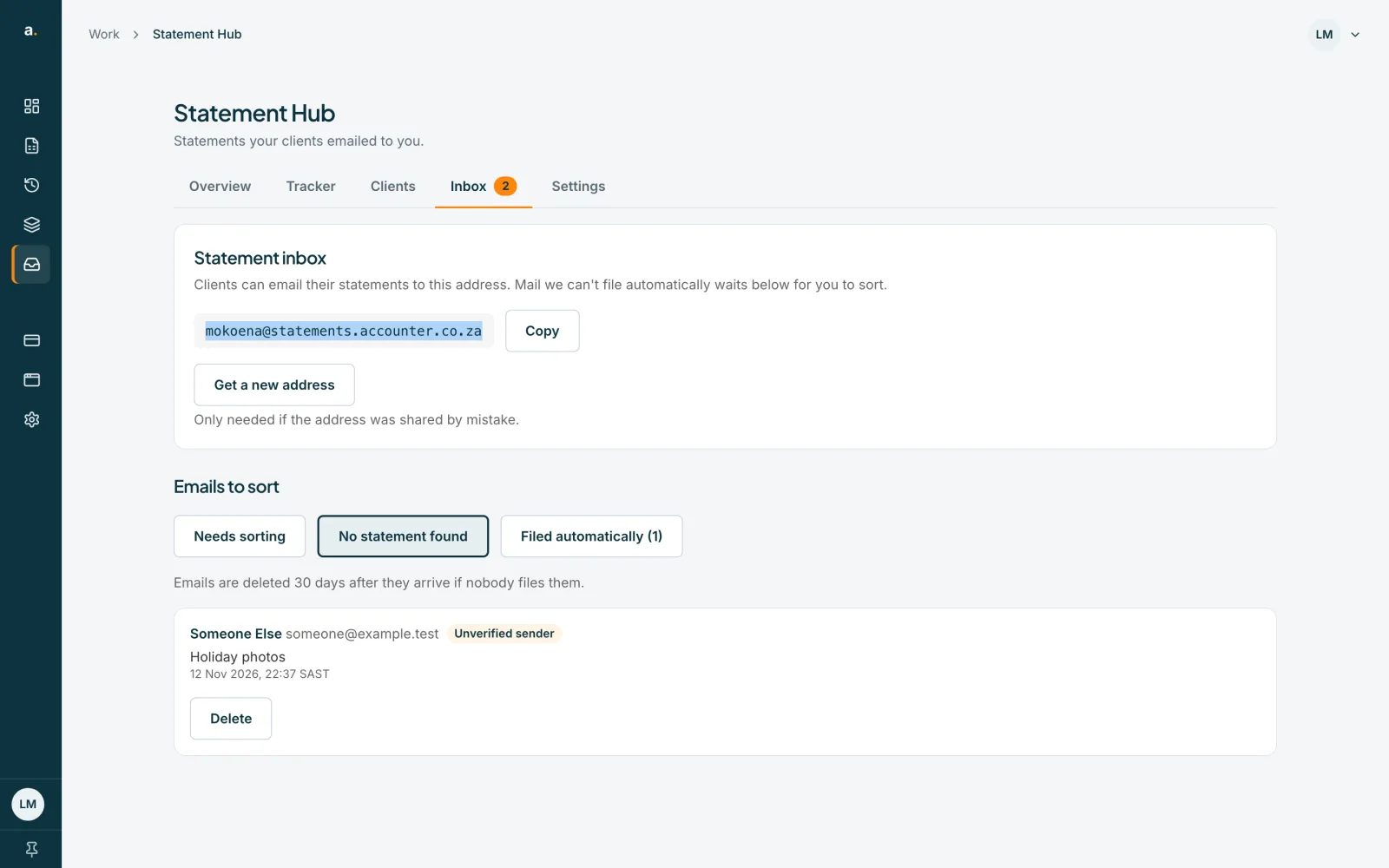
Check No statement found
No statement found lists emails with no usable PDF. Nothing is filed from these. Delete them, or ask the client to send the PDF again.
 Open full size screenshot for step 2
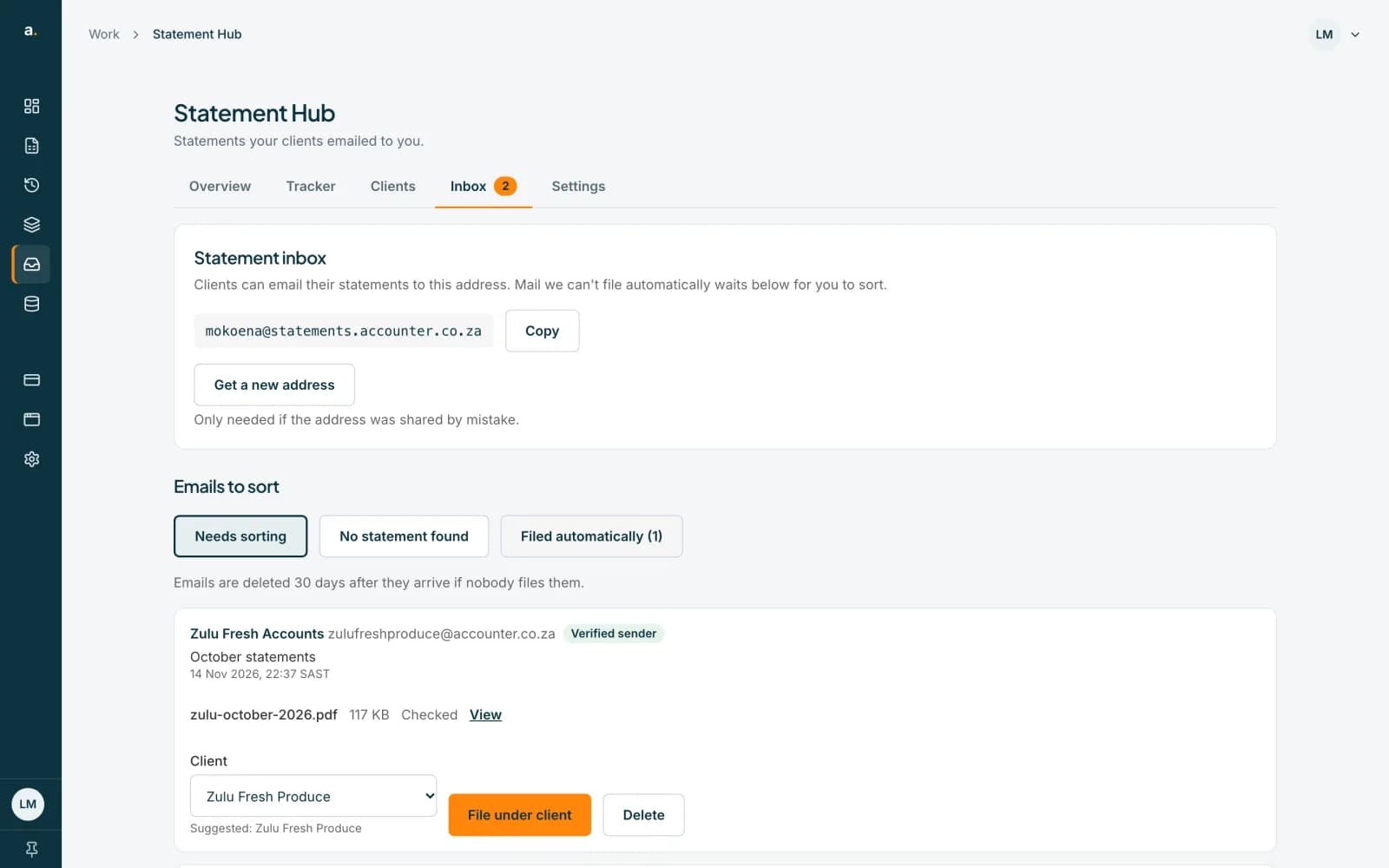
File an email under a client
Under Client, press Choose a client, pick the client, then press File under client. A message says how many statements were filed.
 Open full size screenshot for step 3
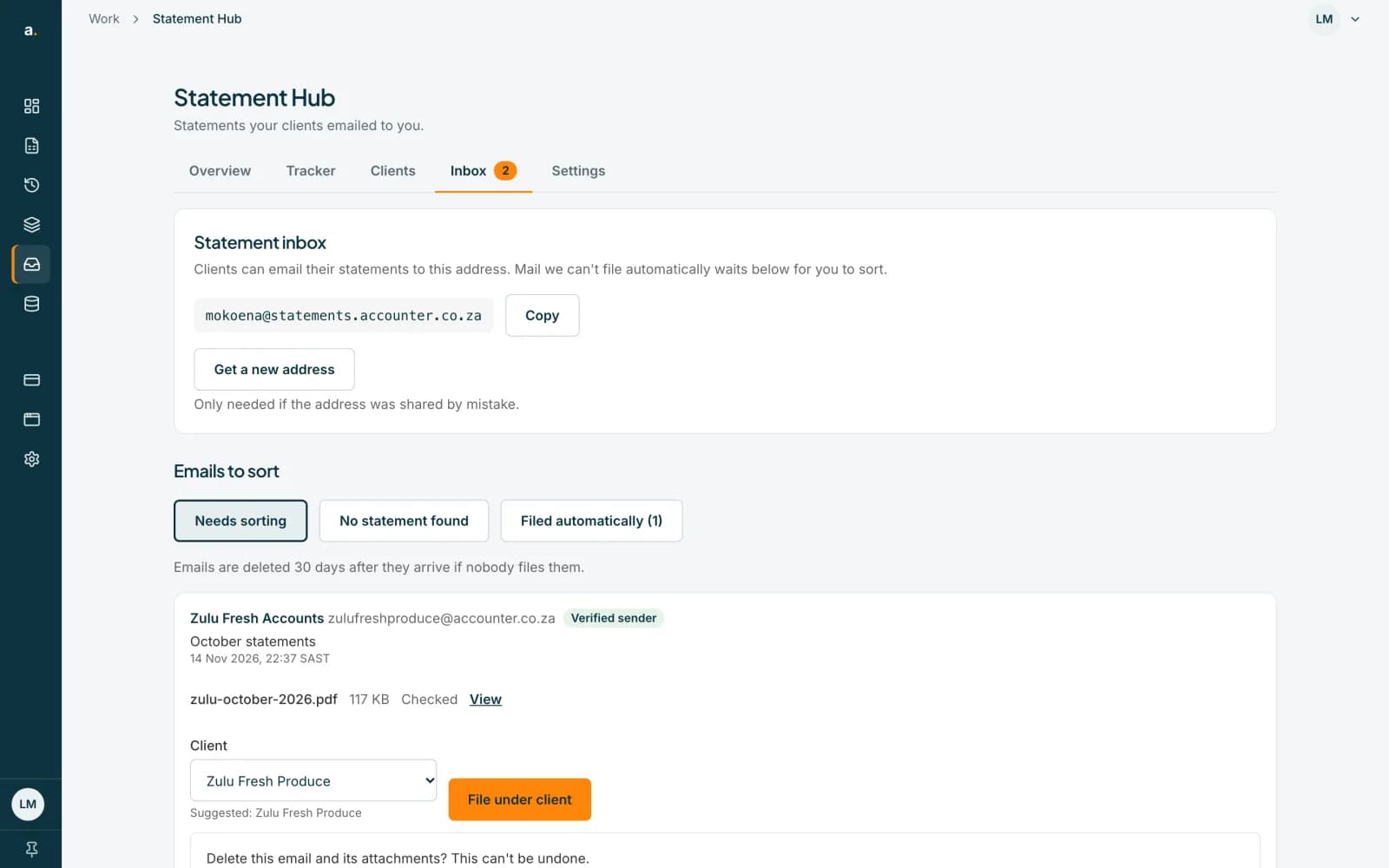
Delete an email
Press Delete. A panel asks Delete this email and its attachments? This can't be undone. Press Delete email, or Cancel.
 Open full size screenshot for step 4
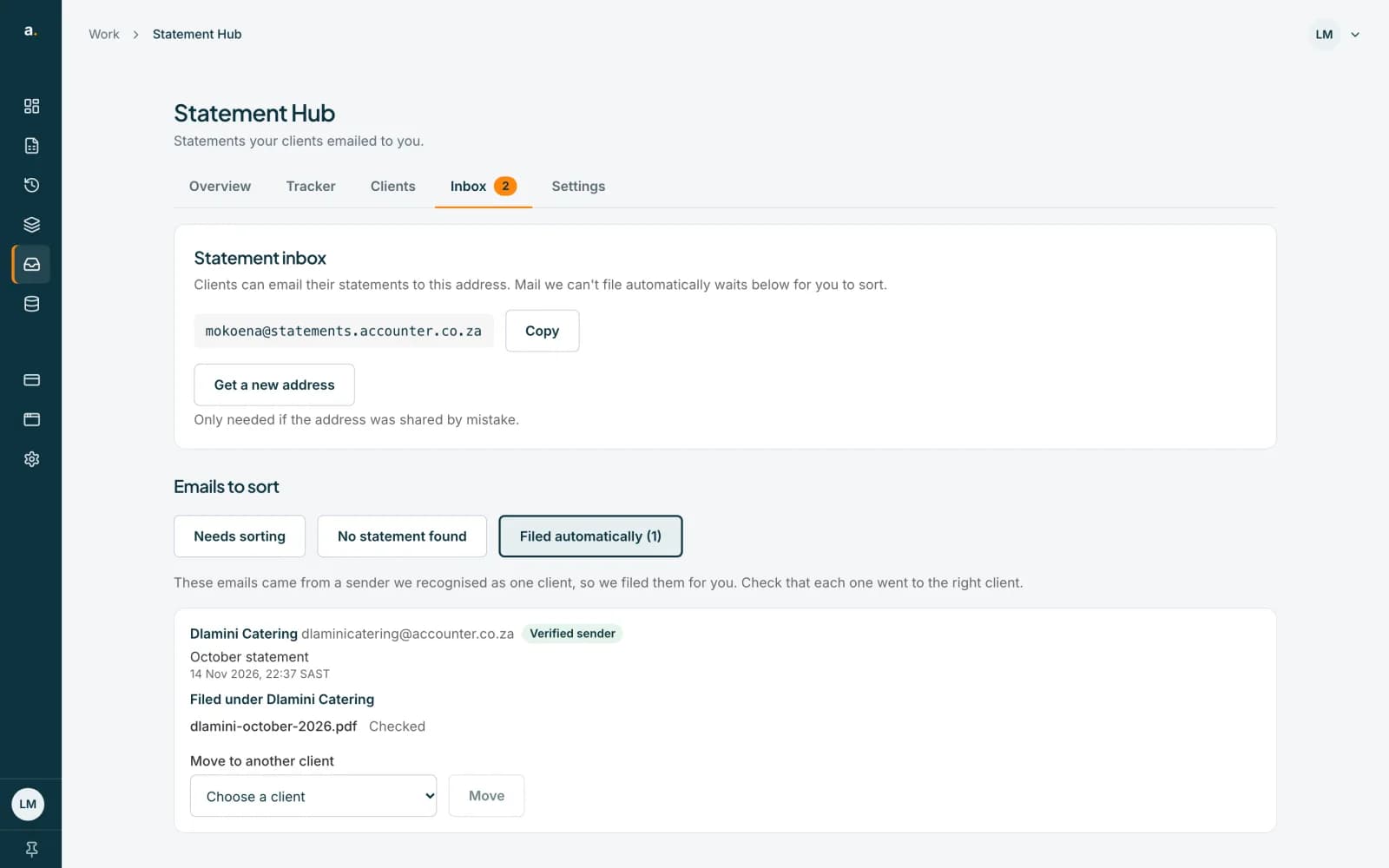
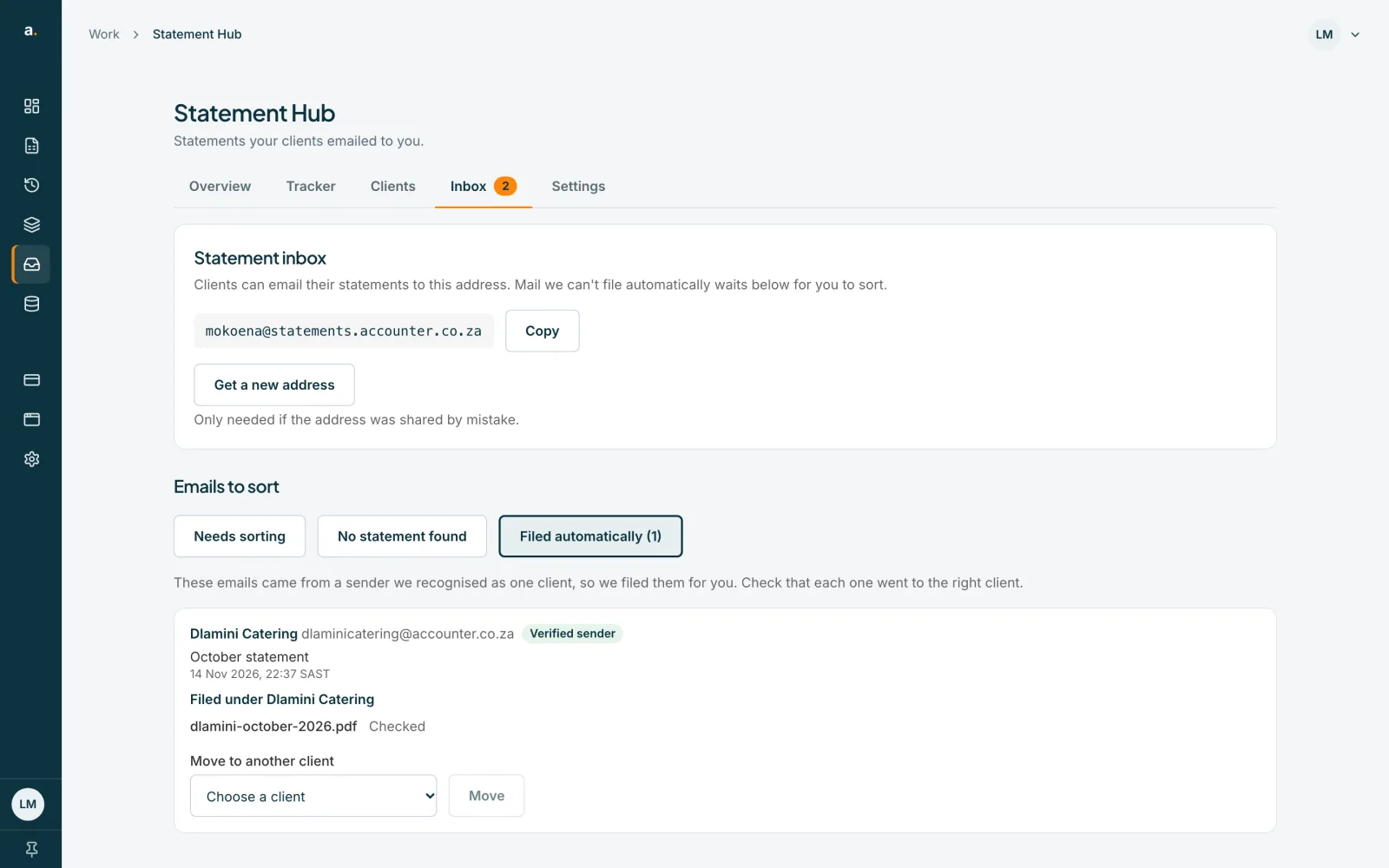
Check Filed automatically
Filed automatically shows the last 14 days of emails we filed for you, because the sender was verified and matched a client. It says Filed under the client. If it went to the wrong client, choose another under Move to another client and press Move.
 Open full size screenshot for step 5
Tips
- A locked PDF can be filed. The client is emailed a link to type the password, or you can unlock it yourself on the client's sheet.
- A statement that is already converting cannot be moved. Open the client to manage it.
- Emails nobody files are deleted 30 days after they arrive.
If something goes wrong
- You see Some files are still being checked. Try again in a moment.
- The attachments are not ready yet. Wait a little and press File under client again.
- You see Someone else is filing this email right now.
- Refresh and try again.
- You see A PDF in this email was over 50 MB and wasn't kept.
- Ask the client to send it another way, or as smaller files.
- You see We couldn't process this email.
- Open it in your own mail app, or ask the client to send it again.
Related guides
- Set up your Hub inbox and email-in addressCreate your firm's Hub inbox address so clients can email statements in, and see how those emails are handled.
- Get a new Hub inbox addressReplace your firm's Hub inbox address if it was shared by mistake. The old address stops working straight away.
- Handle files that need a lookFind files that were blocked, could not be checked or are locked, and unlock a locked statement with its password.